How to Play AVI Files on Windows and Mac: A Complete Guide

Summary: AVI files refuse to play because the format is a container that can hold video encoded in dozens of different codecs, and most built-in players do not cover them all. On Windows, PlayerFab Free Video Player handles the full codec range at no cost. On Mac, QuickTime cannot open most AVI files natively, and VLC is the reliable free solution. This guide walks through the instructions for both platforms, plus fixes for the common AVI playback problems: choppy video and audio that drifts out of sync.
Table of Contents
If you've ever tried to open an AVI file on a Mac and been greeted by QuickTime's "can't open files in this format" message, or hit a codec error in Windows Media Player on a file that worked fine on a different machine, you've run into a problem that has been around for decades. AVI is one of the oldest video container formats still in wide use, and that age is exactly what makes it inconsistent. This guide covers what causes the problem, which players solve it on each platform, and how to handle the two issues that come up most often after you get the file playing.
Why AVI Files Won't Play on Windows or Mac
Before getting into fixes, it is worth spending two minutes on what is actually happening when an AVI file refuses to open. The reason is not random.
AVI Is a Container, Not a Single Format
AVI stands for Audio Video Interleave, a container format Microsoft introduced in 1992. Like MKV or MP4, an AVI file is a wrapper that holds a video stream and an audio stream inside. The codec (the actual compression algorithm used to encode and decode the footage) lives inside the container, and it varies from file to file.
Common video codecs found inside AVI files include DivX, XviD, H.264, MPEG-4, and several older Indeo variants. Audio inside AVI is frequently MP3, AC3 (Dolby Digital), or AAC. When you open an AVI file, the player identifies which codec was used and calls on the matching decoder. If that decoder is not installed or not built into the player, playback fails. This is why the same player can handle one AVI file perfectly while refusing to open another.
Common Errors When AVI Files Fail to Open
Here is what those failures look like in practice:
- Windows Media Player error: "Windows Media Player encountered a problem while playing the file" — the player is missing the codec for the video or audio stream inside that specific AVI.
- QuickTime on Mac: "The document 'filename.avi' could not be opened. QuickTime Player can't open files in this format." — QuickTime lacks native support for most AVI codecs.
- Video plays, no audio (or audio plays, no video): The player has one decoder but not the other. A file with XviD video and AC3 audio may display video silently if the player handles XviD but lacks an AC3 decoder.
How to Play AVI Files on Windows
Windows ships with a built-in player, and there is a better free option. Here is how each one works and where each one falls short.
PlayerFab Free Video Player: Step-by-Step Setup
PlayerFab Free Video Player bundles its own codec library, which means it handles DivX, XviD, H.264, MPEG-4, and the audio formats commonly paired with them, without requiring separate codec pack installation. It is free, runs on Windows 7 through 11, and includes a media library with poster-wall browsing for users who maintain a local video collection.
Step 1. Download the installer from playerfab.dvdfab.cn/free-video-player.htm, run it, and follow the setup wizard. Installation takes under two minutes.
Once PlayerFab is installed, there are three ways to open an AVI file directly without setting up a library:
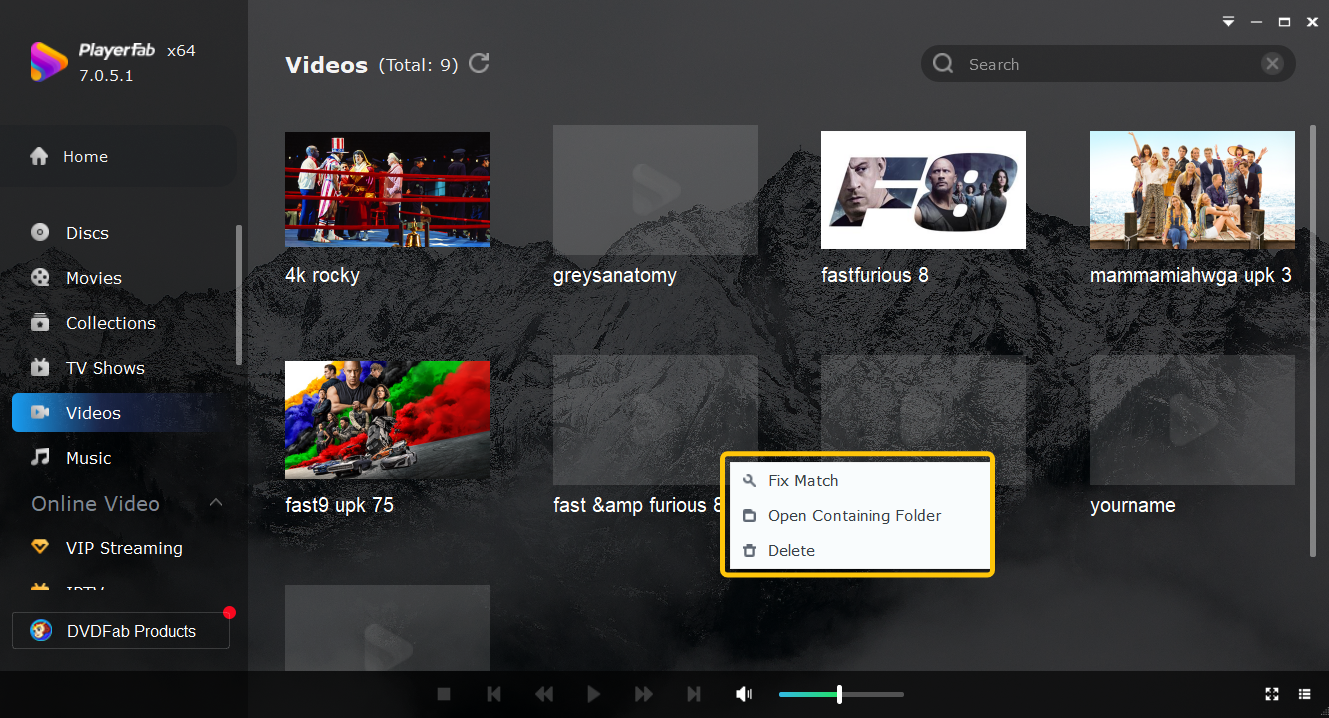
Method 1. Drag and drop: Open PlayerFab, then drag your AVI file from File Explorer directly onto the PlayerFab interface. Playback starts immediately.
Method 2. Right-click from File Explorer: Navigate to your AVI file, right-click it, and select Play with PlayerFab (or Open with > PlayerFab). The file opens in PlayerFab without needing to launch the application first.
Method 3. Open from the menu bar: Launch PlayerFab and select Open from the top menu bar (or press Ctrl+O), navigate to your AVI file, and click to open it.
All three methods start playback with no metadata scanning or folder indexing required. PlayerFab uses GPU hardware acceleration by default (AMD, NVIDIA, and Intel Quick Sync are all supported), which keeps CPU usage low even on high-bitrate AVI files.
What PlayerFab Free Video Player handles:
- DivX and XviD video — the two codecs that trip up Windows Media Player most often
- H.264, MPEG-4, MPEG-2 video inside AVI containers
- MP3, AC3, AAC audio streams
- No separate codec pack installation needed
One important limit: PlayerFab Free Video Player runs on Windows only. Mac users should skip to the next section.
Windows Media Player: the Built-In Option and Its Limits
Windows Media Player is already on your system and handles a subset of AVI files without any setup. Here is how to use it and where it stops working.
Step 1. Right-click your AVI file in File Explorer and select Open with → Windows Media Player (or Media Player on Windows 11, which is the updated version of the same application).
Step 2. If WMP has the necessary decoder, playback starts immediately.
Step 3. If the codec is missing, WMP displays an error. An option to "search the web for the correct codec" may appear, but this online lookup service has been unreliable for years and is not a dependable fix.
When WMP works: AVI files encoded with H.264 or standard MPEG-4 video generally play without issues. Most AVI content produced in the past ten years falls into this category.
When WMP fails: Older AVI files using DivX or XviD video (common in files from the early 2000s through mid-2010s) trigger the codec error reliably. Installing a third-party codec pack such as K-Lite resolves this for WMP, but it modifies system-level codec registrations, which can create compatibility side effects with other applications. Switching to PlayerFab is a cleaner alternative that does not touch the system codec layer.
How to Play AVI Files on Mac
macOS handles most modern video formats without third-party software, but AVI has always been an exception. The reason is built into how QuickTime works.
Why QuickTime Player Cannot Open AVI Files
QuickTime Player does not natively support the DivX and XviD codecs that the majority of AVI files rely on. It never has. The historical workaround was Perian, an open-source plugin that extended QuickTime to handle AVI, MKV, and other formats. Perian was officially discontinued in 2012 and is incompatible with macOS Catalina (10.15) and every later release. Installing it on a modern Mac either fails silently or causes instability.
The result is that double-clicking an AVI file on macOS Ventura, Sonoma, or Sequoia opens QuickTime, which displays the format error, and nothing plays. This is the expected behavior of a player without the required codecs, not a bug or a broken installation. The fix is a player that bundles its own decoders.
VLC Media Player for Mac: Step-by-Step
VLC is an open-source player that ships with its own codec library, completely independent of macOS's native codec support. It does not rely on QuickTime or CoreMedia for AVI decoding, which is why it plays AVI reliably across every macOS version.
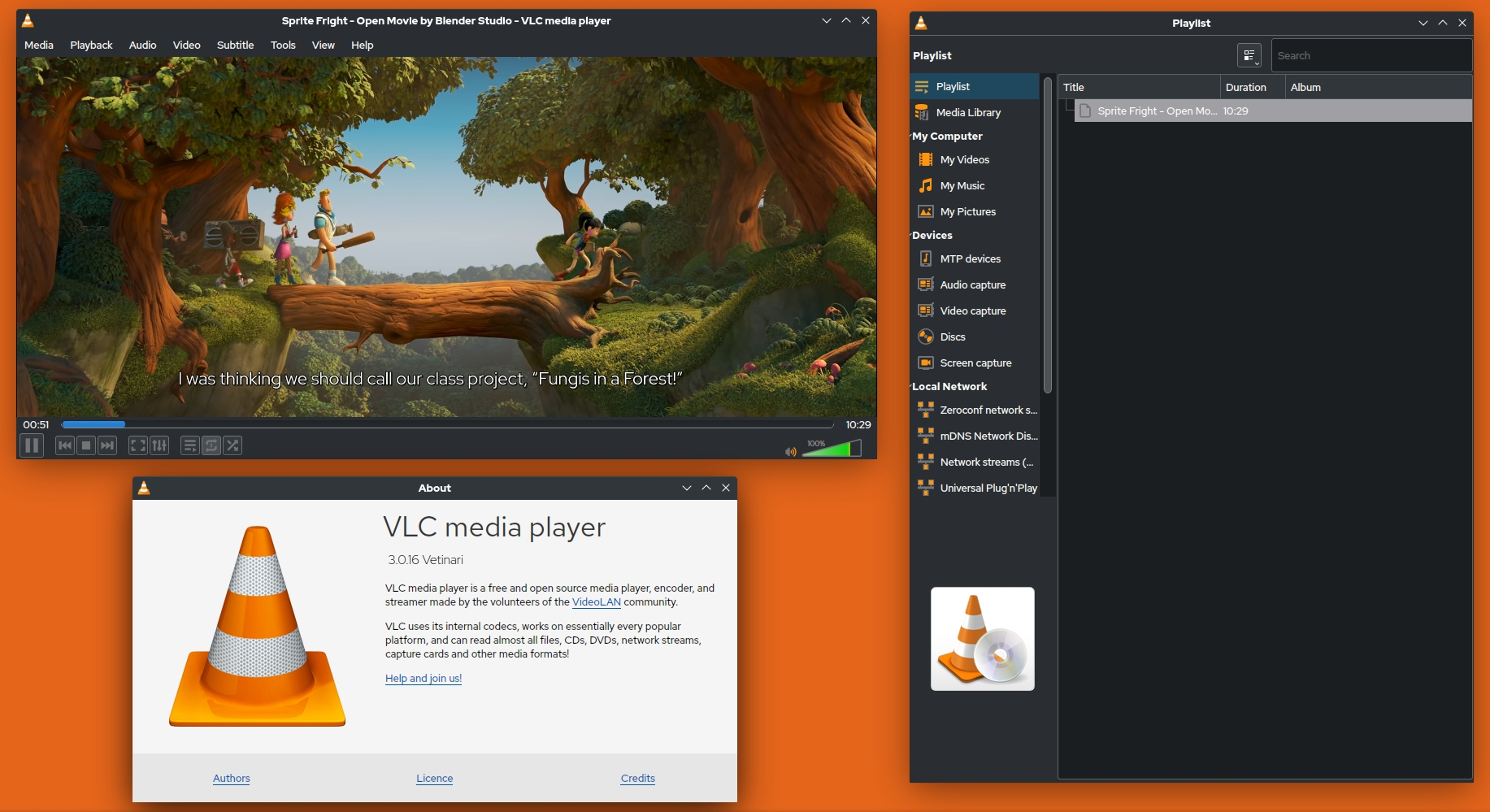
Step 1. Go to videolan.org/vlc. The page detects macOS automatically. Click Download VLC, open the downloaded .dmg file, and drag the VLC icon into your Applications folder.
Step 2. The first time you launch VLC, macOS Gatekeeper may display "VLC cannot be opened because it is from an unidentified developer." Go to System Settings → Privacy and Security and click Open Anyway next to the VLC entry. This is a one-time action.
Once VLC is installed, there are three ways to open an AVI file:
Method 1. Open VLC, then drag your AVI file from Finder directly onto the VLC window. Playback starts immediately.
Method 2. In-app file open: In VLC, go to File → Open File (or press Cmd+O), navigate to your AVI file, and click Open.
Method 3. Right-click from Finder: Right-click your AVI file in Finder, select Open With, and choose VLC. To make this the default for all .avi files, right-click any AVI file, select Get Info, change the Open with field to VLC, and click Change All.
VLC includes decoders for every AVI variant in common circulation: DivX, XviD, Indeo, H.264, and all audio formats typically found inside AVI containers.
Tips for Smoother AVI Playback on Any System
These two problems come up often enough with AVI files specifically that they are worth covering directly.
Enable Hardware Acceleration to Fix Choppy AVI Playback
High-bitrate AVI files, particularly older DivX-encoded movies ripped at high quality, can cause stuttering on weaker CPUs when decoded entirely in software. Hardware acceleration offloads video decoding to the GPU, which handles it more efficiently and frees the CPU for other tasks.
- In PlayerFab (Windows): Press F5 to open Settings (or right-click during playback and select Settings) → Video → enable Hardware Acceleration Decoding. PlayerFab detects AMD, NVIDIA, and Intel Quick Sync hardware automatically.
- In VLC (Mac): Go to VLC menu → Preferences → Video. In the Hardware-accelerated decoding dropdown, select VideoToolbox (Apple's native GPU decoding framework) or Automatic. Click Save and restart VLC.
If enabling hardware acceleration introduces visual artifacts on a specific file, that file was encoded in a way the GPU decoder handles poorly. Switching back to software decoding resolves the artifacts at the cost of higher CPU usage.
Fix AVI Audio Sync Issues Without Reinstalling
AVI stores audio and video in an interleaved structure built around a fixed frame rate. Files encoded at variable frame rates (common in screen recordings and some older rips) can develop a drift where audio gradually falls out of sync with the video. This is one of the format's oldest structural limitations.
- In PlayerFab: GPress F5 to open Settings → Audio → Audio Offset. Enter a positive value in seconds to delay audio, or a negative value to advance it. Start with small adjustments (0.05–0.1 seconds) and check sync at a mid-file point rather than the very start.
- In VLC: During playback, go to Window → Track Synchronization. The Audio/Video field accepts an offset in seconds (decimals supported). Enter 0.100 to delay audio by 100ms or -0.100 to advance it.
If the drift worsens progressively over a long file rather than staying constant, the cause is variable frame rate encoding. Remuxing the file into MKV using MKVToolNix (free, available on both platforms) lets you bake in a corrected offset permanently, rather than adjusting it every time the file is opened.
Frequently Asked Questions
Can Windows 11 play AVI files without extra software?
Why does my AVI file play video but have no sound?
Is there a free way to play AVI files on Mac?
Conclusion
Most AVI playback failures come down to one thing: the player does not have the codec the file was encoded with. That is a solvable problem, and the solution does not involve codec packs, system-level changes, or converting the file. It means switching to an AVI player that bundles its own decoders.
On Windows, PlayerFab Free Video Player covers that gap at no cost. On Mac, VLC is the reliable standard. Either way, the same file that throws an error in the default player opens without issue once you have the right tool in place. If choppy video or audio drift shows up afterward, the Pro Tips section above handles both without any reinstallation.

 How to Open MP4 Files on Windows 11: 4 Reliable FixesBy Alice Harper - Aug 10, 2026
 9 Best Free FLV Players for Windows, Mac, and Mobile (2026)By Alice Harper - Aug 4, 2026
 13 Best Free MP4 Players for Windows & macOS: Hands-on Review in 2026By Alice Harper - Aug 3, 2026
 How to Play MOV Files on Windows 10/11, Including iPhone HEVC, ProRes & 4K HDRBy Alice Harper - Jul 30, 2026