8 Best DVD Players for Windows 10/11 (Free and Paid, 2026)

Summary: This guide compares eight DVD players for Windows 10 and 11, including free, trial-based, and paid options. It explains menu and disc support, Windows compatibility, older-PC fit, official download sources, and a practical three-step setup check so you can choose software without assuming every free label means the same thing.
Table of Contents
If you searched for a free DVD player for Windows 10 or a free DVD player for Windows 11 because a disc spins but never starts, the missing piece may be the player, its build, the drive region, renderer settings, or the disc itself. This guide narrows the choice to eight Windows DVD player options, then shows what to check first.
My practical rule is to choose around the disc you actually own. Standard home-authored DVDs need less software support than commercial discs with menus, while an older laptop benefits more from a small installation than from an elaborate media library.
Best DVD Players at a Glance
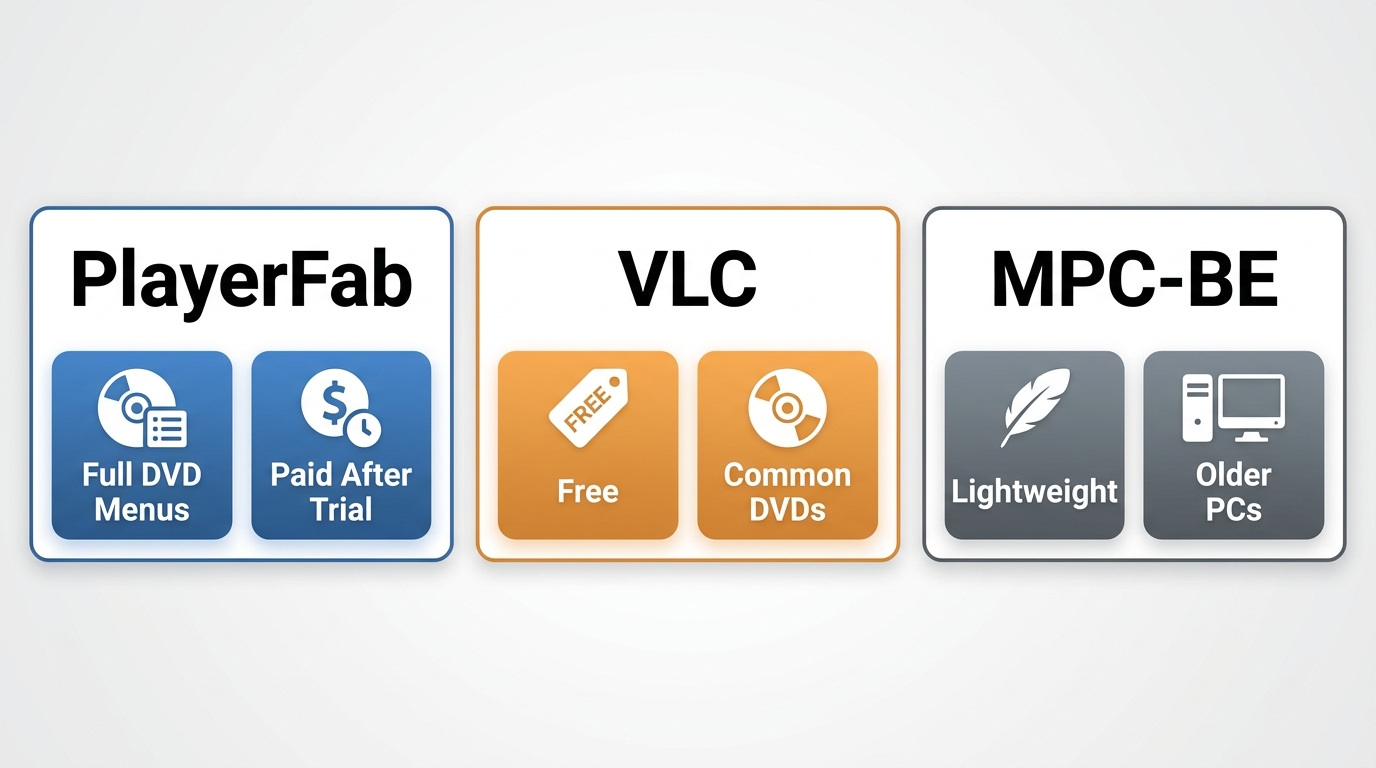
The strongest first choices cover three different needs: full disc navigation, no-cost general playback, and low resource use. None is the right Windows DVD player for every disc or PC.
- PlayerFab DVD Player: Suits readers who want full navigation menus, Main Movie Mode, a polished library, and support for region-code-free playback on authorized discs where permitted by applicable law. It runs on Windows 10 and 11 and offers a limited free trial before paid use. It is less suitable if you need a permanently no-cost, lightweight app. Use the PlayerFab DVD Player product page as the official path.
- VLC Media Player: A genuinely free, open-source starting point for standard media and many DVDs on Windows 10 and 11. Its meaningful limitation is inconsistent menu or commercial-disc behavior. The official source is listed in the comparison footnote.
- MPC-BE: A free Windows DVD player for readers who value a compact interface and low overhead. It fits older PCs well, but DVD menus and commercial-disc support are limited. The official project source is listed in the comparison footnote.
 Before installing anything, confirm that Windows can see the optical drive. If the drive is missing from File Explorer or Device Manager, solve that hardware or driver issue before comparing player apps.
Detailed Reviews of 8 DVD Players
These DVD player software reviews focus on the trade-offs that affect normal Windows use: licensing, menu response, commercial-disc handling, setup effort, and hardware fit. The free DVD player software entries are not treated as interchangeable.
PlayerFab DVD Player
PlayerFab DVD Player is built for readers who want a disc-player-style interface rather than a basic file window. For discs you are authorized to use, where permitted by applicable law, it supports region-code-free DVD playback, full navigation menus, Main Movie Mode, and GPU-accelerated playback.
Its main advantage is workflow: menus, chapters, subtitles, audio tracks, discs, ISO images, and DVD folders stay inside one DVD player software interface. GPU acceleration can move video decoding work away from the CPU, which matters most when a laptop is also handling display scaling and subtitle rendering.
My fit judgment is straightforward. Choose PlayerFab when full disc navigation and lower setup effort matter more than installation size or a paid license. Skip it if you want the smallest permanently free player for standard discs.
- Useful strengths: full DVD menus, Main Movie Mode, library organization, and GPU-assisted playback.
- Limits: the full feature set requires a paid license after the trial, and the installation is larger than lightweight open-source players.
For this Windows guide, choose the Windows Free Trial. The publisher also provides a Mac Free Trial for its separate Mac build.
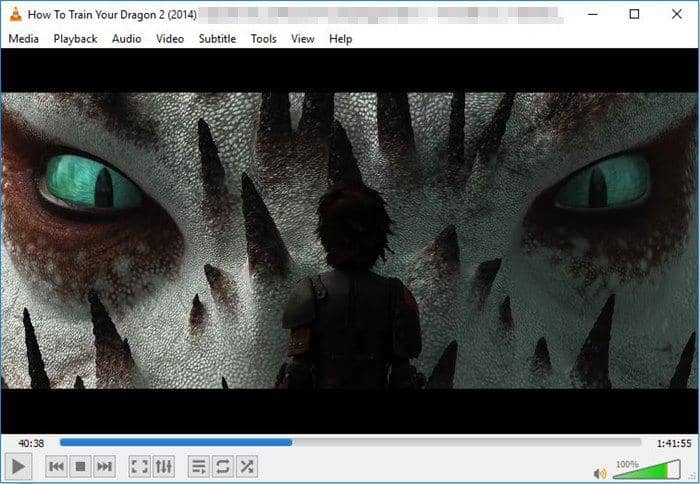
VLC Media Player
VLC is worth trying first when you need free DVD player software for standard media, home-authored discs, or quick file checks. It includes its own codec support, runs on Windows 10 and 11, and does not depend on a subscription.
DVD behavior is less predictable than ordinary file playback. Menus may loop, a commercial disc may fail to open, or a renderer issue may produce a green image even when the drive is working. Those symptoms call for a VLC DVD playback check, not an immediate assumption that the optical drive has failed.
I would start with VLC for ordinary media and uncomplicated DVDs. If repeatable menu, region, or renderer problems remain, a dedicated disc player is usually a cleaner choice than stacking extra components onto VLC.
- Useful strengths: no-cost open-source use, broad file playback, speed controls, and cross-platform availability.
- Limits: menu and commercial-disc behavior can require troubleshooting, and its interface prioritizes function over a disc-library experience.
MPC-BE
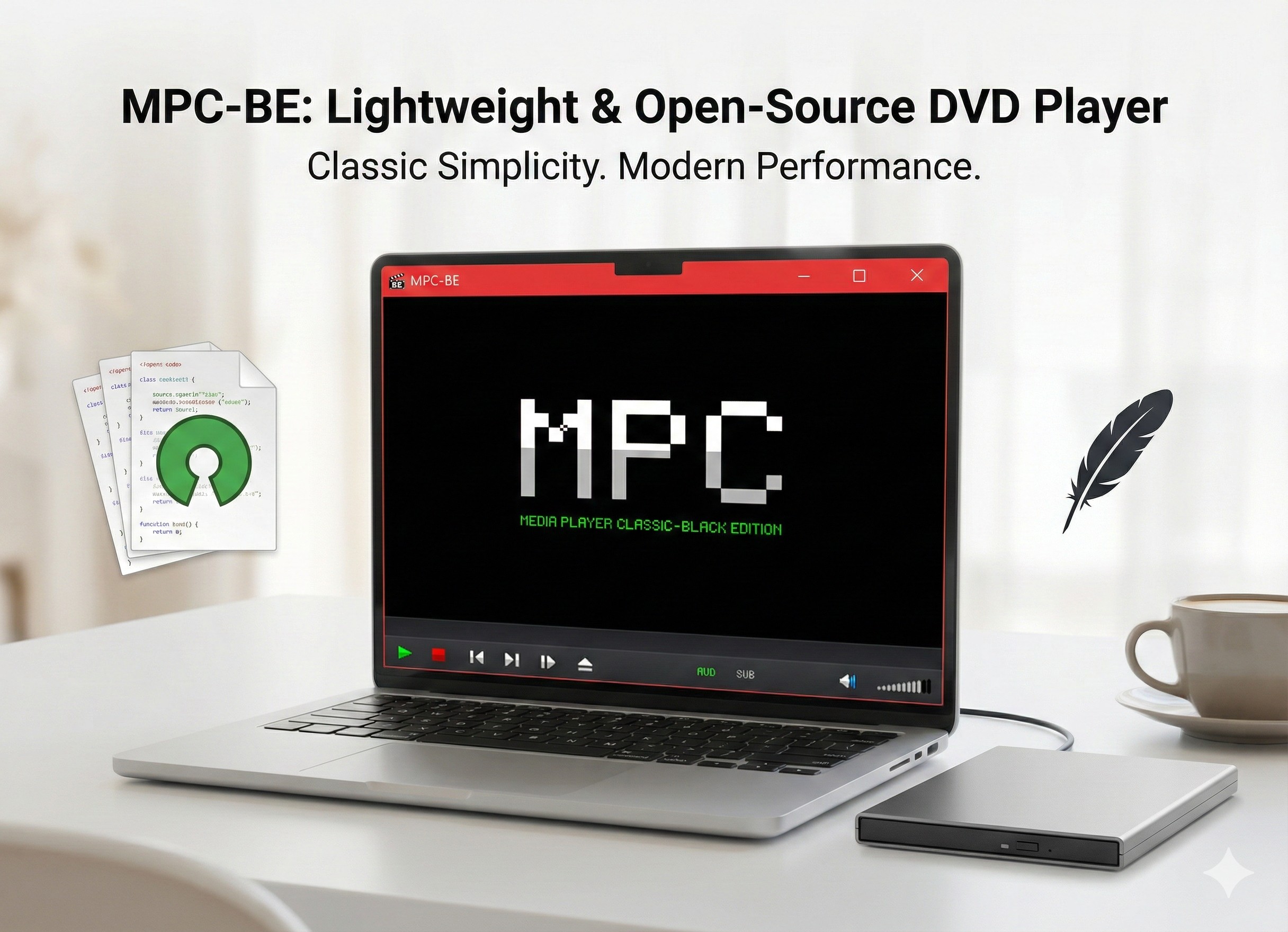
MPC-BE is a lean free Windows DVD player for people who prefer a compact desktop program and direct control over playback filters. It is a sensible match for older hardware when file playback matters more than polished disc menus.
The trade-off is disc handling. MPEG-2 video and common files are within its comfort zone, but commercial DVDs, region differences, and full navigation menus may require support that the default player does not provide. That makes it better for simple playback than for a large mixed-region DVD collection.
- Useful strengths: small footprint, portable builds, timeline previews, and detailed renderer controls.
- Limits: limited menu behavior and a setup process that assumes some familiarity with filters and renderers.
CyberLink PowerDVD
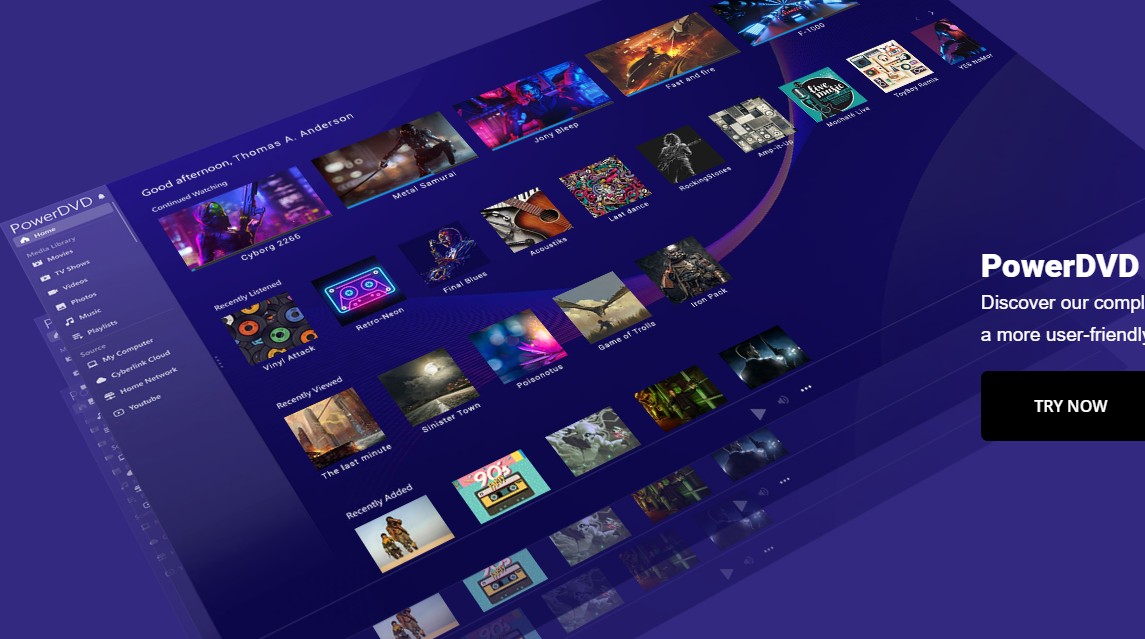
CyberLink PowerDVD is a paid Windows DVD player aimed at readers who combine physical discs with a broader home-media setup. Current Windows compatibility and disc features depend on the edition, so the selected build matters.
Its appeal is an integrated interface for disc menus, media organization, display adjustments, and audio output. The cost and background components make less sense for a PC that only needs occasional standard-DVD playback.
This is a fit based on product scope rather than a claim that paid software produces a better result on every disc. It suits readers who value a consolidated media environment; it is excessive for a low-spec machine used for simple playback.
- Useful strengths: full disc-oriented controls, media organization, and home-theater features in supported editions.
- Limits: paid licensing, edition-dependent features, and a heavier installation than VLC or MPC-BE.
GOM Player
GOM Player is a DVD player app with useful subtitle and file-repair tools, but the free edition's ads and upgrade prompts are part of the decision. It is more compelling for mixed local media than for a menu-first DVD library.
Subtitle timing, external subtitle discovery, screenshots, and repeat controls can help with foreign-language films or incomplete files. For physical discs, menu and commercial-disc behavior varies by build, so it should not be chosen on subtitle features alone.
My take is that GOM makes sense when subtitle handling is the priority and advertising is acceptable. Readers who want a quiet, disc-centered interface should look elsewhere.
- Useful strengths: subtitle controls, missing-codec guidance, capture tools, and repeat playback.
- Limits: ads or bundled offers may appear in free distribution, and disc navigation is not its clearest strength.
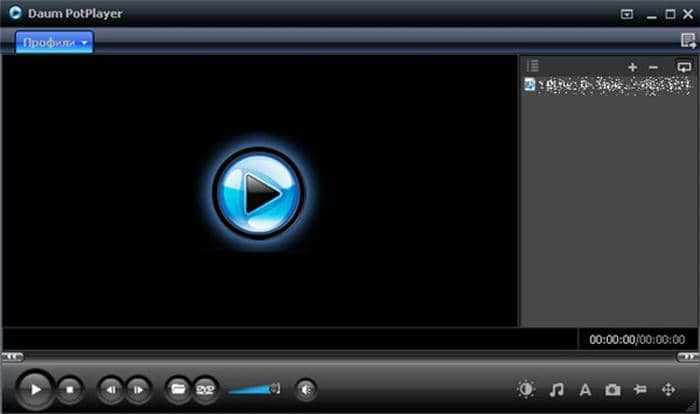
PotPlayer
PotPlayer remains attractive to technical users who want extensive renderer, shader, deinterlacing, and audio-output controls. Its current installer terms and disc features can vary by release, so treat it as a configurable media player rather than a settled menu-first DVD solution.
That flexibility is also the drawback. A setting change can alter audio routing, aspect ratio, or video output, which makes troubleshooting harder for readers who simply want a disc to start. The publisher source appears in the comparison footnote rather than as a promotional link in this review.
- Useful strengths: detailed playback controls, scene bookmarks, and flexible audio routing.
- Limits: a dense settings interface and configuration-dependent DVD behavior.
KMPlayer
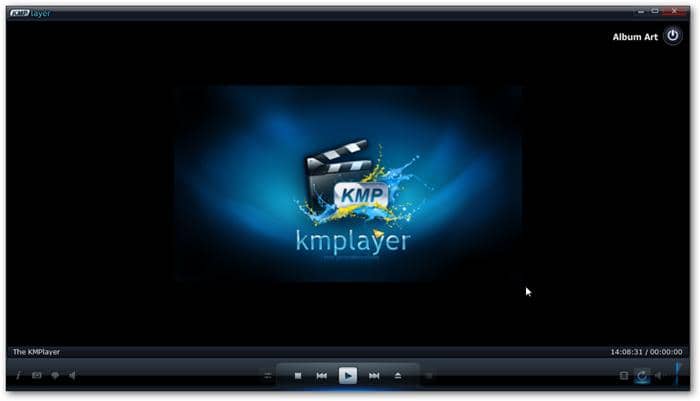
KMPlayer is DVD software for PC users who also play a broad mix of local video formats. Its DVD value lies in general playback tools, not in being a dedicated replacement for a hardware disc deck.
Current desktop builds provide extensive subtitle, seeking, capture, and display controls, while free-use advertising or promoted content may make the interface feel busy. Menu and commercial-disc support can vary with the build and disc.
Choose KMPlayer when one app must handle many local formats and you accept a feature-dense interface. For a minimal older PC or a menu-heavy disc collection, MPC-BE or a dedicated disc player is easier to justify.
- Useful strengths: broad local-media controls, subtitle adjustment, capture tools, and configurable playback.
- Limits: interface clutter, advertising in some free offerings, and less predictable DVD navigation than a dedicated player.
Leawo Blu-ray Player
Leawo Blu-ray Player combines DVD and Blu-ray-oriented playback in one interface, but current pricing, maintenance, region support, and upgrade prompts can vary by edition. Its value depends on the exact build available for the reader's Windows system.
The earlier test described a Region B disc loading where MPC-BE did not. That observation belongs to that disc and setup; it should not be treated as proof that every regional or commercial disc will behave the same way.
Leawo may fit readers who want one disc-oriented app and accept upgrade prompts. It is less attractive for an older PC when responsiveness and a small installation matter most.
- Useful strengths: disc-oriented controls, audio and subtitle selection, and support for multiple optical-media workflows in supported editions.
- Limits: edition-dependent features, upgrade prompts, and potentially heavier resource use than a lightweight player.
Windows Compatibility, Costs, and Disc Support
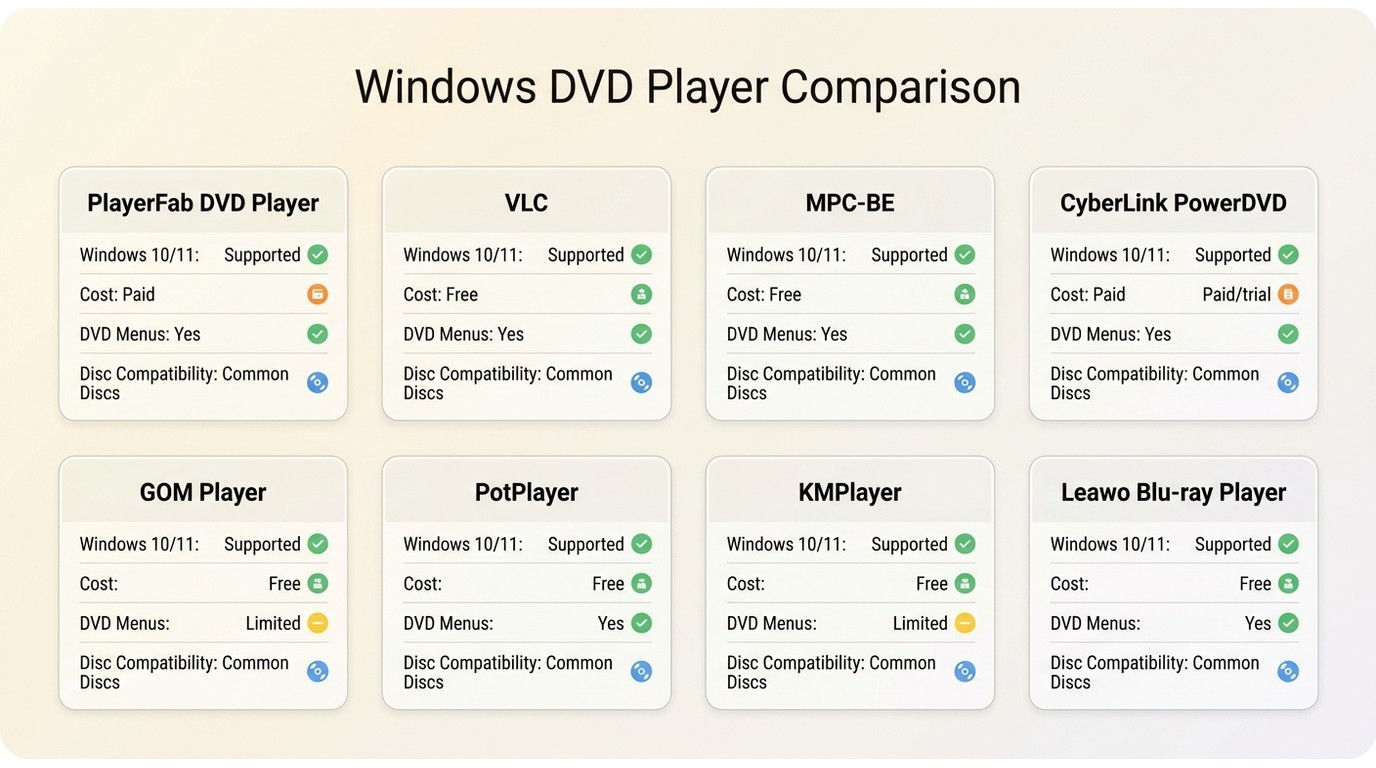
A useful Windows 10 DVD player comparison should make licensing and hardware fit as visible as menu support. The matrix keeps the core choices scannable; release-specific details that vary by edition stay out of the cells.
| Software | Cost and free-use limit | Windows fit | Older-PC fit | DVD menus | Commercial discs and regions | ISO or folder playback | Official source |
|---|---|---|---|---|---|---|---|
| PlayerFab DVD Player | Limited free trial; paid license for full use; no ad-supported free edition | Windows 10 and 11 desktop app | Better on a modern PC; larger install | Full navigation | Supports region-code-free playback for authorized discs where permitted | Yes | PlayerFab publisher |
| VLC Media Player | Genuinely free and open source; no subscription | Windows 10 and 11 desktop builds | Good | Variable by disc | Many standard DVDs; some commercial discs need troubleshooting | Files and folders; disc-image workflow varies | VideoLAN |
| MPC-BE | Genuinely free and open source | Windows desktop builds; choose the correct architecture | Very good | Limited | Standard discs; commercial-disc support is not built in | Files and folders; ISO workflow is limited | SourceForge project |
| CyberLink PowerDVD | Paid; trial or subscription terms depend on edition | Windows 10 or 11 support depends on current edition | Fair; heavier installation | Full in supported editions | Commercial-disc features depend on edition and drive | Edition-dependent | CyberLink publisher |
| GOM Player | Free edition with ads or offers; paid upgrades available | Windows desktop builds | Fair | Basic or variable | Build- and disc-dependent | Local files; disc-image support varies | GOM Lab publisher |
| PotPlayer | Free desktop app; installer offerings can vary by release | Windows builds; release support varies | Good after configuration | Configuration-dependent | Disc- and configuration-dependent | Local files; disc-image behavior varies | PotPlayer publisher |
| KMPlayer | Free offering with ads or promoted content; paid options may be available | Windows desktop builds | Fair | Basic or variable | Build- and disc-dependent | Local files; disc support varies | KMPlayer publisher |
| Leawo Blu-ray Player | Free player offering with upgrade prompts; edition terms vary | Windows support depends on current build | Fair | Partial to full by disc | Region and commercial-disc support varies by edition and disc | Supported in applicable editions | Leawo publisher |
Official-download references as of July 2026: VideoLAN, MPC-BE on SourceForge, and the PotPlayer publisher page. Other publishers are named in the table so readers can avoid mirror sites without turning the article into a directory of competitor links.
The practical split is clear: VLC and MPC-BE minimize cost, PlayerFab prioritizes full navigation and simpler disc handling, and the other players trade ads, paid editions, or configuration depth for broader media features. A DVD Player for Laptop should also match the machine's storage, Windows build, and graphics capability rather than relying on the word “free” alone.
On a Dell XPS 15 with Windows 11, my first diagnostic signals are menu response, subtitle rendering, and whether GPU activity appears during playback. On an older laptop, I put installation size and renderer stability ahead of library features because those factors are easier to feel during an entire film.
Installing and Starting a Windows DVD Player
Start with the official DVD player download, match it to the correct Windows build, and test one known-good disc before changing advanced settings. The sequence below is orientation, not a substitute for a full playback guide.
Step 1: Download the Correct Windows Build
Choose the publisher's desktop installer or a verified Microsoft Store build. Confirm Windows 10 or 11 compatibility, the required system architecture, and available storage before installation. Avoid third-party mirror sites, even when they use the product name in the filename.
PlayerFab is one option for full navigation, but the correct DVD software for PC depends on the disc type, hardware, and whether you accept a trial or paid license.
Step 2: Load the Disc, ISO, or Folder
Insert an authorized DVD and select the optical drive, or load an ISO image or DVD folder if the app supports those sources. In PlayerFab, Main Movie Mode starts the main title directly when supported, while Menu Mode loads the original DVD navigation structure.
With an ASUS ZenDrive U9M attached to Windows 11, the important observable split is simple: if the drive appears in File Explorer but the app stays silent, investigate the app build, disc region, or disc handling before treating the drive as defective.
Step 3: Check Menus, Video, and Audio
Check menu response, chapter selection, subtitles, audio output, aspect ratio, and renderer or GPU settings. A green screen, half-screen image, or silent loading state is a diagnostic signal, not proof that the optical drive has failed.
On an LG C2 OLED, I pay particular attention to whether a 4:3 DVD is stretched and whether deinterlacing creates visible edges during motion. Those viewing symptoms point to renderer settings rather than the disc's resolution. Once the first-play checks pass, the linked walkthrough explains how to play DVD on Windows 10 in more detail.
DVD Player Questions for Windows Users
These answers address the setup questions that most often determine whether a Windows DVD player works as expected.
Does Windows 10 or 11 include DVD playback?
Windows can recognize a compatible optical drive without providing the licensed DVD-video playback experience that older Windows Media Player setups offered. You still need a suitable player app. Windows 10 standard support ended on October 14, 2025, so app compatibility and trusted download sources now matter alongside disc playback.
What does free DVD player software actually include?
“Free” can mean open-source software with ongoing no-cost use, a timed trial, a feature-limited edition, an ad-supported app, bundled offers, or a paid upgrade path. VLC and MPC-BE fit readers who prioritize no-cost use; a paid player may suit readers who value full menus and lower setup effort.
Why does a DVD fail across regions?
A drive-region mismatch can resemble a codec, app, or damaged-disc problem. Check the disc region, the drive setting, and the player's documented support before changing hardware settings. Readers dealing with imported media can use the same diagnostic approach described for how to play Region 2 DVDs.
Do I need a DVD driver or player app?
A driver lets Windows communicate with the optical drive; a DVD player app interprets DVD-video and displays menus, chapters, video, and audio. If the drive is absent from Device Manager, investigate the connection or driver. If the disc appears but will not play, investigate the player and disc compatibility.
Can the same free player play CDs?
Some free DVD player Windows 10 apps also play audio CDs, but support varies by app and edition. Check the publisher's feature list for the exact build instead of assuming that DVD-video support includes audio-CD playback.
Which Windows DVD Player Fits You?
A Windows DVD player should match the discs, PC, and setup effort you are comfortable with. VLC is a sensible genuinely free first choice for standard playback, MPC-BE fits older PCs that need a lightweight player, and PlayerFab fits users who want fuller menus and simpler commercial-disc handling. PlayerFab is not for readers who require permanently no-cost software or the smallest installation. If a known-good disc still will not load, work through the DVD player not reading disc checks for drive detection, region, renderer, and disc condition before replacing hardware.

![Play DVDs on Windows 10/11: 4 Methods and Fixes [2026]](https://r4.dvdfab.cn/upload/player/en/how-to-play-dvds-on-windows-10-BykI.jpg) Play DVDs on Windows 10/11: 4 Methods and Fixes [2026]By Alice Harper - Jul 29, 2026
Play DVDs on Windows 10/11: 4 Methods and Fixes [2026]By Alice Harper - Jul 29, 2026 How to Play a DVD on a Laptop: 3 Methods That WorkBy Alice Harper - Jul 29, 2026
 How to Play VOB Files: VLC, DVD Menus, and MP4 ConversionBy Alice Harper - Jul 23, 2026
 4 Region-Free DVD Player Choices Compared for 2026By Alice Harper - Jul 22, 2026