Play DVDs on Windows 10/11: 4 Methods and Fixes [2026]

Summary: Windows 10 and 11 need three things for DVD playback: a DVD-capable drive, a readable DVD-Video disc, and compatible software. This guide maps symptoms to fixes, walks through PlayerFab, VLC, and Microsoft options, and explains when MP4 or ISO better fits the job.
![Play DVDs on Windows 10/11: 4 Methods and Fixes [2026]](https://images.dvdfab.cn/artifact/2026/07/22/QfTVO-Mwfv9wu7606iB500-usly4AYwA/feature_cover.jpg)
Table of Contents
Trying to play DVD on Windows 10 can feel needlessly confusing: the drive may appear, the disc may spin, and nothing opens. Windows 10 and 11 usually need a separate DVD playback app, but software is only one part of the check.
The quick path is to confirm three things: a DVD-capable internal or USB drive, a readable DVD-Video disc, and compatible playback software. For an ordinary disc, start with VLC. If menus, region compatibility, or disc-image playback matter, compare a dedicated Windows 10 DVD player before changing codecs or hardware.
Why Windows Needs DVD Playback Software
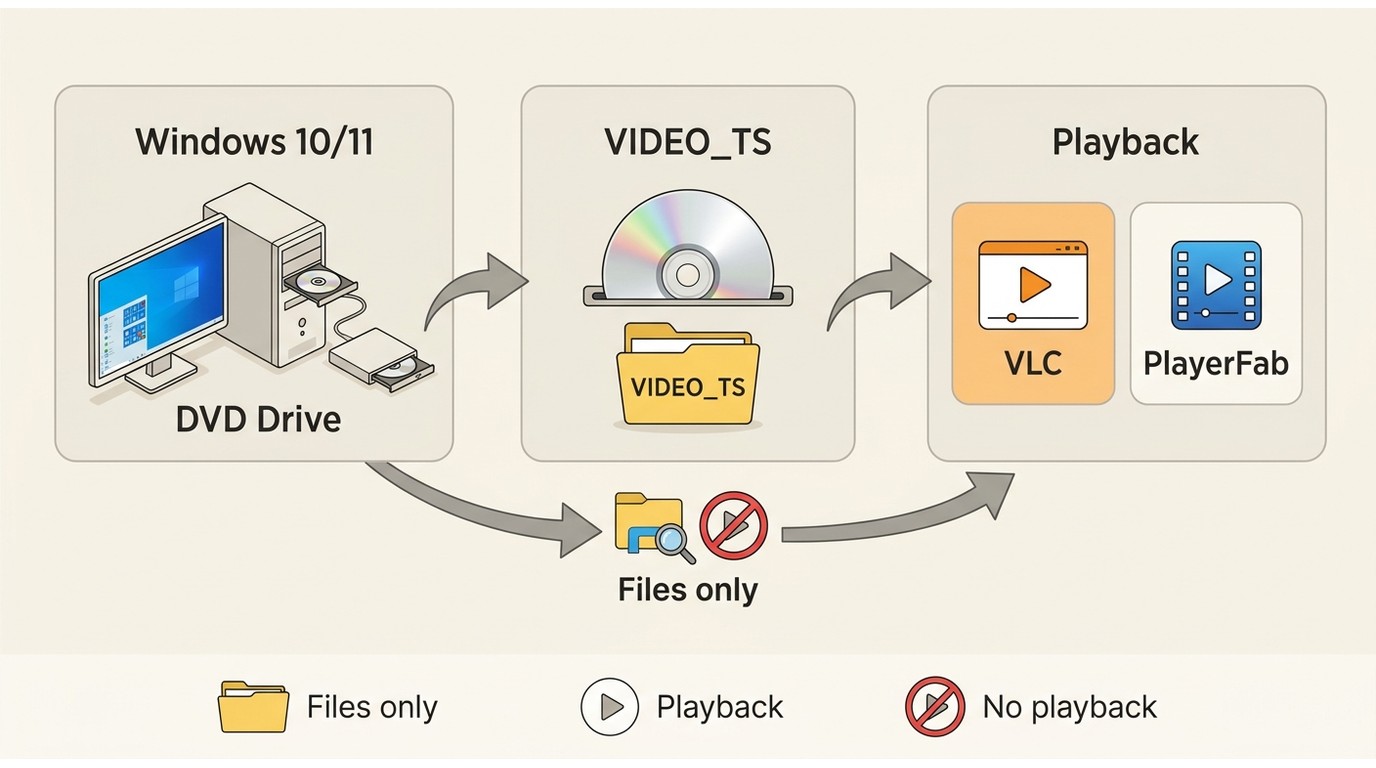
Windows 10 and 11 can detect optical media without providing default DVD movie playback. A successful setup depends on the drive, the DVD, and the app working together.
DVD-Video uses a disc structure and video decoding path that ordinary file browsing does not supply. That is why seeing VIDEO_TS files in File Explorer does not mean Windows can start the movie by itself. My troubleshooting rule is simple: identify the failing layer before installing extra codec packs.
What You Need Before Starting
Check these prerequisites before choosing a player:
- A DVD-capable optical drive: Confirm that the internal drive or external DVD drive appears under This PC and is identified as a DVD drive, not a CD-only device.
- A readable DVD-Video disc: Try a second known-good disc. Scratches, dirt, unusual authoring, and a failing DVD laser can produce the same symptom as missing software.
- Compatible playback software: Install an app that explicitly supports DVD-Video rather than assuming Windows Media Player will open the movie.
If your computer has no built-in optical drive, the same checks apply to a USB model; the broader how to play DVD on laptop workflow covers laptop-specific connection choices without changing the Windows software requirement.
Fix Common DVD Playback Problems
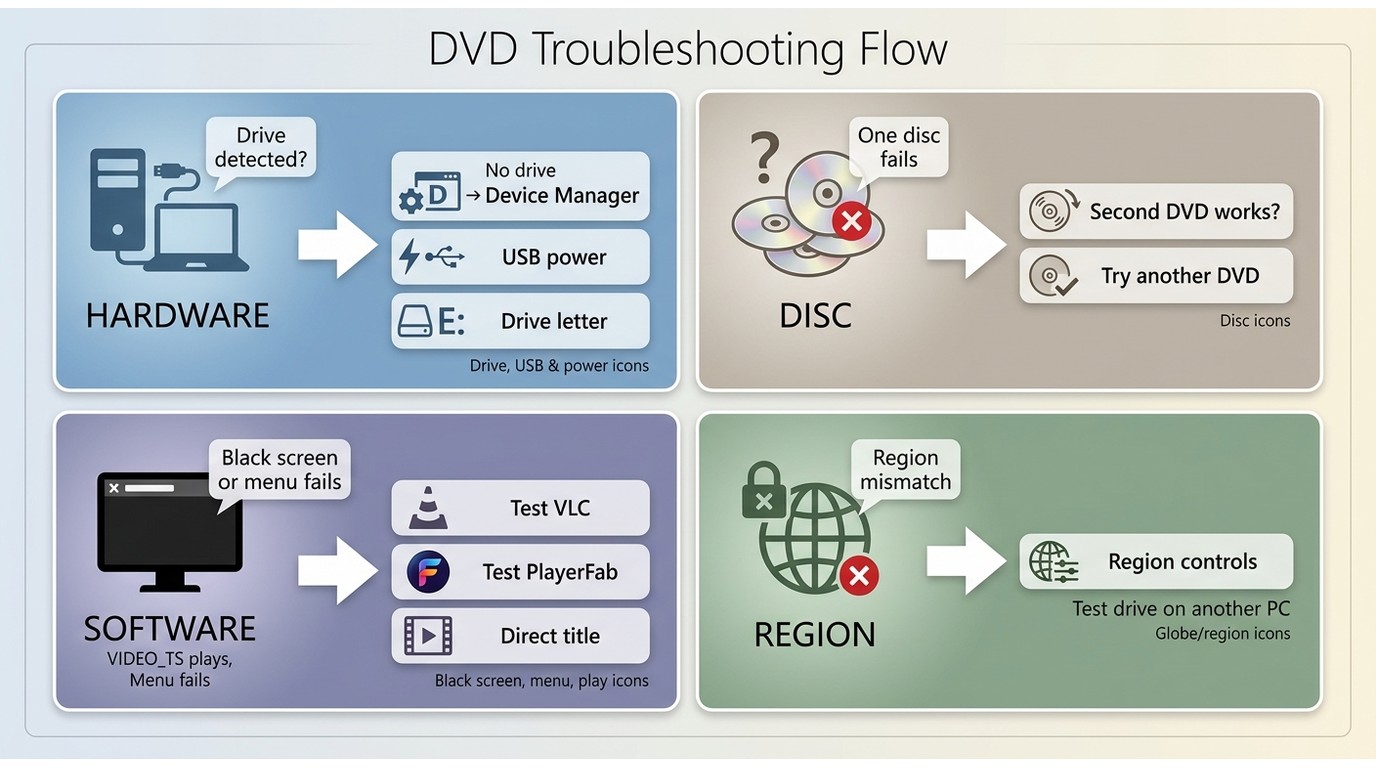
When a DVD is not playing, follow the symptom instead of changing several settings at once. Readers who have already tried a player can start here; readers still choosing software can skip to the playback methods below.
Drive Not Detected
If the drive is missing from This PC and Device Manager, the player app cannot reach it. Reconnect the USB cable, try another port, restart Windows, and check whether the drive appears without the disc inserted.
If the tray has power but Windows never lists the device, test the drive on another computer before changing playback software.
CDs Work but DVDs Do Not
A drive reading CDs does not prove its DVD laser or DVD capability is working. Test a second DVD-Video disc, clean the disc gently, and confirm the drive model supports DVDs.
When the drive spins but repeatedly rejects known-good DVDs, these immediate checks can narrow the cause; deeper DVD player not reading disc diagnostics cover media condition and drive hardware in more detail.
VLC Shows a Black Screen
A VLC DVD black screen can come from the selected drive, video output settings, menu navigation, the disc condition, or the commercial disc’s playback requirements. First choose the physical drive explicitly, then test both full-disc playback and an individual VOB file.
If a VOB file plays but the full disc remains black, the decoder is not necessarily the problem. The failure is more likely in menu navigation or disc-level access.
Menus or Commercial Discs Fail
Commercial DVD playback adds menu, region, and disc-structure variables that a home-authored disc may not use. If the main video file opens but DVD menu playback fails, try the player’s direct-title mode or a different DVD-capable app.
Do not keep stacking codec packs once file playback already works. At that point, another player is a cleaner test of the menu and disc path.
External USB Drive Problems
An external DVD drive may need more power than a single low-power USB port supplies. Connect it directly to the computer, avoid an unpowered hub, and use the supplied dual connector when the drive includes one.
Also confirm that Windows assigns the drive a letter and that the player is not pointing to a virtual drive left by ISO software.
Drive Letter or Region Mismatch
If the app opens the wrong device, select the optical drive letter shown in This PC. For a DVD region mismatch, check the drive’s current region and the disc packaging before changing settings, because some hardware limits how often its region can be changed.
Region handling should be treated as a compatibility condition for discs you are entitled to play, subject to applicable law. My cutoff is practical: after testing another disc, the correct drive letter, and a second player, I stop changing codecs and test the drive itself.
Play DVDs with PlayerFab DVD Player
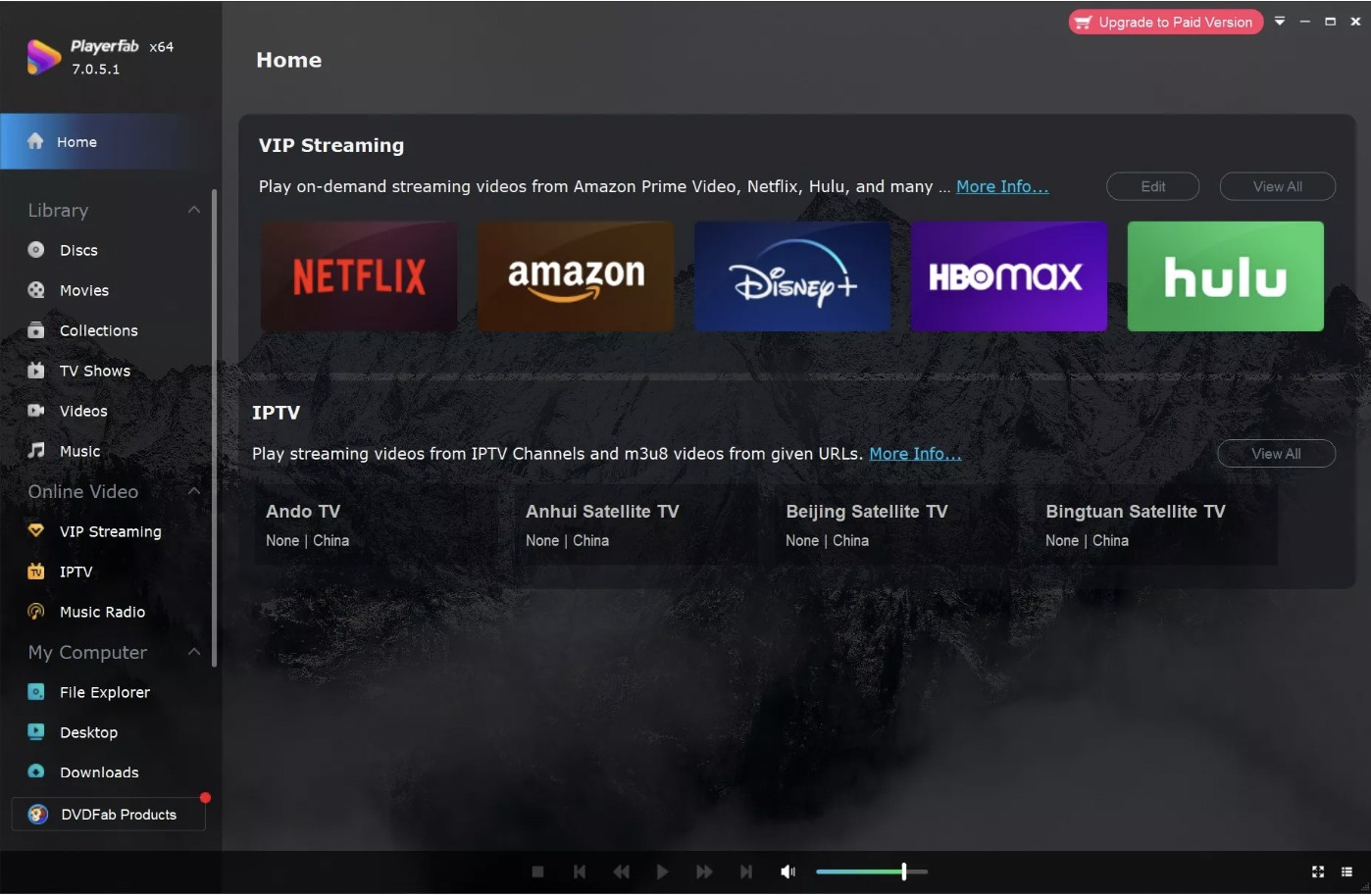
For discs and local files you are authorized to access for personal playback, where permitted by applicable law, PlayerFab DVD Player supports DVD discs, DVD ISO images, DVD folders, navigation menus, main-title playback, region handling, and GPU-assisted video decoding on Windows and Mac.
It suits readers who value full menus and a consistent disc, ISO, or folder workflow. It is not ideal for someone who only wants an occasional free first attempt with an ordinary DVD. A separate DVD playback guide for Mac covers the platform differences; the steps below stay focused on Windows.
Step 1: Open Disc Mode
Install and open PlayerFab, connect the internal or USB optical drive, and insert the DVD. Select the disc source when it appears in the Discs area. If it does not appear, return to the Windows detection checks before changing player settings.
Free Download Windows 11/10/8.1/8/7
Step 2: Choose a Playback Mode
Choose Menu Mode when you need chapter selection, bonus features, audio choices, or subtitles. Choose Main Movie Mode when you want to start the primary title without navigating the full menu.
My preference is Menu Mode for unfamiliar discs because it shows how the DVD is organized; Main Movie Mode is the cleaner choice when the navigation itself is the problem.
Step 3: Adjust Video Performance
Open Settings, select Video, and enable the supported hardware-decoding option for the installed AMD, Intel, or NVIDIA graphics hardware. GPU decoding shifts video work away from the CPU and can improve playback on higher-resolution displays.
Step 4: Start Playback
Return to the disc source and start the DVD. In Menu Mode, use the on-screen navigation to select the title, audio, and subtitles. In Main Movie Mode, confirm that the primary title and preferred language track are selected.
Play DVDs with VLC for Free
VLC is the right free first test for an ordinary DVD, not a universal answer for every disc. The concise VLC play DVD workflow below handles the Windows task, while the dedicated guide covers VLC-specific troubleshooting in greater depth.
VLC generally supports DVD playback, but some commercial discs, menus, region settings, or damaged media can still lead to a black screen or file-only playback. That limitation matters more than its interface style.
Step 1: Install VLC Media Player
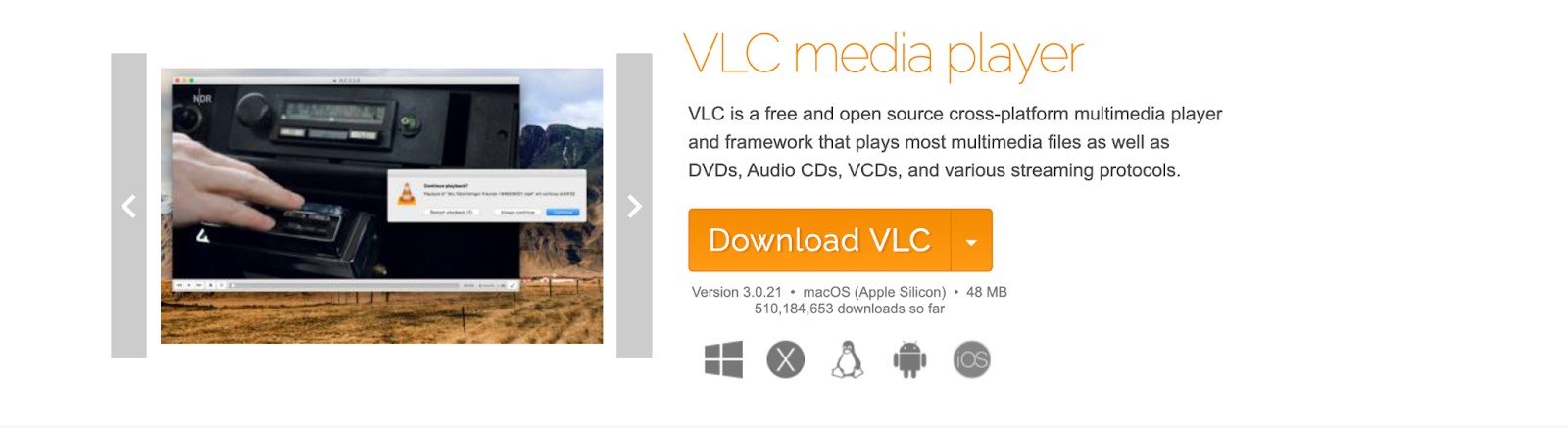
Download VLC from the official VideoLAN website and install the current Windows build. Avoid software aggregation sites that may package unrelated offers with the installer.
Step 2: Open Media Settings
Open VLC and press Ctrl + D, or choose Media and then Open Disc. Select DVD as the disc type.
Step 3: Configure Disc Selection
Leave disc menus enabled when you need chapter navigation. If the menu is the specific failure point, select No disc menus to test direct title playback. This setting changes navigation; it does not solve every disc-read, region, or commercial-disc problem.
Step 4: Select the Drive
Choose the physical optical drive letter shown in This PC, especially when Windows also has a virtual ISO drive. For an external DVD drive, verify that the USB device remains connected and powered before selecting Play.
Use Microsoft’s Windows DVD Player App
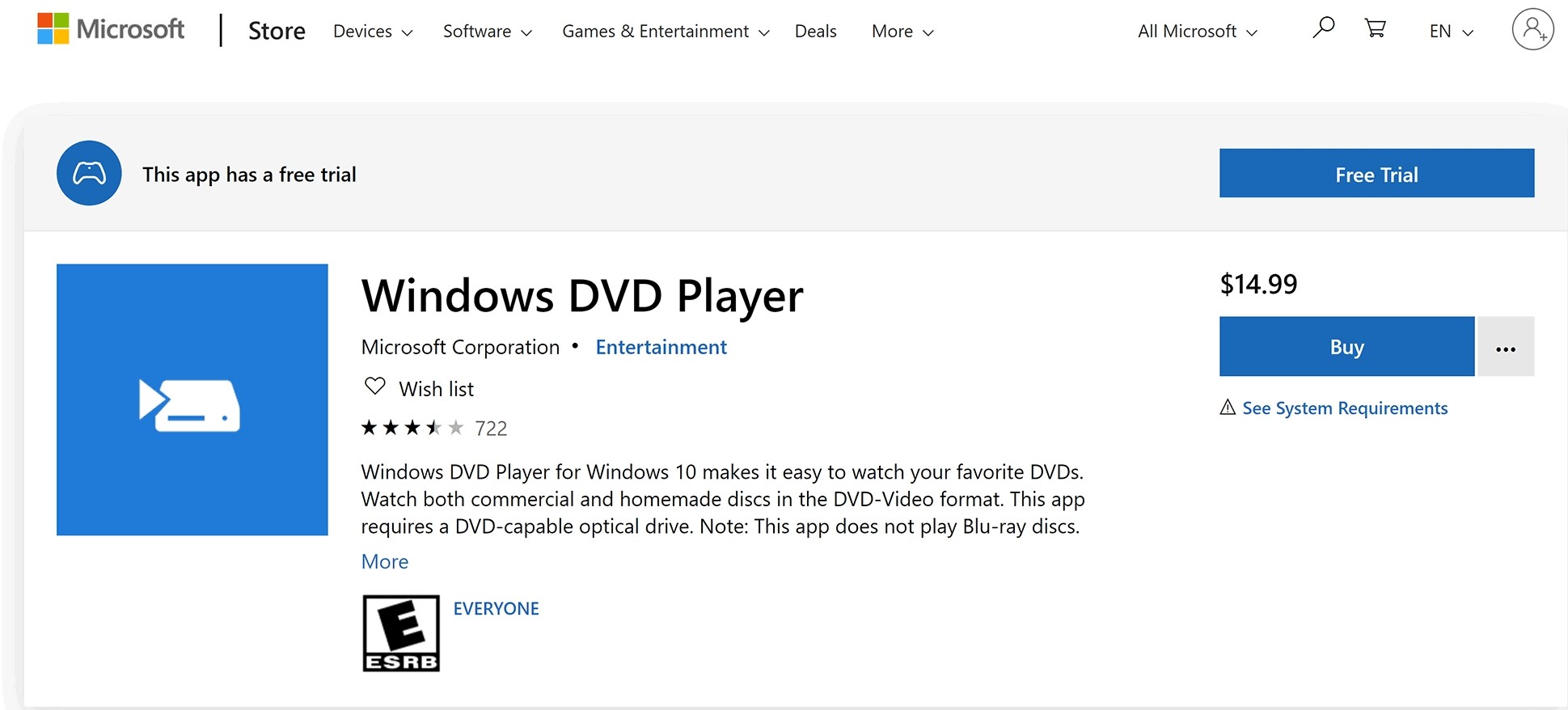
Microsoft’s Windows DVD Player remains an official option for basic DVD playback. It fits readers who prefer a Microsoft Store app, but it is not the strongest choice for broader menu, region, ISO, folder, or library needs.
Step 1: Find the Official App
Open Microsoft Store and search for Windows DVD Player. Confirm that Microsoft Corporation is listed as the publisher so you do not install a similarly named app.
Step 2: Install the App
Follow the current Store prompt for your account and device, then open the app with the DVD drive connected. Store availability and terms can vary, so this guide does not rely on a fixed price or button layout.
Who the Microsoft App Suits
This option makes sense for straightforward DVD viewing within the Microsoft ecosystem. Readers who need disc-image input, media-library tools, broader menu control, or region compatibility should compare other players before choosing it.
Other DVD Players Worth Considering
PotPlayer and 5KPlayer are secondary options, but this page is not another ranked list. If your goal is to compare a wider set of free DVD player for Windows 10 choices, use that comparison after completing the basic drive and disc checks.
PotPlayer
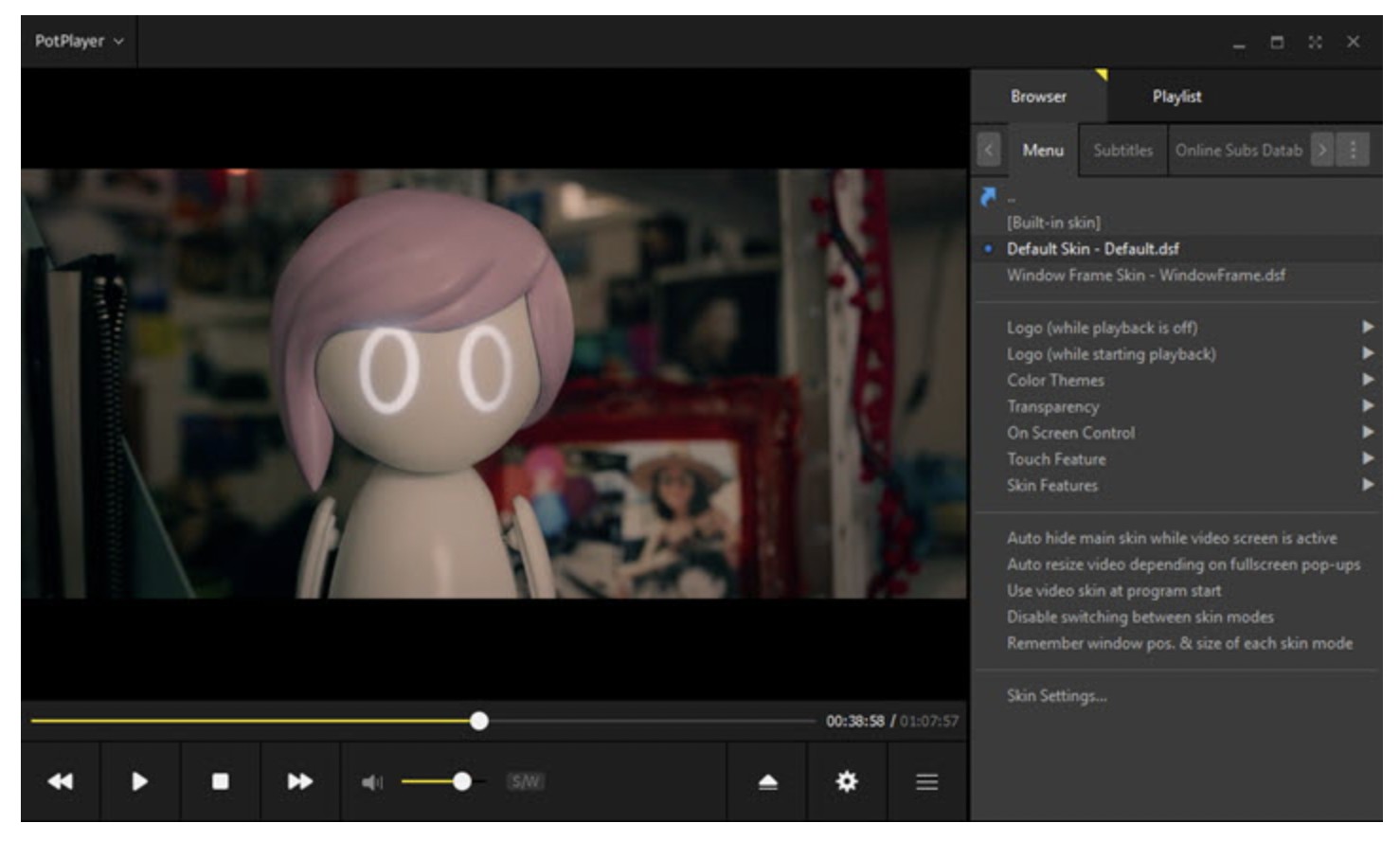
PotPlayer is a Windows media player with extensive playback controls and a settings-heavy interface. Its customization can appeal to experienced users, but current official information does not support treating damaged-disc recovery or commercial-disc compatibility as a guaranteed strength.
Best fit: Windows users who want granular controls and are comfortable navigating detailed settings. Not ideal for: readers who want a minimal setup or predictable full-menu behavior across different DVDs.
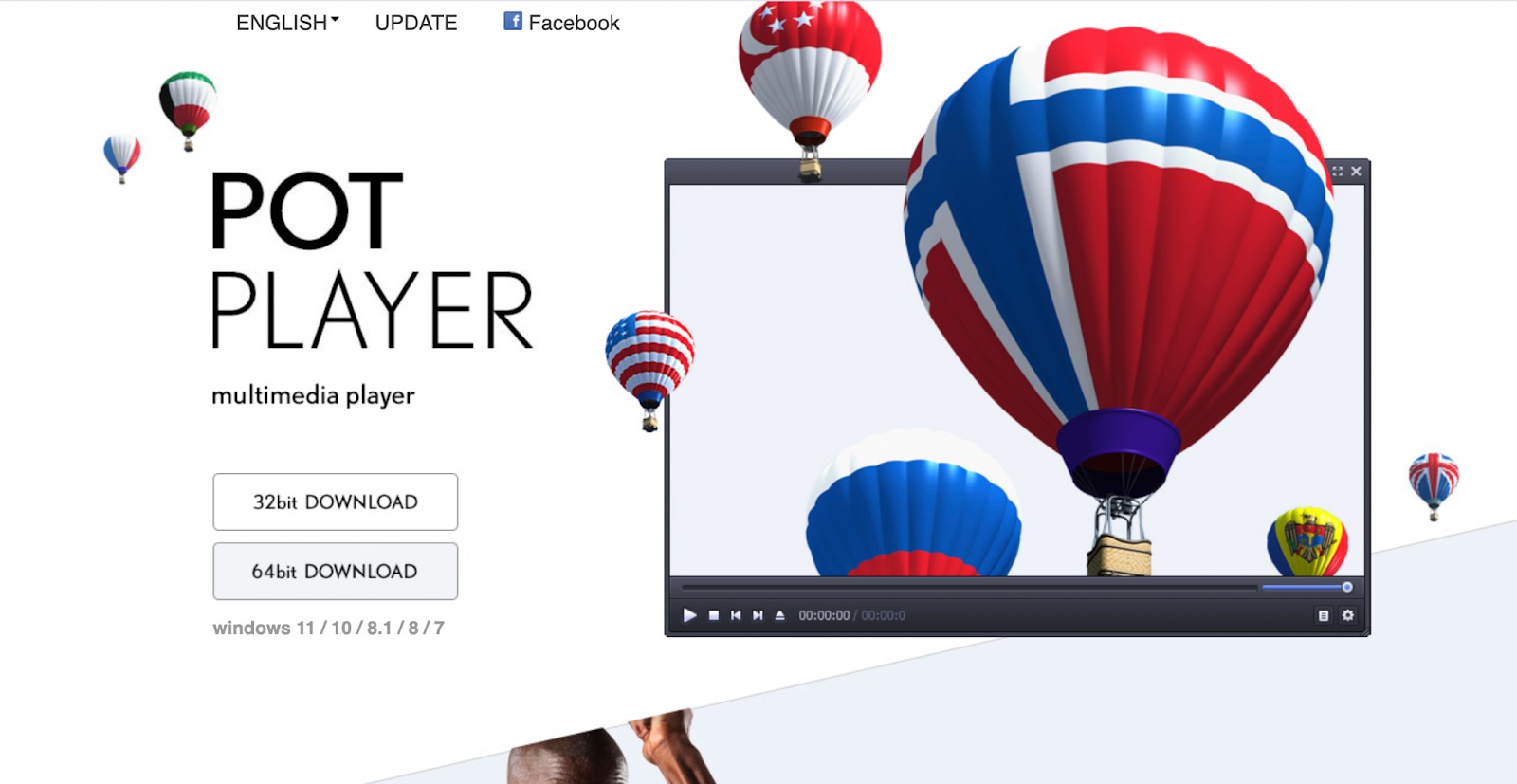
To try it, install the current Windows version, insert the DVD, open the media source menu, and select the physical DVD drive.
5KPlayer
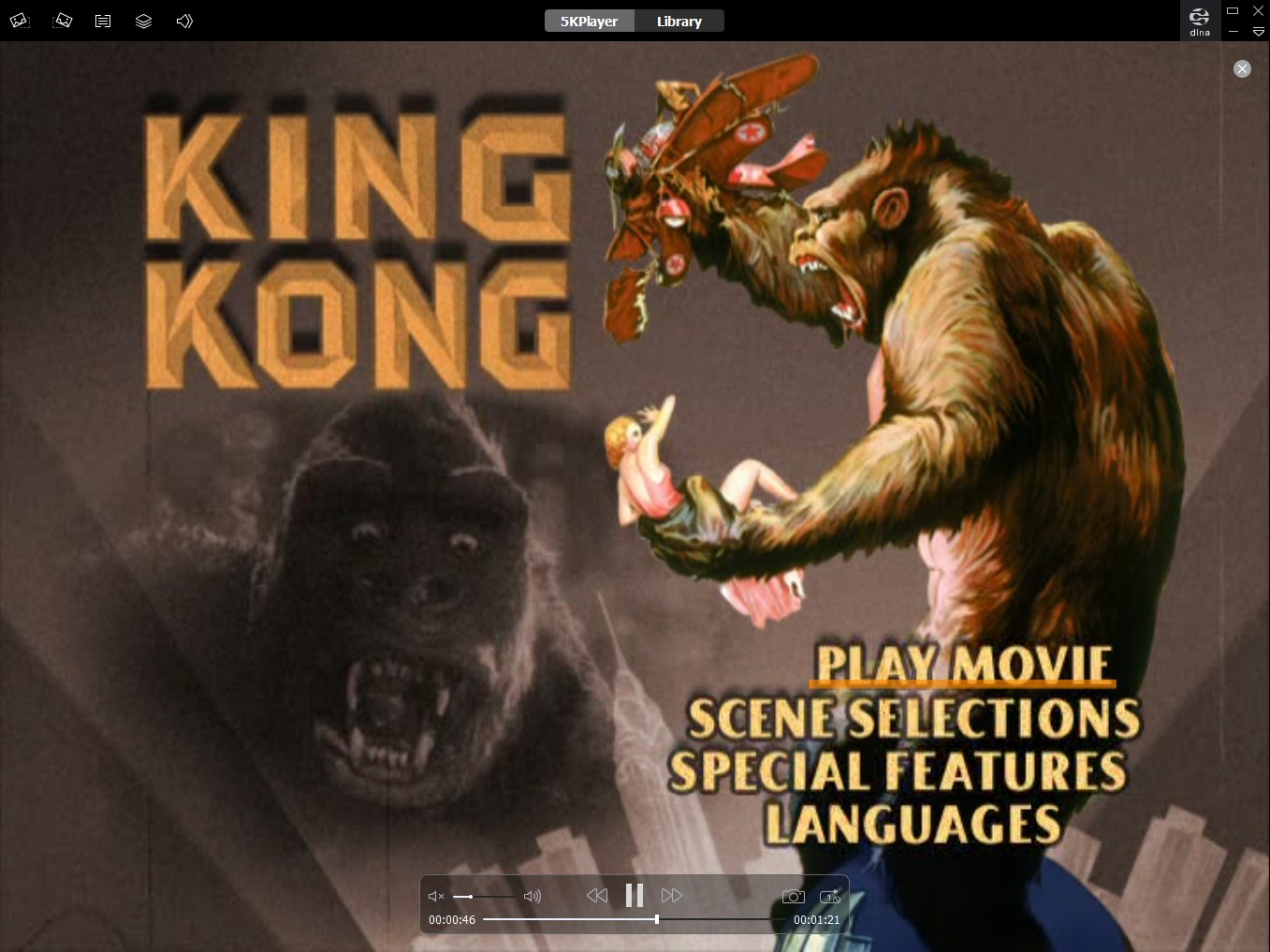
5KPlayer combines local media playback with additional media features. It can be considered for basic DVD use, but claims about region behavior, damaged discs, and commercial-disc support should not be assumed without a current, disc-specific confirmation.
Best fit: readers who already use its broader media interface. Not ideal for: anyone choosing primarily for verified menu, region, or disc-image behavior.
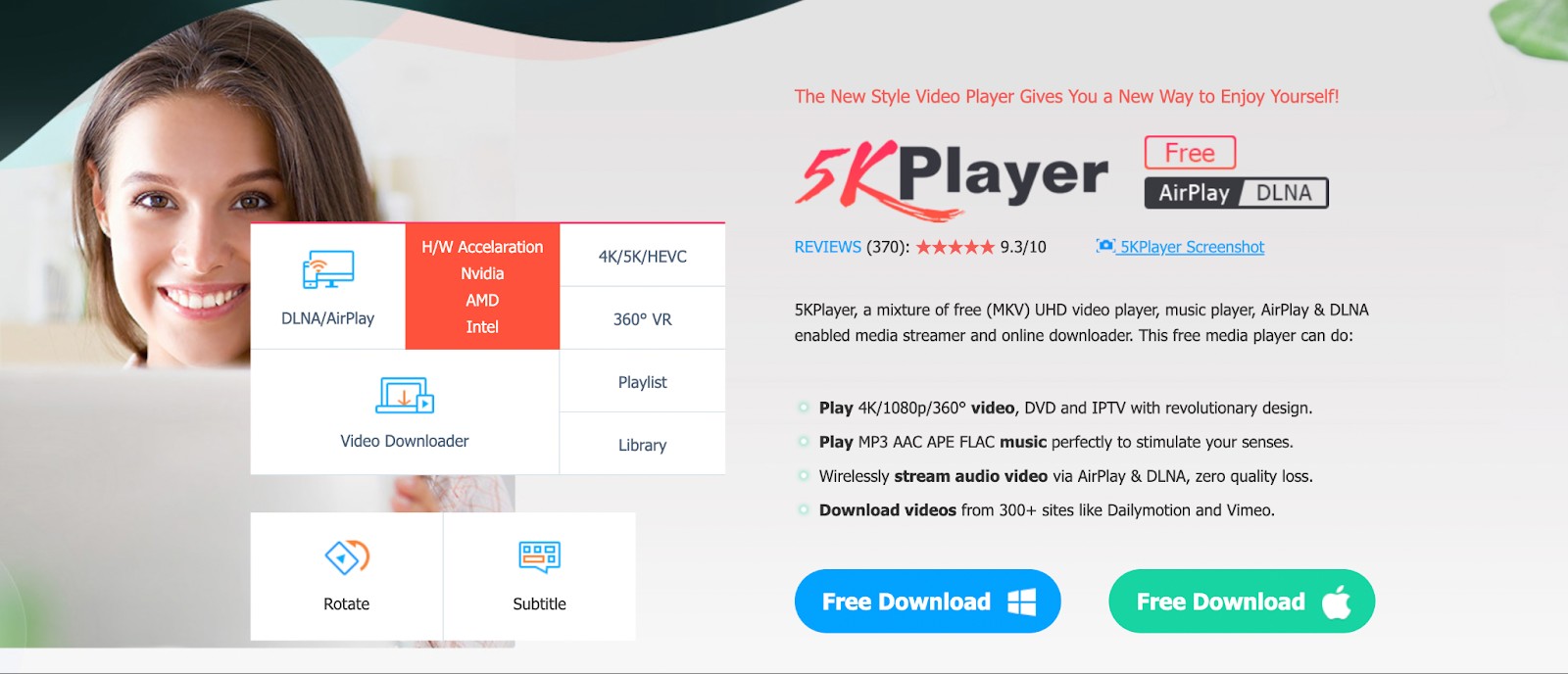
Insert the disc, select DVD in the main interface, choose the physical drive, and start playback. Use the available chapter, audio, and caption controls only after confirming that the disc menu loads correctly.
Compare Windows 10 DVD Playback Options
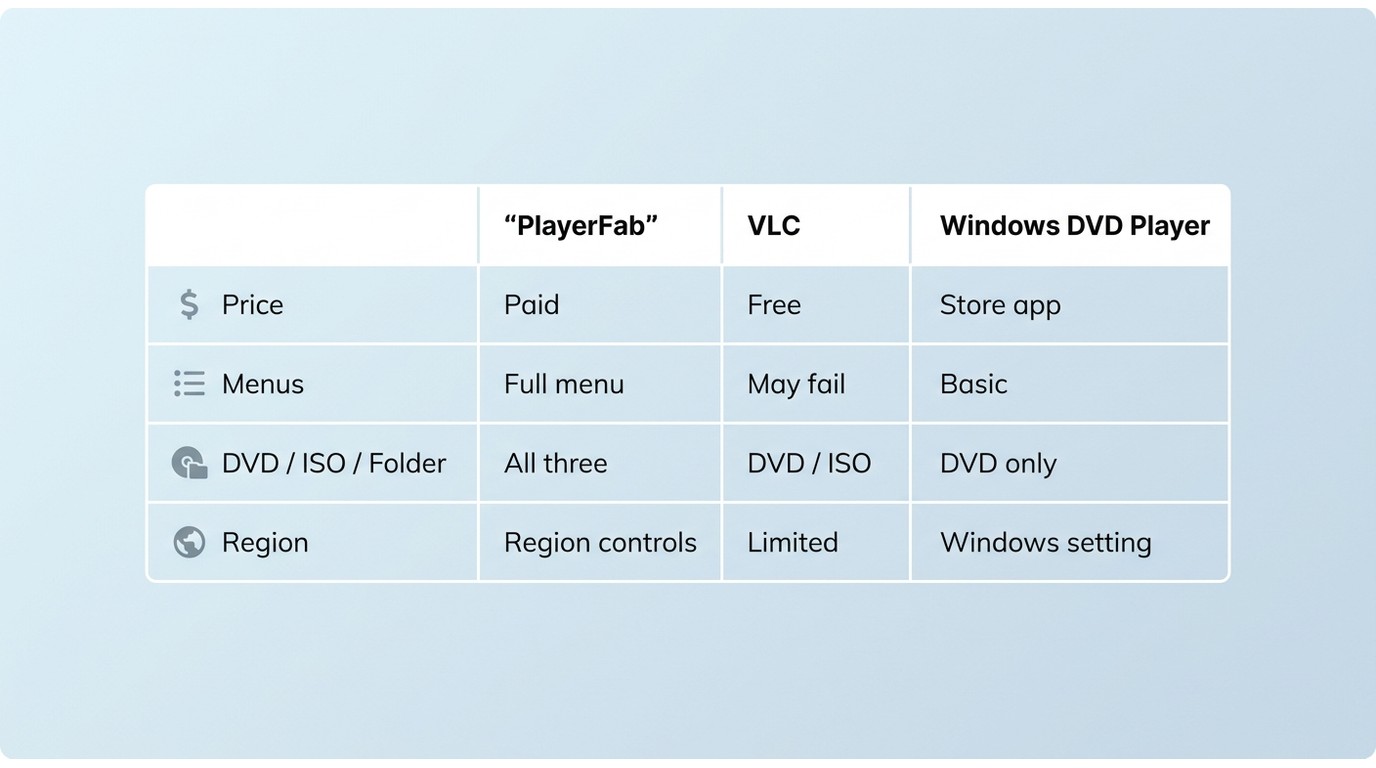
The useful comparison is not which app has the longest feature list. It is whether you need free playback, dependable DVD menu playback, commercial-disc compatibility, region handling, or support for disc images and folders.
| Option | Cost model | Direct DVD-Video playback | DVD menu behavior | Commercial-disc limitations | Region handling | Disc, ISO, and folder support | Internal or USB drive use | Ads or installer prompts | Best fit | Not ideal for |
|---|---|---|---|---|---|---|---|---|---|---|
| PlayerFab DVD Player | Paid desktop software | Supported | Menu Mode and Main Movie Mode | Compatibility depends on the disc and supported playback conditions | Built-in region compatibility controls for authorized discs | DVD disc, DVD ISO, and DVD folder | Both, when Windows detects the drive | Official installer | Menus and mixed disc-image libraries | Occasional free playback |
| VLC media player | Free | Supported for many DVDs | Can work, but menu failures occur | Some commercial discs may show a black screen or file-only playback | Depends on drive, disc, and local setup | Disc and individual files; ISO behavior depends on setup | Both, when the correct drive is selected | No in-app ads from the official build | Free first test with an ordinary DVD | Readers needing predictable full menus |
| Microsoft Windows DVD Player | Microsoft Store distribution | Basic DVD playback | Basic navigation | Designed as a focused DVD app rather than a broad disc toolkit | Follows the drive and Windows playback conditions | Primarily physical DVD playback | Both, when Windows detects the drive | Store-managed install | Microsoft ecosystem preference | ISO, folder, library, or broader region needs |
| PotPlayer | Free | Available as a Windows playback option | Varies by disc and configuration | No universal commercial-disc result should be assumed | Not a verified strength for this comparison | Local media support; DVD behavior varies by setup | Both, when the drive is visible | Review installer choices carefully | Experienced users who want detailed controls | Simple, predictable setup |
| 5KPlayer | Free with promotional prompts | Available as a playback option | Varies by disc | Current evidence does not establish consistent commercial-disc behavior | Not a verified strength for this comparison | Local media support; disc-image behavior is not the focus here | Both, when the drive is visible | Promotional prompts may appear | Existing users of its media interface | Readers choosing for verified disc controls |
My practical takeaway is that free playback is enough when VLC opens an ordinary disc and its menu correctly. A dedicated player becomes easier to justify when menu access, region compatibility, or a combined disc, ISO, and folder library is part of the normal workflow.
Playback, MP4, or ISO?
For DVDs you are authorized to use for personal purposes, where permitted by applicable law, choose the format by the job: direct playback is for watching the disc now, MP4 is for a portable video file, and ISO or a DVD folder is for retaining the disc structure.
- Direct playback: Keep the disc in the optical drive and use a DVD-capable player. This is the shortest route when you want the original navigation and extras.
- DVD to MP4: Choose MP4 for phones, tablets, or computers without optical drives. A normal MP4 does not retain interactive DVD menus.
- DVD ISO playback: An ISO or DVD folder is the better fit when disc structure or menu retention matters. The ISO file playback guide explains how to open a saved disc image after it has been created through a lawful workflow.
Frequently Asked Questions
Can Windows Media Player play DVDs on Windows 10?
Not on a standard Windows 10 or 11 setup without an added DVD decoding path. A DVD-capable app is simpler; the dedicated how to play DVD with Windows Media Player guide covers that specific workflow.
Can I use an external USB DVD drive with Windows 10?
Yes. Windows must detect a DVD-capable drive, assign it a drive letter, and pair it with compatible playback software. A drive that reads CDs successfully can still have a DVD-specific capability or hardware problem.
Why does VLC play VOB files but not the DVD menu?
File-level playback and full-disc navigation use different parts of the DVD structure. The VOB may decode correctly while the menu, drive selection, region condition, disc damage, or commercial-disc requirements interrupt full playback.
Will converting a DVD to MP4 preserve its menus?
Usually not. MP4 is a portable video file rather than a copy of the interactive disc structure. Use an ISO or DVD-folder workflow when retaining navigation and menus is important.
Final Recommendation
To watch DVD on Windows 10 or 11, try VLC first for an ordinary free playback need, choose Microsoft’s app when a basic Store-managed option is the priority, and consider PlayerFab when menus, region compatibility, or consistent disc, ISO, and folder playback matter. PlayerFab is not the right fit for someone who only needs a rare free attempt; the drive, disc, and software checks should decide the path.

 8 Best DVD Players for Windows 10/11 (Free and Paid, 2026)By Alice Harper - Jul 29, 2026
 How to Play a DVD on a Laptop: 3 Methods That WorkBy Alice Harper - Jul 29, 2026
 How to Play VOB Files: VLC, DVD Menus, and MP4 ConversionBy Alice Harper - Jul 23, 2026
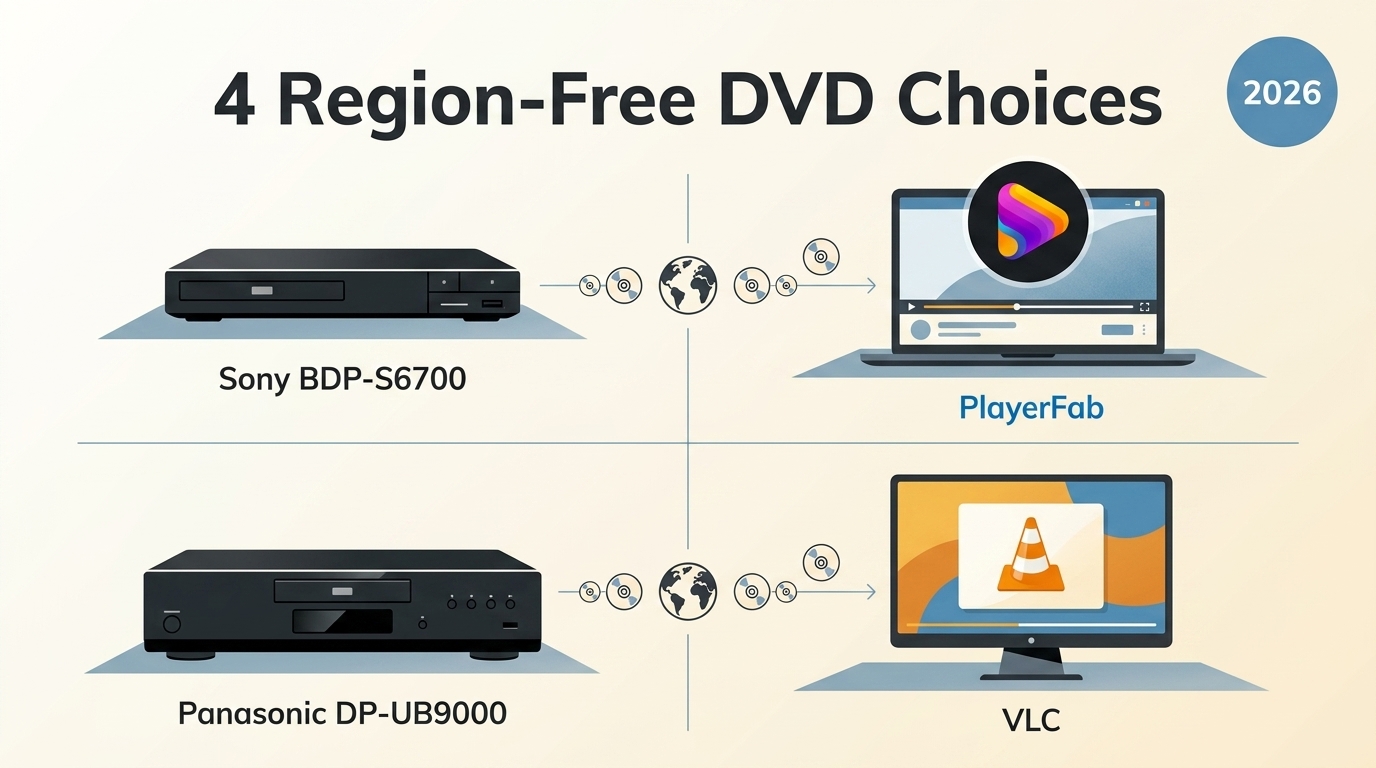 4 Region-Free DVD Player Choices Compared for 2026By Alice Harper - Jul 22, 2026