How to Play VOB Files: VLC, DVD Menus, and MP4 Conversion

Summary: Choose a VOB playback route by file structure and destination. VLC handles quick clips and VIDEO_TS checks, PlayerFab keeps DVD menus, MPC-BE and IINA cover lightweight desktop playback, and MP4 conversion fits editing or device compatibility.
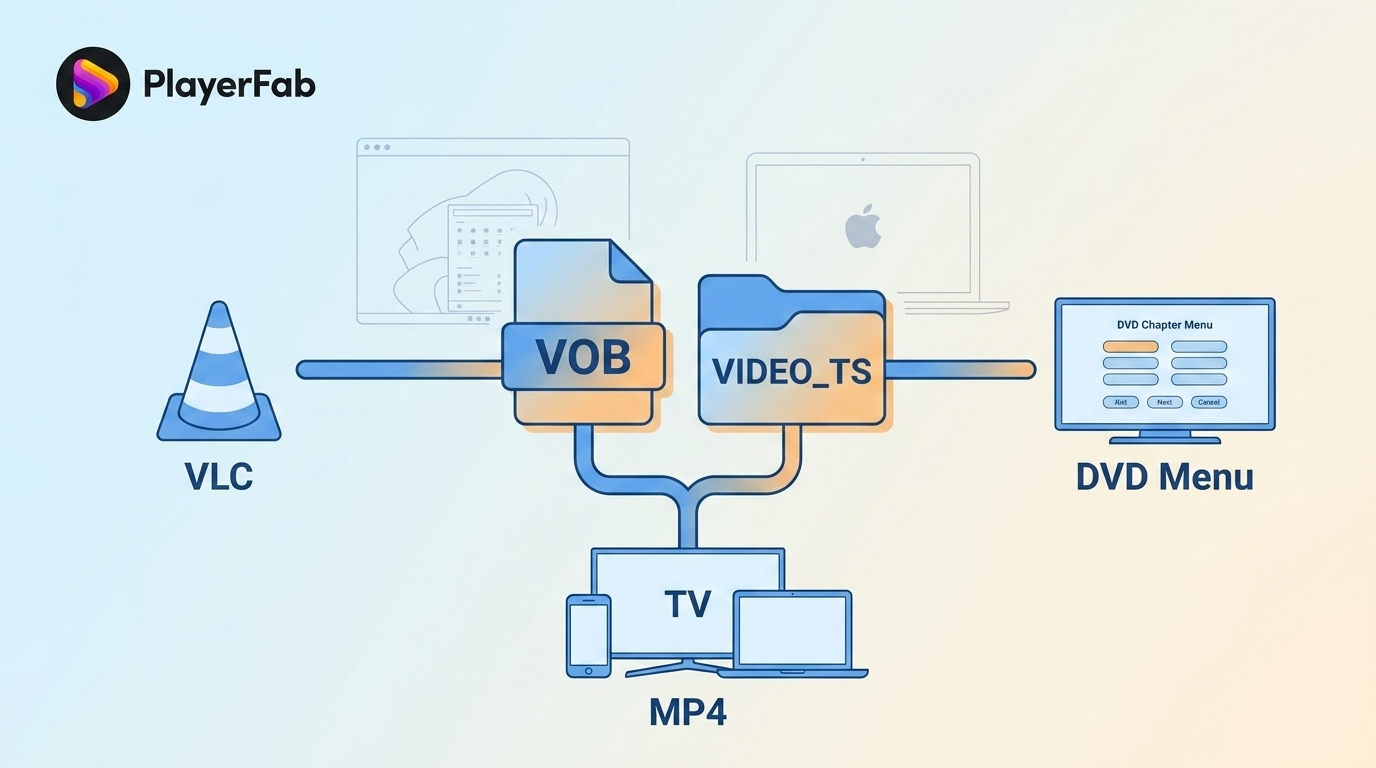
Table of Contents
If you need to play VOB files on a current Windows or Mac computer, the right route depends on what you copied: VLC can open VOB files and full VIDEO_TS folders, a DVD-aware player preserves menus, and MP4 conversion fits editing or device playback.
My decision rule is simple: check whether you need one clip, the complete DVD structure, a platform-specific lightweight player, or a modern file. That keeps a basic compatibility problem from turning into a long search through overlapping media tools.
What a VOB File Contains
A VOB file type is a DVD-Video container, usually carrying MPEG-2 video plus audio, subtitles, and navigation data. VOB codec support matters, but the surrounding IFO and BUP files often matter just as much.
Why Playback Support Varies
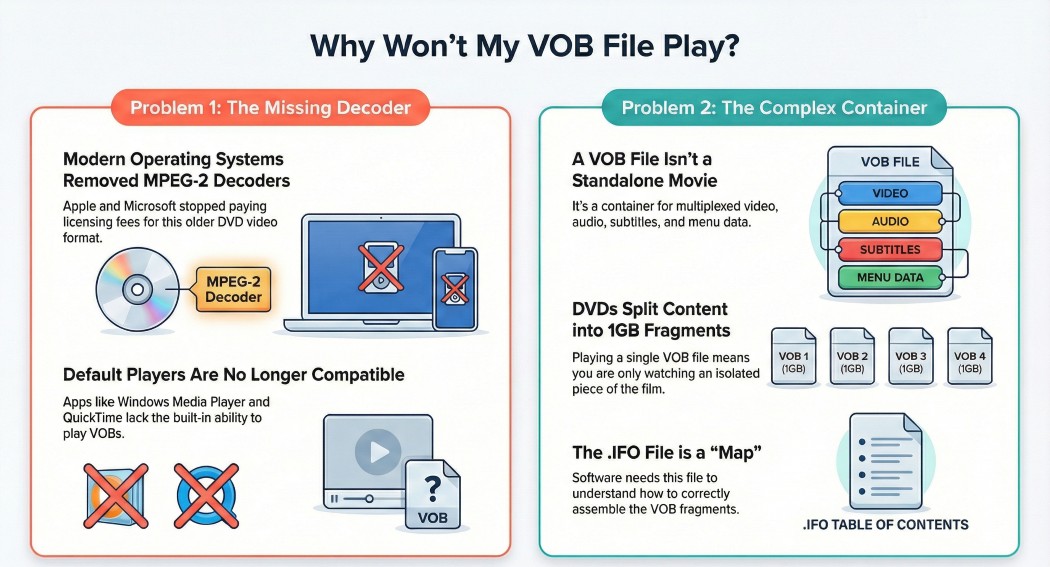
Windows Media Player VOB behavior varies with the Windows edition, installed MPEG-2 or DVD components, and the way the file was copied. The same file may open on one computer and trigger a codec prompt or blank playback window on another.
This is why VOB files on Windows 10 and VOB files on Windows 11 do not have one universal outcome. macOS players also differ: some understand the video stream but not the DVD navigation wrapped around it.
Why VIDEO_TS Structure Matters
A DVD title is commonly divided into files such as VTS_01_1.VOB, VTS_01_2.VOB, and related IFO and BUP files. Searching for a VTS_01_1 VOB player usually means you have found one segment rather than the complete movie structure.
Opening one segment can omit chapters, subtitles, alternate audio, or the next part of the title. When those features matter, open the VIDEO_TS folder instead of selecting an isolated VOB. The same distinction explains why a copied DVD behaves differently from a physical disc in a general DVD-on-laptop workflow.
Choose the Right VOB Playback Route
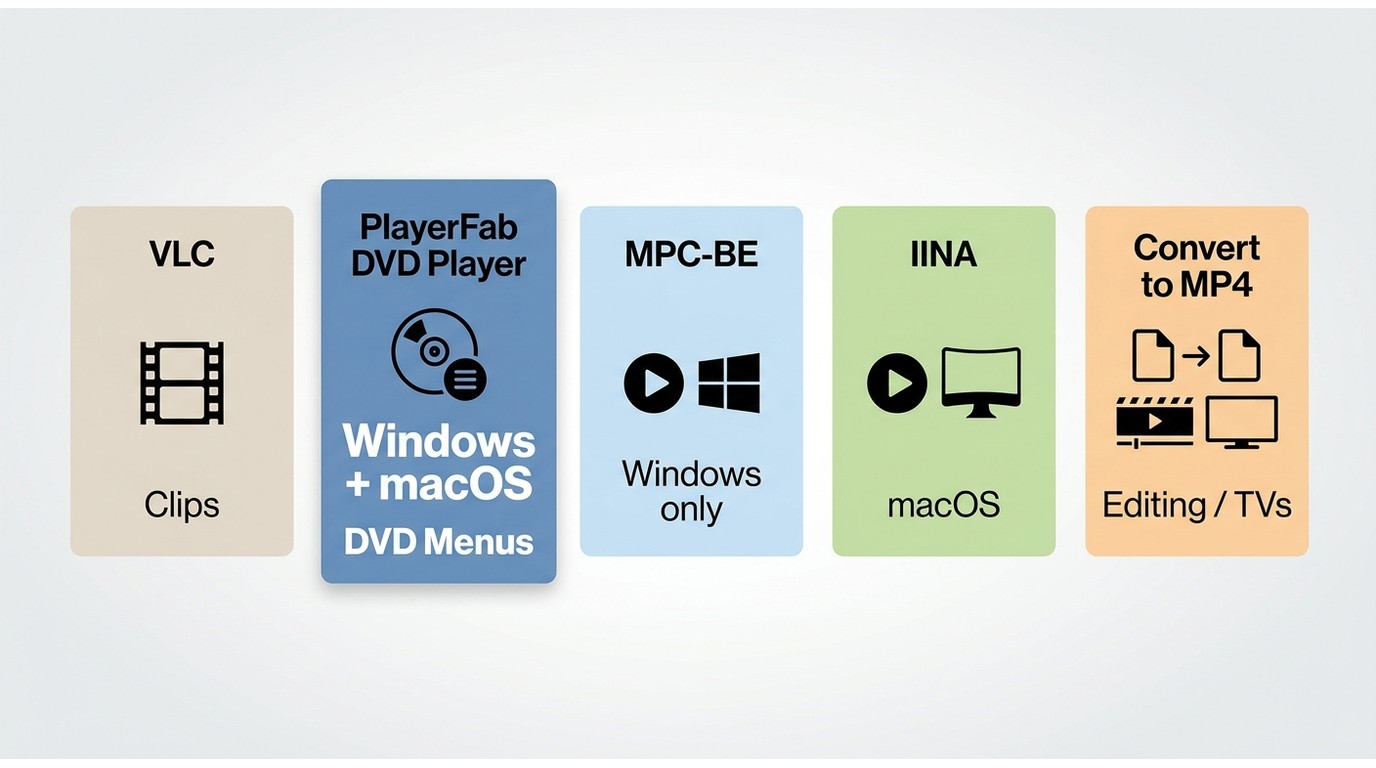
Start with the least complicated route that matches your goal. I would not install a media-library application to inspect a short clip, and I would not rely on a single-file player when menu and chapter navigation are the point.
| Route | Best for | Operating systems | Single VOB clip | Complete VIDEO_TS folder | DVD menus and chapters | Editing or sharing | Main limitation |
|---|---|---|---|---|---|---|---|
| VLC | First free cross-platform check | Windows and macOS | Yes | Yes | Can retain more structure, but authoring varies | No editing workflow | Not ideal for damaged or unusually authored folders |
| PlayerFab DVD Player | Complete DVD navigation and optional library organization | Windows and macOS | Yes | Yes | Designed for menus and chapters | No | More than needed for a quick segment check |
| MPC-BE | Lightweight Windows playback | Windows | Yes | Limited compared with a DVD-aware route | Not its clearest use case | No | Windows-focused |
| IINA | Native-feeling Mac playback | macOS | Yes | Sequential clips may work | Full structure is preferable elsewhere | No | Not intended as a complete DVD library |
| Convert to MP4 | Editing, sharing, phones, and TVs | Depends on converter | Yes | Use the complete title when possible | Menus are not retained | Yes | Creates a new file and takes processing time |
Readers who want a wider comparison can use this VOB file player overview to compare more applications without turning this task guide into a ranked software list.
Play VOB Files with VLC
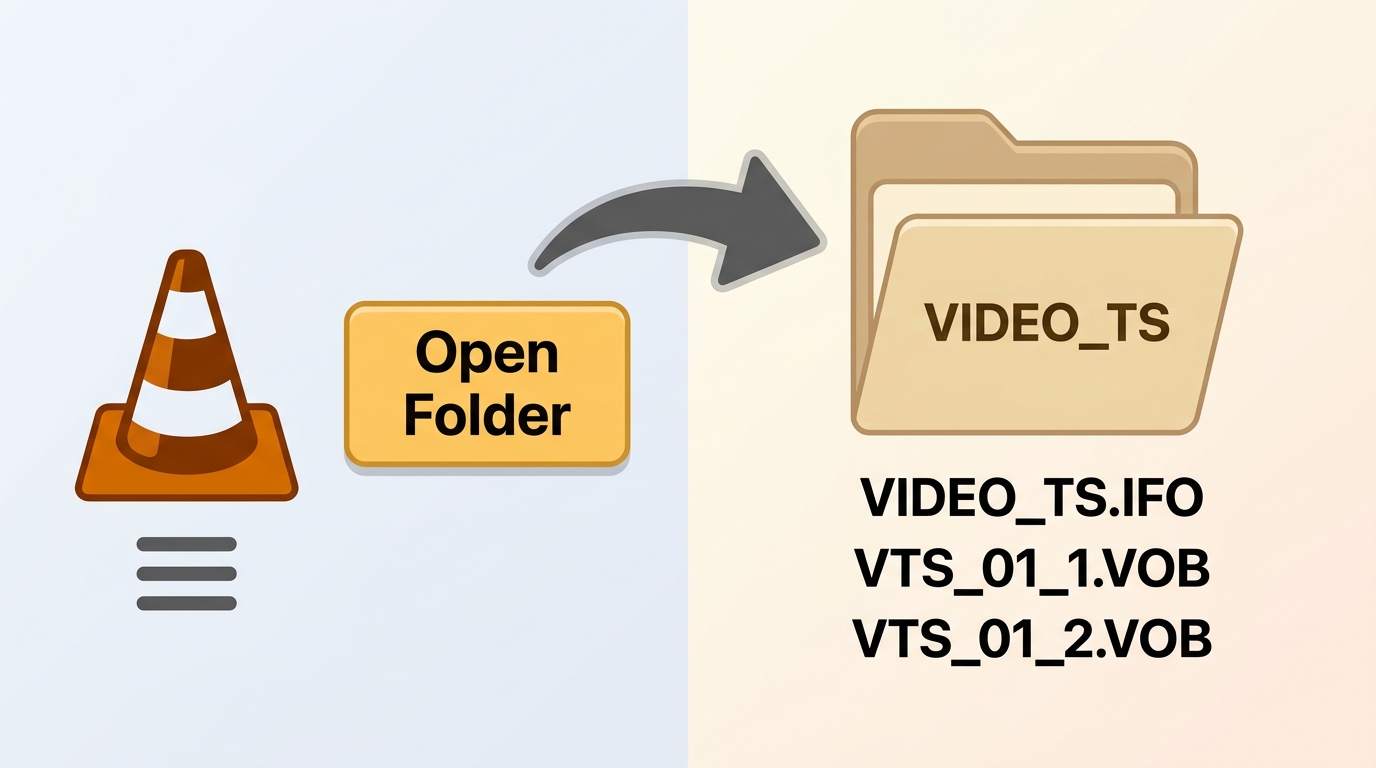
VLC is the most sensible first check for free playback on Windows and macOS. It handles MPEG-2 content and can open either a single segment or the complete folder, although damaged media and unusual DVD structures may still cause VOB playback errors.
Before opening copied DVD content, use files you own or are authorized to access, and follow applicable law, software terms, and content-service terms. A protected disc or incomplete copy may fail, but this guide does not provide protection-avoidance steps.
Open a Single VOB Clip
- Install VLC from the official VideoLAN site and launch it.
- Select Media > Open File on Windows or File > Open File on macOS.
- Choose the .VOB segment and check video, audio, subtitles, seeking, and duration.
A single clip is enough for a quick content check. If playback stops at the segment boundary or loses chapter context, move to the folder workflow rather than opening each VOB in sequence.
Open the Complete VIDEO_TS Folder
- Keep the VIDEO_TS folder and its IFO, BUP, and VOB files together.
- In VLC, select Media > Open Folder or the equivalent folder command on macOS.
- Select the VIDEO_TS folder, then check whether VLC follows the intended title order and available navigation.
Opening the complete folder gives VLC more information about sequence, chapters, subtitles, and audio tracks. It does not guarantee that every disc menu will behave as authored, but it is a better diagnostic than launching VTS_01_1.VOB alone.
Fix VLC Playback Errors
When VLC reports that it cannot open the MRL, first check the file path, drive permission, and whether the copy completed. Move the folder to a local directory with a shorter path, then test a known-good VOB to separate a player problem from damaged media.
- If the duration looks wrong, open the complete folder and check for missing IFO files.
- If playback freezes or seeking fails, recopy the authorized source and test another local drive.
- If the folder contains repeated or unusual file structures, try a DVD-aware player before deciding the video stream is unusable.
- If a protected disc is involved, playback may fail; do not treat that failure as proof that the VOB codec is missing.
VLC remains my first free check because it is quick and cross-platform. It is less convincing when the folder is incomplete, the disc authoring is unusual, or full menu behavior is essential.
Keep DVD Menus with PlayerFab
PlayerFab DVD Player is a DVD-aware desktop option for a complete VIDEO_TS folder or ISO when menus, chapters, and audio-track navigation matter. It is not necessary when you only need to inspect one short VOB clip.
Use this local-file workflow for DVDs and files you legally own or are authorized to access, subject to applicable law and software terms. PlayerFab supports Windows and macOS; on macOS, DVD menus are supported, while Blu-ray menu playback is a separate developing capability that is not needed for this VOB task.
Open PlayerFab and Find Your Files
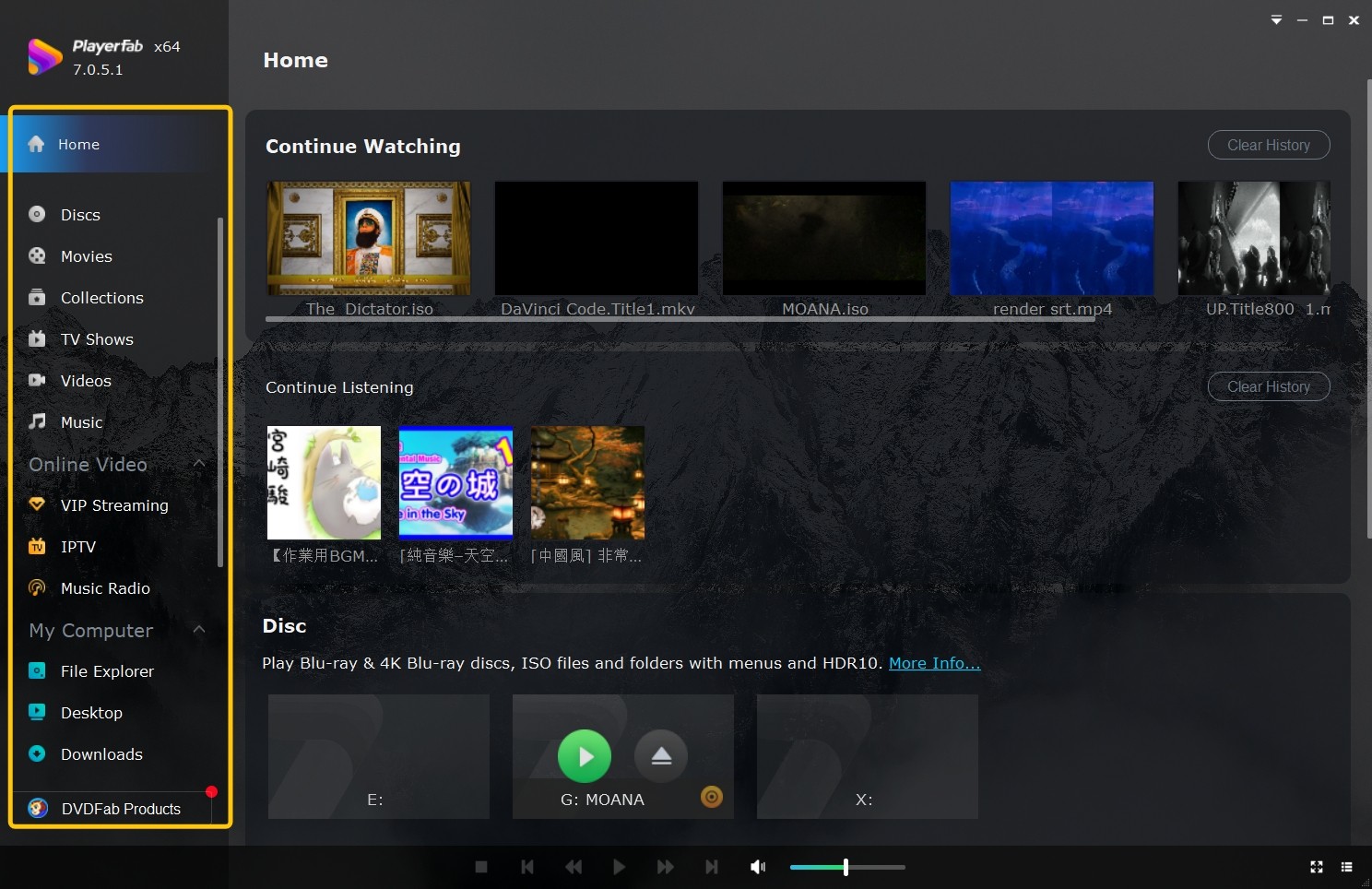
Launch PlayerFab and use its local file browser to locate the VIDEO_TS folder or ISO. The Library view is useful for indexed collections, while the computer browser is faster when you are checking one newly copied folder.
Load the VIDEO_TS Folder or ISO
Drag the entire VIDEO_TS folder or ISO into PlayerFab, or select it through the local file browser. Loading the complete structure lets the player read the IFO index and present the title order, menu, chapters, subtitles, and audio choices together.
- Keep all files from the authorized DVD copy in the same folder.
- Select the folder or ISO rather than an individual VOB segment.
- Choose Menu Mode when navigation matters, or Simple Mode when you want to start the main title directly.
For a film with multiple audio tracks or extras, I would choose the full structure because the navigation data is part of the viewing experience, not incidental metadata.
Add Local Folders to the Library
Library indexing is optional. It can add poster-based organization and resume access for a collection, but it is not required to play VOB files.
- Open Settings and select Library.
- Choose Add New Directory and select the media folder.
- Let PlayerFab index the directory, then review any title or poster match before relying on the library entry.
This extra step fits a recurring DVD archive. For one folder or one VOB clip, the direct file browser is the cleaner route.
Play VOB Files on Windows with MPC-BE
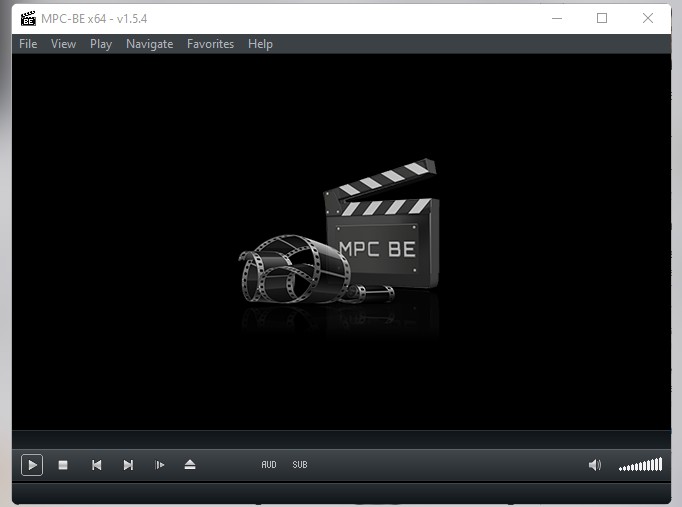
MPC-BE is a focused option for VOB files on Windows 10 and VOB files on Windows 11 when you want a lightweight desktop player. It suits single segments better than full cross-platform DVD menu management.
The original MPC-HC project ended in 2017, but the clsid2 community fork remains active. MPC-BE is a separate active project, so the old claim that the whole Media Player Classic family stopped development is inaccurate.
Install MPC-BE from Its Official Repository
- Open the MPC-BE project repository and choose the current release for your Windows system.
- Run the installer and keep the internal playback filters enabled.
- Launch MPC-BE before opening the VOB so you can see any error message clearly.
Open and Check a VOB Segment
- Drag the .VOB file into the MPC-BE window or use File > Open File.
- Check the audio track, subtitle availability, reported duration, and seek behavior.
- If the title stops at a file boundary, return to the complete VIDEO_TS folder or another DVD-aware route.
Poor seeking does not prove the video is damaged. An isolated segment may lack the companion index data that describes the complete title, so compare it with the full folder before attempting file recovery.
MPC-BE is a good fit for a Windows workstation that needs a quick, low-overhead player. It is less suitable when you need consistent menu navigation on both Windows and Mac.
Play VOB Files on Mac with IINA
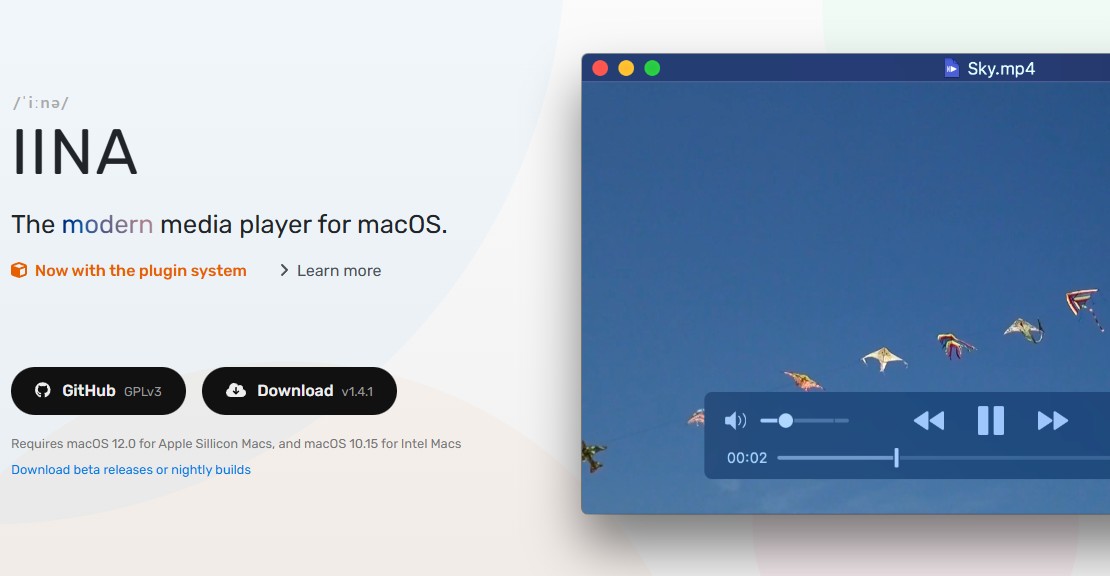
IINA is a practical way to open a VOB file on Mac with an interface that follows macOS conventions. It uses the mpv playback engine and works well for segment playback, while complete DVD navigation may call for the full folder in a DVD-aware application.
Install IINA from the Official Site
- Download the .dmg installer from iina.io.
- Drag IINA into the Applications folder.
- Open the app once, then choose it from the VOB file's Open With menu.
 IINA is open source and does not require a paid upgrade for basic local playback.
Open Sequential VOB Segments
Right-click the first VOB and select Open With > IINA. If the adjacent segments use a clear sequence, IINA may place them in its playlist, but check the order before settling in for a full title.
My preference is to treat the playlist as a convenience, not as a substitute for the DVD index. If episode, chapter, subtitle, or menu context matters, open the complete structure through a DVD-aware route.
Reduce Interlacing Artifacts
Older DVD video can show comb-shaped edges during motion because the source is interlaced. In IINA, press D during playback to toggle deinterlacing and compare the result.
If faces or circles look stretched, preserve the source display aspect ratio instead of forcing the pixel dimensions as the viewing shape. Aspect-ratio metadata and interlacing are separate issues, so correct them one at a time.
Convert VOB to MP4 When Needed
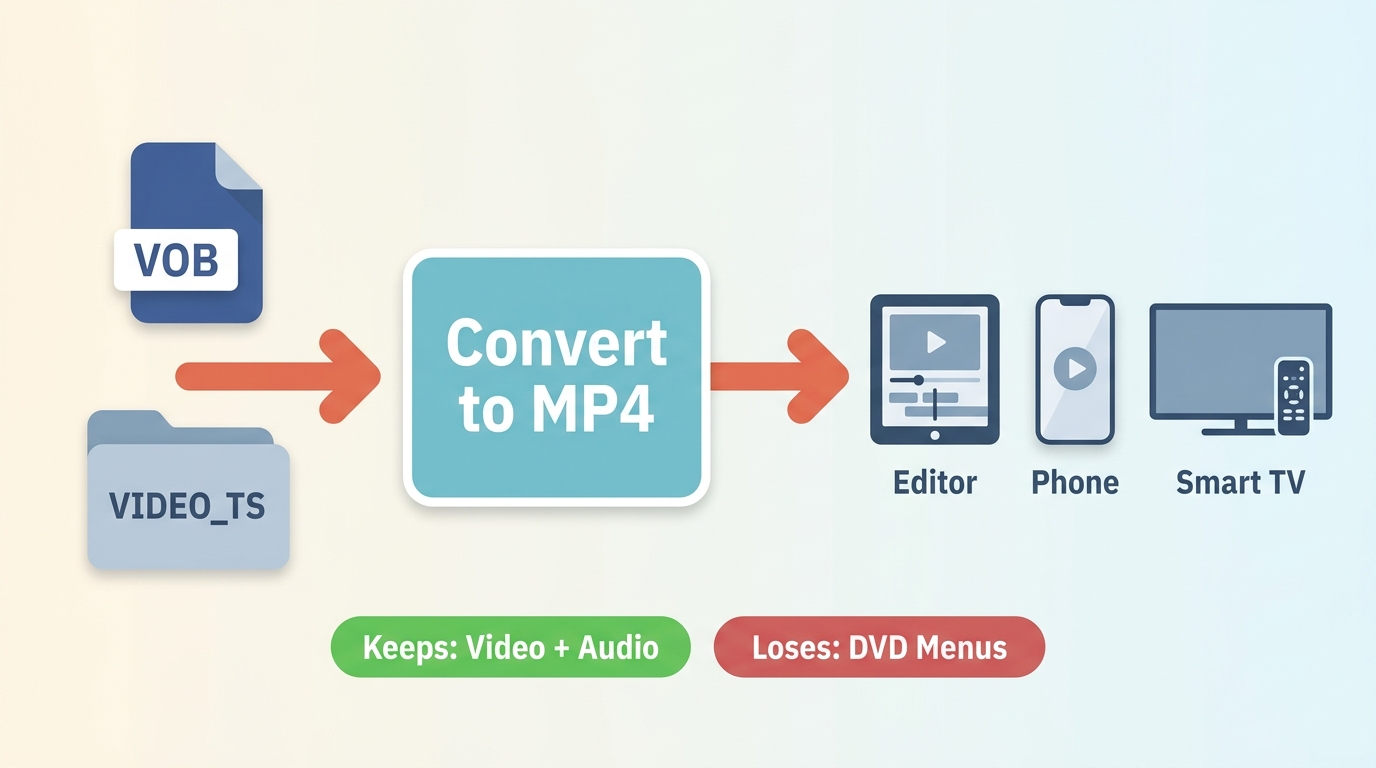
Convert VOB to MP4 when the destination is an editor, phone, tablet, Smart TV, or sharing workflow that does not handle DVD structures well. Direct playback remains preferable when menus, alternate tracks, and chapter navigation are the goal.
When Conversion Is the Better Route
- Use MP4 for editing clips in software that does not import VOB reliably.
- Use MP4 when a TV or mobile device rejects MPEG-2 VOB content.
- Use MP4 when repeated playback errors continue after the complete folder works in a DVD-aware player.
- Keep the DVD structure when menus, extras, subtitle choices, or alternate audio are important.
The practical trade-off is control versus structure: MP4 is easier to move and edit, while the VIDEO_TS folder preserves the authored DVD experience.
Convert the Complete Title Correctly
- Open the complete VIDEO_TS folder or select the main DVD title in your authorized local source.
- Choose MP4 and a video setting supported by the target editor or device.
- Preserve the intended display aspect ratio and select the audio and subtitle tracks you need.
- Preview the beginning, a motion-heavy scene, and the ending before export.
- Export the file, then confirm its duration and audio synchronization.
A surprisingly short output often means the converter processed one VOB segment rather than the complete title. Return to the folder or title selector instead of concatenating files blindly.
Why Renaming the Extension Fails
Changing a filename from .vob to .MP4 does not convert the media. The container label changes, but the MPEG-2 video, DVD metadata, and stream structure remain the same, so QuickTime or another app can still reject it.
A real conversion reads the source streams and writes a new MP4 container. That is why conversion takes processing time while renaming appears instant.
Frequently Asked Questions
These quick answers cover compatibility and file-quality questions that are easy to miss during the main workflows.
Can Windows Media Player play VOB files?
Sometimes. Windows Media Player VOB compatibility depends on the Windows version, installed MPEG-2 or DVD components, and whether the file is one segment or part of a complete DVD folder. If it fails, use VLC or a DVD-aware player rather than assuming the file is corrupt.
Why does a VOB file freeze after a few seconds?
Common causes include an incomplete copy, damaged headers, a failing source disc, or missing companion files. Test the complete VIDEO_TS folder in another known-good local player before using recovery software.
Is it safe to play a VOB file online?
Browser tools require an upload, which can expose private recordings and may be impractical for large DVD files. Local playback is the better privacy choice for personal, confidential, or unpublished video.
Why can VOB video look stretched or show comb lines?
DVDs may store display-aspect metadata separately from pixel dimensions, while interlaced sources can show comb edges during motion. Keep the intended aspect ratio and enable deinterlacing only when the source needs it.
Conclusion
To play VOB files without overcomplicating the job, use VLC for the first free check, PlayerFab for complete DVD menus and optional library organization, MPC-BE or IINA for lightweight platform-specific playback, and MP4 conversion for editing or broader device compatibility. I would choose by structure first: one clip needs a player, while a complete DVD deserves its folder and navigation data.

![Play DVDs on Windows 10/11: 4 Methods and Fixes [2026]](https://r4.dvdfab.cn/upload/player/en/how-to-play-dvds-on-windows-10-BykI.jpg) Play DVDs on Windows 10/11: 4 Methods and Fixes [2026]By Alice Harper - Jul 29, 2026
Play DVDs on Windows 10/11: 4 Methods and Fixes [2026]By Alice Harper - Jul 29, 2026 8 Best DVD Players for Windows 10/11 (Free and Paid, 2026)By Alice Harper - Jul 29, 2026
 How to Play a DVD on a Laptop: 3 Methods That WorkBy Alice Harper - Jul 29, 2026
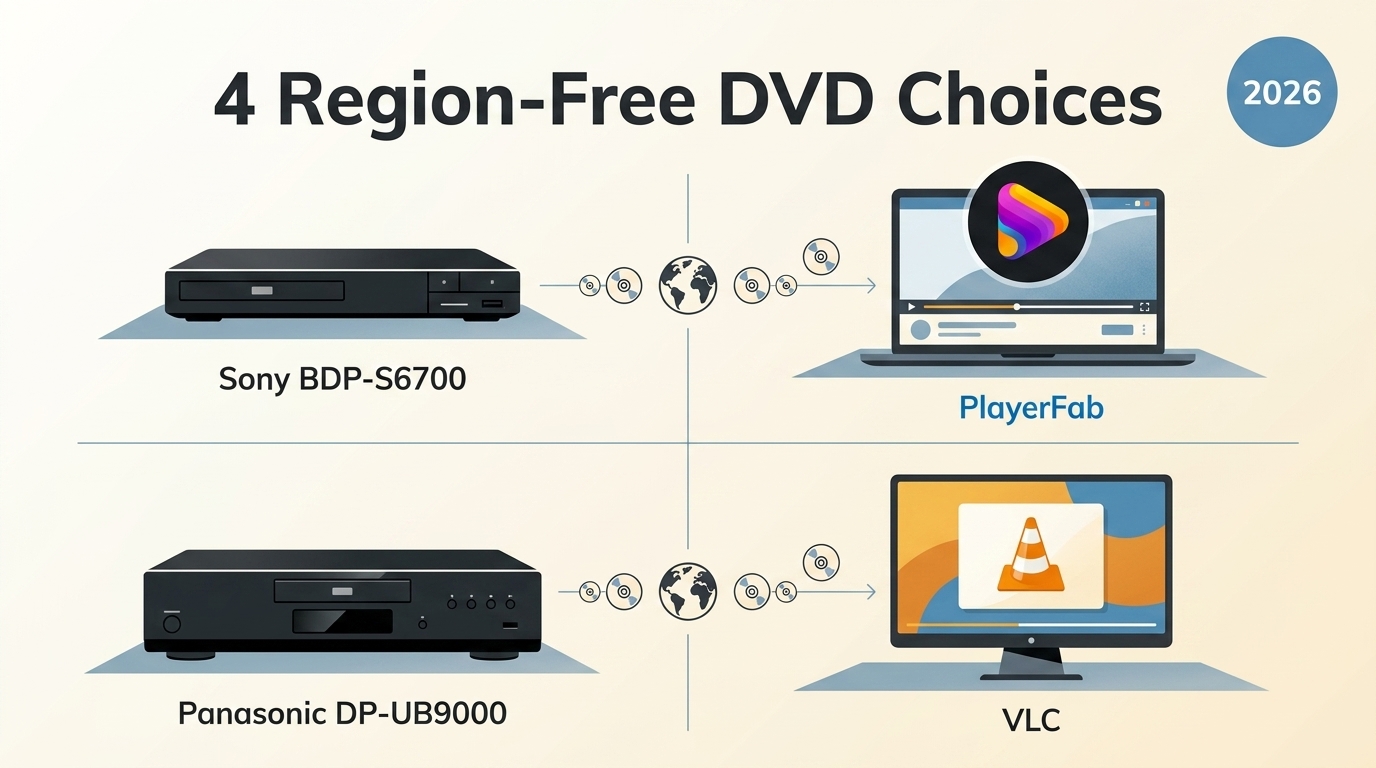 4 Region-Free DVD Player Choices Compared for 2026By Alice Harper - Jul 22, 2026