How to Play a DVD on a Laptop: 3 Methods That Work

Summary: Playing a movie DVD on a laptop requires both a readable optical source and DVD-capable software. This guide compares PlayerFab, VLC, and built-in Windows and Mac apps, then explains external-drive options and a practical troubleshooting order for discs that will not start.
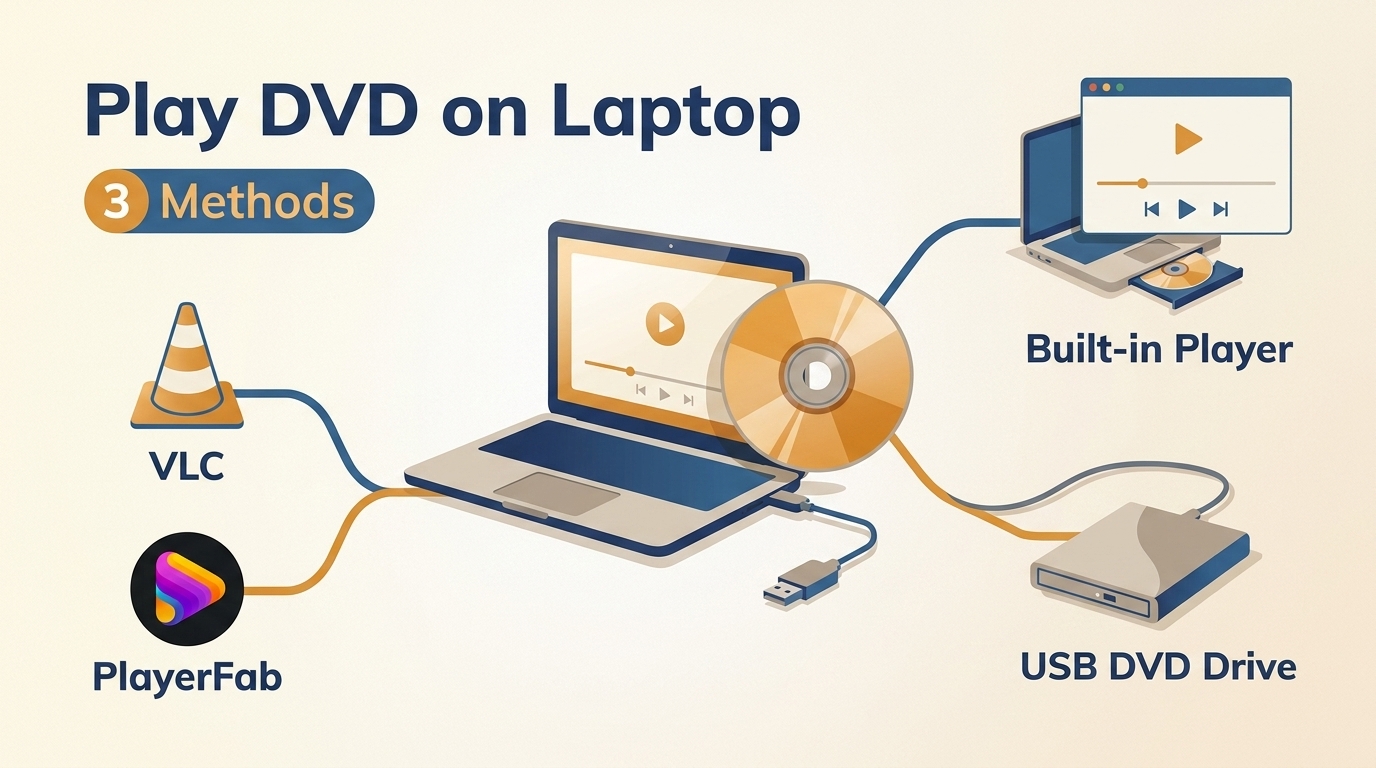
Table of Contents
If you are searching for how to play DVD on laptop, the missing piece is usually hardware, software, or both. Reliable DVD playback requires a readable internal or external optical drive plus a DVD-capable app. Start by checking your drive, then match the player to the disc type.
Use two questions to choose a path: Does the laptop have a working disc drive? Is the source a commercial movie DVD, a homemade or unprotected disc, an existing ISO, or a DVD folder? Those answers determine whether you need new hardware, different software, or a source-selection fix.
PlayerFab for Commercial DVDs and Full Menus
PlayerFab DVD Player is designed for people who need to play DVD on laptop with commercial-disc compatibility, full menu navigation, and support for physical discs, DVD ISO images, and DVD folders on Windows or Mac.
The useful distinction is control over the source and menu experience. Menu Mode retains DVD navigation, while Simple Mode goes directly to the main title. Audio, subtitles, aspect ratio, and playback controls remain accessible without turning the setup into a technical project.
My practical judgment is straightforward: PlayerFab fits a disc collection that mixes retail DVDs, ISOs, and folders, especially when menus matter. It is less suitable if the entire job is playing an occasional homemade or unprotected disc with a free app.
Install PlayerFab DVD Player
Download the installer for your operating system from the official source, run the setup, and complete the installation. The original Windows and Mac download options are available here: Download PlayerFab for Windows or download PlayerFab for Mac.
Open the Disc, ISO, or DVD Folder
Insert the DVD, launch PlayerFab, open Library, select Discs, and choose the detected optical source. For an existing ISO or DVD folder, open File Explorer and select the image or folder instead of browsing individual VIDEO_TS files.
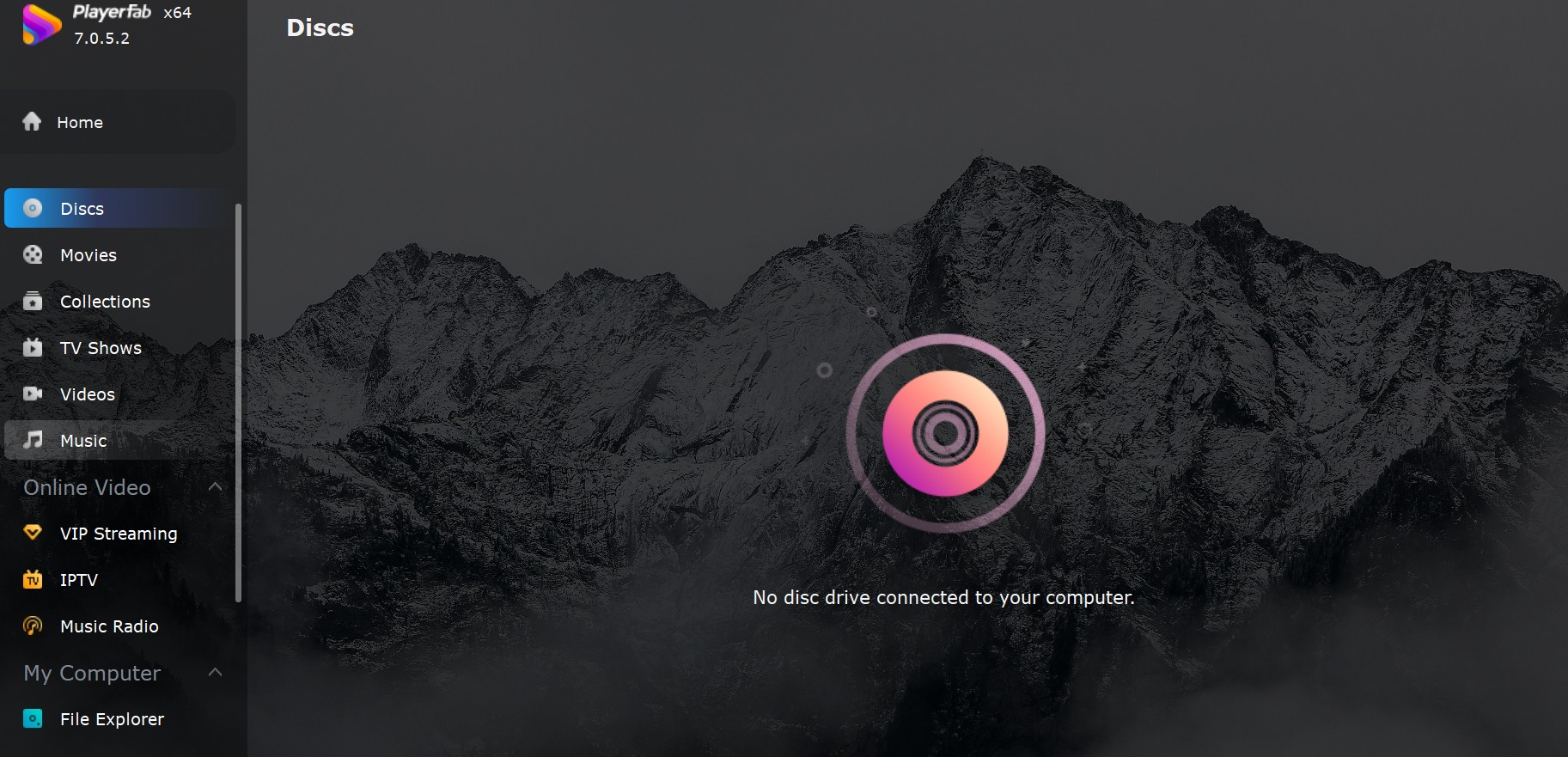
This source-selection step matters because Windows can display disc files without launching the movie as a DVD. I start by confirming that the app has opened the optical source itself, not merely a folder that happens to contain DVD files.
Choose Menus, Audio, and Playback Controls
Start playback, then use the DVD menu or the on-screen controls to select chapters, audio tracks, subtitles, and screen ratio. If the disc has a full menu, Menu Mode is the better fit; if you want the feature presentation without extras, use Simple Mode.
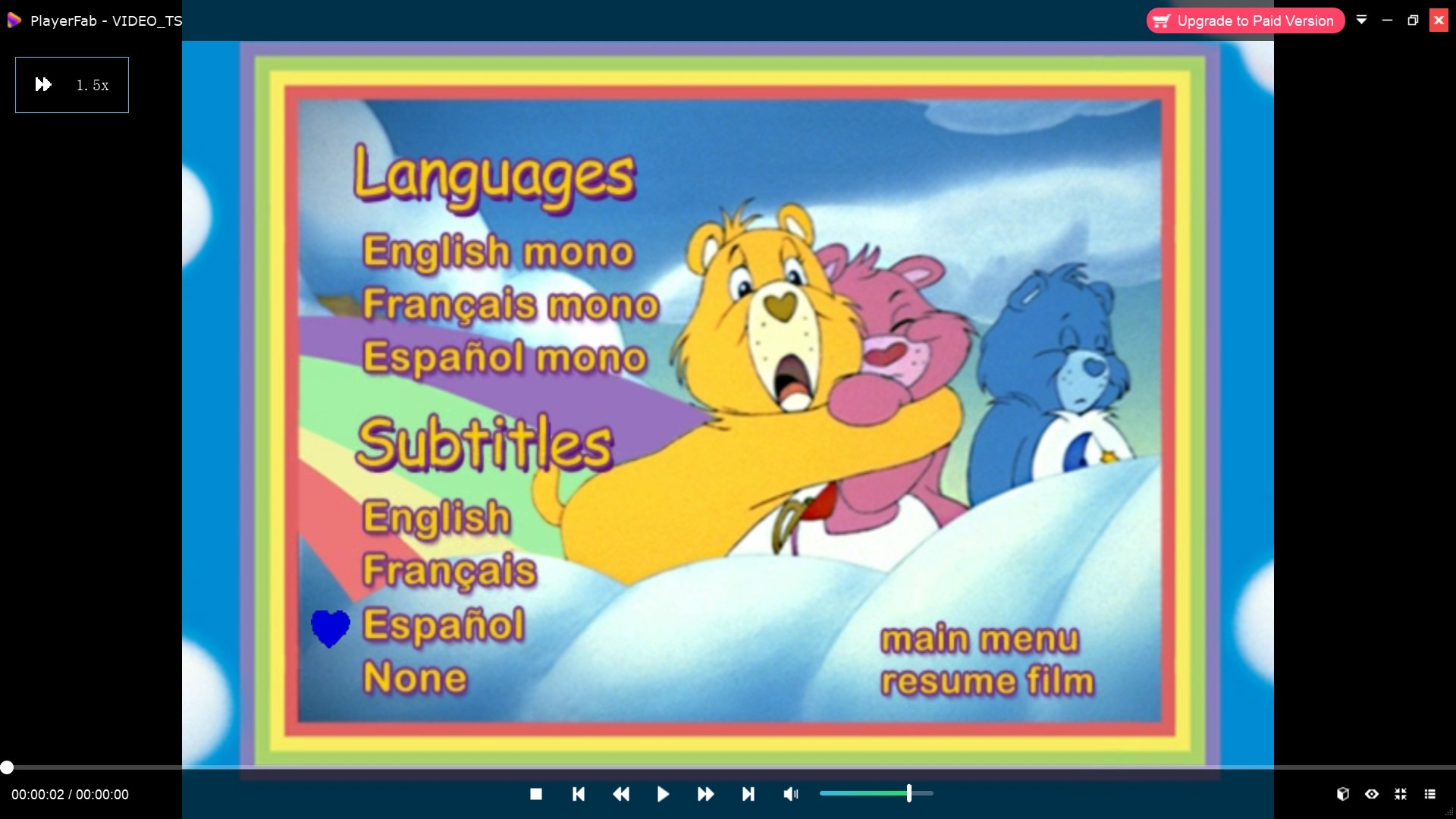
Region settings and disc authorization can affect playback. Treat that as a compatibility question, follow the disc license, platform terms, and applicable law, and avoid changing settings without understanding the drive's limits.
Play Unprotected DVDs Free with VLC
VLC is a practical way to play DVD on computer for free when the disc is homemade or unprotected. It can also open an existing ISO or DVD folder, making it useful for people who want lightweight DVD playback without commercial software.
A concise VLC play DVD workflow starts with opening the optical source as a disc, not clicking individual files. Success with retail movie DVDs can vary with the disc, region settings, drive condition, USB power, and available player support.
VLC is a good fit for free playback of homemade discs and common media files. It is not the first option I would choose when a commercial DVD produces a black screen or title-read error, because that symptom needs diagnosis before it can be assigned to the player.
Install VLC from VideoLAN
Download VLC from the official VideoLAN site, run the installer, and keep the default playback components unless you have a specific reason to change them. Avoid unofficial download mirrors and add-on packages that are not required for this basic method.
Open the DVD as a Disc
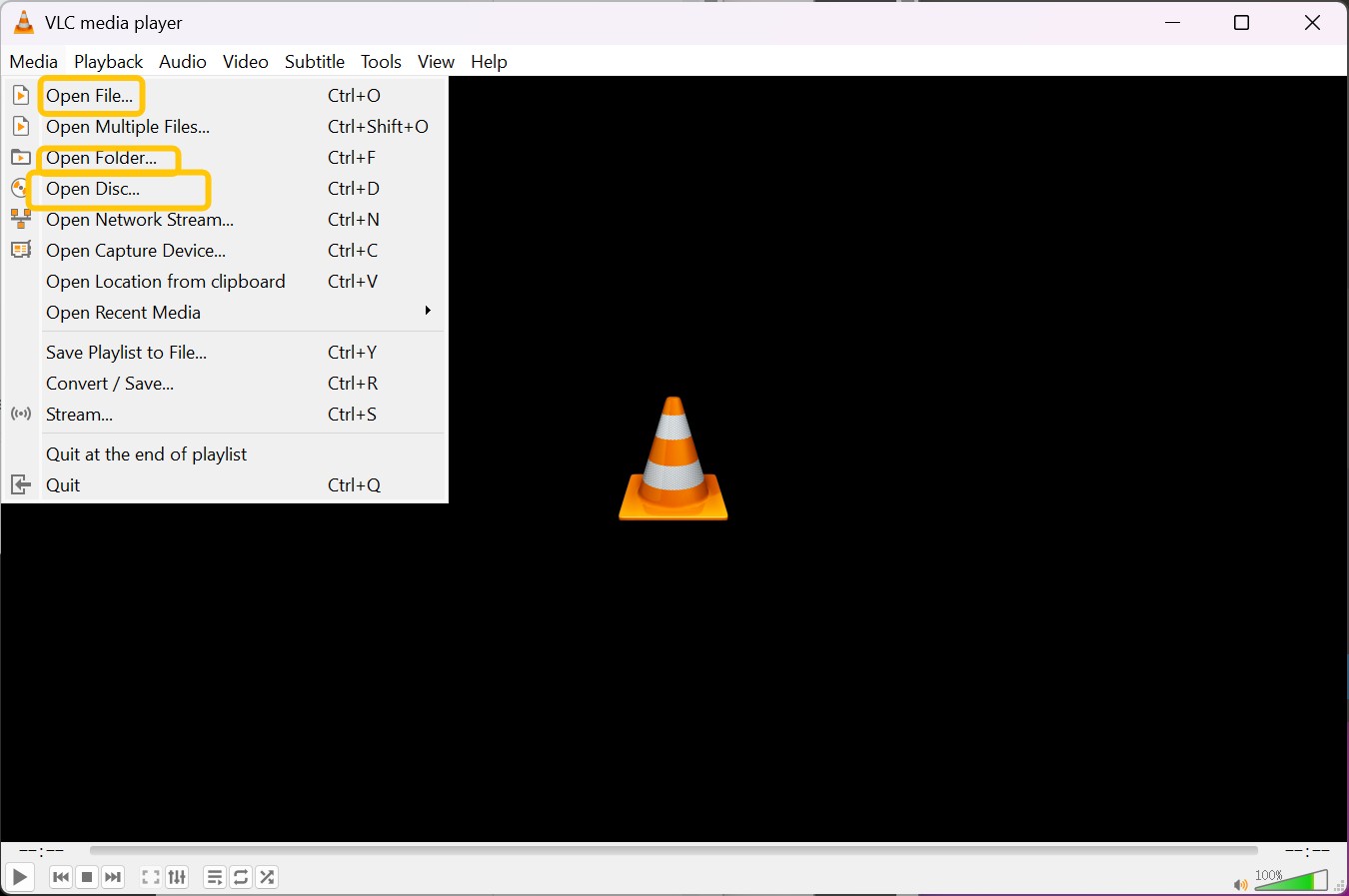
Insert the DVD, open VLC, select Media > Open Disc, choose DVD, confirm the correct drive, and select Play. For an existing ISO, use Media > Open File; for a DVD folder, use Media > Open Folder and choose the folder containing VIDEO_TS.
Use Menus and Playback Controls
When the source loads, use the disc menu or VLC's control bar for chapters, pause, volume, audio, and subtitles. Some discs begin at the main title, while others present their authored menu first.
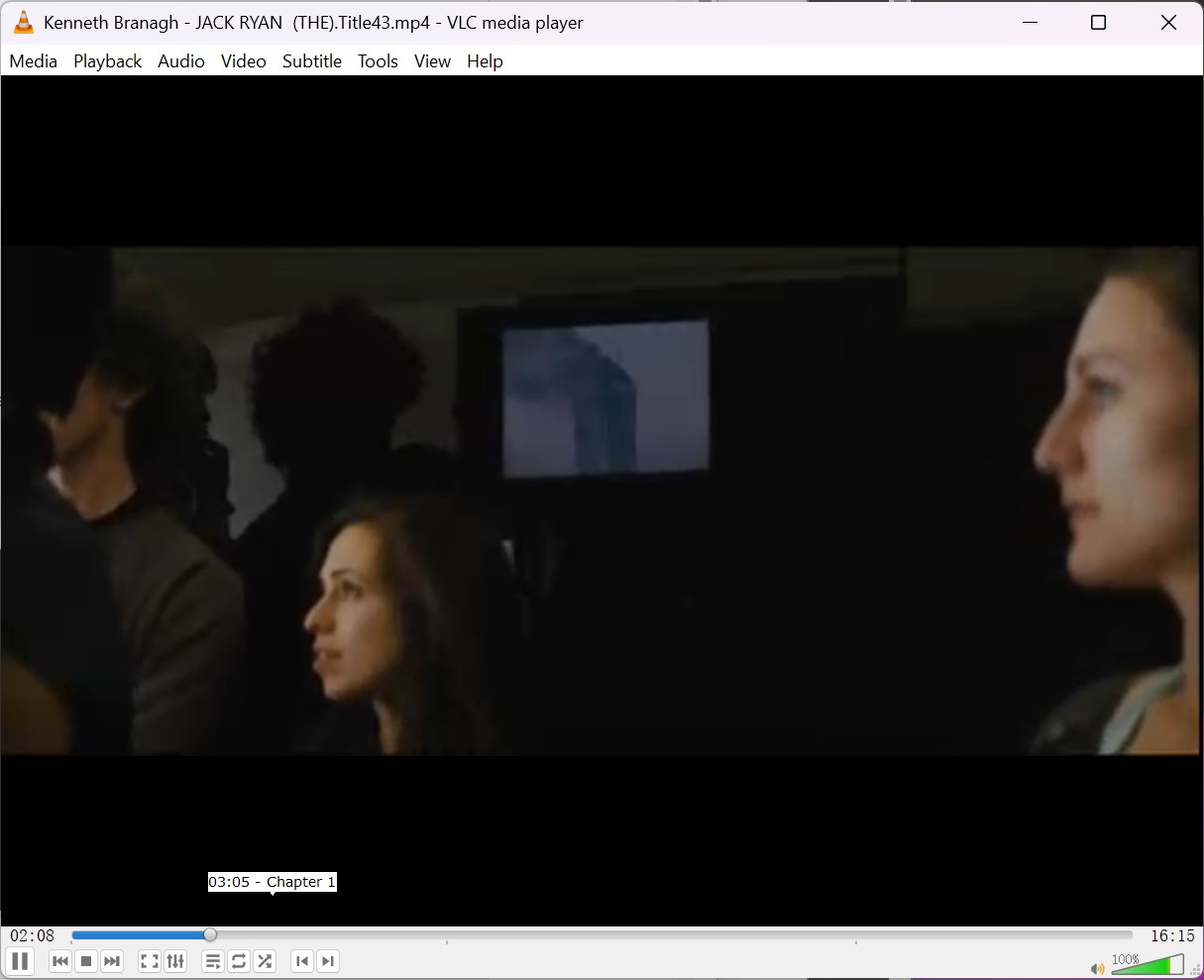
If files are visible but the movie does not start, do not assume VLC is the sole cause. Continue to the ordered checks below, where the same disc is cross-tested against the drive, source path, and another player.
Use Built-In DVD Apps on Windows and Mac
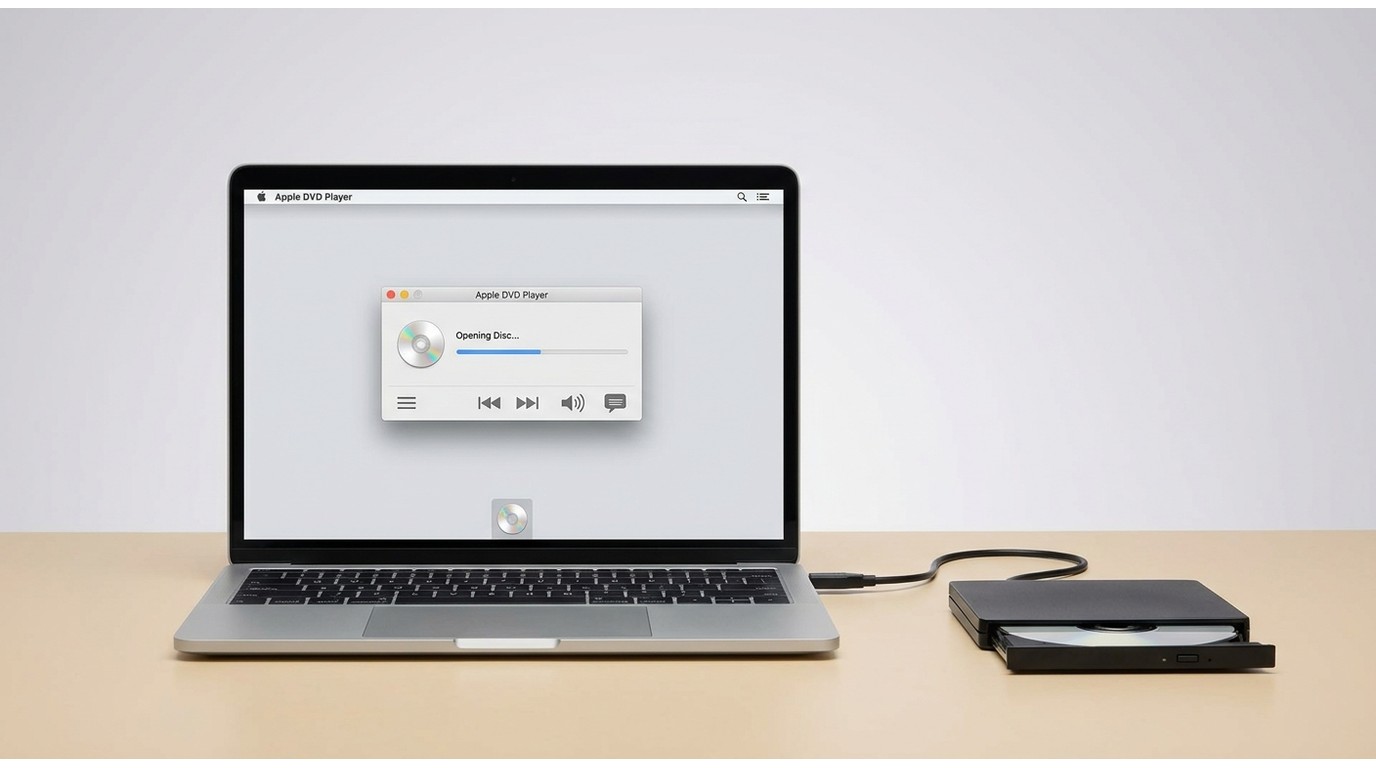
Built-in or store-delivered apps cover basic supported-disc playback, but the Windows and Mac paths differ. Windows 10 and 11 need a DVD-capable app; current macOS includes Apple DVD Player, although most modern Mac laptops still need an external optical drive.
Windows 10 and 11: Windows DVD Player
Windows Media Player should not be assumed to decode movie DVDs. If you are comparing that older route, the limitations of DVD playback in Windows Media Player explain why detecting a drive is not the same as supporting movie playback.
For how to play DVD on Windows 10 or Windows 11 with Microsoft's app, install Windows DVD Player from the Microsoft Store, connect or open the optical drive, insert the disc, and select Play. As of July 2026, the US Microsoft Store lists Windows DVD Player as free to download and install.
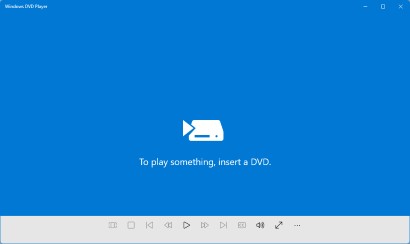
Use the on-screen bar for pause, chapter navigation, audio, and subtitles. This route is appropriate for basic supported-disc playback, but it does not replace the need for a readable drive or solve every commercial-disc compatibility issue.
macOS: Apple DVD Player
Current macOS includes Apple DVD Player. To use a Mac DVD Player, connect a compatible external optical drive if the Mac has no internal drive, insert the disc, and allow DVD Player to open automatically.
If the app does not launch, use Spotlight to search for DVD Player, open it, and select the disc. The virtual controls provide menu navigation, chapters, audio, and subtitles. A region mismatch can block playback, so treat the drive's existing region setting as a compatibility limit rather than a shortcut to change.
Options When Your Laptop Has No Disc Drive
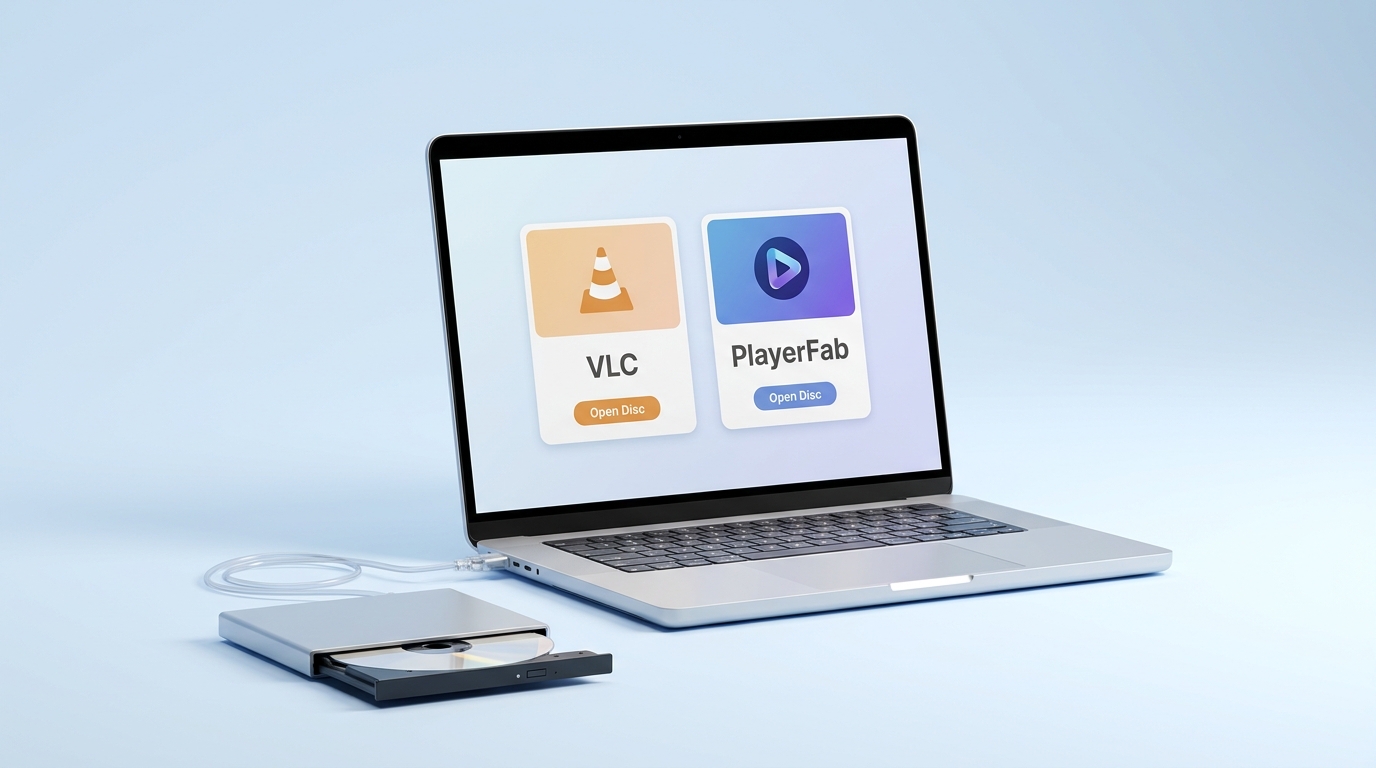
A laptop without an internal optical drive can still watch DVD on laptop through an external USB drive, an existing ISO or folder, or an authorized local copy. The correct path depends on whether the source is a physical movie disc, ordinary data, or a file you already lawfully possess.
Use an External USB DVD Drive
Connect a compatible external USB DVD drive, wait for it to appear in Windows or macOS, insert the disc, and open it with DVD-capable software. Laptop-specific details such as port placement and power make the how to play DVD on HP laptop example useful without changing the general setup.
This is the closest replacement for an internal drive and the better fit when you want direct access to a physical disc and its menus. It is less convenient for travel, and a low-power port or weak drive can produce intermittent read failures.
Copy Files or Mount an ISO
Ordinary data files may be copied when you have permission to use them, and an existing ISO can be mounted or opened by compatible software. A commercial movie DVD is different: seeing VIDEO_TS files does not mean those files will behave like a normal video folder or that copying is authorized.
If your laptop has a Blu-ray-capable optical drive, the hardware may also read DVDs; the broader question of whether Blu-ray players play DVDs depends on the device and supported disc formats. This path is best for files or images you already possess, not for guessing how a protected movie disc should be handled.
Digitize Authorized DVDs for Local Playback
For personal backup and local playback of discs you legally own, where permitted by the disc license, platform terms, and applicable law, an authorized digitization workflow can create a laptop-friendly video file. Do not treat every retail DVD as ordinary copyable data, and do not share resulting files.
DVDFab DVD Ripper is the retained option from the original article for permitted DVD conversion to common local formats. This route fits people who want fewer physical-drive connections after an authorized conversion; it is not appropriate when the user lacks rights to copy the content.
Fix DVD Playback Problems in the Right Order
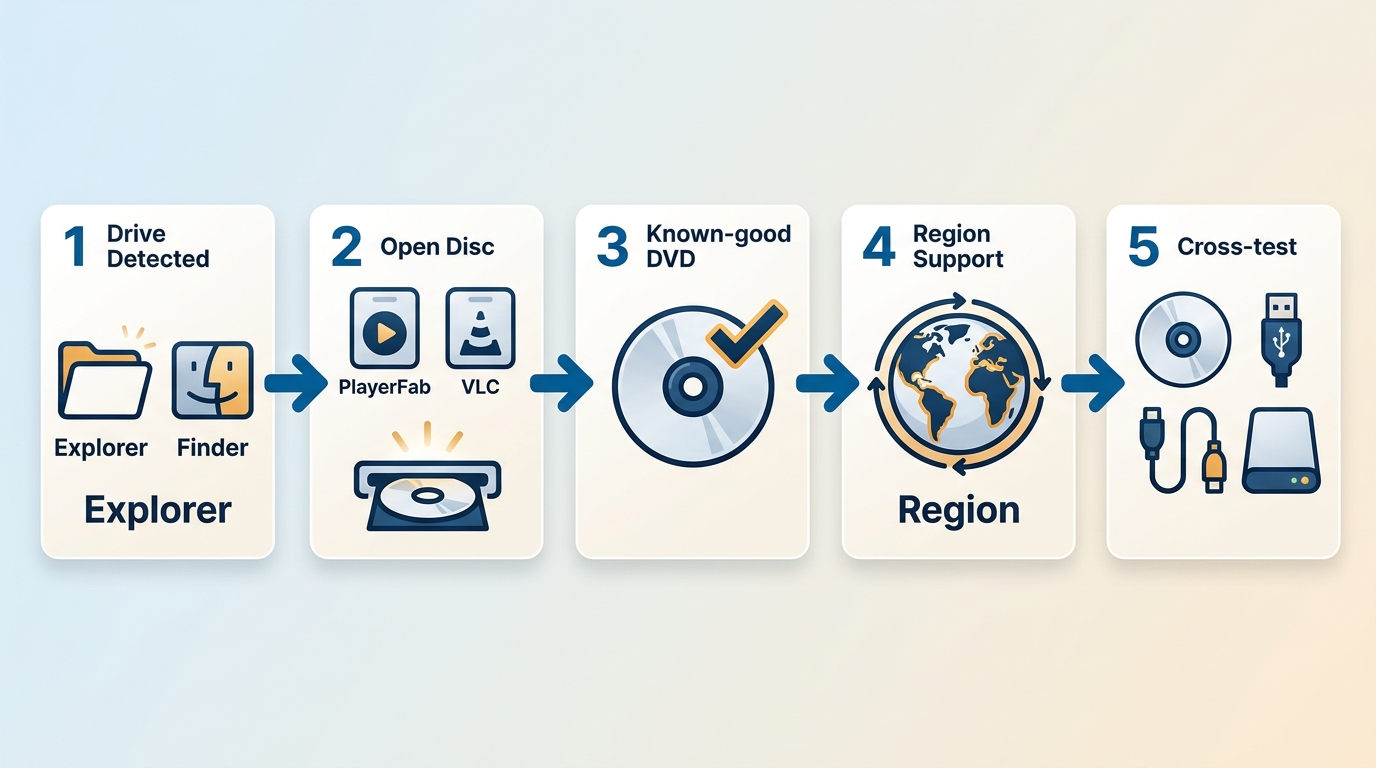
DVD playback problems are easier to solve when hardware, source selection, software support, region settings, and disc condition are checked in sequence. Changing players first can hide the real fault and waste time.
- Confirm drive detection. Check whether Windows File Explorer, Disk Management, macOS Finder, or System Information sees the optical drive. If not, reconnect it, try another USB port, avoid an unpowered hub, and test the drive on another computer if possible.
- Open the optical source as a disc. In PlayerFab choose Library > Discs; in VLC choose Media > Open Disc; in a system app select the detected DVD. Browsing VIDEO_TS files is not equivalent to launching movie DVD playback.
- Try a known-good unprotected disc. This separates basic drive reading from commercial movie-disc compatibility. If the simple disc also fails, focus on the drive, USB connection, or disc condition before installing more software.
- Separate player support from region mismatch. If one player fails but another opens the same disc, software compatibility is likely involved. If the drive reports a region mismatch, follow the device documentation and applicable use rules rather than experimenting with repeated setting changes.
- Inspect and cross-test. Clean visible dust with a soft lint-free cloth, inspect for deep scratches, test another port, and try the same disc in another known-good optical drive or player. A black screen or title-read error can reflect software support, region settings, damaged media, insufficient USB power, or drive quality.
Drive Not Detected
If the operating system does not list the drive, software cannot open the DVD. Prioritize cable, port, power, driver, and hardware checks. When a detected drive still fails across known-good discs, the phrase DVD player not reading disc describes a hardware or media diagnosis, not proof that one app is at fault.
Files Appear but the Movie Will Not Play
Visible folders confirm that the drive can read at least part of the disc, but movie playback still requires a DVD-capable app and the correct Open Disc path. I would verify the source path before replacing software because this is the fastest distinction between browsing files and launching a DVD title.
Black Screen, Region, or Disc Read Errors
A black screen, menu failure, or title-read message does not identify one cause. Test the same disc in another known-good drive or player, then compare the result with an unprotected disc. That cross-test provides better evidence than blaming VLC, Windows, the disc, or the drive immediately.
Choose the Right DVD Playback Method
The right method depends on disc type, optical-drive availability, menu needs, and budget. The table keeps commercial compatibility and region mismatch neutral, without turning either into a promotional shortcut.
| Method | Best for | Not ideal for | Optical drive required | Homemade or unprotected DVDs | Commercial DVD compatibility | Region-mismatched discs | ISO and DVD folder playback | Full DVD menu support | Cost |
|---|---|---|---|---|---|---|---|---|---|
| PlayerFab DVD Player | Mixed DVD collections, menus, ISOs, and folders | An occasional unprotected disc when free software is enough | Yes for physical discs; no for ISO or folder sources | Supported | Designed for broad commercial DVD playback | Broader compatibility, subject to authorized use and local law | Yes | Yes, with Menu Mode | Free download available; edition terms vary |
| VLC media player | Free playback of homemade or unprotected discs and common files | Commercial discs that produce menu, black-screen, or title-read errors | Yes for physical discs; no for ISO or folder sources | Supported | Varies by disc, drive, and available playback support | Not a dependable fix for a mismatch | Yes | Available when the disc and menu structure load correctly | Free and open source |
| Windows DVD Player | Basic supported-disc playback on Windows 10 or 11 | ISO libraries, DVD folders, or advanced library controls | Yes | Supported when the disc is readable | Supports compatible movie DVDs | Drive settings can prevent playback | No general ISO or folder workflow | Supports disc navigation when available | Free to download and install in the cited US Store listing |
| Apple DVD Player | Basic DVD playback on macOS with a compatible drive | Laptops without an optical drive or users managing ISO libraries | Yes | Supported when the disc is readable | Supports compatible movie DVDs | Drive settings can prevent playback | Focused on physical DVD playback | Yes for supported discs | Included with macOS |
Best Fit for Each Method
- PlayerFab DVD Player: Choose it when commercial-disc compatibility, full menus, and disc, ISO, or folder source choice matter.
- VLC media player: Choose it for free playback of homemade or unprotected DVDs, ISOs, folders, and common media files.
- Windows DVD Player: Choose it for a basic Microsoft Store path on Windows when the disc and drive are supported.
- Apple DVD Player: Choose it for direct DVD playback on a Mac with a compatible internal or external optical drive.
The practical upshot is to solve the hardware condition first. A different app cannot compensate for an undetected, underpowered, or unreliable optical drive.
Frequently Asked Questions
How can I tell whether my laptop can play DVDs?
Check for an internal optical drive or connect an external USB DVD drive, confirm that the operating system detects it, and make sure a DVD-capable app is installed. A visible drive proves hardware detection, not that the current media player supports movie DVD playback.
Will an external USB DVD drive work with my laptop?
Most current laptops can use a compatible USB optical drive. You still need DVD playback software, and the drive needs adequate USB power. If reading is unreliable, try another port, avoid an unpowered hub, and cross-test another disc or drive.
Is it safe to download a DVD player for Windows 11?
Use the Microsoft Store or the software vendor's official site. A free player can be a sensible fit for homemade or unprotected discs, while a commercial DVD collection may require software with broader disc and menu compatibility. Avoid unofficial installers and bundled download sites.
Conclusion
How to play DVD on laptop comes down to three checks: confirm a readable drive, identify the disc type, and choose software that matches the job. Use PlayerFab for broader commercial-disc, menu, ISO, or folder needs; VLC for free playback of unprotected sources; or the operating system's DVD app for basic supported discs. If the drive is missing or unreliable, fix that before changing software.

![Play DVDs on Windows 10/11: 4 Methods and Fixes [2026]](https://r4.dvdfab.cn/upload/player/en/how-to-play-dvds-on-windows-10-BykI.jpg) Play DVDs on Windows 10/11: 4 Methods and Fixes [2026]By Alice Harper - Jul 29, 2026
Play DVDs on Windows 10/11: 4 Methods and Fixes [2026]By Alice Harper - Jul 29, 2026 8 Best DVD Players for Windows 10/11 (Free and Paid, 2026)By Alice Harper - Jul 29, 2026
 How to Play VOB Files: VLC, DVD Menus, and MP4 ConversionBy Alice Harper - Jul 23, 2026
 4 Region-Free DVD Player Choices Compared for 2026By Alice Harper - Jul 22, 2026