Can Blu-ray Players Play DVDs? Compatibility and Fixes.

Summary: Most consumer Blu-ray players can play commercial DVDs, but burned discs, data discs, specialty formats, and imported titles may depend on the player model. This guide compares common disc formats, explains region codes, and gives a symptom-first troubleshooting order, with PlayerFab presented as an optional PC fallback.
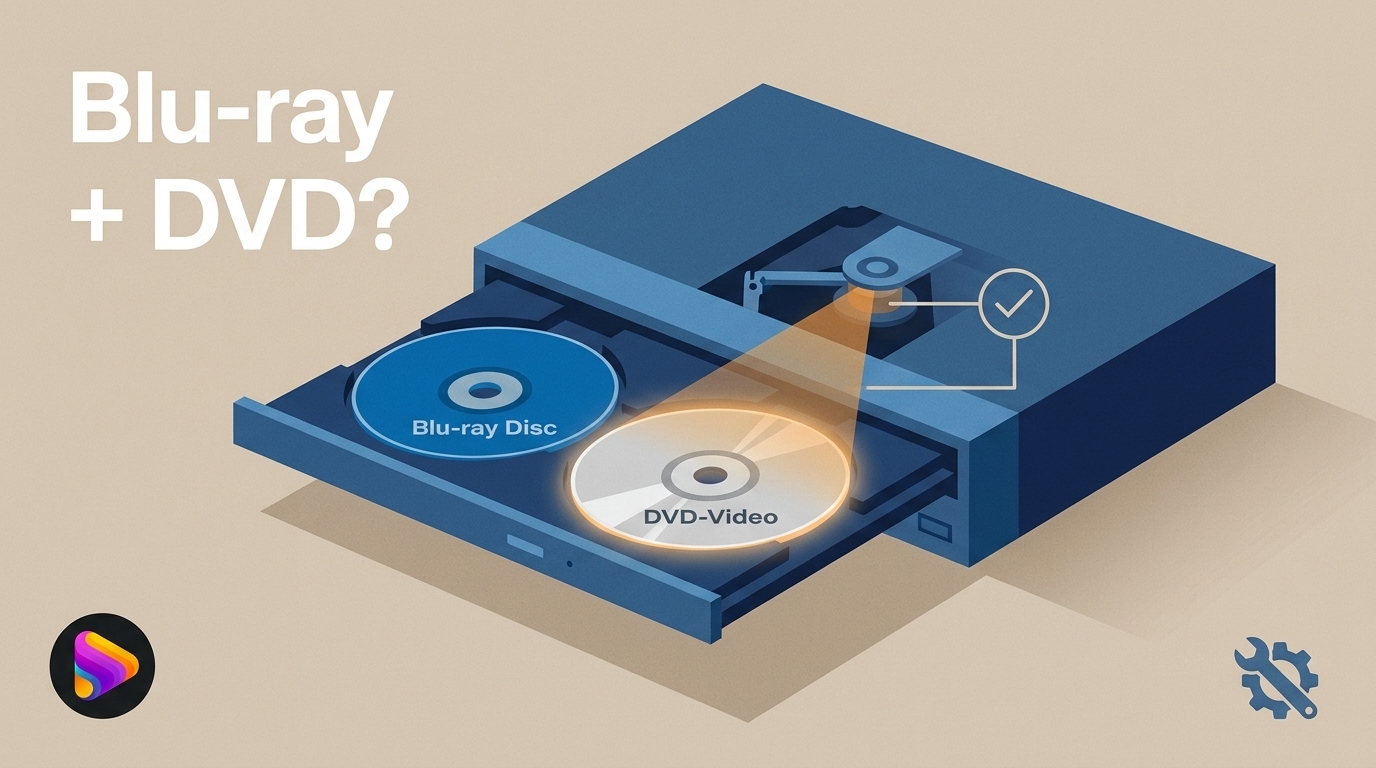
Can Blu-ray players play DVDs when you are replacing an older player but keeping the same disc collection? Yes, most consumer models play standard commercial DVDs, although burned, rewritable, data, and specialty discs can still trigger DVD playback errors when the player or disc format is not compatible.
The useful question is not simply whether regular DVDs on Blu-ray hardware work. It is which disc types your model accepts and what a specific symptom tells you. The compatibility matrix and troubleshooting order below keep those two decisions separate.
Most Blu-ray Players Play Standard DVDs
Most Blu-ray players play standard DVD-Video discs because the drive includes the optical hardware needed for both formats. Support becomes less predictable with recordable, rewritable, data, and specialty discs, so the model manual matters once you move beyond a commercial movie DVD.
A Blu-ray disc uses a blue-violet laser path for its densely packed data, while a DVD uses a red laser path. A compatible player switches to the appropriate optical path after identifying the disc. That is why backward compatibility is a hardware capability rather than a visual upscaling feature.
My practical rule is simple: a pressed DVD-Video title such as The Matrix is the safe expectation, while a home-authored or unusual disc should be treated as model-dependent until its format and finalization are confirmed.
DVD and CD Compatibility by Format
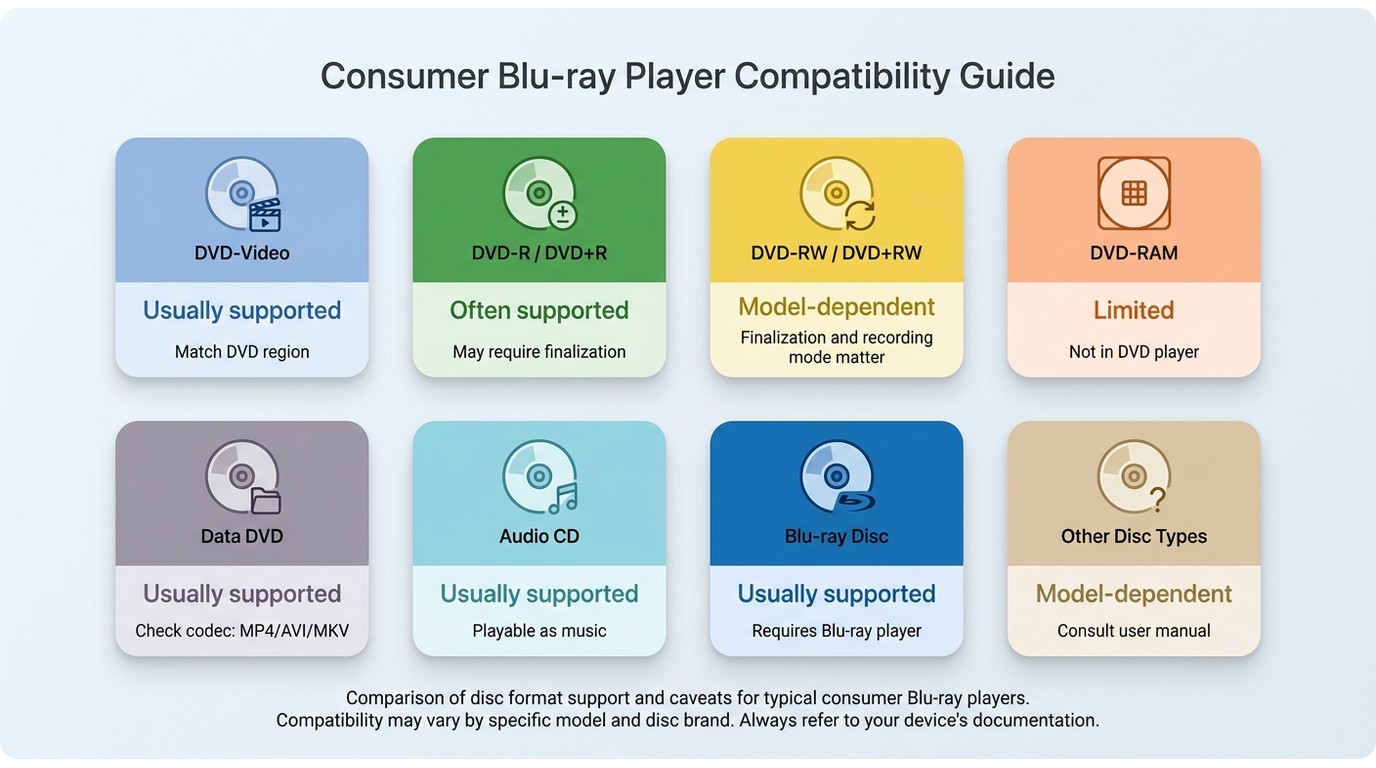
Blu-ray player DVD compatibility is broad for commercial DVD-Video and narrower for recordable or data media. The matrix shows the usual pattern, but a player's manual remains the final guide for DVD-RAM, file-based discs, and other specialty formats.
| Disc or media type | Typical support on consumer Blu-ray players | Model-dependent caveat | Condition that commonly affects playback |
|---|---|---|---|
| Commercial DVD-Video | Usually supported | Disc region must match the player | Scratches, contamination, or a damaged disc |
| DVD-R and DVD+R | Often supported | A DVD-R on Blu-ray player hardware may still depend on the recording mode | The disc may need to be finalized |
| DVD-RW and DVD+RW | Often model-dependent | Some players accept fewer rewritable formats | Finalization, recording mode, and disc condition |
| DVD-RAM | Limited, model-dependent support | The player must list DVD-RAM explicitly | Unsupported format or file system |
| Data DVDs with video files | Model-dependent | The file system, container, and codec must be supported | A playable MP4, AVI, or MKV file on a computer may not play from the disc |
| Audio CDs | Commonly supported | Recordable CD formats can vary by model | Disc format and condition |
| Blu-ray discs in a standard DVD player | Not supported | A DVD player lacks Blu-ray-capable optical hardware | The reverse compatibility path does not exist |
The practical takeaway is that audio CDs on Blu-ray players and commercial DVDs are common expectations, while specialty media deserves a manual check before you diagnose the player as faulty.
Why DVDs Fail on Blu-ray Players
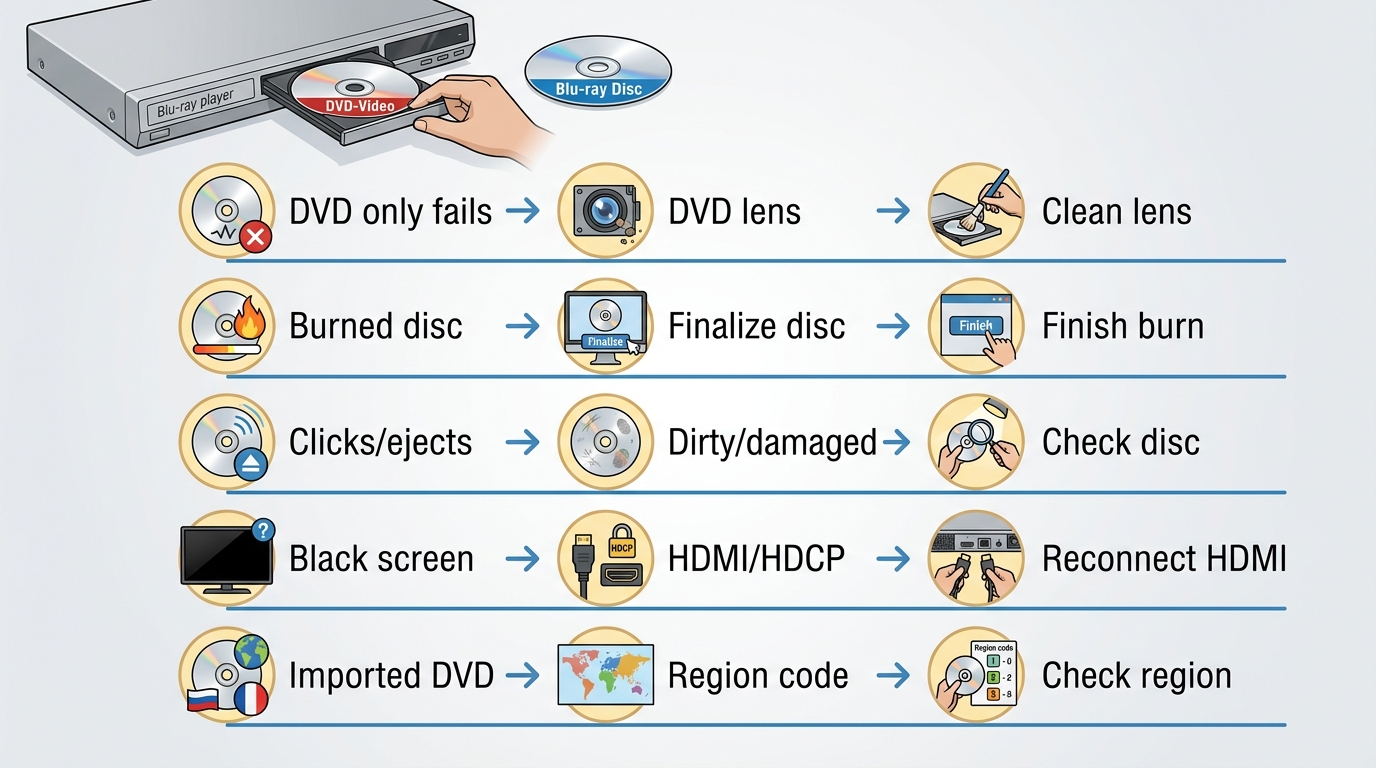
DVD playback errors usually point to the disc, region, recording format, DVD-reading optical path, or display connection. Start with the symptom rather than changing several settings at once; that keeps a format problem from being mistaken for a hardware failure.
Quick Symptom Checklist
- Blu-ray works but several DVDs fail: try one clean, known-good commercial DVD, then check region and model support before considering the DVD-reading optical path.
- A burned disc is rejected: confirm that it was finalized and that its recording mode, file system, container, and codec appear in the player documentation.
- The disc spins, clicks, or ejects: inspect it for dirt, warping, and scratches; then compare it with a known-good disc.
- The screen is black but playback appears to continue: reseat the HDMI cable, connect directly to the TV when possible, and test another input.
- Only imported DVDs fail: compare the DVD region with the player's DVD region setting.
I would always try a known-good commercial DVD first. It is the fastest low-risk way to separate a problem with one disc from a broader player issue before moving into firmware, optical, or HDMI diagnosis.
DVD and Blu-ray Region Codes
In the United States, a standard player commonly uses DVD Region 1 and Blu-ray Region A. These are separate coding systems: matching Blu-ray Region A does not make a player region-free for DVDs, and playing domestic DVDs does not guarantee support for an imported disc.
Region compatibility is separate from the player's ability to read the physical format. If imported titles are the only failures, the disc packaging and the player's official documentation are more informative than repeated cleaning or cable changes.
Disc Damage, Finalization, and Formats
Scratches, fingerprints, warping, and incomplete recording sessions can interrupt DVD playback. A burned DVD also needs the correct structure: an authored DVD-Video disc is different from a data DVD that simply stores MP4, AVI, or MKV files.
For a recordable disc, finalize the session in the software or recorder that created it. For a data disc, compare the file system, container, and codec with the model manual. A computer recognizing the files does not prove that the standalone player supports them from optical media.
Optical Pickup and HDMI Checks
If several clean commercial DVDs fail while Blu-ray discs still play, contamination or aging in the DVD-reading optical path is one possible cause. Consider that diagnosis only after checking region, format, finalization, model support, firmware, and disc condition.
A black screen is a different symptom. The disc may be reading correctly while the video connection fails between the player, receiver, and television. Power down the chain, reseat the HDMI cable, try a direct TV connection, and test a different cable or input before blaming the disc drive.
From a diagnostic standpoint, clean audio with no picture points me toward the display path, while repeated rejection of multiple known-good DVDs points back toward disc compatibility or the DVD-reading hardware.
PlayerFab as an Optional PC Fallback
PlayerFab is an optional PC fallback after the standalone player checks are complete. It cannot repair the Blu-ray player itself, and it is not necessary for readers whose problem is solved by cleaning, finalizing a disc, matching the region, or correcting an HDMI connection.
For discs you are authorized to access, where permitted by applicable law and relevant terms, PlayerFab DVD Player provides a local playback workflow on Windows and macOS. Its useful distinctions here are DVD menu navigation and support for physical DVDs, ISO images, and DVD folders.
Suitable for: readers with a compatible computer optical drive who want to move local DVD playback to a computer. Less suitable for: readers seeking a quick repair for a standalone player or those without a compatible optical drive.
Playing a DVD on PC with PlayerFab
The setup is intentionally short: install PlayerFab on a supported Windows or macOS computer, connect a compatible internal or external optical drive, load the DVD, and choose the available playback mode or menu.
- Download and install PlayerFab from its official product page.
- Connect the optical drive, insert the DVD, and open PlayerFab.
- Select the detected disc in the media library.
- Start playback and choose the DVD menu, audio, and subtitle options available on the disc.
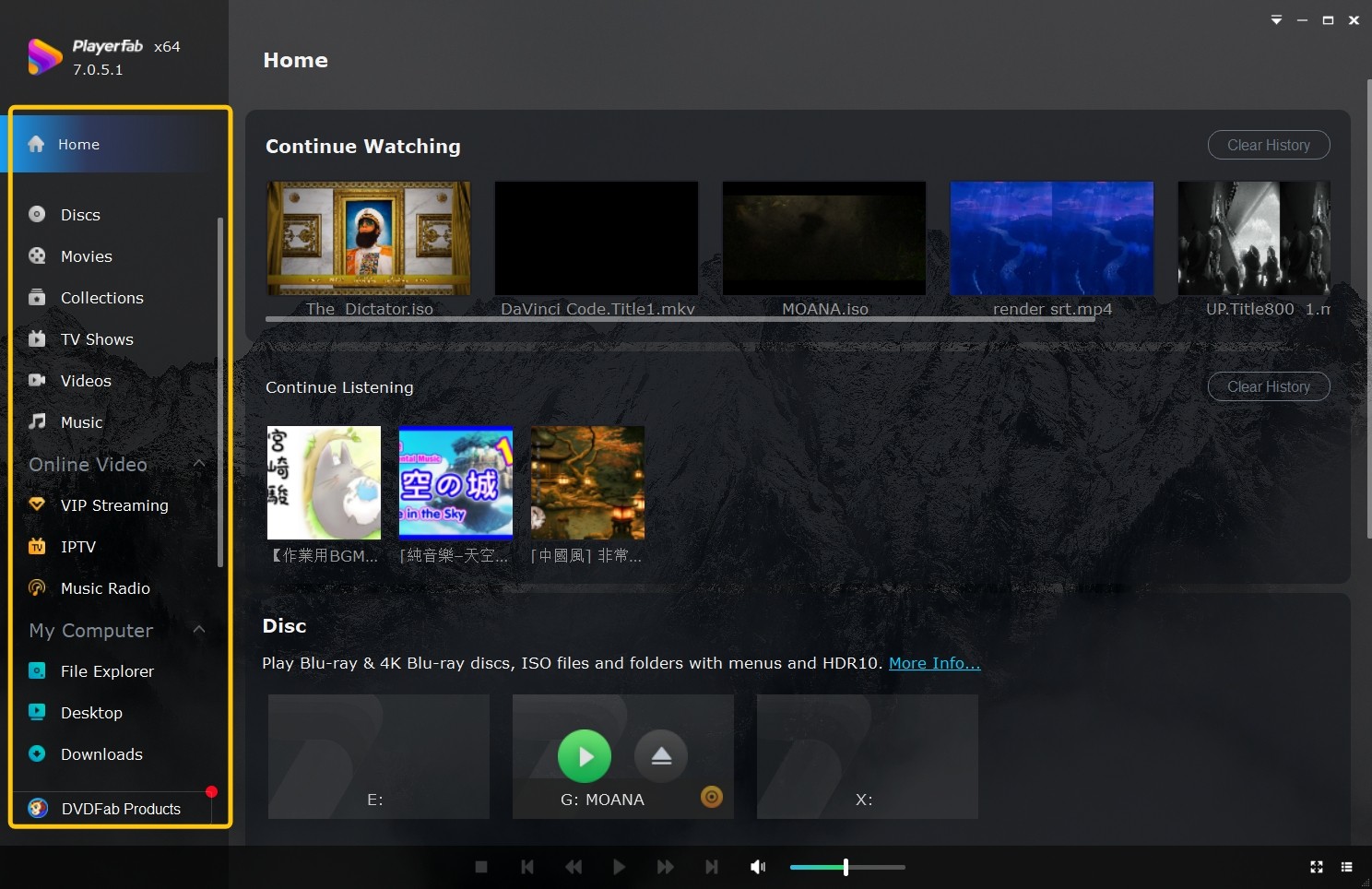
If an ISO image or DVD folder is already stored locally, add that source through the software's file or library workflow rather than inserting a physical disc. My fit judgment is that this route is most useful as a separate computer playback option, not as a promise to make every rejected disc readable.
FAQs
Will DVDs Look Better on a 4K TV?
A Blu-ray player or television may scale DVD output to fit a 4K screen, but DVD upscaling on a 4K TV cannot recreate detail that is absent from the source. Results vary with the player, television processing, DVD transfer, viewing distance, and screen size. I notice the benefit most when the original transfer is clean; poor mastering remains visible.
Is a Blu-ray Player Worth Buying for DVDs?
It generally suits readers who want one device for both Blu-ray and regular DVDs. It is less compelling if you watch DVDs exclusively and do not need Blu-ray playback or newer connection features. I would base the purchase on the formats you own and the model's documented disc support, not on upscaling claims alone.
Can a Laptop DVD Drive Read Blu-ray Discs?
No. A standard DVD-only laptop drive cannot read Blu-ray discs because it lacks Blu-ray-capable optical hardware. You need a Blu-ray-capable drive and compatible playback software; this is the same one-way limitation behind the question of whether a DVD player can play Blu-ray media.
The Bottom Line
Can Blu-ray players play DVDs? Most consumer models play standard commercial DVDs, but recordable, rewritable, data, imported, and specialty discs depend on the model and disc conditions. Check the format and region first, then finalization and damage, followed by the DVD optical path and HDMI chain. PlayerFab is a reasonable optional PC fallback for an authorized local playback workflow when the computer and optical drive fit the task, but it does not replace diagnosis of the standalone player.

 Play Video Files: 4 Paths Across Formats and DevicesBy James Morgan - Sep 22, 2026
 12 Best HEVC Players for Windows, Mac, and 4K (2026)By Alice Harper - Aug 4, 2026
 Best WMV Player for Mac and How to Play WMV on Mac NativelyBy James Morgan - Aug 4, 2026
 8 Best TS File Players and Playback Tools for 2026By Alice Harper - Jul 28, 2026