12 Best HEVC Players for Windows, Mac, and 4K (2026)

Summary: This guide compares 12 HEVC players by platform, free access, container handling, 10-bit and 4K support, hardware decoding, subtitles, and disc support. It also gives Windows 10/11 setup steps and a symptom-first troubleshooting path for blank video, stutter, artifacts, and client-specific playback failures.
Table of Contents
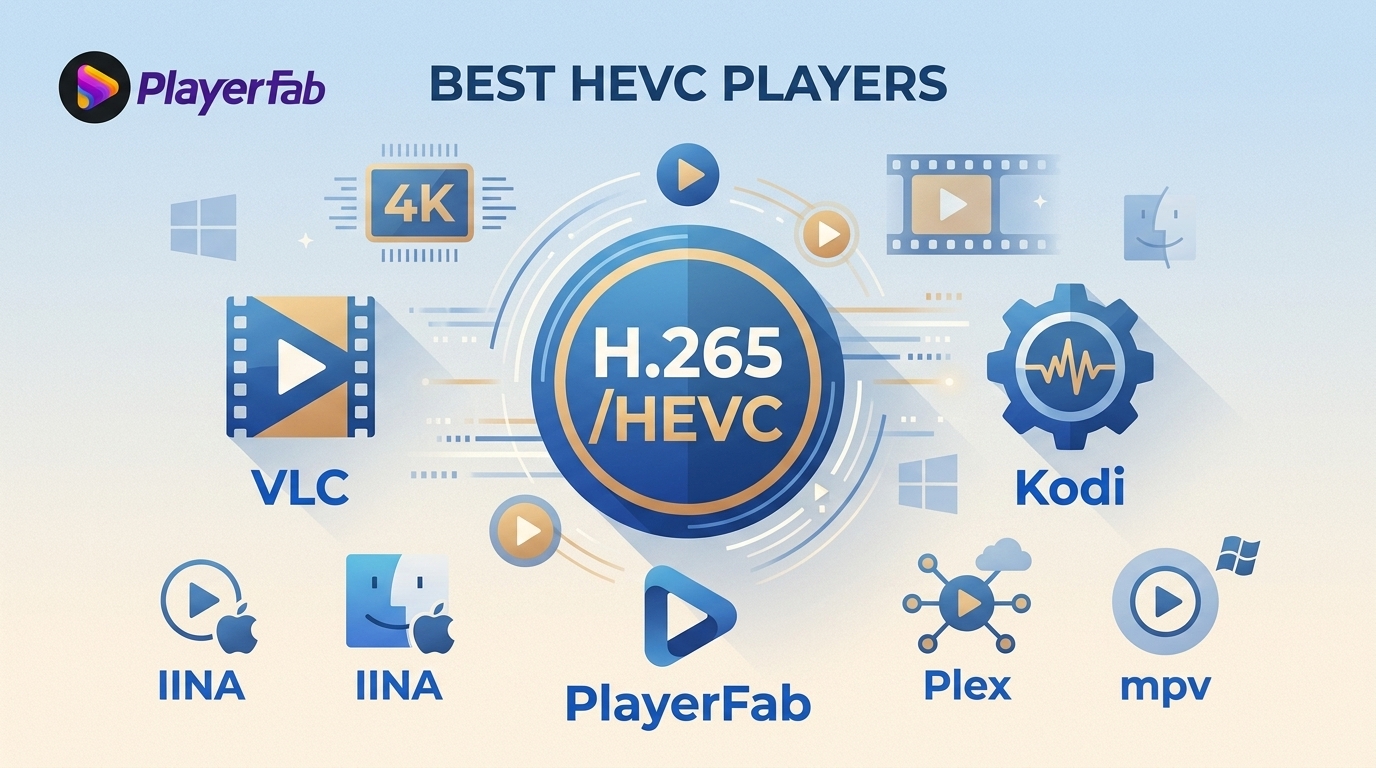
If your HEVC player opens one H.265 file but stutters, loses subtitles, or shows a blank picture on another, the codec label is not the whole answer. The practical choice depends on Windows or Mac support, the file's profile and bit depth, hardware decoding, and the playback client.
This guide compares 12 current options, then shows how to set up an HEVC video player on Windows 10 or 11, diagnose 4K and 10-bit problems, and choose an H.265 player for local files, Mac, media-center use, or Blu-ray and ISO playback.
How I Tested These HEVC Video Players
A claimed HEVC badge is not enough. I evaluated the playback path around the codec, including the container, profile, bit depth, hardware-decoding status, subtitles, seeking, and audio switching.
A player can claim HEVC support and still fall short once real-world playback gets more demanding, so this list was shaped by practical use rather than spec sheets alone. My testing was done on a Lenovo laptop running Windows 11 with AMD graphics and a MacBook Air with Apple's M2 chip running macOS Ventura 13, to see how each player handled HEVC playback across both Windows and Mac environments. In particular, I paid closest attention to smooth playback with larger 4K and high-bitrate HEVC files, while also looking at subtitle handling, audio track switching, and hardware acceleration. Ease of use mattered too, since some players are clearly better suited to everyday viewing than others. I also considered extras such as HDR support, Blu-ray or ISO playback, platform compatibility, and how much real value each player offered as a free option.
| Test area | What I recorded | Why it matters |
|---|---|---|
| File structure | MP4 or MKV container, HEVC profile, 8-bit or 10-bit depth, and chroma format when known | Two files labeled HEVC can require different decoder paths. |
| Video load | Resolution, bitrate class, HDR path, and ordinary clips versus demanding 4K remux or camera samples | High-bitrate material exposes limits that short samples may hide. |
| Decode behavior | HEVC hardware decoding, CPU usage, and dropped frames | Efficient GPU decoding often separates stable 4K playback from stutter. |
| Daily controls | Subtitle behavior, seeking, pause-resume, and audio-track switching | A file is not truly usable if navigation or subtitles break playback. |
My editorial rule is simple: nominal codec support earns a player a test, not a recommendation. Real compatibility includes the file, decoder, graphics hardware, operating system, and client working together.
My Top Picks: Best Free HEVC Players at a Glance
The best HEVC player depends on the job. These three quick picks cover the broadest everyday, Mac, and home-theater needs, while the decision table adds honest limits.
PlayerFab All-In-One
- Why it stands out: It combines Windows HEVC local playback with HDR, disc, ISO, subtitle, and home-theater audio features.
- Best for: Windows users with a movie library that extends beyond occasional clips.
- Not ideal for: Mac users or anyone who needs only a lightweight free player.
VLC Media Player
- Why it stands out: VLC is a practical free HEVC player with broad platform and container support.
- Best for: Everyday local playback on Windows, Mac, or Linux.
- Not ideal for: Disc-menu workflows or viewers who want a polished HDR home-theater interface.
IINA
- Why it stands out: IINA pairs mpv-based playback with a native-feeling Mac interface.
- Best for: Mac users who value gestures, Picture in Picture, and subtitle controls.
- Not ideal for: Blu-ray menus, ISO-heavy libraries, or guaranteed playback of demanding 4K HDR remuxes.
| Scenario | Recommendation | Best for | Not ideal for |
|---|---|---|---|
| Free Windows playback | VLC | Opening common MP4 and MKV HEVC files without a paid system add-on | Full disc-menu and premium HDR workflows |
| Mac playback | IINA | A Mac-native interface and flexible subtitle control | Blu-ray or ISO libraries |
| Lightweight advanced control | mpv or MPC-HC | Users comfortable with settings and keyboard-driven playback | People who want a guided media-library interface |
| 4K HDR, disc, or ISO | PlayerFab | Authorized local and disc media on Windows 11 or 10 | Occasional clips or current Mac use |
| Media-center library | Kodi or Plex | Organized libraries and TV-client playback | A simple single-file desktop player |
| Browser or no install | Online route | Quick compatible files on a supported browser | High-bitrate, unusual-profile, or privacy-sensitive media |
Play HEVC on Windows 10 or 11
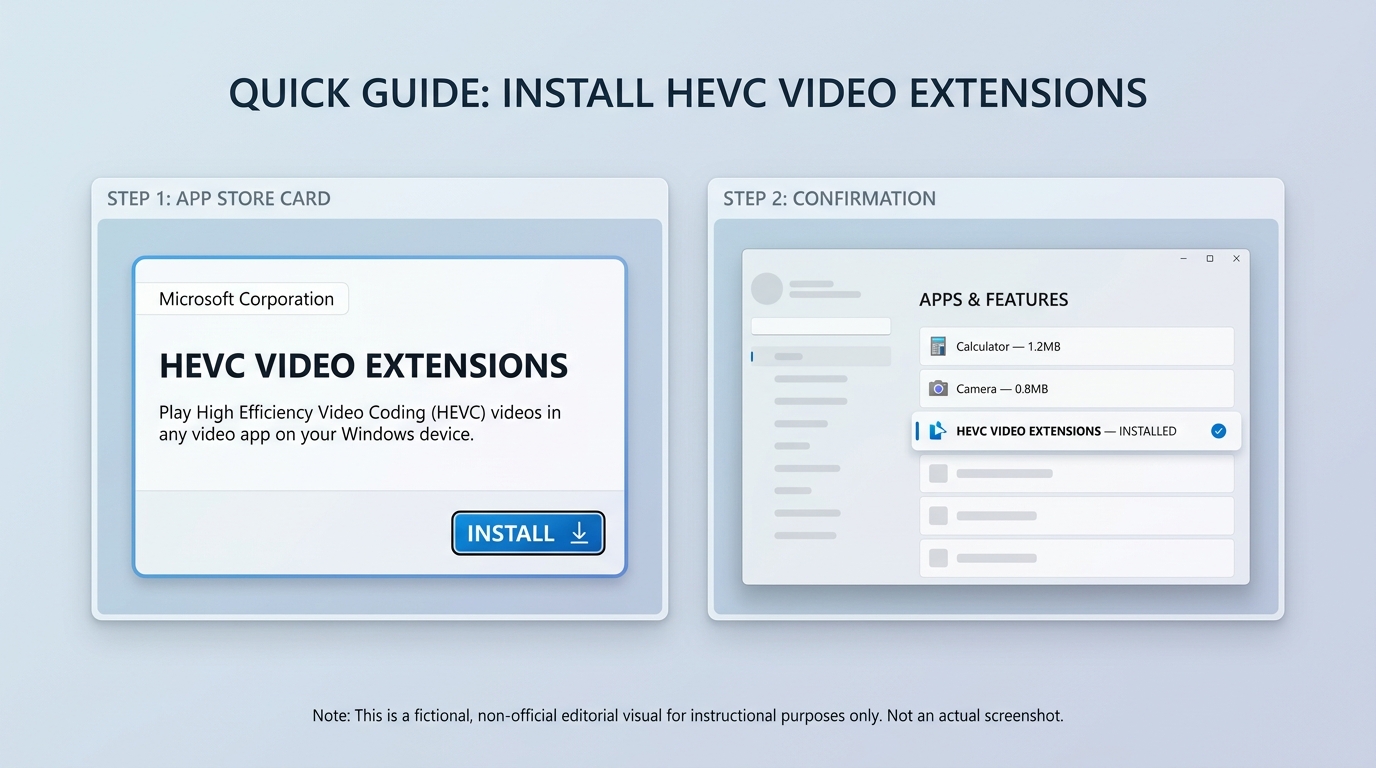
To play H.265 files on Windows, first identify whether the app depends on Microsoft's HEVC Video Extensions or includes its own decoder. A player with built-in decoding is often the simpler free route, but neither path guarantees smooth playback for every profile or high-bitrate file.
- Try the built-in app. Open a known HEVC sample in Media Player or another Windows video app and note the exact error or symptom.
- Identify the codec path. If the app requests the HEVC codec for Windows, install Microsoft's extension or choose an HEVC player for Windows that ships with its own decoder.
- Retest the same file. Keep the container, profile, bit depth, and subtitles unchanged so the comparison is meaningful.
- Verify hardware decoding. Check the player's status or statistics view while the file is playing, then watch for high CPU load or dropped frames.
Use Microsoft's HEVC Extension
The extension enables HEVC decoding for compatible Windows apps. It is useful when you prefer the built-in interface, but installation alone does not cover every 10-bit profile, chroma format, bitrate, or graphics-driver issue.
Choose a Player With Built-In Decoding
VLC, mpv, PotPlayer, and several other options include their own decoding path. This can avoid a separate extension and makes a free HEVC player practical for common local files.
Verify Hardware Decoding
If software decoding overloads the CPU, a 4K file may stutter even though it opens. When a codec update leaves Windows Media Player not working, compare the same sample in another player before changing the file.
Fix HEVC Playback Problems
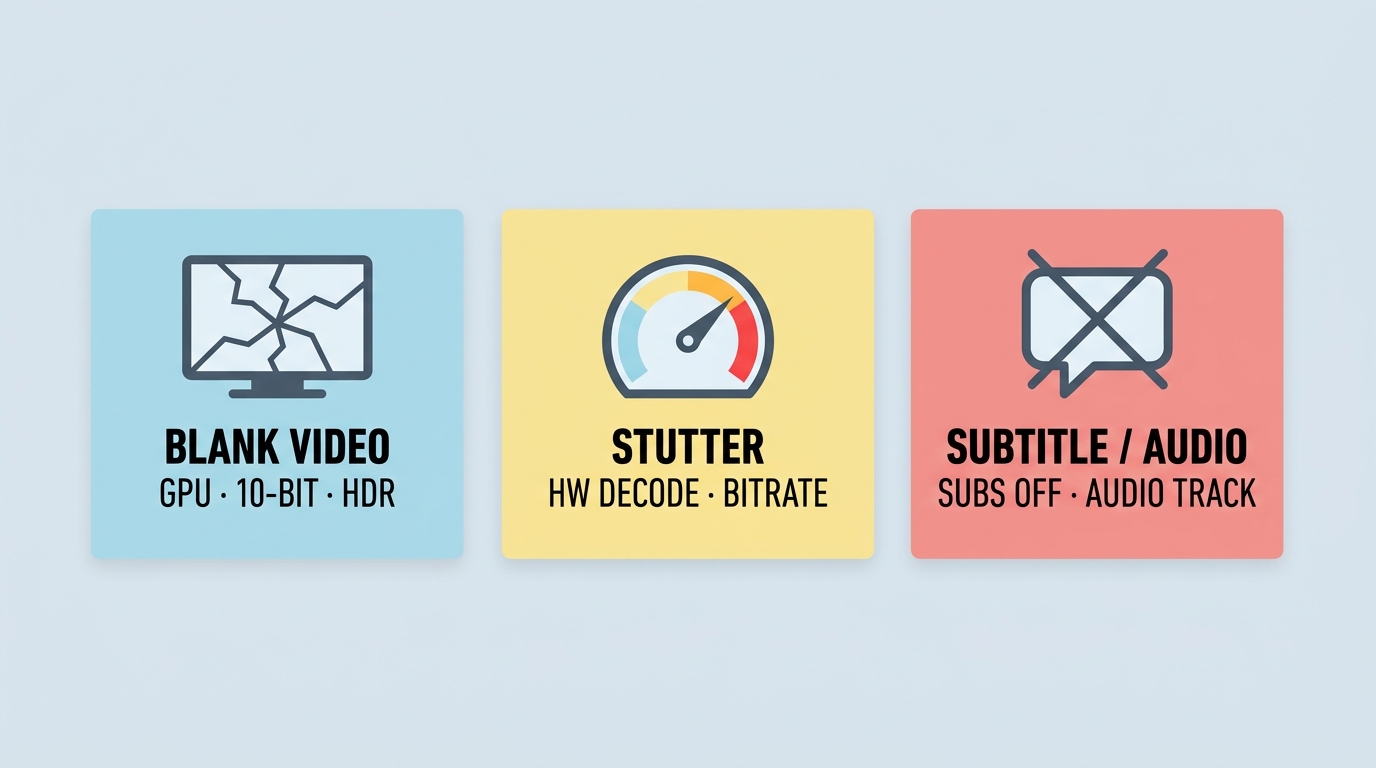
Start with the symptom, then isolate one variable at a time. HEVC video player failures usually come from the decode path, file profile, graphics driver, subtitle renderer, audio conversion, network path, or client support rather than the H.265 name alone.
Audio Plays but Video Is Blank
- Confirm that hardware decoding is active and supported by the GPU.
- Compare 8-bit and 10-bit HEVC playback, then check the profile and chroma format.
- Update the graphics driver and test with HDR disabled if the display path looks suspect.
Fix Stutter, Dropped Frames, and Artifacts
- Compare a short ordinary file with a high-bitrate 4K remux or camera sample.
- Watch CPU usage and dropped frames to see whether decoding has fallen back to software.
- For a network client, separate decoder limits from Wi-Fi, server transcoding, and browser or TV-client limits.
Check Profiles, Bit Depth, and Bitrate
A player may handle Main 8-bit files but struggle with Main 10, 4:2:2 camera material, or a demanding bitrate. Test a simpler sample before converting anything; that tells you whether the issue is the file's characteristics or the application.
Test Subtitles, Audio, and Client Support
- Disable subtitles temporarily; complex subtitle rendering can trigger pauses or force transcoding.
- Switch audio tracks to check whether an unsupported audio format is causing conversion.
- Try the desktop client when a browser or TV app fails, because direct-play support varies by client.
Detailed Review: 12 Best HEVC Video Players I'd Actually Recommend
These 12 HEVC players include fully free tools, free editions, and commercial products with free access or trials. The reviews distinguish cost and fit instead of treating them as equally free.
#1 PlayerFab All-In-One
- Best for: Windows users who want HEVC files, authorized disc or ISO playback, HDR, subtitles, and home-theater audio in one application.
- Works on: Windows 11 and Windows 10.
- Not ideal for: Mac users or people who only open an occasional local clip.
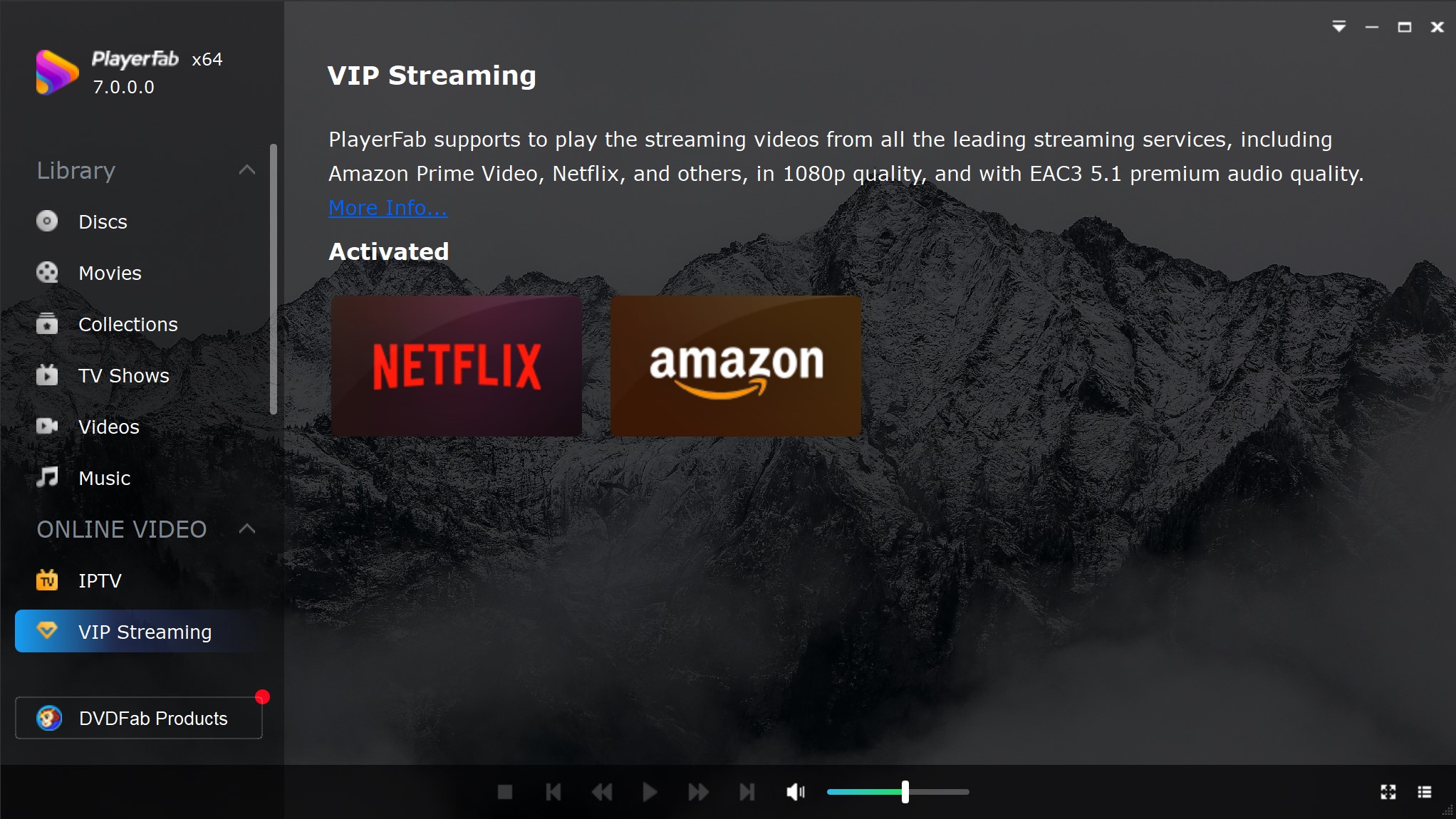
PlayerFab All-In-One is a Windows HEVC player for local files and for DVD, Blu-ray, UHD, ISO, and folder media the reader is authorized to access, where permitted by platform terms and applicable law. Its relevant playback features include HDR10, HDR10+, Dolby Vision, AI Live Subtitle, and home-theater audio support.
The practical advantage is consolidation: a movie library can move from ordinary HEVC files to disc images and subtitle-assisted viewing without switching applications. That broader scope also explains the tradeoff. PlayerFab is more than necessary when the job is simply opening a few MP4 or MKV clips.
- Strengths: HEVC local playback, Blu-ray/UHD and ISO/folder support, multiple HDR paths, AI Live Subtitle, and advanced movie audio.
- Limitations: The current US-facing product is positioned for Windows 11/10, and its wider feature set is unnecessary for lightweight use.
#2 VLC Media Player
- Best for: anyone who wants a free HEVC player that works on almost anything
- Works on: Windows, Mac, Linux
- Why I picked it: It is still one of the easiest recommendations for people who want broad format support without paying or learning a more technical player.
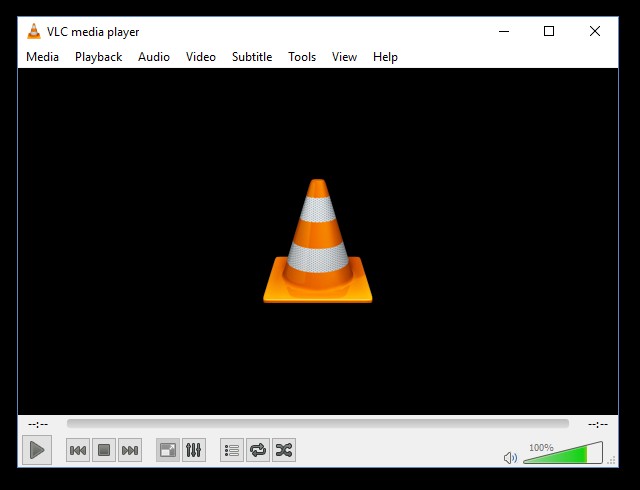
VLC works best when the goal is simple: open an H.265 file and get on with it. As a free HEVC player, it still covers more real-world scenarios than most rivals in the same price bracket. HEVC/H.265 playback is only the baseline here. Beyond HEVC, it supports MP4, MOV, and other common formats, as well as 10-bit video, hardware acceleration, HD-audio passthrough, Chromecast streaming, network browsing, and Blu-ray Java menus. It's like a player for one codec and more like a universal option for whatever file you happen to open.
I was especially interested in the new features introduced in version 3.0.21, particularly Super Resolution scaling on AMD GPUs and NVIDIA TrueHDR for generating an HDR-like presentation from SDR sources. On an AMD-based setup, I tested lower-quality HEVC videos to see how this feature would affect actual playback. The effect was most noticeable when older 1080p and lower-bitrate files were stretched to a larger display. The video did not suddenly look natively sharp, but edges appeared more defined, and the image held up better than standard scaling in scenes with text, building outlines, and finer textures.
VLC still feels more utilitarian than premium. It can do a surprising amount, but the experience is not always as cohesive as a player designed around higher-end movie watching from the start. That is why I still see it as the best free H.265 player for general use, not necessarily the one I would choose first for a more curated 4K HDR home-theater setup.
#3 mpv
- Best for: power users who care more about performance and control than convenience
- Works on: Windows, Mac, Linux
- Why I picked it: It is one of the strongest HEVC players here for users who want efficiency, flexibility, and fewer unnecessary layers between them and the video.
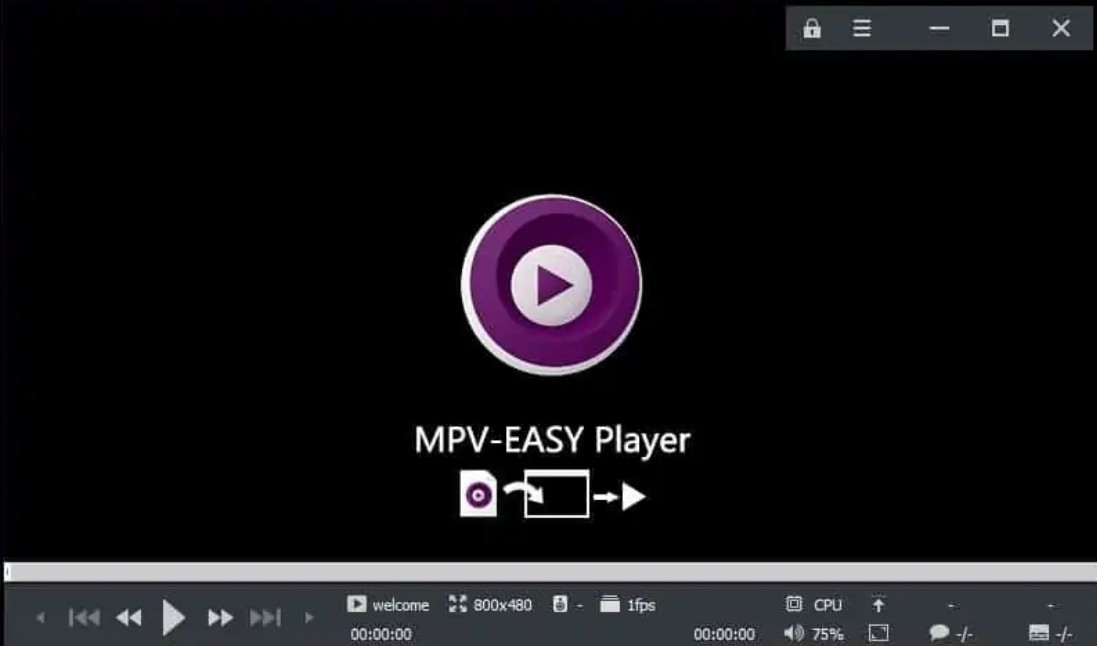
mpv is not trying to be a friendly all-in-one media center. It is a lightweight HEVC player with high-quality video output, broad codec support, scripting, hardware decoding options, and much deeper playback tuning than most mainstream players. mpv also supports OpenGL, Vulkan, and D3D11 video output, along with interpolation, color management, and HDR-related features.
What makes mpv stand out is how much it gives advanced users once they move past the minimal interface. This HEVC video player supports a wide range of formats and subtitle types, can leverage multiple hardware decoding APIs, and has powerful scripting support for users who want to customize behavior instead of staying with the default setup. Recent versions also improved HDR handling, Wayland color management, right-click command access, and stream support for Blu-ray, DVD, and CDDA.
But in my Windows 11 testing, mpv clearly feels like a player built for people who don't mind tweaking things. Hardware decoding is not even enabled by default, and the whole experience makes more sense for people who like adjusting playback rather than just clicking and watching. But as an H.265 player for users who care about output quality and control more than hand-holding, it is one of the strongest options here.
#4 PotPlayer
- Best for: Windows users who want more playback control and customization
- Works on: Windows
- Why I picked it: It gives advanced users far more room to tweak playback behavior than most mainstream HEVC players do.

PotPlayer is a better fit for users who like to fine-tune playback instead of simply pressing play. In addition to supporting common formats such as HEVC and AVI, it offers hardware decoding through DXVA, CUDA, and QuickSync. It also works with text, DVD, and Blu-ray subtitles, while giving Windows users far more control over renderers and video output than VLC.
In my Windows 11 testing, I used 3 4K HEVC files and checked not only basic playback, but also hardware decoding, timeline seeking, subtitle handling, and renderer-related output behavior. Playback stayed smooth throughout, but the bigger difference showed up once I moved beyond simple file playback. PotPlayer handled higher-bitrate and subtitle-heavy files especially well, and it gave me far more control over output and rendering than most players in this list.
The downside is that PotPlayer is much more suited to advanced users than beginners. With so many playback and output settings available, first-time users may stick to basic playback and never really take advantage of its deeper controls.
#5 5KPlayer
- Best for: users who want an HEVC player with built-in streaming features
- Works on: Windows, Mac
- Why I picked it: It is not just an HEVC video player for local files. It also makes more sense than many alternatives for people who want to send video from a computer to a bigger screen.
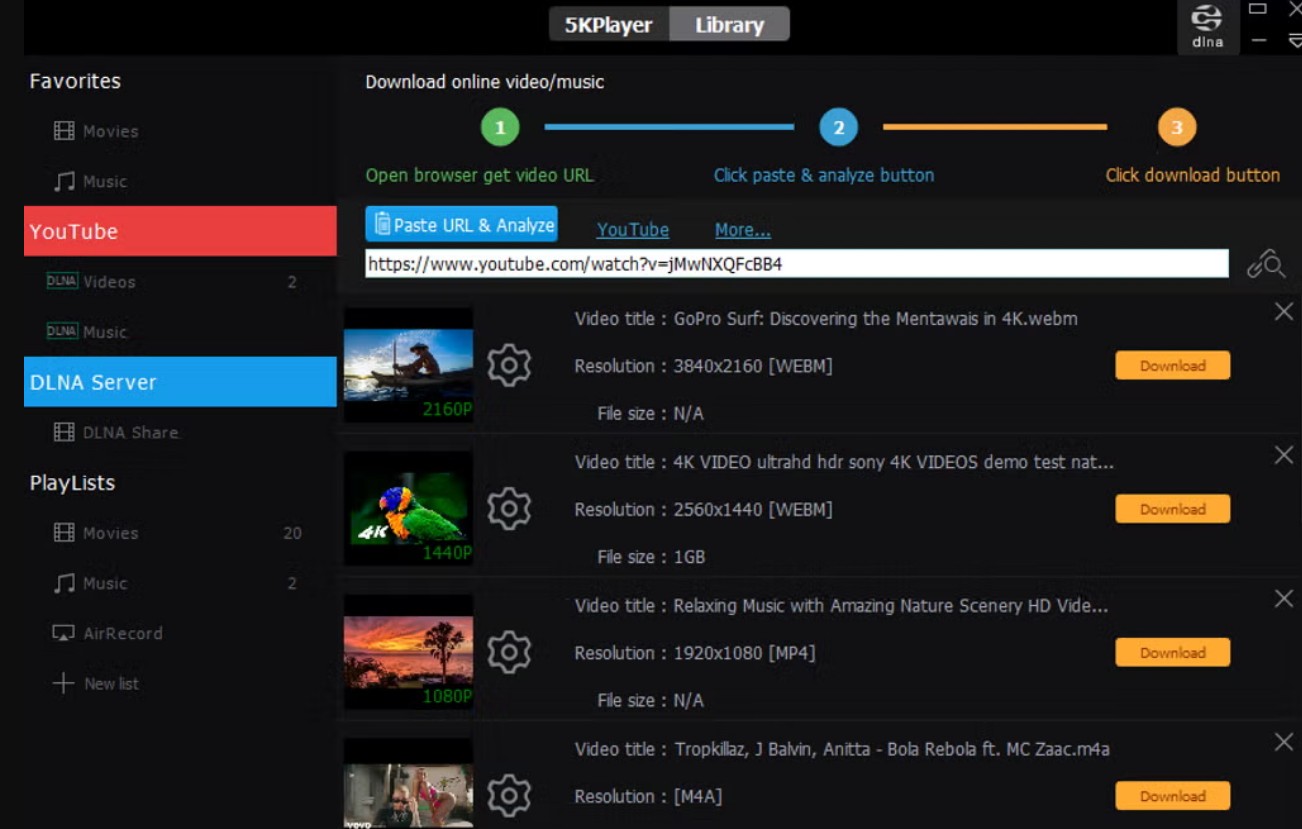
5KPlayer makes the most sense for users who want an HEVC player that does more than local playback. Along with H.265 support, it also brings in AirPlay, DLNA, video downloading, and even DVD playback, so it feels closer to an all-in-one media hub than a basic desktop player. That mix is what keeps it relevant, especially for casual users who move between downloaded files, online videos, and TV streaming.
I tested 5KPlayer on a macOS Ventura with a 4K HEVC sample file and then pushed the video to a Sony TV over AirPlay. The connection was fast, playback stayed stable, and I did not have to dig through settings just to get the stream going. I also tried its built-in downloader with a YouTube clip, then queued that alongside local MP4 and MP3 files. That "everything in one place" setup is where 5KPlayer feels more useful than a standard HEVC video player.
But I have to say it is not the cleanest choice for users who care most about refined playback controls or a more premium movie-watching experience. But as an H.265 player for people who want convenience, wireless streaming, and a few extra tricks without much setup, it is easy to see the appeal.
#6 IINA
- Best for: Mac users who want a more natural HEVC player experience
- Works on: Mac
- Why I picked it: It combines mpv's playback engine with a much more Mac-friendly interface, plus online subtitles, PiP, browser extension support, and a plugin system.

IINA is one of the HEVC players I would most readily recommend on macOS. Since it is built on mpv, ordinary codec support is rarely a concern in everyday use. Beyond H.265/HEVC, it also handles common video formats such as MP4, MKV, MOV, AVI, and FLV with little fuss, and the official site broadly describes it as a player that can handle almost every media file you throw at it. In my testing with 4K HEVC files, regular playback, timeline seeking, and full-screen switching all remained stable enough for normal viewing.
Large 4K HDR remuxes can still stutter or show artifacts depending on the profile, bitrate, decoder path, and Mac hardware. A polished interface improves control, but it cannot erase a difficult file's decoding limits.
IINA is popular with many Mac users. Compared with VLC, this best video player for Mac offers HDR support for movies and a more polished interface. After comparing VLC and IINA on my MacBook Air, I found that memory usage was not really the deciding factor. The more noticeable difference showed up in power consumption, which likely has more to do with IINA's hardware acceleration being handled more efficiently during playback. Based on that comparison, I would be more inclined to choose IINA for longer viewing sessions, especially when battery life matters.
That said, IINA is not designed as a home theater player. It is not the right choice for Blu-ray menus, ISO-heavy workflows, or disc-centered playback needs. But if you are a Mac user looking for an H.265 player that feels cleaner than VLC and much friendlier than raw mpv, IINA is definitely worth trying.
#7 Elmedia Player
- Best for: Mac users who want a more flexible HEVC player with extra playback options
- Works on: Mac
- Why I picked it: I t offers a friendlier mix of local playback and streaming features than many Mac-only alternatives.
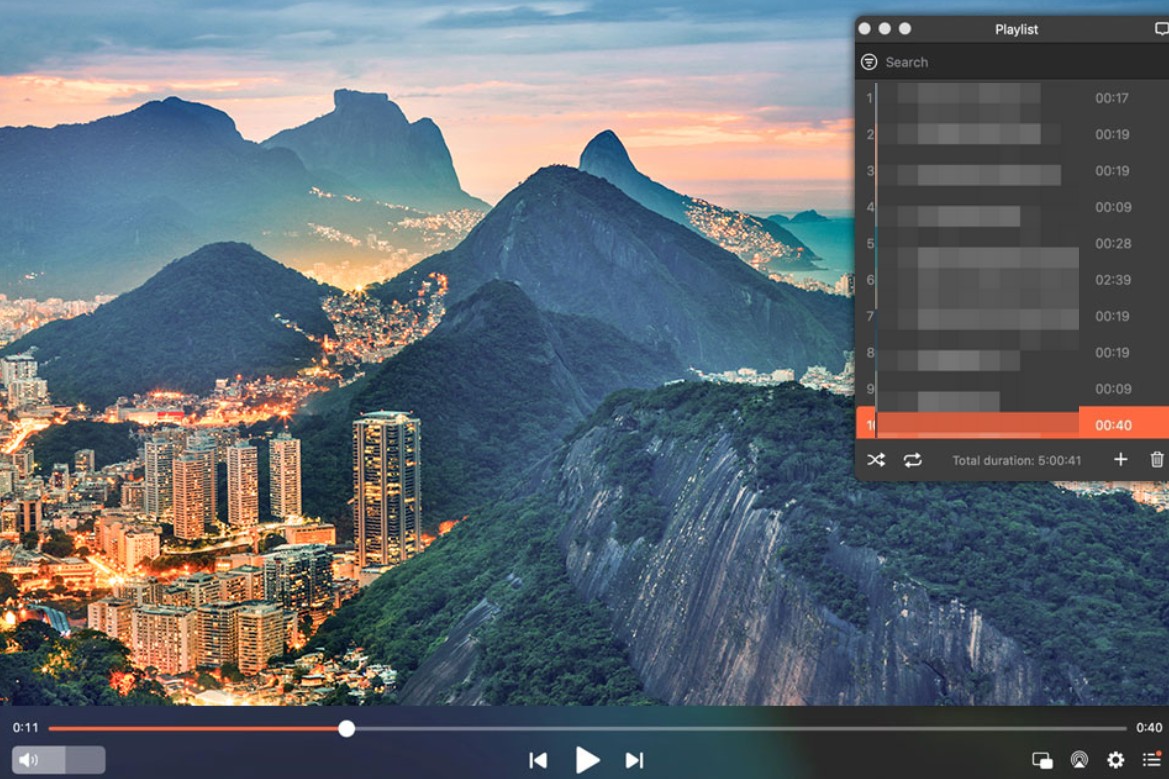
The Elmedia Player feature set makes sense for Mac users who want more than a minimal local HEVC player. It supports a wide range of video and audio formats, external subtitles, playlist management, and wireless streaming to AirPlay, DLNA, Chromecast, smart TVs, and Apple TV. It also runs natively on Apple Silicon Macs and uses hardware-accelerated decoding, which makes it a more practical option for regular H.265 playback than simpler players that focus only on opening files.
This HEVC video player is not trying to be a full media-center app, but it does make it easy to move between local viewing and bigger-screen playback. In actual use, its value comes from the details: support for multiple audio tracks, external subtitles, Picture-in-Picture mode, output device settings, AB loop playback, and full control over brightness, contrast, and saturation. Those are the features that make it more flexible than QuickTime without pushing it into the more technical territory of mpv.
As an H.265 player for Mac users who care about easy casting and day-to-day usability, Elmedia earns its place. It is especially suitable for users who want local HEVC playback, subtitle support, and straightforward streaming to a TV or another device without dealing with a more complicated setup.
#8 Kodi
- Best for: users building a home theater setup around a larger media library
- Works on: Windows, Mac, Linux
- Why I picked it: It is more than a standard HEVC player. It works better as a full media center for people who want to organize and watch a lot of content in one place.
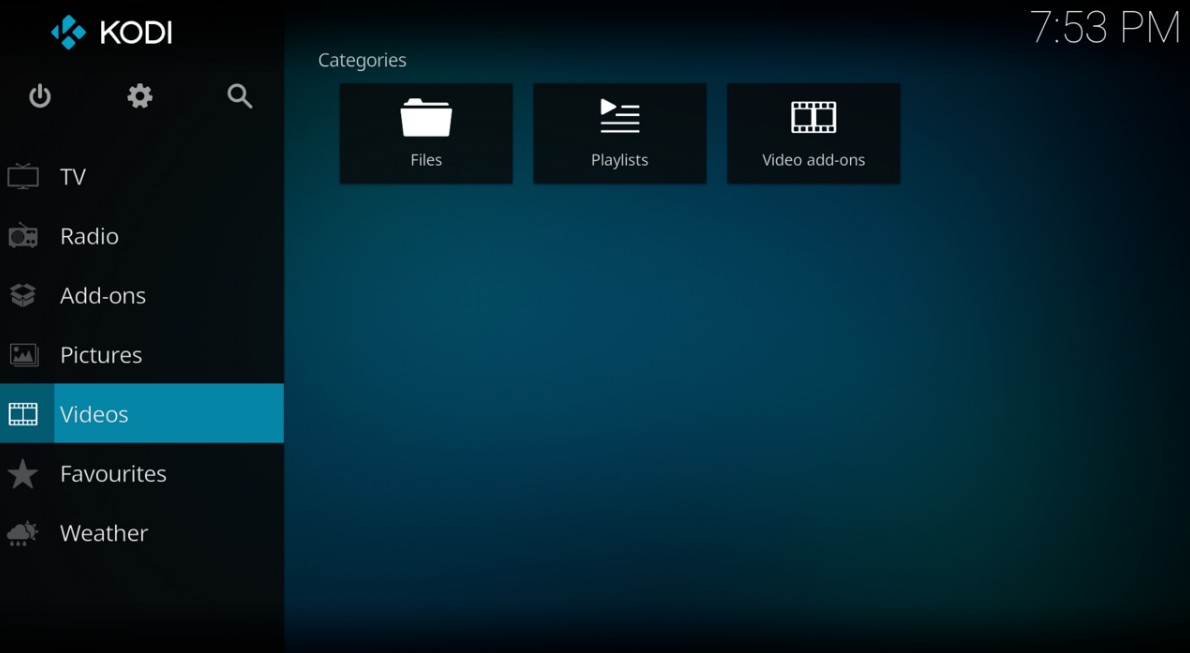
Kodi makes the most sense when playback is part of a bigger movie or TV setup. It supports H.265/HEVC, DVDs, unencrypted Blu-ray discs, ISO and image-based playback, playlists, artwork-rich libraries, and a long list of network protocols like SMB, NFS, UPnP, WebDAV, and AirPlay. That gives this HEVC player a very different job from VLC or IINA. It is not just opening files. It is organizing and presenting a whole library.
What really separates Kodi from a typical HEVC video player is the media-center layer. It scans folders, builds a poster-driven library, pulls in metadata and fanart, and expands through add-ons for live TV, PVR, web interfaces, remote control, and more. That makes it much better suited to a TV-and-sofa environment than a quick desktop playback workflow.
Kodi asks for more setup and makes the most sense when you actually have a library to manage. If you just want a fast H.265 player for opening local files, this is overkill. But for readers who want HEVC playback inside a real media-center ecosystem, it is one of the strongest options here.
#9 KMPlayer
- Best for: users who want a feature-rich HEVC player with more built-in playback tools
- Works on: Windows, Mac, Mobile
- Why I picked it: This H.265 player offers more extras than a lot of basic desktop players, which gives it broader appeal for users who like having more to work with.
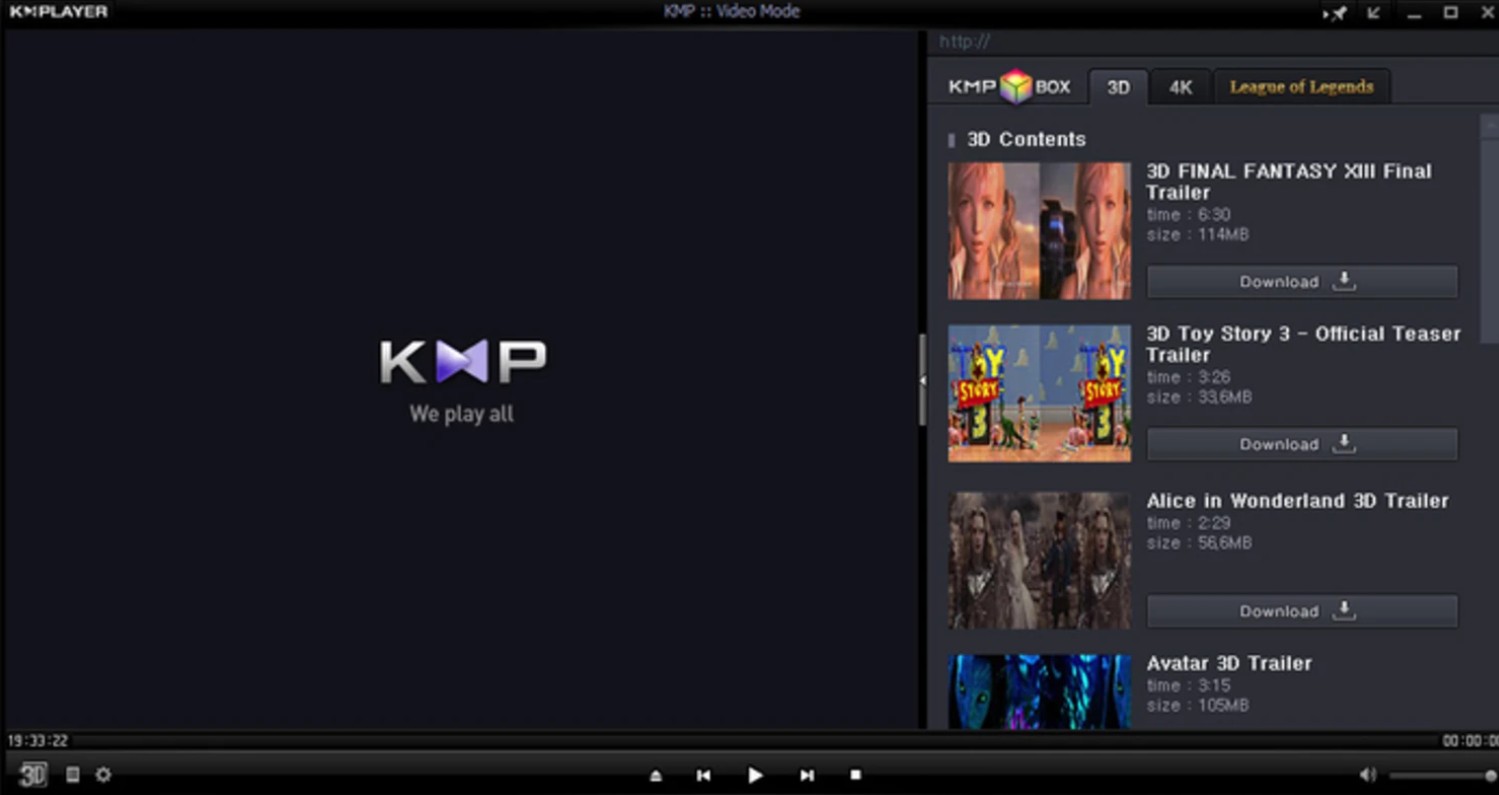
KMPlayer stands out by giving users more to work with than a basic HEVC player. It supports HEVC/H.265, VP9, 4K/UHD playback, hardware acceleration, subtitle controls, post-processing effects, GIF/video capture, and URL-based video playback or downloading. The newer 64X version also leans into high-resolution playback with 8K and 60FPS support, which gives it a clearer technical identity than a plain desktop HEVC video player.
What that means in practice is that KMPlayer feels less streamlined than VLC or IINA, but more feature-stacked. If you like being able to tweak video, grab clips, adjust playback behavior, or pull in online content from a URL, this H.265 player gives you more built-in flexibility than most free rivals. The downside is that all those extras make it feel busier and less focused than the best picks above it. Plus, it contains many ads in the interface, which makes it feel less clean and user-friendly.
#10 Plex
- Best for: users who want to stream HEVC content across multiple devices
- Works on: Windows, Mac, Linux
- Why I picked it: Plex makes more sense than a typical desktop player when the goal is not just playback, but managing and watching a media library anywhere.
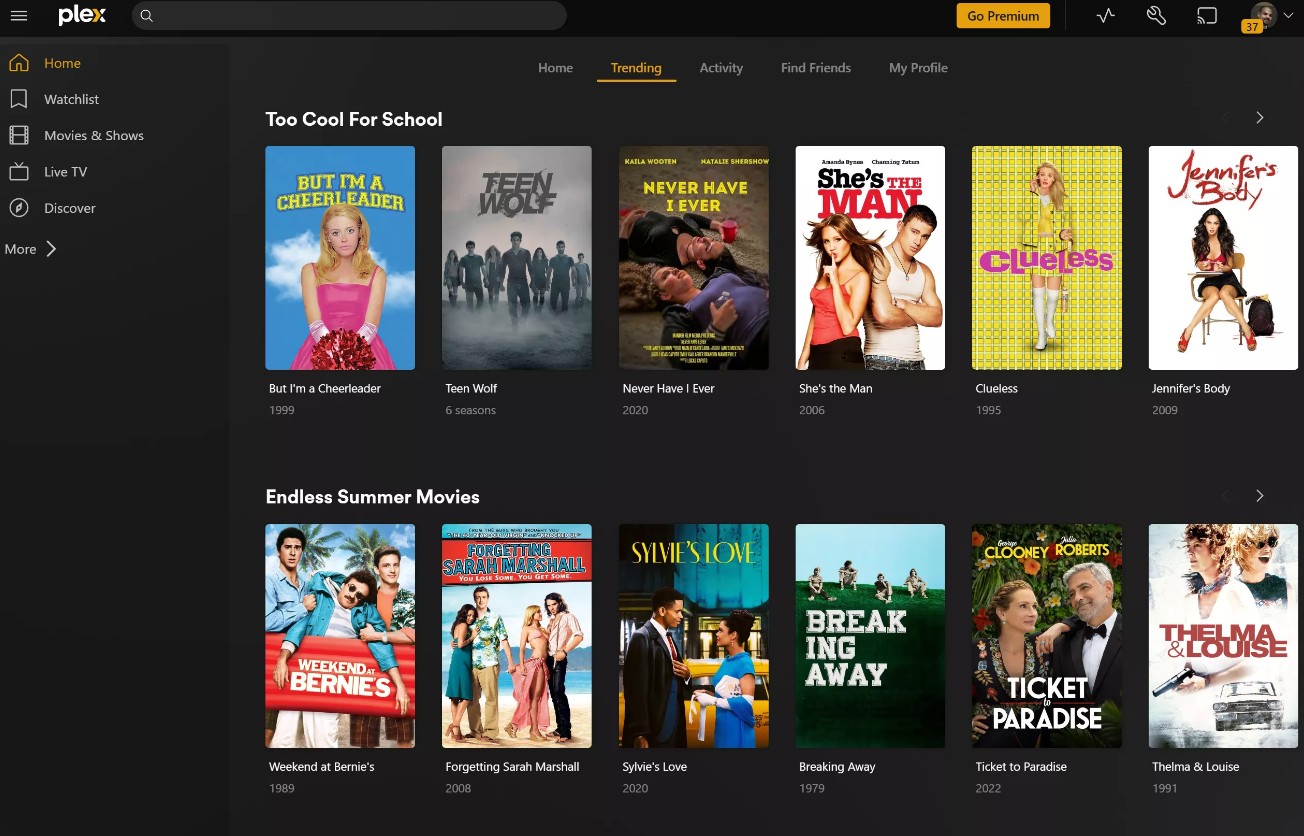
Plex is a very different kind of HEVC player from VLC, IINA, or PotPlayer. Its strength is not just that it can handle H.265 files, but that it can send them from a central library to many different devices and decide whether to Direct Play, remux, or transcode based on the client. That makes it much better for a multi-device household than a standard desktop HEVC video player.
What makes Plex useful is the system around playback. The server organizes your library, the apps span TVs, phones, computers, and streaming boxes, and the platform can adapt media for less capable devices when direct playback is not possible. That same flexibility is also the catch: subtitles can force transcoding, format support varies by device, and HEVC/HDR performance depends heavily on what client you are actually using.
That also means it is not the simplest choice for everyone. Readers looking for a quick HEVC video player may find VLC or IINA easier to live with. Plex becomes more compelling when convenience means access across devices, not just ease of use on one screen. For that kind of setup, this H.265 player has a much clearer purpose than many desktop-first alternatives.
Cons
#11 DivX Player
- Best for: users who prefer a more traditional desktop HEVC player
- Works on: Windows, Mac
- Why I picked it: DivX still appeals to readers who want a familiar media-player experience without moving into a more technical or media-center-style setup.
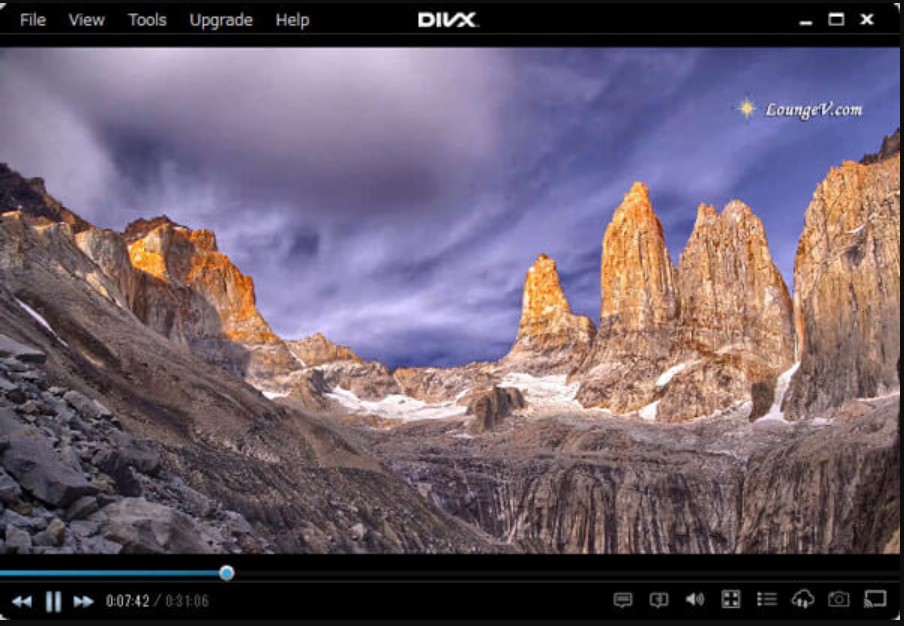
DivX Player is one of the more old-school names in this roundup, and that still shapes how it feels today. DivX Player supports HEVC, AVI, MKV, and other common formats up to 4K, along with Chromecast streaming. I used several HEVC files to check normal playback, seeking, subtitle switching, and audio-track handling, and DivX handled the basics reliably enough for standard desktop use. Timeline movement was smooth, the player stayed stable during regular viewing, and its support for multiple subtitles and audio tracks made it more usable than a truly bare-bones HEVC player.
At the same time, it does not feel as competitive as the strongest picks above it. Even under a stable network connection, I ran into stuttering and occasional audio-video sync issues when casting 4K HEVC videos. In addition, some higher-end features are reserved for the Pro version, including HEVC 10-bit playback on Windows, which makes it less appealing to users who prioritize free access.
#12 MPC-HC
- Best for: Windows users who want a lightweight HEVC player
- Works on: Windows
- Why I picked it: It still has real appeal for anyone who values speed, simplicity, and a no-nonsense desktop player.
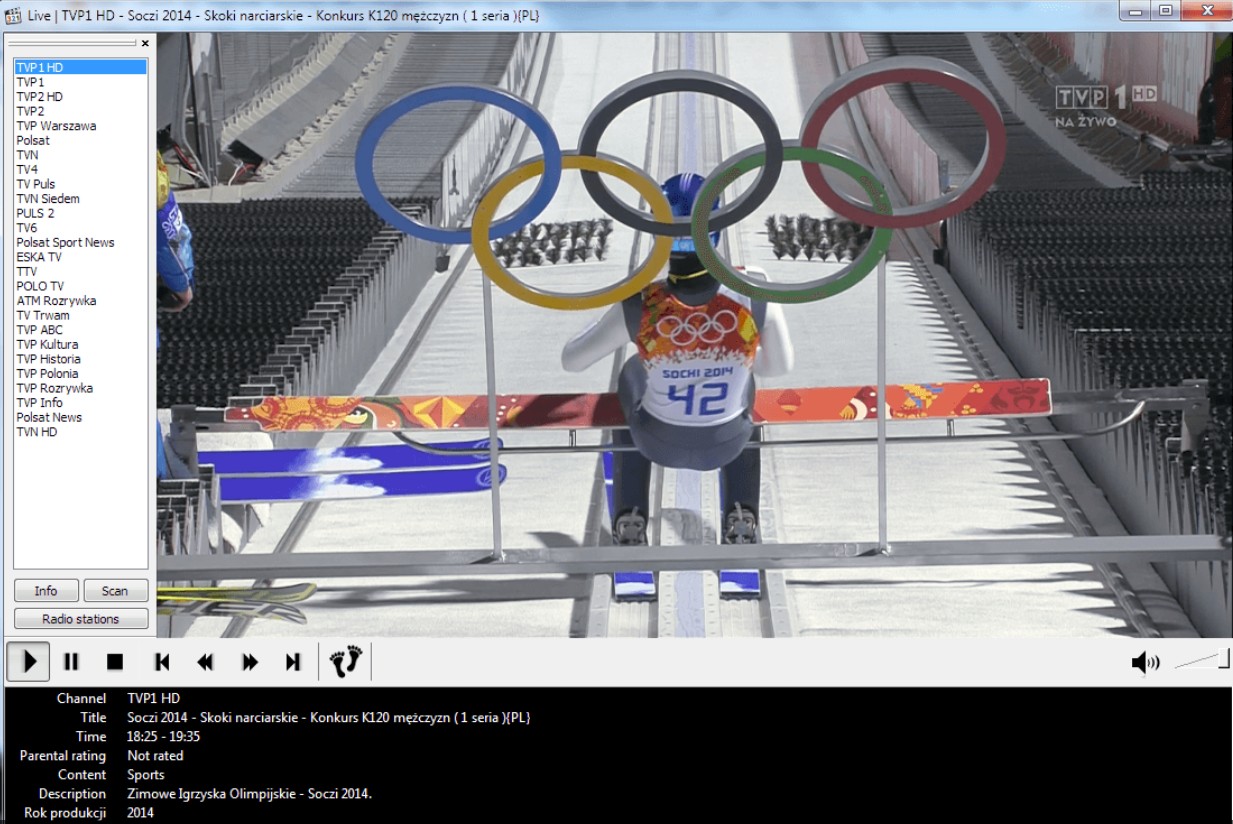
MPC-HC is easy to like because it does not try to be more than it needs to be. This HEVC player feels light, familiar, and efficient, which makes it a practical choice for Windows users who just want reliable playback without extra clutter. It may not look especially modern, but that simplicity is part of the reason it still has a loyal following.
Compared with newer options, this HEVC video player offers less polish and fewer premium-style extras, and the maintained clsid2 fork continues to receive current releases. Even so, it remains a solid H.265 player for local playback, especially on systems where a lighter footprint matters more than advanced media features. I would not put it near the top for users who want HDR-heavy movie watching or a more complete theater-style setup, but for straightforward desktop use, it still does its job well.
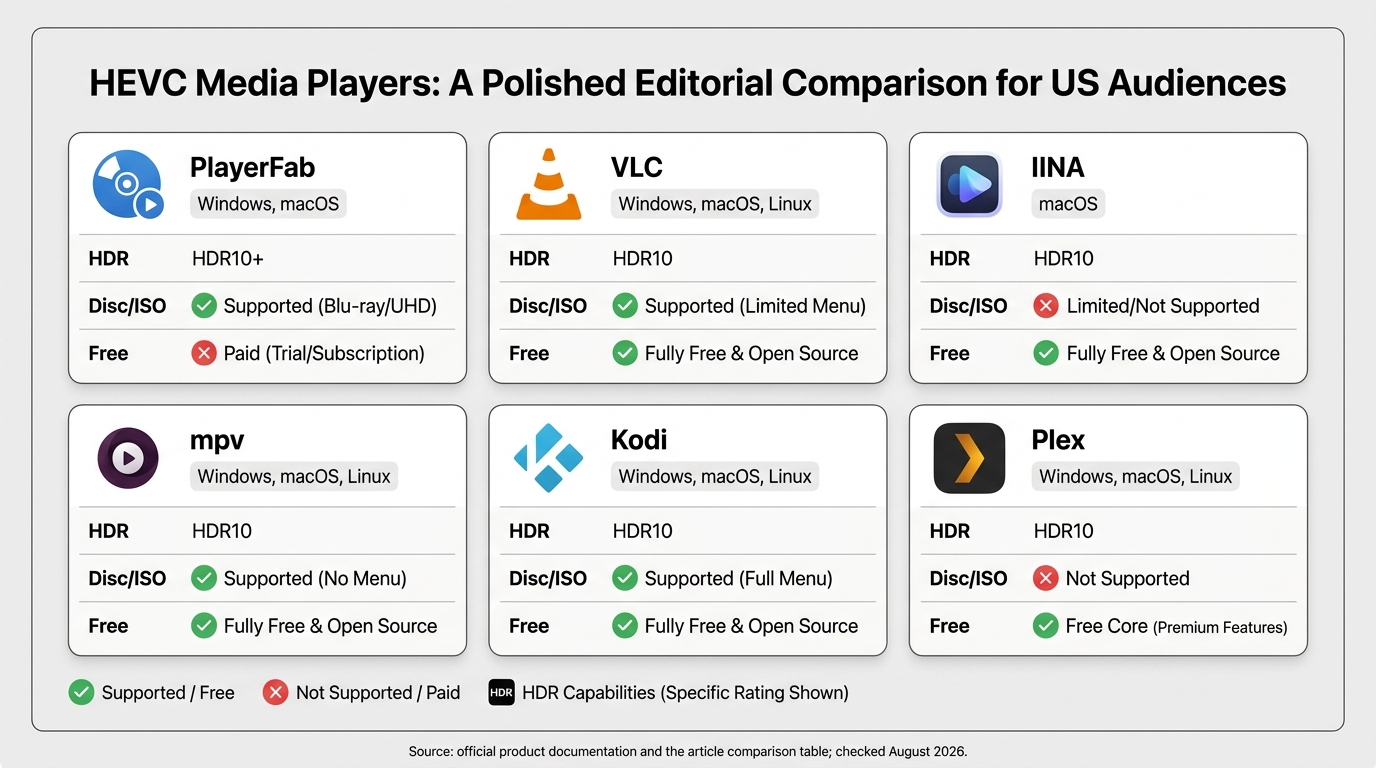
Comparison of 12 HEVC/H.265 Players
As of August 2026, this matrix separates fully free players, limited free editions, and paid access. It also treats MKV versus MP4 as a container question, not proof that the HEVC stream inside will decode.
| Player | Best for | Current OS | Free access | MP4/MKV | Profile/bit depth | 4K/HDR | Hardware decode | Subtitles | Blu-ray/ISO | Status |
|---|---|---|---|---|---|---|---|---|---|---|
| PlayerFab | HDR, disc, ISO, and local libraries | Windows 11/10 | Free access with paid features | Both | Common HEVC and 10-bit playback; file path matters | 4K; HDR10, HDR10+, Dolby Vision | Yes | AI Live Subtitle and local subtitles | Yes | Current commercial product |
| VLC | Free general-purpose playback | Windows, macOS, Linux | Fully free | Both | Main and Main 10 in common files; demanding variants vary | 4K; HDR path varies by OS | Yes | Broad local subtitle support | Basic disc/ISO access; menus vary | Actively maintained |
| mpv | Lightweight control and scripting | Windows, macOS, Linux | Fully free | Both | Broad FFmpeg-based support, including common 10-bit files | 4K/HDR with correct configuration | Yes | Flexible; configuration may be needed | No full disc menus | Actively maintained |
| PotPlayer | Advanced Windows controls | Windows | Freeware | Both | Common 8-bit and 10-bit HEVC; hardware dependent | 4K/HDR capable | Yes | Strong subtitle controls | Limited disc workflow | Current Windows product |
| 5KPlayer | Local playback plus casting | Windows, macOS | Freeware | Both | Common HEVC files; exact Edge limits vary | 4K; HDR behavior varies | Yes | Common subtitle formats | No full Blu-ray menus | Available product |
| IINA | Native-feeling Mac playback | macOS | Fully free | Both | mpv-based common Main/Main 10 support | 4K/HDR; remux limits vary | Yes | Strong Mac-friendly controls | No | Actively maintained |
| Elmedia | Mac playback and casting | macOS | Free edition; Pro features paid | Both | Common HEVC files; exact profile limits not published | 4K; HDR path varies | Yes | External subtitles; advanced controls | No | Current commercial product |
| Kodi | Media-center libraries | Windows, macOS, Linux and devices | Fully free | Both | Depends on build, hardware, and client | 4K/HDR on compatible paths | Yes | Library and add-on subtitle support | ISO support; menu behavior varies | Actively maintained |
| KMPlayer | Feature-rich desktop playback | Windows and mobile platforms | Free, ad-supported | Both | Common HEVC and 10-bit files; device dependent | 4K; HDR support varies | Yes | Common subtitle controls | No full disc workflow | Available product |
| Plex | Server and TV-client libraries | Server, desktop, browser, TV and mobile clients | Free core; paid features available | Both | Direct play depends on client profile and bit depth | 4K/HDR when server and client paths agree | Client/server dependent | May direct play, burn in, or transcode | Not a Blu-ray menu player | Actively maintained |
| DivX | Simple HEVC desktop playback | Windows, macOS | Free player; paid extras available | Both | Common HEVC profiles; exact limits vary by system | 4K capable; HDR not a core strength | Yes | Subtitle and audio-track controls | No | Available product |
| MPC-HC | Lightweight Windows playback | Windows | Fully free | Both | Common Main/Main 10 through current filters | 4K; HDR path depends on renderer | Yes | Extensive subtitle settings | Limited; no full commercial menus | Maintained clsid2 fork |
Real compatibility is the combination of container, profile, bit depth, bitrate, hardware decoding, subtitle behavior, and client support. A browser-based online video player may be convenient for a small compatible file, but it is a weaker choice for demanding 4K material.
Final Verdict: Choose the Right HEVC Player
The best HEVC player is the one matched to your files and viewing setup: choose VLC for free general-purpose playback, IINA for a Mac-native interface, mpv or MPC-HC for lightweight advanced control, Kodi or Plex for a media-center library, and PlayerFab for authorized Windows HEVC, HDR, Blu-ray, and ISO playback. PlayerFab fits a broader home-theater workflow but is not ideal for occasional clips; VLC remains the practical free starting point.
HEVC Player FAQs
Is HEVC the same as H.265?
Yes. HEVC is the standard's common name, while H.265 is the ITU designation for the same codec family. An HEVC player and an H.265 player therefore refer to the same decoding need.
What does hev1 mean in an MP4 file?
MP4 is the container, while hev1 signals how the HEVC stream is described inside it. That signaling can affect compatibility, so two MP4 files may behave differently in the same HEVC video player.
Does HEVC automatically mean 4K or HDR?
No. HEVC can encode many resolutions, bit depths, and dynamic ranges. A 4K HEVC player still needs a compatible file profile, display path, and hardware decoder, and an HEVC file can be standard-definition or SDR.

 Play Video Files: 4 Paths Across Formats and DevicesBy James Morgan - Sep 22, 2026
 Best WMV Player for Mac and How to Play WMV on Mac NativelyBy James Morgan - Aug 4, 2026
 8 Best TS File Players and Playback Tools for 2026By Alice Harper - Jul 28, 2026
 6 Best DVD Players for Laptops in 2026: Drives and AppsBy Alice Harper - Jul 22, 2026