Play Video Files: 4 Paths Across Formats and Devices

Summary: Video playback shouldn't be a headache in 2026. While many users struggle with missing codecs or unsupported formats, mastering how to play video files across any device is actually straightforward with the right tools. In my experience, relying solely on native OS software often leads to frustration. This guide provides actionable solutions for every format—from MP4 to AV1—and explains why upgrading to a comprehensive media center like PlayerFab is the smartest move for a seamless viewing experience.
Table of Contents
If a video file shows a black screen, has no sound, stutters, or will not open on a specific device, the fastest way to play video files is to choose the path that matches the problem: browser playback, a compatible video player, device-specific checks, or symptom-based troubleshooting.
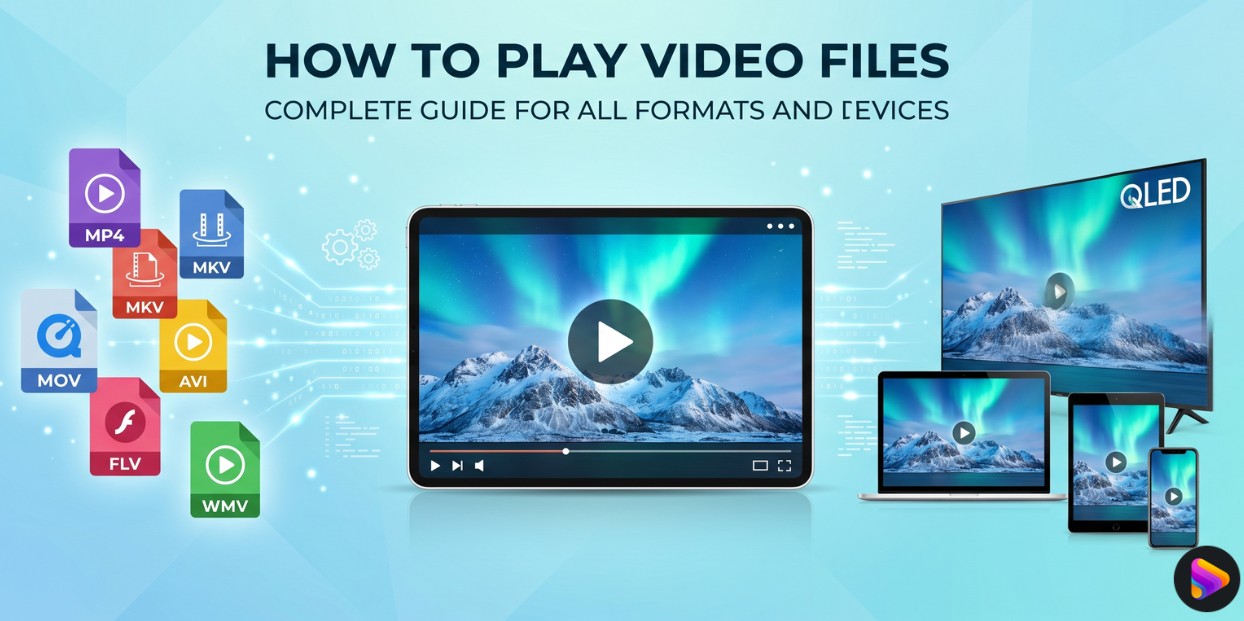
I start with the file and the target device, not just the extension. The same MP4, MKV, MOV, or AVI file can work on one screen and fail on another because its video, audio, subtitles, or hardware requirements differ. Whether you need to play AVI files on a laptop or open a phone video on a TV, the steps below help you choose the shortest practical route.
Understanding Video File Formats and Playback Basics
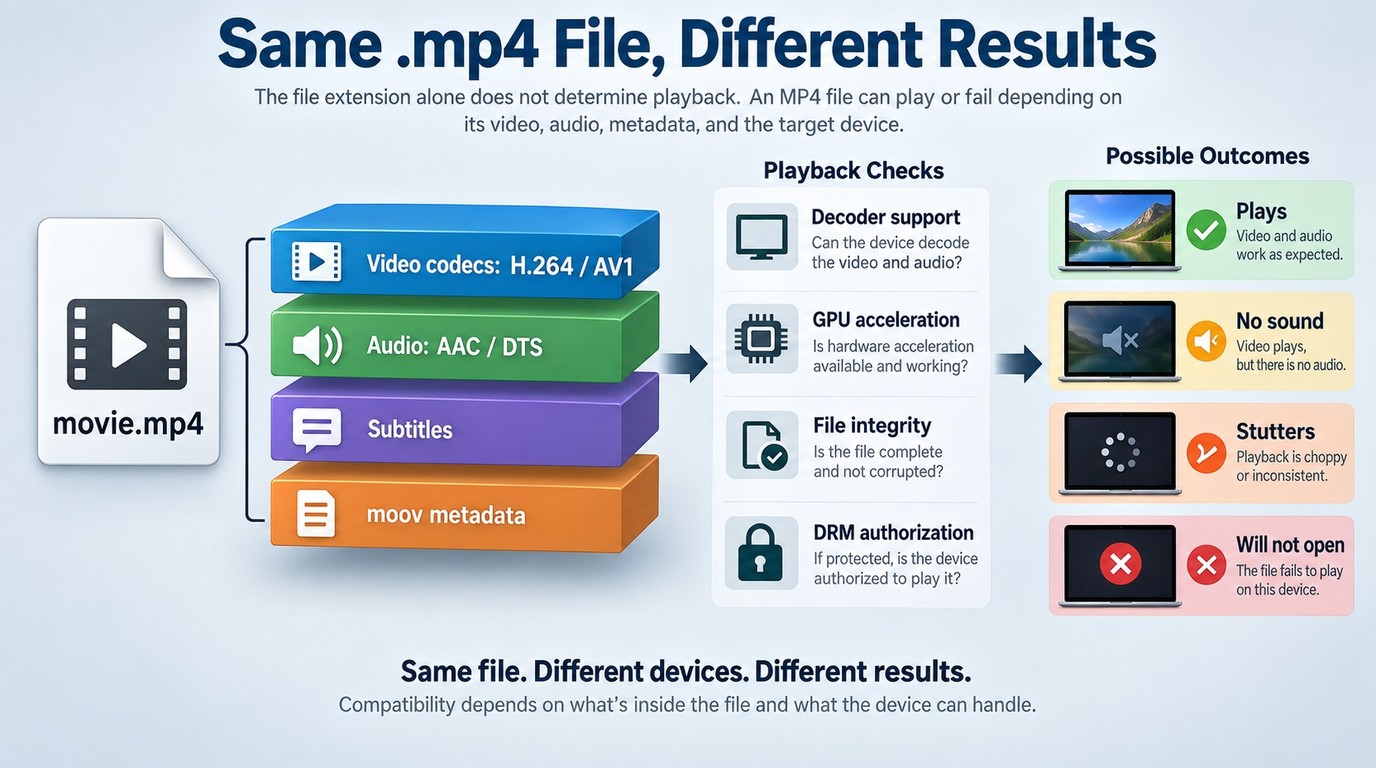
To fix a playback issue, you first need to understand what your device is trying to process. The most common technical blind spot for users is treating a video file as a single, simple entity.
| Device or OS | Common containers | Likely issue | Fastest playback path | Convert when |
|---|---|---|---|---|
| Windows or macOS | MP4, MKV, MOV, AVI | Video or audio codec | Try a compatible desktop player | The device rejects the codec |
| iPhone or iPad | MP4, MOV, MKV | Codec, bit depth, transfer | Try a supported mobile player | The target app rejects tracks |
| Android | MP4, MKV, AVI | Audio codec or hardware | Try another player first | Multiple players still fail |
| Smart TV | MP4, MKV, MOV | Audio, subtitles, profile | Test direct play, then casting | Casting or server transcoding is unsuitable |
| Browser | MP4, MOV | Browser codec support | Open the file locally | Compatible browsers and players still fail |
This matrix is a starting point. The next step is to separate the container from the codecs inside it, because changing one does not necessarily change the other.
The Difference Between Video Containers and Codecs
The biggest misconception in digital video is confusing the file extension (like .MP4 or .MKV) with the actual video format. When you look at a video file, you are dealing with two separate technologies working together:
| Containers (The Wrapper) | Codecs (The Compressor) |
|---|---|
| Formats like MP4, MKV, MOV, and AVI act as digital boxes. Their only job is to bundle various data streams together—including the video feed, multiple audio tracks, subtitle files, and chapter metadata—into a single recognizable file. | A codec is the mathematical algorithm used to compress the raw visual and audio data so it fits on your storage drive. Common video codecs include H.264 (legacy standard), HEVC/H.265 (high efficiency), and AV1 (next-generation open standard). |
💡You might have two identical-looking MP4 files, but if one is encoded in the older H.264 and the other in the newer AV1, a native media player might seamlessly play the first while failing to open the second.
Renaming a file extension does not change its container or codecs. Remuxing moves the existing tracks into another container without re-encoding them, while transcoding creates new video or audio streams. That distinction matters when weighing MKV versus MP4: change the container only when its tracks are already compatible with the target device.
Why You Cannot Play Certain Video Files
Playback failures usually stem from a specific mismatch between the file's architecture and your device's processing capabilities, and Snapchat videos not playing is a common variant where the platform's own compression adds an extra layer of restriction. The extension alone cannot show whether the device supports the file's video codec, audio codec, profile, bit depth, subtitles, and hardware-decoding requirements. The primary culprits include:
1. Missing Decoder Support: Your operating system or media player lacks the specific mathematical instructions (codec) required to unpack the video. For instance, while Windows 11 and modern macOS versions natively support HEVC, they often struggle with MKV files containing complex DTS audio tracks without third-party intervention.
2. Hardware Acceleration Bottlenecks: Playing high-bitrate or high-resolution files requires a GPU capable of hardware decoding. If your hardware is outdated, your system forces the CPU to brute-force the playback, resulting in severe stuttering, overheating, or frozen frames.
3. Corrupted File Headers: Incomplete downloads or interrupted file transfers can damage the "moov atom"—the crucial index header of an MP4 file. If this metadata is corrupted, the entire file becomes unreadable, even if 99% of the video data is perfectly intact.
4. DRM Restrictions: Digital Rights Management encrypts protected media and limits playback to authorized accounts, devices, or applications. Being authorized to watch content does not automatically authorize DRM removal or a permanent local copy. Save content locally only through an official download or backup feature that permits it, do not redistribute it, and follow applicable law and platform terms. Tools promising DRM removal or unrestricted permanent saving may violate those rules and should not be used as a playback fix.
Play Video Files in a Browser
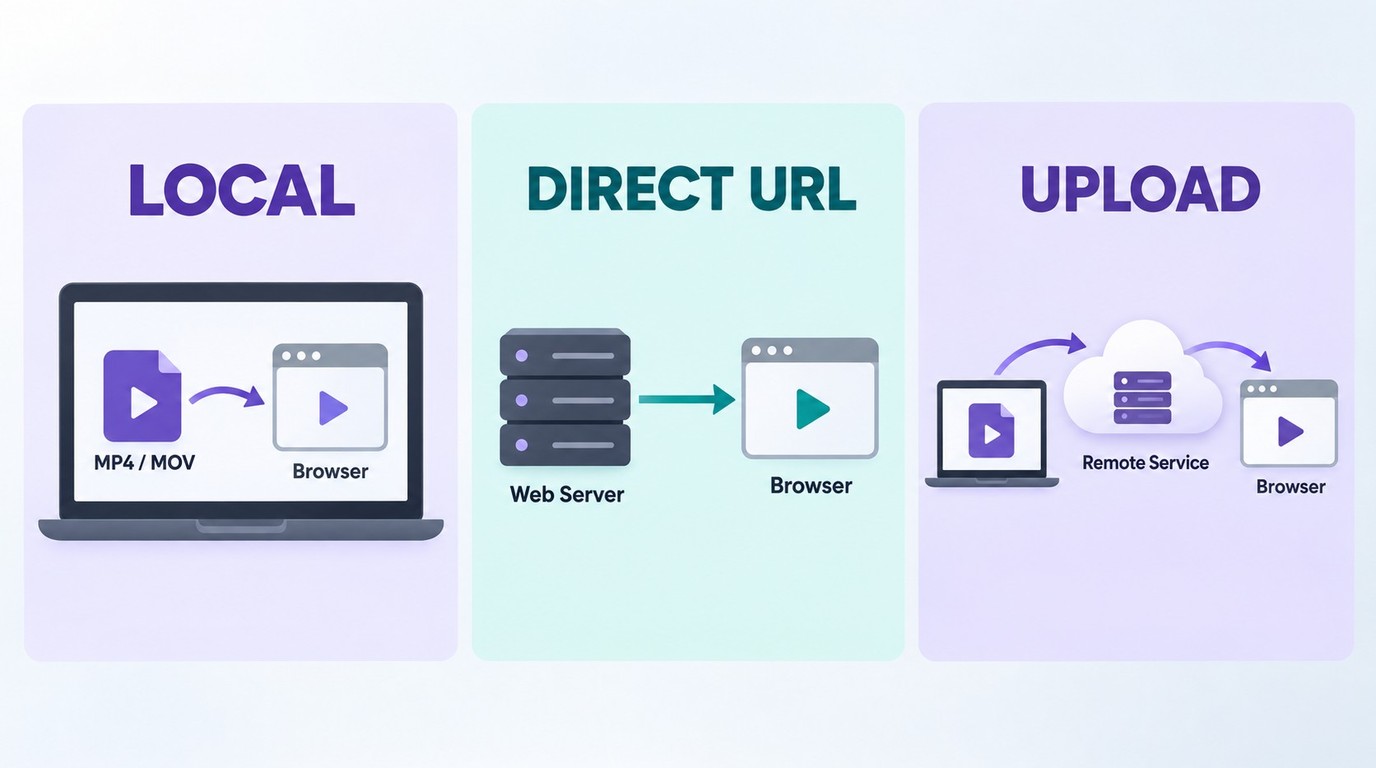
A browser offers a quick, no-install path when it supports the file's container and video and audio codecs. The key distinction is whether the browser reads a local file, fetches a direct media URL, or transfers an uploaded file to a remote service.
Local Files Without Uploading
A local-only browser player reads the selected video inside the browser and keeps the original file unchanged on your device. This path does not upload the file, but playback still depends on browser support for the container, codecs, profile, bit depth, and audio tracks.
Direct URLs and Upload-Based Players
A direct-URL player fetches media from a reachable video address, while an upload-based viewer transfers your file to its service before playback. When choosing an online video player, check which path it uses and avoid uploading media you are not authorized to share.
Best Universal Media Players to Play Video Files
No single media player handles every container, codec, device, and protected source. Each option below fits a different operating system and playback workflow.
| Player | Best fit | Operating systems | Playback strengths | Free or paid limits |
|---|---|---|---|---|
| PlayerFab Free | Desktop library and basic DVD playback | Windows, macOS | Local video, basic DVD, library | Free; 1080p, no Blu-ray, UHD, HDR, or ISO |
| VLC | Free cross-platform playback | Windows, macOS, Linux, mobile | Local files and broad codec support | Free and open source |
| PotPlayer | Windows users wanting deep controls | Windows | Local playback and extensive customization | Free; Windows only |
| IINA | Native-style macOS playback | macOS | Local files and macOS integration | Free and open source; macOS only |
For free cross-platform playback, VLC is the practical default. PotPlayer suits Windows customization, IINA fits macOS, and PlayerFab Free suits Windows or Mac users who want local playback, basic DVD support, and a media-library entry point.
PlayerFab for Local, Disc, and Home Theater Playback
If you want one desktop hub for local files, a media library, and supported disc playback, PlayerFab is available for Windows and macOS. The free edition plays local SD and HD video up to 1080p and provides basic DVD playback. Eligible paid editions add Blu-ray, ISO, 4K UHD, HDR, surround-audio, supported streaming access, and NVIDIA, Intel, or AMD hardware decoding, depending on the SKU, content, system, GPU, and display. Streaming access requires a valid subscription, and content availability and quality remain subject to the platform, plan, region, and DRM policy.
Step-by-Step Guide for Using PlayerFab
Method A: Quick Direct Playback
If you want to play a video without organizing a library, drag and drop the local video file directly into the player interface. Eligible editions can also open supported ISO content. Alternatively, right-click your video file in Windows Explorer and select "Play with PlayerFab".
Method B: Building Your Media Center
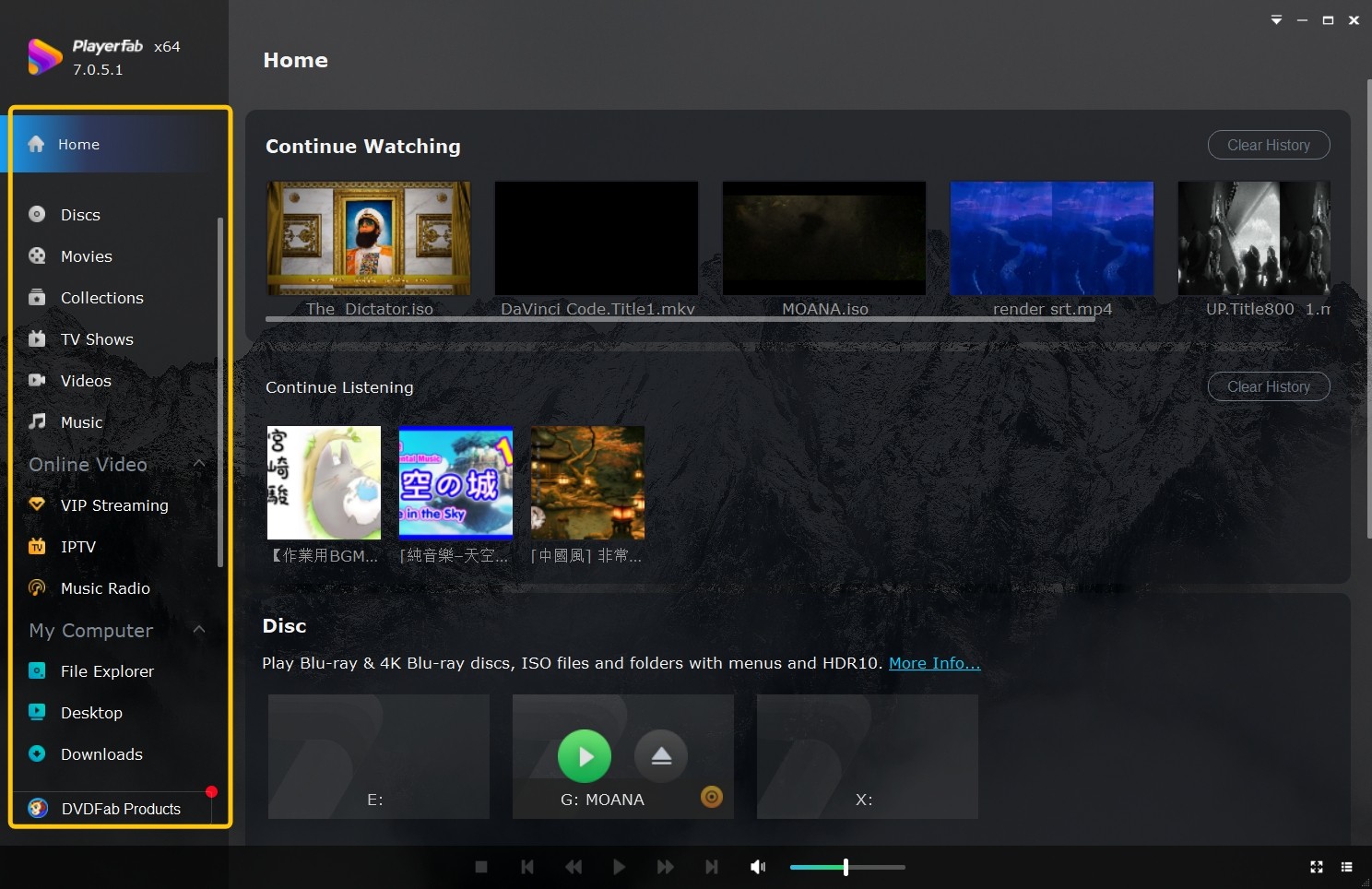
- Import Directories: Navigate to the "My Computer" section and add your local hard drives or NAS folders.
- Organize & Fix Match: The software will automatically categorize them into Movies, TV Shows, and Music. If a movie displays the wrong poster, simply click the "..." icon and use the "Fix Match" feature to correct the title and metadata manually.
- Navigate via Thumbnails: During playback, click the "Quick View" button to generate timestamped thumbnails.
- Combines local playback and supported disc access in one desktop interface
- Organizes local and NAS libraries with posters and metadata
- Eligible editions support advanced home theater video and audio features
- Blu-ray, ISO, 4K UHD, HDR, and disc-menu features are not included in the Free edition
Playing Unsupported Formats Using VLC Media Player
VLC Media Player is an open-source option for broad local-file compatibility across desktop and mobile platforms. Its built-in decoding libraries make it useful when a default player does not recognize a container or codec, and it also serves as a practical diagnostic player for comparing playback behavior.
How to Play Video Files with VLC
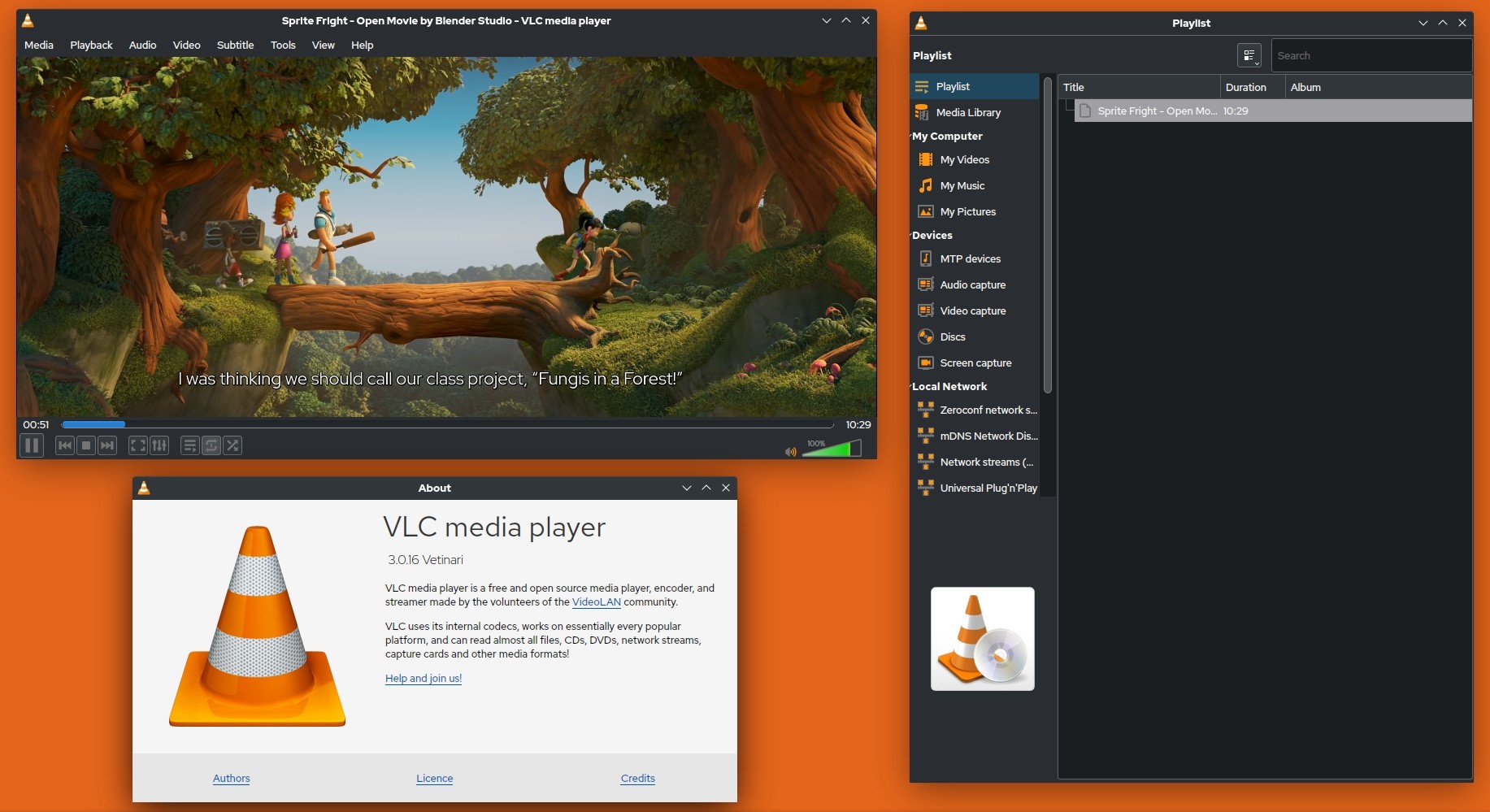
1. Drag and Drop Execution: The fastest way to force a file to open is dragging the unrecognized video file into the open VLC window. Its internal library instantly identifies the container and codec.
2. Fix Choppy Playback: If a high-resolution file is stuttering, you need to manually force the hardware decoding. Navigate to Tools > Preferences > Input / Codecs. Change "Hardware-accelerated decoding" from Disable to Automatic, then restart the software.
3. Synchronize Out of Sync Audio: A common issue with downloaded files is delayed audio. While playing, use the J and K keys on your keyboard to shift the audio track backward or forward by 50 milliseconds until it perfectly aligns with the lip movement.
- Free of charge without advertisements, spyware, or user tracking mechanisms
- Available on Windows, macOS, Linux, and mobile platforms
- Expand its core functionality by installing community-developed plugins
- The user interface feels outdated and clunky compared to more modern media players
- It lacks comprehensive media library management tools
Configuring PotPlayer for Windows 11 Users
PotPlayer is highly regarded among Windows power users because of its extensive customization options. While native applications handle basic clips, you may need a specialized player to play MP4 on Windows when dealing with high-bitrate AV1 or HEVC content, as it offers unparalleled control over video rendering.
How to Play Video Files with PotPlayer
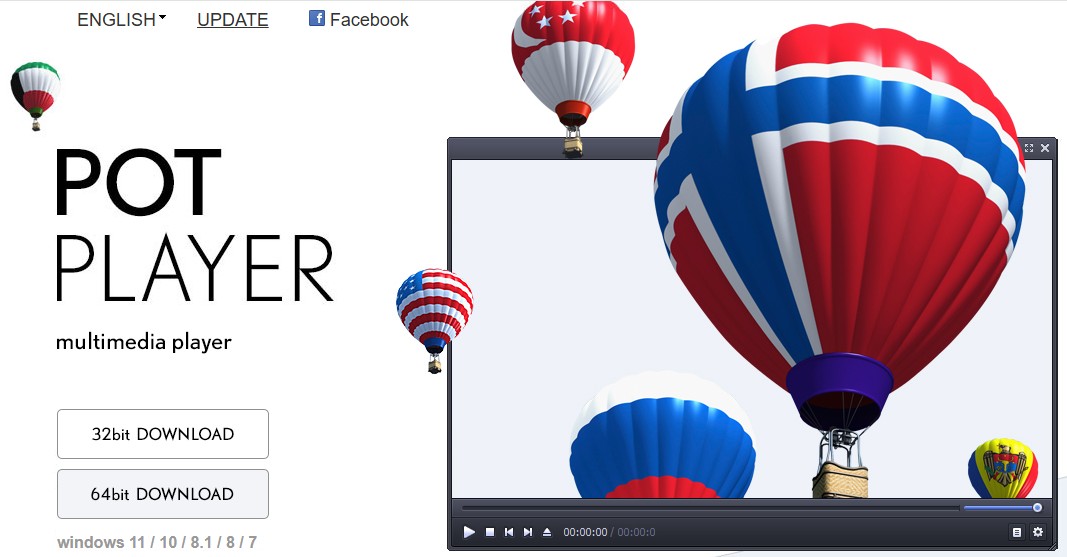
1. Install with OpenCodec: During the initial installation process, PotPlayer will prompt you to install "OpenCodec files." You must check this box to ensure the player can decode proprietary formats right out of the gate.
2. Activate the Built-in Video Enhancer: To improve the visual quality of older, low-resolution files (like legacy AVI or FLV), right-click the playback window, go to Video > Video Processing, and enable "Sharpen" or "Deblock" to smooth out pixelation.
3. Load External Subtitles: If your video does not contain embedded subtitles, name your .SRT or .ass subtitle file exactly the same as the video file and place it in the same folder. PotPlayer will automatically load it upon playback.
- It provides advanced audio equalizer configurations
- Excels at playing corrupted or incompletely downloaded video files
- Users can easily bookmark specific timestamps within a video
- The software is exclusively available for Windows
- You might encounter minor promotional pop-ups or bundled software
Using IINA for Native macOS Video Playback
QuickTime Player can reject files when the container or the codecs inside it are unsupported, so an MP4 or MOV extension alone does not guarantee playback. IINA is the preferred open-source solution to play MKV files on Mac, offering a modern interface that supports complex subtitle tracks and high-definition streams natively while being tailored perfectly for modern Apple Silicon chips.
How to Play Video Files Using IINA
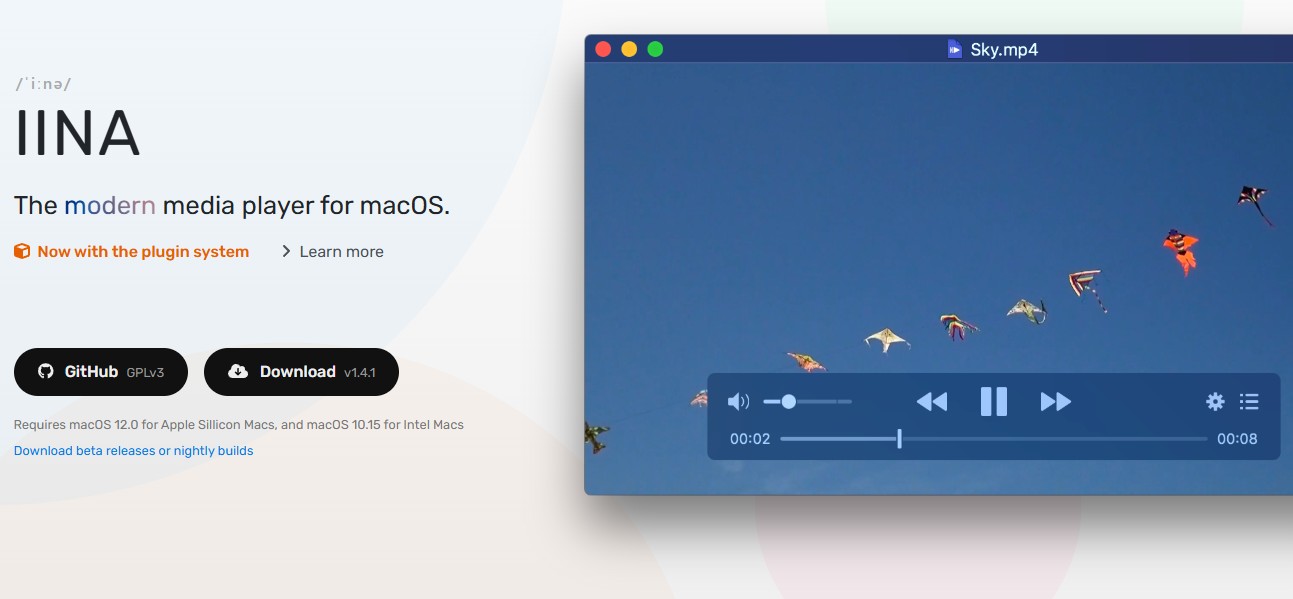
1. Set as System Default: To stop QuickTime from intercepting your files, right-click any MKV or AVI file in Finder, select "Get Info," change the "Open with" dropdown to IINA, and click "Change All."
2. Utilize Trackpad Gestures: Take advantage of macOS hardware integration. You can use two-finger swipes on your trackpad to adjust volume (up/down) or scrub through the video timeline (left/right) without clicking any menus.
3. Activate Picture-in-Picture Mode: For multitasking, click the PiP icon in the bottom playback bar. IINA will detach the video into a borderless, floating window that stays on top of your other applications.
- It features seamless built-in integration with YouTube
- The software can automatically search and download synchronized subtitles
- It is strictly restricted to the macOS ecosystem
- The advanced audio passthrough configuration options somewhat limited compared to PlayerFab
- The project relies entirely on open-source community updates
Video Playback on Mobile and Smart TVs
The demand to play video files on the go or on a large living room screen is higher than ever. However, mobile operating systems and Smart TV platforms often have stricter codec restrictions than desktop computers. Start by checking the container, video codec, audio codec, bit depth, and subtitle format. Direct play means the device decodes the original file without conversion; if that fails, a compatible app, casting path, media server, or transcoding process may be needed.
Managing Video Playback on iPhone and iPad
Apple devices commonly handle MP4 and MOV containers, but the file extension alone does not confirm compatibility. If a video fails), check the audio codec, track timing, subtitle format, and decoding load as separate issues.
Troubleshooting Steps:
- Restore Missing Audio: If the picture plays without sound, inspect the selected audio track. A codec such as EAC3 (Dolby Digital Plus) may not be supported by the device or player, so try a compatible player or convert the audio track.
- Correct Audio Timing: If voices do not match lip movement, use the player's audio-delay control to shift the track until it is synchronized.
- Load External Subtitles: If internal subtitles are missing, select "Load Subtitle" from the context menu to import a .SRT or .ass file located on your computer.
- Reduce Stutter: Enable hardware decoding when available. If playback remains choppy on one device, its decoder may not support the file's codec, profile, bit depth, or bitrate.
- Check Multiple Scenes: Use the "Quick View" button to jump to several timestamps, then play each scene briefly to compare dialogue timing after every seek.
Choose the Right Playback Path
Start by checking what the file contains and what the target device can decode. A browser can handle a supported local file or direct URL, while a desktop video player is usually the next step when the browser or default app rejects the container, video codec, audio codec, or subtitles.
My recommendation is to try a compatible player before changing the file. If the video works on one device but not another, inspect the failing device's codec, profile, bit-depth, audio, and subtitle support. Remux the file when only the container needs to change; transcode it only when the target device still cannot decode the video or audio tracks.

 12 Best HEVC Players for Windows, Mac, and 4K (2026)By Alice Harper - Aug 4, 2026
 Best WMV Player for Mac and How to Play WMV on Mac NativelyBy James Morgan - Aug 4, 2026
 8 Best TS File Players and Playback Tools for 2026By Alice Harper - Jul 28, 2026
 6 Best DVD Players for Laptops in 2026: Drives and AppsBy Alice Harper - Jul 22, 2026