5 Ways to Play MKV Files on Mac in 2026

Summary: QuickTime Player doesn't support MKV files on Mac. To play MKV videos on your Mac, you need specialized media player software. DVDFab Player 6 Ultra for Mac is the top choice, offering free playback for various video and audio formats plus support for DVDs, Blu-rays, and 4K content. This guide walks you through using DVDFab Player 6 and other reliable methods to play MKV files on Mac computers.
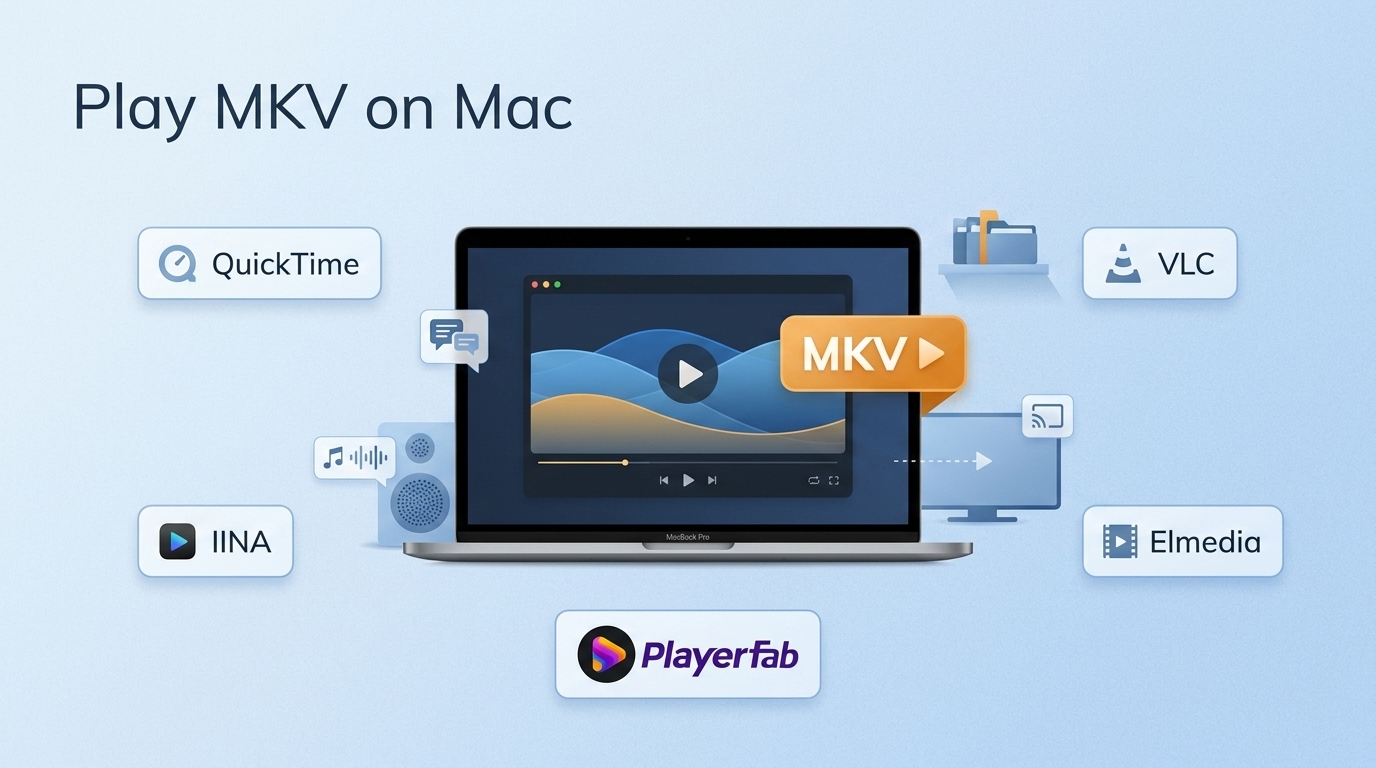
Table of Contents
To play MKV files on Mac, start with a compatible player if you want to preserve its audio tracks, subtitles, and chapters; convert the file only when QuickTime or wider Apple-device compatibility matters. Most Mac playback problems come from QuickTime MKV support expectations, not from MKV alone. This guide compares five routes and shows how to fix common failures.
Why QuickTime Struggles With MKV Files
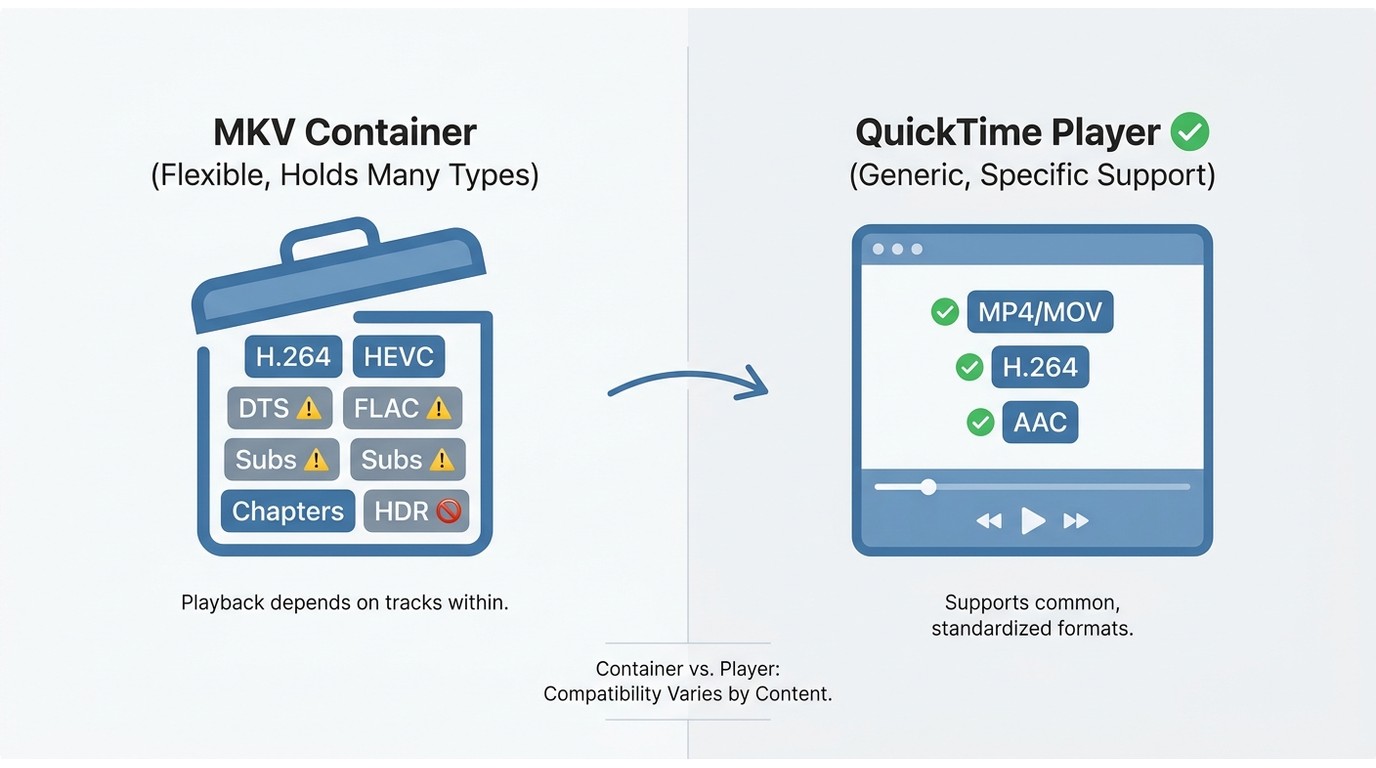
MKV is a container, meaning it can hold video, multiple audio tracks, subtitles, chapters, and HDR metadata in one file. Whether it plays depends on the video, audio, subtitle, and color tracks inside that container, not simply on the .MKV extension.
QuickTime works best with MP4 or MOV files that contain compatible video and audio codecs. An MKV may include H.264, H.265/HEVC, DTS, FLAC, subtitle streams, or HDR profiles that QuickTime cannot interpret properly, even if the file opens. The result can be missing sound, unavailable subtitles, a green-tinted image, or a video that will not load.
Legacy fixes such as Perian and QuickTime 7 are not modern default solutions. Use a maintained player for direct playback, or convert the file to a QuickTime-compatible format when needed. In my view, direct playback is the lower-friction first test unless you specifically need QuickTime or Apple-device compatibility.
Compare Your Five MKV Options
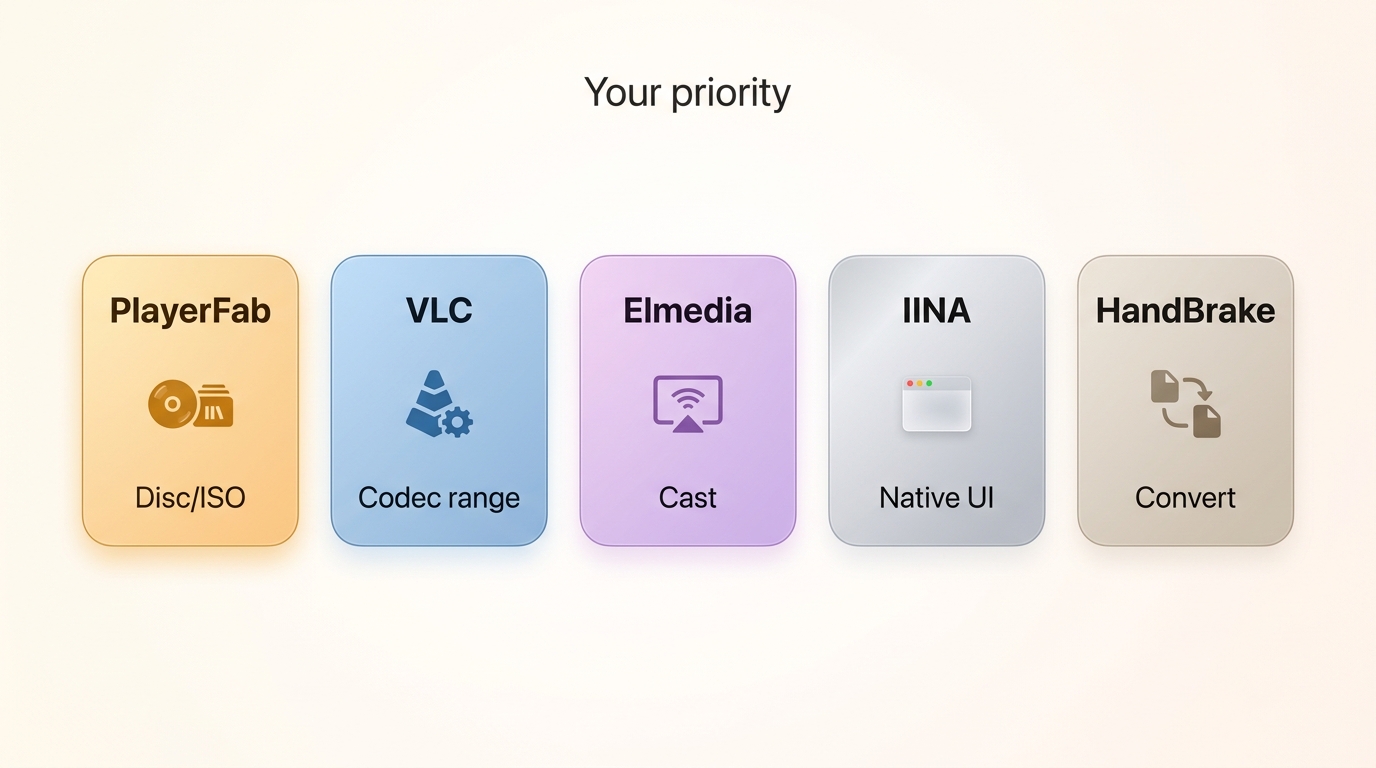
Direct playback keeps the tracks already stored in an MKV file, while conversion prioritizes compatibility with QuickTime and other Apple software. The table below focuses on the practical differences that matter when choosing how to open MKV on Mac.
| Route or app | Cost model | Tracks and subtitles | Best fit | Main limitation |
|---|---|---|---|---|
| PlayerFab Ultra HD Player | Free local-file playback | Supports local MKV playback and track switching | Local media libraries, DVDs, ISO files, and home-theater workflows | Blu-ray menu playback on macOS is still under development |
| VLC Media Player | Free and open source | Broad support for audio tracks and subtitles | Familiar, cross-platform compatibility | Less Mac-native interaction and HDR color results can vary |
| Elmedia Player | Free version with PRO-dependent features | Subtitle and audio-track controls | Mac-oriented playback and casting workflows | Advanced streaming functions are not part of the basic workflow |
| IINA | Free and open source | Subtitles, chapters, and track controls | A modern macOS-style interface | HDR and Dolby Vision results vary by file and display pipeline |
| HandBrake conversion | Free | Can reduce subtitle and multi-track flexibility | QuickTime and broader Apple-device compatibility | Takes time, storage space, and may require re-encoding |
For most free compatibility needs, VLC is a sensible starting point. IINA suits readers who value native-feeling macOS controls, Elmedia makes more sense when casting matters, PlayerFab fits a broader local media library, and HandBrake is the route for QuickTime-compatible output.
Direct Playback Preserves Track Flexibility
A direct player can use the audio tracks, embedded subtitles, chapters, and metadata already inside the MKV. That is usually preferable for a movie file with several language options or carefully timed subtitles.
Conversion Prioritizes Apple Compatibility
Conversion is useful when a file needs to work in QuickTime or across Apple software, but it can add processing time and may change which tracks remain available.
Four Apps That Open MKV Directly
1. Play MKV Files on Mac with PlayerFab Ultra HD Player
- Best for: Mac users who want MKV playback alongside a local media library, DVDs, ISO files, and home-theater-oriented viewing
- Not ideal for: Readers who only need a lightweight free MKV app
PlayerFab Ultra HD Player opens authorized local MKV files on Mac and suits viewers who want their files organized in a media library rather than treated as one-off clips. It also supports local discs, ISO files, folders, 4K video files, HDR formats, and high-definition audio workflows. On macOS, DVD and ripped-ISO menu navigation are supported, while Blu-ray menu playback is still under development.
How to play MKV files with DVDFab Player 6 on Mac
Step 1: Download and install PlayerFab Ultra HD Player on your Mac, then launch the app.
Step 2: If you want the fastest method, drag your MKV file directly into the PlayerFab window. You can also use the left sidebar and go to My Computer to browse your folders manually, then open the target MKV file from there.
Step 3: If you want your local videos in a library view, go to Settings → Library and add a New Directory from local storage. After the folder is added, PlayerFab Ultra HD Player organizes the imported media under Library for future playback.
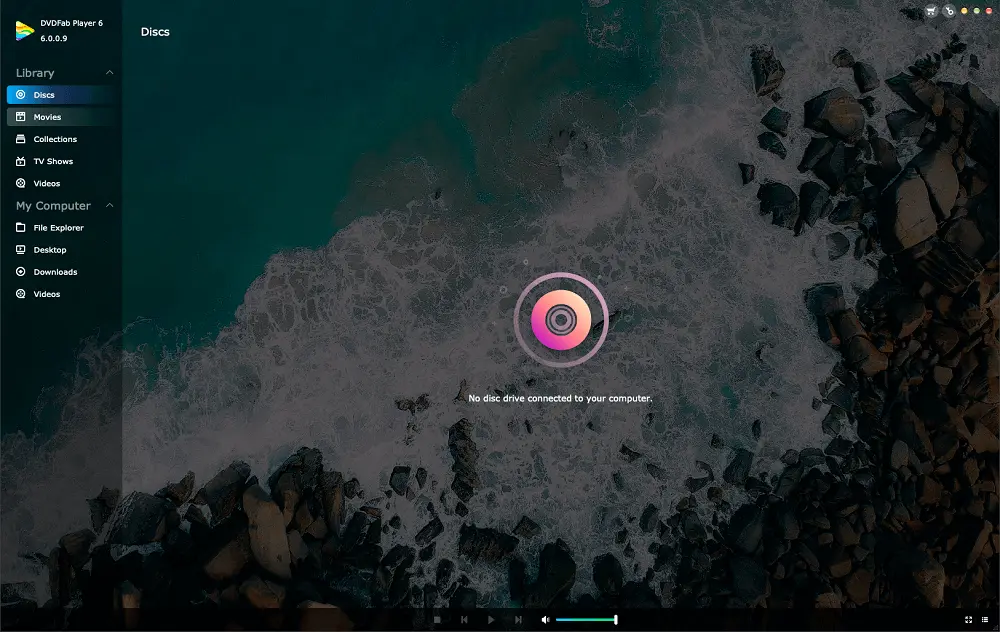
Step 4: Once the video starts, switch subtitles or audio tracks as needed during playback. For smoother playback with large files, enable hardware acceleration in settings when available.
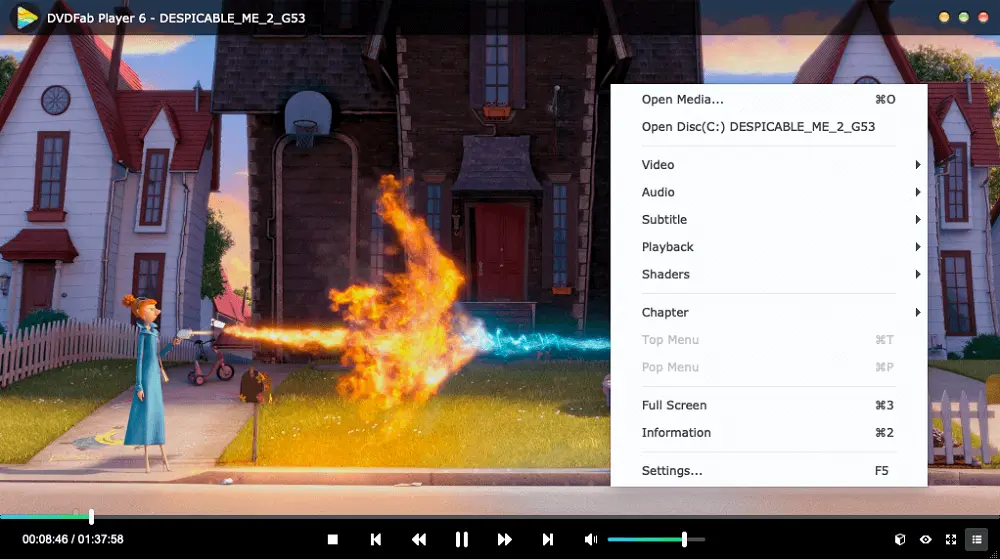
- Plays video files directly without conversion when their included tracks are supported.
- Free version already covers common video and audio playback needs.
- Useful for viewers who also maintain DVDs, ISO files, or 4K local video files.
- More organized local library workflow than many basic players.
- Some advanced features require the paid version
- The interface includes more features than casual users may need.
2. Open MKV Files on Mac with VLC Media Player
- Best for: Users who want a free and reliable MKV player with broad format support
- Price: Completely free and open source
VLC is a practical free option for playing MKV files on Mac because it offers broad built-in format support without extra codec packs. Its current Mac download is available for Intel and Apple Silicon Macs. I would choose VLC when cross-platform familiarity and compatibility matter more than the most native macOS interaction; HDR color behavior can still vary with the file and display setup.
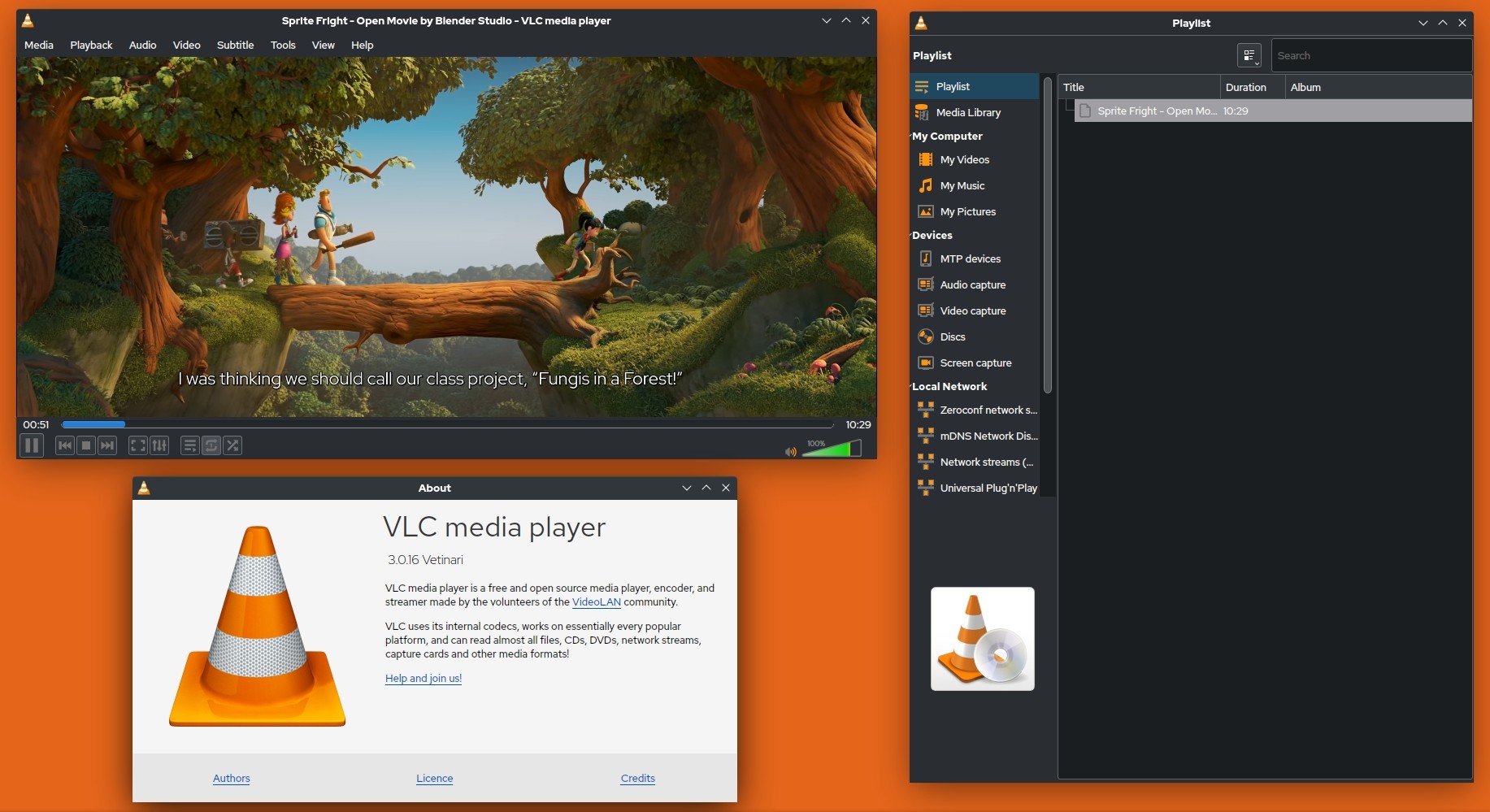
How to play MKV files with VLC on Mac
Playback tip: Open the file from VLC's File menu, then use its playback menus to select embedded subtitle or audio tracks. If a large file stutters, hardware decoding in Preferences is a sensible first setting to check.
- Open source, and easy to recommend to most users.
- Strong format compatibility, including MKV.
- Works well for users who also use Windows or Linux.
- The interface feels less polished on macOS than some Mac-focused players.
- Better for raw compatibility than for library organization or premium local media management.
3. Play MKV on Mac with Elmedia Player
- Best for: Users who want a Mac-friendly interface with solid local playback and streaming features
- Price: Free version available, Pro version for extra features like extended streaming options.
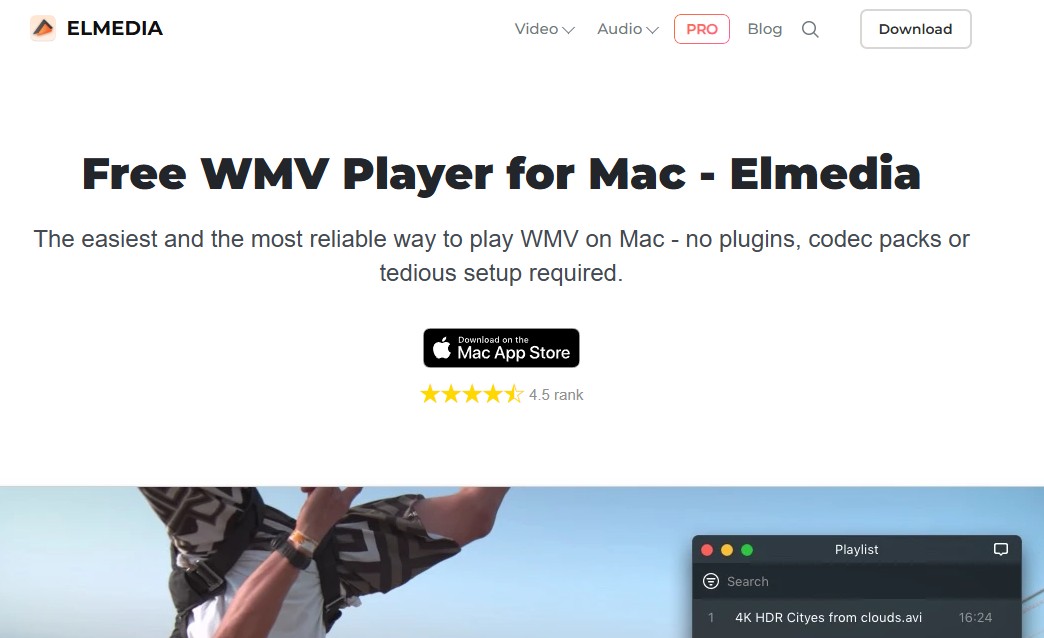
Elmedia Player is a Mac-oriented alternative for viewers who want subtitle controls, audio-track switching, playlists, and casting-oriented options in one interface. Its free and PRO versions separate basic playback from some advanced functions. It makes the most sense when AirPlay, DLNA, or Chromecast workflows matter; it is less compelling if you only need basic local playback or disc features.
How to play MKV files with Elmedia Player on Mac
Playback tip: Open the MKV, then use the built-in controls to choose subtitles or audio tracks. Add files to a playlist for continuous playback, and use casting functions only in the version that supports your intended workflow.
- Cleaner Mac-style interface than many general-purpose players.
- Good subtitle, playlist, and track management for regular video watching.
- Useful if you also care about AirPlay, DLNA, or Chromecast workflows.
- Some advanced functions are tied to the Pro version.
- Less relevant if the user also wants DVD or Blu-ray playback.
4. Watch MKV Files on Mac with IINA
- Best for: Users who prefer a modern macOS-native player with strong direct playback and clean design
- Price: Free and open source.
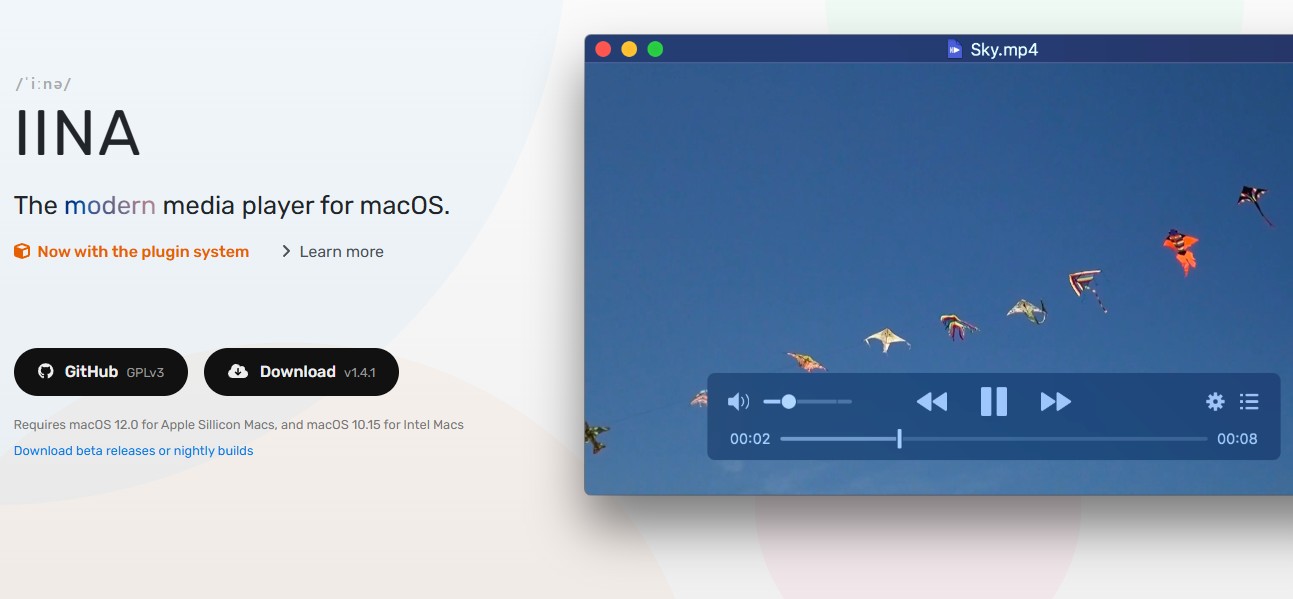
IINA is an actively maintained open-source player designed around macOS interaction. It is a natural fit if you value subtitles, chapters, picture-in-picture, playback history, and a lighter interface over disc or home-theater features. Its HDR and Dolby Vision results can vary with the file profile and macOS display pipeline, so a clean interface should not be mistaken for guaranteed color accuracy.
How to play MKV files with IINA on Mac
Playback tip: Open the MKV from the file menu, then use IINA's on-screen controls for subtitles, audio tracks, and chapters. Playback history and playlists are useful when you return to local files regularly.
- Free, open source, and actively maintained.
- Strong subtitle, playlist, chapter, and picture-in-picture support.
- Cleaner and more Mac-native than VLC for many users.
- Not built for disc playback or broader home theater workflows.
- Some casual users may be less familiar with it than with VLC.
Convert MKV for QuickTime Compatibility
- Best for: Users who prefer QuickTime Player or need files that work more smoothly across Apple devices and software.
- Price: Free, using HandBrake.
Conversion is the practical fallback when QuickTime compatibility matters more than direct playback. Simply changing an MKV container to MP4 is not enough if the video or audio codec inside remains incompatible. The core MKV vs MP4 trade-off is flexibility versus wider app compatibility: preserve the original file, and convert only when the Apple-friendly output is worth the added time and storage.
Remux When the Codecs Already Work
Remuxing changes the container without re-encoding the streams. It can be useful when the existing video and audio codecs already suit the destination app, but it will not solve a codec compatibility problem on its own.
Transcode With HandBrake for Wider Compatibility
Step 1: Download HandBrake on your Mac. If macOS shows a security prompt on first launch, allow the app to open.
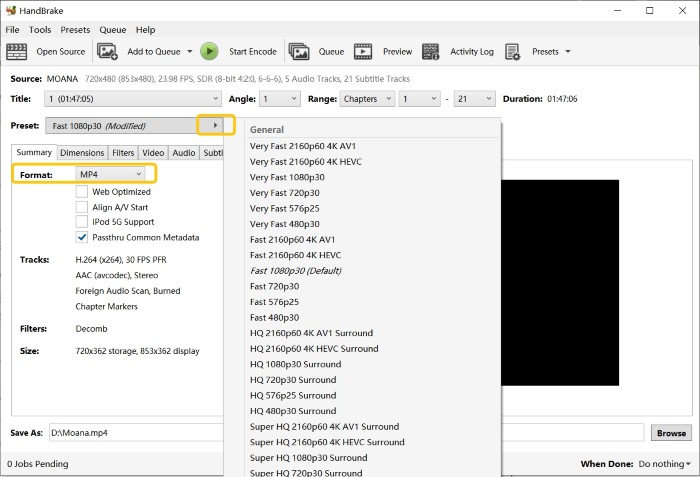
Step 2: Open HandBrake and load the MKV video you want to convert. You can select a single file for one-off conversion, or choose a folder later if you want to process a batch of MKV files.
Step 3: Set the output format to MP4 and choose compatible internal codecs. When transcoding is necessary, H.264 video with AAC audio is a practical choice for broad QuickTime compatibility.
Step 4: Click Browse to choose where to save the converted MP4 file and give it a clear name. Then click Start Encode to begin the conversion. If available, enable VideoToolbox to speed up the process with hardware acceleration.
Step 5: Once the file is ready, open it in QuickTime Player and check video and audio. Keep the original MKV, because conversion takes time and storage space and may reduce quality or preserve fewer subtitles and audio tracks than direct playback.
- Improves compatibility across Apple devices and software.
- Keeps the original MKV file unchanged as a backup.
- Can be useful for archiving videos in a more universally accepted format.
- Less suitable when you want immediate playback on Mac.
- Requires additional storage space for the new file.
- May reduce quality if the settings are not chosen carefully.
Fix Common MKV Playback Problems
No Audio or Missing Subtitles
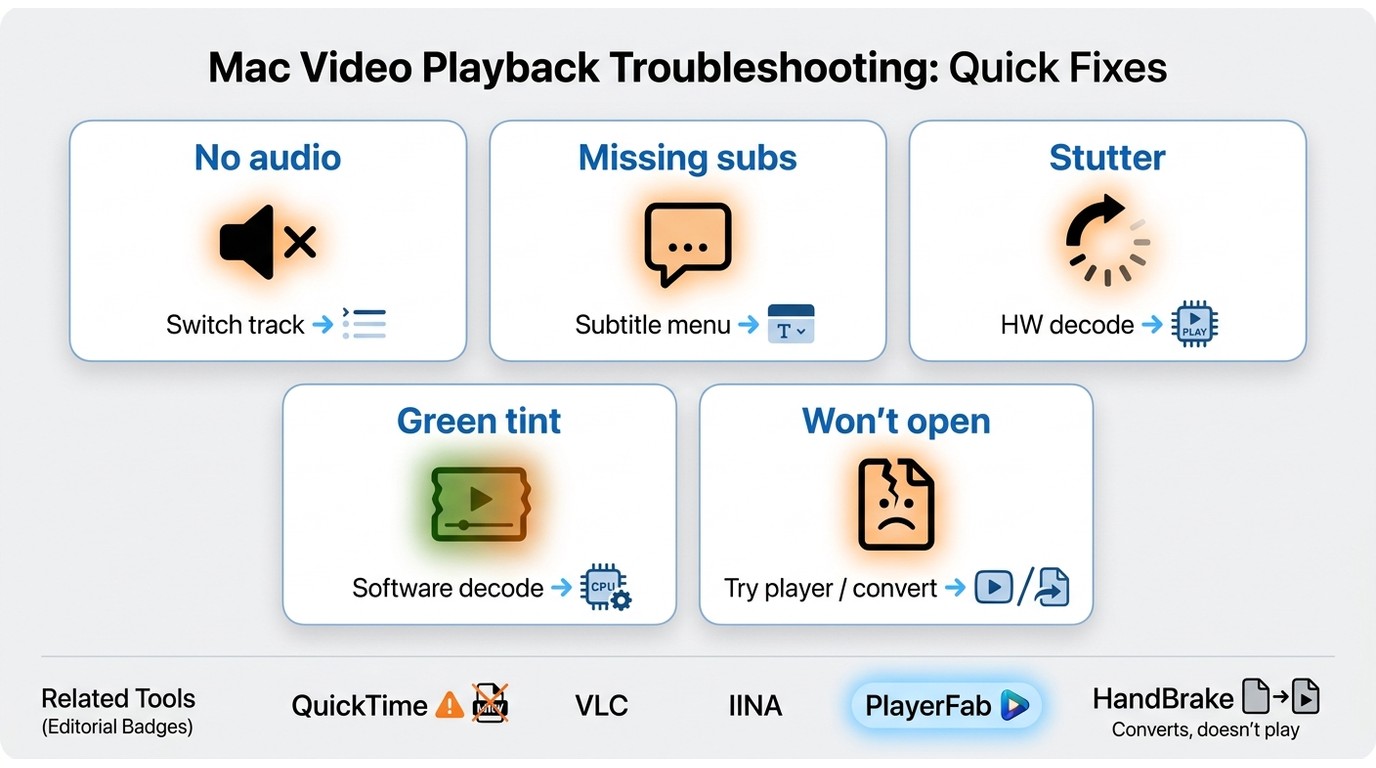
If an MKV opens without sound, first check whether the player has selected the intended audio track; unsupported audio formats can also be the cause. For missing subtitles, look for an embedded subtitle-track menu before assuming the file has no captions. A maintained player is generally simpler and safer than installing miscellaneous codec packs.
Stutter, Heat, or Playback Freezes
Large or complex files can strain decoding, storage, and background system resources. Close resource-heavy apps, confirm that the file is on responsive local storage, and try hardware decoding when the player provides it. If playback still freezes, test the same file in another maintained player to separate a file issue from an app-specific setting.
Green-Tinted HDR or Dolby Vision
A green tint often points to an HDR or Dolby Vision profile that does not match the current player and macOS display pipeline. Try a different player or a standard dynamic range version of the authorized local file, but do not expect one app to render every Dolby Vision MKV correctly.
MP4 Still Fails in QuickTime
If the converted MP4 still fails, inspect the internal video and audio codecs rather than the extension alone. Re-encode to H.264 video and AAC audio in HandBrake, then test the new file in QuickTime again.
The Best Route for Your Mac
To play MKV files on Mac, test direct playback first when speed and track flexibility are the priority. VLC is a sensible free choice for familiar broad compatibility, IINA suits a more native Mac feel, Elmedia is worth considering for casting-oriented workflows, and PlayerFab Ultra HD Player fits users who maintain a broader local media library, provided its current macOS Blu-ray menu limitation is acceptable. If QuickTime or wider Apple-device compatibility is the goal, conversion is the better trade-off.
Frequently Asked Questions
Can I preview an MKV file with Quick Look on a Mac?
Finder preview behavior depends on the codecs and track structure inside the file, so Quick Look may not show every MKV reliably. Open the file in a maintained media player when you need to check video, audio, and subtitle tracks fully.
Is a QuickTime MKV plugin still a good option?
Not as a modern default. Older solutions such as Perian and QuickTime 7 are no longer the practical starting point; use a current player or convert the file with compatible codecs for QuickTime.
Which free MKV app is easiest for a Mac beginner?
VLC is a straightforward choice when broad compatibility and familiarity matter. IINA may feel more comfortable if you prefer a more macOS-native interface. Results can still vary with HDR profiles and complex files.
Do I need codec packs just to play an MKV file?
Usually not. A maintained player with built-in format support is generally simpler than downloading separate codec packs. Download apps from their official sources and use the player controls to check alternate audio or subtitle tracks first.

 Top 10 Best MP4 Player for Mac in 2026: Tested & ReviewedBy Alice Harper - Aug 4, 2026
 5 Blu-ray Players for Mac Compared in 2026: Disc, 4K, and CostBy James Morgan - Jul 24, 2026
 8 Best Video Players for Mac in 2026: A Hands-on ReviewBy Alice Harper - May 7, 2026