5 Blu-ray Players for Mac Compared in 2026: Disc, 4K, and Cost

Summary: A Mac needs both a Blu-ray-capable external drive and compatible playback software for commercial movie discs. This guide compares five Mac options by source support, menus, 4K boundaries, setup effort, and cost, then explains a practical three-step workflow for discs, ISO images, BDMV folders, and local media libraries.
If you are searching for a Mac Blu-ray player, the missing piece is usually not the display or processor. To play Blu-ray on Mac, you need both a Blu-ray-capable external optical drive and software that supports the source you own, whether that is a commercial movie disc, ISO image, BDMV folder, MKV, or MP4 file.
That distinction matters more than a long feature list. I compare five Blu-ray players for Mac by disc support, menu access, Apple Silicon status, 4K source type, setup effort, and cost, then show a neutral workflow you can adapt to the software you choose.
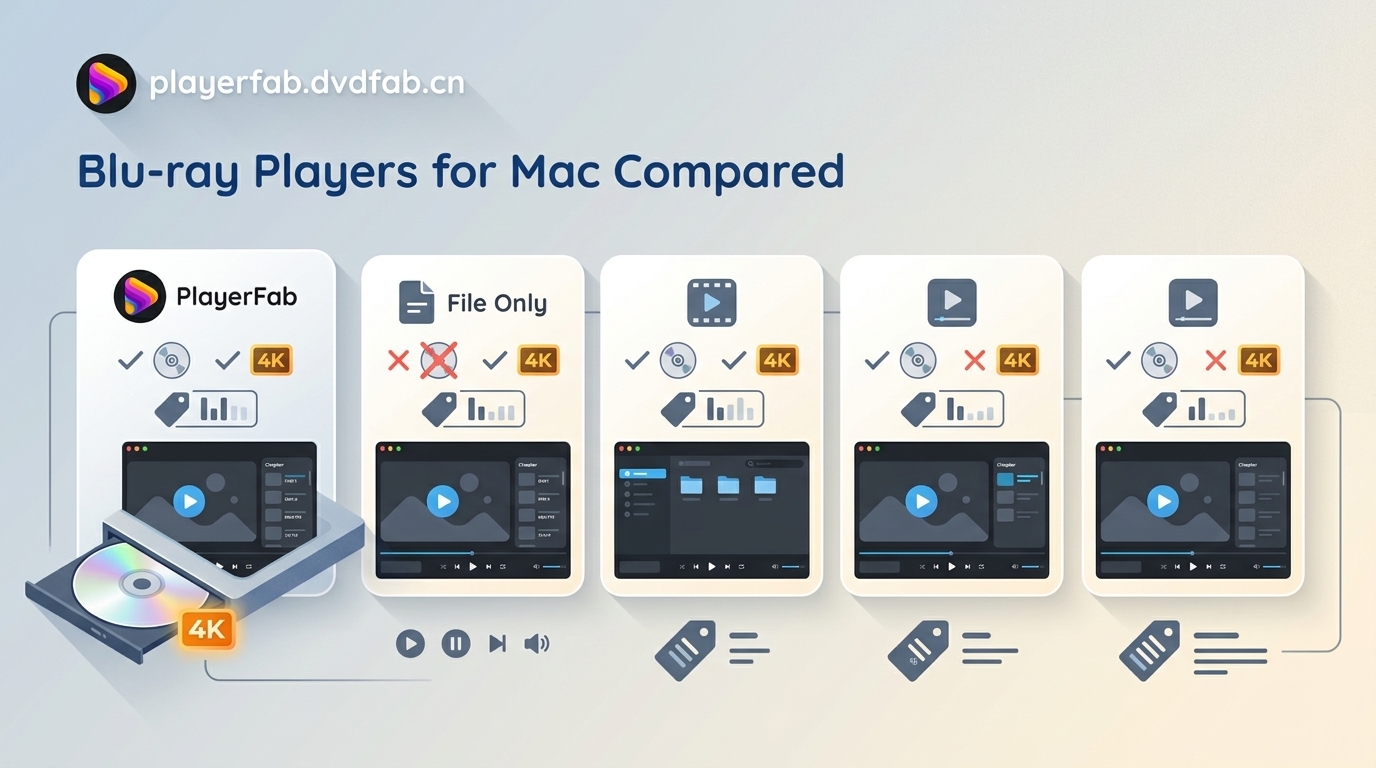
5 Mac Blu-ray Players Compared
The best Blu-ray player for Mac depends on three questions: what source you want to open, whether you need disc menus, and how much setup you will tolerate. No single app leads in every scenario.
For personal playback of content you are authorized to access, where permitted by applicable terms and law, the following comparison focuses on compatibility and workflow rather than unsupported speed rankings.
PlayerFab Ultra HD Player for Mac
PlayerFab Ultra HD Player for Mac, previously searched as DVDFab Player 6 Ultra for Mac, fits readers who want Blu-ray playback and a managed local library in one Mac application.
PlayerFab Ultra HD Player for Mac supports Mac playback from physical discs, ISO images, folders, and common local video files. On macOS, Simple Mode can open Blu-ray and 4K UHD sources without relying on full Blu-ray menu navigation. DVD menus and menus from DVD ISO sources are supported, while Blu-ray Menu Mode on Mac is still under development.
The honest boundary is physical UHD Blu-ray on Mac: the current product information does not clearly confirm that specific source-and-platform combination. Ordinary 4K video files, UHD ISO or folder sources, and physical UHD discs are separate capabilities and should not be treated as interchangeable.
Suitable for: Readers who want Blu-ray, ISO, folder, and local-file playback alongside poster-based library organization.
Less suitable for: Anyone who requires verified full physical Blu-ray menus or confirmed physical UHD disc support on Mac. My view is that PlayerFab is strongest here as a combined player and media-library tool, not as a universal answer to every Mac disc format.
Macgo Mac Blu-ray Player Pro
Macgo Mac Blu-ray Player Pro is a paid choice for standard Blu-ray users who put menu access ahead of library management.
Macgo remains commercially available and offers Blu-ray menu support, but broad claims about Apple Silicon optimization should be tied to a tested app version, Mac model, and macOS release. Without that test basis, current Apple Silicon behavior is better described as version-dependent rather than assumed.
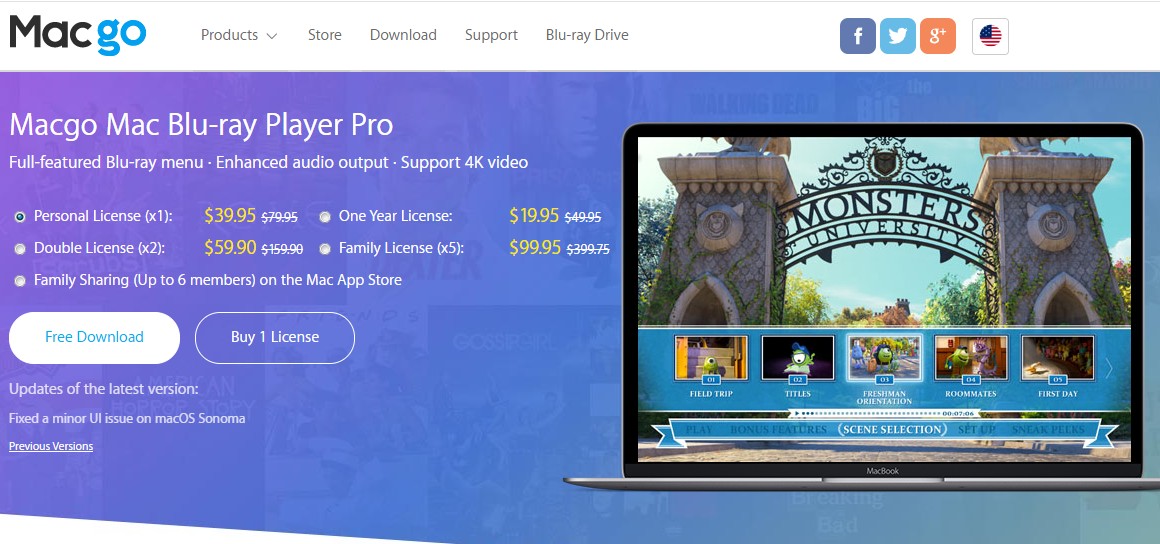
Suitable for: Standard Blu-ray collections where menu navigation and a Mac-oriented interface matter.
Less suitable for: Readers who need confirmed physical UHD disc playback or who want a poster-wall media library. I would shortlist Macgo for menus, but I would not infer current hardware compatibility from an older system requirement page.
VideoByte Blu-ray Player
VideoByte Blu-ray Player aims for a simpler paid workflow than VLC, with disc and file opening handled through a conventional player interface.
Its value depends on current Mac source support, menu behavior, trial limits, and how much manual setup it avoids. Capabilities that are not documented for the exact Mac version should be treated as unverified, especially physical UHD discs and complete bonus-feature navigation.
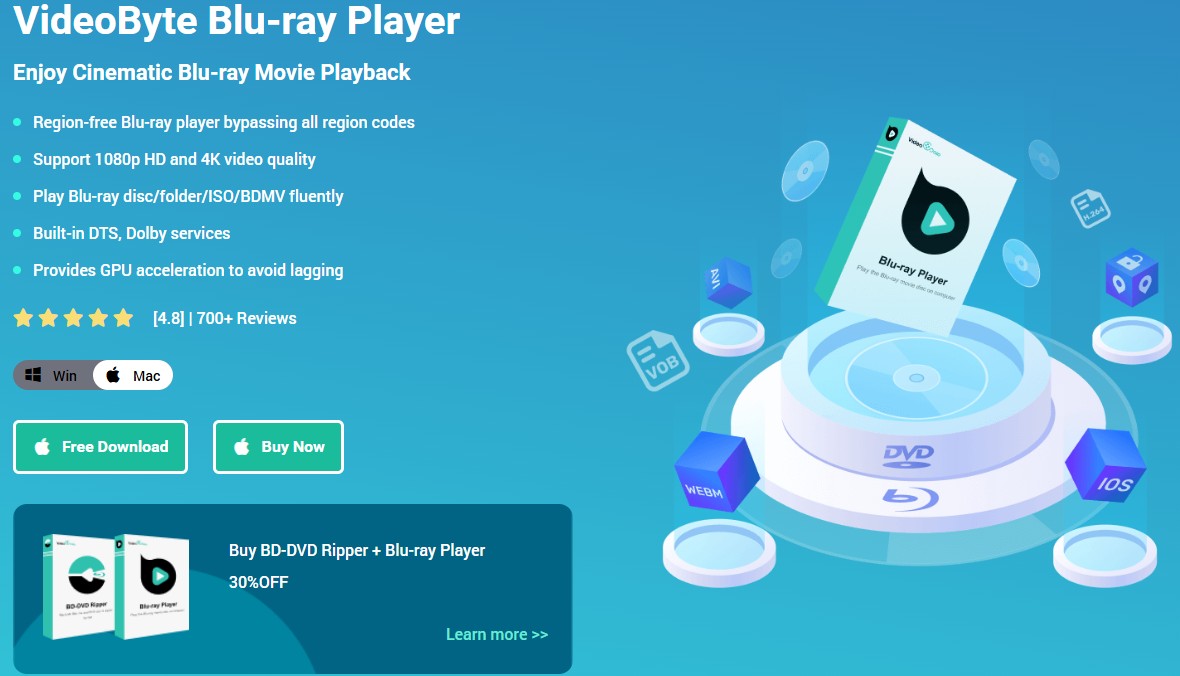
Suitable for: Readers willing to pay for a guided interface and vendor support instead of maintaining VLC components.
Less suitable for: Buyers who need a clearly documented Mac media-library system or confirmed physical UHD support. In my judgment, the paid convenience is meaningful only if its current trial proves the exact drive and disc workflow you need.
VLC with libaacs
VLC is the free Mac Blu-ray player option for technical users, but commercial movie discs are not supported out of the box.
Current VLC builds are available for Intel and Apple Silicon Macs. Commercial Blu-ray use depends on separately maintained AACS libraries and keys, so setup quality can change as discs and components change. A focused VLC Blu-ray setup and error guide is more useful than repeating file locations or key-acquisition instructions here.
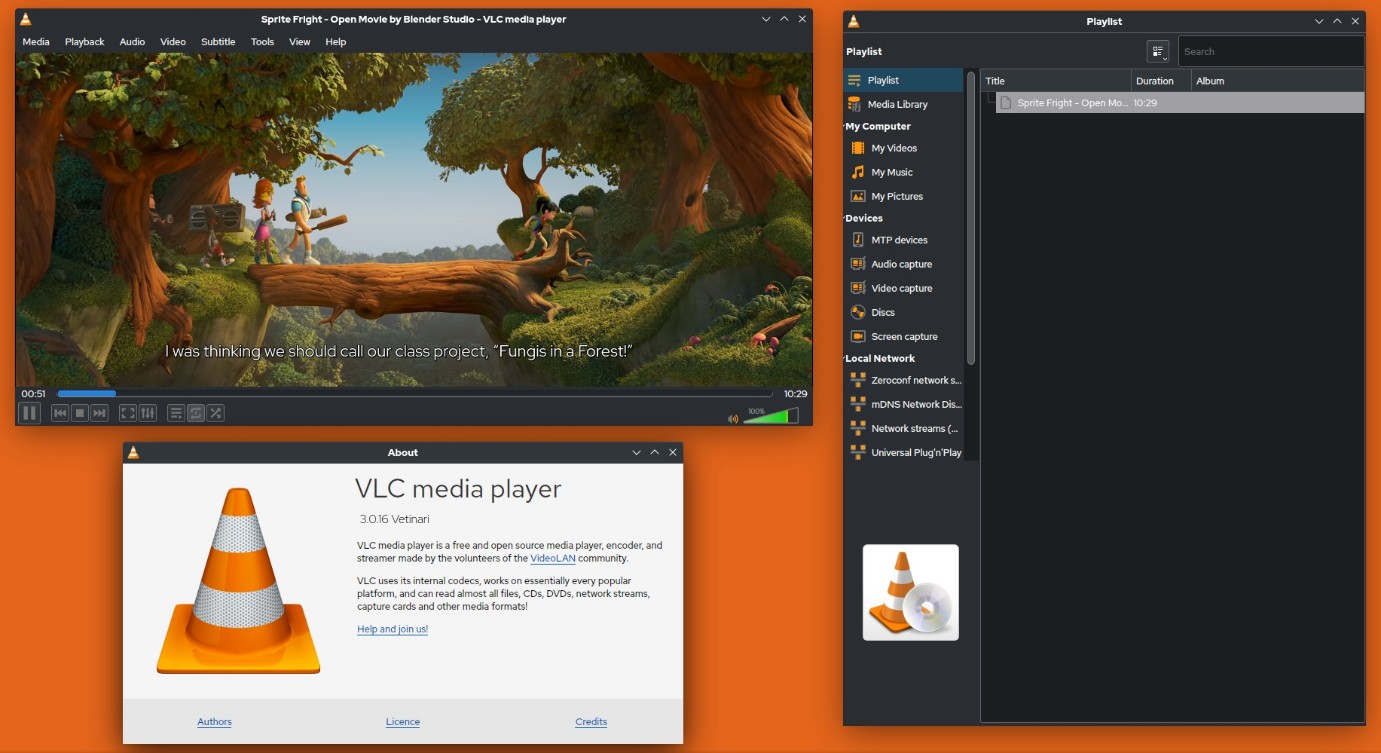
Suitable for: Technical users who want a free, open-source player and accept maintenance and troubleshooting.
Less suitable for: Readers who expect reliable disc menus, vendor support, or a low-friction first launch. I keep VLC installed for ordinary files, but it would not be my first recommendation for a disc library that needs predictable menus.
Elmedia Player
Elmedia Player is a file player for Mac users whose Blu-ray collection is already stored as ordinary video files, not a solution for protected physical movie discs.
It works with formats such as MKV and MP4 and offers a Mac-oriented interface, playback controls, and wireless output features. BDMV folder playback and direct commercial-disc support should not be assumed from general file compatibility.
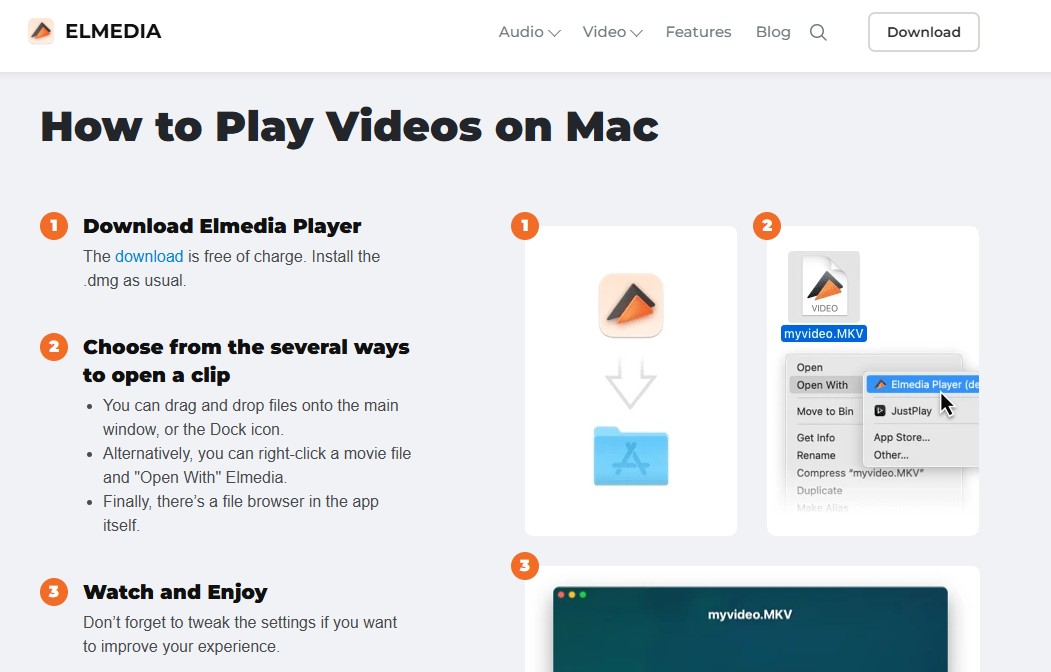
Suitable for: File-only libraries on local storage, an external SSD, or a network location.
Less suitable for: Anyone buying an external Blu-ray drive for Mac and expecting the app to open commercial movie discs or disc menus. Its strength is polished file playback, not optical-disc handling.
Mac Compatibility, Features, and Cost
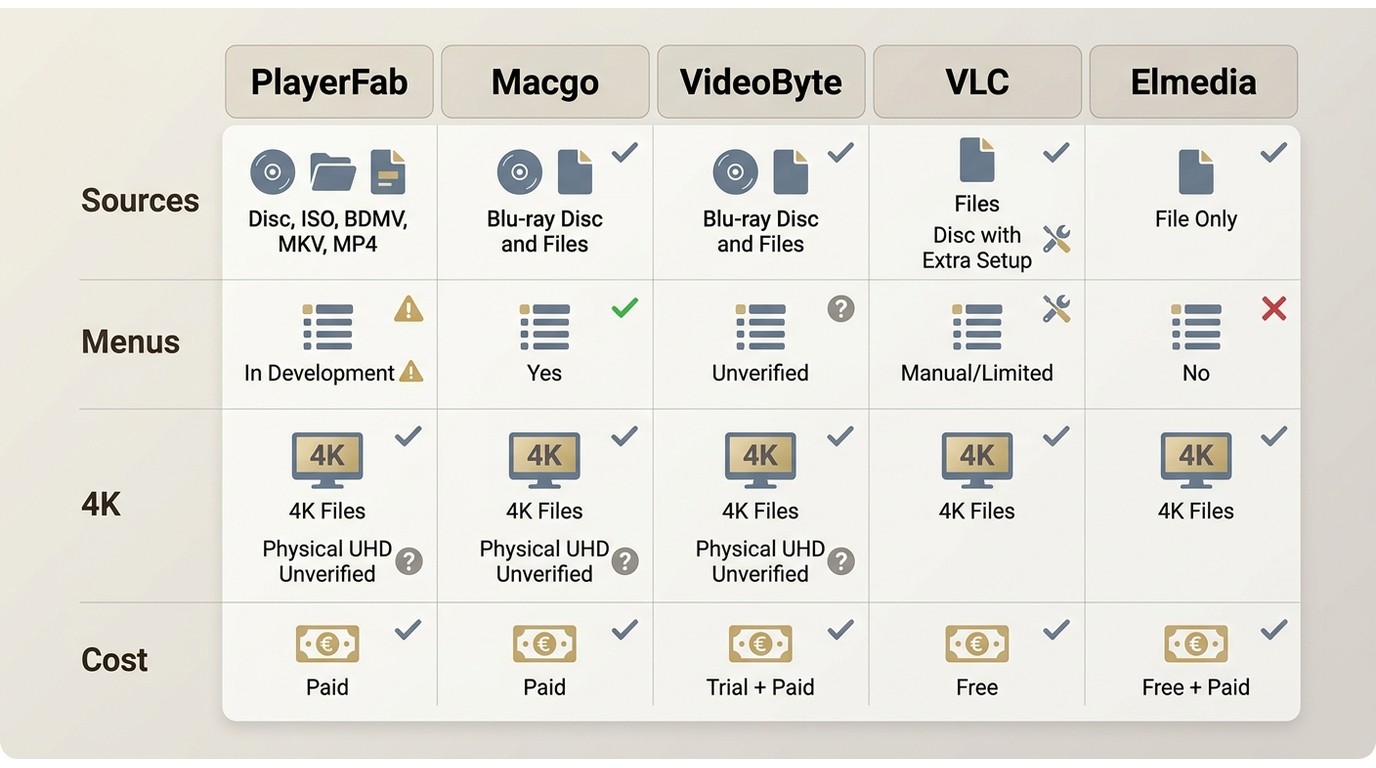
A useful Mac comparison separates physical discs, ISO images, BDMV folders, and ordinary 4K files. It also treats menus, Apple Silicon support, and pricing as independent decisions.
Compatibility and Disc Support
The matrix below summarizes what can be stated without inventing benchmarks or extending Windows claims to macOS. Compatibility and pricing notes are current as of July 2026.
| Player | Current Mac test basis | Intel and Apple Silicon | External drive required | Protected Blu-ray discs | Physical UHD disc on Mac | Full menu or main-movie mode | ISO and BDMV folders | 4K video files and HDR | Lossless audio | Free, trial, or paid | Verified US price | Suitable for | Less suitable for |
|---|---|---|---|---|---|---|---|---|---|---|---|---|---|
| PlayerFab Ultra HD Player for Mac | Official Mac version; no reproducible hardware test published here | Mac support verified; chip-specific result not established here | Yes, for physical discs | Supported for authorized personal playback | Not clearly verified | Simple Mode for Blu-ray; DVD menu support; Mac Blu-ray Menu Mode under development | ISO and folder sources supported | 4K files and HDR formats supported; source type matters | Dolby and DTS formats supported | Paid product with download option | Not verified | Managed disc and file library | Confirmed physical UHD or full Blu-ray menus on Mac |
| Macgo Mac Blu-ray Player Pro | Active Mac product; exact version and device test not published here | Current result depends on app version and Mac model | Yes, for physical discs | Standard Blu-ray playback offered | Not verified | Blu-ray menu support is a key feature | ISO support offered; BDMV details vary | 4K file support differs from physical UHD disc support | Audio passthrough offered | Paid | Not verified | Standard discs with menus | Confirmed physical UHD playback |
| VideoByte Blu-ray Player | Mac product available; no matching device test published here | Not verified for a specific current Mac | Yes, for physical discs | Commercial-disc playback offered | Not verified | Menu and bonus-feature behavior should be tested in the trial | Source support offered; exact folder behavior should be tested | 4K file claims do not confirm physical UHD discs | Track selection offered | Trial and paid options | Not verified | Guided paid workflow | Buyers needing fully documented Mac source coverage |
| VLC with libaacs | Current Intel and Apple Silicon builds; disc result depends on external components | Both build families available | Yes, for physical discs | Not available out of the box | Not verified | Menu behavior is inconsistent | Local files are strong; disc-image workflows require setup | Plays many 4K files; HDR behavior depends on the Mac and output path | Supports many audio formats | Free | Free | Technical users and ordinary media files | Low-maintenance commercial-disc playback |
| Elmedia Player | Current Mac file player; no physical-disc test basis | Current compatibility depends on its published Mac requirements | No for files; it does not serve as a physical-disc player | Not supported as a direct commercial-disc workflow | Not supported as a direct disc workflow | No disc-menu workflow | Ordinary files supported; BDMV structure not verified | 4K file playback supported | Audio controls available | Free and paid tiers | Not verified | Local MKV and MP4 libraries | Physical discs, ISO menus, or BDMV navigation |
The practical upshot is simple: menu support and source support should decide your shortlist before interface preferences do. A 4K Blu-ray player for Mac may mean physical UHD discs to one reader and 4K video files to another, yet those are different requirements.
When HDR file playback—not physical UHD media—is your real priority, a 4K video player for PC and Mac should be compared by HDR output, codec support, and local-file handling rather than disc menus.
For 3D, treat support as one capability rather than the center of this Mac comparison; readers building a stereoscopic setup can review the requirements for 3D Blu-ray player software separately.
Free, Trial, and Paid Tradeoffs
Free software saves the purchase price but can shift the cost into setup and maintenance. Paid tools are worthwhile when they prove the source, menu, and support combination you need.
- Choose VLC if you already troubleshoot media software comfortably and mainly need broad file playback, with occasional disc use.
- Use a paid trial when commercial-disc opening, menu access, or a specific external drive is central to the purchase decision.
- Choose PlayerFab when a poster-based library for discs, ISO sources, folders, and local files matters more than confirmed full Blu-ray menus on Mac.
- Choose Macgo when standard Blu-ray menu navigation is the priority and your current Mac passes a version-specific trial.
- Choose Elmedia when the library is already made of MKV, MP4, and similar files.
Leawo still appears in free-player searches, but its US Mac App Store listing is old enough that current macOS operation is uncertain. I would not rank it beside actively maintained choices without a successful test on the Mac that will run it.
Playing Blu-ray on a Mac
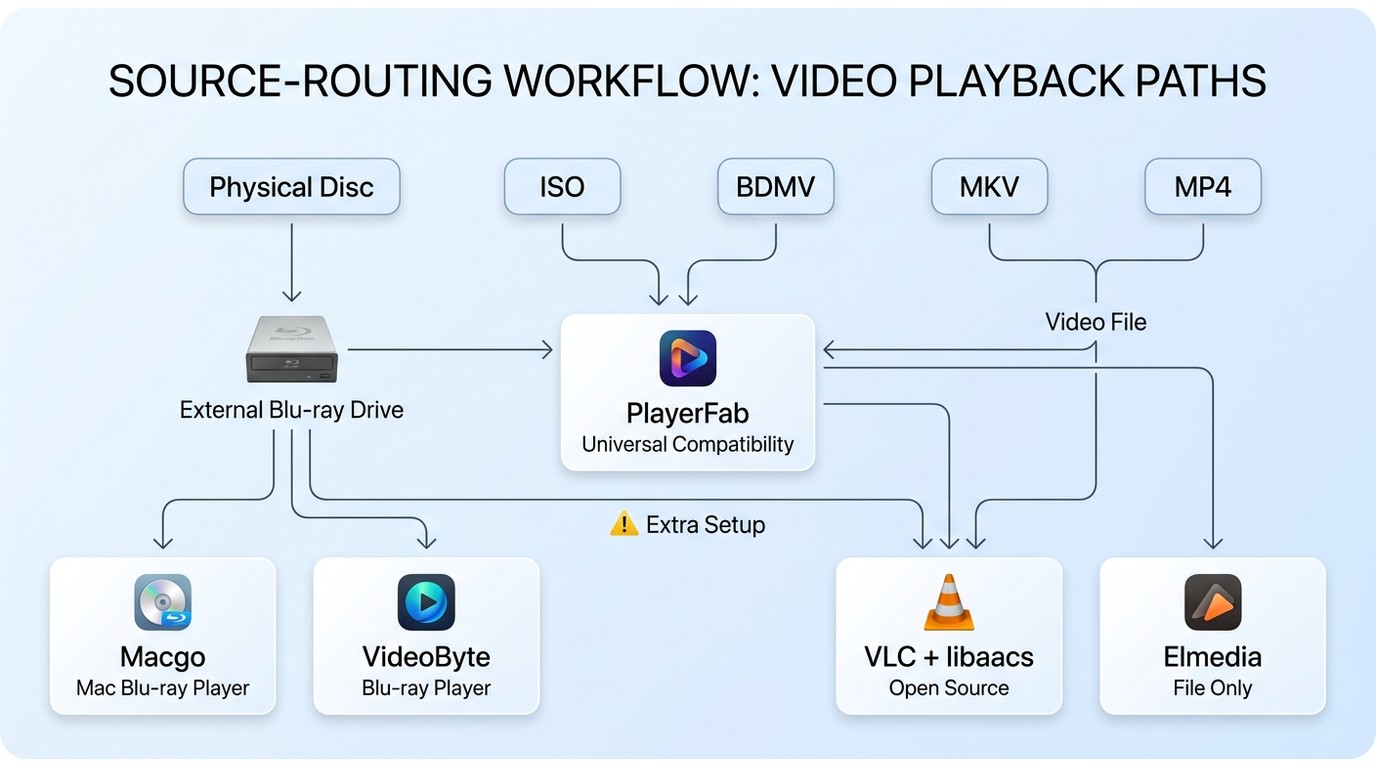
A standalone living-room Blu-ray player and an external Blu-ray optical drive are not interchangeable. The Mac workflow requires an optical drive that connects to the computer, plus compatible MacBook Blu-ray player software.
Use the following three-step sequence as a cross-product framework. Interface labels differ, but the source decision stays the same.
Connect the Drive and Open the Disc
Connect a Blu-ray-capable external optical drive for Mac directly or through a suitable powered adapter, insert the disc, and open it from the playback app rather than expecting QuickTime to handle the movie.
- Confirm that the device is an optical drive with a computer data connection, not a standalone HDMI player.
- Insert the disc and allow macOS to detect the drive. A Finder warning does not by itself prove that the drive has failed.
- Open the player, select the disc source, and choose the available main-movie or menu mode.
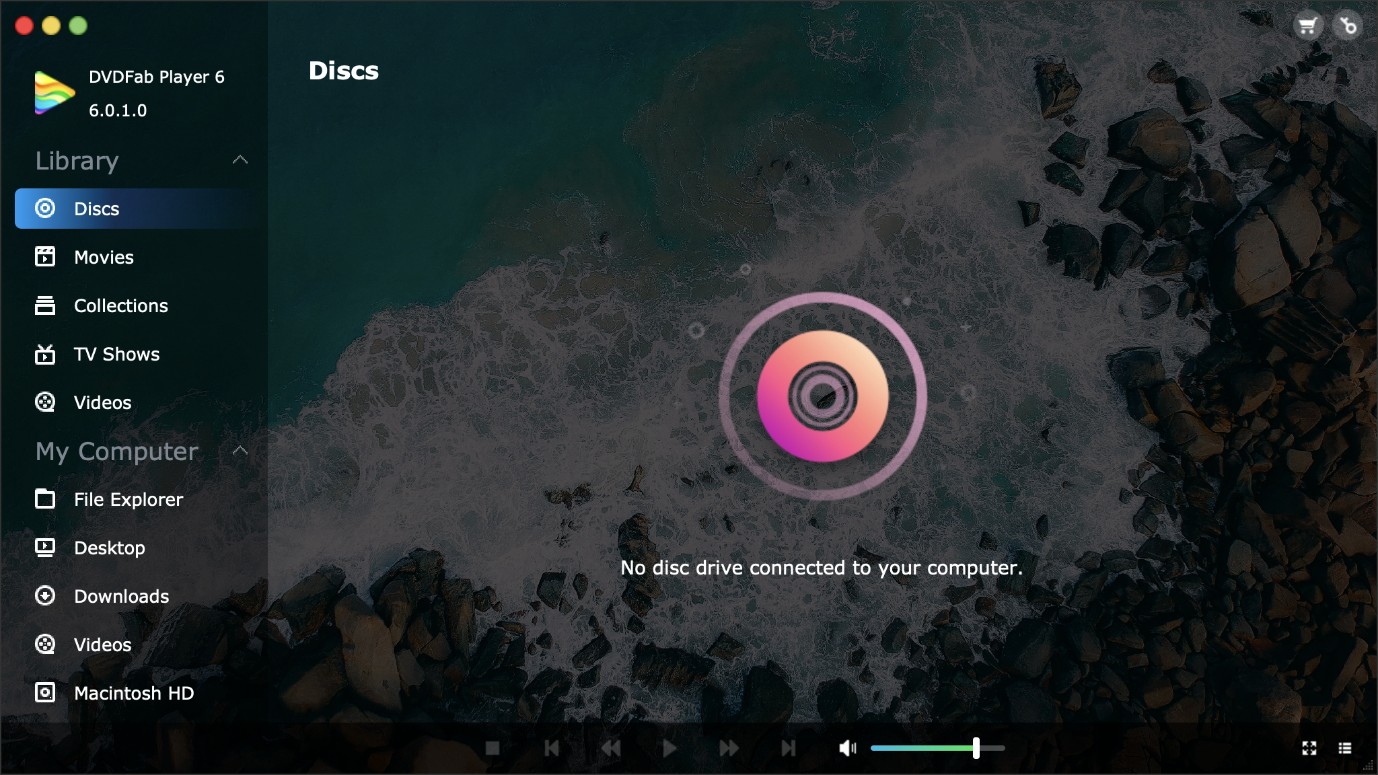
My decision rule is to test the exact disc type first. Standard Blu-ray success does not establish physical UHD support, and file playback does not establish disc-menu behavior.
Play ISO and BDMV Sources
ISO images, BDMV folders, MKV or MP4 files, and physical Blu-ray discs use different opening paths. Start by identifying the source you actually have.
- ISO image: Open it from the player's file browser or drag it into a supported player window. The detailed process for how to play ISO files covers mounting and player choices beyond this Mac comparison.
- BDMV folder: Select the folder source only if the app documents BDMV folder playback; do not assume generic file support includes disc-structure navigation.
- MKV or MP4 file: Open it as an ordinary local video. A file-focused app such as Elmedia may be enough.
- Physical disc: Select the connected optical drive and use the mode the app supports for that disc type.
I prefer this source-first approach because it prevents the most common buying mistake: paying for a polished file player when the real requirement is a commercial disc and menu workflow.
Build a Smart Media Library
A smart library is useful when you keep authorized ISO sources, folders, and local video files across several storage locations. It is optional for occasional disc playback.
- Open the player's library settings and add the directory that contains your media.
- Allow the app to classify movies, TV shows, videos, or music and fetch poster and description metadata.
- Correct mismatched titles or artwork with a matching or manual metadata tool.
- Set the library to refresh when files are added, renamed, or moved.
PlayerFab can organize local sources into poster-based categories and offers Fix Match for incorrect titles or artwork. I would use that workflow for a growing local collection, but not if the goal is simply to insert one disc and watch it.
Frequently Asked Questions
These answers cover the source and compatibility questions that most often change the buying decision.
Can a MacBook play a physical 4K UHD disc?
Possibly, but only with a compatible UHD-capable optical drive and Mac-specific software support verified for physical UHD discs. UHD ISO or folder sources and ordinary 4K video files are separate cases. A guide to choosing the right 4K Blu-ray player can help define the hardware requirement, but PlayerFab's current Mac information does not clearly confirm physical UHD disc playback.
Why won't macOS play my Blu-ray movie?
macOS does not include licensed movie playback for protected commercial Blu-ray discs. You need a Blu-ray-capable external drive and compatible playback software. If the drive is not detected at all, troubleshoot the cable, adapter, power, and disc condition before assuming the software is responsible.
Should I change my drive's region setting?
A drive's firmware may limit how often its region can be changed, while software region support varies by product and disc. Before changing firmware, check the player's documented compatibility and the practical criteria for a region-free Blu-ray player. Use discs you are authorized to access where permitted by applicable law.
Is free Blu-ray software enough on a Mac?
It can be enough for technical users who accept manual AACS component maintenance and inconsistent menu behavior. A paid option is easier to justify when you need vendor support, a trial for a specific drive, dependable menu access, or a managed library. For ordinary MKV and MP4 files, a free file player may already meet the need.
Which Mac Blu-ray Player Fits You?
The right Mac Blu-ray player is the one that matches your source and tolerance for setup, not the one with the longest feature list.
- Managed local library: PlayerFab Ultra HD Player for Mac fits discs, ISO sources, folders, and local files, but it is not ideal if full physical Blu-ray menus or confirmed physical UHD playback on Mac are mandatory.
- Standard disc menus: Macgo is the more focused candidate, provided its current trial works on your Mac model and macOS version.
- Free technical route: VLC suits readers who accept component maintenance and troubleshooting.
- Guided paid workflow: VideoByte is worth considering only after its trial confirms your exact source and menu needs.
- File-only playback: Elmedia is the cleanest category match when the collection is already MKV, MP4, or another ordinary video format.
For my own shortlist, I would start with source type, then menu needs, then maintenance cost. That order keeps the comparison honest and avoids turning a Mac Blu-ray software pricing decision into a purchase based on features you may never use.

 Top 10 Best MP4 Player for Mac in 2026: Tested & ReviewedBy Alice Harper - Aug 4, 2026
 5 Ways to Play MKV Files on Mac in 2026By Alice Harper - Jul 29, 2026
 8 Best Video Players for Mac in 2026: A Hands-on ReviewBy Alice Harper - May 7, 2026