Play Blu-ray on VLC: 2 Setup Methods and Error Fixes

Summary: VLC can open unencrypted Blu-ray content, but most commercial discs need compatible AACS support and may still have menu or drive limitations. This guide compares two setup paths, prioritizes the most useful error checks, and explains when a dedicated player reduces maintenance.
Table of Contents
If your VLC Blu-ray attempt ends with an AACS or MRL message, the drive may be working normally while VLC lacks the support required for that disc. The practical question is not simply ‘can VLC play Blu-ray,’ but which setup path matches your disc, operating system, and tolerance for maintenance.
This guide separates basic playback from complete disc navigation, compares MakeMKV integration with a manual VLC Blu-ray setup, and then works through the errors that matter most. The central distinction is simple: starting a movie is not the same as reproducing the full Blu-ray experience.
Can VLC Play Blu-ray Discs?
VLC can play unencrypted Blu-ray content directly. Most commercial AACS-protected discs need additional compatible support, and even a working setup may offer main-title playback without reliable menus, Java features, or support for every new release.

What Works Without Extra AACS Support
A VLC Blu-ray player setup is simplest with unencrypted BD-R media, Blu-ray folders, or local video files that VLC already recognizes. VLC uses libbluray to read disc structure, titles, chapters, audio tracks, and subtitles, but VLC AACS decoding for protected commercial media depends on compatible external support.
For a reproducible hardware check on a Dell XPS 15 running Windows 11, first confirm that the optical drive appears in Device Manager and that VLC can open a known unencrypted disc or local Blu-ray folder. If the title list appears, the drive and basic structure parsing are working; a later AACS error points elsewhere.
My editorial rule here is to isolate the layer that failed before changing software. A disc that works in licensed playback software but not in VLC is not automatically damaged, while a drive that cannot read any supported media needs hardware attention first.
Menus, Java, Folders, and ISO Files
Main-title playback and full menu playback are separate capabilities. HDMV menus may work in some configurations, while BD-J menus can require a compatible Java environment and can still vary by disc. A Blu-ray folder may open through the disc command, but an ISO file often needs to be mounted by the operating system before VLC can treat it as a disc source.
- Main movie: Often easier to start than the original menu system.
- Blu-ray menus: Depend on disc authoring, Java or BD-J requirements, and the active support stack.
- Folders: Use the Blu-ray disc workflow and select the folder as the source.
- ISO files: Mount the image first when VLC cannot open it directly as a disc.
- 4K UHD: Requires compatible drive hardware and firmware in addition to software support.
The useful takeaway is that VLC may start the feature film while omitting the navigation, extras, or predictable behavior expected from a licensed disc player. For titles such as Dune or Blade Runner 2049, that difference matters when the menu controls multiple cuts, audio tracks, or bonus material.
Play Blu-ray on VLC: Two Setup Methods
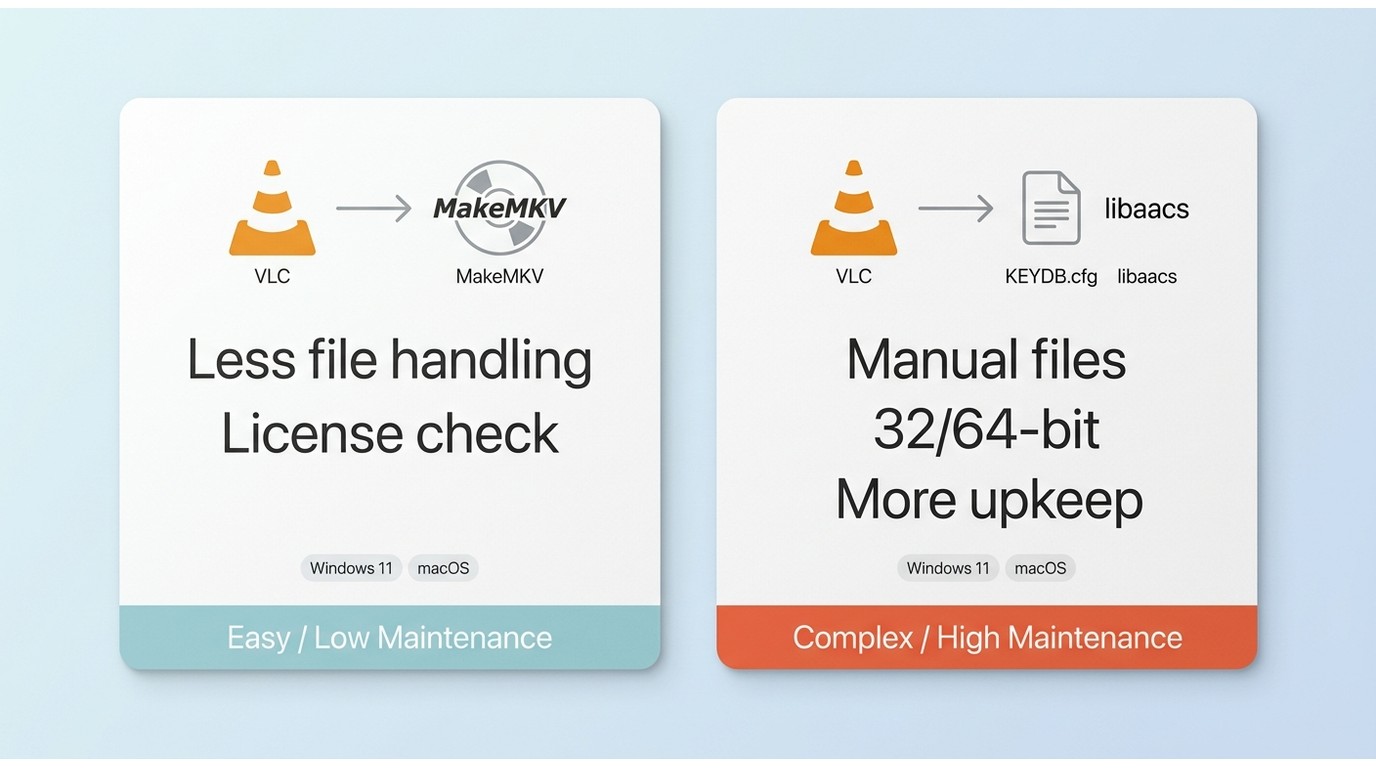
There are two common ways to play Blu-ray on VLC when extra AACS-capable support is required: connect VLC to an active MakeMKV installation, or configure compatible KEYDB.cfg and libaacs components manually. Both routes are for content you legally own or are authorized to access, subject to tool licenses, disc terms, and applicable law.
Preflight Checklist and Method Comparison
Check the drive, disc, VLC build, and package architecture before changing files. As of July 2026, paths and dependencies can differ by operating system, installation method, CPU architecture, and whether VLC came from a standard installer or package manager.
- Confirm that the drive supports the disc format; 4K UHD media can require additional drive and firmware compatibility.
- Test a known readable disc or local file to separate drive recognition from protected-disc support.
- Update VLC through its official distribution channel, then note whether the build is 32-bit or 64-bit.
- Identify the package type and installation path before placing any compatible library.
- Decide whether you prefer MakeMKV's additional-application dependency or the manual route's file and compatibility maintenance.
For a Dell XPS 15 running Windows 11, VLC's Help > About screen and the executable location provide two visible checks before setup: the installed architecture must match the supporting library, and the file must be placed where that specific VLC build can load it.
MakeMKV Integration
MakeMKV integration is the lower-file-management route: VLC relies on an active MakeMKV installation for compatible disc access rather than requiring the reader to manage each supporting file separately. Its operation can depend on the current MakeMKV license or beta-key status and on the application's availability.
Use MakeMKV's official documentation for the current integration procedure, then restart both applications and test a disc you are authorized to access. Do not use unofficial key packages or instructions that promise support for newly released commercial media.
Suitable for: Readers who prefer less manual file placement and accept an additional application. Less suitable for: Readers who do not want recurring license-status or dependency checks.
I would choose this path when setup time matters more than keeping VLC's support stack minimal. If the integration later stops after an application update, confirm the current license state and application compatibility before assuming the disc is defective.
Manual Setup on Windows 10 and 11
The manual Windows route pairs a compatible KEYDB.cfg database with a libaacs library that matches the installed VLC architecture. It offers direct control over the files, but path and compatibility mistakes are common and support for a particular commercial disc is not assured.
For legally owned or authorized media, use traceable project documentation and licensed sources. KEYDB.cfg supplies disc-authorization data recognized by the library, while libaacs lets VLC communicate with that support layer. Avoid unknown mirrors and do not seek processing-key updates for new commercial discs.
- Open VLC's About screen and confirm whether the installed build is 32-bit or 64-bit.
- Press Windows Key + R, enter %APPDATA%, and check the aacs folder used by the documented configuration. A common user path is C:\Users\[YourName]\AppData\Roaming\aacs\.
- Place the authorized KEYDB.cfg file in that folder only when the source documentation matches your VLC package.
- Open VLC's installation folder and place the matching libaacs.dll where that build expects supporting libraries.
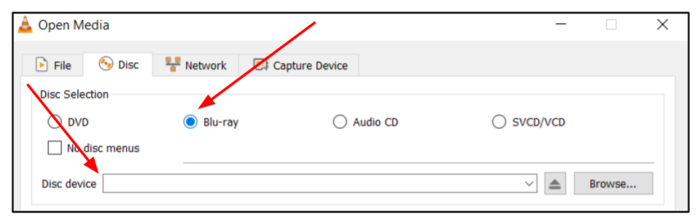
- Restart VLC, select Media > Open Disc > Blu-ray, and test a disc you are authorized to play.
If you need options beyond this VLC-specific workflow, a broader guide to playing Blu-ray on Windows 10 can help compare licensed software and hardware routes without expanding this setup into a general Windows roundup.
Manual Setup on macOS
The VLC Blu-ray Mac route follows the same component logic, but Intel, Apple Silicon, Homebrew, and direct-app installations can use different library prefixes. Treat any single folder path as an example, not a universal destination.
- Confirm that VLC and the supporting library are built for the same CPU architecture.
- Open Finder, press Command + Shift + G, and inspect ~/Library/Preferences/ for the documented aacs configuration folder.
- Check the package manager prefix before using a library location. Intel installations commonly reference /usr/local/lib/, while Apple Silicon Homebrew installations commonly use a different prefix.
- Follow the current project's package-specific documentation, restart VLC, and test through File > Open Disc.
On a MacBook Air M2 running macOS, the observable checkpoint is the active package prefix: if Homebrew reports an Apple Silicon location while a guide assumes an Intel path, placing the library in the older directory will leave VLC unable to load it.
Readers deciding between maintenance-heavy VLC configuration and a licensed Mac Blu-ray player should weigh menu requirements as well as whether the main movie starts. My preference is to stop editing system paths once the setup cost exceeds the value of using VLC.
Fix VLC Blu-ray Playback Errors
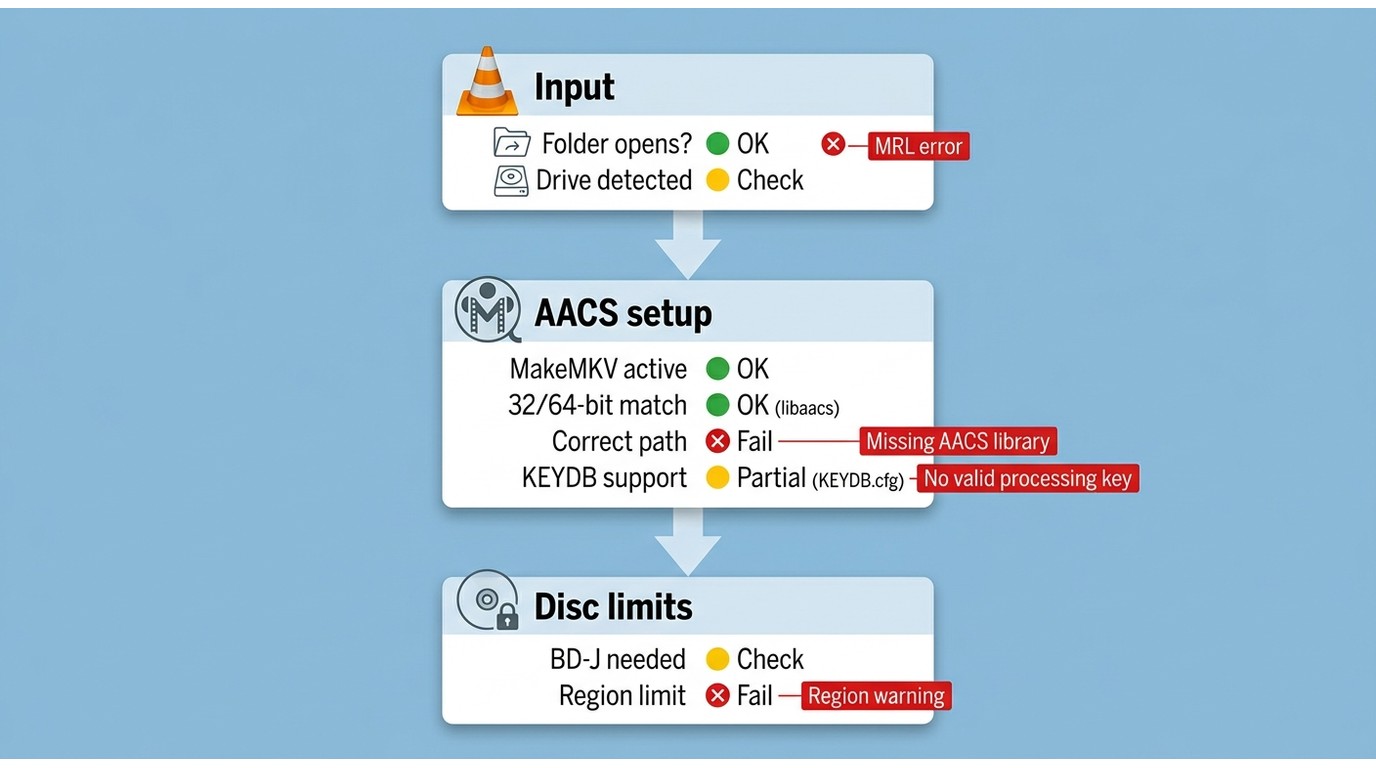
VLC Blu-ray errors are usually compatibility signals, not a diagnosis by themselves. Check recent software changes, active integrations, architecture, package paths, menu requirements, drive capability, and disc format in that order before blaming the physical disc.
| Error or symptom | Likely cause | First check |
|---|---|---|
| Blu-ray Disc is corrupted or MRL cannot open | Integration, update, menu dependency, drive, or UHD compatibility | Test a known readable title and review recent VLC, OS, or MakeMKV changes |
| Missing AACS decoding library | Wrong architecture, package path, or unloaded library | Match the library to the installed VLC build |
| No valid processing key found | The installed support data does not cover that disc | Use licensed playback support rather than searching for unofficial key updates |
| Region warning | Software region preference or drive hardware region limit | Compare the disc region with VLC and drive settings |
In a controlled check on a Dell XPS 15 running Windows 11, opening the same known-readable folder before and after a VLC update gives a useful observable result: if the folder still opens but the physical disc fails, focus on disc support, menu dependencies, or the drive rather than reinstalling everything at once.
Blu-ray Disc Is Corrupted or MRL Error
The “Blu-ray Disc is corrupted” or unable-to-open-MRL message does not prove that the disc surface is damaged. It can appear after a MakeMKV license change, a VLC or operating-system update, a package-path change, an unsupported menu requirement, or a drive limitation.
- Try a known readable disc or Blu-ray folder.
- Confirm that the operating system still recognizes the optical drive.
- Review whether VLC, macOS, Windows, or MakeMKV changed since the last successful playback.
- Try the main title without menus when a Java or BD-J dependency is suspected.
- Use licensed playback software to check whether the disc and drive work together.
My troubleshooting priority is maintenance cost: validate the drive and a known source first, then inspect the software layer. That sequence is faster and safer than treating an ambiguous message as proof that the disc needs replacement.
Missing AACS Decoding Library
This message means VLC cannot find or load compatible AACS support. The usual causes are a 32-bit and 64-bit mismatch, a library placed for a different package type, an incorrect macOS prefix, or security permissions that prevent loading.
- Match the library architecture to VLC, not merely to the operating system.
- Confirm the actual executable or package path.
- Restart VLC after any authorized configuration change.
- Use the application's logs to confirm whether the library was detected.
If those checks succeed and playback still fails, the issue may be disc-specific support rather than file placement. A clean load test is more informative than repeatedly moving the same library between folders.
No Valid Processing Key Found
This error indicates that the installed support data does not authorize playback for that disc. It is especially common with newer commercial releases or configurations that have not kept pace with software changes.
Do not follow untraceable instructions for obtaining or refreshing processing keys. Use a licensed playback route, official project support, or authorized media instead. The important diagnostic distinction is that the library may be loading correctly even though the specific disc remains unsupported.
Region Code Mismatch Between Disc and Player
A VLC region code mismatch can stop playback even when the disc is readable. VLC exposes a software region preference under Tools > Preferences > All > Input/Codecs > Access modules > Blu-ray, but that setting does not change the drive's hardware region policy.
Match VLC's software preference to the disc region, then check the drive's remaining hardware changes before proceeding. A dedicated region-free Blu-ray player guide covers broader purchasing and playback choices; this error check stays focused on VLC's setting and the drive's limits.
Because many drives allow a limited number of hardware region changes, I would not switch the drive repeatedly for occasional imports. Use a licensed solution designed for your region needs and media collection instead.
When a Dedicated Blu-ray Player Fits Better
A dedicated player fits better when you value predictable disc menus, broader verified format support, and lower setup maintenance. VLC remains attractive for flexible local-file playback, but getting the main title to start is not always enough for a complete disc experience.
VLC and PlayerFab Capability Comparison
The comparison below focuses on decision factors rather than feature volume. For content you're authorized to access, where permitted by disc terms and applicable law, the right choice depends on maintenance tolerance, menu expectations, hardware, and operating system.
| Option | Setup effort | Ongoing maintenance | Licensing or availability dependency | Commercial Blu-ray compatibility | Menu and Java requirements | 4K UHD and HDR support | Windows and macOS caveats | Best fit | Not ideal for |
|---|---|---|---|---|---|---|---|---|---|
| VLC with MakeMKV integration | Moderate; install and connect a second application | Check integration and license status after changes | Depends on an active MakeMKV installation and current availability | Varies by disc, drive, and current integration | Menus can still depend on disc authoring and Java or BD-J | Requires compatible UHD drive and display path; behavior varies | Available on both platforms, with package-specific differences | Readers who want less manual file placement | Readers avoiding an additional application or recurring dependency checks |
| VLC with KEYDB.cfg and libaacs | Higher; architecture and paths must match | Manual compatibility upkeep | Depends on compatible project components and disc support data | Not assured for every commercial or recent disc | Main-title playback may work while menus remain inconsistent | Requires compatible hardware and supporting components | Windows paths differ by package; Intel and Apple Silicon paths can differ | Technical readers who want direct control of the VLC stack | Readers who want low-maintenance, predictable disc navigation |
| PlayerFab Ultra HD Player | Lower; dedicated desktop installation | Application updates rather than manual library placement | Commercial software availability and license terms apply | Verified support for DVD, Blu-ray, 3D Blu-ray, and 4K UHD Blu-ray sources | Full Blu-ray Menu Mode is verified on Windows; Blu-ray menu playback on macOS is under development | Supports HDR10, HDR10+, and Dolby Vision where the hardware and source support them | Windows has full disc menu navigation; macOS uses Simple Mode for Blu-ray and 4K UHD | Readers prioritizing discs, ISO or folder playback, menus, HDR, and supported lossless audio | Readers who need full Blu-ray menu playback on macOS or prefer a free open-source workflow |
The practical outcome is not that one option wins every category. VLC rewards readers willing to maintain a modular setup; PlayerFab reduces that work and adds verified disc features, but its macOS Blu-ray menu capability does not yet match Windows.
Best Fit and Limitations
PlayerFab Ultra HD Player is a dedicated Windows and macOS option for physical discs, ISO files, folders, and local video. It supports DVD, Blu-ray, 3D Blu-ray, and 4K UHD Blu-ray sources, plus HDR formats and supported lossless audio outputs.
Suitable for: A disc library where menus, ISO or folder playback, HDR handling, and fewer manual components matter. Less suitable for: macOS readers who require full Blu-ray Menu Mode today, or anyone satisfied with VLC for unencrypted media and local files.
On a Windows 11 Dell XPS 15 connected to an LG C2 OLED, a useful verification sequence is to open a legally owned disc in Menu Mode, confirm that the title and audio selections appear, and then check HDR output on the display. On macOS, perform the same content check in Simple Mode because Blu-ray menu playback remains under development.
FAQs
Is it safe to download KEYDB.cfg and libaacs files?
Treat binaries and configuration files cautiously. Prefer traceable project or official distribution channels, confirm that the package matches your operating system and VLC architecture, scan downloaded files, and avoid old mirrors that make broad compatibility promises.
Can I use VLC with an external USB Blu-ray drive?
Yes, if the operating system recognizes the drive and the drive supports the disc format. Standard Blu-ray and 4K UHD are separate hardware cases, so an external drive that reads regular Blu-ray media may not meet UHD requirements.
Does VLC need an internet connection for Blu-ray playback?
Local playback itself does not inherently require an active connection. Internet access may be needed during setup for legitimate software updates, official documentation, or maintaining an active MakeMKV dependency, depending on the method you chose.
Conclusion
VLC play Blu-ray workflows make sense for readers comfortable with setup, compatibility checks, and occasional maintenance. Choose MakeMKV integration for less file handling, use the manual route only with authorized components and media, and consider a dedicated player when menus, broader disc support, HDR, and lower setup friction matter more than VLC's open-source flexibility.

 6 Best MPEG Players for Windows and Mac (2026)By Alice Harper - Aug 26, 2026
 How to Play Blu-ray Discs on Windows 10 (Free & Pro Solutions)By Alice Harper - Aug 7, 2026
 10 Best 4K Video Players for PC and Mac, Tested in 2026By Alice Harper - Aug 4, 2026
 The 5 Best Free MOV Players in 2026 (Windows, Mac and Android), plus How to FixBy Alice Harper - Aug 4, 2026