How to Play Blu-ray on a PC: 3 Methods and Windows 11 Fixes

Summary: As Windows and macOS lack native support, playing physical media requires specific hardware and software. To solve how to watch Blu-ray on PC, you need an external Blu-ray drive with USB bus power, especially if you need to play Blu-ray on laptop. Second, to bypass AACS encryption, you must configure third-party software, such as installing a hardware-accelerated Blu-ray player for PC like PlayerFab to decode the disc and render the navigation menu.
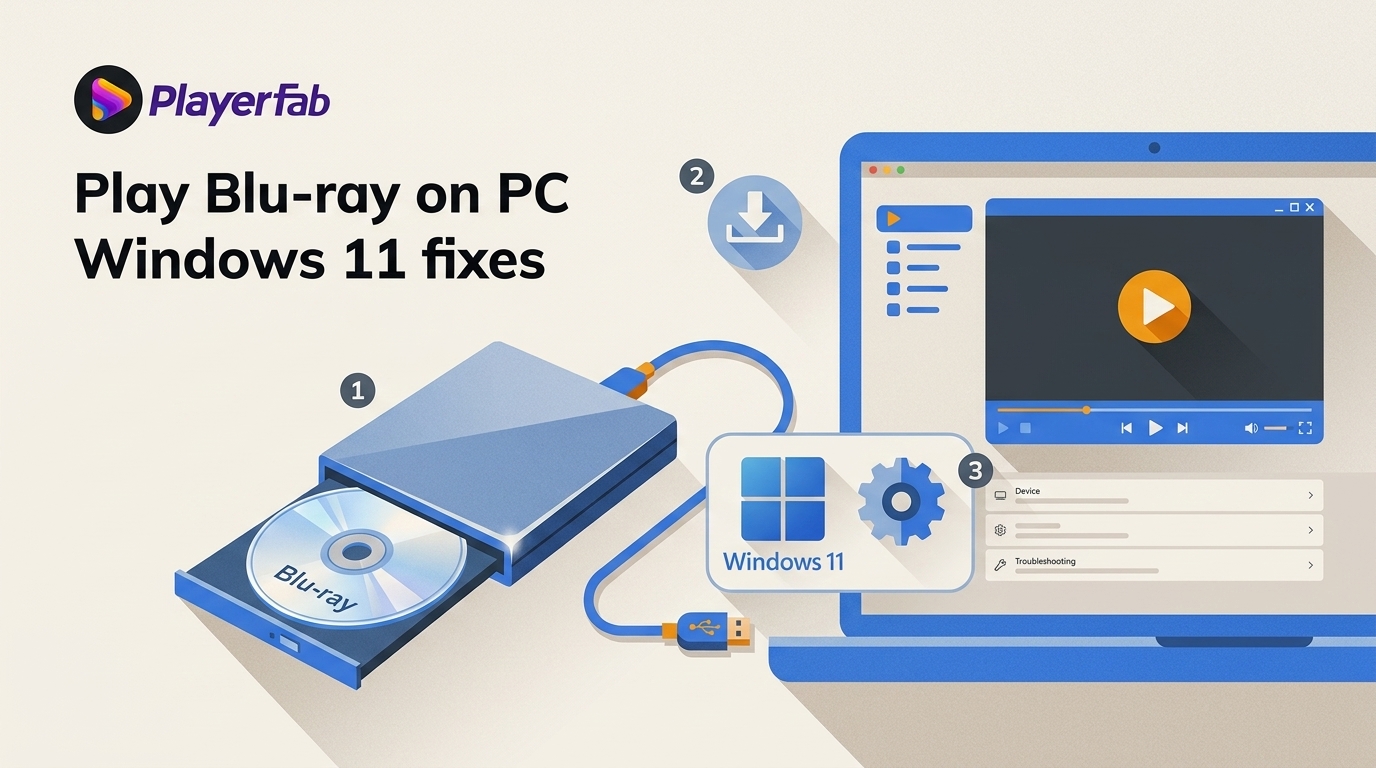
To play Blu-ray on a PC, you need a Blu-ray-capable drive and software that supports the disc you own. If your drive is connected but the movie will not start, first identify the disc type, confirm Windows sees the drive, then choose the playback path that fits your setup.
Windows does not provide a complete built-in movie-playback path for commercial Blu-ray discs, including on Windows 11. The practical options are a dedicated desktop player, VLC for readers comfortable with its limitations, or playback of local files you are authorized to use. If you still use an older system, the requirements to play Blu-ray on Windows 10 are covered separately.
What You Need Before Playing a Blu-ray
Start with two checks: your optical drive must read Blu-ray discs rather than DVDs alone, and Windows must recognize it as a working drive. Many modern PCs and laptops need an external Blu-ray drive for PC, while a standard DVD drive cannot read Blu-ray media.
Blu-ray Drive and USB Power
When you watch Blu-ray on a laptop, the drive also needs a stable USB connection. Connect it directly to the computer first, avoid loose adapters, and confirm that the drive appears in File Explorer or Device Manager before changing playback software.
For Apple laptops and desktops, Mac Blu-ray player compatibility depends on both external-drive support and the macOS version.
If the drive disconnects, spins down repeatedly, or is not detected, try another USB port and cable before considering a powered hub. A direct rear motherboard port can be useful on a desktop, but no single cable or accessory is required for every setup.
If you are comparing compact hardware, this overview of portable Blu-ray player options explains the differences between portable units and PC-compatible optical drives.
Standard Blu-ray vs. 4K UHD
A standard Blu-ray drive is not automatically suitable for protected 4K UHD Blu-ray playback. UHD can involve different drive firmware, playback software, and platform conditions. In my view, confirming whether the disc is standard Blu-ray or 4K UHD should come before troubleshooting software, because UHD is a different compatibility question.
Choose the Right Blu-ray Playback Method
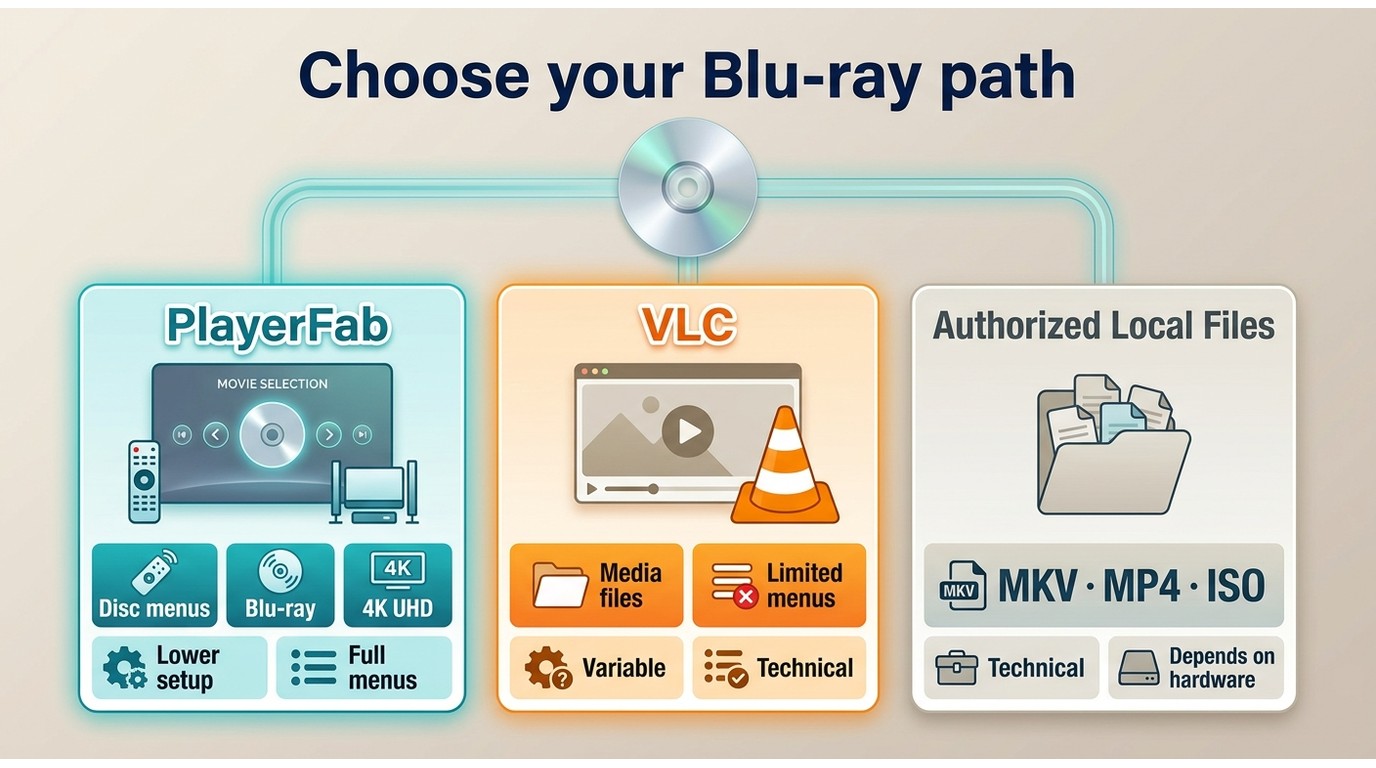
The three approaches differ most in setup effort, menu support, ongoing maintenance, and whether you already have authorized local media. Start with the path that matches those priorities rather than assuming that every Blu-ray workflow has the same requirements.
| Method | Setup and maintenance | Menus, subtitles, and audio | 4K UHD caveat | Good fit |
|---|---|---|---|---|
| PlayerFab Ultra HD Player | Lower setup effort for supported media; desktop software updates still apply. | Supports disc menu navigation, subtitle and audio-track selection for supported discs and media. | 4K UHD, HDR, and Dolby Vision support depend on the SKU, system, drive, GPU, display, and disc. | Readers who value a desktop playback experience with menus. |
| VLC | Free, but technical and variable for commercial Blu-ray discs. | Menu, subtitle, and audio behavior can vary by disc and system. | Not a simple substitute for a dedicated UHD playback path. | Technically confident users who accept maintenance. |
| Authorized local files | Requires storage and preparation, but no attached drive during later playback. | Depends on the existing file, player, subtitles, and audio format. | File playback does not establish disc-level UHD compatibility. | People who already have authorized local files, ISO images, or folders. |
Play Blu-ray Discs with PlayerFab
For legally owned or otherwise authorized media, where permitted by applicable law, PlayerFab Ultra HD Player is a desktop playback option for supported discs, ISO files, folders, and local video. It is most relevant when you want a lower-setup route with disc menus rather than a fully free, open-source workflow.
PlayerFab Ultra HD Player supports DVD, Blu-ray, 4K UHD Blu-ray, 3D Blu-ray, ISO playback, and menu navigation on Windows and macOS. Its higher-spec playback features include up to 4K UHD 3840×2160 at 60fps, HDR10, HDR10+, Dolby Vision, HLG, and supported high-resolution audio formats, subject to the product version, hardware, display, drive, and media.
Step 1: Connect the Drive and Start PlayerFab
Free Download Windows 11/10/8.1/8/7
Connect your external BD-ROM drive, insert the disc, and confirm that Windows recognizes the drive. Then launch PlayerFab Ultra HD Player and allow the application to detect the available media.
Step 2: Open the Discs Module
In the left navigation panel, select Discs and choose the recognized optical drive. If the drive is not listed, return to the Windows detection checks before changing player settings.
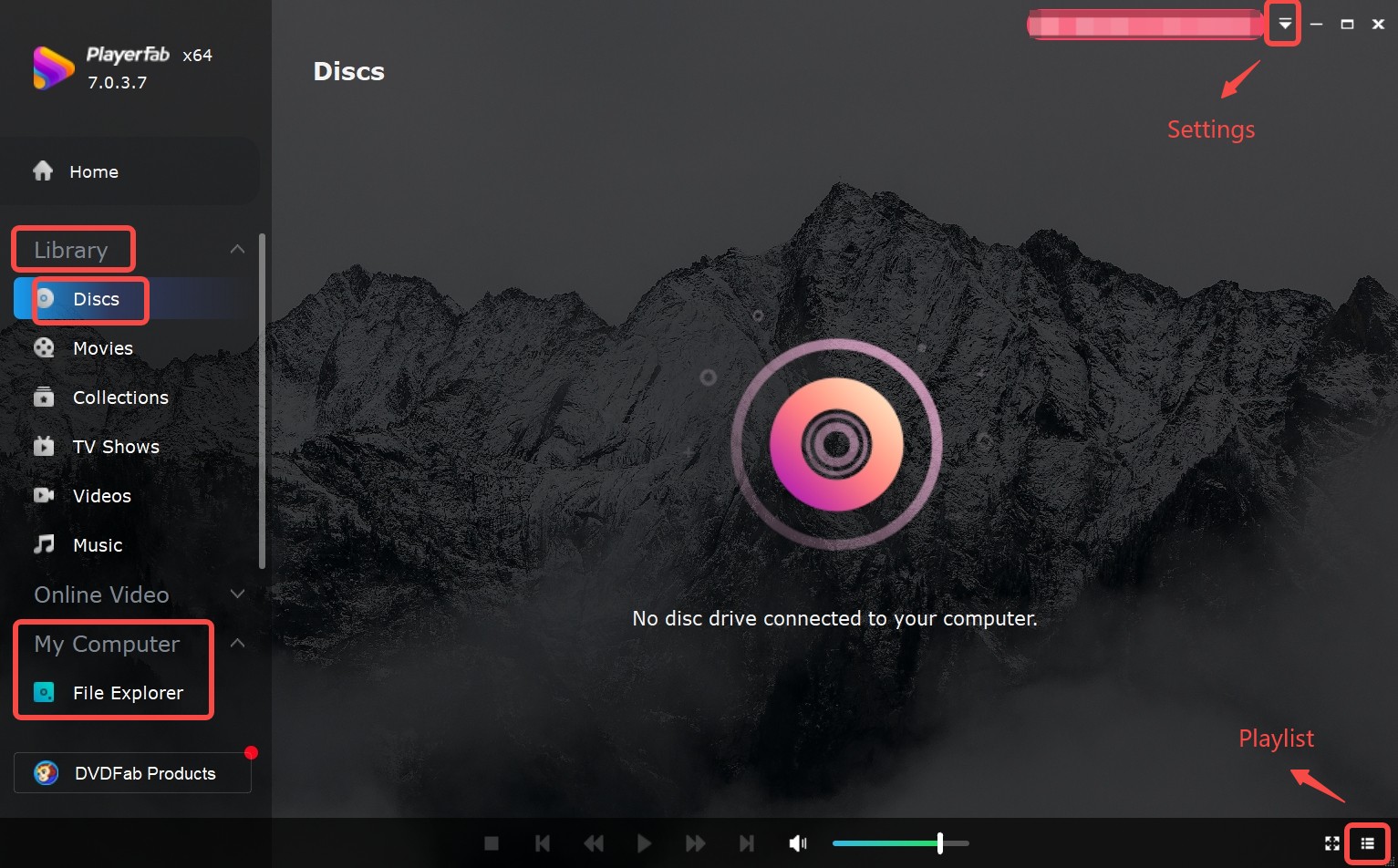
Step 3: Start Playback and Add Media
Select the drive card and use Play to begin playback. Supported local media can also be added to the library for easier browsing later.
Step 4: Use Menus and Playback Controls
For supported discs, PlayerFab provides menu navigation, chapter selection, subtitle choices, and audio-track controls. Full menus matter most when you want extras, alternate subtitles, or BD-J navigation rather than simply starting the main feature.
- Press Ctrl+T to instantly return to the disc's Top Menu.
- Press Ctrl+P to open the interactive Pop Menu overlay without interrupting your current movie stream.
- Press F2 to open the Information overlay and review the current video, audio, and chapter details.
Use VLC for Blu-ray Playback
VLC Media Player is a free, open-source player that works well for many local video files. For Blu-ray use, however, its behavior depends on the disc, Windows configuration, and the components available on the system.
A free Blu-ray player can be practical for unprotected discs and local media, but commercial-disc support often requires accepting feature and reliability limits.
VLC and libbluray can read Blu-ray structures, but libbluray alone does not provide complete support for protected commercial Blu-ray discs. For that reason, VLC Blu-ray playback is a technical and variable route, not a guaranteed replacement for dedicated playback software. Readers who want broader background can review our VLC Blu-ray playback overview.
Check VLC and the Drive First
Install a current version of VLC and confirm that Windows detects the Blu-ray drive before testing playback. If the drive does not appear in Windows, VLC settings will not resolve the underlying hardware or system issue.
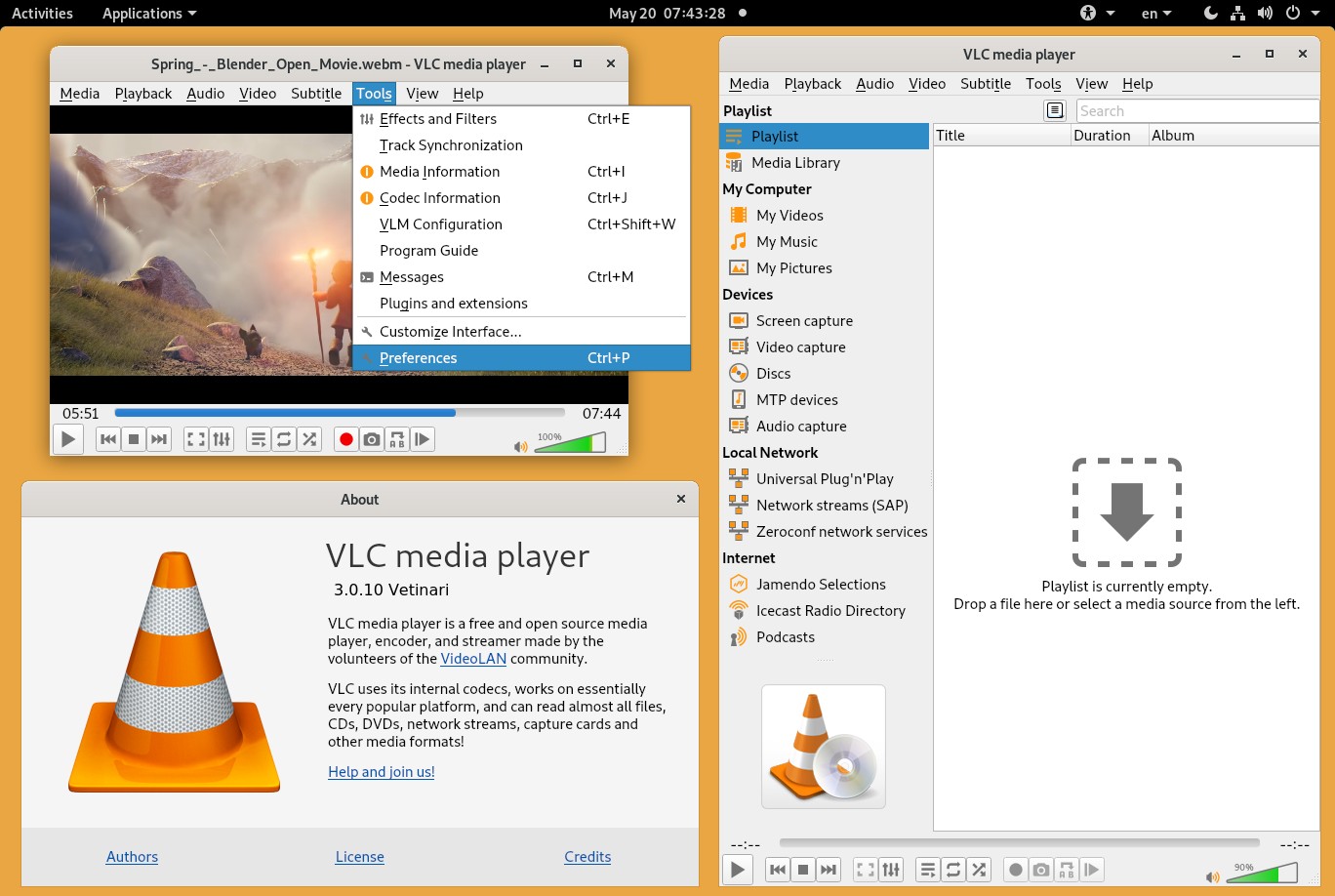
Limits of VLC with Commercial Discs
VLC may display an AACS decoding error or fail to open some commercial discs because protected-disc support is outside libbluray alone. Do not treat a single online configuration recipe as universally reliable, and use software only in accordance with applicable law, copyright rules, and license terms.
Expect Maintenance and Disc Variability
Even when VLC opens one disc successfully, another title may behave differently because of menu design, audio and subtitle streams, system updates, or disc-specific requirements. VLC is therefore better suited to readers who are comfortable troubleshooting variable results than to those who need dependable menus with minimal setup.
Open the Disc and Test Playback
In VLC, use Media > Open Disc, select Blu-ray, choose the detected drive, and test whether the title opens. If menus, subtitles, or audio do not behave as expected, use a player designed for supported disc-menu playback instead of repeatedly changing protected-disc components.
Create a Local File for Playback
If you already have local files, ISO images, or folders that you are authorized to use, they can be more convenient than keeping an optical drive attached. The tradeoff is storage space and media preparation, while later playback depends on the file, player, and device you use.
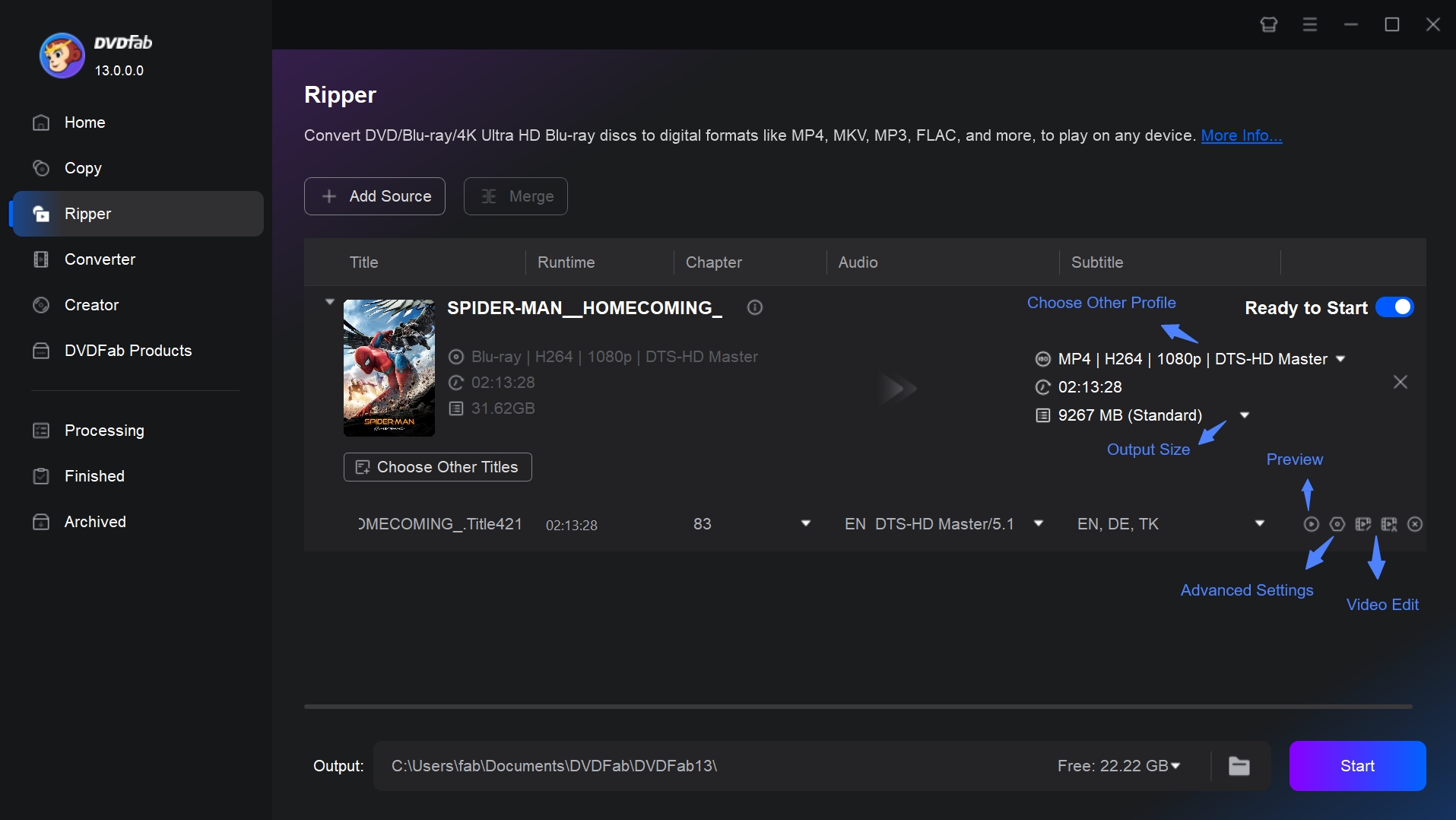
For local-media workflows, DVDFab Blu-ray Ripper is a separate product. This article focuses on playback, so use any local-file workflow only for content you are authorized to handle and where permitted by applicable law.
Local playback considerations:
- Keep enough storage for the video files and any accompanying subtitle or audio tracks.
- Use a player that supports the container, codec, audio, and subtitle formats in your existing media.
- Organize authorized folders or ISO assets in a local library or NAS if that suits your viewing setup.
Play Authorized Local Media
Step 1: Locate the authorized local file, ISO image, or folder you want to play.
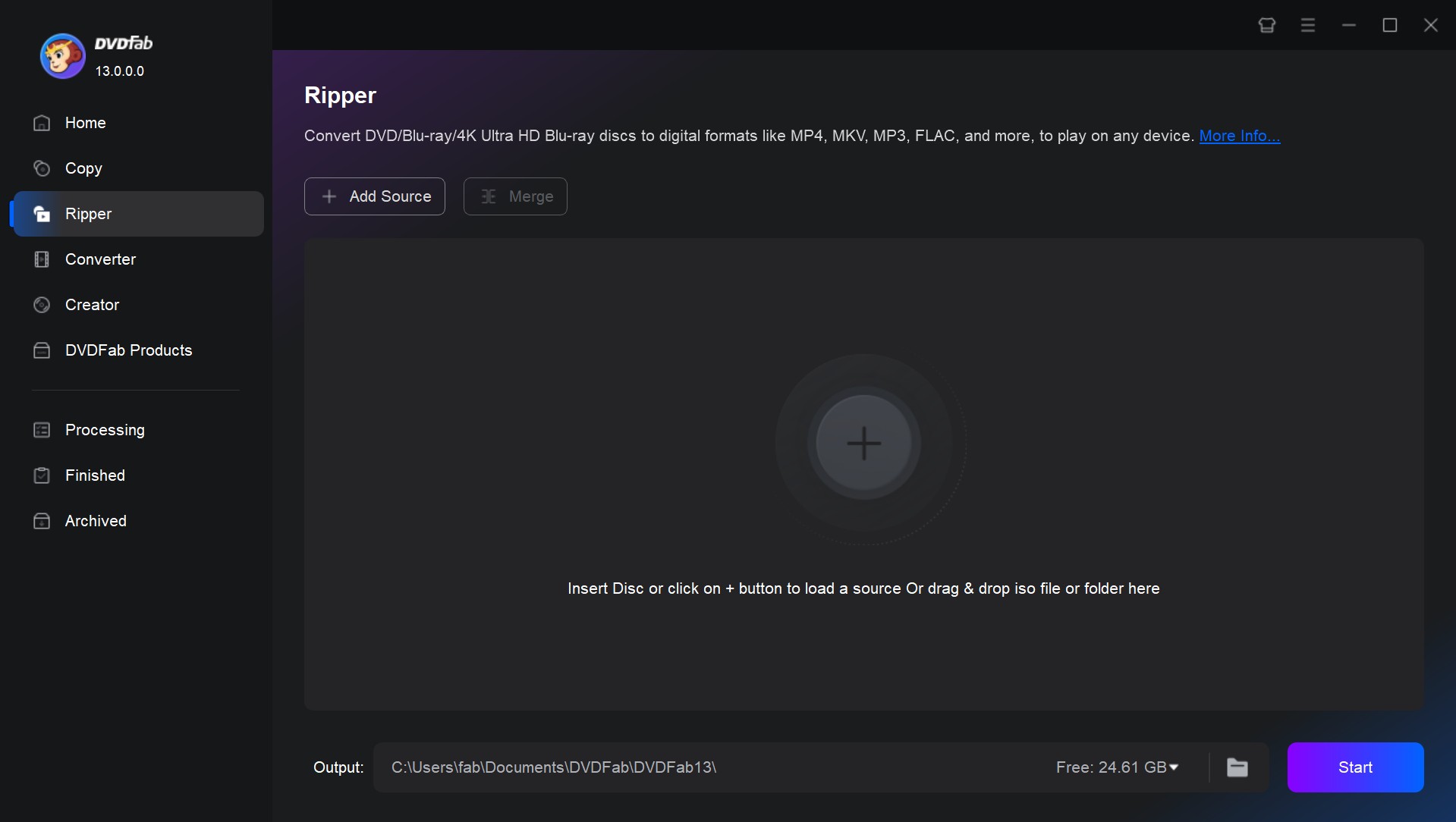
Step 2: Open the media in a compatible desktop player and select the preferred audio track and subtitles if available.
💡MKV and MP4 are common local containers, but playback quality and compatibility depend on the video codec, audio format, subtitles, and the player you choose.
For HDR files or 4K local media, a capable 4K video player needs to support both the video format and the audio and subtitle streams you use.
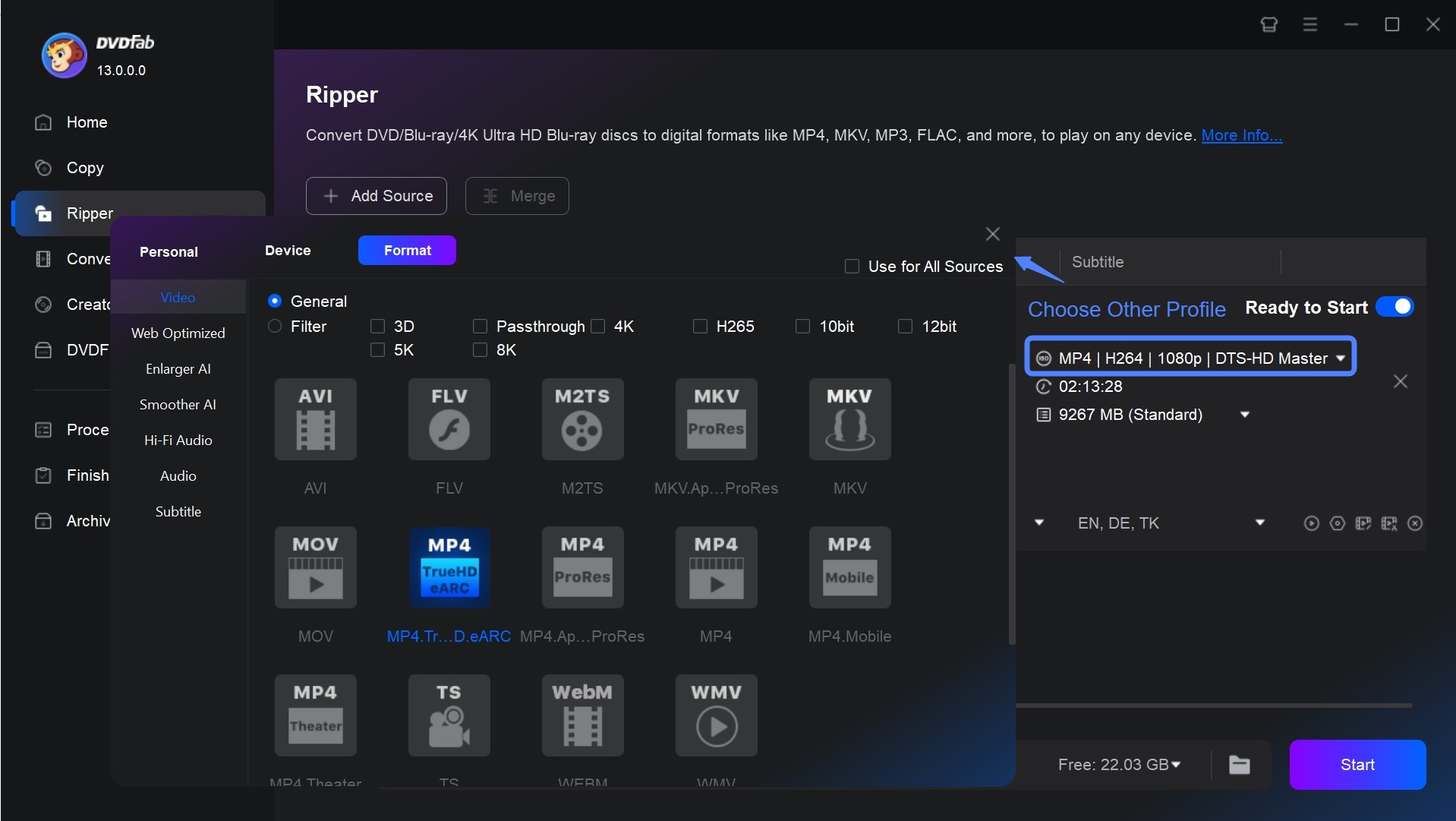
Step 3: If playback stutters or lacks subtitles or audio, check whether the player supports the file's codec and streams before changing the media itself.
Step 4: Store authorized local media in a clearly labeled folder or library so it can be played later without reconnecting the optical drive.
Common Blu-ray Playback Errors and Troubleshooting
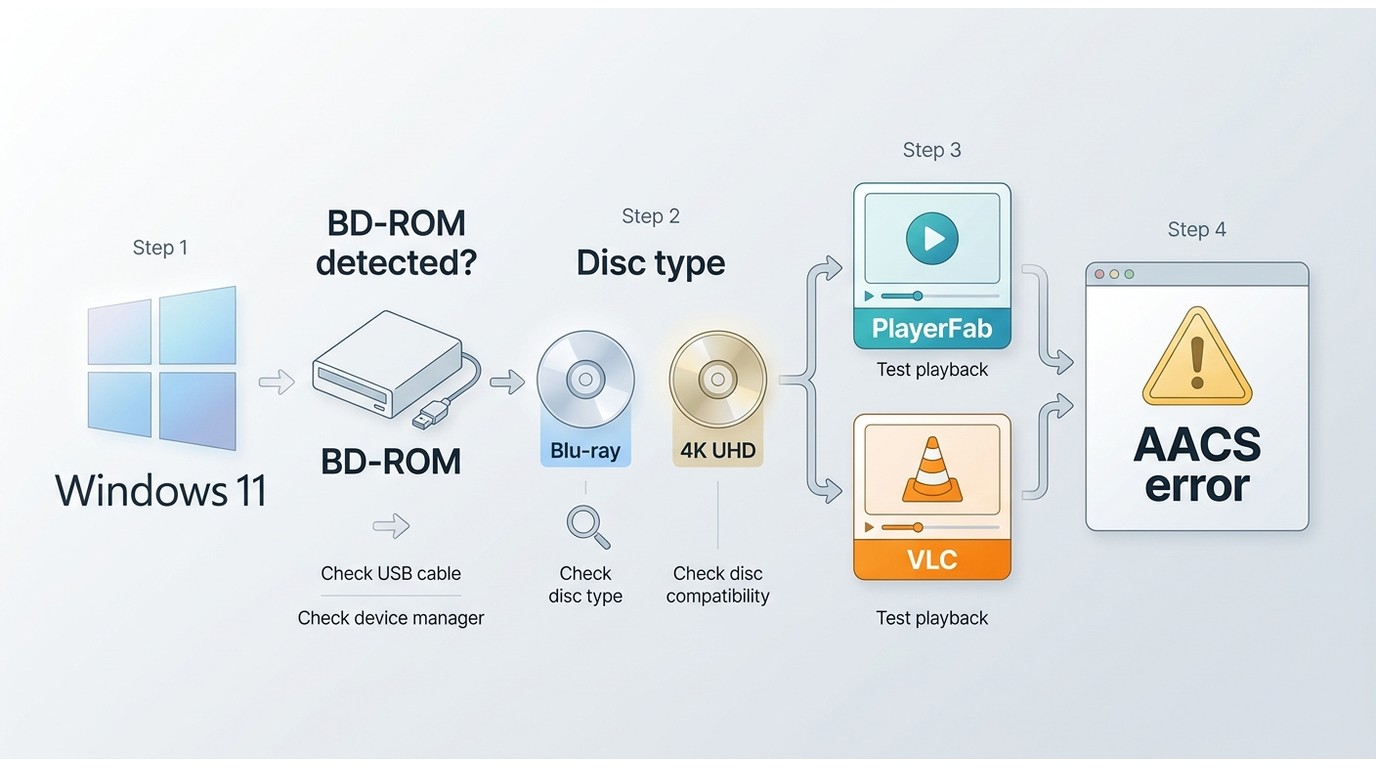
Work from Windows detection to disc compatibility and then player behavior. That order helps separate a drive problem from a commercial-disc limitation, a UHD mismatch, or a menu, subtitle, and audio issue.
Drive Not Detected or Code 39
If the Blu-ray drive is missing from File Explorer, test the drive and cable on another computer when possible, then inspect Device Manager. A Code 39 message can indicate a corrupted optical-drive stack. After hardware checks and Windows Update, an in-place Windows repair can restore damaged system components without treating the issue as a player-software failure.
Using a Standalone Player with a PC
A living-room Blu-ray player's HDMI output normally cannot be viewed through a laptop's HDMI port, because that port is usually an output rather than an input. The same distinction matters when people ask whether devices such as a PS4 play Blu-ray discs, although that is separate from PC playback.
How to Fix: Use a display with a compatible HDMI input or a capture device if you need to view a standalone player's signal. For playing a disc directly on the PC, use a Blu-ray-capable optical drive instead.
Drive Detected but Disc Will Not Open
A drive can be recognized by Windows while the movie still does not open. File Explorer and Windows Media Player are not complete playback solutions for commercial Blu-ray movies, and opening individual files inside a BDMV folder may not preserve the disc's intended playback structure.
How to Fix: Check whether the disc is standard Blu-ray or 4K UHD, then use playback software suited to the disc and your hardware. If you need supported disc menus and a lower-maintenance desktop route, PlayerFab Ultra HD Player is one option; otherwise, review the VLC limitations above or play authorized existing local media.
VLC AACS or Integration Errors
If VLC displays an AACS decoding message or cannot open a commercial disc, it is signaling a limitation in the available Blu-ray support rather than a simple Windows Media Player error.
How to Fix: Confirm that the drive works in Windows, restart VLC after updates, and recognize that protected commercial-disc support can remain unavailable or vary by title. Follow applicable law, copyright rules, and software terms rather than relying on online component-installation recipes.
Menu, Subtitle, or Audio Problems
If the movie starts but menus, subtitles, or audio tracks are missing, first check the disc's own options and the player's track-selection controls. Complex BD-J menus, unusual subtitle streams, and home-theater audio output can behave differently across players, GPUs, displays, and audio devices.
Blu-ray Playback FAQ
Can Windows Media Player play commercial Blu-ray discs?
Not as a complete built-in solution. Windows can recognize a Blu-ray drive, but commercial movie playback generally requires a compatible drive and software designed to support the disc.
Can I watch a Blu-ray on my PC without a Blu-ray drive?
A physical Blu-ray disc requires a Blu-ray-capable drive. You can play an authorized local file, ISO image, or folder without keeping an optical drive connected, provided your player supports that media.
Will any Blu-ray drive play 4K UHD discs?
No. Standard Blu-ray and protected 4K UHD Blu-ray have different drive, firmware, software, and platform requirements. Check UHD compatibility separately before buying hardware or changing player settings.
Why does my Blu-ray drive appear in Windows but not play the movie?
Windows recognition confirms the drive connection, not full movie playback. The player may not support the commercial disc, the disc may be UHD, or menu, subtitle, audio, and system compatibility may be preventing playback.
Final Recommendation
How to play Blu-ray on a PC comes down to matching the method to your priorities: choose a dedicated player such as PlayerFab Ultra HD Player when supported menus and lower setup effort matter, consider VLC only if you are comfortable with variable technical maintenance, or play authorized local assets when storage and preparation suit your setup. My practical recommendation is to identify the drive, disc type, and Windows issue first, because that prevents a UHD or hardware problem from being mistaken for a software problem. For legally owned or otherwise authorized media, where permitted by applicable law, PlayerFab offers a focused desktop option for supported disc and local playback.

 6 Best MPEG Players for Windows and Mac (2026)By Alice Harper - Aug 26, 2026
 How to Play Blu-ray Discs on Windows 10 (Free & Pro Solutions)By Alice Harper - Aug 7, 2026
 10 Best 4K Video Players for PC and Mac, Tested in 2026By Alice Harper - Aug 4, 2026
 The 5 Best Free MOV Players in 2026 (Windows, Mac and Android), plus How to FixBy Alice Harper - Aug 4, 2026