How to Play Blu-ray Discs on Windows 10 (Free & Pro Solutions)

Summary: Windows 10 dropped native Blu-ray support, a technical hurdle I frequently encounter when testing medias. To play Blu-ray on Windows 10, you must combine a compatible drive with third-party software. While I often use VLC for quick checks, its manual decryption process is tedious and inconsistent. I recommend PlayerFab to play Blu-ray on PC with flawless menu navigation and HDR10 support.
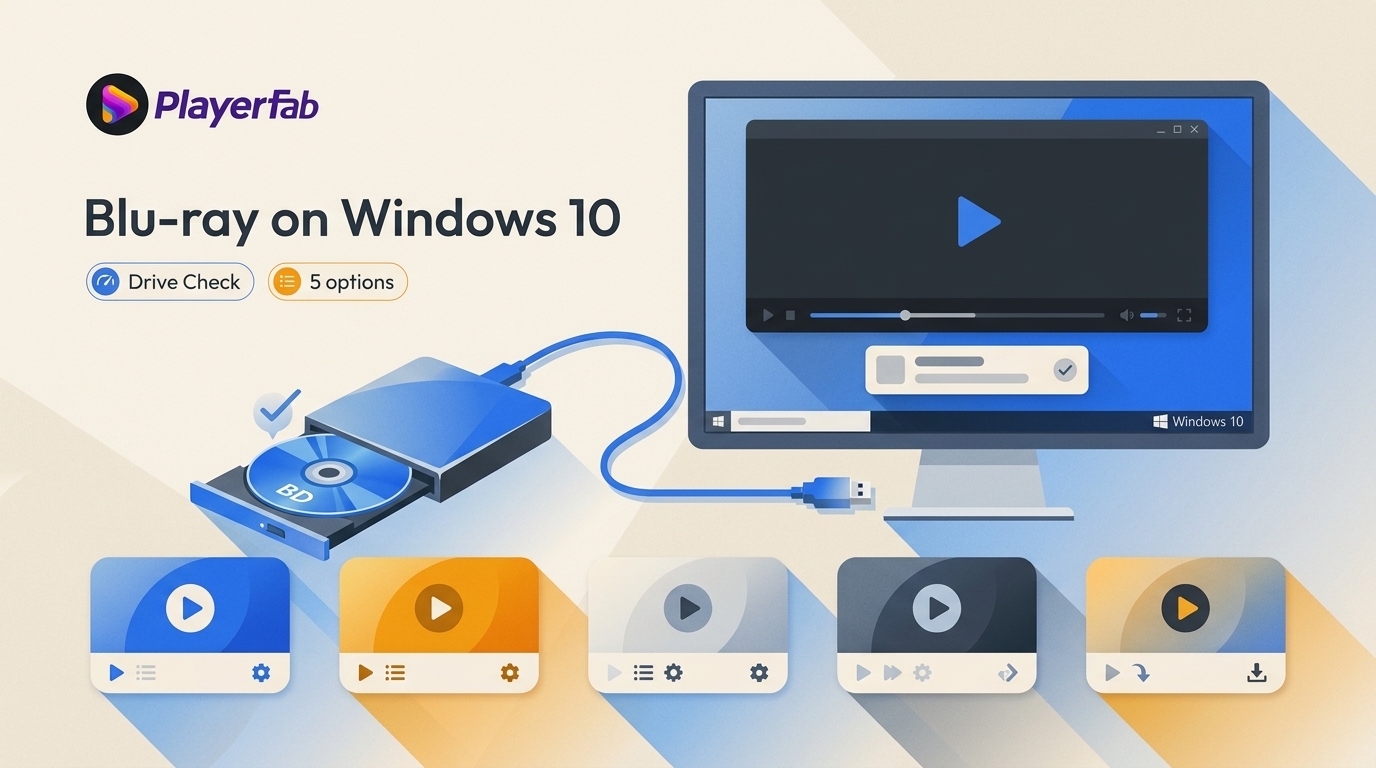
To play Blu-ray on Windows 10, an external drive alone is not enough: you need a Blu-ray-capable drive and compatible third-party playback software. The practical choice is between direct disc playback, a free but limited setup, or converting authorized discs into local files.
This guide compares five Windows 10 Blu-ray player and conversion options, explains where free tools stop being practical, and helps you troubleshoot a drive, disc, menu, region, or UHD compatibility problem before spending time reinstalling software.
Before choosing software, compare direct playback with conversion. The no-cost route can work for limited use cases, but these free Blu-ray player options have different setup and commercial-disc limitations.
| Option | Workflow and cost model | Commercial standard Blu-ray and menus | Setup and region handling | 4K UHD disc status | Best for | Not ideal for |
|---|---|---|---|---|---|---|
| PlayerFab Ultra HD Player | Direct disc playback; paid software | Designed for direct DVD and Blu-ray playback with disc menus | Lower setup burden; region-free playback features for authorized discs where permitted | Supports 4K UHD Blu-ray playback | Readers who want menus and a direct disc workflow | Readers who only need a small local file |
| VLC Media Player | Direct playback; free and open-source | Suitable for unprotected discs; not dependable for most protected commercial discs or full menus | Setup-heavy; no built-in route for AACS or BD+ protected discs | Not a dependable UHD disc path | Unprotected discs and existing video files | Readers who need consistent commercial-disc playback |
| CyberLink PowerDVD 24 | Direct playback; paid software | Standard Blu-ray playback with a conventional player interface | Less manual configuration than VLC | Windows Ultra HD Blu-ray disc playback is unavailable | Standard Blu-ray and general Windows media playback | Readers who need Windows UHD disc playback |
| MakeMKV | Disc-to-file conversion; beta access requires periodic key maintenance | Creates selected MKV streams rather than direct disc-menu playback | File workflow; output can be large | Depends on compatible hardware, disc support, and the destination player | Keeping selected streams without re-encoding | Readers who want small files or disc menus |
| DVDFab Blu-ray Ripper | Disc-to-file conversion; paid software | Creates MP4 or MKV files instead of preserving a direct disc experience | Choose titles, tracks, and an output profile for authorized content where permitted | Output compatibility depends on the selected format and playback device | Smaller files and device-friendly local playback | Readers who want to use original disc menus |
Check Your Drive and Disc First
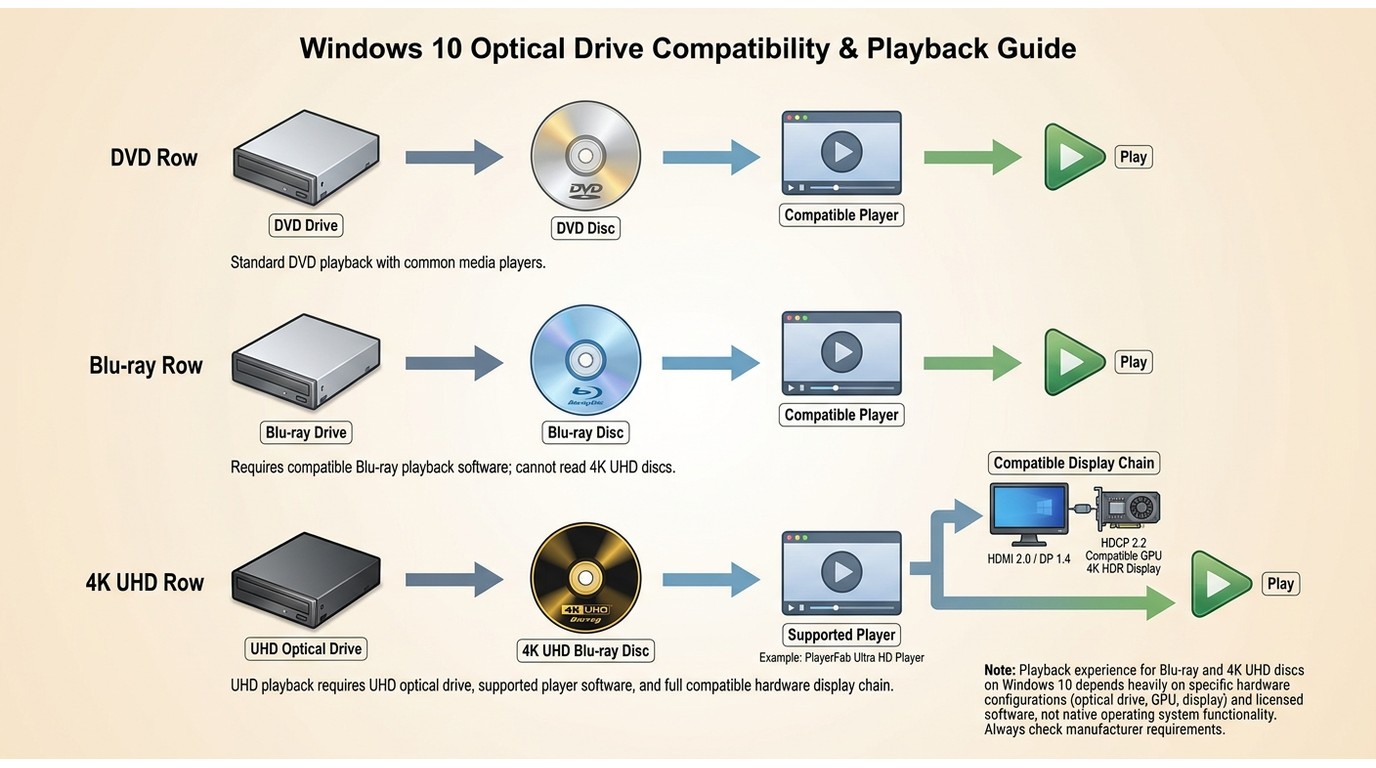
A Blu-ray drive for Windows 10 must actually read Blu-ray media. A DVD-only optical drive cannot read a Blu-ray disc, whether it is internal or connected by USB. First confirm that Windows detects the drive in File Explorer and Device Manager, then check that the disc type matches the drive and software you plan to use.
Confirm the Drive Reads Blu-ray
Look for Blu-ray or BD support in the drive specifications, not just DVD support. If the drive does not appear in Windows, reconnect it directly, try another USB port or cable for an external drive, and confirm that the drive has power before changing playback software.
Separate Standard Blu-ray from UHD
Standard Blu-ray and 4K Ultra HD Blu-ray are separate compatibility paths. A standard Blu-ray drive and player do not automatically support UHD discs, so confirm both hardware and software requirements before buying or configuring a 4K Blu-ray player. In my view, this short check prevents more wasted setup time than any reinstall or codec tweak.
Choose Blu-ray Playback Software
The most straightforward way to watch Blu-ray discs on Windows 10 is to install a Blu-ray playback software compatible with Windows 10. Here are popular options among Windows users to watch Blu-ray movies on PC: PlayerFab Ultra HD Player, VLC, and PowerDVD.
PlayerFab for Direct Disc Playback

PlayerFab Ultra HD Player is available for Windows and macOS and supports direct playback of DVDs, Blu-ray discs, 4K Ultra HD Blu-rays, ISO files, and media folders. It includes DVD and Blu-ray menu navigation on Windows, PC and TV modes, HDR10, HDR10+, Dolby Vision, and immersive audio formats such as Dolby Atmos and DTS:X. GPU decoding supports NVIDIA, AMD, and Intel Quick Sync hardware.
Best for: readers who want direct disc playback, menu access, and a local library rather than a conversion workflow. Not ideal for: readers whose main goal is to create smaller files for phones or tablets. For discs you are authorized to access, where permitted by applicable law and disc terms, PlayerFab includes direct playback with disc menus and region-free playback features.
- Supports region-free playback features for authorized discs, subject to applicable law and disc terms.
- Optimize playback on Windows 10 using GPU hardware decoding for AMD, Intel, and NVIDIA.
- Play DVDs, Blu-rays, ISO files, and movie folders directly, with an option to skip menus and promotional content.
- Supports HDR10, HDR10+, and Dolby Vision during compatible playback.
- Output high-resolution audio, including Dolby Atmos, DTS:X, and other Hi-Res formats.
- Organize local media in a poster-wall library with movie and TV categories.
Open PlayerFab, choose PC Mode or TV Mode, then select the Blu-ray drive in the Discs tab. For ISO files or folders, load the local media directly. During playback, use the disc menu controls when you need chapter, subtitle, or audio-track navigation.
VLC: Free but Setup-Heavy
VLC is a well-known, free and open-source media player that runs across multiple platforms and supports a wide range of video and audio formats, streaming sources, and advanced playback controls.
Before you use VLC, distinguish unprotected discs from commercial Blu-rays. VideoLAN's libbluray supports Blu-ray navigation and BD-J, which is Blu-ray's Java-based interactive menu system, but it does not include tools for AACS- or BD+-protected commercial discs. VLC alone is therefore not a dependable solution for most commercial Blu-rays.
VLC remains useful for unprotected or homemade Blu-ray discs and for broad local-file playback. Full-menu behavior can depend on BD-J and Java support, while unofficial key databases and DLL downloads add maintenance and security concerns. A longer VLC Blu-ray setup may still fail after a software or disc update.
Best for: unprotected discs and readers comfortable diagnosing a configuration problem. Not ideal for: dependable commercial-disc playback, UHD discs, or readers who need consistent full-menu support.
- Runs on current Windows versions supported by VLC; check VLC's own system requirements for details.
- Supports hardware acceleration and software fallback for decoding on most systems.
- Plays a wide range of formats, with advanced controls for video and audio synchronization.
- Compatible with many input formats such as MPEG, AVI, MP4, MKV, and FLV.
- Includes streaming input options like HTTP, FTP, UDP/RTP, and more.
- Provides additional options like CDDB info and localization support.
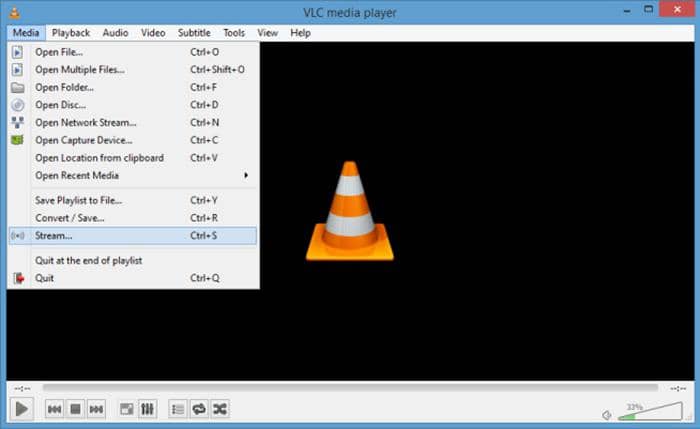
For an unprotected disc, insert it, open VLC, then choose Media > Open Disc and select Blu-ray. If the disc is commercial and VLC reports an AACS or BD+ problem, move to a compatible direct-playback option rather than relying on unofficial files.
Commercial-disc limitation
VLC's standard installation does not provide a supported route for most AACS- or BD+-protected commercial Blu-rays. Treat an error at this stage as a compatibility limitation, not as a cue to download unofficial protection-related files.
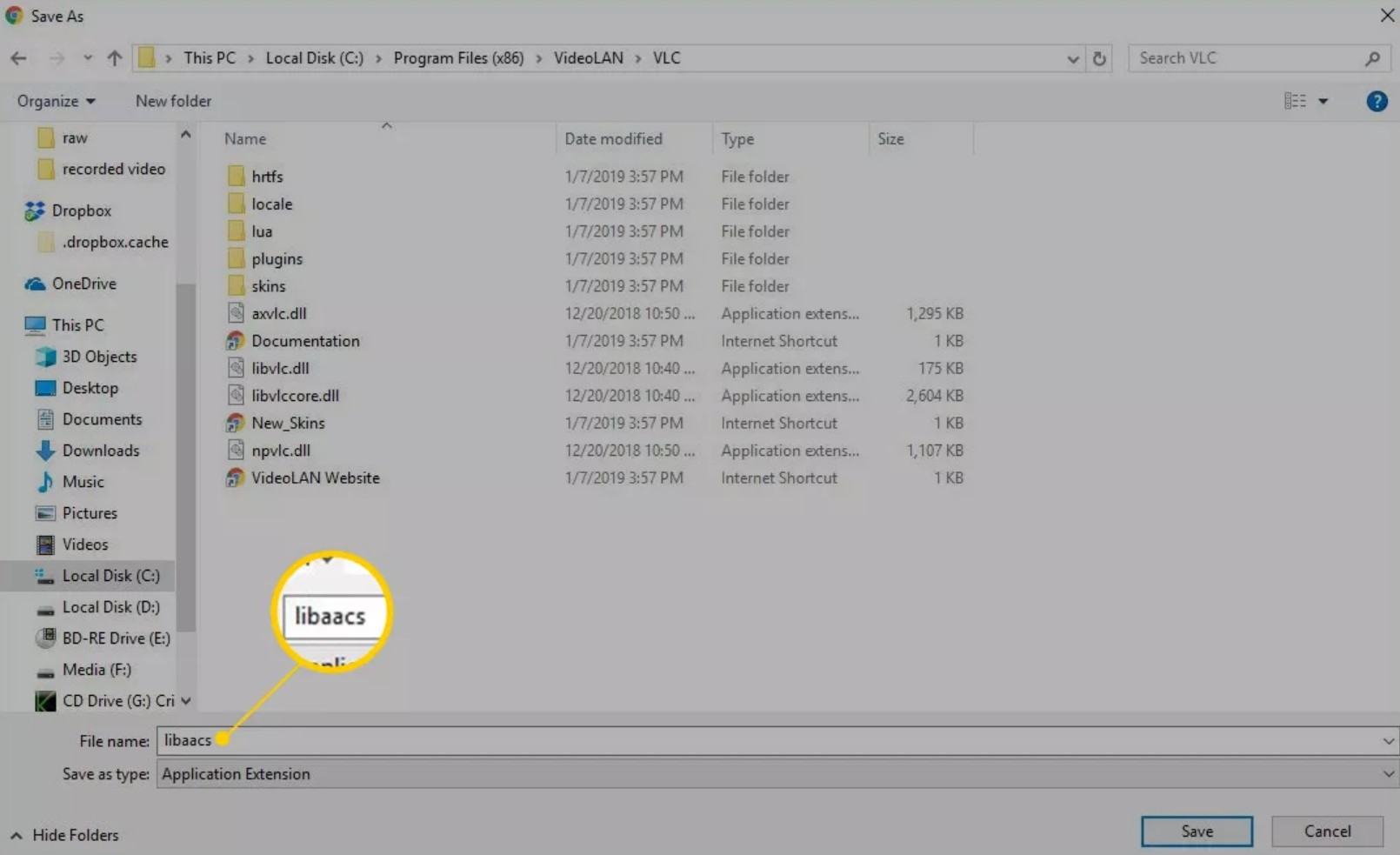
Menu limitation
If video begins but interactive menus do not work, confirm that the disc relies on BD-J and that Java support is available. If menu navigation is essential, choose software designed to provide disc-menu playback.
PowerDVD for Standard Blu-ray
CyberLink PowerDVD 24 remains an active paid option for standard Blu-ray playback and general Windows media playback. It is important to separate that from UHD disc compatibility: CyberLink states that Ultra HD Blu-ray disc playback on Windows PCs has not been available since April 2025. Best for: standard Blu-ray discs in a conventional player interface. Not ideal for: readers who need Windows 4K UHD Blu-ray disc playback.
- Generates high-quality sound output, including Dolby, DTS, and Hi-Res surround sound.
- Handles specialized formats like VR, 360-degree video, and HDR10.
- Allows you to cast movies from a PC to large screens with playback enhancements.
- Directly plays Blu-ray discs via the Media Library, "My Computer," or Windows File Explorer.
- Includes the ability to convert video files to MP4 for compatibility across multiple devices.
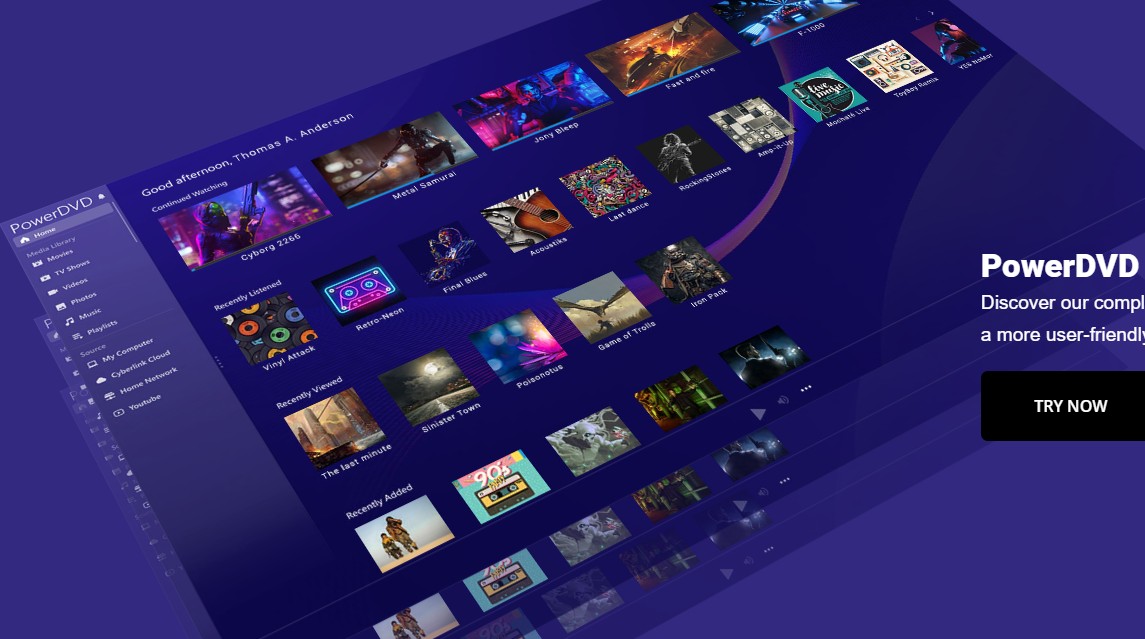
Step 1: Download and install CyberLink PowerDVD on a supported Windows version, per CyberLink's current system requirements.
Step 2: Now, insert your Blu-ray disc into an onboard or external optical disc drive to play your content automatically Or, if you have PowerDVD already open, you can play your Blu-ray discs directly from the Media Library.
Step 3: Simply tap the Open DVD/Blu-ray folder icon at the top (located in the center, near the 'Home' icon) and select the drive where your disc is located.
Step 4: Click the Resume icon on the main screen to play your disc content.
Step 5: Use the Crop-to-fill features to remove the letterboxing that occurs when watching on larger displays.
Convert Blu-ray for File Playback
Conversion is a local-file workflow, not direct disc playback. For legally owned or authorized discs, MakeMKV preserves selected streams in a large MKV file, while DVDFab Blu-ray Ripper is better suited to creating smaller MP4 or MKV files for compatible devices.
Create MKV Files with MakeMKV
MakeMKV copies selected video, audio, subtitle, and chapter streams into MKV files without re-encoding. That helps preserve the original streams, but the resulting files can be large and playback still depends on the destination player's codec and format support. Its beta access requires periodic key maintenance. Best for: keeping selected streams without re-encoding. Not ideal for: small files, direct disc menus, or a no-maintenance workflow.
Step 1: Download and install MakeMKV for Windows. Then, insert your Blu-ray disc into your computer's optical drive and launch MakeMKV. Click on the large optical drive icon in the center of the interface to allow the software to read the disc.
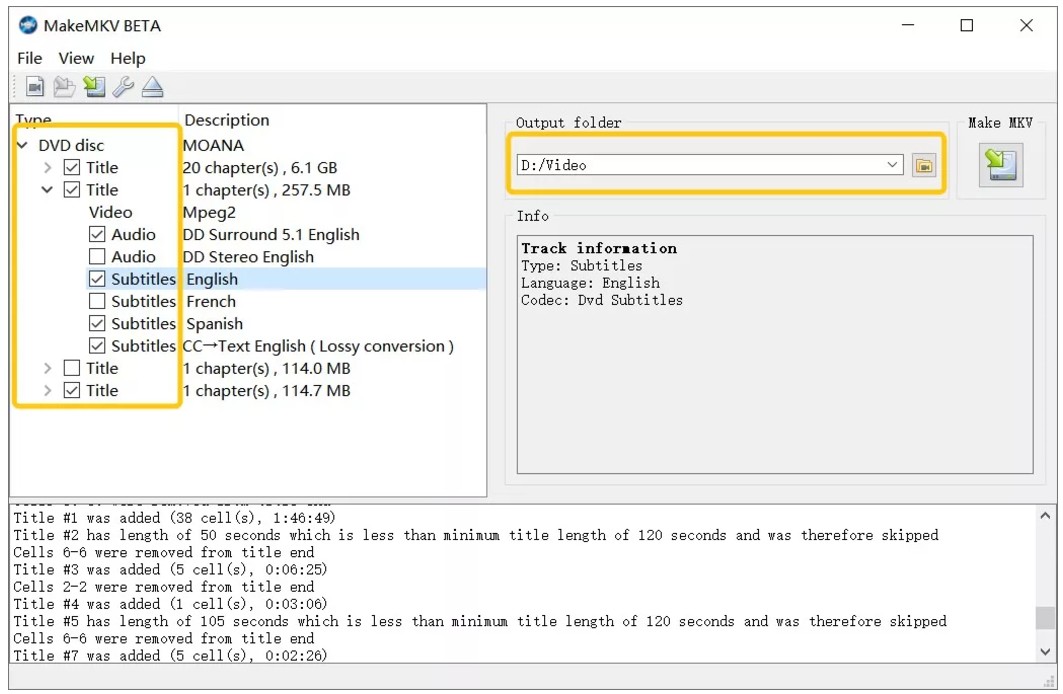
Step 2: Once the software finishes analyzing the disc, it will display a tree-view list of all the available titles, audio tracks, and subtitles. Review this list and check the boxes next to the specific video files, language tracks, and subtitle options you want to extract.
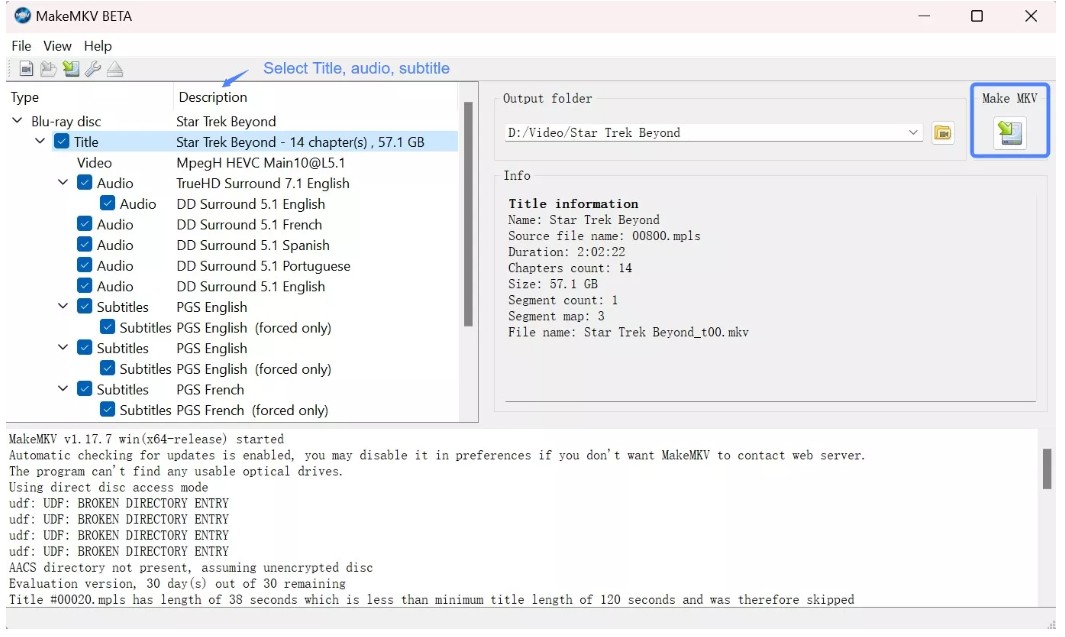
Step 3: Select an output folder on your hard drive where you want to save the converted file, then click the "Make MKV" button. Once conversion is complete, test the MKV in your preferred player; support depends on that player's codec and format compatibility.
Create Smaller Files with DVDFab
DVDFab Blu-ray Ripper converts authorized Blu-ray discs, ISO files, and movie folders into local video files for later playback. Its practical advantage is control over the output format, selected titles, audio, and subtitles when you need a smaller or more device-friendly file. Best for: local MP4 or MKV playback on compatible devices. Not ideal for: readers who want to preserve the original disc-menu experience.
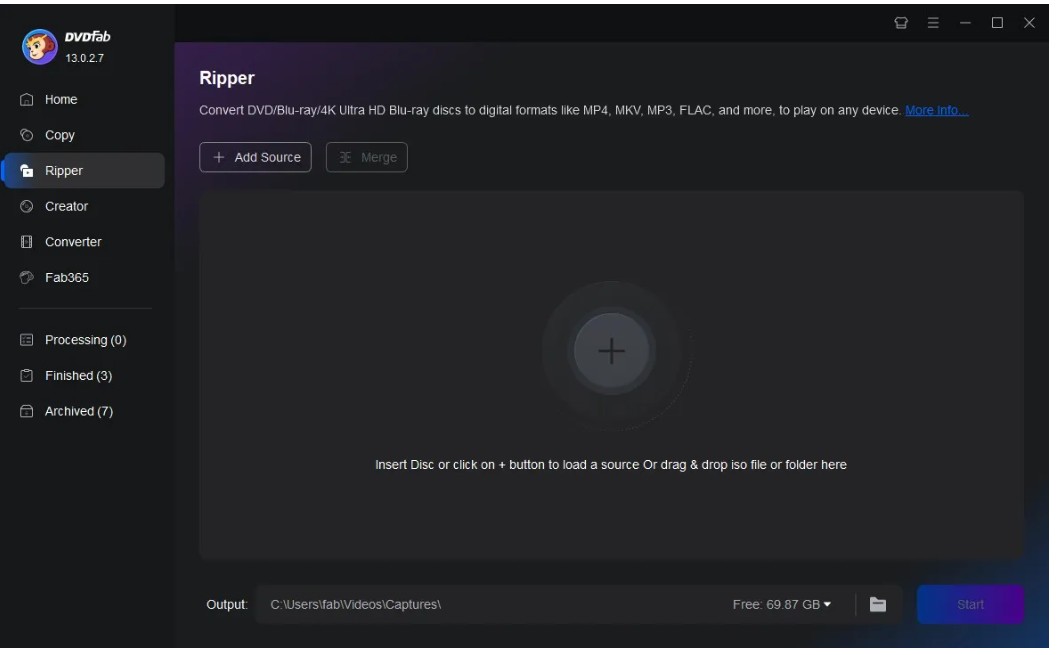
Step 1: Launch DVDFab and select the Ripper module from the top navigation bar. Insert your Blu-ray disc into the drive or use the Add button to locate your files. Alternatively, you can simply drag and drop an ISO file or a movie folder directly into the main interface.
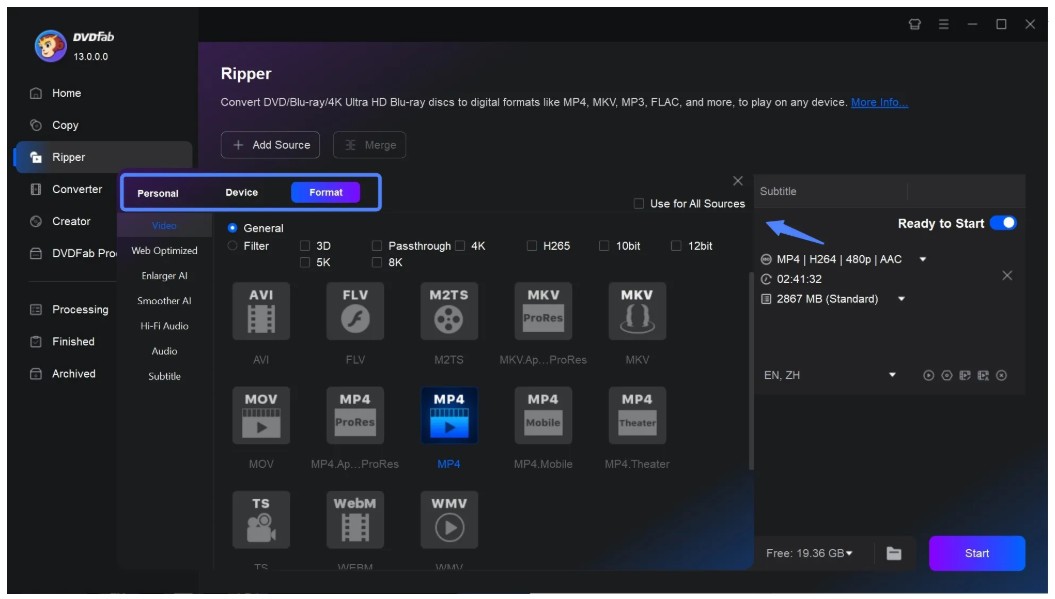
Step 2: Click Choose Other Profile to select your preferred video format, such as MP4 or MKV. Within this menu, you can select specific titles, audio tracks, and subtitle streams to retain. For further personalization, use the Advanced Settings or the built-in Video Editor to adjust technical parameters or trim the video.
Step 3: Select your desired output destination and click the Start button. After the conversion, you can play the ripped Blu-ray movie in Windows 10's built-in media player.
Fix Blu-ray Playback Problems
Windows Cannot See the Drive
If your Blu-ray drive is not detected, start with hardware. Check that the drive appears in File Explorer and Device Manager, reconnect an external drive directly, try another cable or USB port, and confirm that it is a Blu-ray drive rather than a DVD-only drive.
The Drive Sees but Rejects the Disc
If one disc works and another does not, the failure may be disc-specific. Check whether the disc is commercial, whether the player reports AACS or BD+ protection, and whether a region mismatch applies. For readers who need compatible regional playback, a region-free Blu-ray player is a separate compatibility consideration.
Video Plays Without Menus
Menus can fail even when the main feature plays. Confirm whether the disc uses BD-J, whether Java support is available for your player, and whether you need full Menu Mode instead of simple main-feature playback.
Check UHD and File Compatibility Separately
A 4K UHD disc needs compatible UHD hardware and software; standard Blu-ray support is not enough. If VLC or MakeMKV stops working after an update, review the application's current compatibility before reinstalling. For converted files, test another player or select different audio, subtitle, or video tracks if the file opens but does not play correctly. I would check the drive and disc type before reinstalling software, because those two conditions explain many apparent player failures.
Blu-ray Playback FAQ
Can I play Blu-ray on Windows Media Player?
No. Windows Media Player does not provide native Blu-ray movie playback. You still need a Blu-ray-capable drive and compatible third-party playback software for a physical Blu-ray disc.
Can the Microsoft DVD Player app play Blu-ray discs?
No. Microsoft DVD Player is for DVD-Video discs, not Blu-ray discs. Blu-ray playback requires a Blu-ray-capable drive and software that supports the disc type.
Will the same Blu-ray software work on Windows 11?
Often, but not automatically. Check that the vendor supports Windows 11, then confirm that your drive and software support the specific disc type, especially if you are using a 4K UHD Blu-ray.
Can I play a Blu-ray without a Blu-ray drive?
Not from the physical disc. A DVD-only drive cannot read Blu-ray media. You can play an existing authorized local video file as a separate file-playback workflow, but a physical Blu-ray disc requires Blu-ray-capable hardware.
Which Option Fits Your Setup?
To play Blu-ray on Windows 10, first confirm the drive and disc type, then choose the workflow that fits your viewing goal. Use a dedicated player when you want direct disc playback and menus, consider VLC only when you accept its setup and commercial-disc limits, and convert authorized discs when a local-file workflow is the real priority. For the broader hardware-and-software picture of how to play Blu-ray on a PC, the same rule applies: solve compatibility first, then select the player or file format.

 6 Best MPEG Players for Windows and Mac (2026)By Alice Harper - Aug 26, 2026
 10 Best 4K Video Players for PC and Mac, Tested in 2026By Alice Harper - Aug 4, 2026
 The 5 Best Free MOV Players in 2026 (Windows, Mac and Android), plus How to FixBy Alice Harper - Aug 4, 2026
![Best 10 Region-Free Blu-ray Players in 2026 [Software & Hardware]](https://r5.dvdfab.cn/upload/player/en/region-free-blu-ray-player-gB3y.jpg) Best 10 Region-Free Blu-ray Players in 2026 [Software & Hardware]By Alice Harper - Aug 3, 2026
Best 10 Region-Free Blu-ray Players in 2026 [Software & Hardware]By Alice Harper - Aug 3, 2026