Can a Regular Blu-ray Player Play 4K UHD Discs?

Summary: A regular Blu-ray player cannot read a physical 4K UHD disc, even if it offers 4K upscaling. This guide explains the one-way compatibility rule, shows how to identify native UHD hardware, compares dedicated players, consoles, and a Windows PC route, and provides a concise setup and troubleshooting checklist.
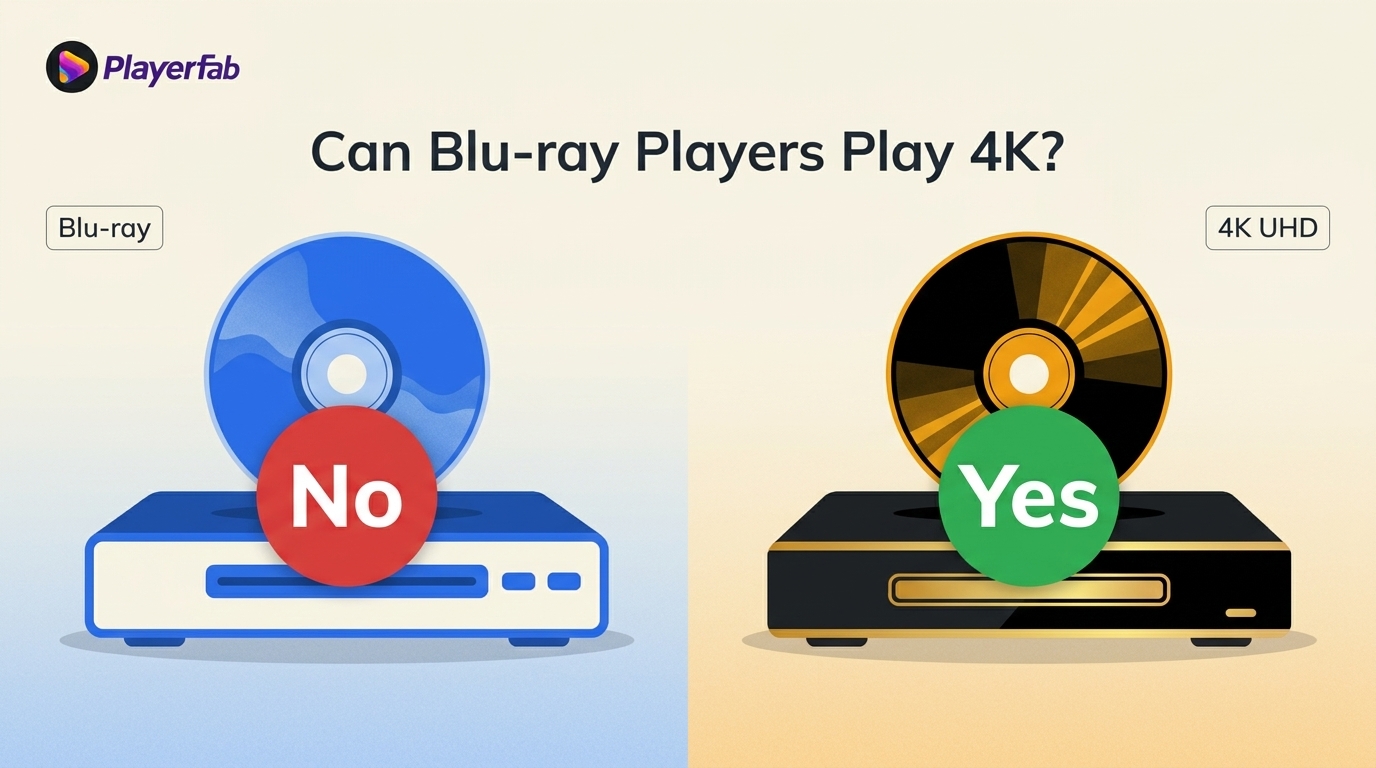
Table of Contents
Here’s the short answer: a regular Blu-ray player cannot play a physical 4K UHD disc. You may see a black screen or an error after inserting one, but the disc is usually not damaged. The player simply lacks the hardware required for the UHD format.
4K UHD discs and standard Blu-rays share the same size and often similar blue packaging, yet the technology inside differs. This guide explains the compatibility rule, how to identify native UHD playback instead of 4K upscaling, and the practical options: a native Ultra HD Blu-ray player, a compatible disc-capable console, or a verified Windows PC setup.

Does 4K Ultra HD Work on a Regular Blu-ray Player
No. A regular 1080p Blu-ray player cannot read a 4K UHD disc, even when the disc and player look similar. Its optical drive and decoder do not support the UHD format, so the player may show “No Disc” or “Unknown Format” instead of starting the movie.
If you try to load a 4K UHD disc into a standard 1080p player, the result is predictable. The drive might spin up aggressively as it attempts to focus on the data layer, but it will eventually give up. You will likely see a "No Disc" or "Unknown Format" error message on your screen.
This happens because standard Blu-ray players were designed to read BD25 or BD50 discs. They physically cannot read the high-density data on 4K discs, which often use BD66 or BD100 formats to hold up to 100GB of data.
The Data Density Gap
While both formats use blue-violet lasers, the optics in a standard player are not precise enough for 4K. According to the Blu-ray Disc Association specifications, 4K UHD discs pack data much tighter than standard Blu-rays. Your player's laser lens lacks the numerical aperture required to resolve these microscopic data pits. It is like trying to read a microchip with a magnifying glass.
The Codec Incompatibility
4K UHD discs use a different compression standard called HEVC. This codec is what allows for 4K resolution and HDR, but it requires specific hardware decoding that older players lack. Without that specific chip, the video stream is unintelligible to your player.
Forward and Backward Compatibility
Compatibility works in one direction. An Ultra HD Blu-ray player generally plays standard Blu-rays and DVDs, while a regular Blu-ray player cannot read Ultra HD Blu-ray discs. In my view, this is the fastest diagnostic: if the player was not sold with explicit UHD disc support, changing the TV or HDMI cable will not make it read the disc.
What Hardware Actually Plays 4K UHD Discs
Identifying a True UHD Player
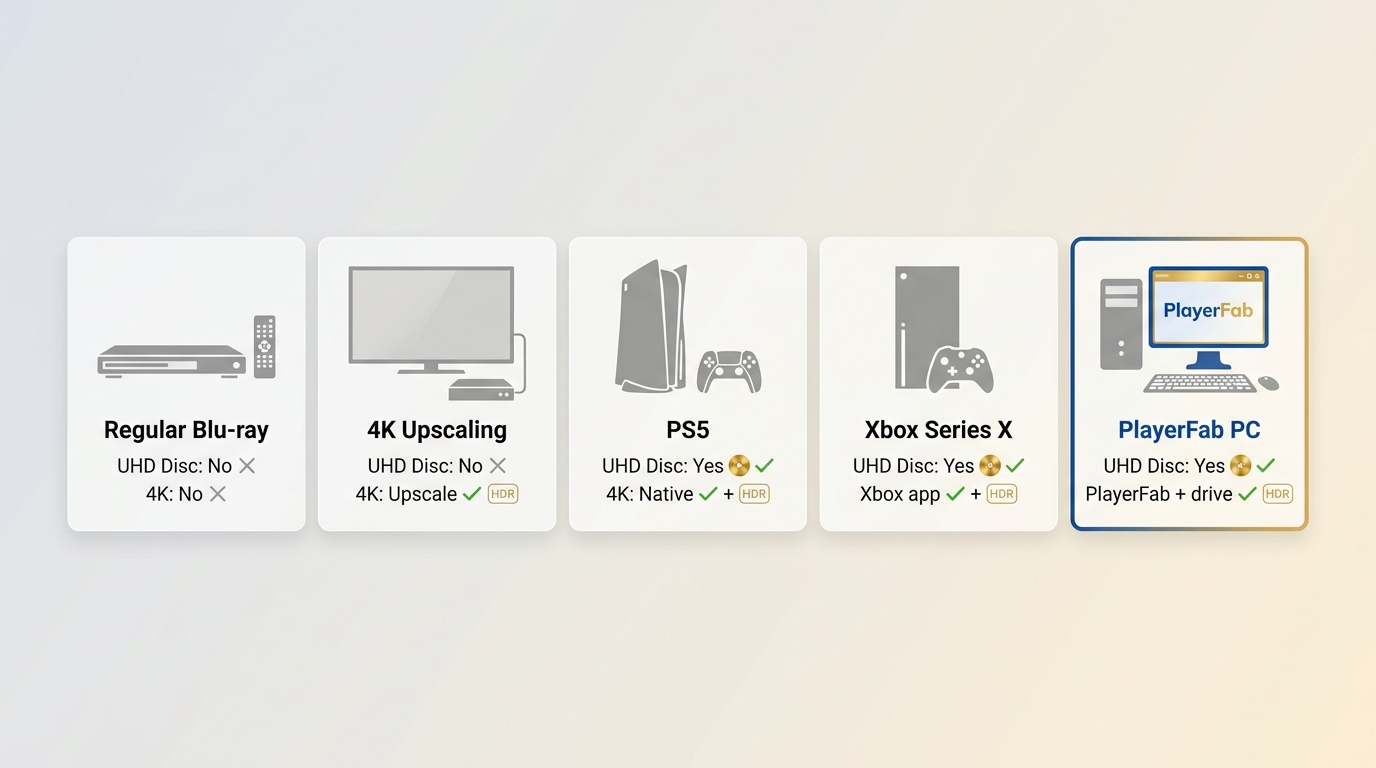
Look for “Ultra HD Blu-ray” or “UHD Blu-ray disc playback” in the model specifications. A label that says only “4K upscaling” describes video processing for standard discs, not native UHD disc reading. A 4K television or premium HDMI cable cannot make an upscaling-only drive read a UHD disc. I find the full model specification more dependable than front-panel marketing language when these labels conflict.
Since a standard player is physically incompatible, you need hardware that explicitly supports native UHD disc playback. A 4K upscaling player may improve the output from a standard Blu-ray, but it cannot read a physical 4K UHD disc.
To play the actual disc, choose the route that fits your existing equipment and where you watch movies.
| Playback path | Reads physical 4K UHD discs | Plays standard Blu-rays and DVDs | Additional drive, app, or software | 4K and HDR output path | Best fit | Main limitation |
|---|---|---|---|---|---|---|
| Regular Blu-ray player | No | Yes | No additional requirement for standard discs | Up to its standard HD output capability | Existing DVD and Blu-ray libraries | Cannot read UHD discs |
| 4K upscaling Blu-ray player | No | Yes | No additional requirement for standard discs | Can upscale standard discs to a 4K display | Improving standard Blu-ray output on a 4K TV | Upscaling is not native UHD playback |
| Native Ultra HD Blu-ray player | Yes | Generally yes | Compatible TV, HDMI path, and optional audio equipment | 4K and HDR when the full display chain supports them | Dedicated living-room movie playback | Requires a separate player |
| Disc-capable PS5 or Xbox Series X | Yes | Yes | PS5 needs an eligible disc drive; Xbox Series X requires the Blu-ray Player app | 4K and HDR through a compatible display chain | Gaming and movie playback in one device | Fewer home-theater controls than many dedicated players |
| Windows PC with a UHD-friendly drive and PlayerFab | Yes, with compatible hardware | Yes, with compatible hardware | UHD-friendly drive, supported Windows system, playback software, and compatible output | 4K and HDR depend on the complete PC and display setup | Users who already have compatible Windows hardware | Not a plug-and-play living-room appliance |
If you primarily want a simple TV setup, a native UHD player or disc-capable console is usually the clearer choice. The Windows route makes more sense when the required PC hardware is already in place.
Dedicated Players for Home Theater
Panasonic DP-UB820: This is one example of a dedicated player for enthusiasts. Its “HDR Optimizer” feature provides additional tone-mapping control, and it supports HDR10+ and Dolby Vision.
Sony UBP-X700: This is another dedicated-player example with Dolby Vision support. Its settings may require manual adjustment in some viewing situations, so compare current models and features before choosing between 4K Blu-ray players for a home-theater setup.
Game Consoles as Disc Players
A console can be a practical option for viewers who also want a gaming system. Dedicated players may be a better fit for readers who prioritize quieter operation or broader home-theater controls.
PlayStation 5: Physical 4K UHD playback requires a PS5 configuration with a built-in disc drive, or an eligible digital model fitted with a compatible separately sold disc drive.
Xbox Series X: It supports 4K UHD Blu-ray disc playback through the Blu-ray Player app. This is a useful gaming-and-movie option, but this article does not treat Dolby Vision as a supported format for UHD movie discs.
Your Complete 4K UHD Setup Checklist
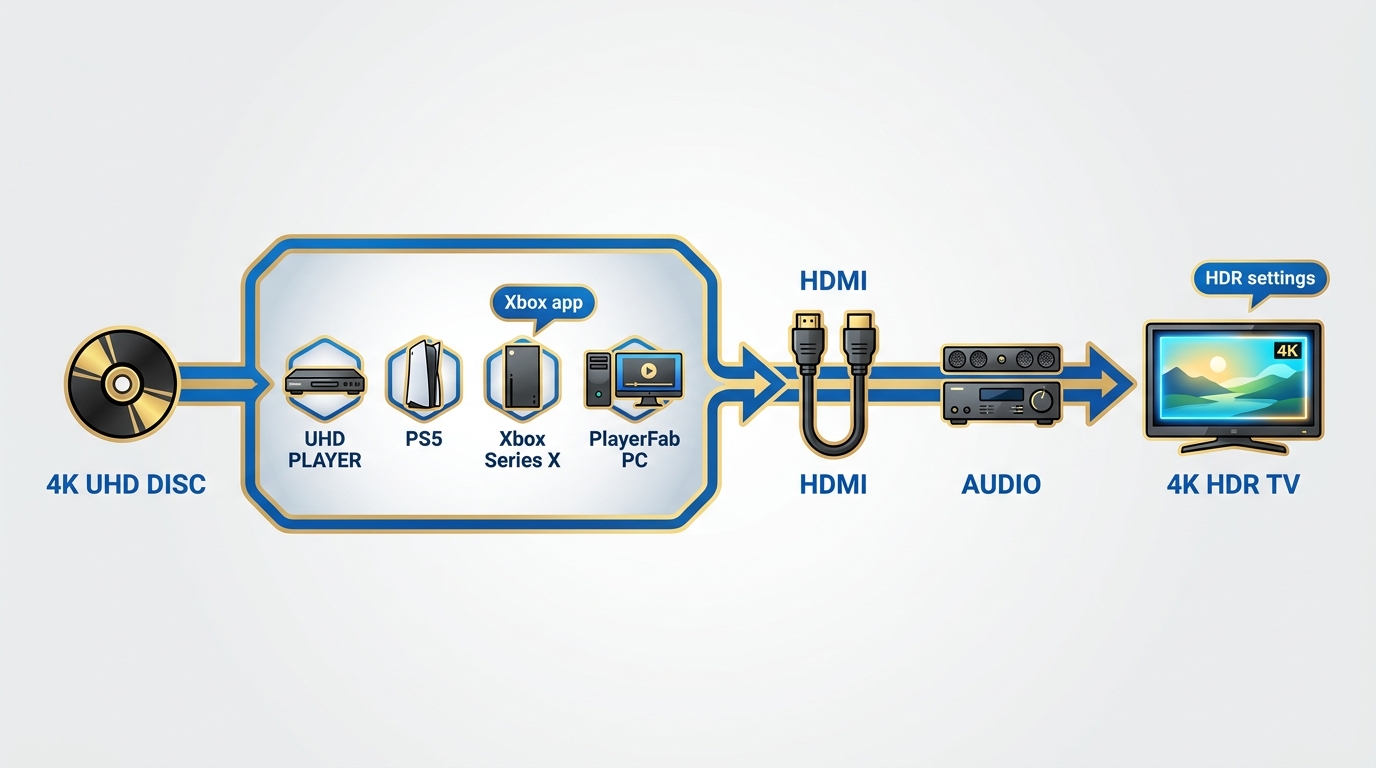
- Use a native Ultra HD Blu-ray player, a disc-capable PS5, an Xbox Series X, or a Windows PC with a compatible UHD-friendly drive.
- Connect to a 4K display that supports the HDR format used by your player and disc.
- Use an HDMI path that supports the video signal, including any receiver or soundbar placed between the player and display.
- Enable the appropriate HDR and audio output settings on the player, console, display, and audio equipment.
- Install the Blu-ray Player app on Xbox Series X, or the required playback software on a Windows PC.
A UHD disc session is only as strong as its weakest link: the reader, display, HDMI path, and video and audio settings all need to support the intended signal.
The PC Route
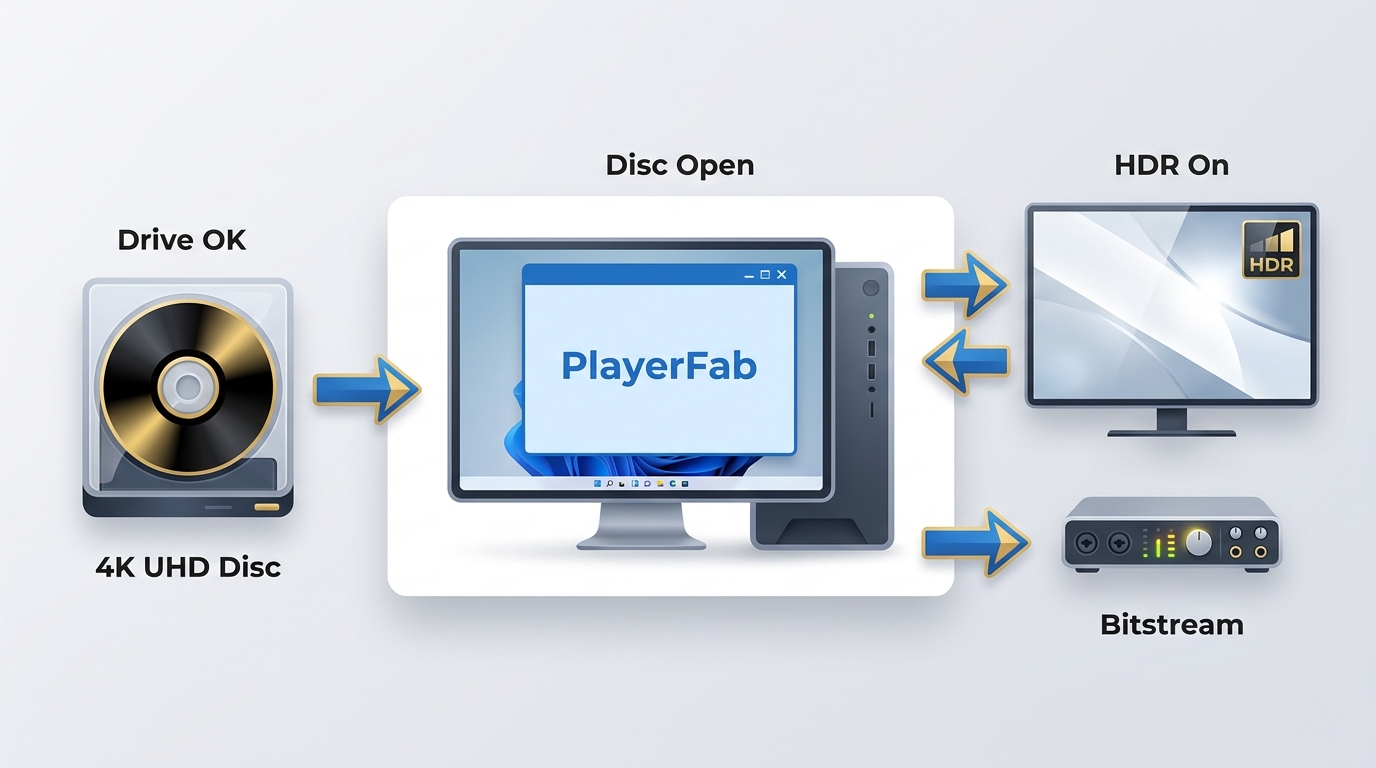
A PC can provide a different UHD playback workflow, but it requires four checks: a UHD-friendly optical drive, a supported Windows system, verified playback software, and compatible display and audio output. Buying a drive alone does not guarantee playback. The broader process of playing Blu-ray on a PC follows the same principle: the drive, operating system, software, and output chain must work together.
Hardware is only one part of the chain. Windows does not provide native UHD Blu-ray playback, so compatible software and output settings are also required. Confirm Windows support, drive compatibility, display capabilities, and audio routing before treating a PC as your UHD disc player.
Playing 4K UHD Discs on a PC
Generic media players may not support UHD disc navigation or the full requirements of physical disc playback. For discs you are authorized to access, where permitted by platform terms and applicable law, PlayerFab Ultra HD Player provides a Windows playback workflow when native operating-system support is unavailable. It is best suited to Windows users who already have compatible UHD hardware, not readers seeking a plug-and-play living-room appliance.
- Runs on Windows 11 or Windows 10 64-bit with compatible UHD playback hardware
- Plays supported physical UHD discs, UHD ISO images, and folders with a compatible drive
- Supports native disc menus, supported HDR formats, and lossless immersive audio output
Using PlayerFab for 4K UHD Playback
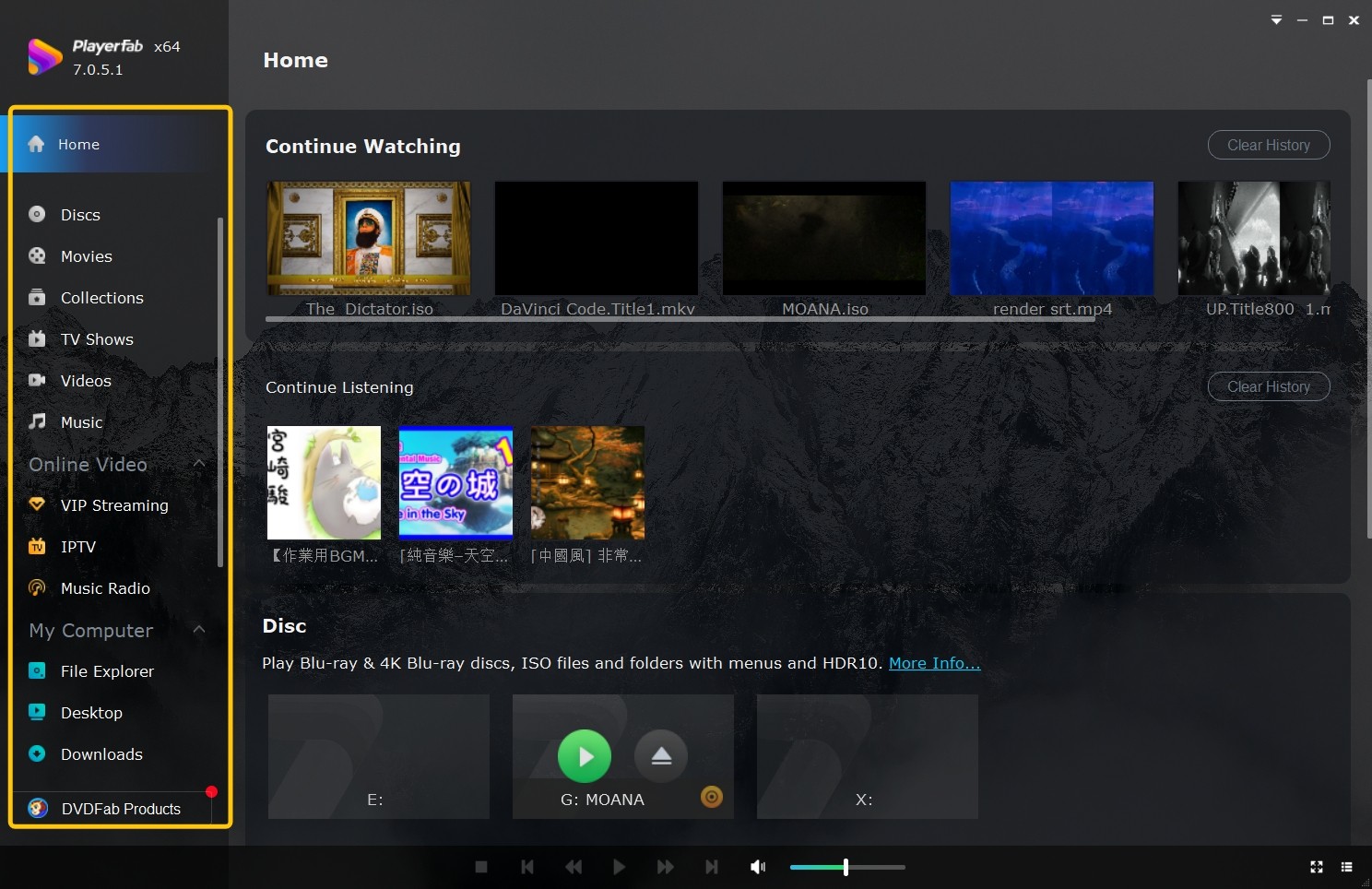
Step 1: Confirm Your Windows PC and UHD Drive
Confirm that you are using Windows 11 or Windows 10 64-bit, a UHD-friendly optical drive, and a compatible display and audio path. In my view, the most common setup mistake is assuming that a drive alone establishes the full UHD playback chain.
Step 2: Launch PlayerFab and Open the Disc
Launch PlayerFab, insert the UHD disc into the compatible drive, and open the disc from the player interface when it is recognized.
Step 3: Choose Playback and Check Output Settings
Choose Menu Mode to access supported disc navigation and special features, or Simple Mode to start the main movie. Before playback, check that the intended HDR and audio output settings are active across the PC, display, and audio device.
FAQs
Can I use the standard Blu-ray copy included with a 4K release?
Some 4K UHD releases include a separate standard 1080p Blu-ray disc. If your package includes that disc, it will play in a regular Blu-ray player even though the 4K UHD disc cannot.
What should I check if a compatible player rejects a 4K UHD disc?
First, confirm that the exact player model is eligible for UHD disc playback. On Xbox Series X, make sure the Blu-ray Player app is installed. Then check for firmware updates, inspect and clean the disc, try another known-good UHD disc, and consider a drive issue if multiple compatible discs fail.
Do all PS5 models play 4K UHD discs?
No. Physical 4K UHD playback requires a PS5 configuration with a built-in disc drive, or an eligible digital model fitted with a compatible separately sold drive. For the narrower question of whether a PS4 can play 4K Blu-ray discs , it cannot.
Conclusion
A regular Blu-ray player cannot play a physical 4K UHD disc, so choose the path that matches your setup. Keep using the included standard Blu-ray copy when a release provides one; choose a native UHD player or disc-capable console for a living-room system; or use a compatible Windows PC workflow when you already have the required drive and hardware. The right choice comes down to your discs, existing equipment, and preferred viewing space.

 6 Best MPEG Players for Windows and Mac (2026)By Alice Harper - Aug 26, 2026
 How to Play Blu-ray Discs on Windows 10 (Free & Pro Solutions)By Alice Harper - Aug 7, 2026
 10 Best 4K Video Players for PC and Mac, Tested in 2026By Alice Harper - Aug 4, 2026
 The 5 Best Free MOV Players in 2026 (Windows, Mac and Android), plus How to FixBy Alice Harper - Aug 4, 2026