6 Free and Premium Blu-ray Player Options for Windows (2026)

Summary: Playing Blu-ray discs on a PC often leads to frustrating decryption errors or missing BD-J menus. After reviewing the current software, I've found that choosing the best Blu-ray player for Windows requires navigating some trade-offs. While open-source tools like VLC need manual library tweaks and Leawo can be highly resource-heavy, premium alternatives provide a seamless experience. Here are the 6 best Blu-ray player software options to get your movies running smoothly.
Table of Contents
Here’s the short answer: a Windows 11 Blu-ray player needs more than an external optical drive. Windows does not include native commercial Blu-ray movie playback, so the drive must be paired with compatible Blu-ray player software. This guide separates free options, paid players, file support, menu support, and the setup each route requires.
The important distinction is not which player has the longest feature list, but which trade-offs fit your collection. A free Blu-ray player may be enough for local files, while commercial-disc playback and Blu-ray menu support can require more setup or a paid option. I focus on the time cost behind each choice, from Windows 10 and Windows 11 setup to ISO, BDMV, and UHD disc compatibility.
What You Need and How We Tested
Windows 10/11 Playback Requirements
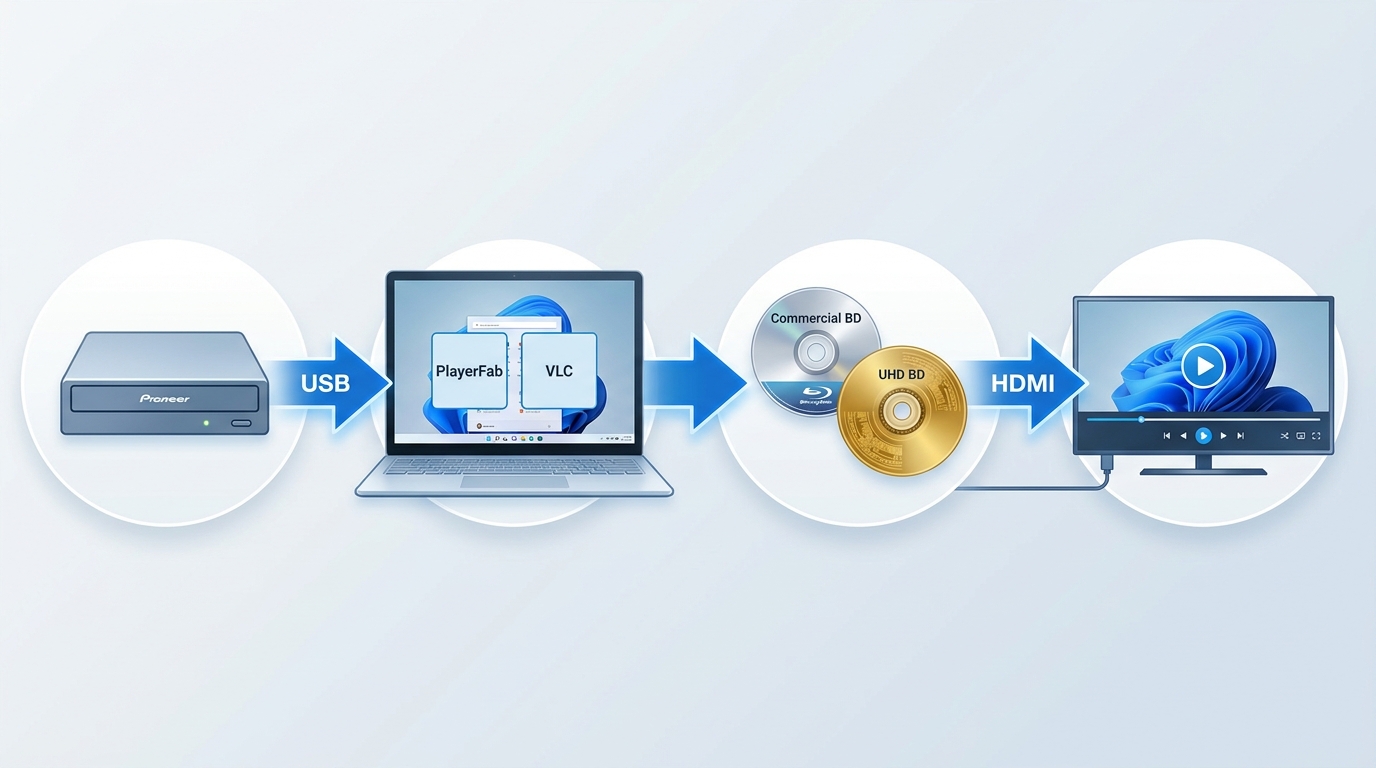
Before choosing a Blu-ray player for PC, make sure you have four separate pieces in place: a Blu-ray-capable optical drive, Windows 10 or Windows 11, compatible player software, and a display connection that suits your setup. UHD Blu-ray discs are different from ordinary Blu-ray discs and ordinary 4K video files, so they require a UHD-capable drive as well as software that supports UHD disc playback. For a fuller Windows setup walkthrough, see how to play Blu-ray on Windows 10.
- Confirm that File Explorer and Device Manager can see the optical drive and disc.
- Choose player software based on your media type: commercial disc, ISO image, BDMV folder, M2TS file, or standard video file.
- Test the disc menu if you need episode selection, extras, or commentary tracks.
- If playback fails, distinguish a disc-read or drive issue from a player compatibility message before changing software.
- Use the relevant player’s support route for version-specific errors, especially with recently released discs.
Testing Setup and Selection Criteria
I compared the players on Windows 11 and Windows 10 with a Pioneer external optical drive, paying particular attention to CPU overhead, disc recognition, menu behavior, and local-file playback.
My testing media included a mix of encrypted Region A and Region B commercial Blu-ray to verify regional playback handling. I also loaded ripped ISO files and BDMV folders directly from a local SSD.
The practical steps for how to play ISO files depend on whether your player supports direct playback or requires the image to be mounted first.
When filtering through the massive pile of available Windows Blu-ray players, I judged each software on four technical metrics:
- Commercial-Disc Playback Readiness: I checked whether a player could open a commercial disc directly, needed extra components or another application, handled BD-J menus, and showed signs of current maintenance.
- Menu Navigation: Many free players fail to load Blu-ray Java menus, which means you lose the ability to select specific TV episodes or special features. I prioritized programs capable of rendering full navigation menus.
- Format Versatility: I tested compatibility across physical discs, ISO files, and folders, ensuring the software could process various video and audio formats without dropping frames.
- System Resource Impact: I monitored CPU overhead during playback, specifically noting which free options were unusually resource-heavy and which ones utilized hardware acceleration effectively.
5 Current Players and 1 Legacy Option
PlayerFab Ultra HD Player
- Best for: Disc collectors who want menu navigation and a local media library in one desktop player.
- Not ideal for: Readers looking for a fully free player for occasional local-file playback.
For discs and files you are authorized to access, where permitted by applicable terms and law, PlayerFab 4K Ultra HD Player is a Windows and macOS desktop player for DVDs, Blu-rays, 4K UHD Blu-rays, ISO files, and local video files. Its Windows Menu Mode supports full DVD, Blu-ray, and 4K UHD Blu-ray navigation, while Simple Mode goes directly to the main feature. It also supports HDR10, HDR10+, Dolby Vision, high-definition audio formats, and works as a 3D Blu-ray player for compatible discs and files.
The practical advantage is straightforward: readers who value episode menus and organized local discs do not have to treat those needs as separate workflows. It can also import DVD and Blu-ray discs as ISO files for a local media library, which is useful when you want the same collection available from a drive or local storage.

- Organizes your local media library automatically
- Play DVDs, (Ultra HD) Blu-rays, and 4K videos
- Offers dedicated PC and TV playback modes
- Supports all forms of 3D content and outputs lossless audio and Blu-ray resolution
- It operates as premium software
- You need a modern GPU to fully utilize the HDR10 rendering
Leawo Blu-ray Player
- Best for: Readers who want a free player for common media formats and can accept advertising and feature trade-offs.
- Not ideal for: Disc collectors who rely on BD-J menus or prefer a lighter, ad-free interface.
- Trustpilot profile
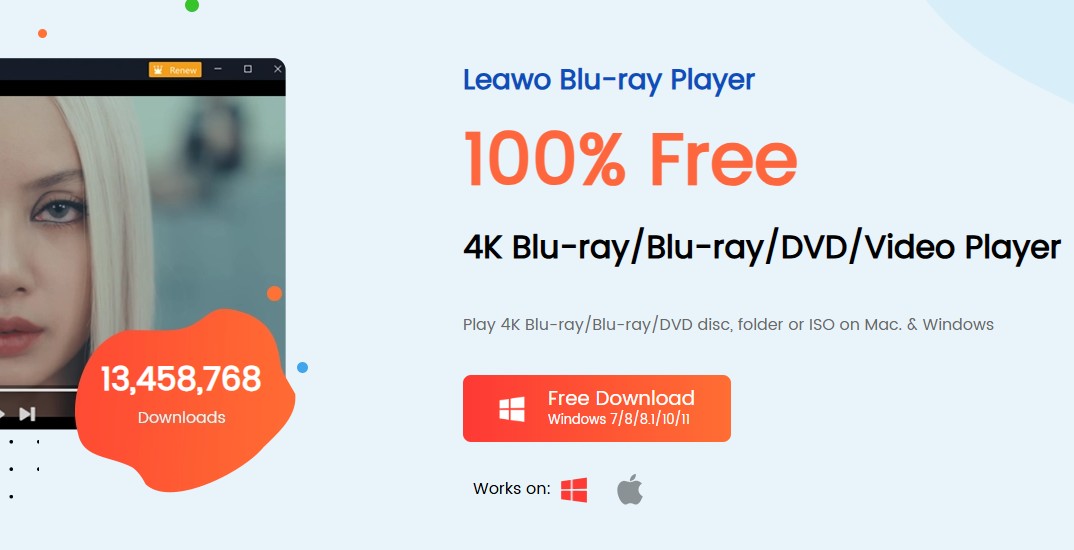
For users looking for a free Blu-ray player for Windows, Leawo Blu-ray Player’s free model and practical limitations are worth weighing together. It has a simple interface, supports a range of media formats, and may suit basic high-definition disc and file playback, but it is not a promise that every feature will remain unrestricted.
Its trade-off is less about format support than day-to-day friction. Advertising can interrupt playback, system use can feel heavier than with simpler file players, and advanced BD-J menu handling is limited. In my view, that makes Leawo a reasonable no-cost starting point, not the first choice for a movie night built around bonus features or TV-season navigation.
- Free to use without expiring or locking features
- Compatibility with most older versions of Windows
- Customize subtitles and audio tracks
- Selecting from multiple audio decoders
- Frequent pop-up ads for copy and backup software
- Lacks the advanced BD-J menu support
CyberLink PowerDVD
- Best for: Readers who prioritize a polished paid Windows media-player interface and standard Blu-ray playback.
- Not ideal for: Readers seeking a genuinely free player or assuming 4K video-file support confirms UHD disc support.
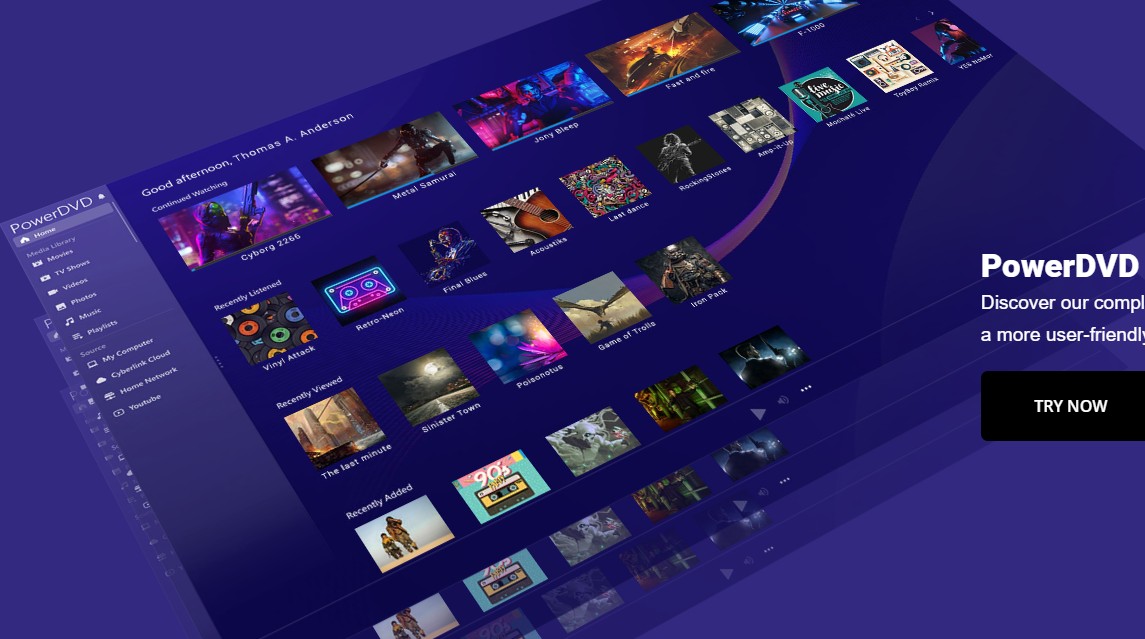
PowerDVD is a paid Windows media player with standard Blu-ray playback, menu navigation, and broad media-file support. Its high-resolution video-file capabilities should be considered separately from physical UHD Blu-ray disc playback; version-specific UHD disc claims need separate confirmation rather than being inferred from 4K file support.
It is a sensible fit when interface polish and conventional disc playback matter more than minimizing cost. It is less compelling for a reader who mainly has unencrypted MKV, M2TS, or BDMV-derived files, where a lighter player may cover the same viewing need.
- Utilizes advanced video upscaling and audio enhancement
- Integrates with extensive home theater setups, and network-attached storage
- Provides native menu support for navigating special features and commentaries
- Operates strictly as a premium product with a steep price tag
- The initial installation package is massive
VLC Media Player
- Best for: Free, ad-free playback of local video files and readers comfortable managing extra components.
- Not ideal for: Plug-and-play commercial-disc playback or dependable BD-J menu navigation.
- TechRadar review
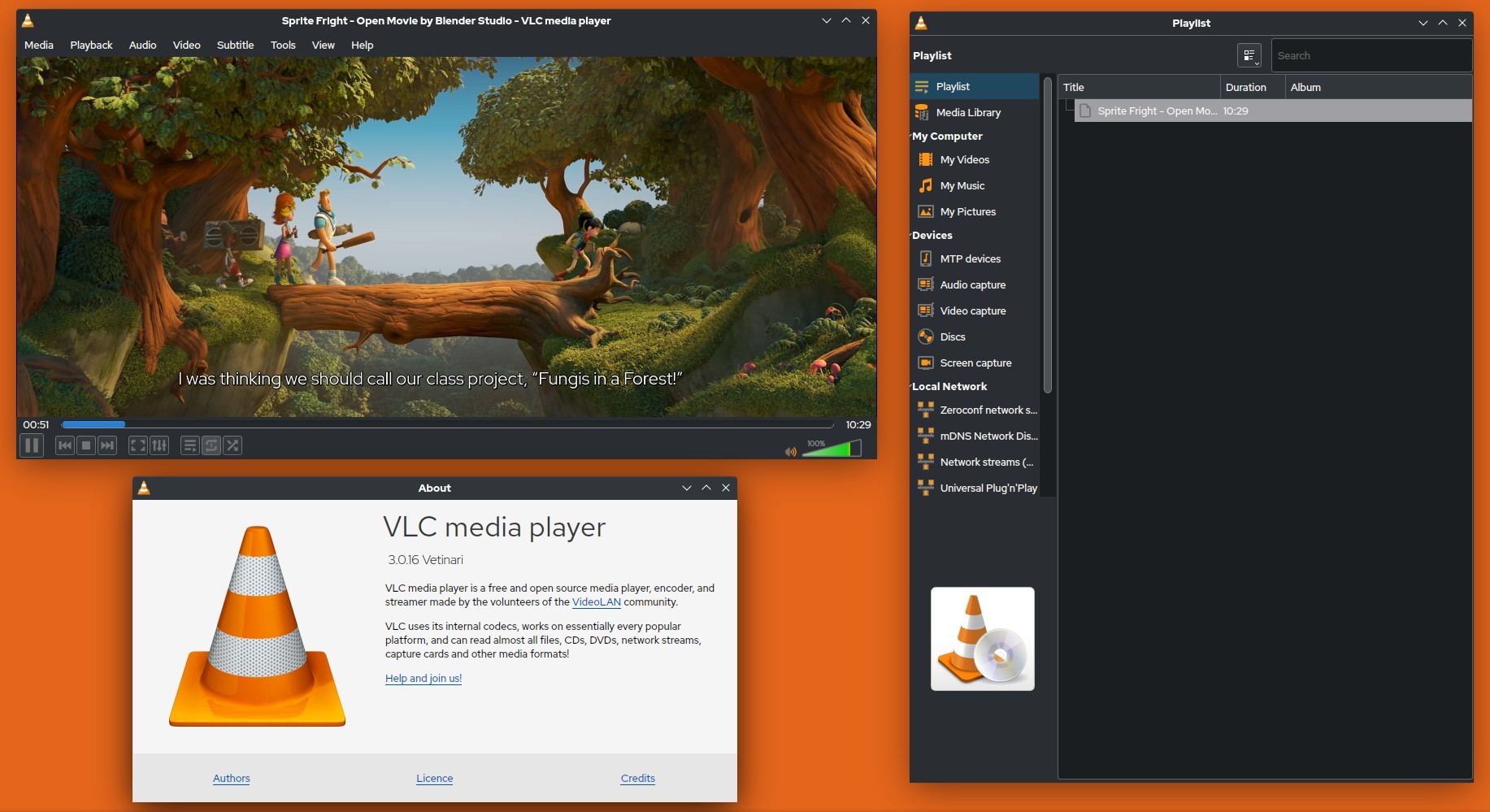
VLC is a free, open-source player with broad support for digital media formats, but commercial Blu-ray playback is not reliably available out of the box. Current VLC Blu-ray playback approaches commonly involve either manual AACS components or integration with MakeMKV, and neither route guarantees dependable BD-J menu behavior.
The manual-component route and MakeMKV integration both add maintenance work that does not exist with ordinary local files. For readers who are comfortable troubleshooting, using VLC to play Blu-rays can be worthwhile for a free workflow; for readers who want episode selection and a more direct disc experience, I would choose a player with verified menu support instead.
- Operates as a free, open-source community project
- Features a massive library of downloadable community-built plugins
- Works identically across Windows, macOS, and Linux operating systems
- Requires you to install additional libraries to play commercial Blu-rays
- Struggles fundamentally to render complex Java menus
- The graphical user interface looks significantly dated
KMPlayer
- Best for: Low-overhead playback of unencrypted local M2TS, MKV, and other video files.
- Not ideal for: Commercial physical discs, BD-J menus, or a full disc-navigation experience.
If your goal is to find a lightweight Windows Blu-ray player specifically for ripped digital backups, KMPlayer is a good choice. It relies on a playback engine that supports high-definition digital containers, including .m2ts and MKV files, without requiring you to download extra codecs.
KMPlayer is best treated as a local-file player rather than a commercial-disc solution. Its hardware acceleration can help with high-definition files, but it does not provide the disc-menu experience that collectors need for episodes, extras, and interactive navigation.

- Includes a vast array of built-in codecs
- Features a highly customizable user interface
- Capable of capturing audio and video snippets directly during playback
- The initial installation attempts to bundle third-party software
- The configurations can overwhelm users wanting a simple player
VSO Media Player (Legacy Option)
- Best for: Older Windows systems playing unencrypted Blu-ray folders and M2TS files.
- Not ideal for: Current commercial discs, BD-J menus, or readers who need actively maintained software.
VSO Media Player remains downloadable, but its release signals are stale compared with the other players in this list. It can still be useful for a hard drive full of unencrypted Blu-ray folders and M2TS files, recognizing Blu-ray folder structures alongside AC3, DTS, and Blu-ray subtitle formats.
Its value is limited to straightforward local playback, not a current all-purpose disc setup. Readers who need menu navigation, current commercial-disc compatibility, or ongoing feature updates should choose one of the actively maintained options above.
- Consumes a minimal amount of system memory
- Allows extensive customization of text subtitles
- Recognizes Blu-ray folders and .m2ts files without requiring external codecs
- Does not support navigating the Java-based menus
- The software supports playing Blu-ray files on Windows
Windows 10/11 Blu-ray Player Comparison
Disc, ISO, Folder, and File Support
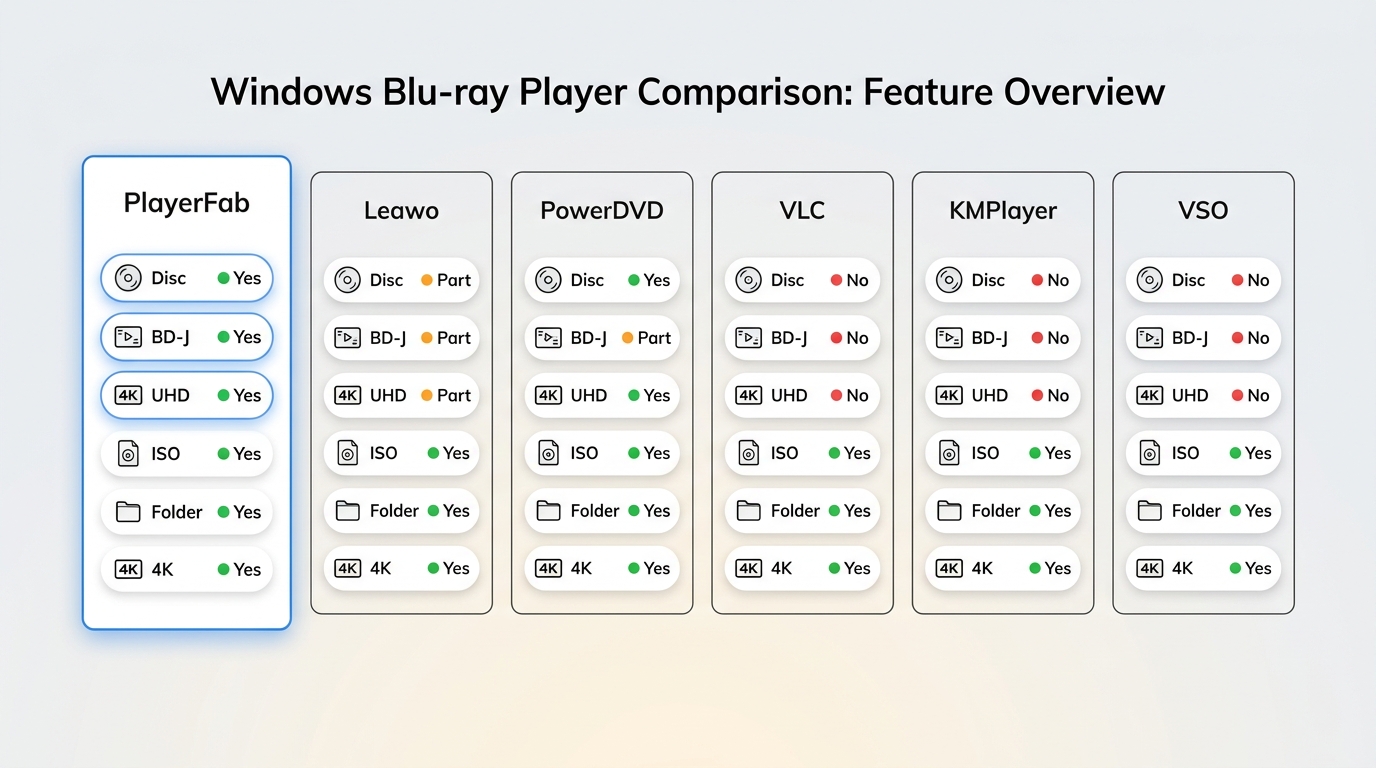
| Player | Commercial Blu-ray discs | BD-J menus | UHD Blu-ray discs | ISO | BDMV / M2TS | 4K video files | Windows | Extra setup | Ads / prompts | Cost model | Best fit |
|---|---|---|---|---|---|---|---|---|---|---|---|
| PlayerFab Ultra HD Player | Direct playback support | Yes | Yes | Yes | Yes | Yes | Windows 10 / 11 | Low | No ads | Paid | Menus and local libraries |
| Leawo Blu-ray Player | Limited support | Limited | Not a primary fit | Yes | Yes | Yes | Windows 10 / 11 | Low | Ads and upgrade prompts | Free model | Basic free playback |
| PowerDVD | Standard Blu-ray support | Yes | Version-specific; do not infer from 4K files | Yes | Yes | Yes | Windows 10 / 11 | Low | Upgrade prompts may apply | Paid | Polished paid interface |
| VLC Media Player | Extra components required | Unreliable | Not a primary fit | Yes | Yes | Yes | Windows 10 / 11 | High for commercial discs | No ads | Free | Local files and tinkerers |
| KMPlayer | No primary support | No | No | Local-image support varies | Yes | Yes | Windows 10 / 11 | Low for local files | Prompts may appear | Free model | Lightweight local files |
Details checked in July 2026. VSO Media Player is excluded from this peer matrix because it is a legacy option with stale maintenance signals.
Choosing the Right Player for Your Setup
For Home Theater and Disc Menus: If you want to insert a commercial disc and navigate episodes, extras, and commentary tracks, prioritize a current paid player with verified menu support. PlayerFab is a fit for readers who also want local-library features; PowerDVD may suit readers who prioritize a polished Windows interface. Neither is ideal if your collection consists entirely of ordinary local video files.
For Free-Setup Tinkerers: A free Blu-ray player for Windows comes with trade-offs. Leawo may be the simpler starting point if you can tolerate ads and limited menu behavior, while VLC is better for an ad-free local-file environment if you are comfortable with additional setup for commercial discs. My view is that the free route makes sense when setup time is part of the hobby, not when you want a predictable movie-night experience.
For a Local-File Library: If your collection consists of unencrypted video files, BDMV folders, or standalone M2TS files, KMPlayer is a practical low-overhead choice. VSO Media Player can still handle similar material on older systems, but its legacy status makes it a weaker choice for readers who need active maintenance. Neither is the right fit for commercial discs or reliable menu navigation.
FAQs About Free Blu-ray Players
Can a Standard Blu-ray Drive Play UHD Discs?
No. A standard Blu-ray drive, ordinary 4K video-file support, and UHD Blu-ray disc playback are three different things. To play a UHD Blu-ray disc, you need a UHD-capable optical drive and software with UHD disc support. A player that handles 4K MP4 or MKV files does not automatically support physical UHD Blu-ray discs.
Why Do Some Players Skip Blu-ray Menus?
Many commercial disc menus use Blu-ray Java (BD-J), which requires menu-rendering support that free media players may not include. Some players open the main title instead of the interactive menu, leaving episode selection and special features unavailable. If those features matter to you, prioritize a player with verified BD-J menu support.
Does Windows 11 Include Blu-ray Playback?
No. Windows 11 can recognize a compatible optical drive, but it does not include native software for commercial Blu-ray movie playback. You need both Blu-ray-capable hardware and compatible third-party player software.
Can VLC Play a Commercial Blu-ray Without Extra Setup?
Not reliably. VLC may play local files immediately, but commercial Blu-rays commonly require manual AACS components or MakeMKV integration. Even when the movie starts, BD-J menus can remain unreliable.
Is Leawo Blu-ray Player Completely Free to Use?
Leawo is positioned as a free player, but the experience includes trade-offs such as advertising, higher resource use on some systems, and limited BD-J menu support. It is best viewed as a no-cost option for basic playback rather than a complete replacement for every disc-player workflow.
Which Blu-ray Player Fits Your Setup?
The right Blu-ray player software depends on how much setup you are willing to accept. VLC is a reasonable free option for readers comfortable managing extra components, while KMPlayer is better suited to unencrypted local files and VSO remains a legacy fallback rather than a current recommendation. For authorized discs and files, where permitted by applicable terms and law, a current menu-capable paid player such as PlayerFab can make more sense when direct disc navigation is the priority.

 6 Best MPEG Players for Windows and Mac (2026)By Alice Harper - Aug 26, 2026
 How to Play Blu-ray Discs on Windows 10 (Free & Pro Solutions)By Alice Harper - Aug 7, 2026
 10 Best 4K Video Players for PC and Mac, Tested in 2026By Alice Harper - Aug 4, 2026
 The 5 Best Free MOV Players in 2026 (Windows, Mac and Android), plus How to FixBy Alice Harper - Aug 4, 2026