Blu-ray Resolution: Is It 1080p or 4K?

Summary: Standard Blu-ray normally carries 1920×1080 video, while 3840×2160 belongs to the separate Ultra HD Blu-ray format. This guide compares DVD, Blu-ray, and 4K discs, explains why mastering, bitrate, HDR, display size, and viewing distance shape Blu-ray quality, and maps the equipment needed for full-resolution playback.
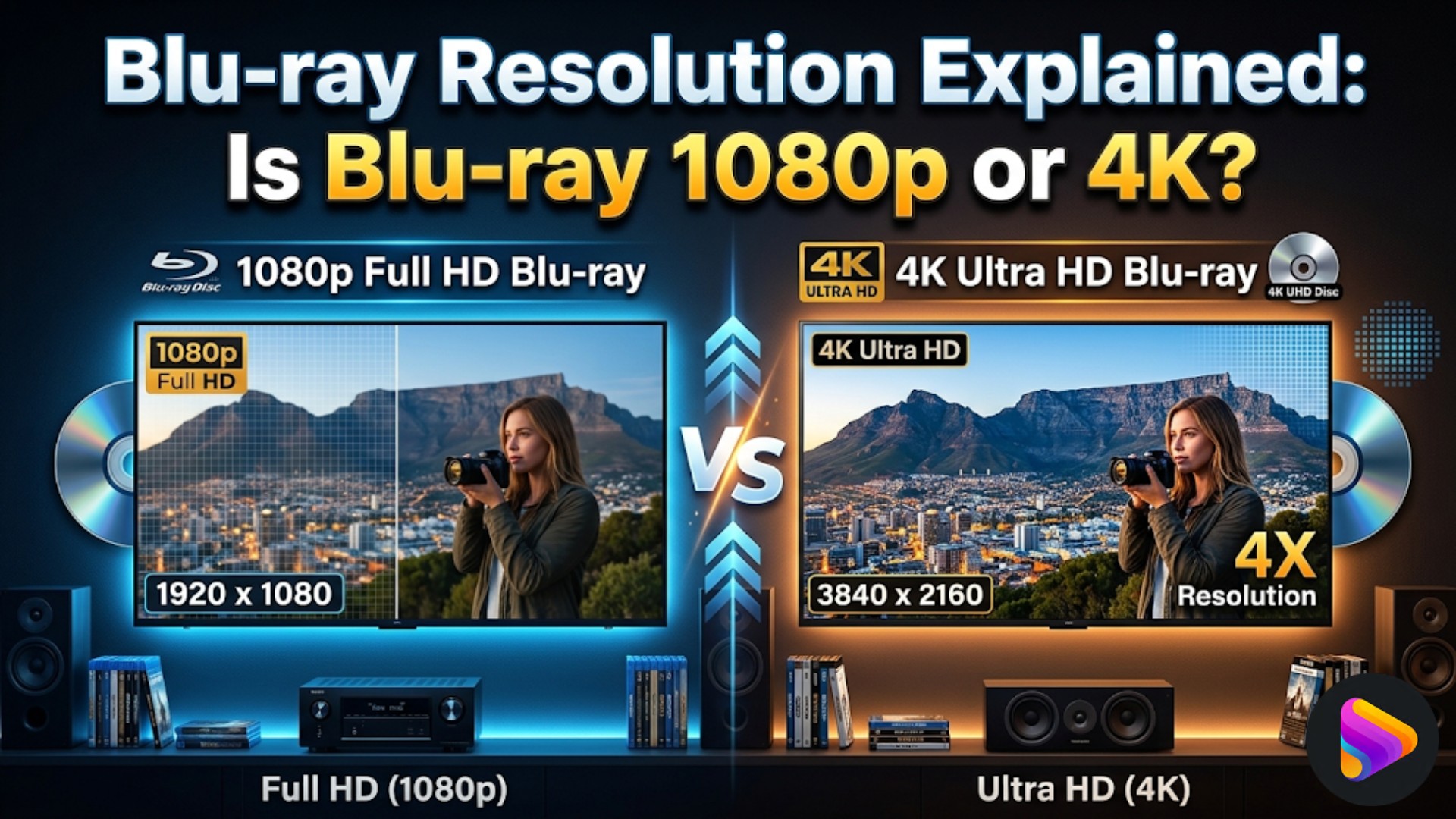
A Blu-ray label does not automatically mean 4K: most standard Blu-ray movies use 1080p Blu-ray resolution, while 4K discs use the separate Ultra HD Blu-ray format. To choose the right setup, first identify the disc, then judge whether the upgrade will be visible, and finally check the entire playback chain.
What Is Blu-ray Resolution?
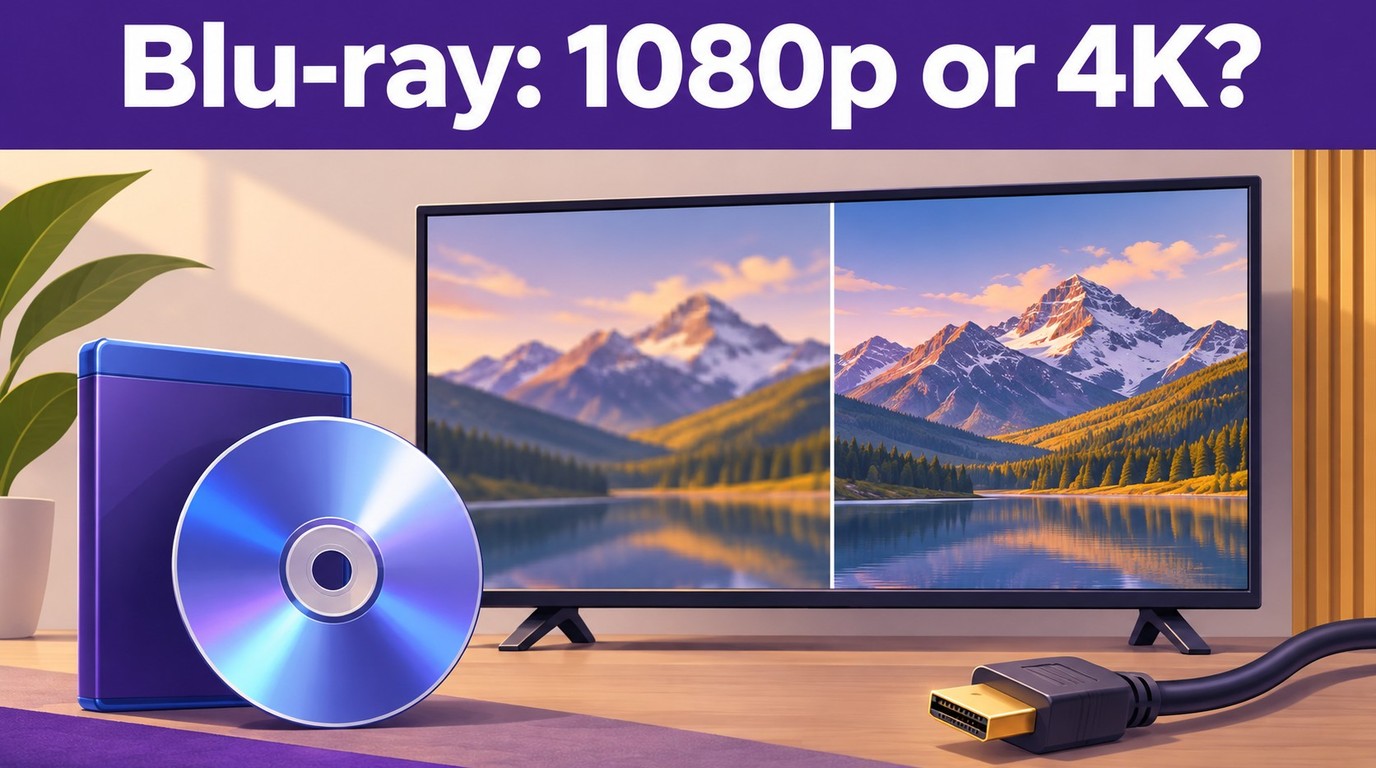
Blu-ray resolution usually refers to the video resolution supported by a standard Blu-ray disc. In most cases, standard Blu-ray is associated with 1080p Full HD, or 1920×1080 pixels, which is also the most common resolution for commercial Blu-ray movies. Cinema 2K commonly uses 2048 horizontal pixels, so it is not the same format as 1920×1080 Blu-ray. Although the Blu-ray format can also support other HD video formats such as 720p and 1080i, 1080p remains the most widely used format for standard Blu-ray movie releases. This is one of the main reasons Blu-ray is generally considered a major upgrade over DVD in terms of picture clarity and detail.
At the same time, Blu-ray resolution is often misunderstood because the term Blu-ray is sometimes used too broadly. Standard Blu-ray and Ultra HD Blu-ray are not the same format. Standard Blu-ray is designed for Full HD playback, while Ultra HD Blu-ray supports 4K UHD resolution (3840×2160) and belongs to a newer disc format. Because of this, users searching for Blu-ray resolution are often trying to figure out whether Blu-ray means 1080p, whether it can also mean 4K, and where the difference between regular Blu-ray and Ultra HD Blu-ray really begins.
Understanding the FHD vs UHD resolution differences also helps clarify why standard Blu-ray is associated with 1080p, while Ultra HD Blu-ray is built for 4K playback.
DVD, Blu-ray, and 4K Compared
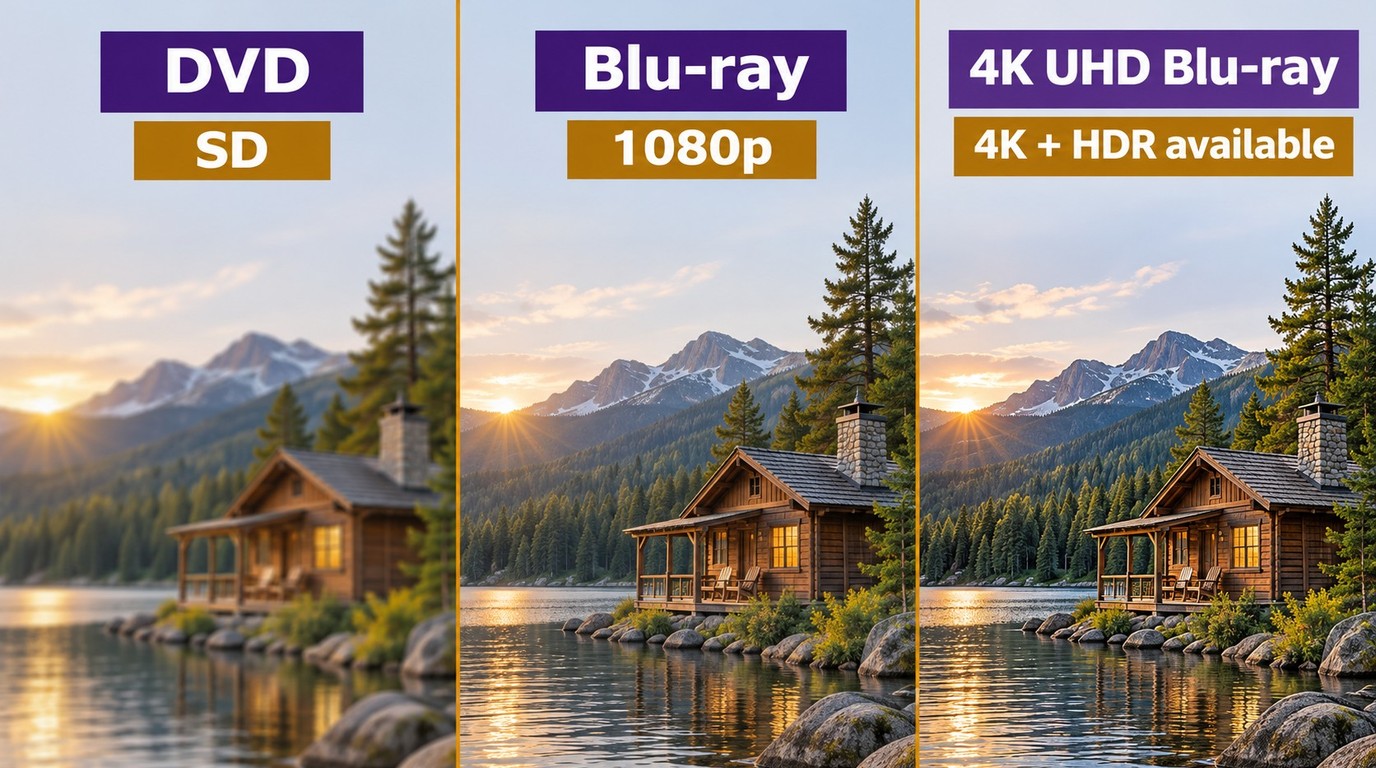
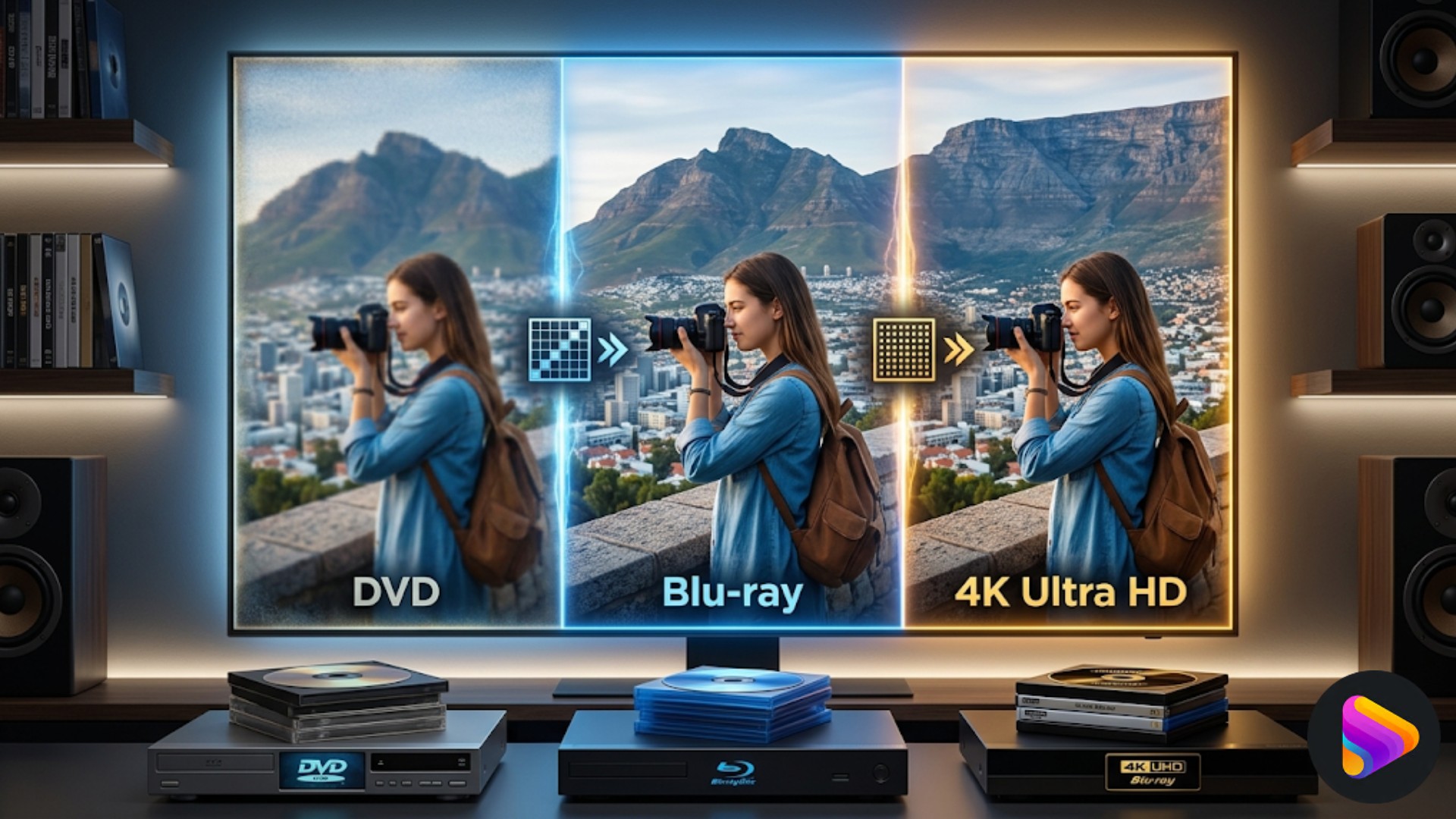
The differences among DVD, Blu-ray, and 4K Ultra HD Blu-ray can be seen more clearly in the table below.
| Format | Resolution | Capacity | Player requirement |
|---|---|---|---|
| DVD | 720×480; PAL: 720×576 | 4.7GB / 8.5GB | DVD player |
| Blu-ray | 1920×1080 | 25GB / 50GB | Blu-ray player |
| 4K Ultra HD Blu-ray | 3840×2160 | 50GB / 66GB / 100GB | Ultra HD Blu-ray player |
Disc capacity is the maximum amount of data a disc can hold, not the file size of an individual movie.
In terms of resolution alone, DVD sits at the lower end, standard Blu-ray remains the mainstream 1080p Full HD format, and 4K Ultra HD Blu-ray represents the highest-resolution consumer disc format currently available.
However, the difference between DVD and Blu-ray is not only visible in pixel count, but also in how much picture information the disc can preserve. DVDs were designed for standard-definition playback, so image detail often appears softer, especially on larger modern displays. By contrast, Blu-ray offers a much higher resolution and is supported by higher bitrate and larger storage capacity, which allows movies to retain finer textures, cleaner edges, and more stable image detail. This is why Blu-ray usually looks noticeably sharper and more refined than DVD, particularly on HDTVs and larger screens.
Compared with standard Blu-ray, 4K Ultra HD Blu-ray pushes image quality further by offering 3840×2160 resolution, which contains far more pixels than 1080p Blu-ray. Ultra HD Blu-ray also benefits from greater disc capacity and commonly supports advanced video technologies such as HDR, making highlights brighter, contrast deeper, and colors more lifelike. As a result, the gap between Blu-ray and 4K Ultra HD Blu-ray is often seen not just in sharpness, but in the overall richness and depth of the image.
My recommendation is to identify the disc format before deciding whether the player, display, or another part of the setup needs an upgrade.
Resolution Is Not the Whole Picture
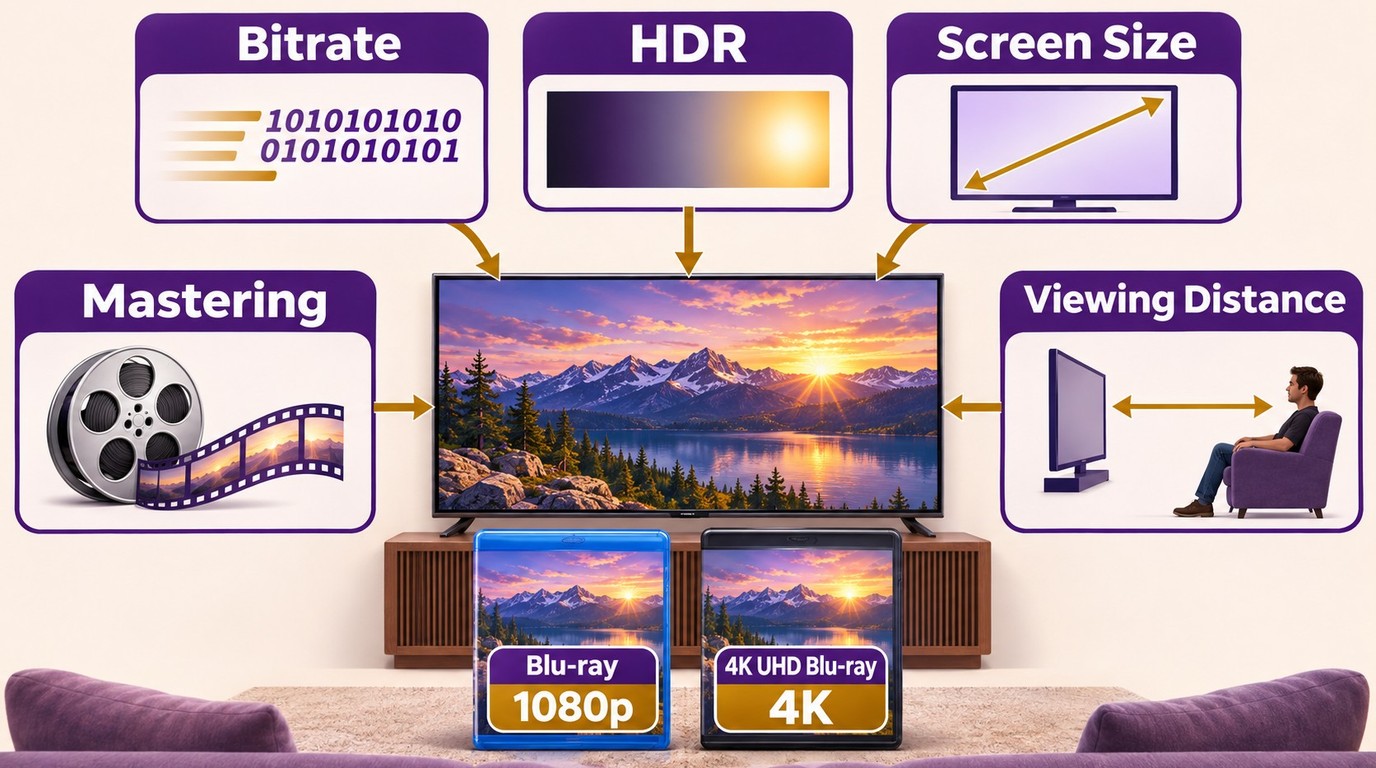
Resolution describes the pixel grid, but Blu-ray picture quality also depends on the source transfer, mastering, codec, compression bitrate, color presentation, and HDR grading. Compression bitrate affects visible detail and artifacts, while HDR can expand contrast and color when the disc, display, and playback chain support it.
Screen size and viewing distance determine how much of that difference you can see. On a smaller display viewed from farther away, the jump from 1080p to 4K may be subtle. On a large 4K HDR screen at a closer distance, sharper detail, brighter highlights, and wider color can become more apparent. Audio quality is a separate issue from image resolution and depends on the available soundtrack and playback equipment.
For a budget-conscious upgrade, I recommend prioritizing well-mastered releases and a working HDR output chain before replacing an entire 1080p collection. After identifying the disc, ask whether its transfer and HDR presentation will produce a visible improvement on your current screen.
What Full-Resolution Playback Requires
Buying a Blu-ray disc does not always mean the movie will automatically be shown in full Blu-ray resolution. The final picture quality also depends on the playback setup. If the player, software, display, or connection does not support the disc format properly, the image may not reach the full Blu-ray resolution, let alone 4K. That is why both software and hardware matter when trying to get the best Blu-ray resolution viewing.
PC Playback Requirements
For normal playback of discs you lawfully own or are authorized to use, follow applicable law and relevant terms. A PC setup for how to play Blu-ray on a PC requires a compatible optical drive, software that supports the disc format, a suitable video output, and a display capable of showing the selected resolution and HDR signal.
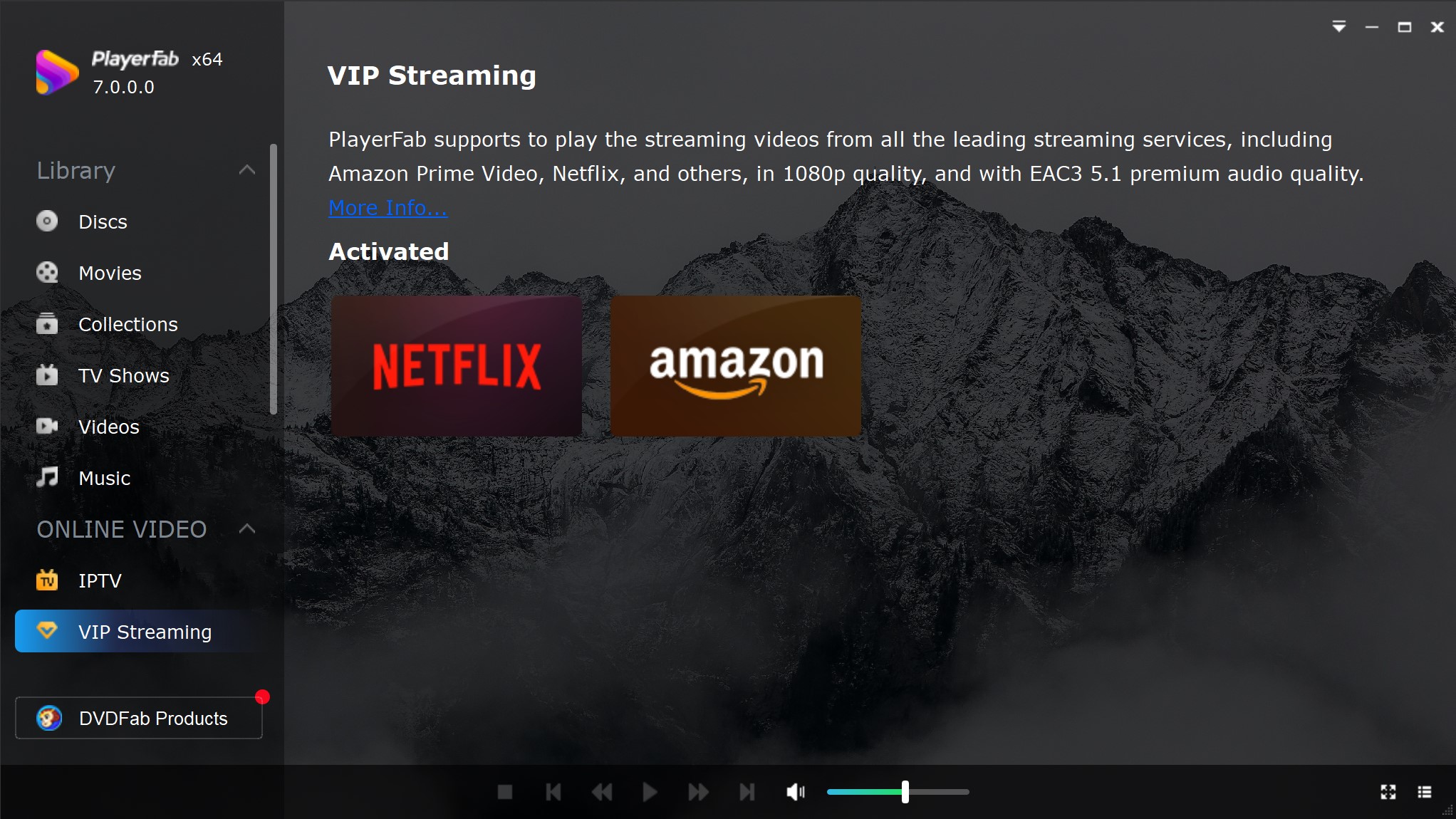
Within this playback chain, the Windows edition of PlayerFab Ultra HD Player provides the software layer between a compatible disc drive and the display. A standalone Blu-ray or Ultra HD Blu-ray player remains a simple route for TV-only viewing, while the software workflow is suited to watching discs through a Windows PC.
- Play standard Blu-ray and 4K Ultra HD Blu-ray with a compatible disc drive.
- Use GPU-assisted decoding to reduce CPU load during high-resolution playback.
- Output HDR10, HDR10+, or Dolby Vision with compatible hardware and content.
- Access full disc-menu navigation through the Windows edition.
Hardware, drivers, and display support can affect compatibility, so use the available official trial and PlayerFab compatibility or troubleshooting guidance to check the intended setup.
Disc, Player, and Display Compatibility
Hardware is just as important as software when it comes to watching Blu-ray at the best possible resolution. For standard Blu-ray, which usually plays at 1080p Full HD, a regular Blu-ray player and a Full HD display are generally enough for proper playback. For 4K Ultra HD Blu-ray, the answer to whether a Blu-ray player can play 4K depends on the player type: a standard Blu-ray player cannot read a 4K Ultra HD disc, so the setup requires an Ultra HD Blu-ray player, a compatible display, and an output connection that supports the selected signal. Without the right hardware, even a high-quality disc cannot deliver its full visual performance.
The matrix below summarizes the playback requirements for native output and 1080p downscaling.
| Disc | Compatible player | Display/output | Connection |
|---|---|---|---|
| Standard Blu-ray | Blu-ray or UHD player | 1080p Full HD | High Speed HDMI |
| Ultra HD Blu-ray | Ultra HD Blu-ray player | 4K HDR | Premium High Speed HDMI |
| Ultra HD Blu-ray | UHD player with 1080p output | 1080p SDR downscale | High Speed HDMI |
I recommend fixing the weakest link in the playback chain before replacing a disc collection.
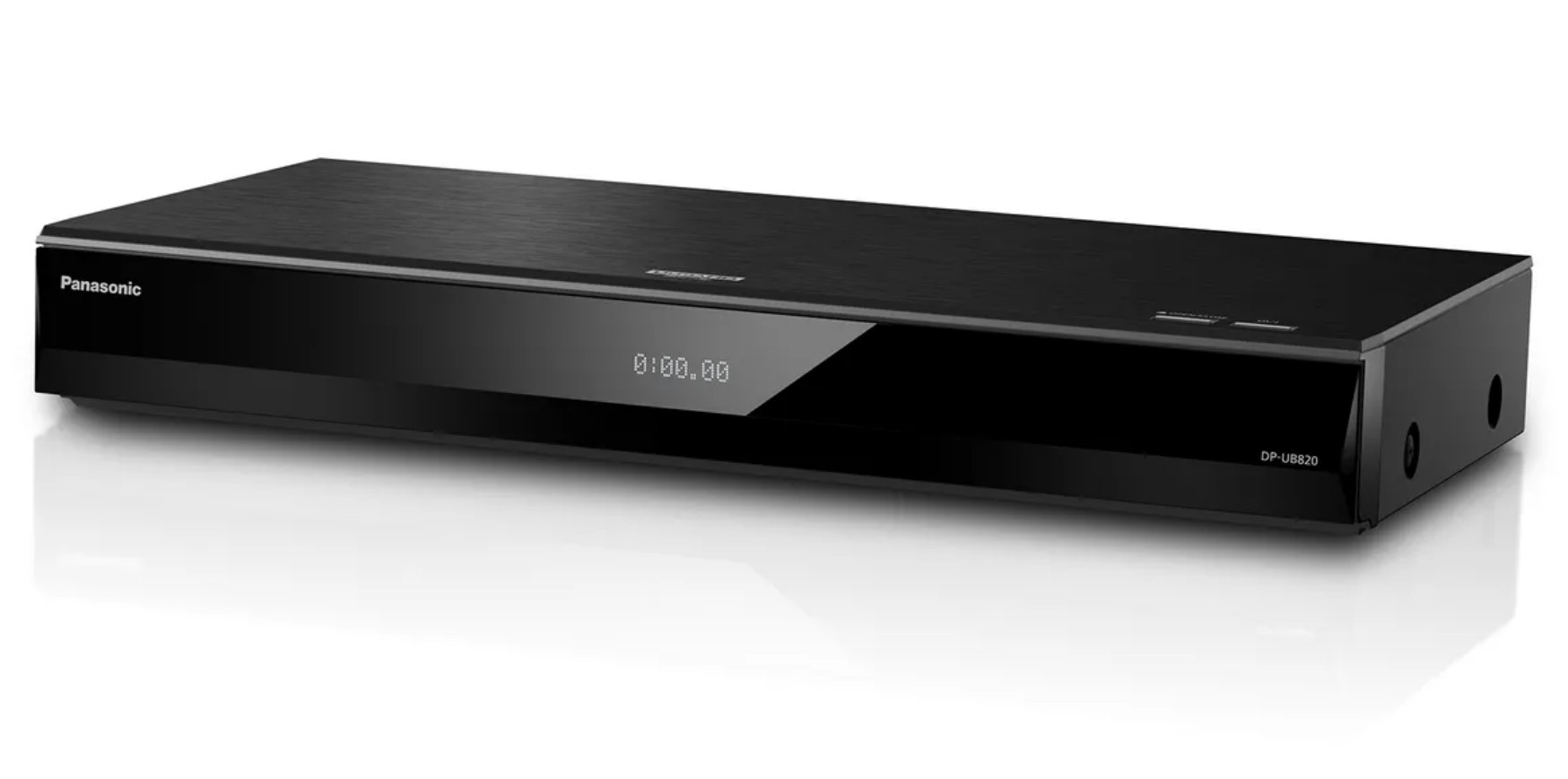
When an Ultra HD Blu-ray player is connected to a Full HD display, select a compatible 1080p output in the player and display menus. The player may downscale 4K video and convert HDR to SDR, but the Full HD screen does not become a native 4K display.
FAQ about Blu-ray Resolution
Is a 4K stream as good as a 4K Blu-ray?
Ultra HD Blu-ray video is compressed using HEVC/H.265, and its higher video bitrate can reduce compression artifacts compared with streaming. Mastering, HDR, and the selected audio track also matter; some disc audio tracks use lossless formats. A well-mastered 1080p Blu-ray can preserve more fine detail than a heavily compressed 4K stream, while a strong 4K HDR stream may offer more resolution and dynamic range than an SDR disc.
Which HDMI cable do I need for Blu-ray?
High Speed HDMI is recommended for 1080p Blu-ray. Premium High Speed HDMI cables are certified for up to 18 Gbps, including 4K60 and HDR; Ultra High Speed HDMI cables support up to 48 Gbps. The player, display ports, and cable must support the chosen output signal, and a higher-rated cable does not add detail to the source.
Does a 4K TV turn regular Blu-ray into native 4K?
No. A 4K TV or player can upscale a 1920×1080 Blu-ray image to a 3840×2160 output grid, but it cannot create the native detail recorded on an Ultra HD Blu-ray. Transfer quality, screen size, viewing distance, and the display’s processing determine how much improvement is visible.
Final Thoughts
Blu-ray resolution matters, but the better viewing choice also depends on the transfer, display, and playback chain. My recommendation is to keep a well-mastered 1080p edition when the current screen cannot show a meaningful UHD benefit; when upgrading, prioritize a strong 4K transfer, compatible HDR playback, and the correct output settings. For PC users with compatible hardware, PlayerFab Ultra HD Player provides a practical route for standard and Ultra HD Blu-ray playback with HDR output support. Matching the disc, player, connection, and display allows compatible media to play at the resolution and HDR format the setup can deliver.

 12 HEVC Players for Windows, Mac, and 4K (2026)By Alice Harper - Nov 13, 2026
 WMV Player for Mac: 4 Options Beyond QuickTimeBy James Morgan - Nov 10, 2026
 8 Best TS File Players and Playback Tools for 2026By Alice Harper - Nov 5, 2026
 Can Blu-ray Players Play DVDs? Compatibility and FixesBy Alice Harper - Nov 4, 2026