
Best WMV Player for Mac and How to Play WMV on Mac Natively

Summary: Users trying to play WMV on Mac quickly discover that QuickTime simply refuses to open the file. This is not a hardware defect. The problem stems from Apple's AVFoundation framework blocking Microsoft's legacy ASF media containers. The smart move is bypassing Apple's native software entirely. My tests show that installing a dedicated WMV player for Mac with built-in codecs, such as PlayerFab, is the most efficient way to watch WMV on Mac without losing original quality.
Here's the short answer: QuickTime does not open WMV files on Mac, so you need either a maintained WMV-capable player or a conversion to MP4/MOV before Apple apps will touch the file. If you've ever moved a legacy video archive from a PC to an Apple Silicon Mac and watched QuickTime throw an error on a double-click, that's not a corrupt file — it's a format compatibility gap. This guide walks through why QuickTime refuses WMV, what to look for in a current Mac WMV player, four apps compared side by side, a three-step direct-play workflow, and two conversion paths for readers who need the file to work inside Apple apps or on Apple mobile devices.
The reality is a software architecture conflict. If you are trying to play WMV on Mac, you first have to understand that macOS's built-in AVFoundation / QuickTime playback stack focuses on QuickTime and MPEG-4 media. This guide details why the native operating system fails to read these files and tests the most efficient WMV player solutions available to work around this format incompatibility.
Why QuickTime Does Not Open WMV
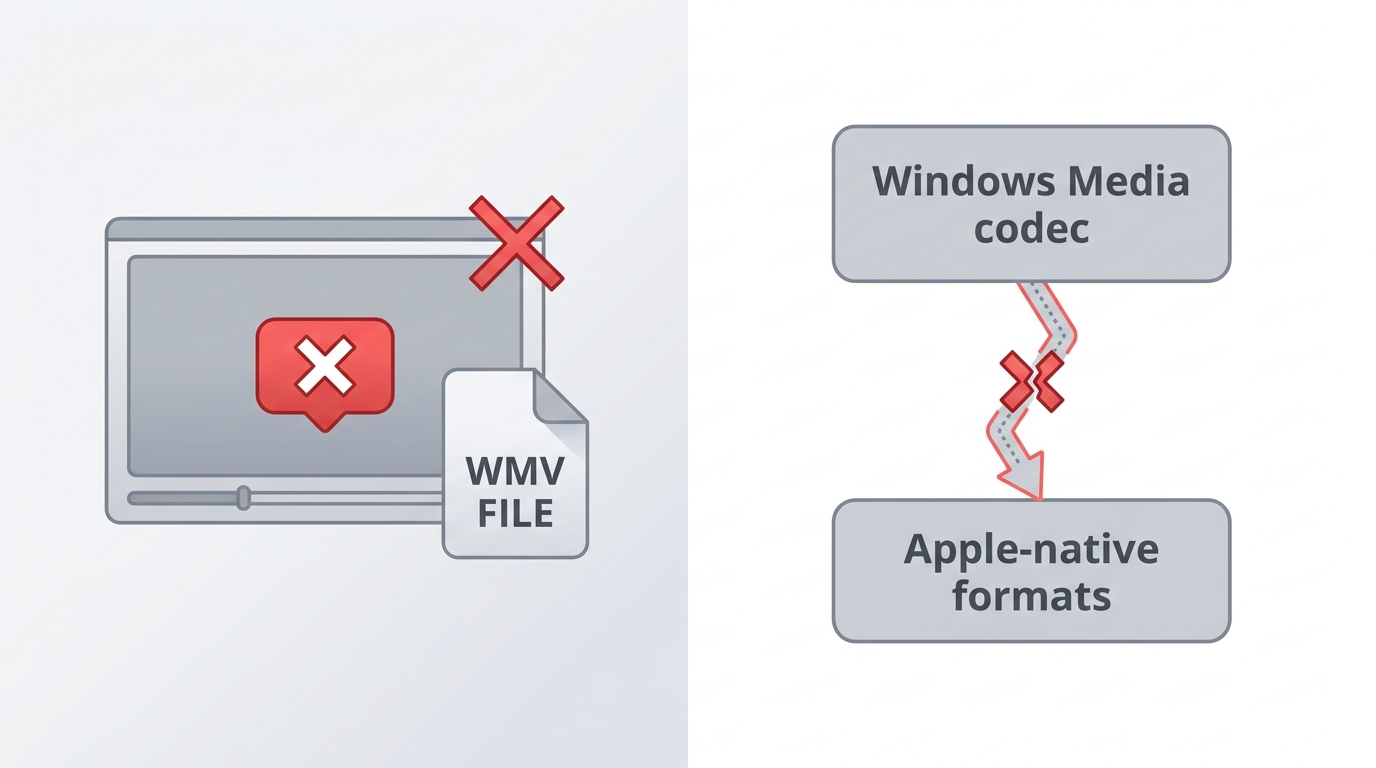
QuickTime Player does not natively open WMV files on macOS. WMV is Windows Media Video, and the file usually sits inside an Advanced Systems Format (ASF) container with Microsoft codecs like VC-1 or WMV3. Apple's built-in playback stack is tuned for H.264 and HEVC inside MP4 or MOV, so double-clicking a WMV in Finder typically hands the file to QuickTime, which then fails to open it.
Older workflows leaned on third-party QuickTime components such as Flip4Mac to bolt Windows Media support onto the system. Those components are historical context only — the 32-bit versions stopped working when macOS Catalina dropped 32-bit app support, and they are not a current fix. On a modern Intel or Apple Silicon Mac you have two realistic routes: install a maintained WMV-capable player that ships its own decoders, or convert the file into a container and codec that Apple apps already understand.
Direct Playback or Conversion?
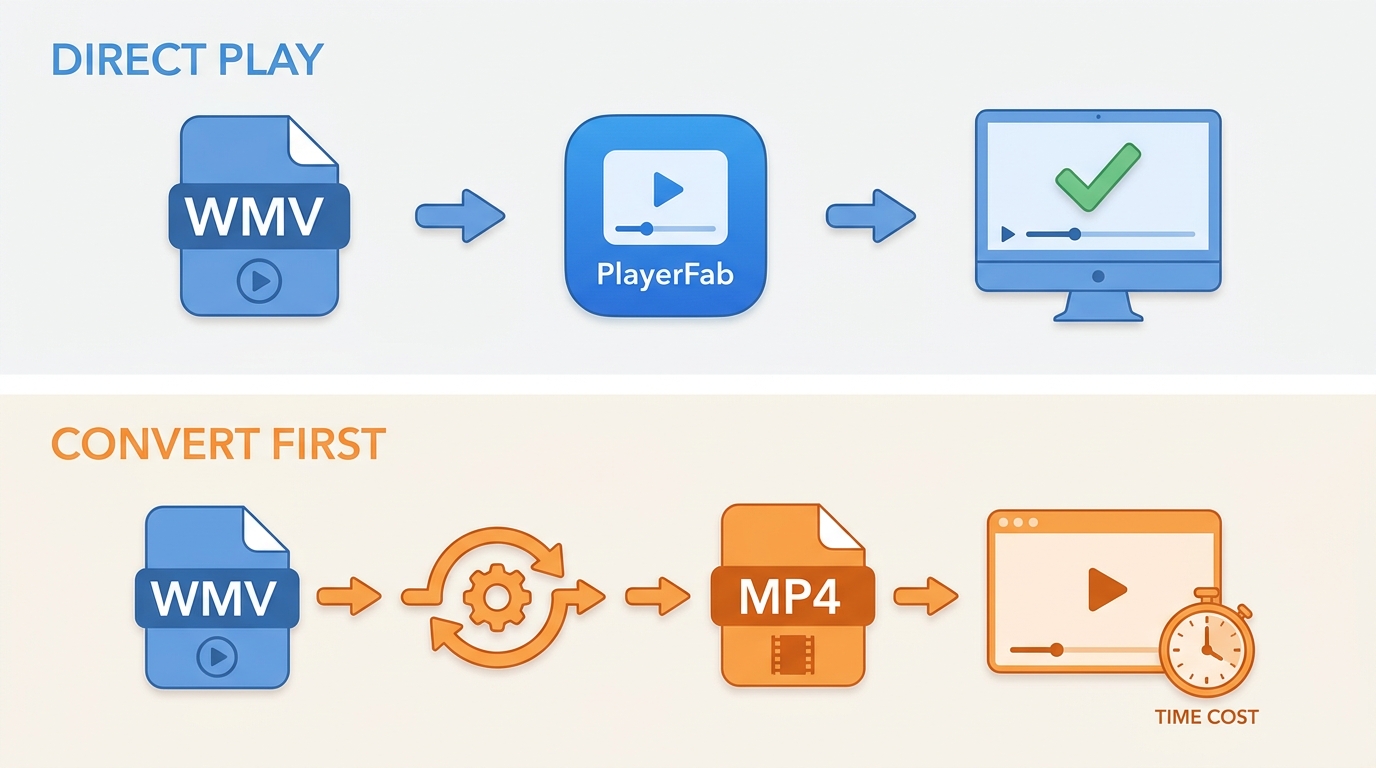
Before installing anything, decide which route fits the task. Direct playback keeps the original WMV file untouched and is usually enough when you only need to watch it. Conversion produces a second file in a Mac-friendly format, which is the pragmatic choice when the video has to open inside Apple apps, ride along on an iPhone or iPad, or slot into a Final Cut Pro timeline. Converting a file you only plan to watch once is extra work for no viewing benefit — I default to direct playback and reach for HandBrake or FFmpeg only when the destination app forces my hand.
| Your goal | Recommended route |
|---|---|
| One-off viewing on Mac, keep original file | Direct playback in a maintained WMV player |
| Open the file in QuickTime, Photos, iMovie, Final Cut Pro | Convert to MP4 or MOV |
| AirDrop or sync to iPhone or iPad | Convert to MP4 |
| Share with mixed Mac and iOS audiences | Convert to MP4 |
| Batch-processing dozens of legacy files | FFmpeg or HandBrake |
What Matters in a Mac WMV Player
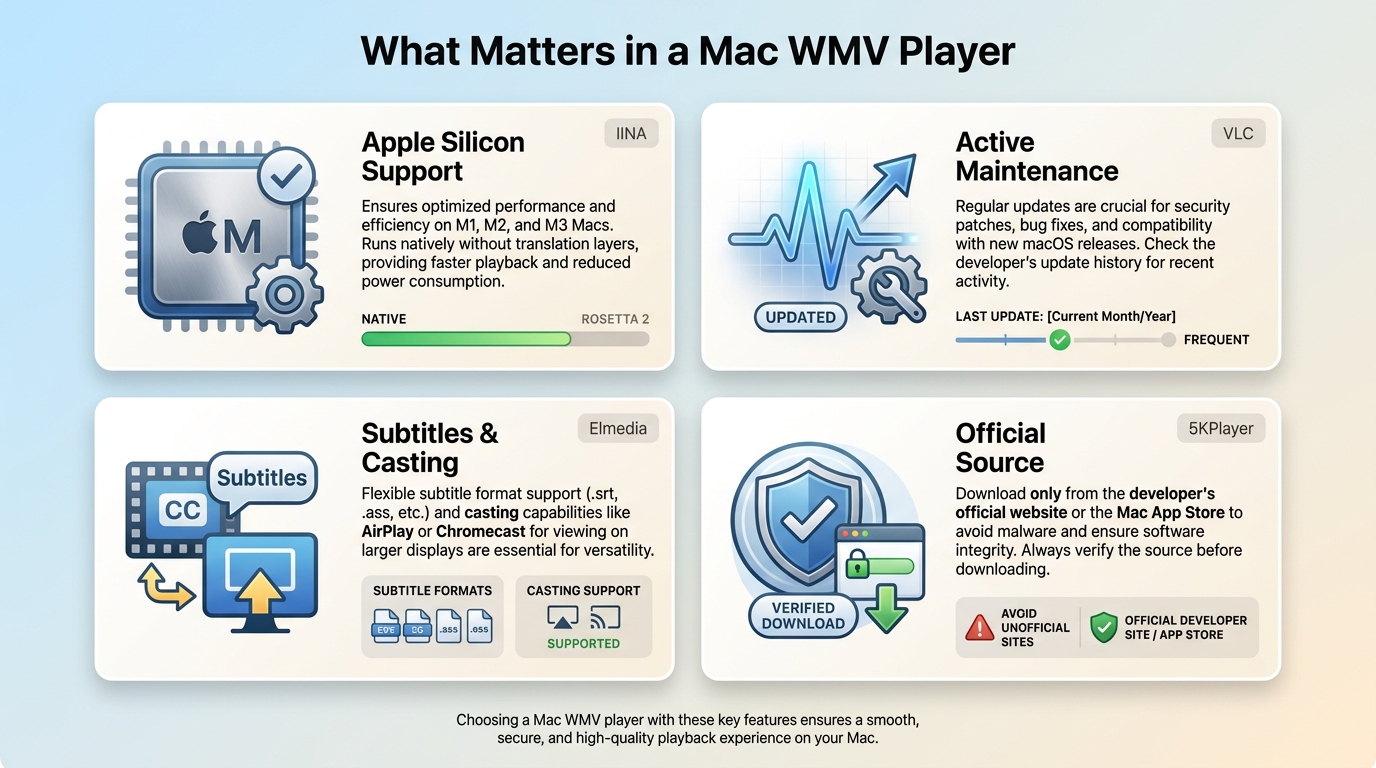
Four criteria separate a current Mac WMV player from an outdated download that will waste your afternoon.
- Apple Silicon and current macOS support. Check the vendor page for a native Apple Silicon build (or a universal binary) and confirm the app still receives updates for the macOS versions you actually run.
- Update freshness and maintenance signals. A recent release note within the last several months is a stronger signal than any marketing copy. Abandoned players tend to break with each macOS major release.
- Subtitles, casting, and everyday controls. If you rely on external SRT files, DLNA or AirPlay casting, or per-track audio switching, confirm the app supports them before installing.
- Official download source. Install from the vendor's own site or a verified App Store listing, not a random mirror — that is the single biggest safety signal for a free player. Readers looking beyond WMV can also consult our roundup of the best video player for Mac for broader format coverage.
Best WMV Players for Mac Compared
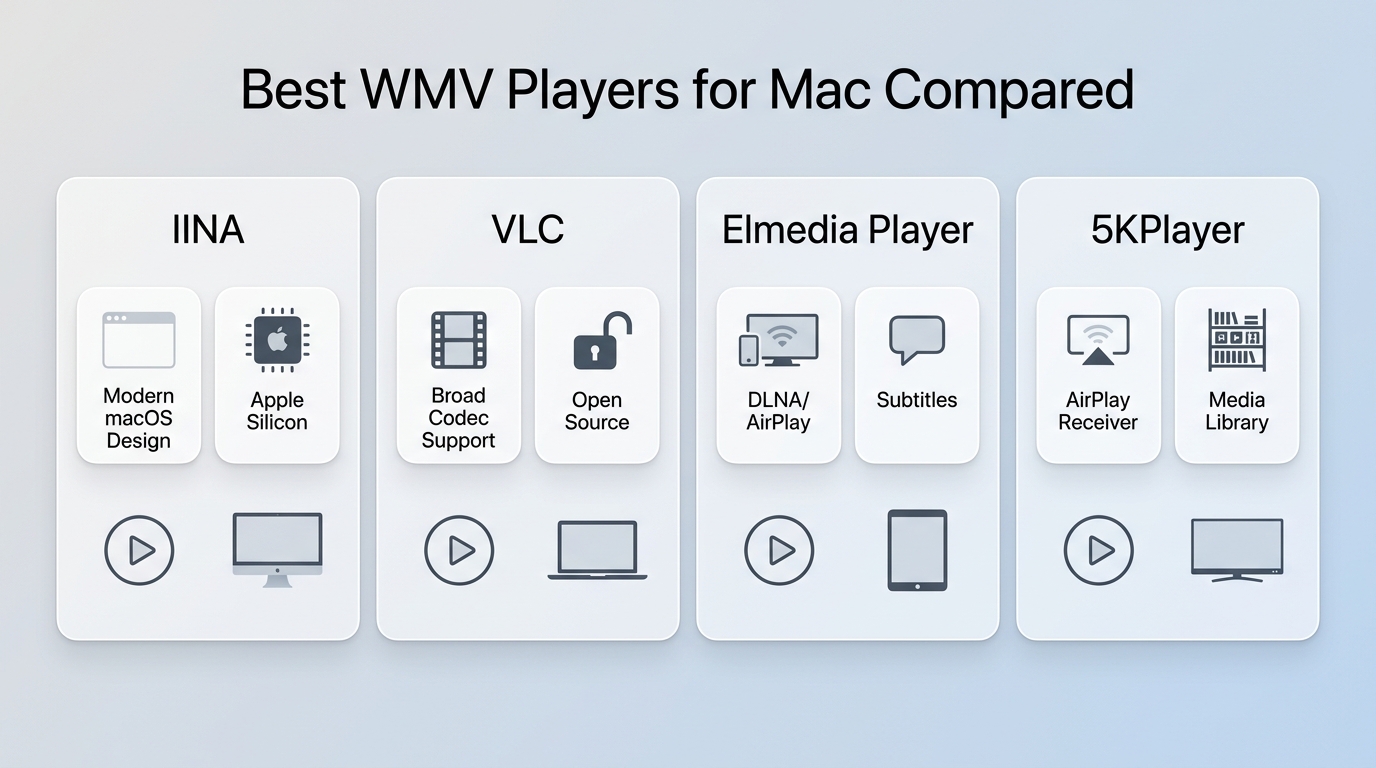
The four apps below all currently open WMV on Mac. They differ in interface, casting, and where the free tier ends. Prices and version details are as of August 2026.
| Player | Price | Official source | Apple Silicon | Subtitles & audio tracks | Casting | Interface | Best for | Not ideal for |
|---|---|---|---|---|---|---|---|---|
| IINA | Free, open source | iina.io | Native build | External SRT, multi-track audio | AirPlay via macOS | Mac-native, modern | Readers who want a Mac-native feel | Readers who want a GUI for every advanced setting |
| VLC | Free, open source | videolan.org | Native and universal builds | Broad subtitle and audio-track support | Chromecast, basic renderer output | Utilitarian, dated | Readers who want the widest format coverage | Readers who prefer a polished Mac UI |
| Elmedia Player | Free tier; PRO paid | mac.eltima.com | Supported | External subtitles, audio-track switching | DLNA, AirPlay, Chromecast (PRO for full casting) | Polished Mac interface | Readers who value casting and subtitle depth | Readers who need every feature without upgrading |
| 5KPlayer | Free with in-app promos | 5kplayer.com | Supported | Subtitle and audio track selection | AirPlay receiver, DLNA sender | Utility-style dashboard | Readers who want a free media hub with AirPlay receiving | Readers sensitive to in-app promotional prompts |
IINA
Best For: Apple Silicon users who prefer modern open-source software with native macOS design language.
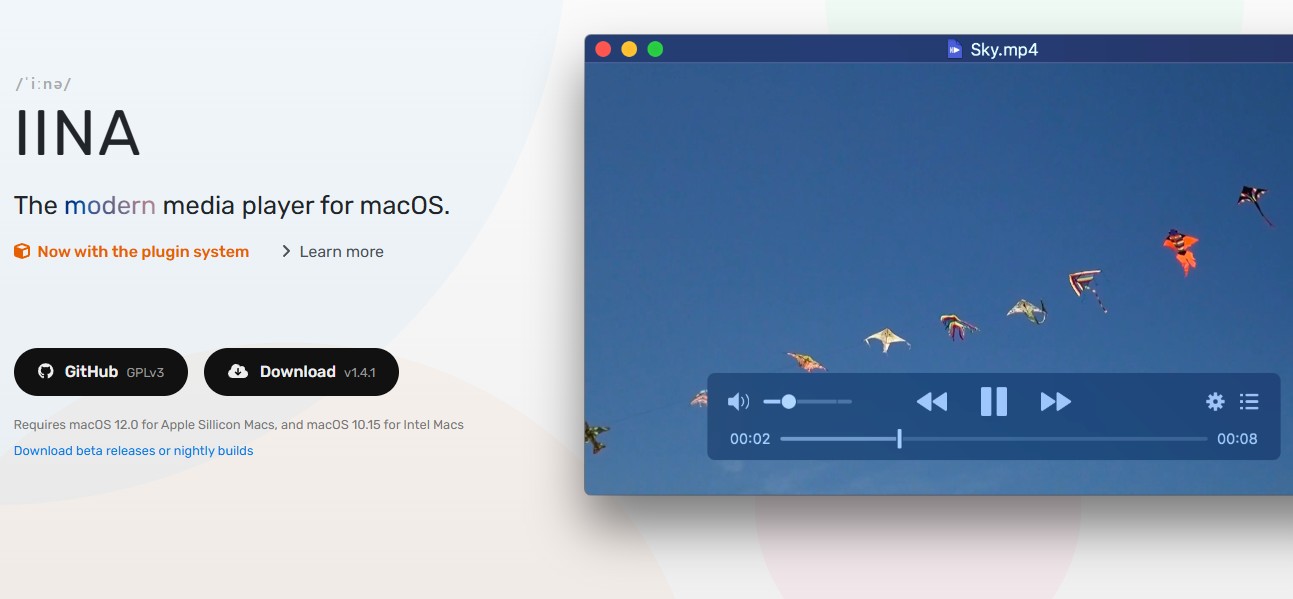
As a dedicated WMV player for Mac, IINA ships with a native Apple Silicon build and its own decoding stack via the mpv backend, so it opens WMV files without depending on Rosetta or on QuickTime's AVFoundation path.
I frequently recommend IINA to readers who want their video player to feel like it belongs on macOS rather than a port from another platform. Developer forums generally praise its stability, while a common complaint is that specialized audio routing takes some configuration effort before it behaves the way you want.
Pros:
- Written in Swift with a native Apple Silicon build and Mac-native interface conventions.
- Leverages the powerful mpv backend to decode unsupported media containers.
- Supports native macOS system features including Picture in Picture and custom trackpad gestures.
Cons:
- Advanced custom configurations require editing text files rather than using a graphical interface.
- Does not include disc-handling or advanced media-processing tools.
- Occasional subtitle synchronization bugs surface during complex multi track video file playback.
VLC Media Player
Best For: Tech veterans needing a ubiquitous bare metal tool to open any obscure file format.
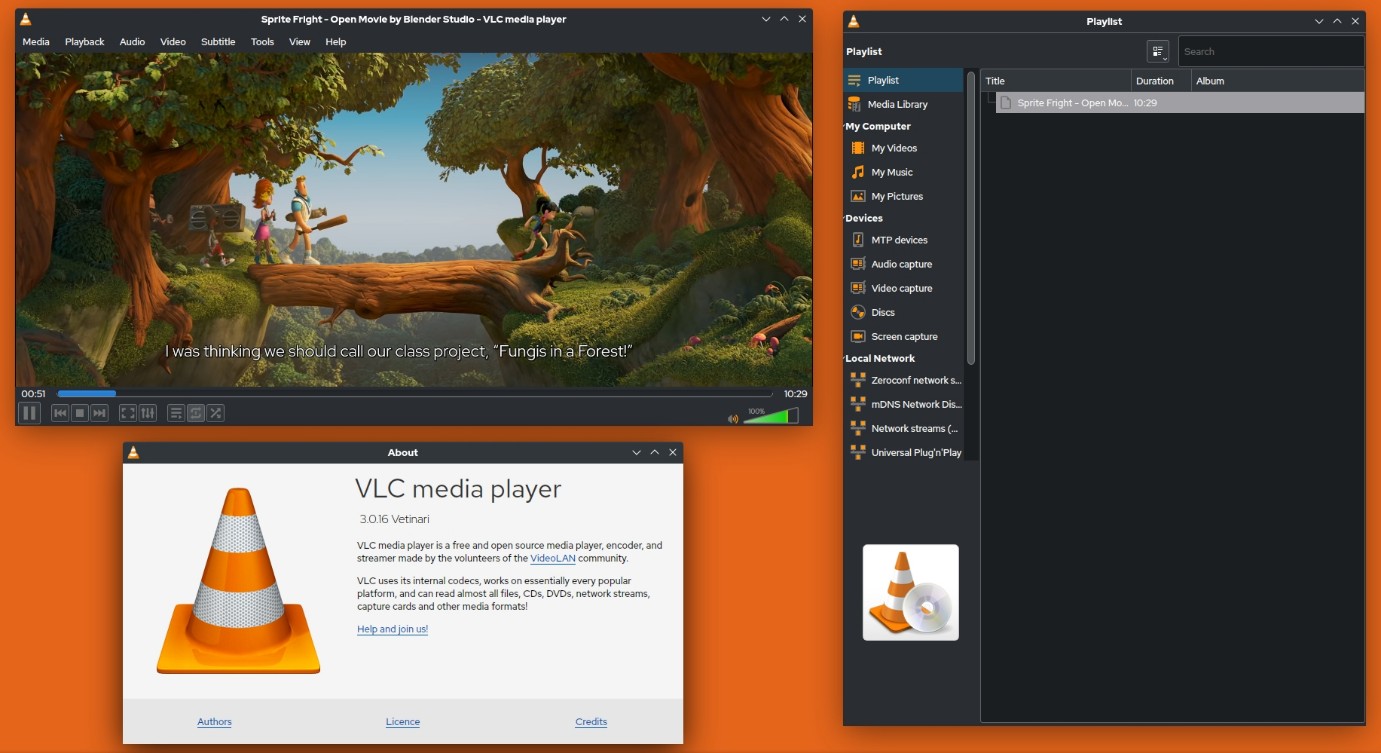
VLC is the long-standing default when a Mac user needs to open an unfamiliar container. It ships its own decoders for WMV, ASF, and most other legacy formats, so it doesn't rely on macOS's built-in media framework to open the file.
VLC has been in my toolbox for a long time, and I still reach for it when a file refuses to open anywhere else. Community discussions on newer MacBooks note that battery use during long playback sessions varies by codec and hardware acceleration settings, so results depend on the specific file and Mac.
Pros:
- Ships with a broad built-in codec library that handles most legacy container and codec combinations, including WMV.
- Operates as open-source software without embedded advertisements or premium paywalls.
- Features built-in recovery tools to launch partially downloaded or structurally damaged files.
Cons:
- The user interface looks severely outdated compared to modern macOS design standards.
- Not built specifically for Apple Silicon, and its hardware-acceleration behavior varies by file and settings.
- Navigating the advanced audio and video synchronization settings is unintuitive.
Elmedia Player
Best For: Users invested in wireless streaming who want to send local media directly to smart televisions.
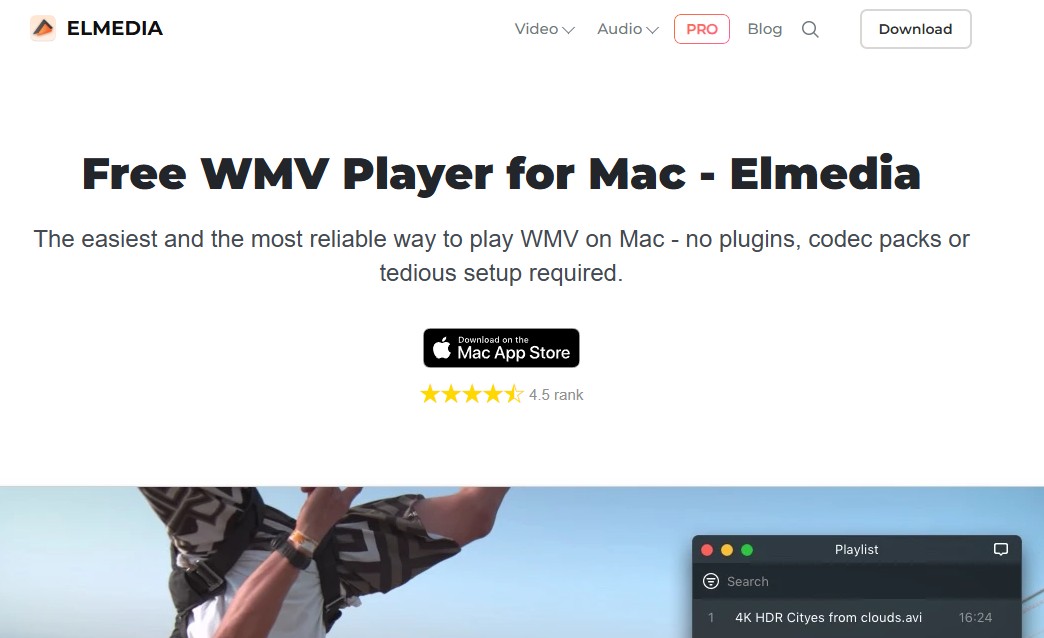
For readers who want to play WMV on Mac and then send the video to a TV or streaming stick, Elmedia Player combines WMV playback with DLNA, AirPlay, and Chromecast output in one app. Full casting features sit in the paid PRO tier.
I found its rendering pipeline surprisingly stable when casting heavy 4K videos directly to an Apple TV. Many users appreciate the smooth playback engine, though they frequently criticize the aggressive marketing tactics embedded within the free tier.
Pros:
- Includes built-in wireless casting to DLNA-enabled smart TVs and streaming sticks.
- Includes comprehensive audio equalization controls to enhance poorly mixed legacy video file soundtracks.
- Integrates a dedicated search tool to automatically find and download missing foreign language subtitles.
Cons:
- Some advanced streaming/casting and convenience features are reserved for the PRO tier.
- Adds casting and library features that can use more resources in the background than a bare-bones local player.
- The constant pop up notifications prompting users to purchase the premium version become annoying.
5KPlayer
Best For: People seeking a lightweight media hub that combines local playback with AirPlay receiving.

5KPlayer opens WMV files on Mac and doubles as an AirPlay receiver, so an iPhone or iPad can mirror to the Mac through it. The interface is more of a utility dashboard than a polished Mac app, and the free build shows in-app promotional prompts.
During my test, the application handled massive legacy video streams effortlessly without causing system thermal throttling. User feedback shows clear divisions, with many praising the smooth playback while others criticize how the software manages your personal media library organization.
Pros:
- Uses Apple VideoToolbox for hardware-assisted decoding on supported Macs.
- Functions as a dedicated AirPlay receiver to mirror screens from iOS mobile devices seamlessly.
- Handles local WMV playback with hardware-assisted decoding on supported Macs.
Cons:
- The main dashboard contains advertisements that disrupt the desktop viewing experience.
- Navigating the internal file management system feels clunky and less intuitive than standard Finder.
- Some background helper processes may remain active after the app is closed, depending on the installed version.
Open WMV Files in Three Steps
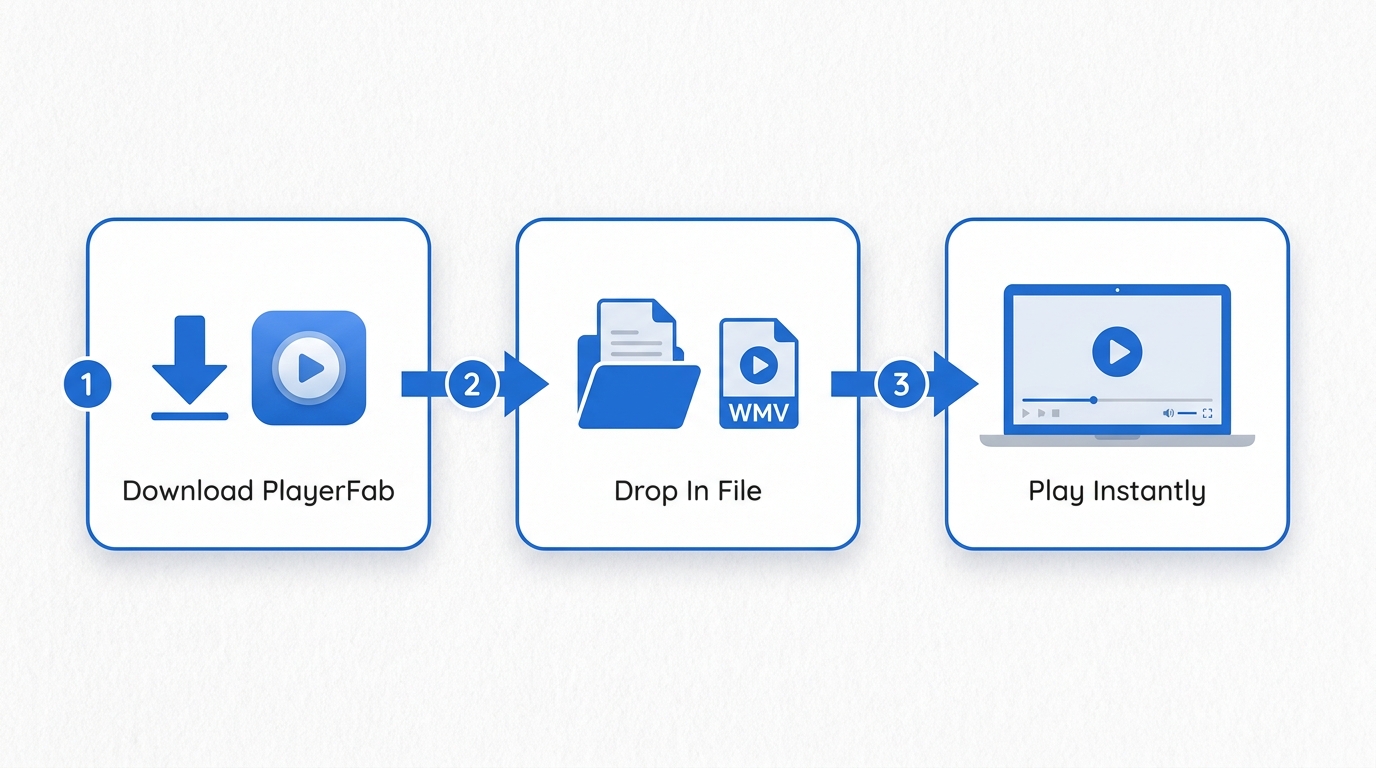
Once you've picked a player from the table, the direct-play workflow is short:
- Download from the official source. Use the vendor's own site (iina.io, videolan.org, mac.eltima.com, 5kplayer.com) or a verified App Store listing. Skip search-ad results and mirror sites — that's where bundled installers hide.
- Open the WMV file with Finder's Open With command. Right-click the WMV in Finder, choose Open With, and pick the app you just installed. This confirms the file plays before you commit to any system-wide change.
- Confirm playback, then decide on defaults. If the file plays cleanly, you can make that app the default for WMV; our walkthrough on how to change the default video player on Mac covers the exact steps.
How to Watch WMV on Mac Using Transcoding Methods
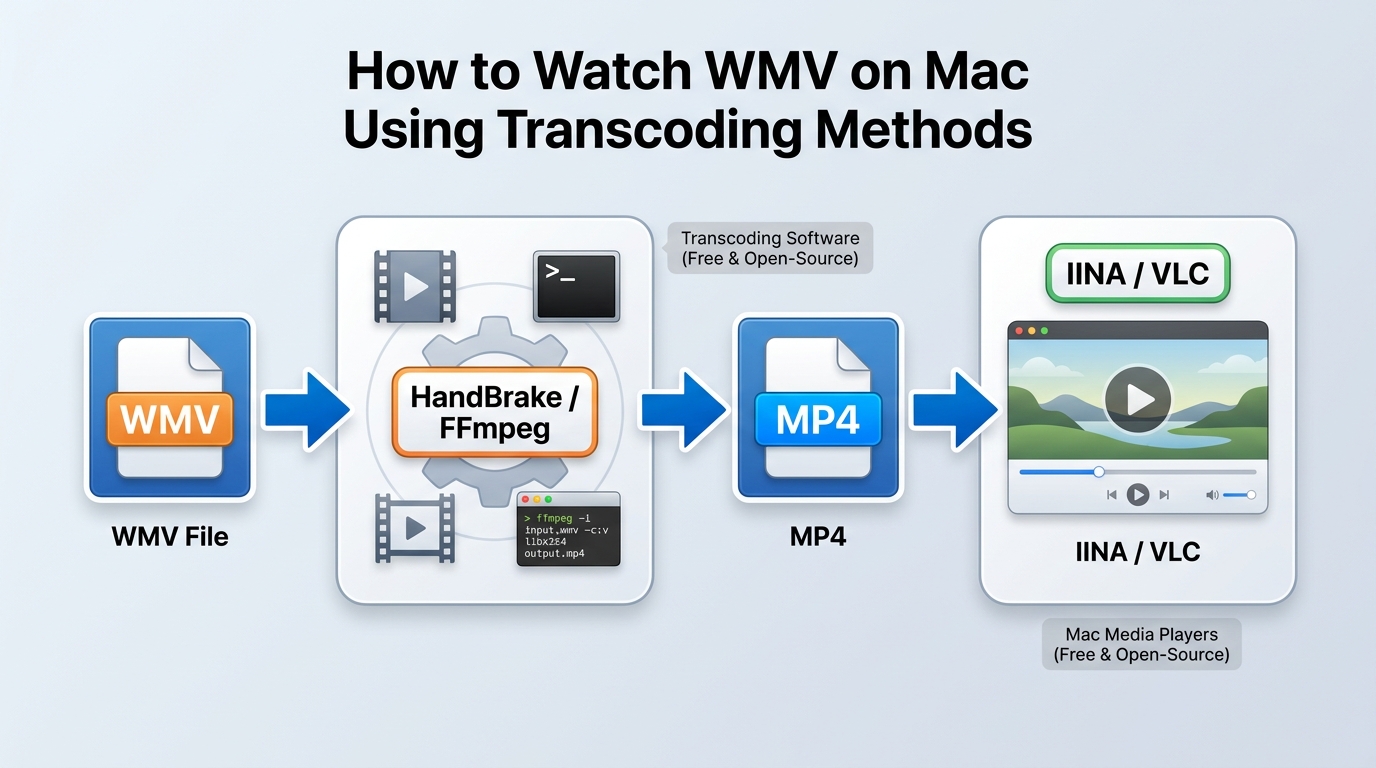
When the file has to live inside an Apple app or on an Apple mobile device, conversion is the practical route. This section covers the two conversion paths I actually use: HandBrake for a graphical workflow and FFmpeg for a scripted one.
Re-encoding can change quality and processing time depending on the codec, bitrate, resolution, and hardware settings you pick, so treat conversion as a compatibility workflow rather than an automatic quality upgrade. For a file you only intend to watch once, direct playback in a maintained WMV player is usually simpler.
Converting WMV to MP4 with HandBrake
HandBrake is one of the most widely used open-source transcoding tools on macOS. It offers a clean graphical interface while exposing deep encoder settings for power users. To minimize rendering time and keep your laptop temperatures low, we will leverage the native Apple hardware encoder rather than relying on pure software processing.
- Download and launch HandBrake from the official repository and drop your legacy media file directly into the main source window.
- Navigate to the Summary tab and ensure the output container format is explicitly set to MP4.
- Switch to the Video tab and select the H.264 VideoToolbox encoder from the dropdown menu to force your Mac GPU to handle the heavy lifting.
- Try a Constant Quality value in the RF 20-23 range as a starting point; a short test clip is the fastest way to confirm the tradeoff between file size and visible quality for your source.
- Click the Start button on the top toolbar to begin the rendering process.
Remuxing Video Streams via FFmpeg Command Line
For tech-savvy users who despise graphical interfaces, FFmpeg provides a direct terminal solution. This method strips away the graphical overhead and executes an optimized hardware accelerated conversion right from your command line. Keep in mind that since QuickTime cannot decode VC1 video tracks, we cannot simply copy the stream. We must instruct FFmpeg to re-encode the visual data.
- Open the native Terminal application on your Mac.
- Ensure you have FFmpeg installed via Homebrew.
- Type the following syntax to initiate a hardware accelerated conversion: ffmpeg -i input.wmv -c:v h264_videotoolbox -b:v 2000k -c:a AAC output.MP4
- Press the return key and monitor the terminal output as the software rapidly processes the media frame by frame.
This command calls the macOS VideoToolbox framework to re-encode the video as H.264 and converts the audio track to AAC. The example re-encodes rather than remuxing, so the output quality depends on the bitrate and encoder options you pick — raise -b:v or switch to a quality-based setting if you notice visible compression on your source.
FAQs
Is there a built-in Mac app that replaces QuickTime for WMV files?
No. macOS doesn't ship a built-in QuickTime replacement that opens WMV on its own. The practical fix is a maintained third-party player such as IINA or VLC for viewing, or a one-time conversion to MP4 or MOV when the file has to work inside QuickTime, Photos, iMovie, or Final Cut Pro.
Why does my WMV file play audio but show a black screen on Mac?
This is a classic symptom of a partial codec mismatch. Your Mac's default software might recognize the audio stream inside the container, but it lacks the instructions to decode the proprietary Microsoft video tracks. Instead of hunting down outdated codec packs online, the fastest fix is to drop the file into a dedicated WMV player for Mac that comes with these decoders pre-installed.
Is it safe to upload a private WMV file to an online player?
For personal recordings, work footage, or anything you would not share publicly, I recommend keeping playback local. Uploading a WMV file to a browser-based player means handing the file to a third party whose retention and access policies are often unclear. A maintained desktop player on your Mac handles the same file without that exposure, and local conversion to MP4 covers the cases where you also need the video to work in Apple apps.
Final Verdict

QuickTime is not built for WMV on macOS, but that does not point to a single winning app. If you only need to watch the file, a maintained WMV-capable player installed from its official source is usually the shortest path — IINA suits readers who want a Mac-native feel, VLC covers the widest set of odd files, Elmedia leans into casting and subtitles, and 5KPlayer works as a lightweight AirPlay-friendly hub. When the file has to open inside QuickTime, Photos, iMovie, Final Cut Pro, or on an iPhone or iPad, convert it to MP4 or MOV first and treat that as a compatibility step rather than a quality upgrade. Picking by fit beats hunting for one universal best player.

 Play Video Files: 4 Paths Across Formats and DevicesBy James Morgan - Sep 22, 2026
 12 Best HEVC Players for Windows, Mac, and 4K (2026)By Alice Harper - Aug 4, 2026
 8 Best TS File Players and Playback Tools for 2026By Alice Harper - Jul 28, 2026
 6 Best DVD Players for Laptops in 2026: Drives and AppsBy Alice Harper - Jul 22, 2026