Best 3D Video Players for PC: Top Picks for Blu-ray, SBS, and Anaglyph Playback

Summary: This guide covers five 3D video players for PC, from PlayerFab's native MVC support for 3D Blu-ray to VLC's free SBS playback. Includes format explainer (anaglyph, SBS, MVC), comparison table, and scenario-based recommendations.
Setting up 3D playback at home sounds simple until you actually try it. The software you pick matters, but so does the type of 3D your display supports, the format your video files use, and whether the player can handle encrypted Blu-ray discs without requiring you to rip them first.
I'll explain what each type of 3D requires, then walk through the best media players for Windows and Mac that cover the realistic range of use cases, from free anaglyph conversion on a standard monitor to full MVC decoding for a dedicated home theater setup.
One note upfront: truly glasses-free 3D, based on autostereoscopic display technology, exists but requires specialized and expensive hardware that most consumer setups don't include. If your goal is glasses-free 3D on a regular screen, no software player can deliver that. What software can do is covered below.

What You Need to Watch 3D at Home
Before picking a player, it helps to know which type of 3D you're working with. There are three main formats, and each has different hardware and software requirements.
Anaglyph 3D uses color filtering to create the 3D effect. You need red-cyan glasses (cheap and widely available), and it works on any monitor or TV. The trade-off is color accuracy: anaglyph output looks noticeably desaturated compared to the original. It's the easiest format to get running, but not the best-looking.
Side-by-Side (SBS) and Top-and-Bottom (T&B) are the formats used by most 3D streaming services and Blu-ray discs encoded for home use. To get the actual 3D effect, you need a 3D-capable television or monitor, plus active or passive 3D glasses that match your display. On a regular screen, SBS content plays as two squished images side by side.
MVC (Multi-View Coding) is the encoding standard used on 3D Blu-ray discs. It stores two full-resolution streams for each eye, delivering the highest 3D quality. Playing MVC content requires dedicated software with MVC decoding support. As of early 2025, no open-source media player including VLC or mpv handles MVC natively, according to discussions on the MakeMKV forum.
A quick word on Nvidia 3D Vision: it was a popular PC-based 3D solution, but Nvidia discontinued driver support in April 2019 and stopped selling the glasses and emitter hardware. It is no longer a viable option for new setups.
Best 3D Video Players: 5 Options Worth Considering
1. PlayerFab All-In-One
PlayerFab is built specifically for disc-based media playback, and 3D Blu-ray is one of its strongest areas. It handles MVC decoding natively, which means you can play a 3D Blu-ray disc or ISO file directly without ripping it first. That matters because most free players can't do this at all.
The player supports four output modes: anaglyph, side-by-side, top-and-bottom, and 3D-ready HDTV output. HDR10 and Hi-Res audio pass through without re-encoding. If you're running a dedicated home theater PC connected to a 3D projector or display, PlayerFab covers the technical requirements without needing additional filters or plugins.
What it does well:
- Native MVC decoding for 3D Blu-ray discs and ISO files
- Four configurable 3D output modes for different display types
- HDR10 and lossless audio passthrough (Dolby TrueHD, DTS-HD MA)
- Full Blu-ray menu support, including 3D disc navigation
Worth knowing:
- It's a paid application. A free trial is available with limited functionality
- Windows and Mac only; no Linux support
Free Download Windows 11/10/8.1/8/7
Free Download macOS 10.10 - 15.x
2. VLC Media Player
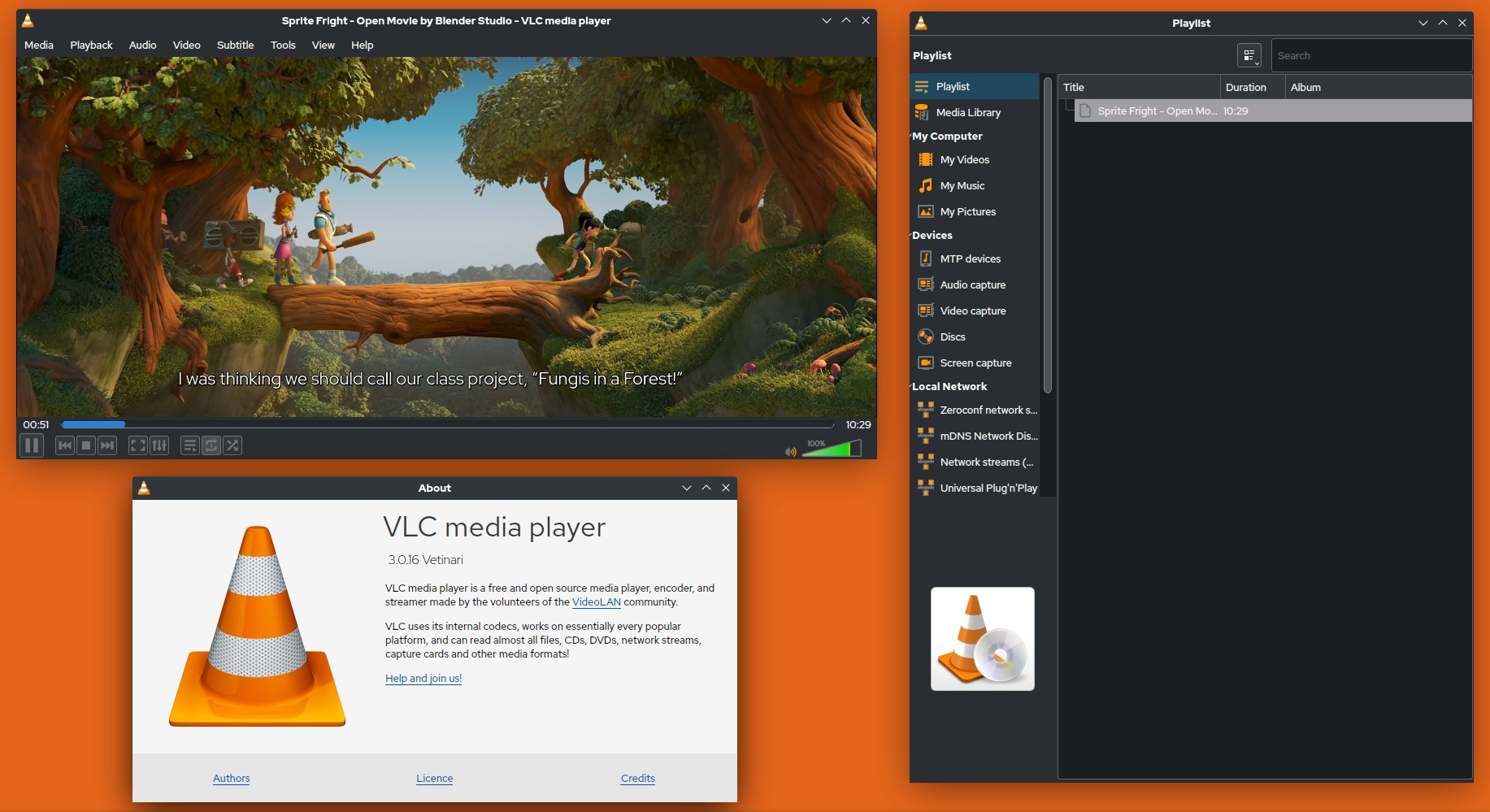
VLC is the most widely recommended free media player for general video, and it does handle some 3D formats. Specifically, it plays SBS and top-and-bottom videos without any setup, which covers most 3D content downloaded from streaming services or ripped from Blu-ray into an SBS container.
The important limitation: VLC does not support MVC decoding. If you put a 3D Blu-ray disc in your drive and open it in VLC, you won't get the 3D effect. Getting MVC to work in VLC requires manually installing LAV Filters with a separate MVC plugin, plus madVR for rendering, and even then results are inconsistent. For most users, this process is not worth the trouble.
What it does well:
- SBS and top-and-bottom 3D playback with no additional setup
- Free and open-source, with broad format support
- Works on Windows, Mac, Linux and iPad
💡Codec compatibility gets trickier on tablets. iPad video player apps that handle stereoscopic formats are rare, so most users end up streaming from a capable desktop player instead.
Worth knowing:
- No native MVC support for 3D Blu-ray discs
- Anaglyph output requires manual plugin configuration
- Not a reliable choice if your main use case is 3D disc playback
3. KMPlayer
KMPlayer is a free Windows player with a clean interface and solid support for SBS and top-and-bottom 3D formats. You switch between 3D modes through the right-click context menu, which takes some getting used to but works consistently once you find it.
It handles standard video formats well, including high-bitrate files that some lightweight players struggle with. For users who want a free 3D player for SBS content on a Windows machine and don't need Blu-ray support, KMPlayer is a practical choice.
What it does well:
- SBS, top-and-bottom, and anaglyph modes built in
- Handles high-bitrate 4K video files reliably
- Free with no significant feature restrictions
Worth knowing:
- Windows only
- Interface is dated compared to more modern players
- No Blu-ray disc or ISO support
4. 5KPlayer
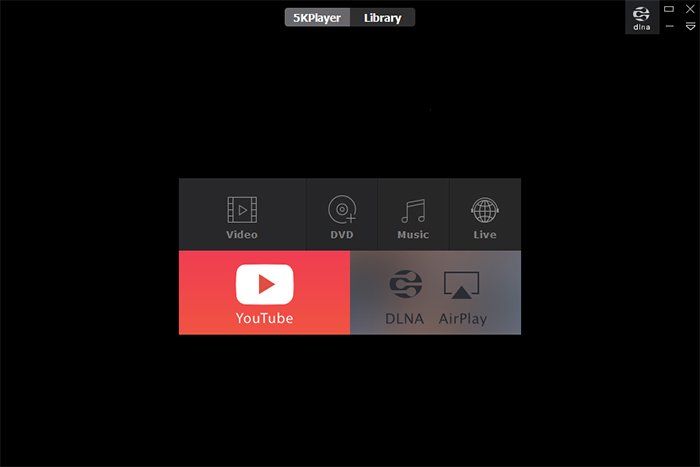
5KPlayer is a lightweight player aimed at users who want simple, low-friction 3D playback. It supports SBS and top-and-bottom formats and plays standard video files without issues. Setup takes a few minutes, and the interface is clean enough that most users won't need to consult documentation.
One practical note: earlier versions included mentions of streaming download features, but 5KPlayer does not download protected content from services like Netflix. Any reference to that capability in older reviews reflects a mischaracterization of what the software actually does.
What it does well:
- SBS and top-and-bottom 3D playback
- Simple interface with low learning curve
- Supports HD and 4K alongside 3D content
Worth knowing:
- No MVC or 3D Blu-ray disc support
- Feature set is basic compared to dedicated 3D Blu-ray players
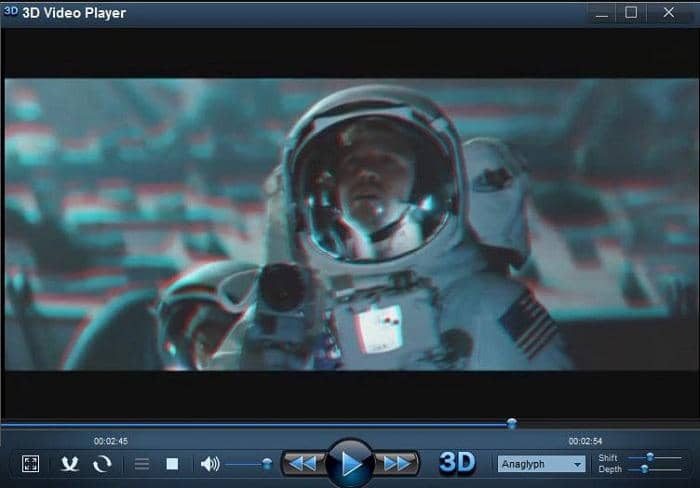
5. 3D Video Player
3D Video Player is a narrowly focused app that converts standard 2D video into anaglyph (red-cyan) 3D output. If you don't have a 3D display and want to try a basic 3D effect using cheap glasses on any screen, this covers that specific use case. The manual adjustment options let you tune the depth effect to reduce eye strain, which is a common complaint with automated anaglyph conversion.
What it does well:
- 2D to anaglyph 3D conversion with manual depth adjustment
- Works on any standard monitor without 3D hardware
- Supports common video file formats
Worth knowing:
- Output quality is limited by anaglyph's inherent color trade-offs
- Not suitable for SBS content or 3D Blu-ray playback
Quick Comparison: 3D Video Players at a Glance
| PlayerFab | VLC | KMPlayer | 5KPlayer | 3D Video Player | |
|---|---|---|---|---|---|
| Price | Paid (free trial) | Free | Free | Free | Free/Paid |
| Platform | Windows, Mac | Win, Mac, Linux | Windows | Windows, Mac | Windows |
| 3D Blu-ray / ISO | Yes (native MVC) | No | No | No | No |
| SBS / T&B Playback | Yes | Yes | Yes | Yes | No |
| Anaglyph Output | Yes | Via plugin | Yes | No | Yes (main feature) |
| HDR Support | Yes | Limited | Limited | No | No |
| Best For | Home theater, Blu-ray | SBS files, Linux | Free SBS on Windows | Beginners | Anaglyph conversion |
Which 3D Video Player Should You Choose?
The right choice depends on what you're trying to play and what hardware you have.
If you have a 3D Blu-ray disc or ISO collection: PlayerFab is the only 4K video player on this list with native MVC support. The others won't give you the 3D effect from disc content without significant manual workarounds.
If you want a free player for SBS video files: VLC, KMPlayer, and 5KPlayer all handle this without any extra setup. KMPlayer is the more feature-complete of the free options on Windows. VLC is the better pick if you need Linux support or cross-platform consistency.
If you're a beginner with a standard monitor and cheap red-cyan glasses: 3D Video Player does exactly one thing, and it does it without requiring any configuration. The anaglyph output won't look as good as a proper SBS setup, but it works on any screen.
If you're running Linux: PlayerFab and KMPlayer are not options. VLC is the practical choice for SBS playback on Linux.
One note for home theater enthusiasts: if your goal is the highest-quality 3D playback from Blu-ray with proper audio passthrough, the setup most often discussed in home theater communities pairs a dedicated player (PlayerFab or similar) with a 3D-capable projector and an AV receiver that handles lossless audio. Software alone doesn't determine quality; the full signal chain matters.
Frequently Asked Questions
Can I watch 3D movies without glasses?
For most home setups, the answer is no. Autostereoscopic (glasses-free) 3D displays exist, but they remain expensive and uncommon in consumer products. Some recent prototypes from companies like TCL use light field display technology, but nothing widely available matches the price and convenience of a standard TV with 3D glasses. The players listed above all output to standard 3D formats that require glasses or a compatible 3D display.
Can VLC play 3D Blu-ray discs?
Not without significant manual work. VLC doesn't include MVC decoding by default, so inserting a 3D Blu-ray disc won't produce a 3D image. Getting it to work requires installing LAV Filters with a separate MVC plugin and configuring madVR for rendering. No open-source player handles this natively. If 3D Blu-ray playback is your goal, a dedicated player with built-in MVC support is the more reliable path.
What is the difference between SBS and MVC 3D?
Side-by-side (SBS) stores both the left and right eye images in a single frame at half resolution each. It's the format used by most 3D streaming content and many downloadable 3D files. MVC (Multi-View Coding) is the standard used on physical 3D Blu-ray discs. It stores two full-resolution streams, one for each eye, resulting in significantly better image quality. MVC requires more processing power and compatible decoding software to play back correctly.
What hardware do I need to watch 3D videos at home?
It depends on the format. For anaglyph 3D, any monitor works with standard red-cyan glasses. For SBS or top-and-bottom content, you need a 3D-capable television or monitor that accepts frame-packed or side-by-side input, plus compatible active or passive glasses. For 3D Blu-ray playback via MVC, you also need a Blu-ray drive connected to your PC and software with MVC decoder support.
Conclusion
Most users fall into one of two categories: those with a 3D Blu-ray collection who need MVC support, and those who just want to watch SBS video files without paying for software.
For the first group, PlayerFab is currently the most accessible option with native MVC decoding and full disc menu support. For the second group, VLC, KMPlayer, and 5KPlayer all handle SBS playback for free, with VLC being the only choice that also covers Linux.
If you're new to 3D home video and not sure where to start, begin with what you have: test SBS playback in VLC or KMPlayer first. If your setup handles that well and you want to step up to 3D Blu-ray, evaluate a dedicated player at that point.

 Play Video Files: 4 Paths Across Formats and DevicesBy James Morgan - Sep 22, 2026
 12 Best HEVC Players for Windows, Mac, and 4K (2026)By Alice Harper - Aug 4, 2026
 Best WMV Player for Mac and How to Play WMV on Mac NativelyBy James Morgan - Aug 4, 2026
 8 Best TS File Players and Playback Tools for 2026By Alice Harper - Jul 28, 2026