How to Play ISO Files on Windows & Mac: VLC, Mounting, and More

Summary: ISO images preserve the complete file system of an optical disc, presenting a compatibility challenge for standard media software. This technical guide explores the two primary architectures for playing iso content: Virtual Mounting and Direct Playback. While native tools in Windows and macOS allow you to view iso files as raw data folders, my benchmarks confirm that they frequently break navigation logic. For users seeking DVD/Blu-ray menu support and HDR decoding, utilizing a dedicated player like PlayerFab is the superior solution.
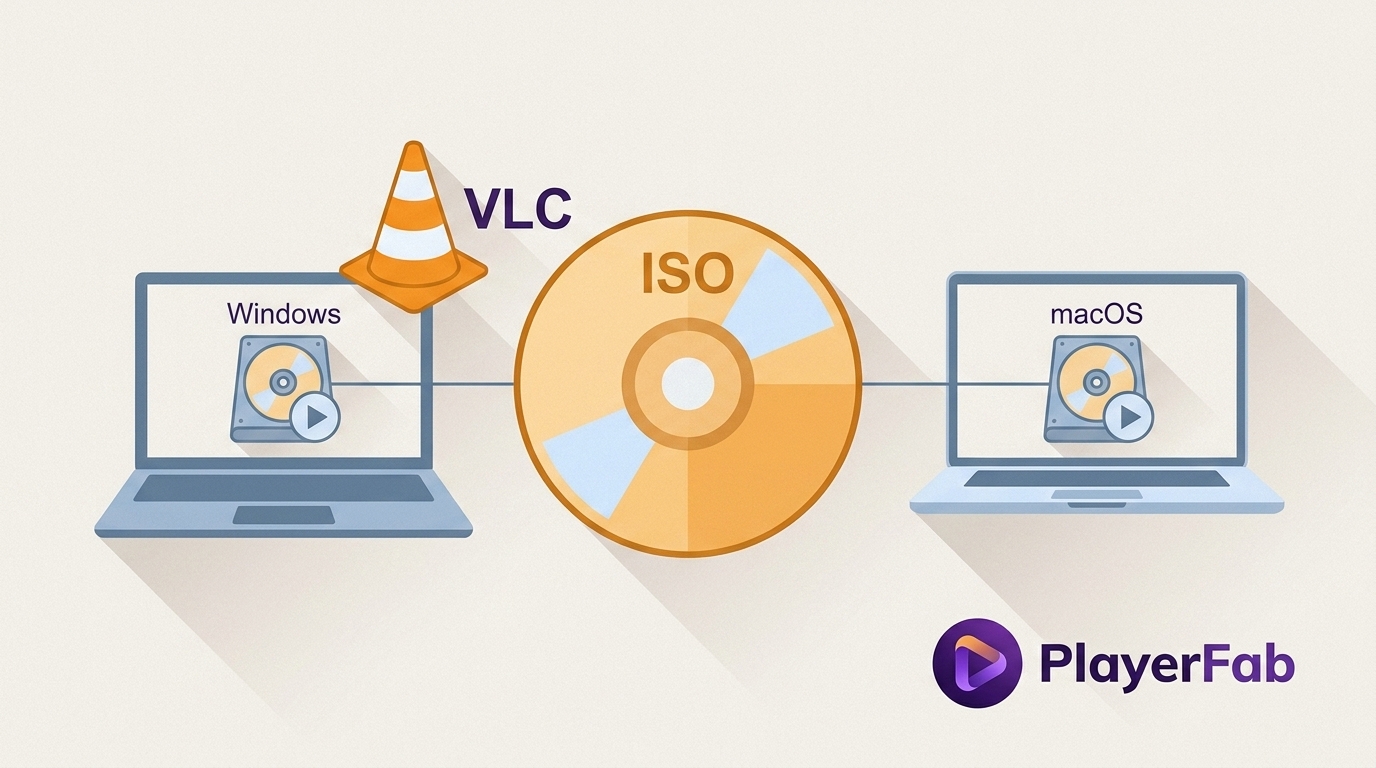
Table of Contents
Here’s the short answer: to play an ISO file, first identify what it contains. Movie-disc ISOs need a compatible player, while software, game, and operating-system ISOs are usually mounted or installed instead. Choosing the wrong workflow is the main reason an ISO can appear unplayable.
If you searched for how to play ISO files on Windows or Mac, the next step depends on your goal. A video ISO may contain a DVD or Blu-ray disc structure; a software, game, or operating-system ISO is meant to be mounted so you can read its files or run its installer. Direct playback is for watching supported movie-disc images, mounting is for accessing the image as a virtual drive, extraction is for individual files, burning is for compatible physical-media workflows, and conversion is for a more portable video file. This guide covers each route, including VLC, native mounting, and dedicated disc-image playback.
Choose the Right ISO Workflow
What Kind of ISO Do You Have?
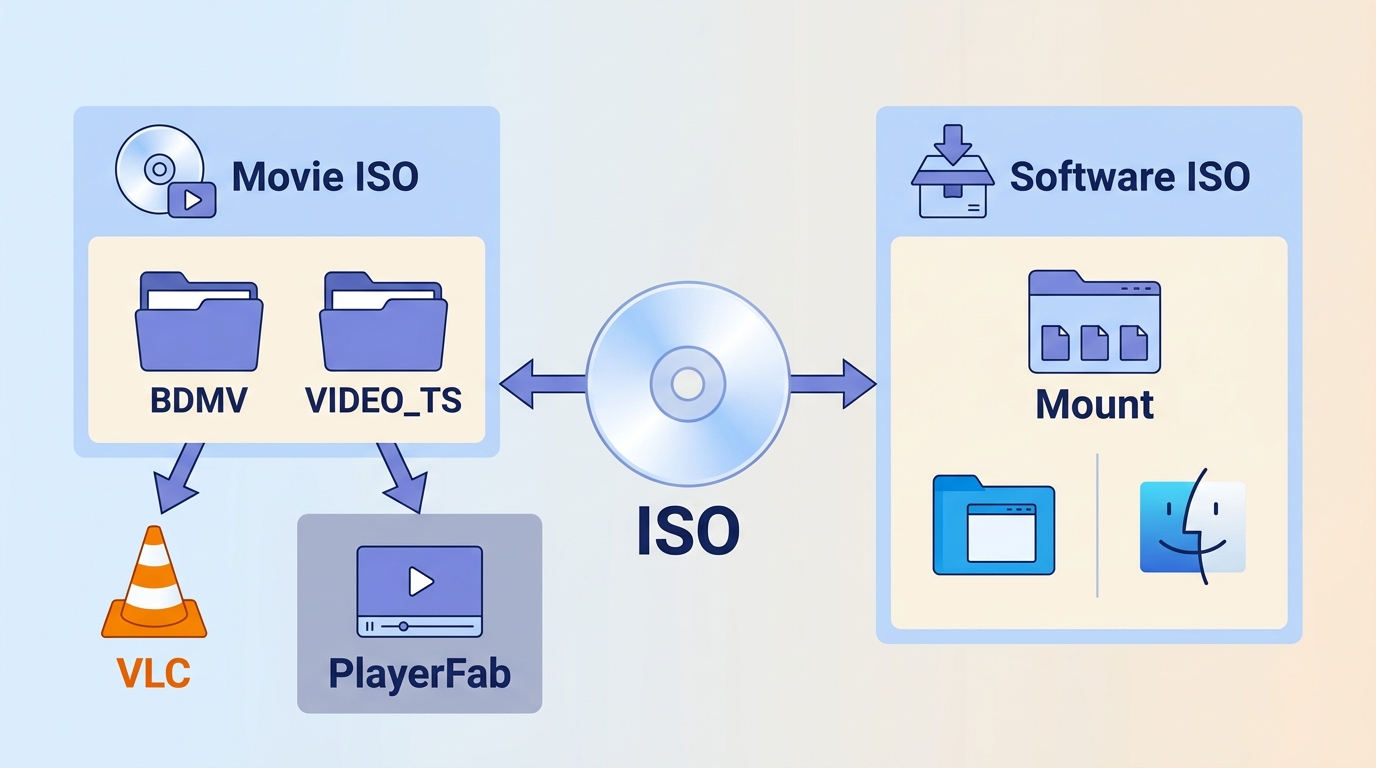
An ISO is a disc-image file, meaning it can preserve the complete file system of an optical disc or installation medium. A movie-disc ISO commonly contains VIDEO_TS folders for DVDs or BDMV folders for Blu-rays. A software, game, or operating-system ISO instead contains installers, setup files, or boot media. For a movie ISO, use direct playback when you want to watch it. For an installer ISO, mount it first and follow the software or operating-system installation process.
Why Standard Media Players Fail at Playing ISO Files
Most basic media software lacks the instruction set to navigate this hierarchy. The software expects a linear stream of data, but the ISO presents a folder tree. Without a dedicated parsing engine to locate the specific index files, such as .IFO or index.bdmv, the player cannot trigger the playback chain.
Direct Playback, Mounting, or Conversion?
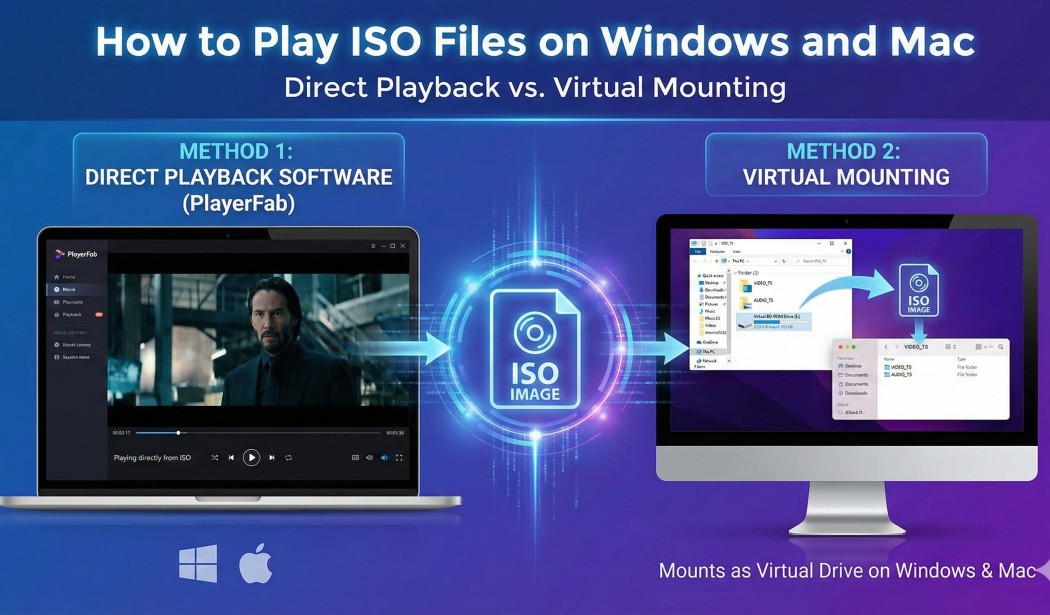
From a system resource perspective, these two methods operate on different layers:
Direct playback happens in a media player. A compatible ISO file player reads the disc structure and can provide movie playback, with menu support depending on the player and ISO type. It is the right choice when you want to watch a DVD, Blu-ray, or 4K UHD movie ISO without first browsing its folders.
For 4K UHD ISO playback with HDR or hardware-decoding requirements, choosing a capable 4K video player for PC and Mac can make a noticeable difference in compatibility and viewing quality.
Virtual mounting makes the operating system treat the ISO as a virtual optical drive and assigns it a drive letter or mounted volume. It is useful for reading files, running an installer, extracting content, or opening the image with another compatible player. Mounting an ISO is different from playing a physical Blu-ray on a PC: it exposes the image’s contents but does not itself guarantee movie playback or original disc menus.
Play Video ISOs with Dedicated Software
If you want to watch ISO files while retaining disc-oriented features such as menus, chapters, audio tracks, subtitles, and bonus content, use a player designed to recognize DVD or Blu-ray structures. A dedicated player and VLC serve different needs, so the useful comparison is about the disc experience you need rather than a generic feature count.
PlayerFab for Full Disc Menus
PlayerFab Ultra HD Player is a desktop player for Windows and Mac that supports compatible DVD, Blu-ray, and 4K UHD Blu-ray ISO images, including disc-menu playback. Its supported high-spec playback features include up to 4K UHD 3840×2160 at 60fps, HDR10, HDR10+, Dolby Vision, HLG, and hardware decoding through NVIDIA NVDEC, Intel Quick Sync Video, or AMD AMF/VCE, depending on the SKU, content, system, GPU, and display.
For legally owned or authorized disc images, it is a practical fit when menus, chapters, bonus features, audio tracks, subtitles, and local-library organization matter. It is not the right tool if you simply need to inspect an ISO’s files or run a software installer; native mounting is usually the simpler route for those tasks.
Step 1: Launching the Software and Selecting Mode
Upon opening PlayerFab, the interface presents a clean library view. For ISO playback, ensure the software is in PC Mode rather than TV Mode.
The Left Sidebar is your command center. It is split into two primary zones:
- Library: This section (Movies, TV Shows, Discs) displays your organized collection with metadata posters. The Discs tab specifically monitors your optical drive for physical media.
- My Computer: Located at the bottom, this mimics Windows Explorer, giving you direct access to local drives, your Desktop, and Downloads folder for manual browsing.

Step 2: Loading the ISO Image
You have three workflows to load your content, depending on whether you want a quick session or a permanent library:
- Quick Play: Simply drag and drop the ISO file from your desktop directly into the center of the PlayerFab client.
- Manual Browsing: Under the "My Computer" section in the sidebar, navigate to the hard drive where your ISO is stored and double-click the file to launch the parsing engine.
- Library Integration: For long-term collection management, go to Settings > Library. Here, you can add a "New Directory" pointing to your movie storage folder. PlayerFab will categorize your ISOs under the "Movies" tab in the Library.
Step 3: Navigating Menus for Playback
Once the ISO is loaded, the software simulates the behavior of a physical player. Instead of jumping blindly into the video stream, it renders the original DVD or Blu-ray menu. Use your mouse to navigate chapters, select audio tracks, or view special features.
VLC Playback and Common Fixes
VLC Media Player is a reasonable free first try for many DVD ISOs and straightforward video playback. Open the image through Media > Open Disc, choose the disc type, browse to the ISO, and start playback. VLC can be less dependable when original Blu-ray or 4K UHD menus are essential, because complex disc structures and BD-J, the Java-based Blu-ray menu system, are not consistently handled.
If VLC cannot play the ISO: First confirm that the file is a movie-disc image rather than a software or operating-system installer. If direct opening fails, mount the ISO and try Media > Open Disc again. If the menu does not appear, use title and chapter controls to see whether the main feature opens, or follow the more detailed VLC Blu-ray playback guidance. A Java or BD-J issue can prevent menu detection, but installing Java does not guarantee menu support. For region or protected-disc errors, use an authorized copy and a player compatible with your disc and region rather than attempting to alter protections. If video starts without sound, select the intended track under VLC’s Audio menu.

Step 1: VLC Installation
Download the latest stable version of VLC Media Player from the official videolan.org site. The standard installation includes all necessary container parsers. No additional codec packs are generally required for basic ISO handling.
Step 2: Opening the ISO Container
Do not use the standard "Open File" option. Instead, navigate to the "Media" menu in the top bar and select "Open Disc." In the dialog box that appears, select the "Disc" tab. Choose the appropriate media type (DVD or Blu-ray). Click "Browse" next to the Disc device field and locate your ISO file, then click "Play."
Step 3: Managing Playback
VLC will attempt to read the directory structure. For DVD ISOs, it usually loads the menu correctly. For Blu-ray ISOs, VLC often bypasses the menu entirely and jumps straight to the longest video title found in the BDMV/STREAM folder. You may need to right-click during playback and use the "Playback" > "Title" or "Chapter" submenus to manually navigate the content if the automatic selection is incorrect.
Mount ISO Files on Windows and Mac
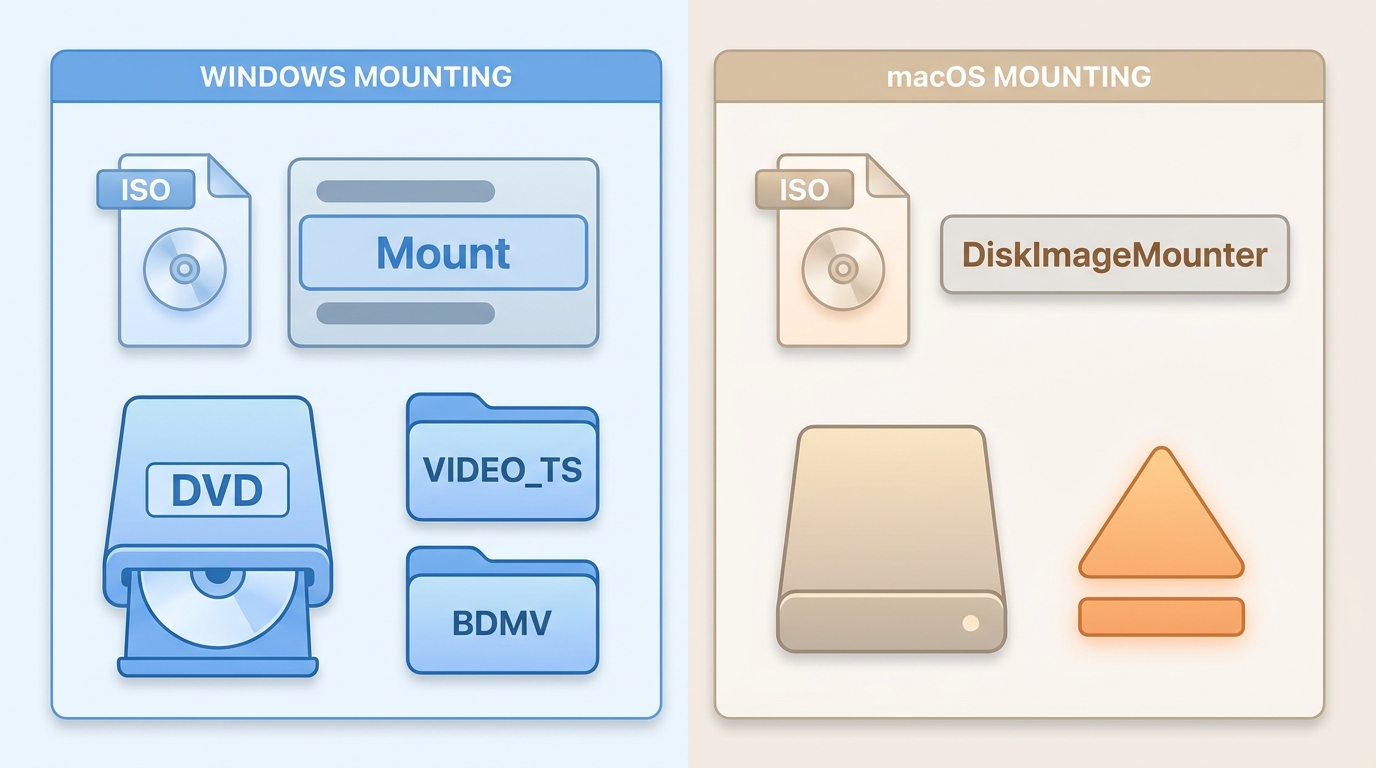
Mounting is the appropriate workflow when you need to access an ISO’s folders, run an installer, or open a disc image with another compatible application. It exposes the file system but does not automatically start a movie or preserve menu behavior on its own.
It is worth noting that this method does not auto-start the movie; it simply exposes the file hierarchy.
How to Mount ISO Files natively on Windows 10 and 11
Microsoft integrated native virtualization into the kernel starting with Windows 8. For modern systems, playing iso files via mounting no longer requires external software installation.
Step 1: Execute the Mount Command
Navigate to the directory containing your ISO image using File Explorer. A simple double-click on the file is often the default trigger for the mount command. If your file associations have been changed by other software (like archivers), right-click the ISO and select "Mount" from the context menu.
Step 2: Accessing the Virtual Volume
Upon execution, Windows creates a virtual optical drive. You will see a new drive letter appear under "This PC." Clicking this drive opens the container, revealing the VIDEO_TS or BDMV folders. At this point, the OS interacts with the data exactly as if it were reading from a plastic disc.
Step 3: Unmounting the Image
Virtual drives consume a small amount of system resources and occupy a drive letter. Once you are finished inspecting the files, right-click the virtual drive icon in "This PC" and select "Eject." This disengages the image and removes the virtual drive letter from your system.
Opening ISO Images on macOS using DiskImageMounter
macOS can mount many ISO images through its built-in DiskImageMounter utility. A successful mount gives you access to the image’s file system, but it does not by itself play a movie ISO or provide original disc-menu support.
Step 1: The Mounting Workflow
Locate your ISO file in Finder. Double-clicking the file immediately invokes DiskImageMounter. Unlike Windows, which acts silently, macOS performs a quick checksum verification before mounting. You can skip this verification by clicking "Skip," though I generally advise letting it run to ensure data integrity.
Step 2: Navigating the Mounted Volume
Once mounted, the ISO appears as a removable drive icon on your desktop and in the left sidebar of any Finder window. You can browse the directory structure or open it with a compatible player. For a movie-disc image that needs dedicated playback after mounting, a Mac Blu-ray player may be needed to handle the disc structure.
If an ISO will not open on a Mac, first determine whether the problem is mounting or video playback. A mount failure can point to an incomplete or damaged image, a file-association issue, or insufficient access permissions. If the image mounts but the movie will not play, the limitation is usually the player’s support for that disc structure rather than DiskImageMounter itself.
Step 3: Correct Ejection
To unmount the volume, drag the disc icon from the desktop to the Trash, or simply click the Eject icon next to the drive name in the Finder sidebar.
Extract, Burn, or Convert an ISO
When Extraction Makes Sense
Extract an ISO when you need access to individual files rather than a disc-style viewing experience. This is useful for reading documents, copying installer files, or examining VIDEO_TS and BDMV folders. Extraction changes the workflow from one disc image to a regular folder structure, so it does not preserve the convenience of opening one intact ISO file.
When to Burn a Disc
Burning makes sense when you need compatible physical media for a disc-based workflow. Use a blank disc that matches the image type and capacity, and keep in mind that burning is not necessary for playback on a computer that can directly play or mount the ISO. It preserves the disc-image structure but adds media, drive, and compatibility requirements.
When MP4 Conversion Is Better
Convert an ISO to MP4 when portability and simple playback matter more than retaining the original disc experience. An MP4 can be easier to play across devices, but conversion may remove menus, bonus features, chapters, multiple audio tracks, subtitles, and the original disc structure. My rule of thumb is straightforward: convert for convenience, but keep the ISO when the complete disc experience matters.
Compare ISO Playback Methods
ISO playback methods differ most in feature retention and setup, not in one universal performance result. Storage speed, ISO structure, codec, bitrate, hardware decoding, player version, and system configuration all affect loading and resource use. The comparison below focuses on what each method is designed to preserve or change.
Menu and Format Compatibility
DVD, Blu-ray, and 4K UHD ISO images can differ substantially in how much disc logic they contain. Original menus, chapters, bonus features, audio tracks, subtitles, and HDR behavior depend on both the ISO type and the player used. Mounting exposes the image as a virtual disc, while menu playback depends on the media player that opens that mounted disc.
For readers who want the complete disc experience, I would prioritize verified menu support over the fact that an application can merely open a video stream. For readers who only need the main feature or access to files, mounting or a simpler player may be enough.
Method |
Best use |
Suitable ISO type |
Original disc menus |
Setup effort |
Keeps the ISO intact |
Portable output |
Key limitation |
|---|---|---|---|---|---|---|---|
PlayerFab direct playback |
Watching supported disc images with full disc features |
DVD, Blu-ray, and 4K UHD Blu-ray ISO |
Supported for compatible images |
Low |
Yes |
No |
Depends on the supported SKU, hardware, content, and display |
VLC direct playback |
Free first try for straightforward movie playback |
Many DVD ISOs and basic video playback |
Can be limited, especially for Blu-ray menus |
Low to moderate |
Yes |
No |
Complex Blu-ray and 4K UHD disc structures may not play as expected |
Native mounting |
Reading files or running an installer |
Movie, software, game, and operating-system ISO |
Depends on the player opened afterward |
Low |
Yes |
No |
Mounting alone does not play a movie or install all software automatically |
ISO extraction |
Accessing individual files and folders |
Any readable ISO |
No |
Moderate |
No, files are unpacked |
Files can be copied separately |
Does not preserve a one-file disc-image workflow |
Disc burning |
Using compatible physical-media workflows |
Appropriate disc images for the target media |
Potentially, with compatible hardware and player support |
Moderate |
Yes |
Physical disc only |
Requires compatible blank media and an optical drive |
MP4 conversion |
Portable, simple playback |
Video ISO |
No |
Moderate |
Keep the original separately |
Yes |
May lose menus, bonus features, chapters, and alternate tracks |
Setup and Resource Tradeoffs
CPU use and playback stability vary with the codec, bitrate, storage speed, hardware decoding, player configuration, and the computer itself. A high-bitrate HEVC ISO stored on a slower drive can behave differently from a DVD ISO on fast local storage, regardless of whether it is mounted or opened directly.
- Direct playback: This reduces the number of steps when your goal is simply to watch a supported movie-disc ISO with its disc features.
- Mounting: This is often the simplest option for installers and file access, but you may still need another application to play a movie title from the mounted image.
- Conversion: This adds processing work up front, then can simplify playback later by producing a conventional video file.
In my view, setup simplicity matters more than theoretical overhead for most people. Choose the method that preserves the features you actually need instead of optimizing for a universal performance claim.
Common ISO Playback Questions
How do I know whether an ISO should be played or installed?
Check what is inside the image. VIDEO_TS or BDMV folders usually indicate a DVD or Blu-ray movie ISO that can be opened in a compatible player. Setup files, application folders, or boot files generally indicate software, game, or operating-system media that should be mounted and installed or written to suitable media.
Can VLC play an ISO file with the original disc menu?
VLC can play many DVD ISO files, but original Blu-ray menus may not appear consistently. If the movie starts without a menu, try VLC’s title and chapter controls. If menu retention is essential, use a player that explicitly supports the disc type and menu system you need.
Why will my ISO file not open on a Mac?
First separate mounting from playback. If macOS cannot mount the file, the ISO may be incomplete, damaged, associated with the wrong app, or blocked by permissions. If it mounts but does not play, the issue is more likely that your media player does not support that movie-disc structure.
Should I convert an ISO to MP4?
Convert when you want a portable video file for simple playback and can accept losing the original disc structure. Keep the ISO when you value menus, bonus content, chapters, multiple audio tracks, subtitles, or the ability to revisit the full disc experience later.
Choose the Best Method for Your ISO
The best method depends on what your ISO contains and what you need from it. Use direct playback for supported movie ISOs when disc menus and features matter, try VLC for straightforward free playback, and use native mounting for installers or file access. Convert to MP4 when portability matters more than the original disc structure. If you want to retain compatible DVD, Blu-ray, or 4K UHD disc menus and related features, choose a dedicated desktop player such as PlayerFab Ultra HD Player; otherwise, start by identifying the ISO type and use the simplest workflow that fits it.

 6 Best MPEG Players for Windows and Mac (2026)By Alice Harper - Aug 26, 2026
 How to Play Blu-ray Discs on Windows 10 (Free & Pro Solutions)By Alice Harper - Aug 7, 2026
 10 Best 4K Video Players for PC and Mac, Tested in 2026By Alice Harper - Aug 4, 2026
 The 5 Best Free MOV Players in 2026 (Windows, Mac and Android), plus How to FixBy Alice Harper - Aug 4, 2026