How to Play 3GP Files on Windows, Mac, and Mobile (2026)

Summary: For most situations, VLC is the fastest fix for a .3gp file that won't open. It is free, requires no codec setup, and works on both Windows and Mac. This guide also covers PlayerFab for users who want a single player for multiple formats, and MP4 conversion for files that need to play on a phone or be stored long-term. A short section explains why 3GP files fail to open by default and what the codec gap means in practice.
Table of Contents
A .3gp file from an old phone backup or recovered from an archived folder will often fail to open on a modern Windows or Mac computer. The file is not corrupted. The problem is that neither Windows 11 nor macOS includes the codecs needed to handle this format by default. I tested four approaches to map out which option fits which situation, from the quickest free fix to a full-featured desktop player.
This guide covers how to play 3GP files on Windows and Mac using both free and paid options, how to open 3GP files on iPhone and Android, and when converting to MP4 makes more sense than installing a new player.
Why 3GP Files Won't Open by Default
3GP was developed in the early 2000s by the 3GPP consortium to compress video for transmission over 3G mobile networks. The format stores video using H.263 or MPEG-4 Part 2 encoding with AMR audio, optimized for small file sizes rather than quality. A 60-second clip recorded on a 2005 Nokia handset might be under 2 MB at 176x144 resolution.
The reason modern computers won't open these files comes down to codec coverage. Windows does not include 3GPP codec support in the base OS installation, and Windows Media Player has never handled the format natively. macOS QuickTime offers partial support for .3gp files but fails on variants that use H.263 encoding rather than H.264.
The two most reliable fixes are installing VLC, which is free and requires no additional configuration, or using a dedicated player like PlayerFab that bundles its own decoder library. For files that need to play on a phone or be stored long-term, converting to MP4 is the more permanent solution.
How to Play 3GP Files with VLC
VLC is an open source media player maintained by the VideoLAN project. It ships with its own decoder library, which means it handles 3GP files without requiring separate codec packs or system-level changes. This works on both Windows and Mac and covers all common 3GP variants, including those using H.263 or MPEG-4 Part 2 encoding.
- Download VLC from the official VideoLAN website (videolan.org) and complete the standard installation.
- Open VLC. Go to Media in the top menu bar and select Open File, then navigate to the .3gp file and click Open. Alternatively, drag the .3gp file directly into the VLC window.
- Playback begins immediately. Because 3GP source files are low-resolution, typically 176x144 or 320x240 pixels, playing in a smaller window produces a sharper result than full-screen mode where the upscaling becomes visible.
On Mac: If VLC does not appear in Spotlight search after installation, open it once from the Applications folder. From that point, right-click any .3gp file and choose Open With, then select VLC. To make this permanent, open the file's Get Info panel (Cmd+I), expand the Open With section, select VLC, and click Change All.
How to Play 3GP Files with PlayerFab Ultra HD Player
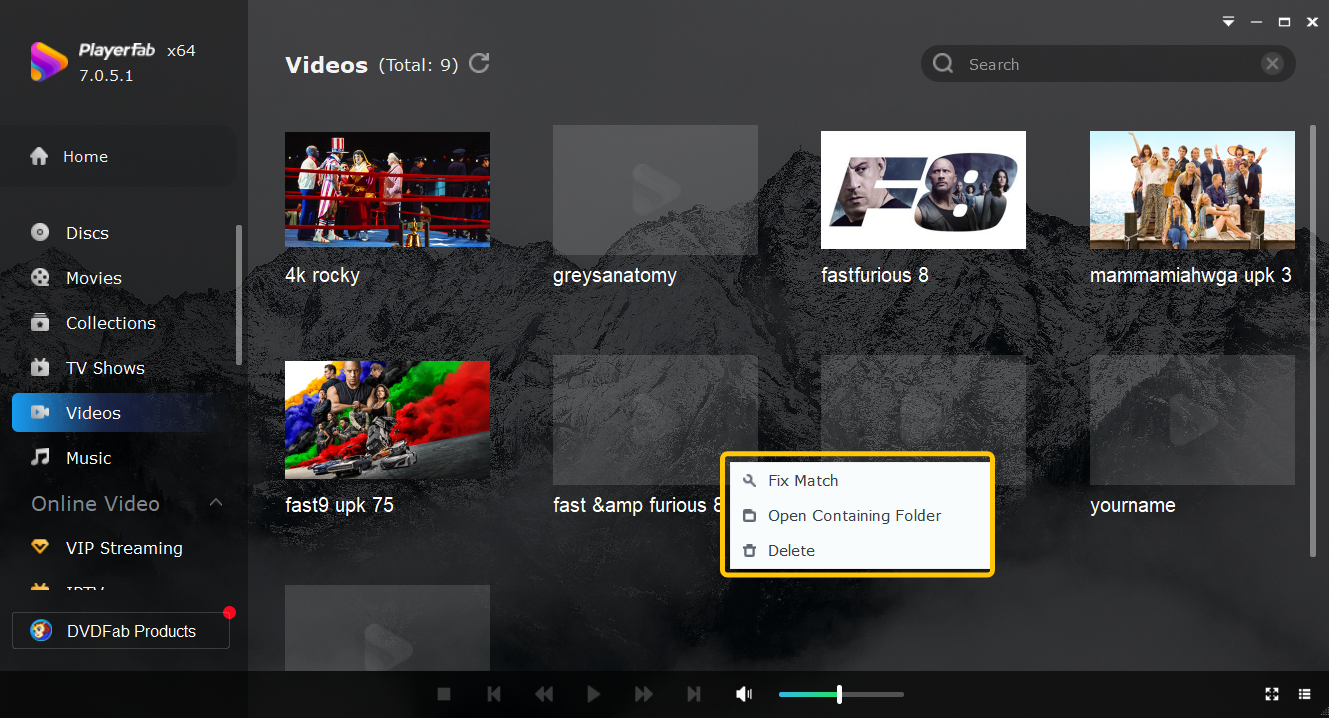
PlayerFab Ultra HD Player is a media player from DVDFab that supports a wide format library covering 3GP, standard video files, DVD, Blu-ray, and 4K UHD Blu-ray. If you regularly handle video across multiple formats and want a single player for all of them, it serves as a paid alternative to VLC. For 3GP playback specifically, the quality difference between the two is negligible given the low resolution of the source format.
Strengths
- Plays 3GP alongside a wide range of formats including MKV, AVI, MP4, and Blu-ray without additional codec setup
- Supports HDR10 and Hi-Res Audio for compatible content
- Two playback modes: PC mode for desktop use, TV mode for display output on a larger screen
- Handles 4K UHD Blu-ray disc navigation menus, which VLC does not support
- Available for both Windows and Mac
Worth noting
- 4K UHD Blu-ray playback and some advanced features require a paid license
- For 3GP files specifically, the visual output is limited by the source resolution, not the player
Steps to play a 3GP file with PlayerFab
- Download and install PlayerFab from the official DVDFab website. Launch the application and select PC Mode when prompted.
- Click the + button in the main interface or drag the .3gp file directly into the player window.
- Playback starts automatically. Resize the player window to a smaller size for a cleaner picture, as 3GP files do not benefit from full-screen scaling.
How to Convert 3GP Files for iPhone and Android
Converting a 3GP file to MP4 is the most reliable way to get it playing on a phone. MP4 with H.264 encoding plays natively on every current iPhone and Android device without additional apps. It also preserves the file in a format that remains compatible as operating systems update over time.
UniFab Video Converter handles this conversion and includes device presets for specific phone models, which removes the guesswork around resolution and codec settings.
- Open UniFab Video Converter and drag your .3gp file into the main interface, or click Add Video to browse to the file location.
- Click the format selector to open the output options. For a general MP4 output, select the MP4 profile. For a specific phone model, switch to the Device tab, choose either Apple or Android, and select the matching device from the list.
- To adjust resolution, frame rate, or audio settings, open the Advanced Settings panel. For most 3GP files, the default settings produce a compatible output without additional changes.
- Select an output folder at the bottom, then click Start. Conversion completes in under a minute for typical 3GP file sizes.
One point on quality expectations: 3GP files are already compressed at low bitrates, typically recorded below 400 kbps at resolutions under 320x240. Converting to MP4 does not restore lost detail. The output will match the visual quality of the original. The value of conversion is compatibility and long-term storage, not quality improvement.
Frequently Asked Questions
Can VLC open 3GP files?
Does Windows 11 support 3GP files natively?
How do I open a 3GP file on a Mac without VLC?
Which Method Should You Use
For most situations, VLC covers what you need. It is free, installs in under a minute, and handles every 3GP variant without configuration. If the only goal is to view a file once or occasionally, there is no practical reason to use anything else.
PlayerFab makes sense if you already use it for Blu-ray or 4K content and want 3GP playback handled by the same application. The format support is built in, and the setup cost is zero if you already have the player installed.
If the file needs to play on a phone, be shared with others, or be kept as a long-term archive, converting to MP4 with UniFab Video Converter is the more durable choice. The resulting file plays natively on any current device and does not depend on a specific app being installed.

 6 Best MPEG Players for Windows and Mac (2026)By Alice Harper - Aug 26, 2026
 How to Play Blu-ray Discs on Windows 10 (Free & Pro Solutions)By Alice Harper - Aug 7, 2026
 10 Best 4K Video Players for PC and Mac, Tested in 2026By Alice Harper - Aug 4, 2026
 The 5 Best Free MOV Players in 2026 (Windows, Mac and Android), plus How to FixBy Alice Harper - Aug 4, 2026