MKV vs MP4: Quality, File Size, and Best Uses

Summary: MKV and MP4 are both container formats: neither determines video quality, which depends on the codec and bitrate used to encode the stream. The practical difference is track support and device compatibility. This guide covers where each format holds an advantage. For most users, MP4 is the right choice for distribution and mobile playback; MKV fits better for home media servers and disc archiving where multiple audio and subtitle tracks matter.
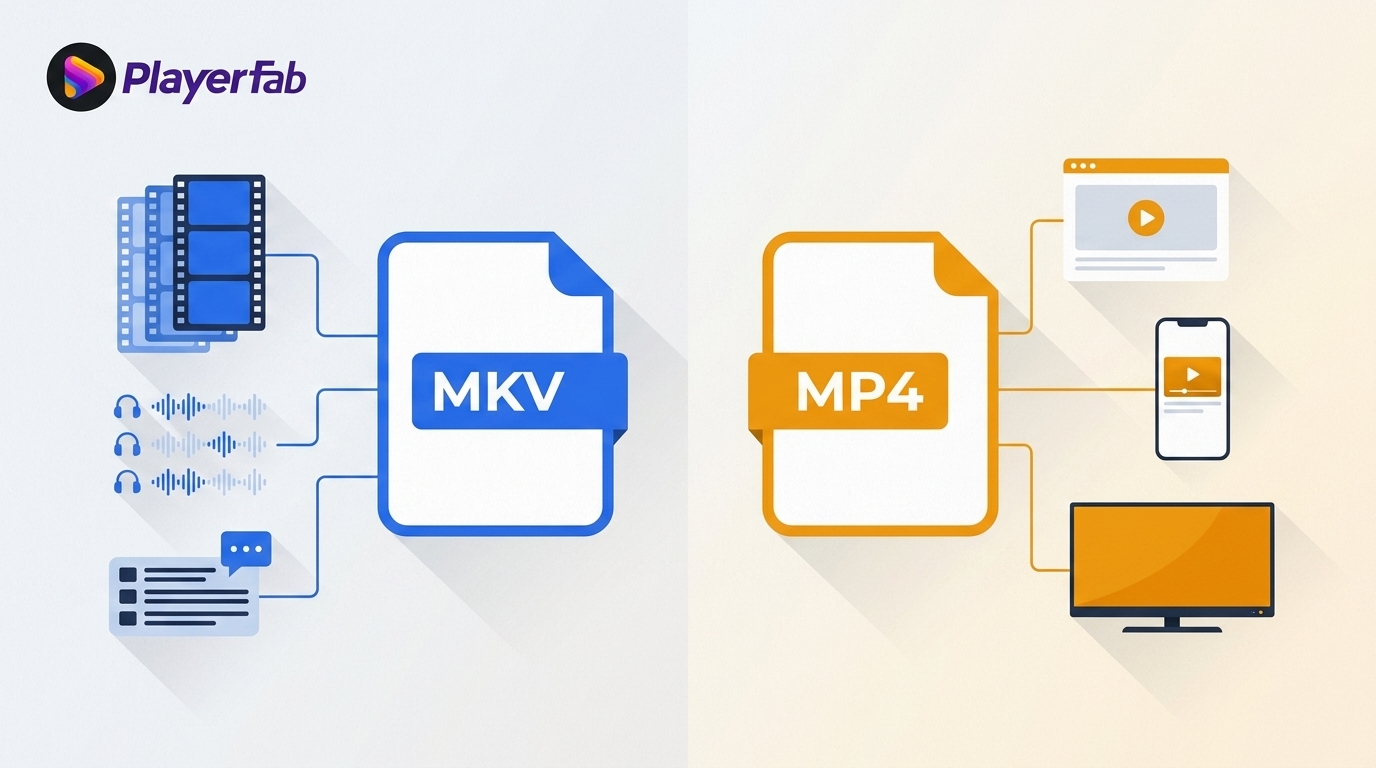
Table of Contents
Here’s the short answer: MKV and MP4 are container formats, so neither inherently improves quality or guarantees a smaller file. For MKV vs MP4, codecs, bitrate, resolution, and extra tracks matter most. MP4 usually favors delivery compatibility, while MKV favors flexible libraries and recordings. The comparison below covers the key differences, workflow choices, limitations, and remuxing risks.
MKV vs MP4: Key Differences
MP4 Favors Broad Compatibility
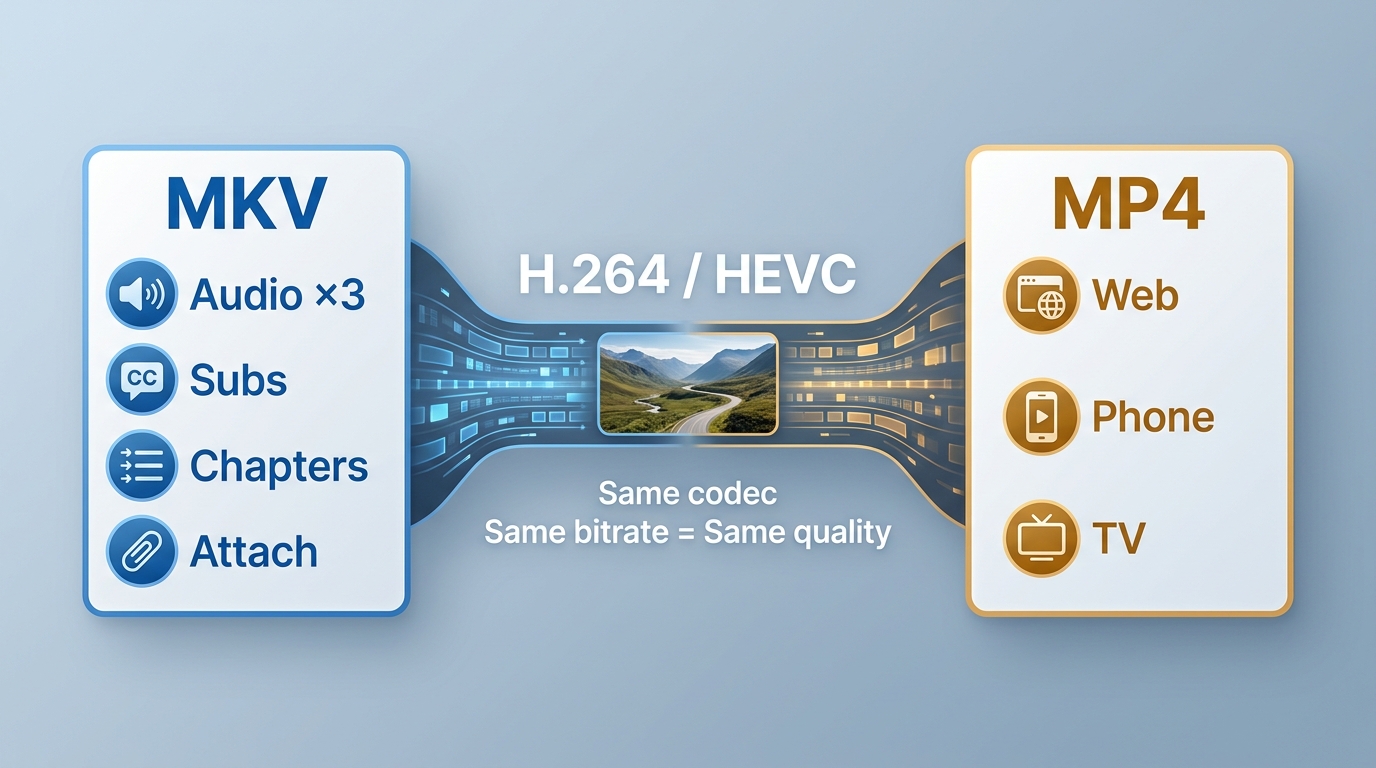
MP4 is a container format standardized by the Moving Picture Experts Group. It can package video, audio, subtitles, and metadata, while the codec and encoding settings inside the file determine picture quality. MP4 is widely supported by phones, TVs, browsers, editors, and sharing platforms, which makes it a practical choice for delivery. Fragmented MP4 is also widely used for adaptive web streaming, although the destination app must still support the codecs and tracks inside the file.
- MP4 is commonly the safer choice for web delivery, mobile playback, and broad device support.
- With identical encoded streams, MP4 and MKV are nearly the same size. Extra tracks and metadata usually create the difference.
MKV Favors Flexible Tracks
Matroska Video, better known as MKV, is also a container format. It can package multiple audio tracks, subtitle formats, chapters, attachments, and flexible metadata in one file. Those capabilities do not create better MKV quality by themselves, because the video codec, bitrate, resolution, and encoding settings still control the result. MKV is especially useful for multi-track libraries, recordings, and files that need richer packaging.
- MKV can keep complex subtitle, audio, chapter, and attachment arrangements together.
- For file size, I would inspect the streams and attachments first, not judge the file by its extension.
| Criterion | MKV | MP4 |
|---|---|---|
| Quality control | Codec and settings decide | Codec and settings decide |
| File-size drivers | Streams, tracks, attachments | Streams, tracks, metadata |
| Compatibility | Player support varies | Broad device and browser support |
| Tracks and subtitles | Flexible multi-track packaging | More limited in some apps |
| Streaming and editing | Storage-oriented workflows | Web delivery and editor-friendly |
| Recording and archiving | Flexible libraries and recordings | Simple distribution copies |
In practice, MP4 is usually the safer delivery container, while MKV is often the more flexible choice for a media library or recording workflow.
Which Format Fits Each Workflow?
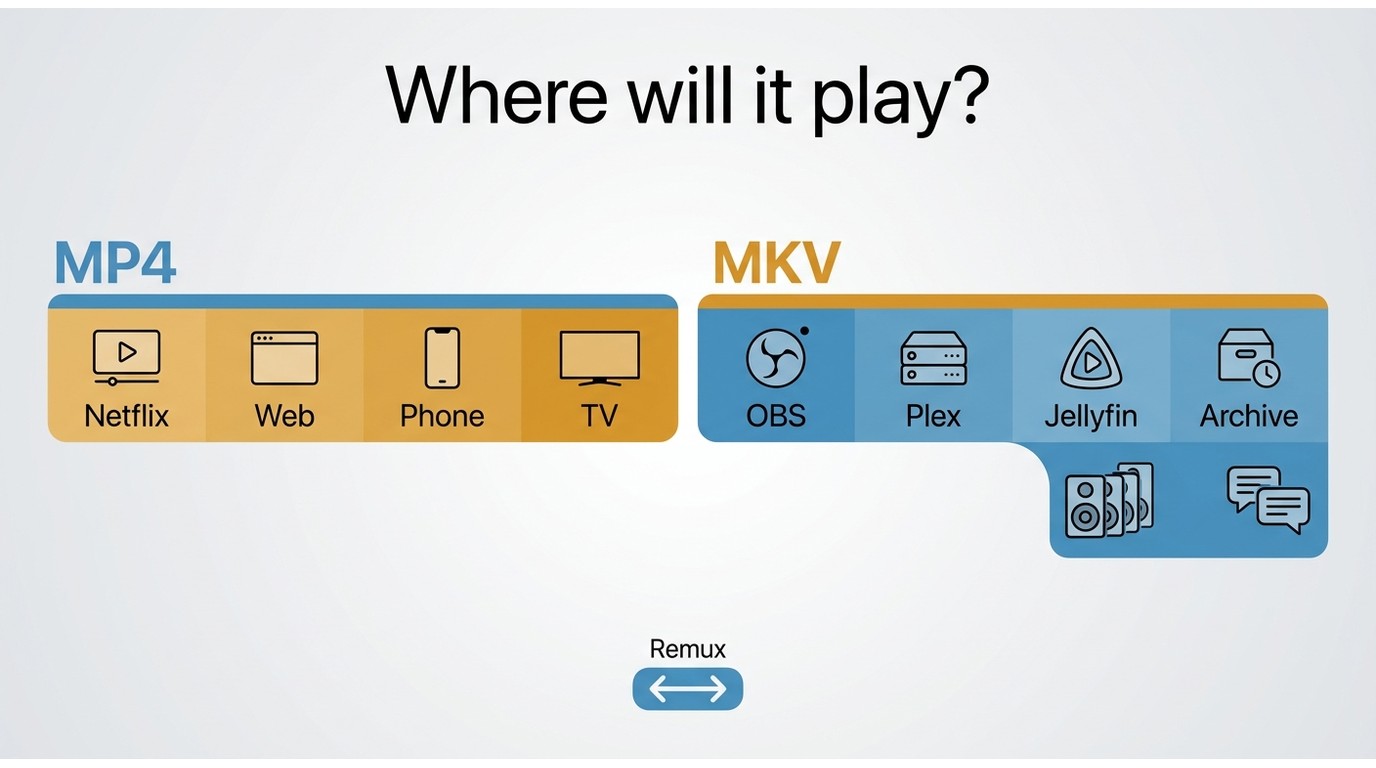
- Web streaming and sharing: Choose MP4 when browser and platform compatibility matter most. MKV is not ideal when a service expects MP4 delivery.
- Mobile and living-room playback: Choose MP4 for the broadest default support. MKV can work well when the player supports its video, audio, and subtitle streams.
- Editing: Choose the format your editor accepts with the least conversion. An MP4 extension does not guarantee support for every internal codec.
- OBS recording: MKV can be a sensible recording container when preserving a recording after an interruption matters. Remux afterward only if the destination supports the streams.
- Plex or Jellyfin: Either container can fit, but direct play and transcoding depend on the client, codecs, audio, subtitles, and server settings.
- Long-term archiving: MKV is useful for keeping multiple tracks and chapters together. Use broadly supported codecs for future playback.
Limitations of MKV and MP4
MKV can be less convenient in browsers, mobile apps, editors, and upload platforms that expect MP4. MP4 can be less suitable for complex libraries because some applications handle advanced subtitle types, attachments, chapters, and multi-track arrangements less consistently. The best format is the one that creates the fewest compromises for the destination workflow.
When Playback Compatibility Breaks
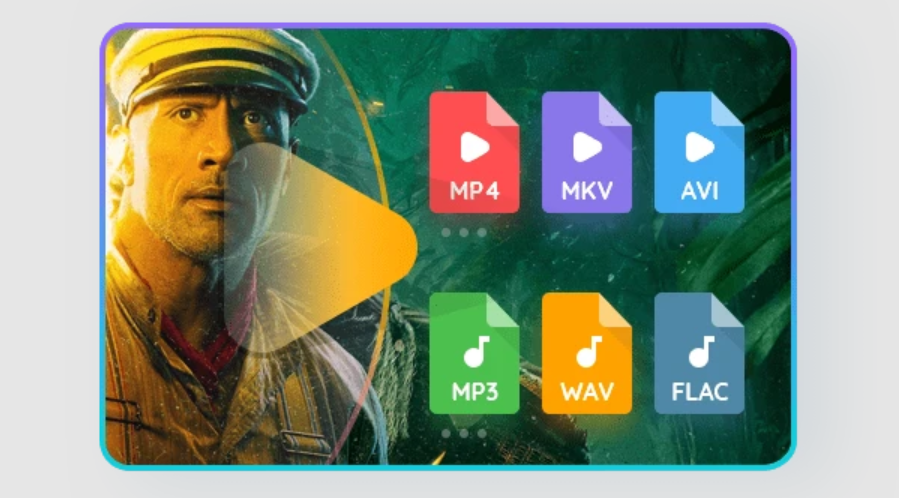
When an MKV or MP4 file will not play, check the container, video codec, audio codec, subtitle type, HDR metadata, and the player or device support together. A dedicated MKV player can help with files that carry multiple tracks, while an MP4 file player may be the simpler fit for common delivery files. PlayerFab Ultra HD Player is a desktop option for local MP4 and MKV playback. It is not ideal when a browser, mobile device, or editor does not support a codec or subtitle track inside the file.
Free Download Windows 11/10/8.1/8/7
Free Download macOS 10.10 - 14.x
Frequently Asked Questions
Is MKV or MP4 better for 4K video?
Neither container is inherently better for 4K quality. A 4K file’s picture quality depends on its codec, bitrate, resolution, HDR format, and encoding settings. Choose MP4 when broad delivery compatibility matters, or MKV when you need flexible audio tracks, subtitles, chapters, and library storage.
Should I convert MP4 to MKV?
Convert MP4 to MKV only when your workflow benefits from MKV features, such as multiple audio tracks, subtitles, chapters, attachments, or flexible metadata. Changing the container alone does not improve picture or audio quality, and it may reduce compatibility with the apps or devices that receive the file.
Does remuxing MKV to MP4 reduce video quality?
A stream-copy remux can preserve the encoded video stream without re-encoding it. However, preserved video quality does not guarantee that every stream will work afterward: subtitle formats, secondary audio, HDR or Dolby Vision metadata, and unsupported codecs can be dropped, hidden, or rejected by the destination app. For example, an MP4 wrapper does not make an internal AV1 codec stream compatible with every editor.
MKV or MP4: Final Choice
MKV or MP4 comes down to where the file needs to go next. Choose MP4 when distribution, browser support, and device compatibility dominate; choose MKV when flexible tracks, recording resilience, or library preservation matter more. My practical recommendation is to choose the destination first, then remux only after confirming that its codecs, audio, subtitles, and HDR metadata are supported.

 6 Best MPEG Players for Windows and Mac (2026)By Alice Harper - Aug 26, 2026
 How to Play Blu-ray Discs on Windows 10 (Free & Pro Solutions)By Alice Harper - Aug 7, 2026
 10 Best 4K Video Players for PC and Mac, Tested in 2026By Alice Harper - Aug 4, 2026
 The 5 Best Free MOV Players in 2026 (Windows, Mac and Android), plus How to FixBy Alice Harper - Aug 4, 2026