13 VOB File Players for Windows, Mac, Android, and iPhone

Summary: This comprehensive guide reviews the top 13 VOB players for 2026 across all major platforms. I evaluate each player's ability to play VOB files, handle encryption and high-bitrate playback, helping you choose between powerful Windows/macOS software and convenient mobile apps.
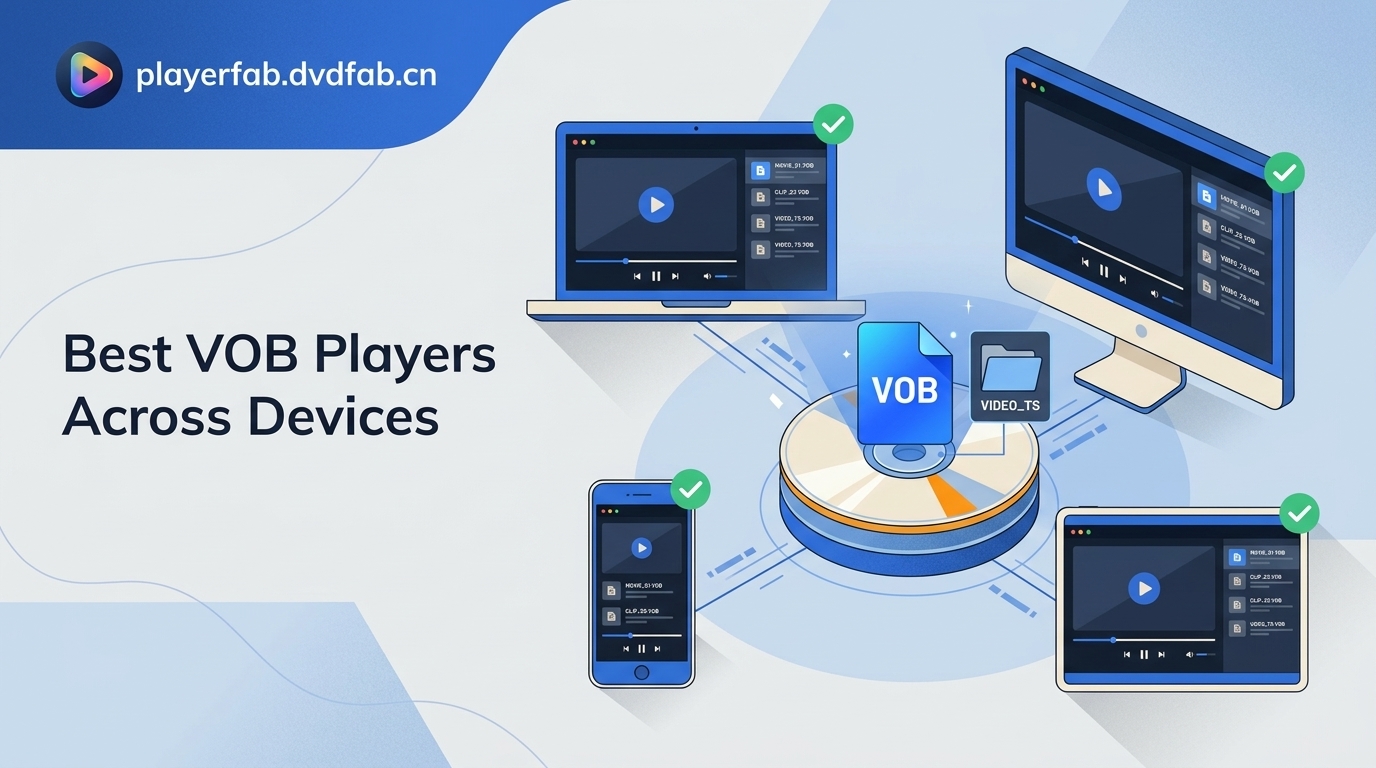
A VOB file player must match the source you are opening: a standalone VOB file, a complete VIDEO_TS folder, or a DVD. For many standalone files, VLC is a practical free choice; for full DVD navigation on desktop, use a player designed for disc and folder playback.
Table of Contents
A VOB (Video Object) file is a container used in DVD-Video sources. A standalone VOB may open like an ordinary video, but DVD menus, chapters, subtitles, and audio tracks can depend on the surrounding VIDEO_TS folder. Commercial disc sources may also require a player with appropriate disc and region support.
This guide compares 13 VOB file players for Windows, Mac, Android, iPhone, and iPad. It first helps you identify the source type, then compares platform options and explains how to diagnose common VOB playback problems before converting the file.
At a Glance: VOB Players by Source
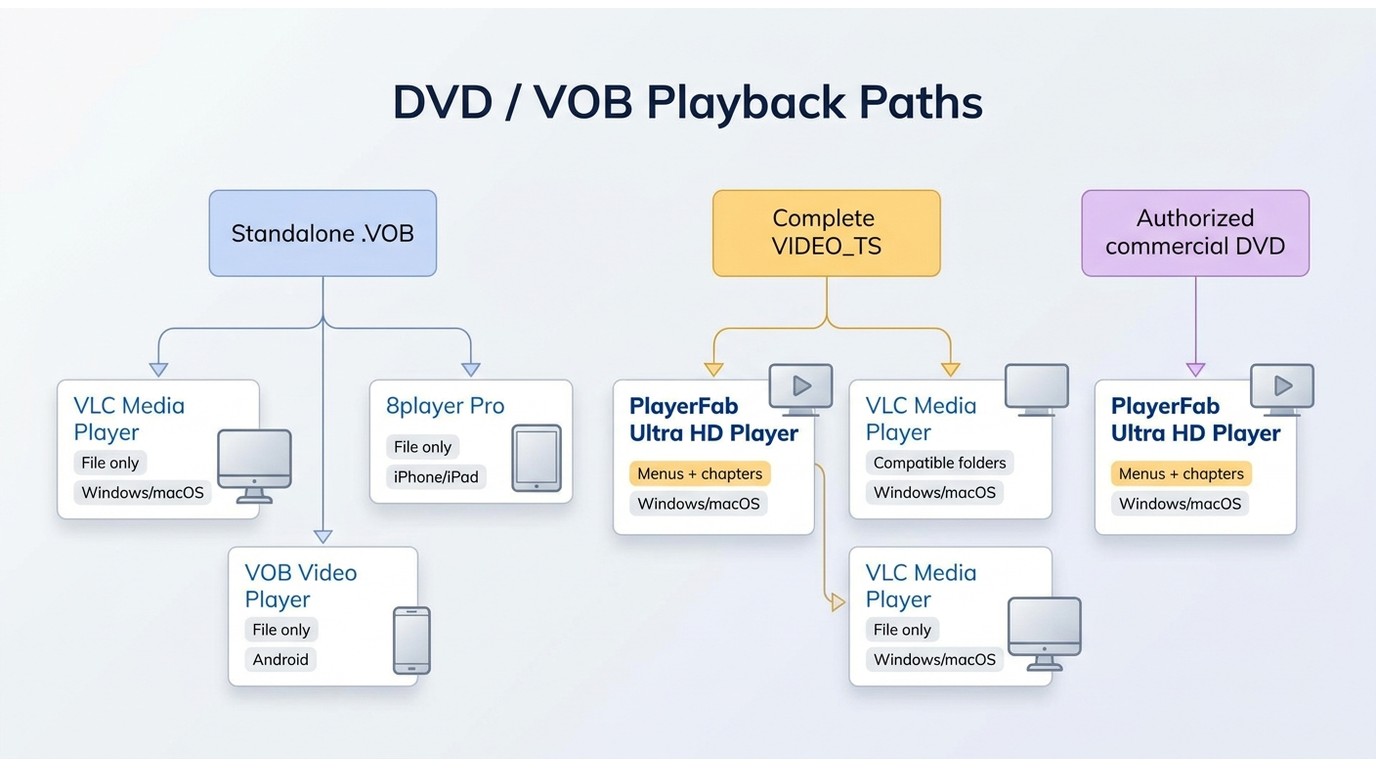
Match the player to your source before comparing extra features:
- Identify the source. Determine whether you have one standalone VOB file, a complete VIDEO_TS folder, or a commercial DVD.
- Choose matching support. A basic player may be enough for one file, while folder and disc sources need explicit DVD-structure support.
- Open the folder when navigation matters. Use the complete VIDEO_TS folder when you need menus, chapters, subtitles, and the intended audio tracks. Detailed steps for how to play VOB files depend on which source you have.
- Test another verified player before converting. A VOB segment can appear incomplete, start mid-title, or lose audio when its navigation data is stored elsewhere in the DVD structure. In my view, testing the whole folder is the most reliable first check for DVD-origin files.
| VOB video player | OS | Standalone VOB Files | VOB in VIDEO_TS Folder | DVD Menus and Disc Sources | Fit and Price Model |
|---|---|---|---|---|---|
| PlayerFab Ultra HD Player | Windows, macOS | ✅ | ✅ | ✅ | Free and paid editions; suited to desktop users who need DVD or VIDEO_TS navigation, HDR, multichannel audio, and GPU decoding |
| VLC Media Player | Windows, macOS | ✅ | ✅ Non-protected | ✅ Non-protected | Free and open-source; a practical choice for standalone files and compatible DVD folders, but commercial disc behavior can vary |
| VOB Video Player | Android | ✅ | ❌ | ❌ | Free with ads and in-app purchases; suited to simple standalone-file playback on Android |
| 8player Pro | iOS | ✅ | ❌ | ❌ | App Store option suited to transferred files and cloud or network playback on iPhone and iPad |
8 Best VOB Players for Windows and Mac
These eight desktop options cover different needs, from opening a standalone VOB file to navigating a complete DVD folder. Windows and Mac users should compare source support first, then consider interface complexity, subtitles and audio tracks, disc menus, and hardware decoding.
#1 PlayerFab Ultra HD Player
Supported OS: Windows, macOS
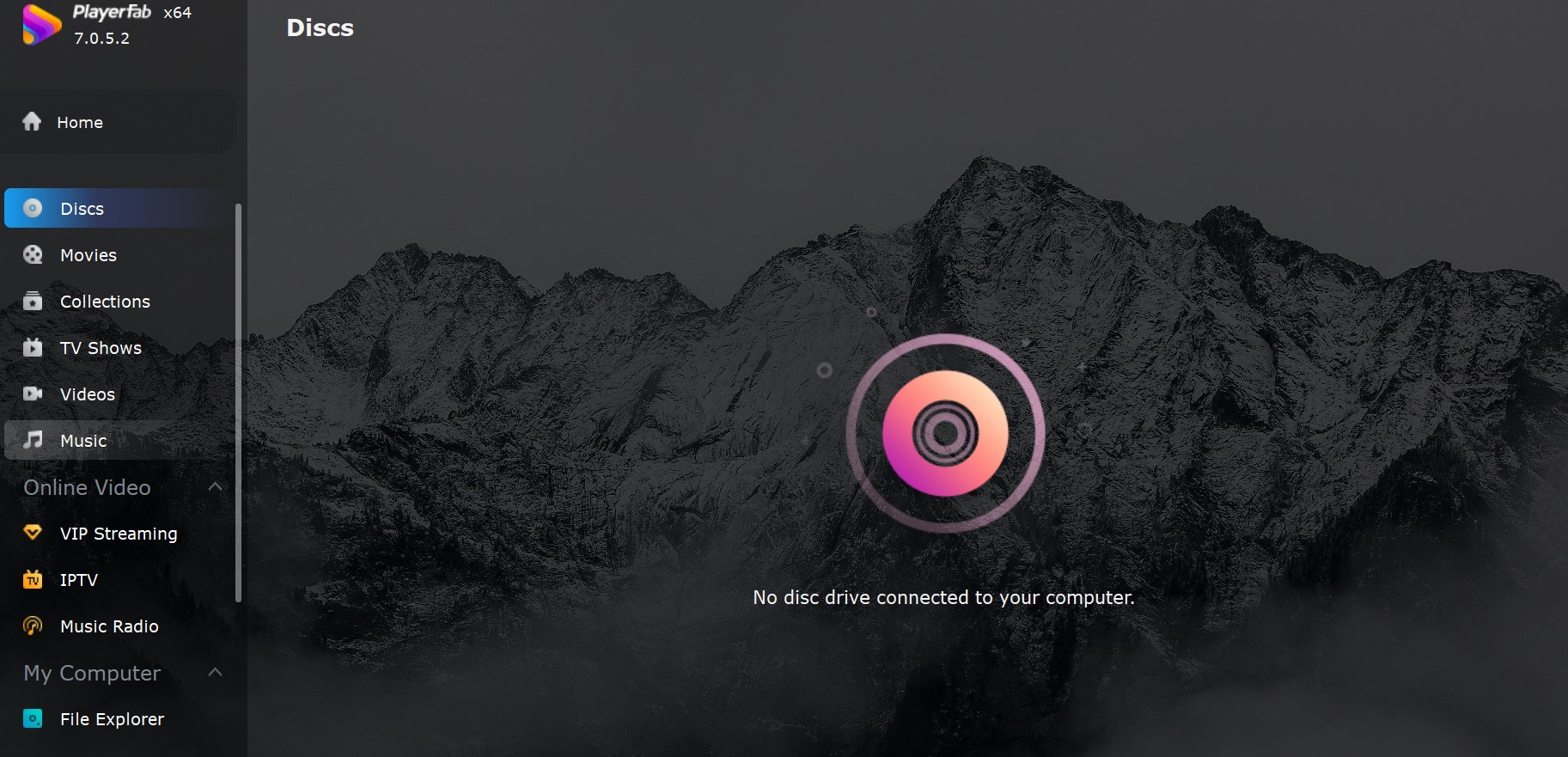
PlayerFab Ultra HD Player is a Windows and macOS desktop player for standalone VOB files, DVD and VIDEO_TS sources, ISO images, and other common local formats. It provides DVD menu navigation on supported systems, HDR output, multichannel audio, and AMD, Intel Quick Sync, or NVIDIA GPU decoding.
For content you're authorized to access, where permitted by platform terms and applicable law, PlayerFab supports region-free DVD playback and menu navigation on supported systems. Based on that feature set, I consider it best suited to desktop users who need disc or VIDEO_TS navigation and advanced audiovisual controls, rather than someone who only needs a lightweight free opener for one standalone file.
There is also a free version called PlayerFab Free Video Player, which still supports VOB file playback. However, advanced features such as region-free playback and other premium tools require an upgrade to the full paid edition.
- Supports standalone VOB files, DVD and VIDEO_TS sources, ISO images, and common local video formats
- Provides DVD menu navigation, HDR output, and multichannel audio on supported systems
- Uses AMD, Intel Quick Sync, or NVIDIA GPU decoding; a free edition is available for basic local playback
#2 VLC Media Player
Supported OS: Windows XP and later, macOS X 10.7.5 and later, Linux
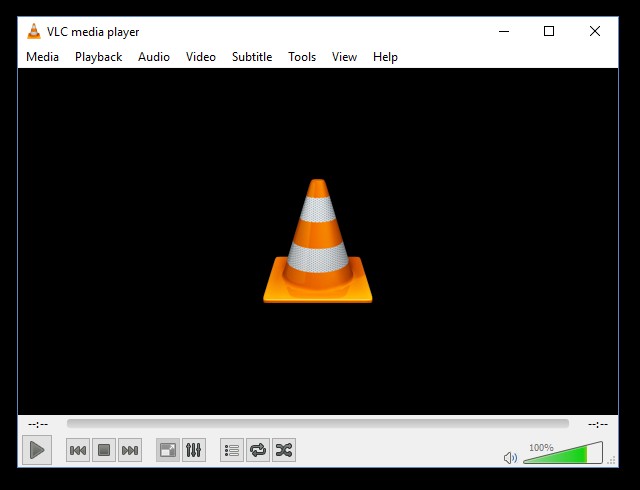
VLC media player is an open‑source, cross‑platform player and, in my view, the top free choice for playing VOB files. VLC supports almost all major audio and video formats, including VOB files. With its extensive built‑in codec libraries, you don't need to install extra plugins to decode formats like MPEG‑2 or AC3. You can open a compatible VIDEO_TS folder or play individual VOB files directly, while detailed VLC DVD playback steps depend on the source and disc structure.
I tested VLC's VOB playback on macOS 14 and Windows 10 and found it generally plays DVD VOB videos smoothly with subtitle support and timeline control. It also offers useful tools like deinterlacing, playback speed adjustment and frame snapshots. However, I've encountered occasional stutters or audio/video sync quirks, especially when opening larger standalone VOB files.
- Free open source player with wide VOB and DVD support
- Runs on almost every platform
- Built‑in tools for subtitles, deinterlacing and playback tweaks
- Occasionally stutter or show sync quirks
- Cannot directly play encrypted DVD VOB content without additional libraries
#3 GOM Player
Supported OS: Windows 10 or later, macOS 10.13 (High Sierra) or later
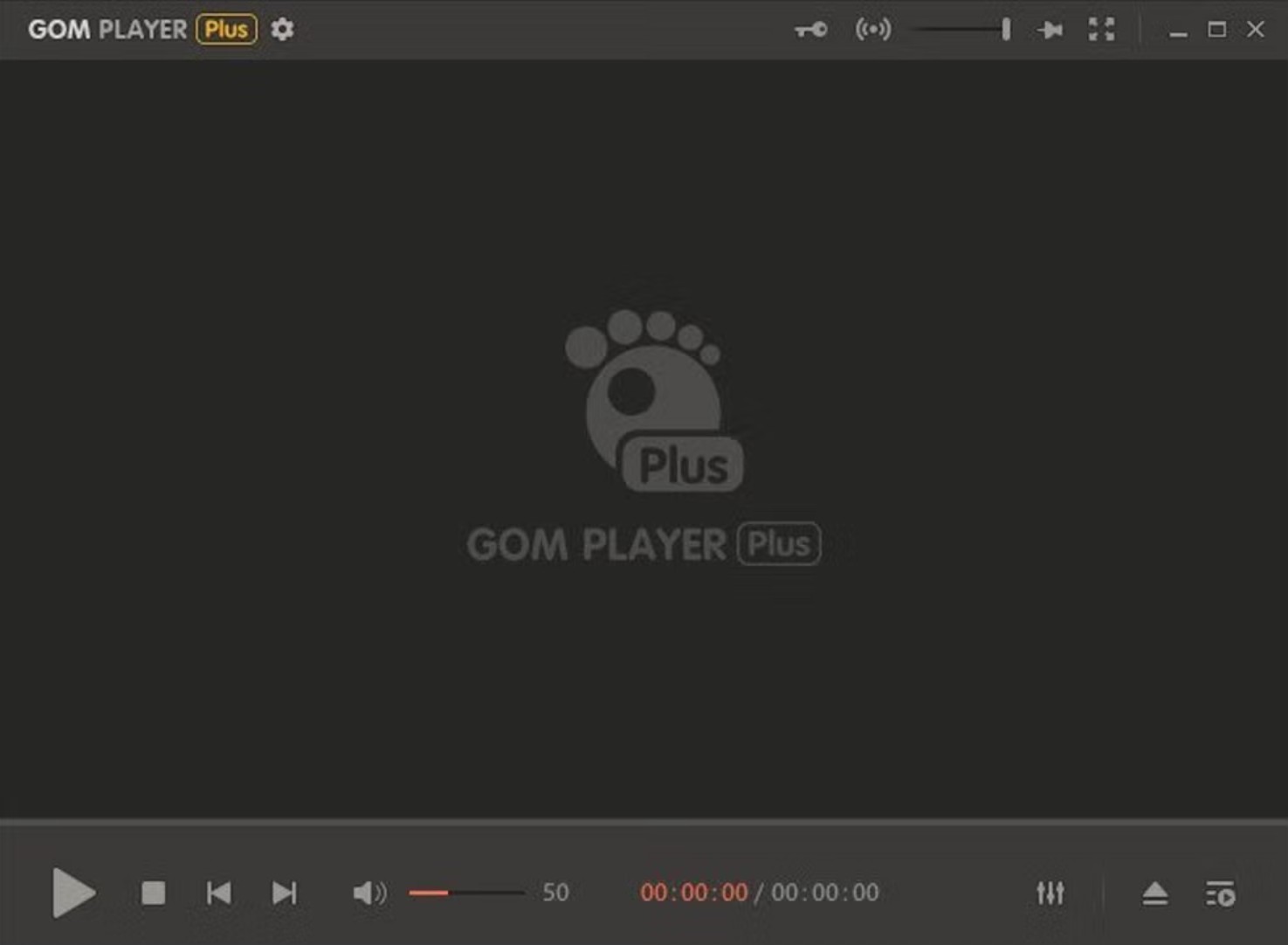
GOM Player is a free multimedia VOB player that runs on Windows 10/11 and macOS. Its wide format support covers VOB, IFO, TS and over 100 other video and audio types. Even if you encounter an unsupported format, its Codec Finder tool can help locate the appropriate decoding solution. This VOB file player also offers additional features such as playback speed controls and screen capture tools, plus support for 360°/VR videos (though that function does not apply to VOB playback).
GOM Player may open some incomplete or damaged standalone VOB clips that other players reject, although results depend on the file. The free edition includes advertisements, while its codec tools and customization controls suit users who prefer detailed playback settings. It is less suitable when verified commercial-disc or full DVD-menu handling is the main requirement.
- Plays VOB and 100+ formats without external codecs
- Subtitle search and auto‑sync built in
- Codec finder handles unsupported files
- Free version includes ads
- Commercial-disc and full DVD-menu behavior should not be assumed
#4 Windows Media Player
Supported OS: Windows 7, 8/8.1, 10, 11
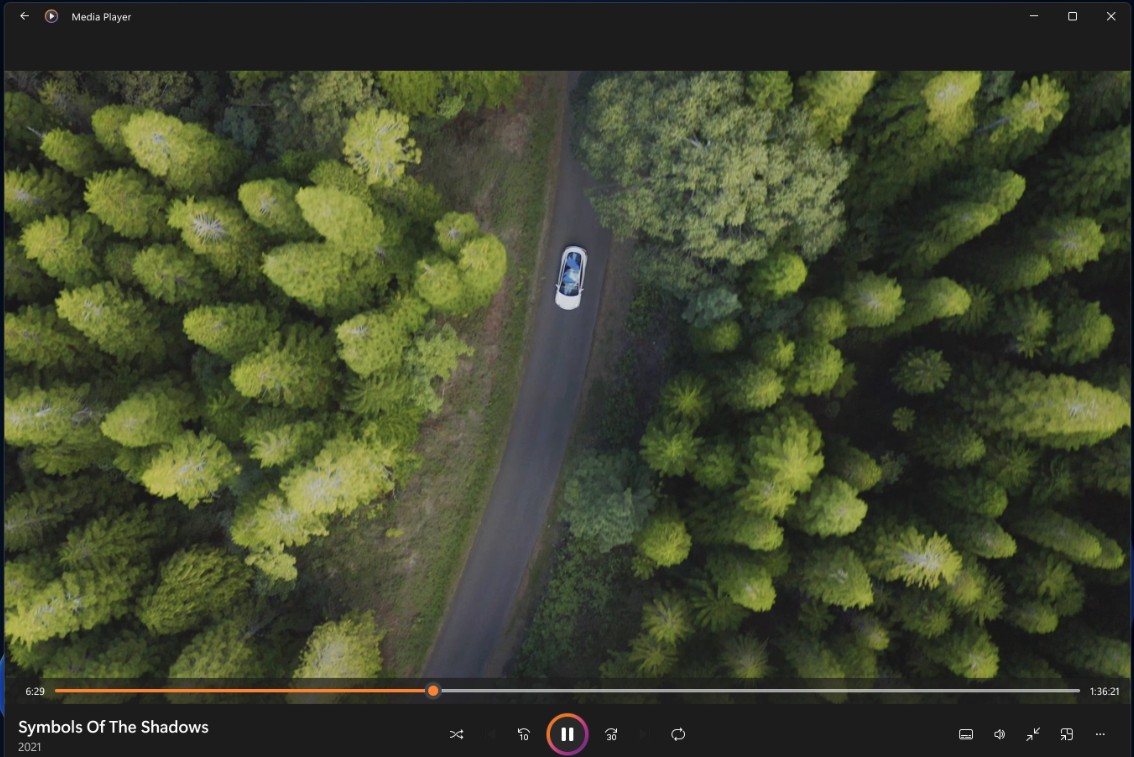
The current Microsoft Media Player app and legacy Windows Media Player do not behave uniformly with VOB files. Recognition depends on the exact Windows app, installed media components, and file structure, so a codec pack should not be treated as a guaranteed fix. If the file picker does not show VOB or playback fails, use a verified VOB-capable player instead.
On Windows, test the exact app with a non-sensitive standalone file before relying on it. Even when video decoding works, Windows Media Player may not preserve the DVD menu structure represented by a VIDEO_TS folder. It is acceptable when the installed setup already recognizes the file, but it is not my default VOB recommendation; the fuller Windows Media Player DVD workflow has additional compatibility limits.
- Preinstalled with Windows
- Good compatibility with common file formats
- VOB recognition varies between Windows apps and installed media components
- Cannot recognize DVD menus or chapter structures
#5 PotPlayer
Supported OS: Windows 11, 10, 8/8.1, 7, Vista, XP
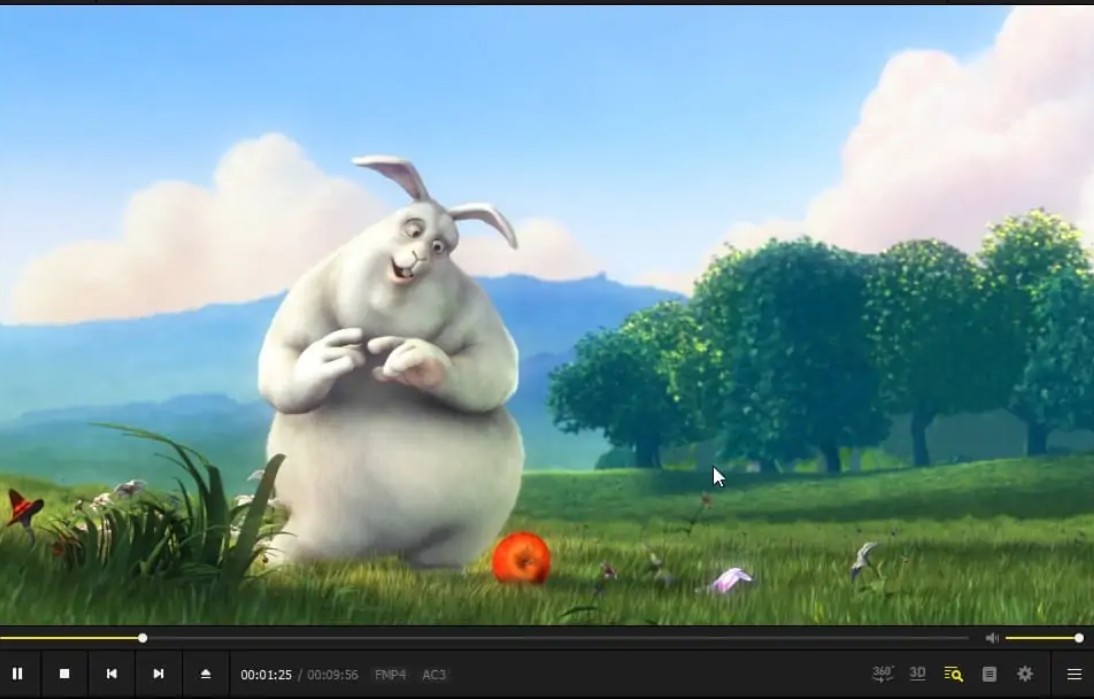
PotPlayer has long been used as a customizable Windows player for standalone VOB, IFO, TS, and other common media files. Its rendering settings, output filters, plugins, and interface options give advanced users substantial control, although its current maintenance status and commercial-disc behavior are not evaluated here.
PotPlayer is most relevant to advanced Windows users who want detailed control over standalone VOB playback. Its interface can feel overwhelming if the goal is simply to open one file, so readers who prioritize a streamlined setup may prefer a simpler player.
- Play standalone VOB files, VOB files inside VIDEO_TS folders and DVD VOB
- Highly customizable interface and themes
- Commercial-disc and region-handling behavior is not established here
- Cluttered interface
#6 Apple DVD Player
Supported OS: macOS
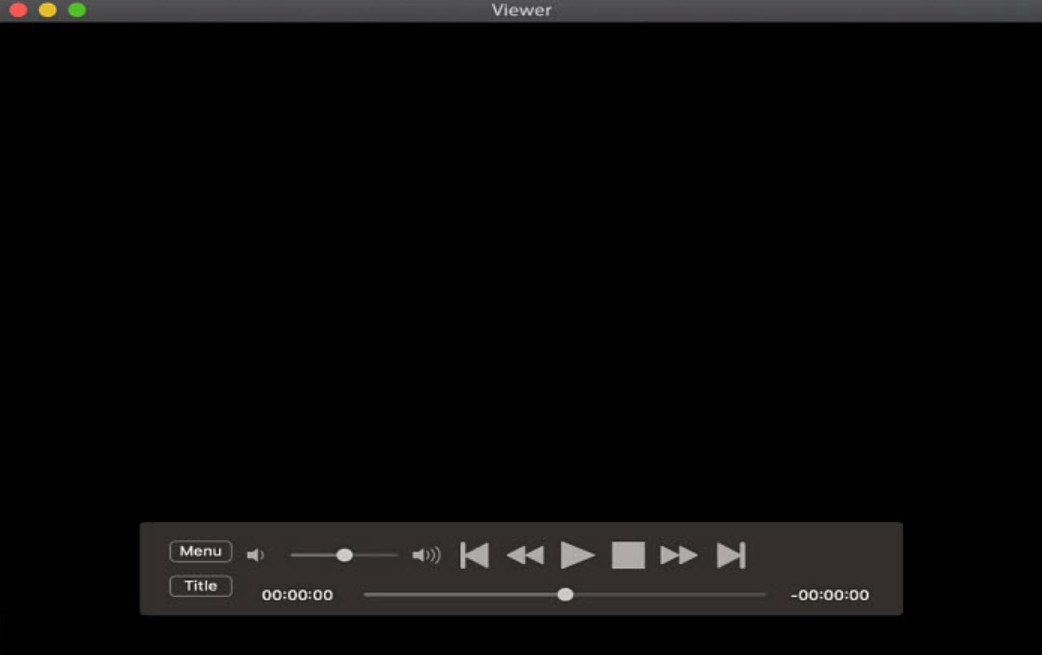
Apple DVD Player is the built-in DVD VOB player for macOS. Specifically designed for disc media, it recognizes VOB files along with menus, subtitles, and multiple audio tracks. This free VOB file player supports Dolby Digital 5.1 surround sound pass-through and can handle VOB segments created by tools like Apple's DVD Studio Pro or iDVD. It is important to note that this VOB file player for Mac only appears when the system detects an internal or external DVD drive, and it strictly adheres to DVD region codes and encryption standards.
I tested Apple DVD Player on a Mac equipped with an Apple USB SuperDrive. Upon inserting a DVD, the player automatically began playback, and the menu navigation, chapter selection, and subtitle switching were all very intuitive. The experience of playing standard DVDs is very similar to using a traditional home DVD player, making it very user-friendly for those who prefer not to install third-party software. However, playback of protected or region-coded DVD sources depends on the disc and system configuration, and the app does not support Blu-ray discs or online video playback.
- Official macOS VOB player with native disc support
- Dolby Digital 5.1 passthrough available
- Protected or region-coded DVD sources may not play in some configurations
- No Blu‑ray support
#7 Elmedia Player
Supported OS: macOS 10.12 and later
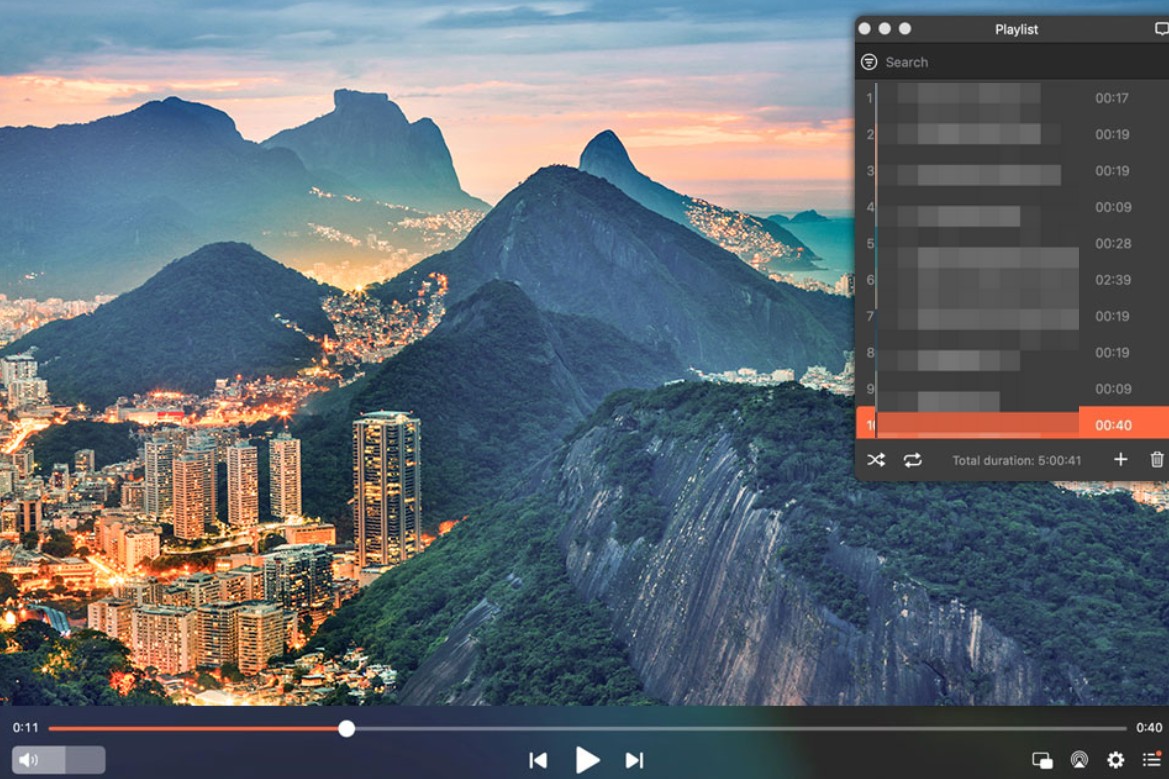
Elmedia Player is another macOS-focused player that natively supports a wide variety of formats, including VOB, AVI, MP4, MKV, and MOV. It can directly open individual VOB files as well as entire VIDEO_TS folders. Designed to match the macOS UI style, it supports Apple Silicon and features playlist management, external subtitle matching, and synchronization tools. Its advanced capabilities also include wireless streaming of local videos to TVs or smart devices via AirPlay, Chromecast, or DLNA.
When playing VOB files with Elmedia Player, it quickly opens VOBs from various sources and allows for detailed adjustments such as color parameters, audio-video sync, and playback speed. The interface feels more aligned with Mac user habits than VLC. While the Pro version adds streaming and advanced playback tuning, the free version is sufficient for most daily users. However, I have ranked it lower because I encountered occasional stuttering during VOB playback—an issue I did not experience when playing the same file in other VOB file players.
- Plays VOB and VIDEO_TS folders without extra codecs
- Native macOS player with Apple Silicon support
- Some advanced features require a paid Pro upgrade
- Occasional stuttering during VOB playback
#8 IINA
Supported OS: macOS 10.11 and later

IINA is an open-source VOB video player based on the mpv engine, specifically designed for macOS and written in Swift. It supports almost all common audio and video formats, including VOB, and integrates native macOS features such as Touch Bar controls, gestures, and Picture-in-Picture mode, making the viewing experience highly intuitive within the Apple ecosystem.
IINA is best suited to standalone VOB files that behave like standard videos. DVD-origin files with unusual subtitles, variable timing, or navigation dependencies may need a player focused on DVD structures. I would not choose IINA when full menu and chapter navigation is essential, but its native Mac interface makes it a reasonable option for ordinary local files.
- Can play individual VOB video files
- Features playback position memory and personalized settings
- Not ideal when full DVD menu and chapter navigation is required
- Advanced configurations can be overwhelming
3 Free VOB Players for Android
Playing VOB files on a smartphone can be tricky, as many default gallery apps simply won't recognize the format. I've handpicked 3 free Android VOB players that make watching VOB videos on your phone or tablet as easy as playing an MP4. Here is what I discovered during my hands-on testing with the latest Android devices.
#1 VLC for Android
Supported OS: Android 6.0 and later (phones, tablets, Android TV)
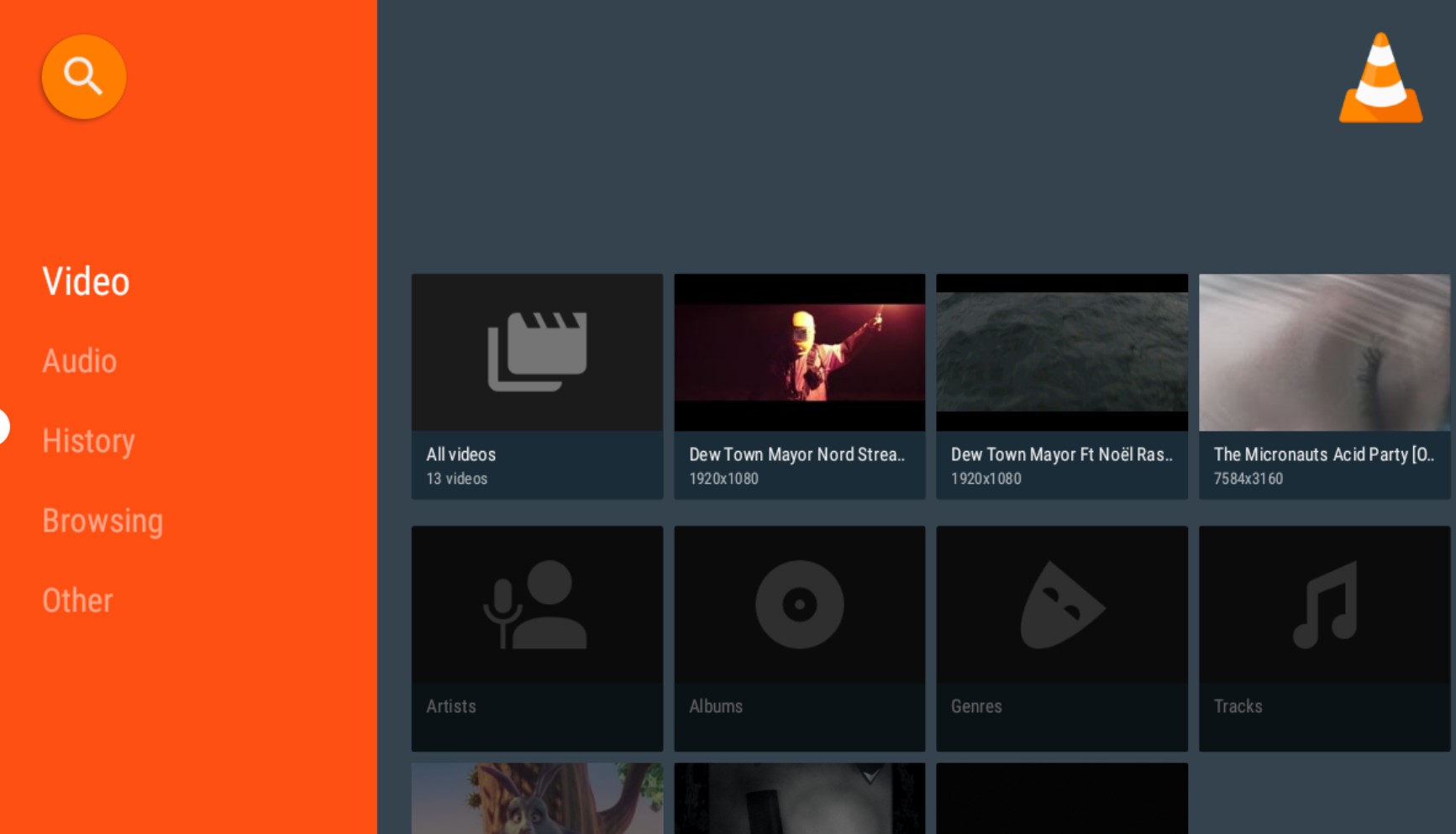
VLC for Android is the official open-source player for phones and tablets. Just like the desktop version, it's compatible with almost everything, so you can play VOB files right away. It also handles network streams, DVD ISOs, and multi-track subtitles.
I tested it on an Android 16 phone, and it easily found and played my VOB files from both the internal memory and SD card. The controls are snappy, making it easy to skip around or load subtitles. That said, I did notice some slight lag when fast-forwarding a high-bitrate VOB file, so it's not quite as polished as the PC version. For Android users who want broad format support and familiar controls, it is a practical all-around VOB player.
- Free and open‑source
- Supports VOB and nearly all media formats
- Occasional minor stutter on certain high‑bitrate VOB fast‑forwards
#2 VOB Video Player
Supported OS: Android 5.0 and later
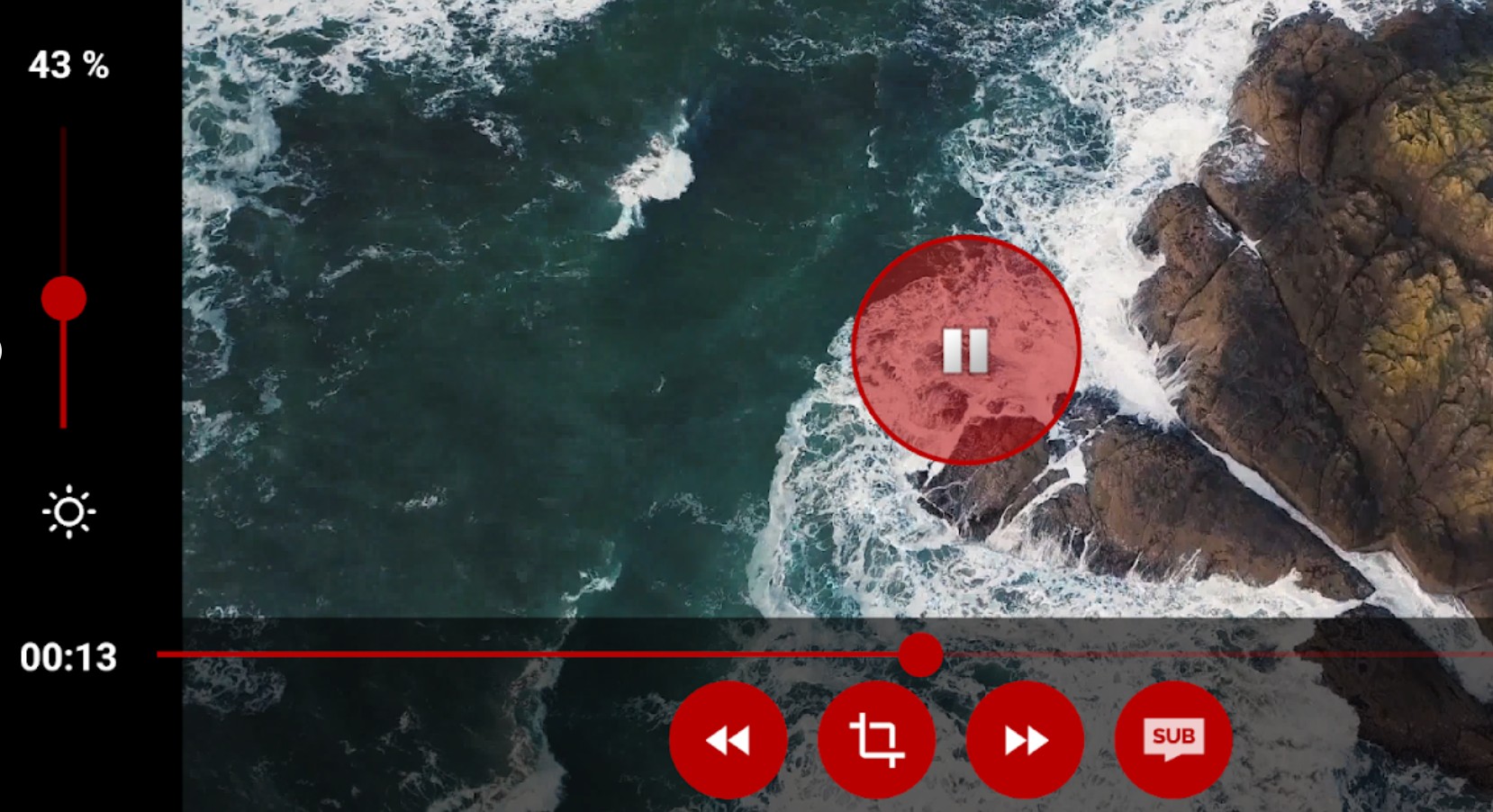
VOB Video Player is a dedicated app designed to open and play .vob files with zero fuss. It automatically finds your local VOB media and lets you easily browse files from your internal or external storage. The interface is straightforward, making it well suited to users who just want to open local files quickly.
I downloaded VOB Video Player from Google Play. This VOB player quickly identifies all VOB files on the phone and plays HD content instantly. The basic controls are very simple with no complex settings, which is a plus if you don't need deep customization. However, because it's so focused, it feels a bit bare-bones. You won't find extra features like network streaming, subtitle loading, or playlist management.
- Dedicated VOB playback with easy operation
- auto‑loads local VOB files
- Basic features only
- Includes ads and in‑app purchases
#3 KMPlayer
Supported OS: Android 6.0 and later
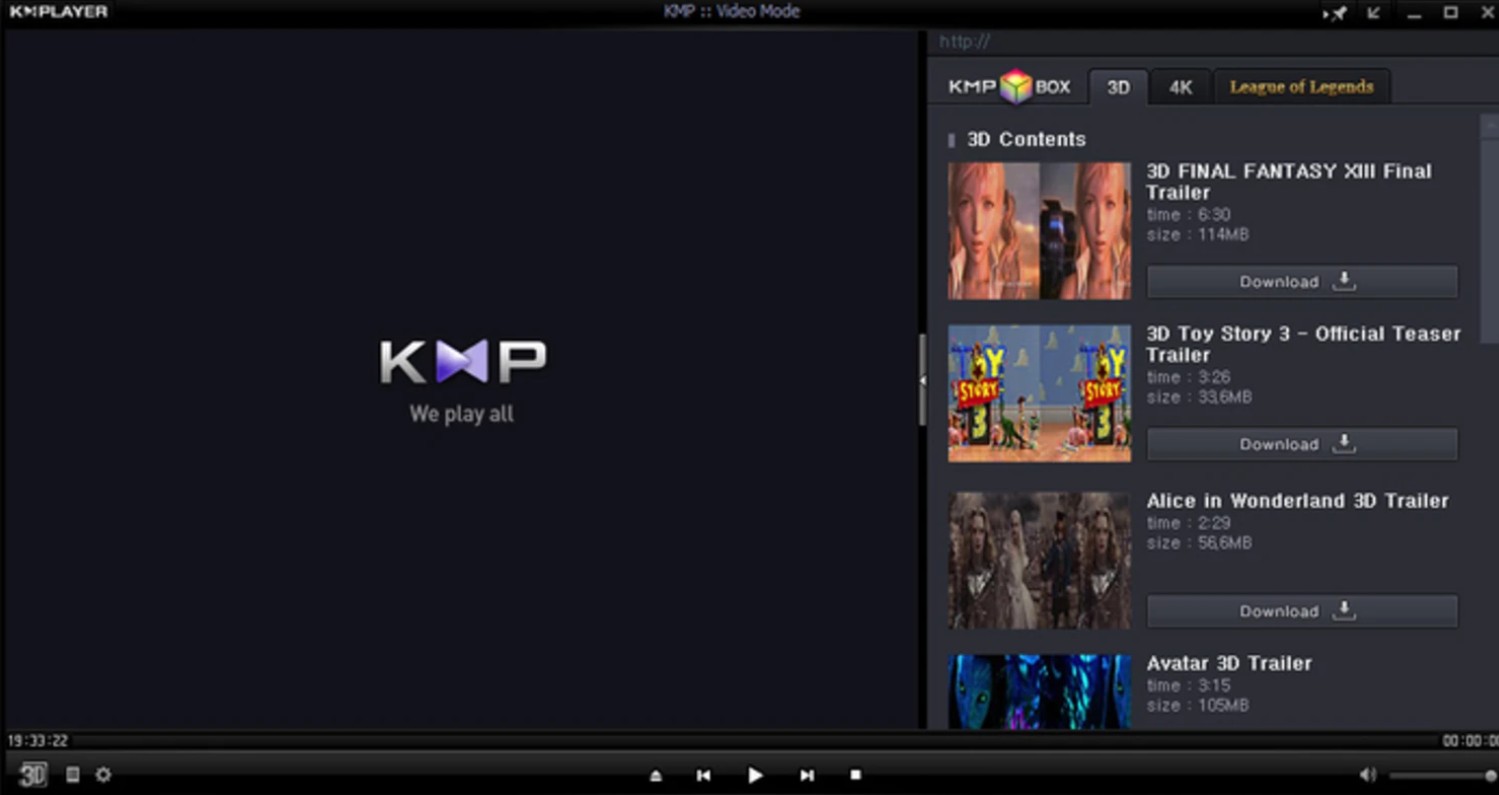
KMPlayer is an all-in-one video player for Android that supports VOB files along with popular formats like AVI, MP4, and MKV. It can even handle ultra-high-definition content in 4K and 8k. This VOB player comes with a variety of controls, including subtitle settings, playback speed adjustment, bookmarks, and screen zooming, as well as extra features like Chromecast support and cloud file access.
With VOB files, missing audio or stuttering can result from the file's audio codec, bitrate, source structure, or the Android device rather than the app alone. KMPlayer suits users who want broad mobile playback controls, subtitle settings, and cloud features, but it is less appropriate for readers who prioritize a minimal, ad-free interface.
- Plays VOB and many other formats with detailed playback tools
- Handle UHD content
- Ads in the free version can interrupt playback
- Some advanced settings require manual adjustment
VOB Player Options for iPhone and iPad
iPhone and iPad users generally need to transfer standalone VOB files into an app that supports the container and its audio codec. These options focus on imported files and network sources rather than physical DVDs or complete desktop-style DVD navigation.
#1 8player Pro
Supported OS: iOS 15.0 or later
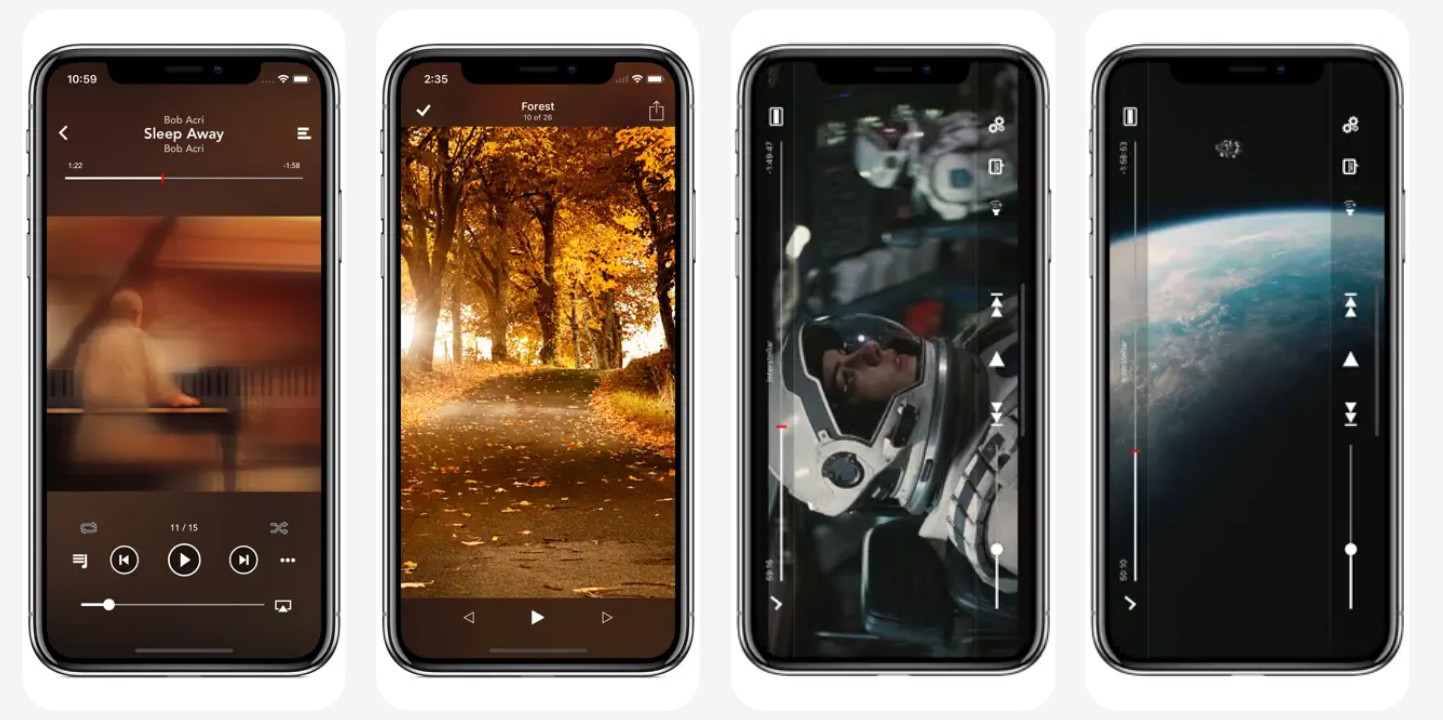
8player Pro is an iOS VOB player available directly from the App Store. It supports common video formats such as VOB, MP4, MKV, AVI, MOV, and TS, and includes subtitle support and offline download capabilities. It can play videos from local storage as well as stream content via DLNA/UPnP, SMB, FTP, Dropbox, Google Drive, and OneDrive. The interface is simple and intuitive, allowing for seamless media library access across iPhone, iPad, and Apple TV. Beyond video, it also handles audio and images.
Large network files can still stutter or lose their connection when Wi-Fi is unstable. The interface may also feel dated compared with newer iOS media apps, but 8player Pro remains the more clearly established option in this section for local, cloud, and network sources.
- Supports VOB, TS, and a wide variety of video formats
- Extensive streaming options from cloud and network servers
- Occasional stuttering with large files or unstable network connections
- The user interface feels old-fashioned
#2 Movie Player 3
Supported OS: iOS 12.0 or later
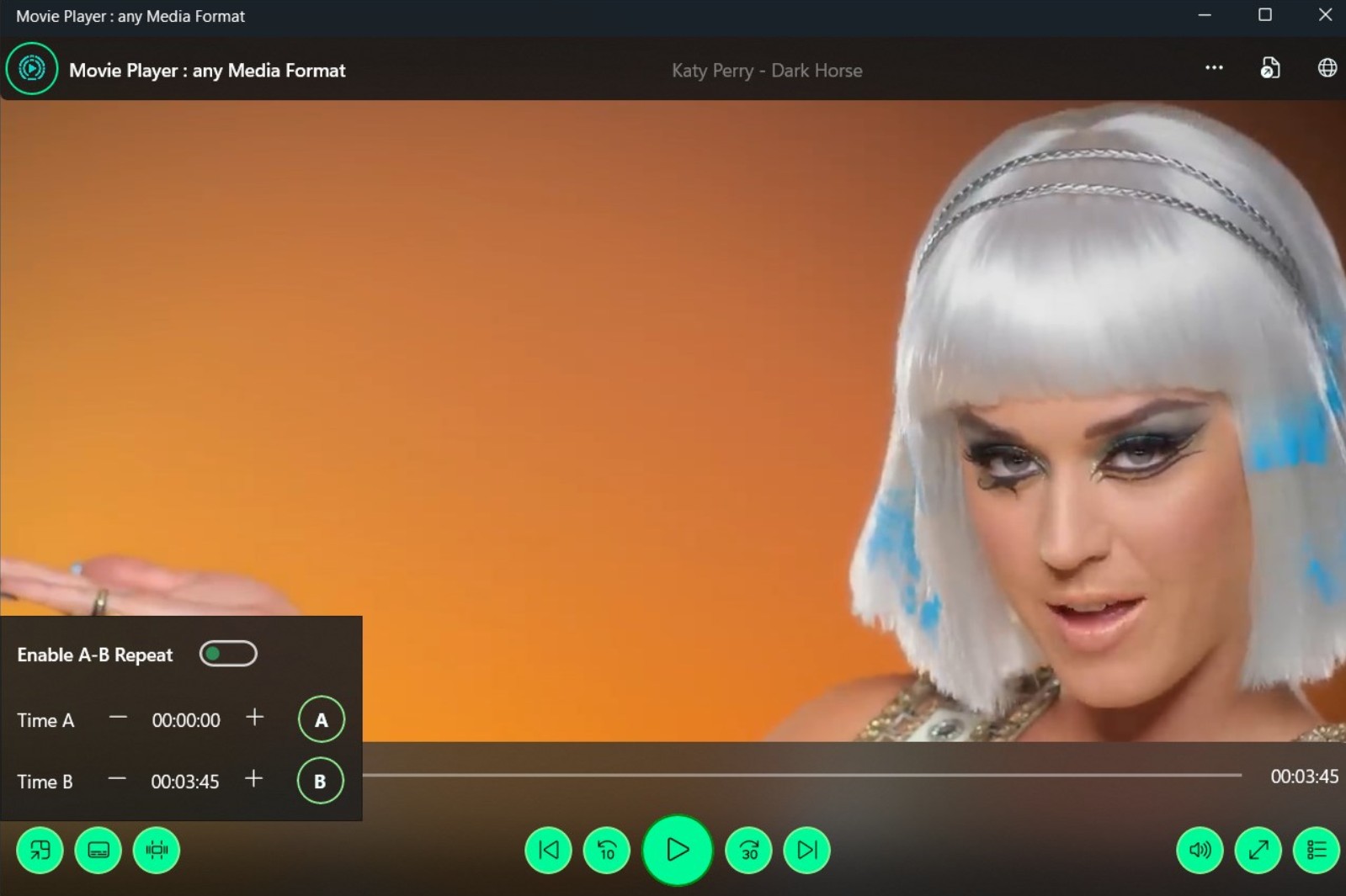
Movie Player 3 has previously offered VOB transfers through iTunes, Wi-Fi, and Dropbox, along with folders and playlists. However, its current U.S. App Store availability was not confirmed as of July 2026, so it should be treated as an availability-unverified alternative rather than a current top recommendation. If it is available on your device or in your purchase history, feature access may depend on in-app purchases.
- Previously supported transferred standalone VOB files on compatible iOS devices
- Multiple file transfer methods (USB, Wi-Fi, Dropbox) make importing files easy
- Offers many features but doesn't focus specifically on VOB playback details
- Several advanced or extended features are locked behind in-app purchases
Fix Common VOB Playback Problems
VOB playback failures often come from the source structure, audio codec, bitrate, or disc restrictions rather than a completely corrupt video. Start with the lowest-effort check below before changing the file.
No Video or File Not Detected
Confirm that the file has the .vob extension and try a player that explicitly lists VOB or MPEG-2 support. If a library app does not index it, open the file directly instead of relying on the library scan. When one extracted segment fails, return to the source-selection steps above and test the DVD folder.
No Audio or Choppy Playback
Try a different audio track, disable optional video processing, or test a player with hardware decoding. Choppy playback can reflect a high-bitrate file or limited device resources, while missing audio often points to an unsupported audio codec or a track stored elsewhere in the DVD structure.
Menus, Chapters, or Duration Are Missing
Opening one VOB segment can omit navigation data, begin in the middle of a title, or report the wrong duration. Use the DVD folder source instead of repeatedly converting the isolated segment. If a commercial or region-coded disc is involved, confirm that the player supports the source; readers dealing specifically with Region 2 DVD playback should also account for the drive and player region settings.
When MP4 Conversion Makes Sense
MP4 is useful when a phone, TV, editor, or media library does not accept VOB. HandBrake can convert compatible standalone files, while DVDFab DVD Ripper can process authorized DVD sources where permitted by platform terms and applicable law. Preserve the original VOB or DVD folder when menus, chapters, multiple tracks, or future editing flexibility matter. If conversion creates a short or unusable clip, test the source structure and selected title before encoding again.
From an editorial standpoint, a source-structure mistake is more common than a truly corrupt VOB. I would test the DVD folder and one other verified player before converting or discarding the file.
VOB Player FAQ
Can I play a VOB file in a web browser?
Browser support for VOB is inconsistent because browsers may not decode the MPEG-2 video or accompanying audio. Uploading a large DVD file can also create privacy, file-size, and menu-loss concerns, so a local VOB player is usually the more practical choice.
Can a smart TV play VOB files from a USB drive?
It depends on whether the TV supports the VOB container, MPEG-2 video, and the file's audio codec. An isolated VOB segment may play as video but will not reproduce full DVD navigation, menus, or title order.
Are VOB files still used today?
Yes. VOB remains common in DVD-Video folders and older disc or camcorder archives. MP4 is generally more convenient for modern sharing and mobile playback, but VOB can preserve the original DVD source structure and tracks.
Can I edit a VOB file without converting it first?
Some editors can trim compatible standalone VOB files directly. DVD titles may be divided across several segments, however, and unsupported codecs or navigation data can require importing the full source or remuxing it before editing.
Final VOB Player Recommendations
A VOB file player should be selected by source type: VLC is a practical free option for many standalone files, PlayerFab suits authorized desktop DVD or VIDEO_TS workflows that need menus and advanced audiovisual controls, and mobile apps are most useful for transferred standalone files. The practical rule is simple: preserve the DVD folder when navigation matters, and choose a lightweight file player when it does not.

 6 Best MPEG Players for Windows and Mac (2026)By Alice Harper - Aug 26, 2026
 How to Play Blu-ray Discs on Windows 10 (Free & Pro Solutions)By Alice Harper - Aug 7, 2026
 10 Best 4K Video Players for PC and Mac, Tested in 2026By Alice Harper - Aug 4, 2026
 The 5 Best Free MOV Players in 2026 (Windows, Mac and Android), plus How to FixBy Alice Harper - Aug 4, 2026