Region 2 DVDs in the US: 3 Ways to Watch

Summary: A US Region 1 player will not normally accept a Region 2 DVD, but three practical routes are available. This guide explains multi-region playback, limited drive-region changes, and authorized personal copies, with PAL/NTSC and device checks to prevent a costly mismatch.
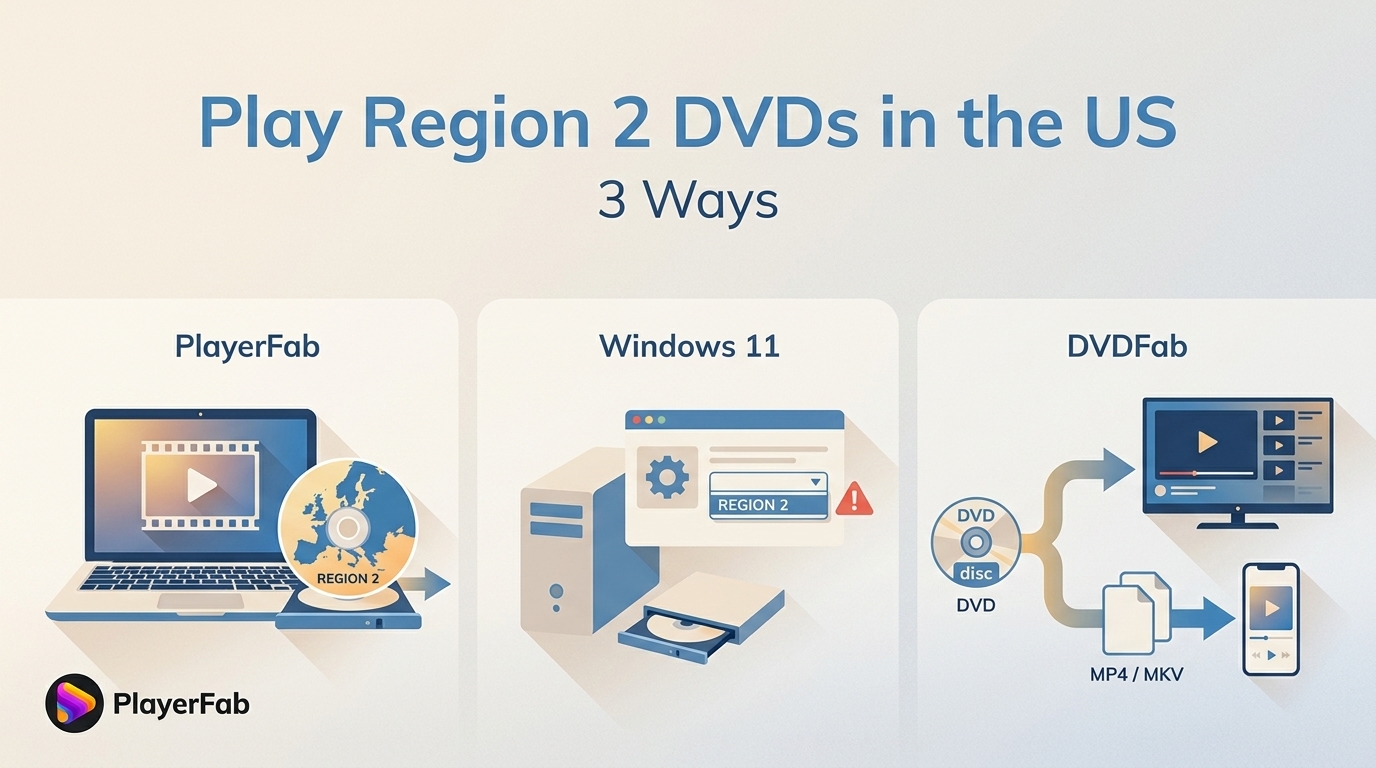
You insert an imported Region 2 DVD into a US player and get a wrong-region message or no playback. A standard Region 1 player normally rejects it, so the practical choices are a compatible multi-region player, a carefully managed drive-region change, or an authorized personal local copy.
Before changing hardware settings, check the globe logo, disc format, and video standard. In my view, that is the least disruptive first move because a DVD region code, Blu-ray region, and PAL or NTSC signal are separate compatibility checks.
What a Region 2 DVD Means
A Region 2 DVD is a DVD-Video disc intended for players or drives set to Region 2. The code manages geographic playback, while the movie, menu, and disc format remain DVD content.
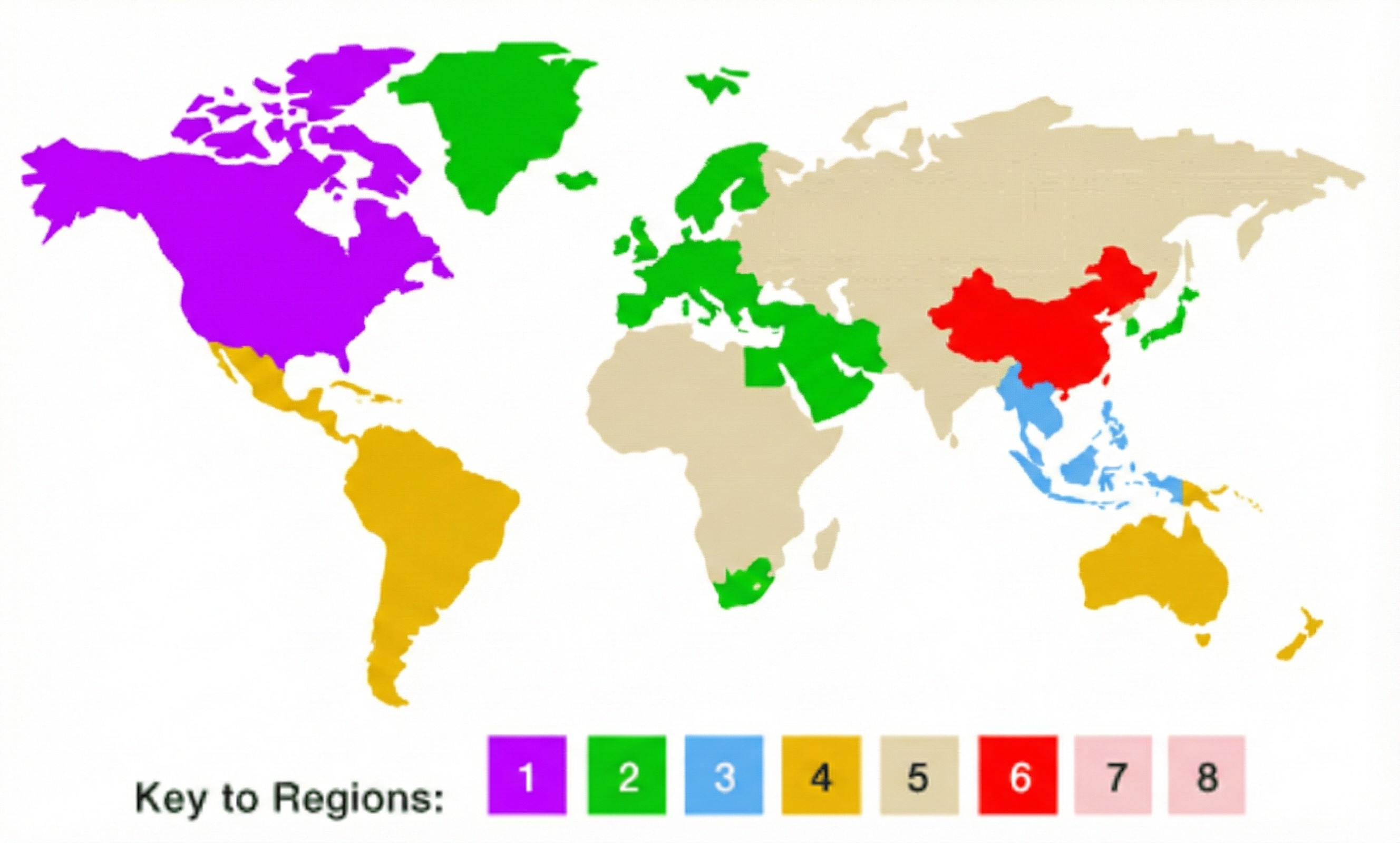
Region 2 generally covers Japan, most of Europe, South Africa, the Middle East, and Greenland. Look for a globe containing “2” on the case or disc. A globe marked “0” or “ALL” indicates broader regional compatibility.
Will It Play in the US?
Usually not on a standard US Region 1 player. If the device reports a wrong region DVD, use a compatible Region 2 DVD player, set a computer drive to Region 2 within its allowed changes, or create an authorized local copy.
Normal playback is worth trying before any setting change because enforcement varies by disc, drive, and player. A software player may open one imported disc yet still be blocked by an RPC-2 optical drive on another setup.
Check Disc and Device Compatibility
Check the format first: DVD Region 2 versus Region B is not an interchangeable label. DVDs use numbers, while Blu-ray discs use letters, so a US Blu-ray player that handles DVDs may still apply separate rules to each format.
- Disc logo: Confirm DVD, not Blu-ray, and read the region mark.
- Player support: Check the exact player, console, or optical-drive model rather than assuming all units sold under one name behave alike.
- Video standard: A PAL Region 2 DVD may need PAL-compatible output or PAL-to-NTSC conversion even after the region issue is addressed.
- Computer drive: On Windows 11 or macOS, confirm that the drive detects the disc before changing its region.
During a compatibility check with a Dell XPS 15 running Windows 11 and an LG C2 OLED display, the imported DVD was detected by the external drive, while usable playback still depended on both the drive region and the display path. That is why I check format and signal support before buying or modifying a player.
Three Ways to Play Region 2 DVDs
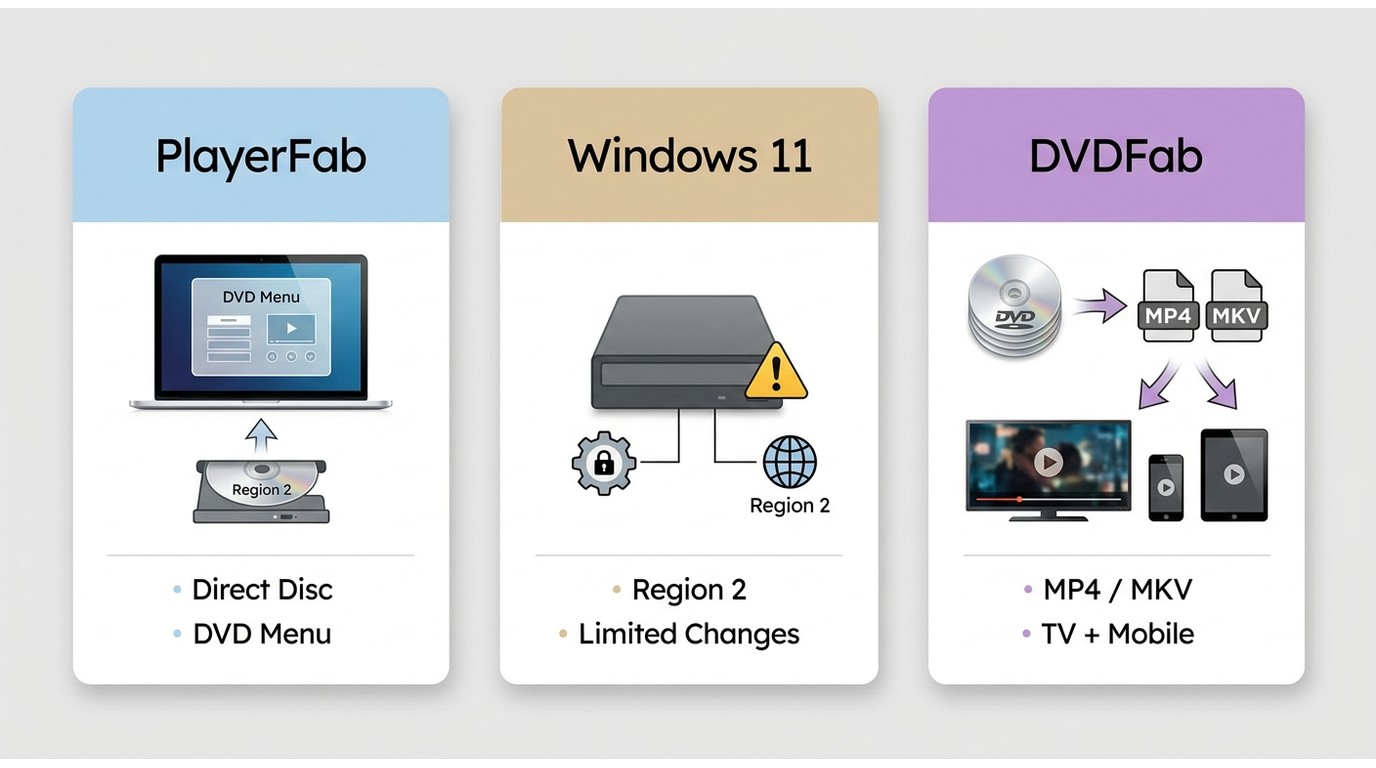
The three workable routes differ mainly in setup effort, device fit, menu access, and risk to a limited drive-region counter. Choose according to how often you import discs and where you want to watch them.
Compare the Three Methods
For immediate viewing, a compatible player is usually the cleanest route. A drive change is narrow and carries a finite counter, while a personal local-file workflow trades conversion time for broader device compatibility.
| Method | Good fit | Less suitable | Typical cost | Setup effort | Region-change limit | DVD menus | PAL/NTSC check | Playback destination |
|---|---|---|---|---|---|---|---|---|
| Multi-region hardware or desktop player | Immediate region-free DVD playback | Readers who do not want new hardware or desktop software | Free trial to hardware purchase | Low to moderate | No optical-drive setting change when the player handles the disc | Varies; PlayerFab supports DVD menu navigation on Windows | Required for hardware and TV output | Computer or TV setup |
| Change the optical drive region | Occasional use of discs from one imported region | Frequent switching between US and imported discs | No added software cost | Moderate | Finite; inspect the counter first | Depends on playback software and disc | Still required | The computer using that drive |
| Save an authorized personal digital copy | Personal cross-device viewing of an owned or authorized disc | Anyone who wants instant playback or the original interactive menu | Software may be required | Moderate to high | No repeated drive-region switching during later file playback | Usually not preserved as an interactive DVD menu | Output playback avoids analog TV-standard handling, but source access still matters | Compatible computers, TVs, phones, or tablets |
My practical verdict is simple: start with the player route for regular imported-disc viewing, reserve a drive change for infrequent use with a safe counter, and consider a local copy when authorized cross-device access matters more than the original menu.
Method 1: Use a Multi-Region Player
A multi-region DVD player can be software on a computer or dedicated hardware connected to a TV. This route suits viewers who want direct disc playback without repeatedly changing an optical-drive setting.
Desktop playback
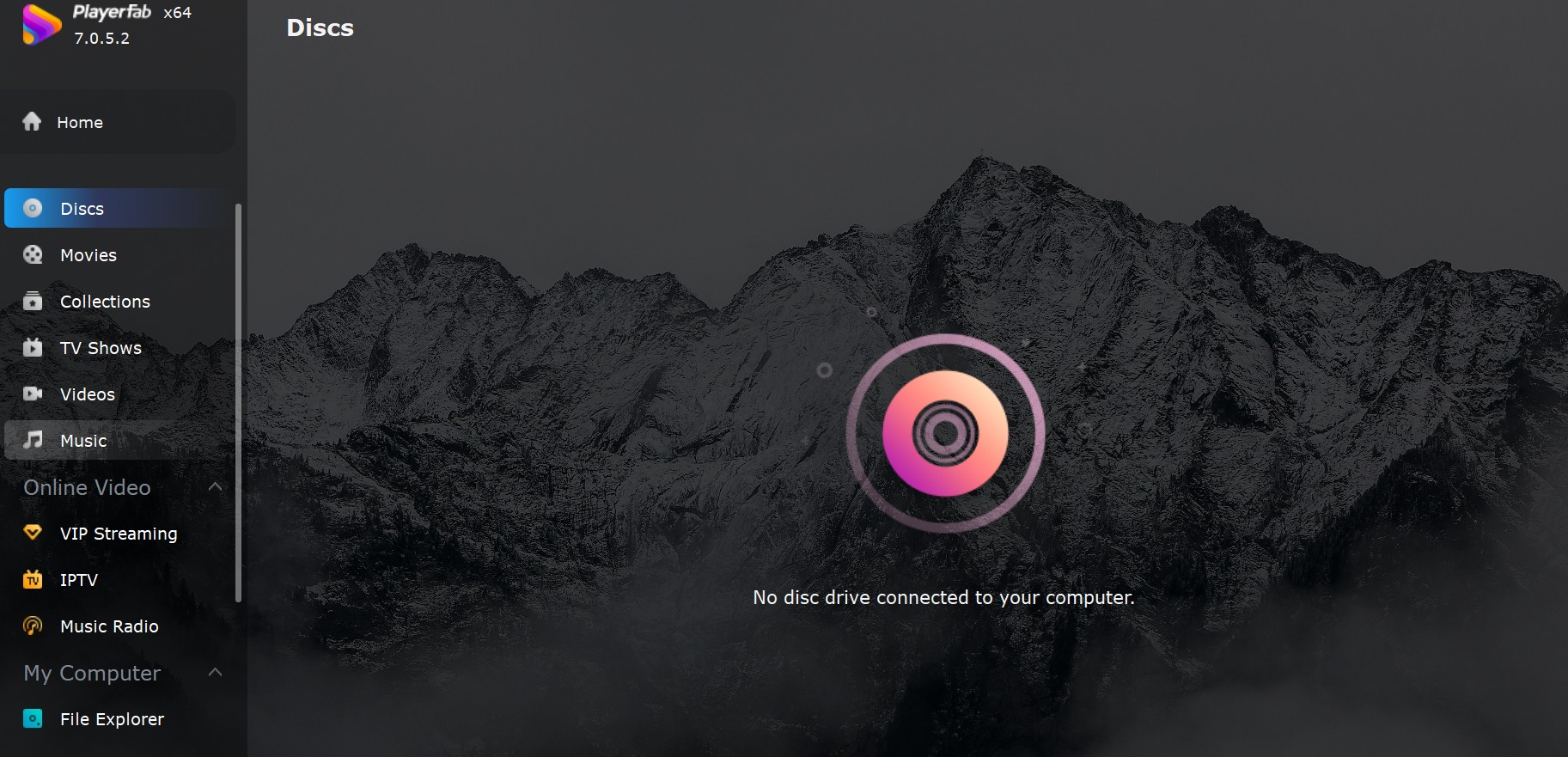
PlayerFab DVD Player is a Windows and macOS desktop option for playing DVDs sold in different regions. It opens physical discs, DVD ISO images, and DVD folders; on Windows, DVD menu navigation remains available for those sources.
In a scoped playback check on a Dell XPS 15 running Windows 11, PlayerFab opened the DVD menu from an imported disc and preserved title navigation during that session. For readers comparing software approaches, the key question is whether the player handles the disc source and menu structure without forcing frequent drive-setting changes.
A computer-based region-free DVD player is a good fit when imported discs are watched at a desk or through a computer connected to a TV. This DVD player for laptop context also matters because an external optical drive may enforce its own region setting.
The existing installers are available as Download Now for Windows and Download Now for macOS. My judgment is that desktop playback makes the most sense when menu access and immediate viewing matter; it is less suitable if the goal is a portable file for several devices.
Other software and hardware choices
VLC remains useful for playing DVDs with VLC, but success with an imported disc depends on the optical drive and the disc rather than the media-player name alone. KMPlayer can handle common DVD-related files, but its current imported-disc region behavior should not be assumed without checking the specific setup.
If the drive enforces Region 1, review the drive-region checks before changing anything. Software cannot guarantee access when the drive itself rejects the disc.
For dedicated hardware, ignore unsupported marketplace promises and compare the exact supported DVD regions, PAL-to-NTSC conversion, voltage, HDMI output, warranty, and whether Blu-ray region support is listed separately. Hardware is a good fit for TV-first viewing, but not for buyers who need portable files or cannot confirm the seller’s specifications.
Before Changing Region Settings
A drive-region change can consume a limited selection, so inspect the current region and remaining counter before clicking any confirmation button. There is no universal hardware-player menu or remote sequence.
- Try normal playback and confirm whether the device shows a region message, a disc-read error, or no detection.
- Test another known-good DVD to separate a damaged disc from a drive problem.
- Identify the player or optical-drive model and its current region.
- Read the remaining-change counter before selecting a new country or region.
- Use the model’s documented procedure; many US hardware players do not expose a user-changeable setting.
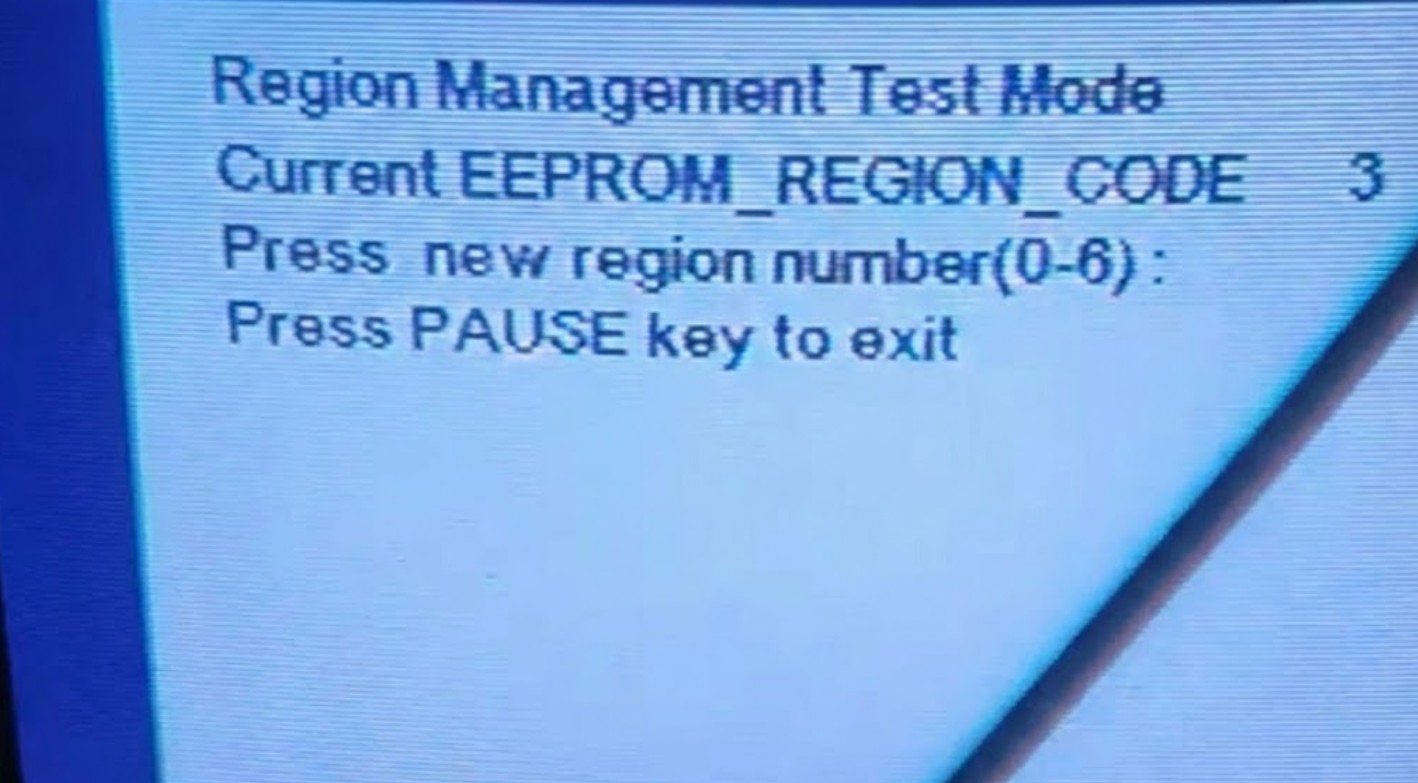
On a MacBook Air M2 running macOS 15, the DVD Player region dialog displayed the current setting before accepting a selection. Apple’s documented workflow counts the original region plus later selections, and the fifth selection becomes the final setting. I would not use this route for a collection that alternates between Region 1 and Region 2 discs.
Method 2: Change the Drive Region
Change DVD drive region settings only after confirming disc detection and a safe remaining counter. On Windows 11, the setting is normally exposed through the optical drive’s properties when the hardware and driver provide a DVD Region tab.
- Right-click Start and open Device Manager.
- Expand DVD/CD-ROM drives.
- Right-click the optical drive and choose Properties.
- Open the DVD Region tab and review the current region and changes remaining.
- If the counter is safe and Region 2 use fits your needs, select a Region 2 country and confirm the change.
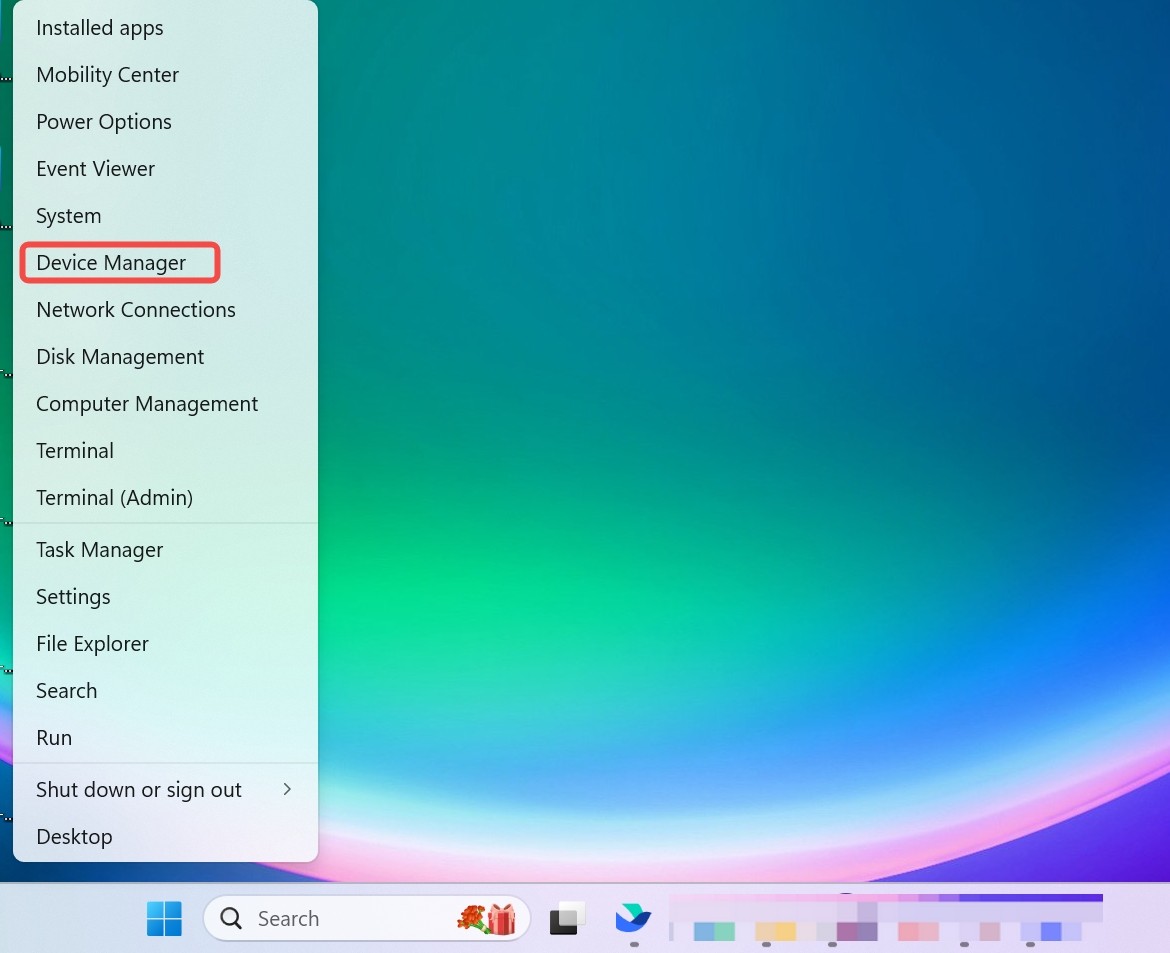
During a Windows 11 DVD region check on a Dell XPS 15, Device Manager listed the optical drive only after the drive itself recognized the disc. The observable lesson was diagnostic rather than promotional: if Windows cannot detect the drive or disc, changing playback software is not the first fix.
This method fits someone who rarely switches regions and understands the counter. It is a poor match for frequent imports, shared computers, or any setup where the remaining changes are already low.
Method 3: Save a Personal Digital Copy
For a disc you own or are authorized to use, where permitted by applicable license terms and law, a local MP4 or MKV copy can support personal viewing on compatible devices without repeated drive-region switching.
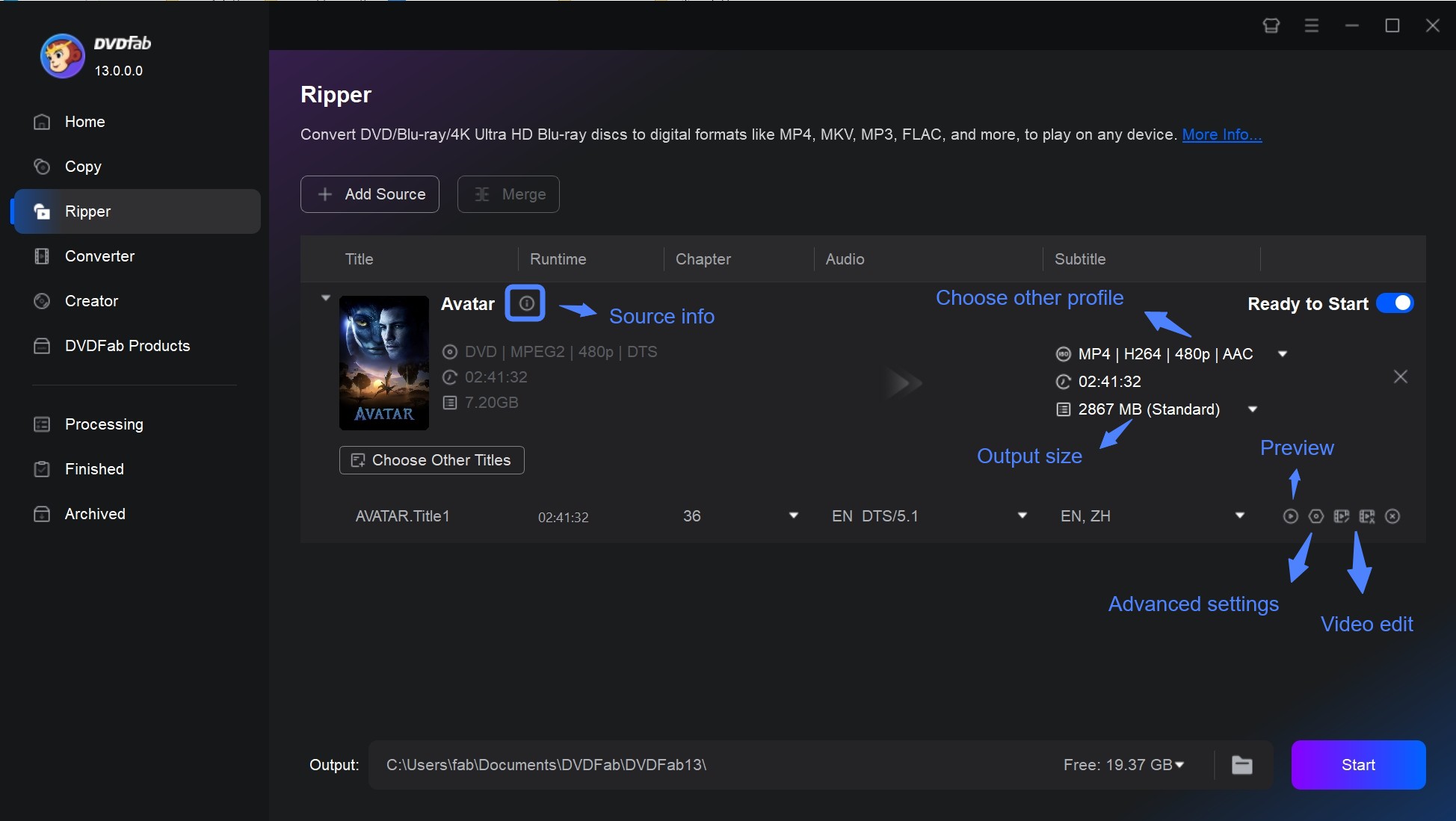
DVDFab DVD Ripper serves a different need from PlayerFab DVD Player: the player is for immediate desktop viewing, while the converter creates a local file from a disc, ISO, or folder. Keep that distinction clear when choosing a workflow.
- Insert the Region 2 DVD into a compatible computer drive.
- Open DVDFab and select the Ripper module.
- Load the DVD disc, ISO image, or folder.
- Select MP4 or MKV according to the target device and track needs.
- Choose the destination folder and start the conversion.
MP4 versus MKV
| Format | Device compatibility | Audio and subtitle tracks | File-size tendency | Good fit |
|---|---|---|---|---|
| MP4 | Broad support across common US computers, TVs, phones, and tablets | Better for a simpler selection of tracks | Often easier to manage for portable playback | Everyday viewing across several device types |
| MKV | Works well in media players that support the container | Better suited to multiple audio and subtitle tracks | Can be larger when more tracks are retained | Collection-focused storage where track choice matters |
For film collections, I prefer MKV when alternate audio or subtitle tracks are part of the reason for owning the disc; MP4 is the more convenient choice for broad device playback. This method is less suitable when conversion time or loss of the original interactive menu outweighs portability.
FAQs
These answers cover device and format Edge cases that often cause confusion after the main three methods are understood.
Is DVD Region 2 the Same as Blu-ray Region B?
No. DVDs use numbered regions, including Region 2, while Blu-ray discs use lettered regions, including Region B. Check both the disc format and logo before buying a player or changing settings; support for one system does not establish support for the other.
Can PS5 or Xbox Play Region 2 DVDs?
Do not assume a US console accepts an imported DVD. Compatibility depends on the console model, sales region, disc format, and separate DVD or Blu-ray rules. Check the exact model documentation and remember that Region 2 DVD support says nothing about Region B Blu-ray support.
Can I Change Regions Without the Remote?
There is no universal no-remote method. Some hardware players require a model-specific remote sequence or service procedure, while many cannot be changed by the user. Avoid generic codes that are not documented for the exact model.
Why Can’t Windows Read the Disc?
First confirm that the drive detects other discs, then inspect the current Windows 11 DVD region and remaining counter before testing playback software. In a Dell XPS 15 Windows 11 check, a disc-detection failure appeared before any player opened, so the useful next step was diagnosing the DVD player not reading the disc rather than changing regions immediately.
Conclusion
To play Region 2 DVDs in the US, choose the least disruptive method that fits the disc and device: use a compatible multi-region player for immediate viewing, change a drive region only when its counter is safe and switching will be rare, or create an authorized personal copy for cross-device use. Check DVD versus Blu-ray format and PAL/NTSC support before spending money or changing settings.

![Play DVDs on Windows 10/11: 4 Methods and Fixes [2026]](https://r4.dvdfab.cn/upload/player/en/how-to-play-dvds-on-windows-10-BykI.jpg) Play DVDs on Windows 10/11: 4 Methods and Fixes [2026]By Alice Harper - Jul 29, 2026
Play DVDs on Windows 10/11: 4 Methods and Fixes [2026]By Alice Harper - Jul 29, 2026 8 Best DVD Players for Windows 10/11 (Free and Paid, 2026)By Alice Harper - Jul 29, 2026
 How to Play a DVD on a Laptop: 3 Methods That WorkBy Alice Harper - Jul 29, 2026
 How to Play VOB Files: VLC, DVD Menus, and MP4 ConversionBy Alice Harper - Jul 23, 2026