Windows Media Player Won't Play DVDs? 4 Paths That Work

Summary: Windows Media Player no longer includes DVD-Video playback on current Windows, so the right fix depends on your drive, disc type, and menu needs. This guide separates older supported WMP setups from modern Windows paths, then compares free players, PlayerFab, and codec-based fixes.
Table of Contents
Searching for a Windows Media Player DVD fix usually starts with the same surprise: on Windows 10 and 11, installing WMP does not add DVD-Video playback. The practical route is to confirm the drive, identify the disc type, and choose software built for that job.
When I connected an external USB DVD drive to a Dell XPS 15 running Windows 11, a Region 1 disc appeared in File Explorer but produced a playback error in Windows Media Player. That split the diagnosis cleanly: Windows could see the hardware, while the installed player lacked the required DVD capability.
Can Windows Media Player Play DVDs?
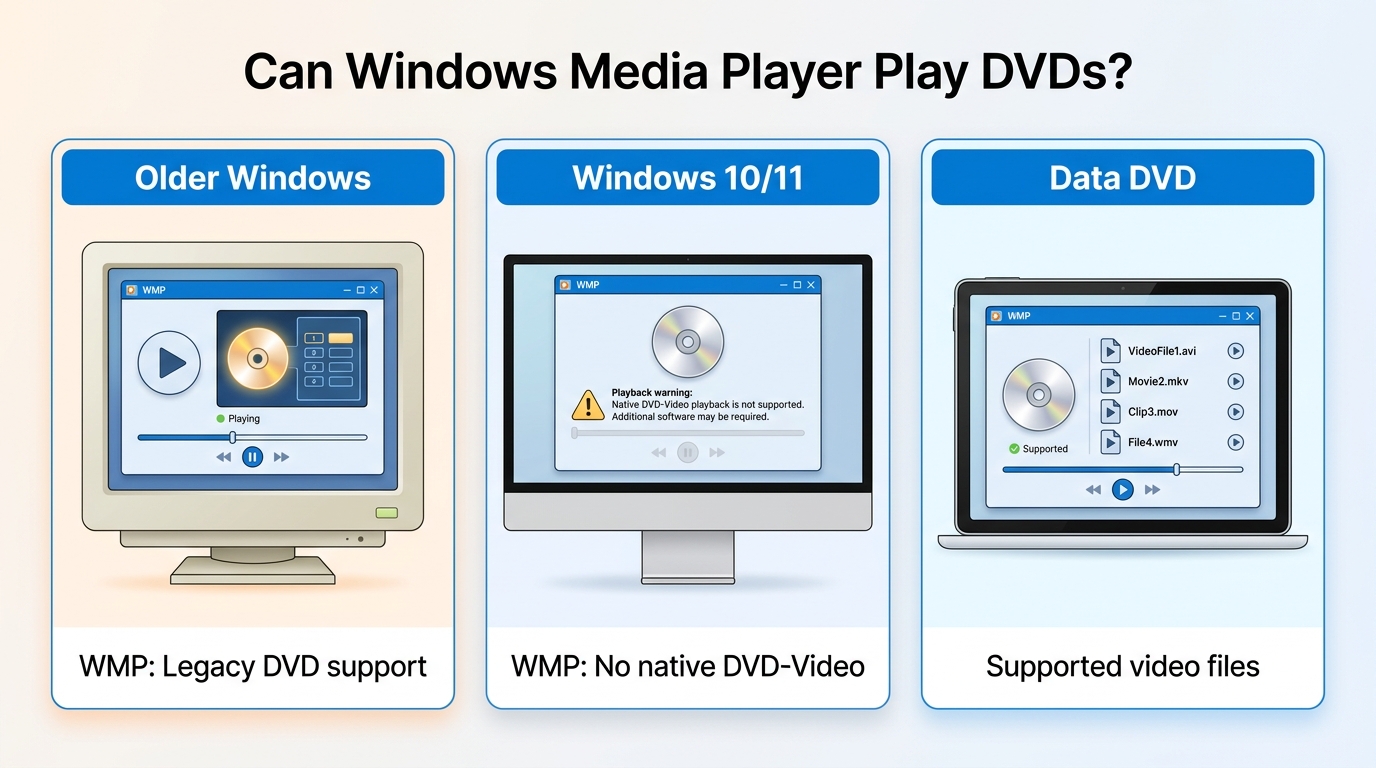
Windows Media Player DVD playback depends on the Windows generation and the components already installed. Older configurations may include compatible DVD support, but Windows Media Player Legacy on current Windows does not include DVD-Video playback.
- Older supported setups: A PC that already has a DVD drive and compatible playback components may still play a disc through the classic interface.
- Windows 10 and 11: Installing or enabling Windows Media Player Legacy does not add native DVD playback.
- Data DVDs: WMP may open an ordinary supported video file stored on a disc, but that is different from navigating an authored DVD-Video title with menus and chapters.
My editorial judgment is straightforward: recreating an older Windows Media Player Legacy DVD setup is less dependable than using a maintained DVD-capable player, especially when the disc has menus, region requirements, or commercial playback controls.
Playing DVDs with Windows Media Player
You can play DVD on Windows Media Player only when the PC already has a detected optical drive and compatible DVD playback components. On a current Windows PC, first separate the old WMP steps from the modern route that uses a DVD-capable app.
Standard Playback on Supported Setups
These steps apply to an older or preconfigured system where Windows Media Player DVD support is already present. They do not turn a standard Windows 10 or 11 installation into a DVD player.
- Insert the disc into the internal drive or external USB DVD drive, then wait for Windows to detect it.
- Open Windows Media Player and look for the disc or optical drive in the navigation pane.
- Select the disc and start playback. Menus and chapters appear only if the installed components support authored DVD-Video.
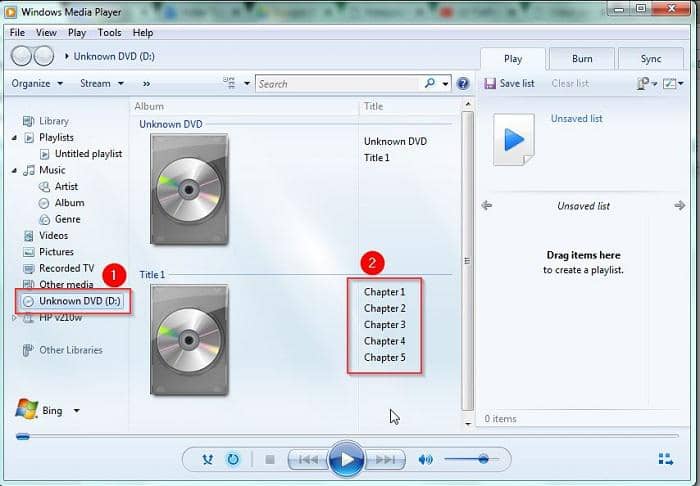
For Windows 10 or 11, use this sequence instead:
- Confirm that the optical drive appears in File Explorer or Device Manager.
- Install a trusted DVD-capable player that fits the type of disc you use.
- Open the player first, then select the disc from inside that app.
- Set a DVD-specific AutoPlay action if you want that player to open automatically next time.
This route suits readers who want a repeatable result rather than the familiar WMP interface itself. In a second check on the same Windows 11 laptop, opening the disc from a maintained DVD player reached the authored menu, while reopening WMP returned to the same unsupported-playback state.
When the Disc Opens as a Folder
If the DVD opens as a folder containing VIDEO_TS files, Windows is usually detecting the disc but has no DVD-capable app assigned to authored playback. File Explorer can expose the files; it does not make WMP handle the disc menu.
Open the disc from within a DVD-capable player, confirm that playback works there, and then set that app as the DVD AutoPlay action. Do not treat a visible folder as proof that the drive or disc has failed.
Why Windows Media Player Won't Play DVDs
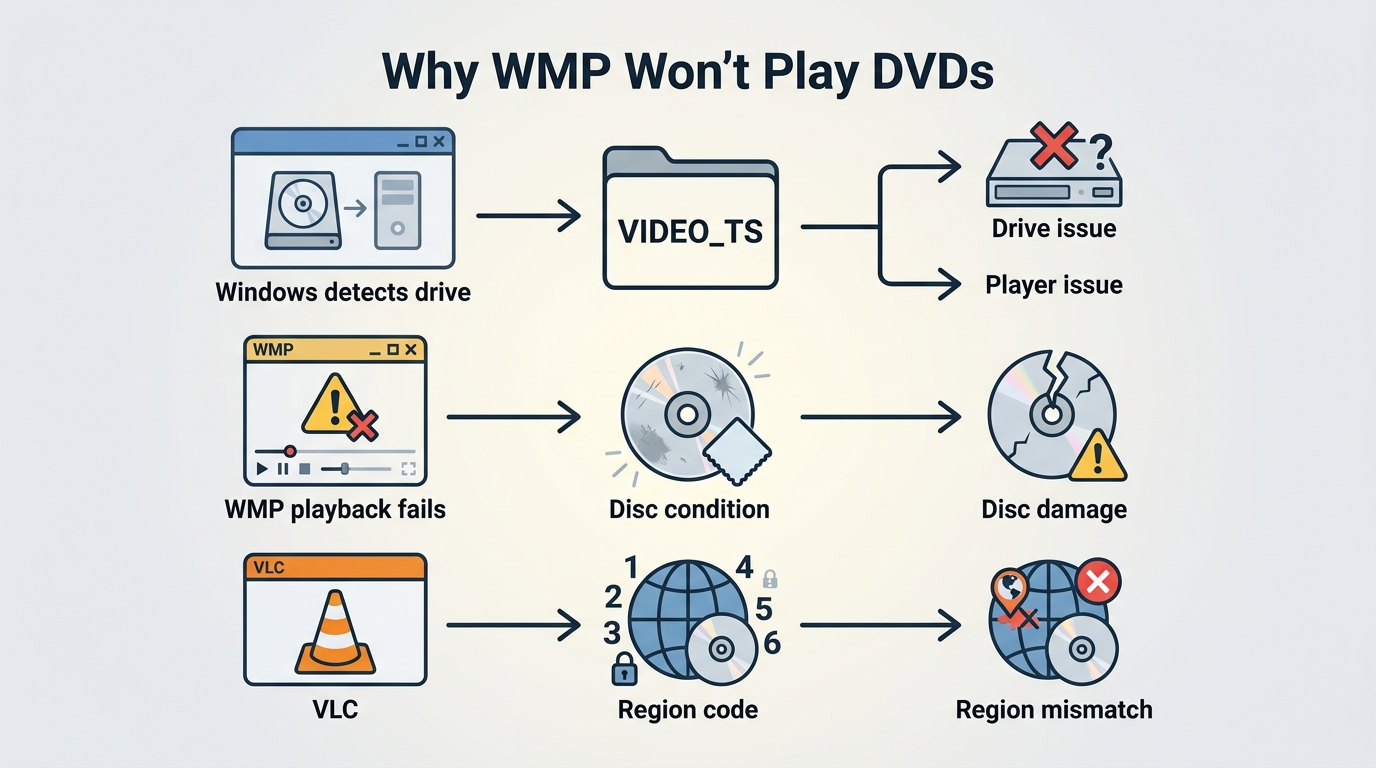
When Windows Media Player won't play a DVD, diagnose in this order: hardware detection, Windows capability, the selected app, and finally the disc itself. That order avoids changing codecs before you know whether the drive is visible.
Missing DVD Support and Codec Errors
A Windows Media Player DVD codec error can indicate a missing, outdated, or conflicting decoder, but adding a decoder does not restore Microsoft-provided DVD support. Use the symptom to choose the next test.
- The drive is absent in File Explorer: Reconnect the drive, try another USB port, and check Device Manager. If Windows cannot see the hardware, changing players will not help.
- The DVD opens as a folder: Windows sees the disc. Open it inside a DVD-capable app and assign that app to DVD AutoPlay.
- AutoPlay launches the wrong app: Open Windows Settings, find AutoPlay, and select an installed DVD action. Changing the default does not add DVD capability to WMP.
- WMP shows a 0xC00D11xx error: Test the disc in a maintained DVD player before adding more codec software. The result shows whether the failure is limited to WMP.
- Video plays without sound: An audio decoder may be missing or conflicting. Test the same disc in another player, then update or roll back the relevant audio component rather than installing several overlapping packs.
- One disc fails but others play: Inspect and clean the disc, then test it in another drive or standalone player. A single-disc failure points toward damage or disc-specific compatibility.
- All discs fail: Recheck the drive, its connection, and the playback app before changing system components.
- The player reports a region or commercial-disc limitation: Move to the checks below and keep the troubleshooting focused on authorized personal playback.
On a Dell XPS 15 running Windows 11, I compared a disc that opened as VIDEO_TS folders with a second known-good disc. Both were visible to Windows, which ruled out the USB drive and made the missing DVD handler the more useful next target.
I would test another disc and another maintained player before installing a broad codec pack. That two-part check gives more diagnostic value than stacking decoders on top of an unresolved hardware or application problem.
Drive Detection and Region Code Checks
An external USB DVD drive supplies hardware access, not playback software. If the drive is visible but a region-locked DVD will not start, check the drive region and disc label before changing player settings.
- Confirm the drive appears in File Explorer and Device Manager.
- Test a known-good local-region disc to separate region mismatch from a general drive failure.
- Review the drive's region setting before making a change, because drive firmware can limit how often that setting is altered.
- For an imported title, the practical details of how to play Region 2 DVDs depend on the disc, drive, and playback software.
The key judgment is not to label every failed import as a codec problem. If local discs work and an imported disc does not, region compatibility is the stronger lead.
Commercial Disc Protection Limits
Commercial DVD playback can fail even when the drive, region, and basic decoder all appear correct. Authored retail discs may use playback controls that a general-purpose media player does not support.
For discs you are authorized to access, limit troubleshooting to personal viewing where permitted by applicable law and relevant terms. A codec pack can decode media formats, but it may not provide commercial-disc handling or complete menu navigation.
This is where I stop treating the problem as a Windows Media Player DVD codec issue. If a known-good retail disc works in a dedicated disc player but not in WMP, the player capability is the meaningful difference.
Proven DVD Playback Options for Windows
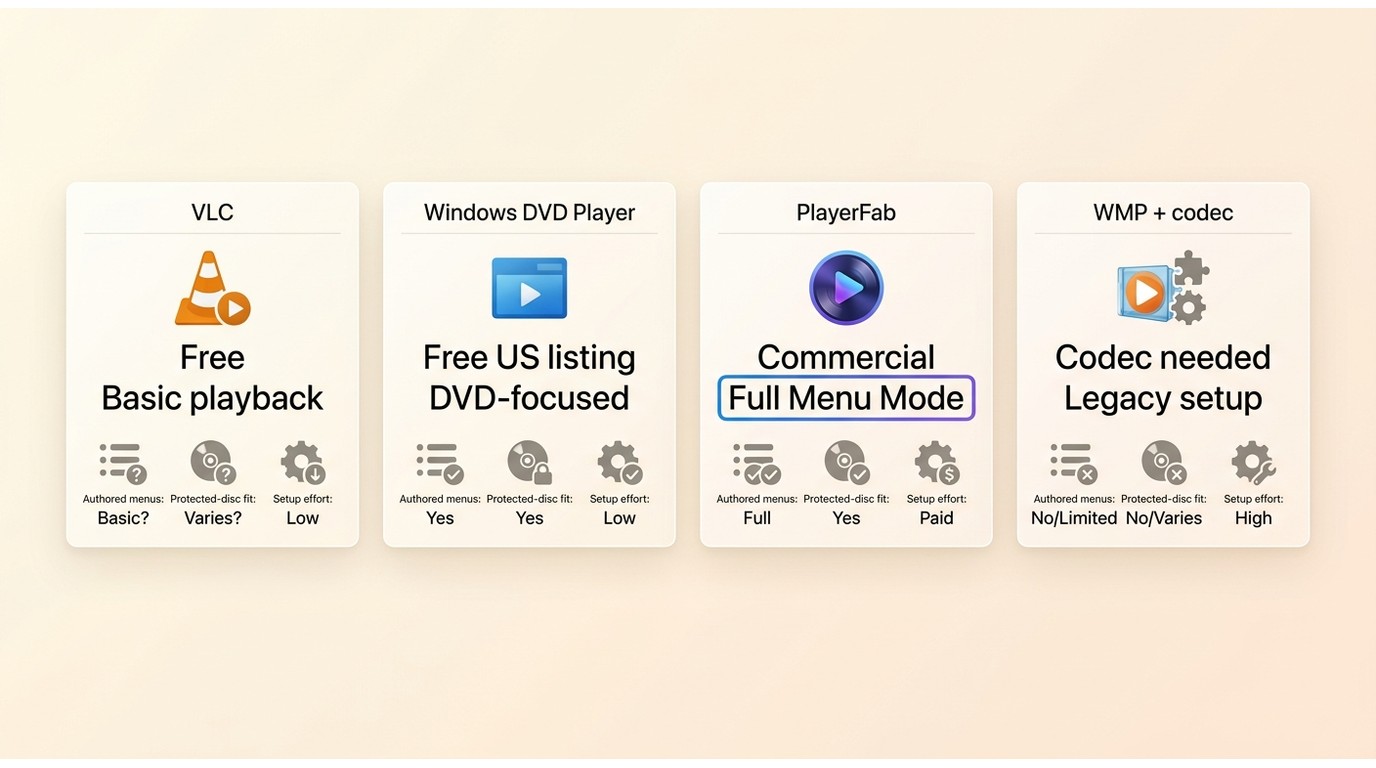
Windows users have four realistic paths: VLC, Windows DVD Player, PlayerFab DVD Player, or a codec-assisted WMP setup. The right choice depends on whether you need basic free playback, authored menus, commercial-disc compatibility, or the old WMP interface.
The table uses current US availability as of July 2026. VLC is free, and the current US Microsoft Store listing labels Windows DVD Player as free; similarly named Store apps can come from different publishers and offer different features.
| Option | Current US cost model | Windows 10/11 support | Basic unprotected DVD playback | Commercial or protected disc fit | Region-locked disc fit | Native DVD menu support | Setup effort | Best fit | Not ideal for |
|---|---|---|---|---|---|---|---|---|---|
| VLC media player | Free | Yes | Generally suitable | Support depends on the disc and system environment | Support varies by drive and disc | Menu behavior can vary | Low | Basic playback with a free, maintained player | Readers who require consistent authored menus or broader retail-disc compatibility |
| Windows DVD Player | Free in the current US Store listing | Yes | Designed for DVD playback | Support depends on the disc and system environment | Depends on the drive and disc | Designed around DVD playback | Low | A straightforward Microsoft Store route | Readers comparing similarly named apps without checking the publisher |
| PlayerFab DVD Player | Commercial software; no price stated here | Yes | Yes | Built for broader commercial-disc playback | Built for broader region compatibility | Full Menu Mode on Windows | Moderate | Authored menus and wider disc compatibility | Someone who needs only free playback of a simple unprotected disc |
| Windows Media Player with a codec pack | WMP is included; codec licensing varies | Partial and configuration-dependent | Possible on compatible setups | Limited | Limited by drive and disc | Not dependable | Medium to high | Users committed to the legacy WMP interface | Anyone seeking the shortest route to dependable DVD playback |
The practical takeaway is that free software is enough for many ordinary discs, while paid disc software is a feature-driven choice rather than a requirement for every DVD. A broader guide to how to play DVDs on Windows 10 covers the wider Windows routes, while a comparison of free DVD players for Windows 10 is more useful if cost is the main filter.
PlayerFab for Menus and Protected Discs
For discs you're authorized to access, where permitted by applicable law, PlayerFab is a desktop playback option for personal viewing. Its Windows version supports physical DVDs, DVD ISO files, and DVD folders with Simple Mode or full Menu Mode.
PlayerFab All-In-One is most relevant when the disc's authored menu, chapter structure, or broader commercial-disc compatibility matters. It can also organize local media in a poster-wall library, but that is secondary to the DVD decision here.
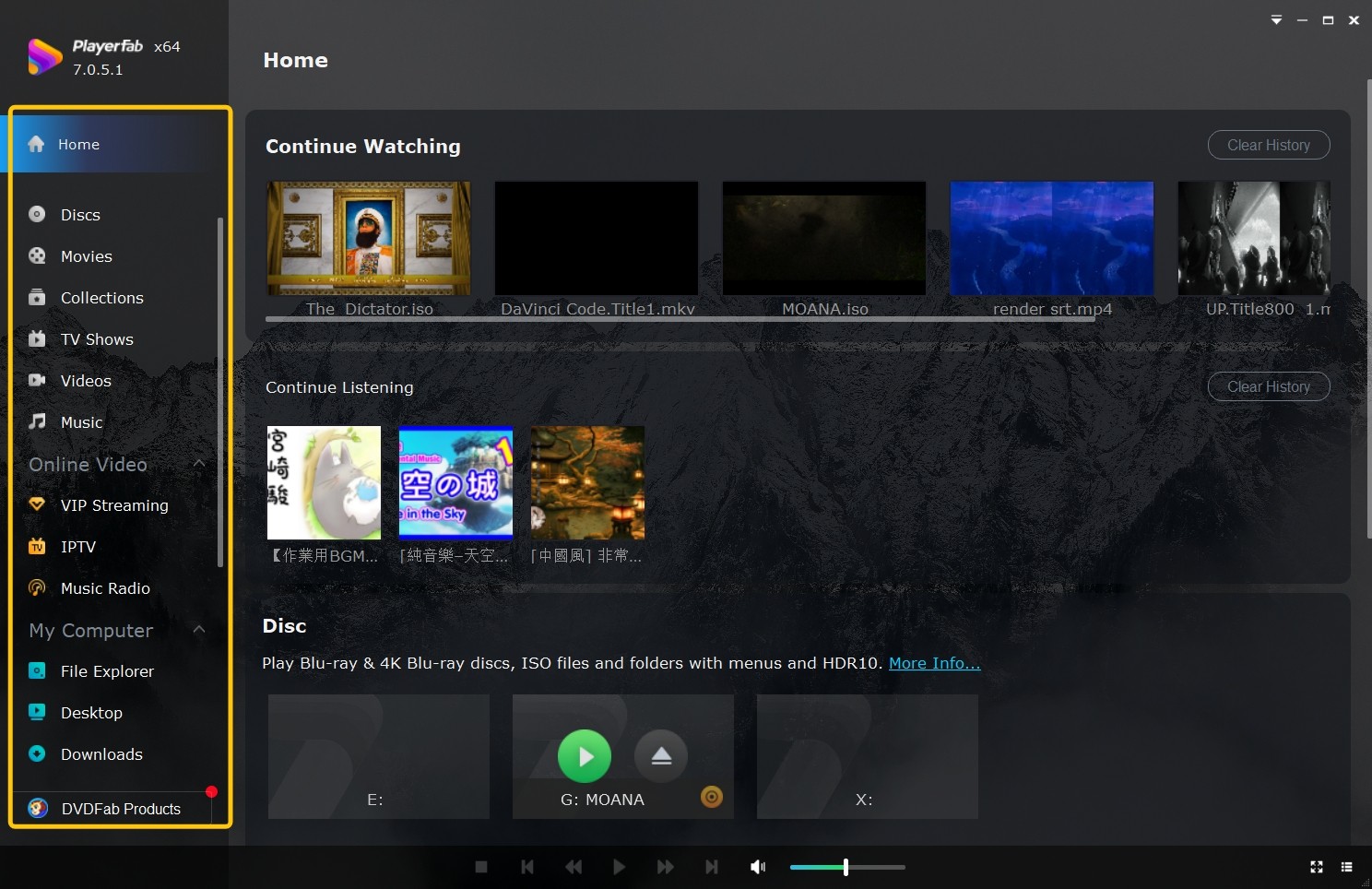
On a Dell XPS 15 running Windows 11 with an external drive, I used the menu-first check that matters for films such as Dune and Blade Runner 2049: the title menu, chapter selection, and main feature should remain accessible as authored. That observed workflow is more useful than judging a disc player by a long feature list.
Best for: Windows users who need authored DVD menus or broader compatibility across commercial and imported discs. Not ideal for: someone who only needs free playback of a simple unprotected disc.
Codec Packs for WMP: A Limited Fix
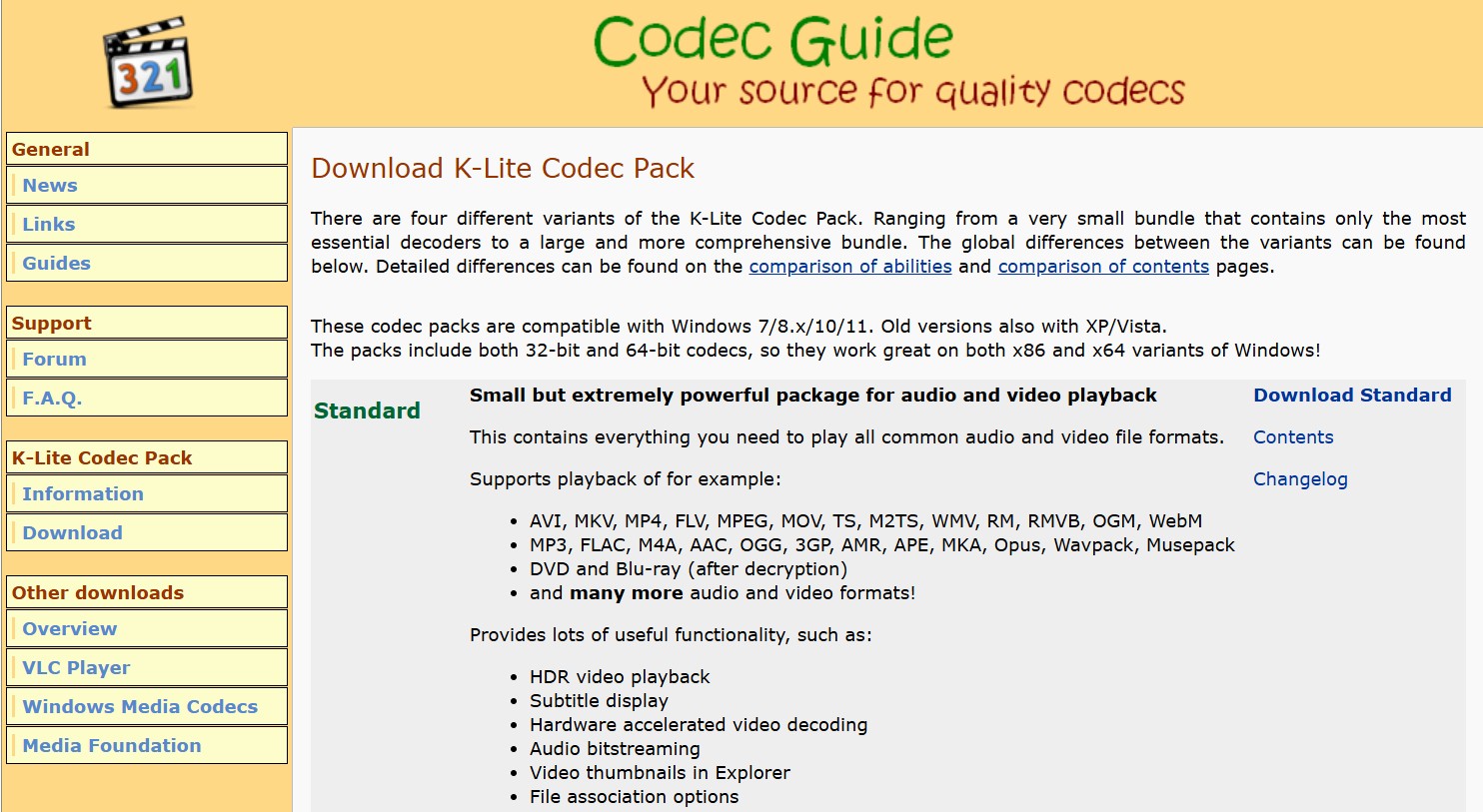
A codec pack can address a missing decoder or some Windows Media Player DVD codec errors, but it does not make modern WMP a dependable commercial DVD player. It may also create audio or decoder conflicts when several components overlap.
- Useful when: you have an older compatible setup, an ordinary disc, and a specific missing-decoder error.
- Limited when: the disc needs authored menus, commercial-disc handling, or region compatibility beyond the drive's current setting.
- Skip it when: you want the quickest supported route and do not specifically need the WMP interface.
I treat codec installation as a targeted repair, not a first response. If the same disc plays correctly in another maintained app, that evidence is stronger than adding another decoder and hoping the conflict disappears.
Choose the Path That Fits Your Disc
The right Windows Media Player DVD playback path depends on the Windows version, disc type, menu needs, and budget. Older supported systems may still use WMP steps; current Windows users usually get a clearer result from a maintained DVD player.
Start with the hardware, then confirm Windows capability, and finally choose for the disc in front of you. VLC or Windows DVD Player can suit basic free playback. PlayerFab fits readers who need authored menus or broader commercial-disc support. A codec pack is a narrower choice for preserving a compatible legacy WMP setup.
FAQ
Can Windows Media Player play a data DVD containing MP4 files?
It may open a supported MP4 file stored on a data DVD because Windows treats it like an ordinary file. That does not give WMP DVD-Video menus, chapter navigation, or native authored-disc playback.
Does an external USB DVD drive include everything needed for playback?
No. The drive gives the PC access to the disc, but compatible playback software is still required. Some manufacturers bundle an app, while others provide hardware alone.
Why is there video but no sound after I install a DVD codec?
A missing or conflicting audio decoder is the likely cause. I would test the same disc in a maintained DVD player before adding another codec pack, then update the specific audio component involved.
Can I change DVD AutoPlay without changing my default video app?
Yes. Windows can assign a DVD-specific AutoPlay action separately from the default app for MP4 and other common video files. Select an installed DVD-capable player for the disc action.

 Play Video Files: 4 Paths Across Formats and DevicesBy James Morgan - Sep 22, 2026
 12 Best HEVC Players for Windows, Mac, and 4K (2026)By Alice Harper - Aug 4, 2026
 Best WMV Player for Mac and How to Play WMV on Mac NativelyBy James Morgan - Aug 4, 2026
 8 Best TS File Players and Playback Tools for 2026By Alice Harper - Jul 28, 2026