DVD Player Not Reading a Disc? Fix No Disc Errors

Summary: A symptom-first guide to DVD read errors on standalone players, portable units, and external computer drives. It separates disc damage, compatibility, power, mechanical, operating-system, and playback-support problems, then explains when dedicated DVD software is relevant.
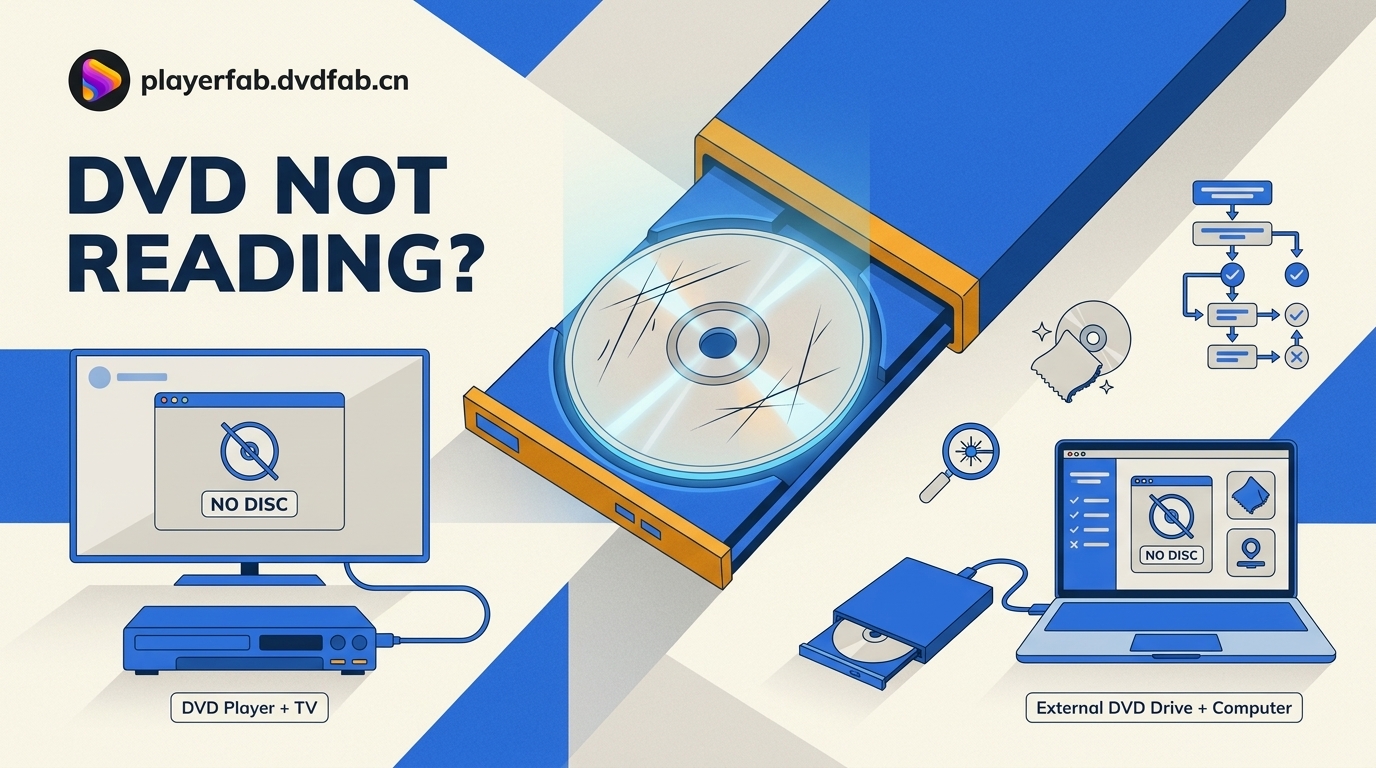
Table of Contents
If your DVD player is not reading a disc, start with one known-good compatible DVD. That single test separates a bad disc from a player, drive, or playback problem faster than cleaning, resetting, or changing software at random.
A DVD player not loading on a TV and a DVD drive not reading disc media on a computer can look similar, but they fail at different layers. This guide follows the visible symptom through the disc, player mechanics, computer connection, and DVD-Video playback support.
 My rule as a media software editor is simple: prove which layer failed before changing anything. A known-good disc is the diagnostic anchor throughout this process.
Why Your DVD Player Is Not Reading Discs
A No Disc message can come from the media, optical path, tray or spindle, device logic, USB connection, or playback software. The visible symptom tells you which branch to test first.
| Scenario | Visible symptom | Known-good disc result | Most likely cause | Best next check | Can playback software help? |
|---|---|---|---|---|---|
| Only one disc fails | The disc spins, skips, freezes, or shows No Disc | Another compatible DVD plays | Contamination, scratches, disc aging, region, or format mismatch | Inspect the failing disc and confirm compatibility | No, unless the computer can already read its files |
| Every disc fails | Repeated spin-up, clicking, or No Disc | The known-good DVD also fails | Dirty lens, weakening optical pickup, clamp, spindle, or device logic | Power-cycle, use an approved lens method, then assess mechanics | No |
| Disc does not spin or load | The tray will not close, clamp, or start rotation | No disc can begin reading | Tray belt, obstruction, clamp, spindle motor, or power fault | Check tray movement, seating, power, and abnormal noise | No |
| Computer does not detect the drive | The optical drive is absent from the operating system | A known-good disc cannot be tested in that drive | USB power, cable, port, driver, firmware, or drive failure | Reconnect directly, reboot, and check the operating system | No |
| Drive and files are visible but the movie will not play | The disc opens in the file browser, but menus or video fail | The operating system reads the media | DVD-Video playback or menu support | Test dedicated DVD playback software | Yes |
On my Dell XPS 15 running Windows 11, a suspect disc that failed while a known-good pressed DVD opened normally pointed to the media, not the external drive. That comparison is more informative than repeating a cleaning routine.
Read Error Symptoms and Likely Causes
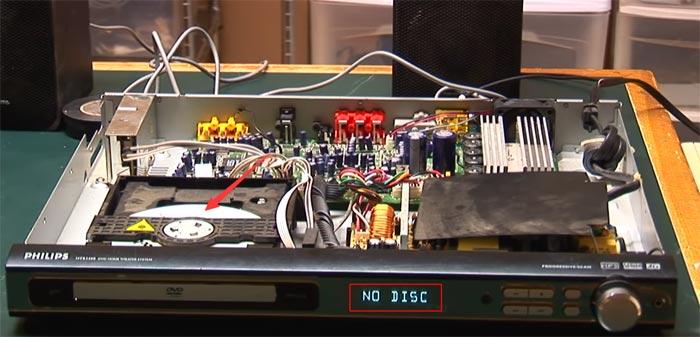
If the disc spins but won't read, listen and watch before acting. Repeated spin-up suggests the player is searching for a readable track; no spin points toward loading, clamping, motor, or power; grinding or rhythmic clicking calls for service rather than more cleaning.
- Intermittent reads: Compare the same DVD in another known-good device and test a different compatible DVD in the suspect player.
- Freezing at the same point: Inspect that radial area of the disc for scratches, contamination, or layer damage.
- Freezing at different points: Check ventilation, spindle stability, and whether the problem appears across several discs.
- DVD player not spinning: Stop forcing the tray and check whether the disc is seated flat and the clamp closes normally.
If a portable DVD player shows Disc Error after several compatible discs, this branch fits. It does not fit a computer that cannot detect an external USB drive at all.
Disc Condition, Disc Rot, and Laser Problems
Surface dirt can interrupt focus, but laser lens cleaning cannot repair bronzing, pinholes, dye degradation, or separation inside the data layer. If a disc fails in more than one known-good drive, treat the media as the likely fault.
Hold the disc by its edges under soft light. Look for discoloration, tiny light points, cloudy patches, Edge separation, or recordable-media dye changes. Wipe loose contamination from the center outward with a clean microfiber cloth, then retest once.
For an irreplaceable recordable disc, I would stop after a careful comparison test. Repeated polishing or aggressive cleaning adds risk when the failure is inside the disc rather than on its surface.
Burned Discs, Formats, Regions, and Video Standards
A burned DVD won't play on many TV players unless it was authored as DVD-Video, finalized, written to supported DVD-R/RW media, and encoded for a compatible video standard. A data disc containing MP4 files is not automatically a DVD-Video disc.
Computer playback proves that the computer understands the file or disc; it does not prove DVD-Video disc compatibility with a standalone player. Also check PAL or NTSC support and whether the player and disc regions match. A Region 2 DVD compatibility check is especially relevant when an imported disc fails but local discs work.
Fix a Standalone DVD Player or Portable Unit
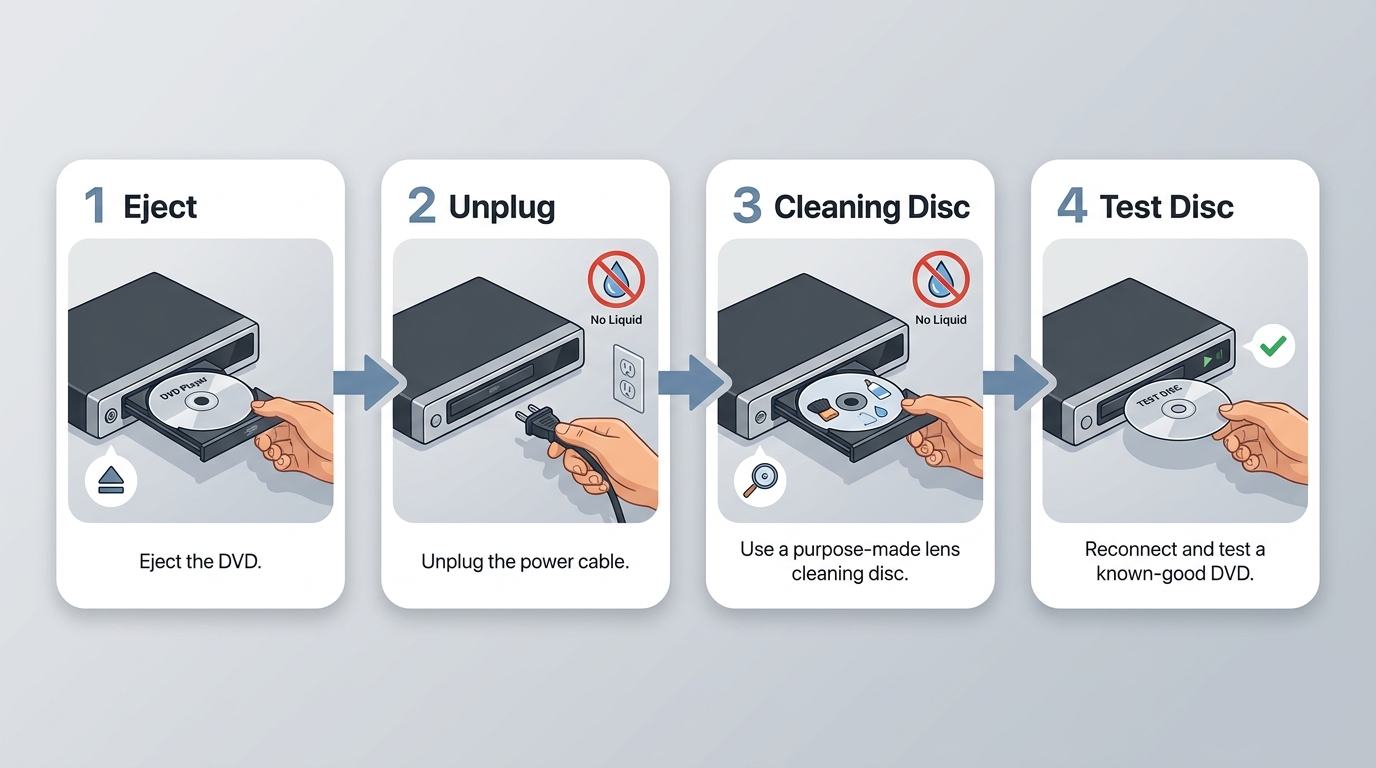
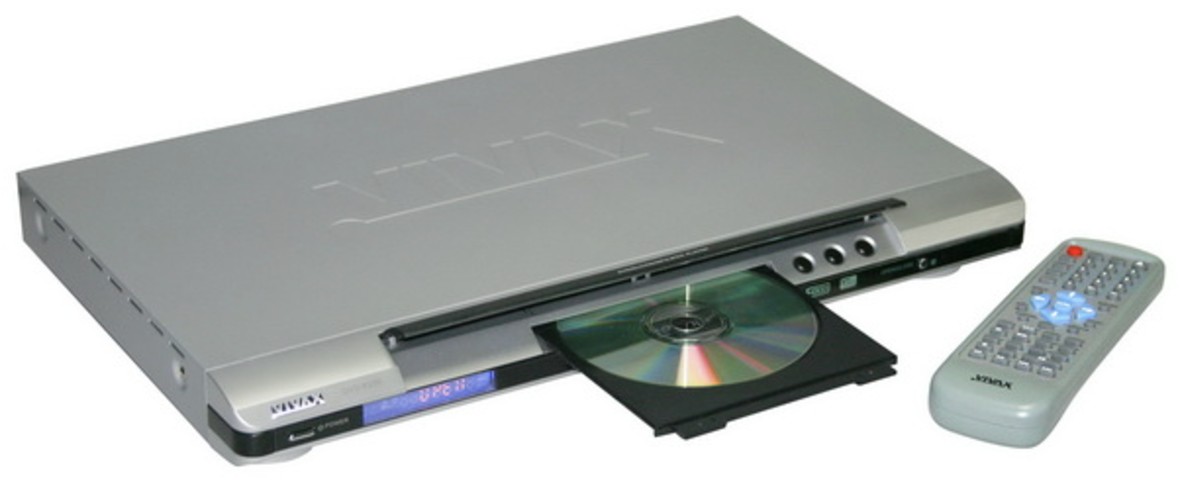
For a TV-connected or portable player, test another compatible disc, power-cycle the unit, inspect loading behavior, clean with an approved method, then check reset and firmware options. This sequence avoids opening hardware before simpler causes are ruled out.
Test and Clean the Disc
When a DVD player won't read disc content, first test a known-good commercial DVD that matches the player's supported format and region. If that disc works, focus on the original disc rather than the player.
- Take the disc out and inspect both sides under soft light.
- Confirm that it is seated correctly with the readable side facing the optical pickup.
- Wipe from the center toward the Edge with a clean microfiber cloth.
- Test the known-good disc, then retest the original once.
If the known-good disc plays, further device maintenance is unlikely to fix the original media. If all compatible discs fail, continue with the player checks below.
Power-Cycle, Reset, and Update Firmware
A full power-cycle clears a temporary device-state failure; a DVD player factory reset and firmware update are later checks because their procedures vary by model. Try them after disc compatibility, but before disassembly.
- Eject the disc, turn the player off, and disconnect power.
- Wait briefly, reconnect power, and test the known-good disc.
- If the fault remains, use the exact model's manual for its factory-reset procedure. Record custom picture, language, or audio settings first if needed.
- Check the manufacturer's instructions for the exact model before applying firmware. Use the stated update method and do not interrupt power during the process.
I treat firmware as a logical checkpoint, not a cure for grinding, a tray that cannot clamp, or a disc with visible layer damage.
Clean the Laser Lens Safely
Use a purpose-made cleaning disc or a manufacturer-approved procedure, with power disconnected whenever the instructions require physical access. Stop before case disassembly unless the service guidance and your repair skills clearly support it.
- Take out any disc and disconnect the player from power.
- Review the model's maintenance instructions and select the approved method.
- Use the cleaning disc or approved tool exactly as directed.
- Reconnect the unit and test one known-good DVD.
- If the player still reports No Disc across several DVDs, stop repeated cleaning and move to mechanical or service checks.
Do not apply liquid to an inaccessible lens or work inside a powered device. A persistent all-disc failure after safe cleaning is evidence for an aging optical pickup or another hardware fault.
Check Tray, Spindle, and TV Connections
A No Disc message comes from detection inside the player, not from HDMI or RCA cables. Check the TV connection when the player indicates playback but the screen is blank; check the tray, clamp, and spindle when the player cannot begin reading.
- Confirm that the tray closes fully and the disc lies flat without wobbling.
- Listen for spin-up, repeated speed changes, grinding, or clicking.
- If the player shows playback but the TV is blank, select the correct TV input and test a direct DVD player connection to the TV without a switch or receiver.
- If the tray jams or the spindle never starts, discontinue repeated loading attempts and consider service.
Fix an External DVD Drive on Windows or Mac
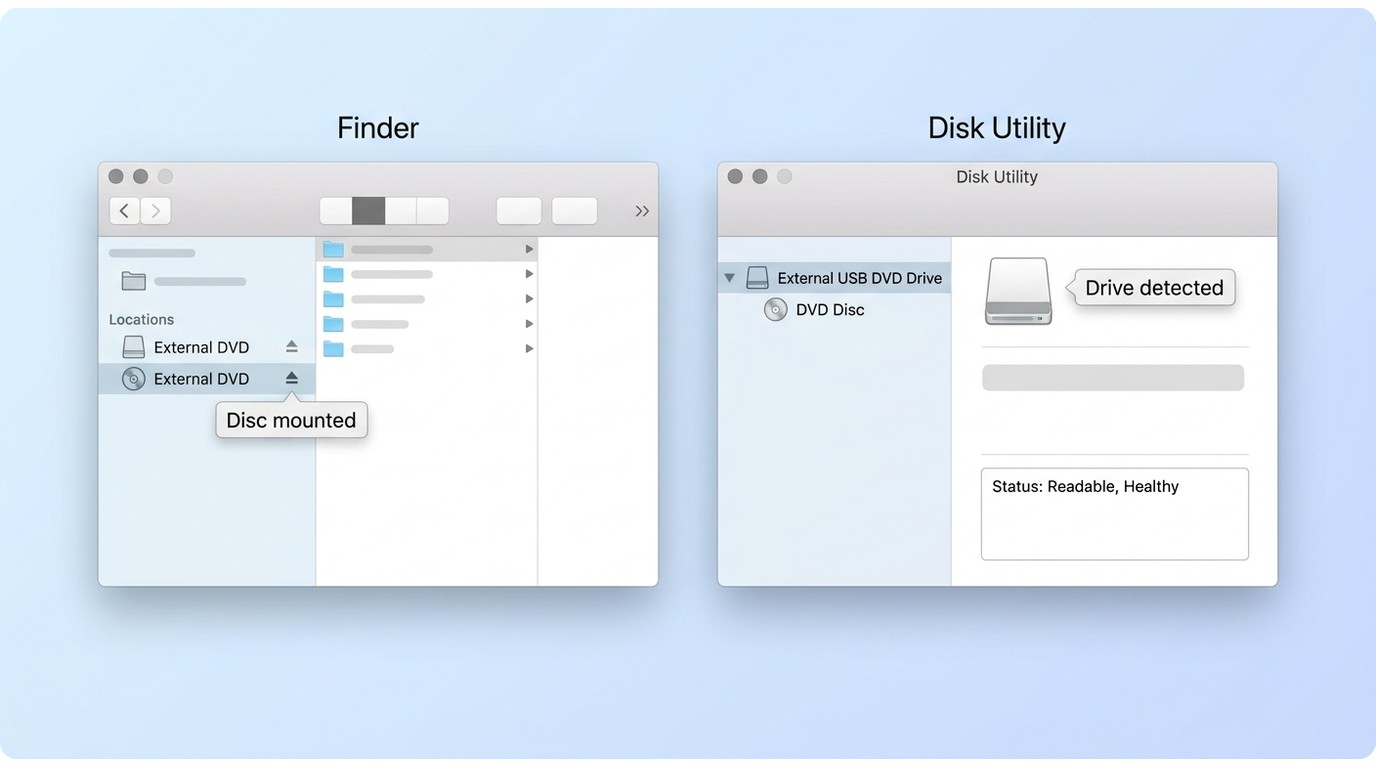
Separate three states: the drive is absent from the operating system, the drive appears but the disc does not, or both drive and files are visible but DVD-Video will not play. Each state needs a different fix.
In my experience, confusing these states is why readers spend time changing codecs while the hardware is not reading the disc. For an external DVD drive not working at all, solve detection and power before playback.
Windows: Reconnect and Reinstall the Drive
For a DVD drive not reading disc media in Windows, begin with a complete reconnect and reboot. If the drive remains absent or shows an error in Device Manager, reinstall its device entry and check the drive maker's supported driver or firmware path.
- Eject the disc, disconnect the USB drive, and restart Windows.
- Reconnect the drive directly to a computer USB port and check File Explorer.
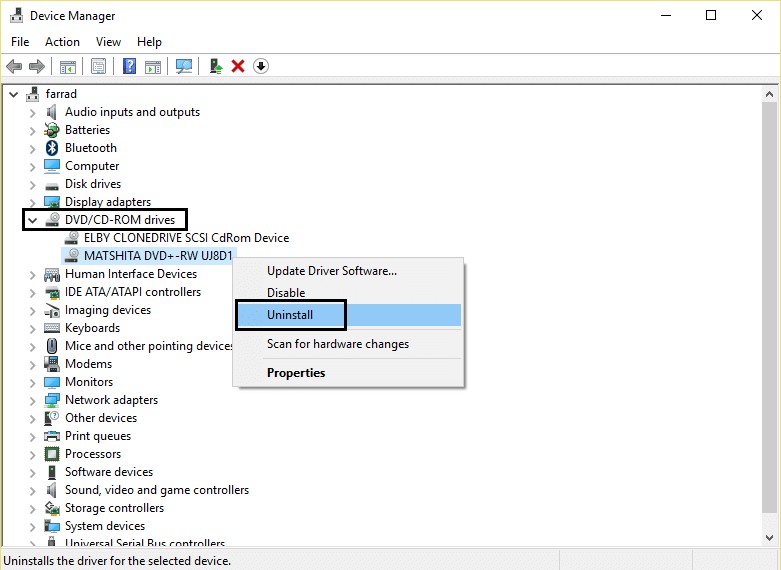
- Open Device Manager and expand DVD/CD-ROM drives.
- If the drive has an error, select the drive, uninstall the device entry, and restart Windows so the operating system can detect it again.
- Test a known-good disc. If possible, compare with another known-good optical drive.
On my Dell XPS 15 running Windows 11, reconnecting an external drive directly and rebooting restored its listing in File Explorer; I still tested disc recognition separately before moving to Windows DVD playback.
Windows: Check USB Power and Session State
If the first disc works after a reboot but later discs fail, do not assume a dirty lens. Session state, USB power, the driver, or drive firmware can produce that pattern.
- Use a direct rear motherboard port on a desktop or a powered connection recommended for the drive.
- Avoid a passive hub while diagnosing spin-up or disconnect behavior.
- Close playback apps, eject cleanly, reconnect the drive, and retest.
- Compare the same sequence with another known-good disc and, when available, another drive.
If Windows sees the drive but never exposes the inserted disc, software players still cannot help. The media must become readable at the operating-system level first.
Mac: Verify Finder and USB Power
On Mac, an external DVD drive may be powered yet hidden in Finder, or it may lack enough power through an adapter. Confirm visibility settings and the connection before treating it as a playback issue.
- Open Finder settings and enable the option to show CDs, DVDs, and external disks where appropriate.
- Connect the optical drive through a powered hub or a compatible adapter if a direct port is unavailable.
- Check Disk Utility to determine whether macOS sees the device or inserted disc.
- Test a known-good DVD before moving to DVD playback on Mac.
On my MacBook Air M2 running macOS, Finder visibility and USB power were separate checks: the drive could receive power without the disc appearing as readable media. That distinction prevents a false software diagnosis.
When the Disc Is Visible but Will Not Play
Dedicated playback software is relevant after the computer detects the optical drive and can read the disc or its files. It cannot fix a damaged disc, failed laser, jammed tray, stalled spindle, or missing USB device.
If the folders are visible but menus or video fail, the problem may be DVD-Video playback support. A VLC DVD playback check can help distinguish a player configuration issue from a disc-recognition failure without turning this diagnosis into a media-player comparison.
Test DVD Playback With PlayerFab
For personal local playback of content you're authorized to access, where permitted by platform terms and applicable law, PlayerFab DVD Player is a Windows and Mac option when the drive and disc are already readable.
It supports physical DVDs, DVD ISO images, DVD folders, and DVD menu navigation. That makes it suitable for the visible-files playback branch, not for tray, spindle, laser, USB detection, or physically damaged-disc failures.
On my Dell XPS 15 running Windows 11, once a readable DVD appeared in File Explorer, opening it in PlayerFab exposed the playback and menu state without changing the hardware diagnosis. That boundary is more useful than presenting software as a universal fix.
Free Download Windows 11/10/8.1/8/7
Free Download macOS 10.10 - 15.x
- Open PlayerFab and choose PC Mode for a desktop interface or TV Mode for a remote-friendly layout.
- Insert the DVD and confirm that the disc appears in the interface. If it does not appear in the operating system, return to the hardware branch.
- Select the disc, choose the available DVD menu or direct-title option, and test playback.
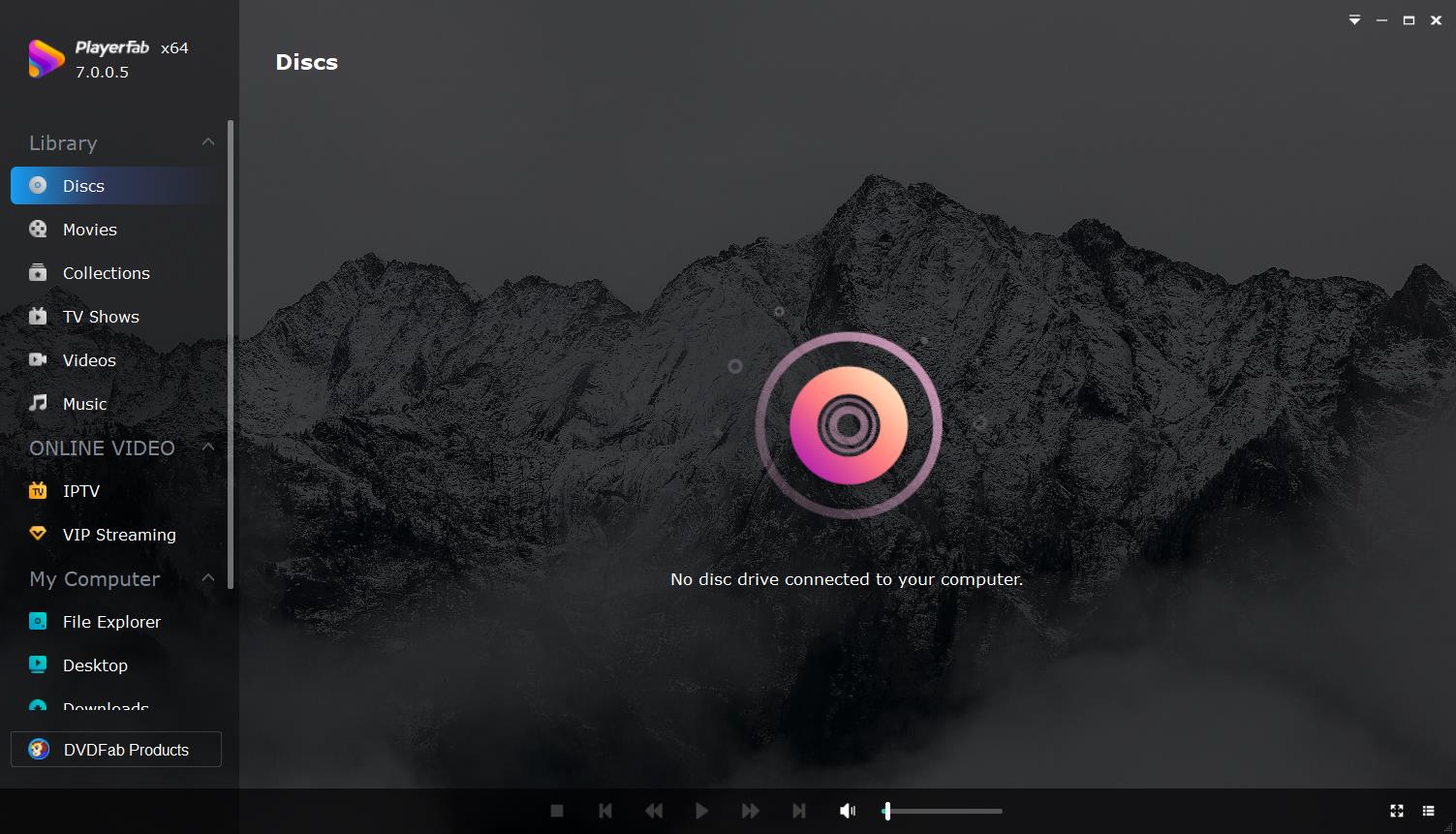
Suitable for: a Windows or Mac computer that recognizes the disc but needs dedicated DVD playback and menu navigation. Less suitable for: a disc the operating system cannot read or a drive with a loading, optical, mechanical, or USB fault.
Frequently Asked Questions
Why did a DVD that used to work suddenly stop playing?
New contamination or a scratch may be responsible, but an older disc can also develop bronzing, pinholes, dye degradation, or layer separation. Progressive laser weakness and an intermittent tray or spindle fault can produce the same symptom. Compare the disc in another known-good drive; surface cleaning cannot repair internal data-layer decay.
How can I tell when an old DVD player needs repair or replacement?
Escalate when several known-good compatible discs fail after a full power-cycle, approved lens maintenance, and the model-specific reset check. Grinding, a tray that will not clamp, or a spindle that never starts also points toward repair. Replacement is a practical choice when qualified service is unavailable or uneconomical.
Why will a player read CDs but not DVDs?
CD and DVD reading depend on different optical behavior and may use different parts of the pickup assembly. Successful CD playback therefore does not rule out a DVD-focused laser fault. DVD format compatibility or media condition can also be responsible, so test a known-good commercial DVD before drawing a hardware conclusion.
Why does a burned DVD play on my computer but not my TV player?
The computer may be opening an MP4 data file rather than a DVD-Video structure. A TV player may require an authored and finalized DVD-Video disc, supported DVD-R/RW media, and a compatible PAL or NTSC format. Computer playback alone does not establish standalone compatibility.
Conclusion
To fix a DVD disc error, follow the failure pattern: if one disc fails, check its condition and compatibility; if all discs fail, work through power, approved lens maintenance, tray, spindle, firmware, and service; if a computer cannot detect the drive, solve USB or device recognition; if files are visible but the movie will not play, then test dedicated DVD playback software such as PlayerFab.

 Play Video Files: 4 Paths Across Formats and DevicesBy James Morgan - Sep 22, 2026
 12 Best HEVC Players for Windows, Mac, and 4K (2026)By Alice Harper - Aug 4, 2026
 Best WMV Player for Mac and How to Play WMV on Mac NativelyBy James Morgan - Aug 4, 2026
 8 Best TS File Players and Playback Tools for 2026By Alice Harper - Jul 28, 2026