How to Play MOV Files on Windows 10/11, Including iPhone HEVC, ProRes & 4K HDR

Summary: Playing MOV files on Windows requires understanding Apple's QuickTime format and Windows compatibility layers. This guide reveals why standard players fail and provides proven solutions—from free codec packs to professional tools like PlayerFab—that maintain original quality while adding modern playback features like HDR tone mapping and hardware acceleration.
Table of Contents
Here’s the short answer: If an iPhone, camera, or editing-app MOV file won’t play on a Windows PC, the file is usually fine; Windows lacks the codec inside it. This guide explains why, how to play video files on Windows, native options, conversion, repairs, and 4K HDR playback.
Why MOV Files Won’t Play Properly on Windows
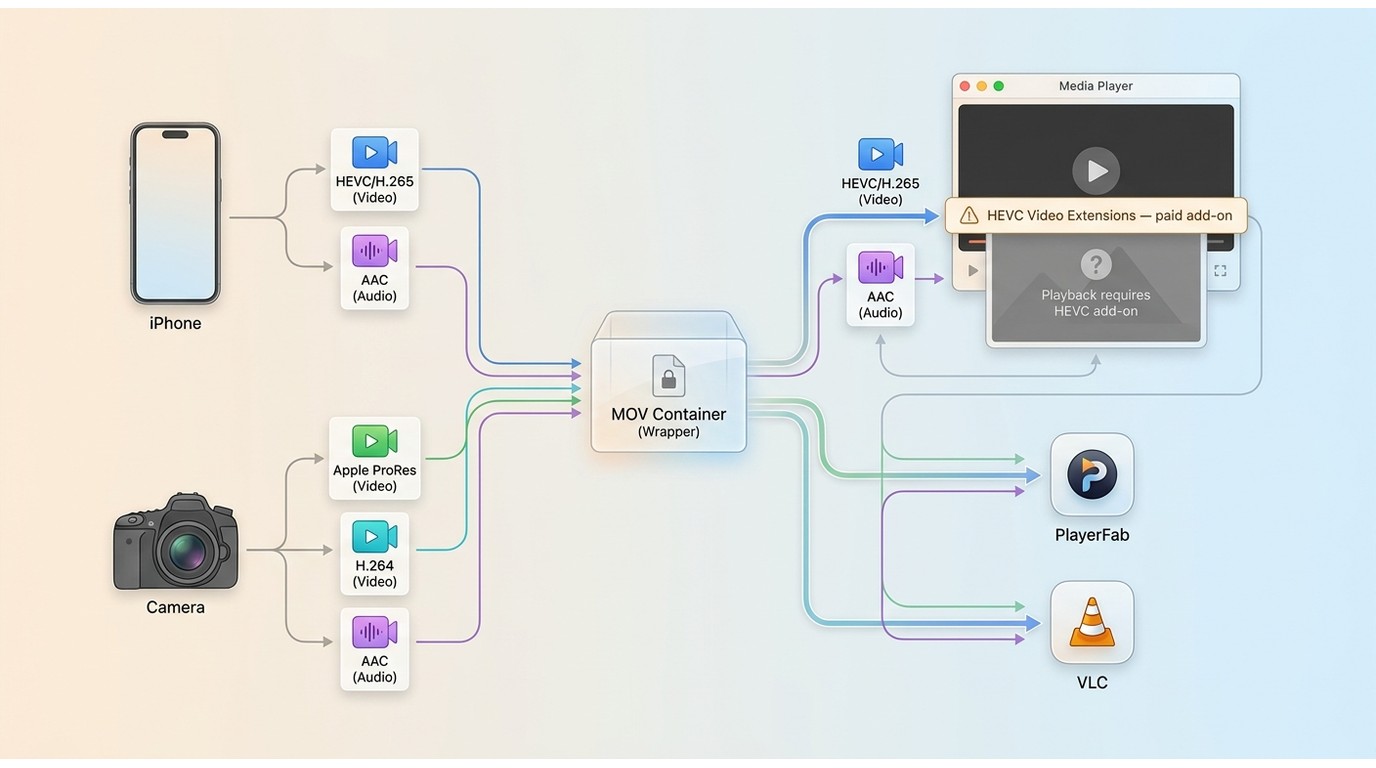
A MOV file is a multimedia container format developed by Apple. It can hold video, audio, subtitles, and other data in a single file, which is why it is often used for videos created on iPhones, Macs, and some editing tools.
The Codecs That Cause MOV Playback Failures: HEVC, ProRes, H.264 and AAC
MOV is a container, which means two files with the same .mov extension can hold very different video and audio streams. Common examples include HEVC (H.265), Apple ProRes, H.264 video, and AAC audio. A dedicated HEVC player can help when Windows lacks support for the video stream inside the file.
This is especially common with iPhone HEVC/HDR clips and ProRes MOV files from cameras or editing software. A default player may show an error, play audio without video, or fail to open the file. I treat that pattern as a compatibility issue first, not proof that the MOV file is damaged.
Can Windows 11 Play MOV Natively, and Is QuickTime Still Worth It?
Windows 11 uses the rebuilt Media Player app rather than the legacy Windows Media Player. It opens many MOV files without extra software, although HEVC-encoded MOV files need the paid HEVC Video Extensions add-on from the Microsoft Store (as of July 2026). QuickTime for Windows is not a recommended alternative: Apple discontinued it in 2016 and no longer provides security updates.
Use a maintained player, the Windows 11 built-in options, or a codec solution that matches the file’s actual streams instead.
Best Ways to Play MOV Files on Windows
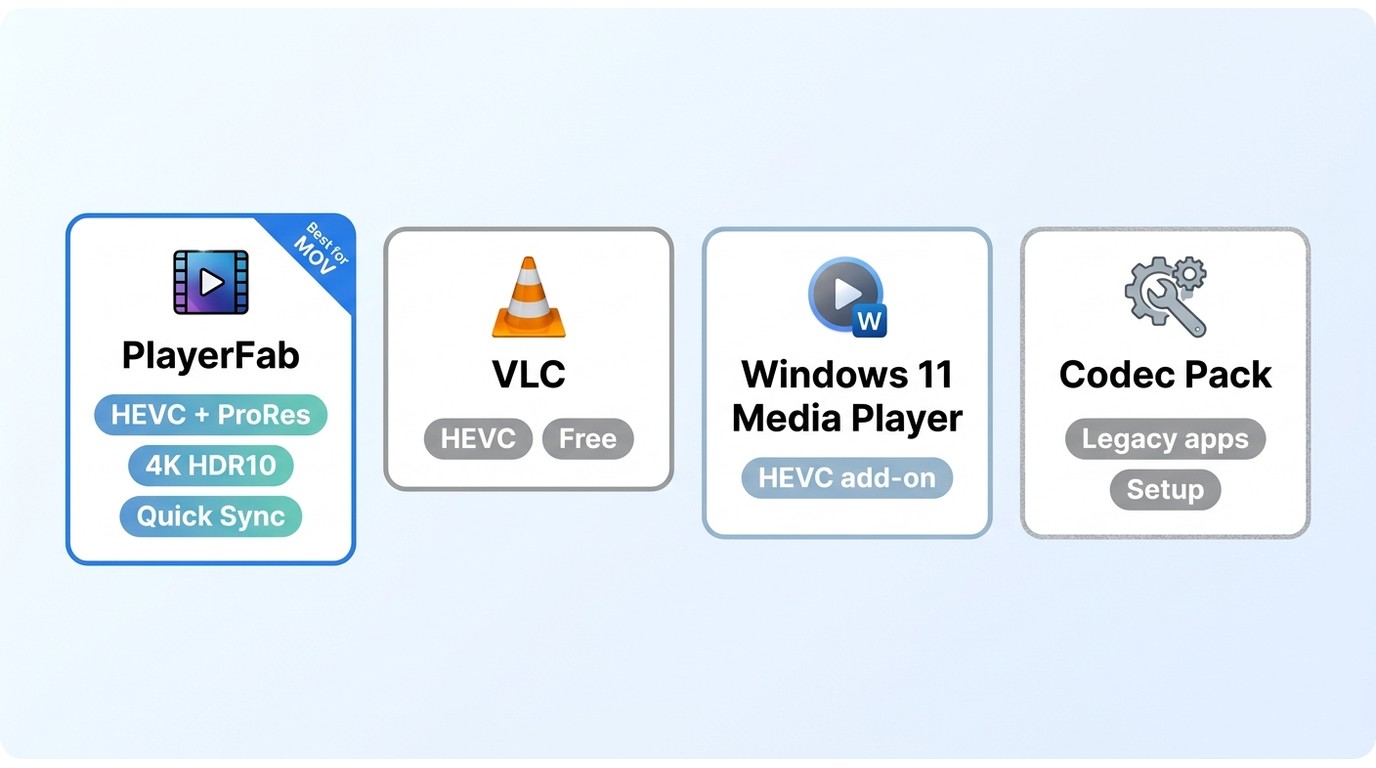
MOV Player Comparison at a Glance
For routine local playback, a dedicated media player for Windows can avoid system-wide codec changes. The options below differ most in their handling of HEVC, ProRes, HDR, and high-resolution files.
Dedicated MOV players are useful when compatibility matters more than keeping the default Windows workflow.
| Player | Price | MOV codecs handled | Hardware decoding | 4K + HDR10 playback | Best for |
|---|---|---|---|---|---|
| PlayerFab Free Video Player | Free | HEVC, ProRes, H.264 | AMD, Intel Quick Sync, NVIDIA CUDA | 4K UHD with HDR10 tone mapping | iPhone HDR/ProRes and 4K MOV files |
| VLC Media Player | Free | Broad codec support; some ProRes and alpha-track files can be problematic | Software decoding plus partial hardware decoding | 4K playback; limited HDR handling | Quick everyday playback |
| Windows 11 Media Player | Free player; paid HEVC add-on | H.264 native; HEVC with the extension | Hardware decoding | 4K playback; limited HDR handling | No-install Windows playback |
| Codec pack + legacy Windows apps | Free | Expands system codec support | Varies by app and hardware | Varies by installed codecs and app | Keeping an existing legacy workflow |
Windows 11 Media Player and the Photos App
If you do not want to install anything, right-click the MOV file and choose Open with > Media Player or Photos. This is the fastest route for standard MOV files that Windows 11 already recognizes. The modern app is different from Windows Media Player 11, which belongs to the older Windows playback workflow.
PlayerFab Free Video Player
- Best For: Users who want a simple and fully free way to play MOV files on Windows 10 and 11
- Price: Free
PlayerFab Free Video Player is best for iPhone HEVC/HDR or ProRes files and 4K MOV clips that you want to play natively rather than convert. It supports 4K UHD playback with HDR10 tone mapping, hardware decoding on AMD, Intel Quick Sync, and NVIDIA CUDA, lossless high-resolution audio, and a local media Library. For HDR footage, I favor native playback when possible because re-encoding can discard HDR metadata. It is not ideal if your main goal is Blu-ray or 4K UHD disc playback, which is a paid feature.
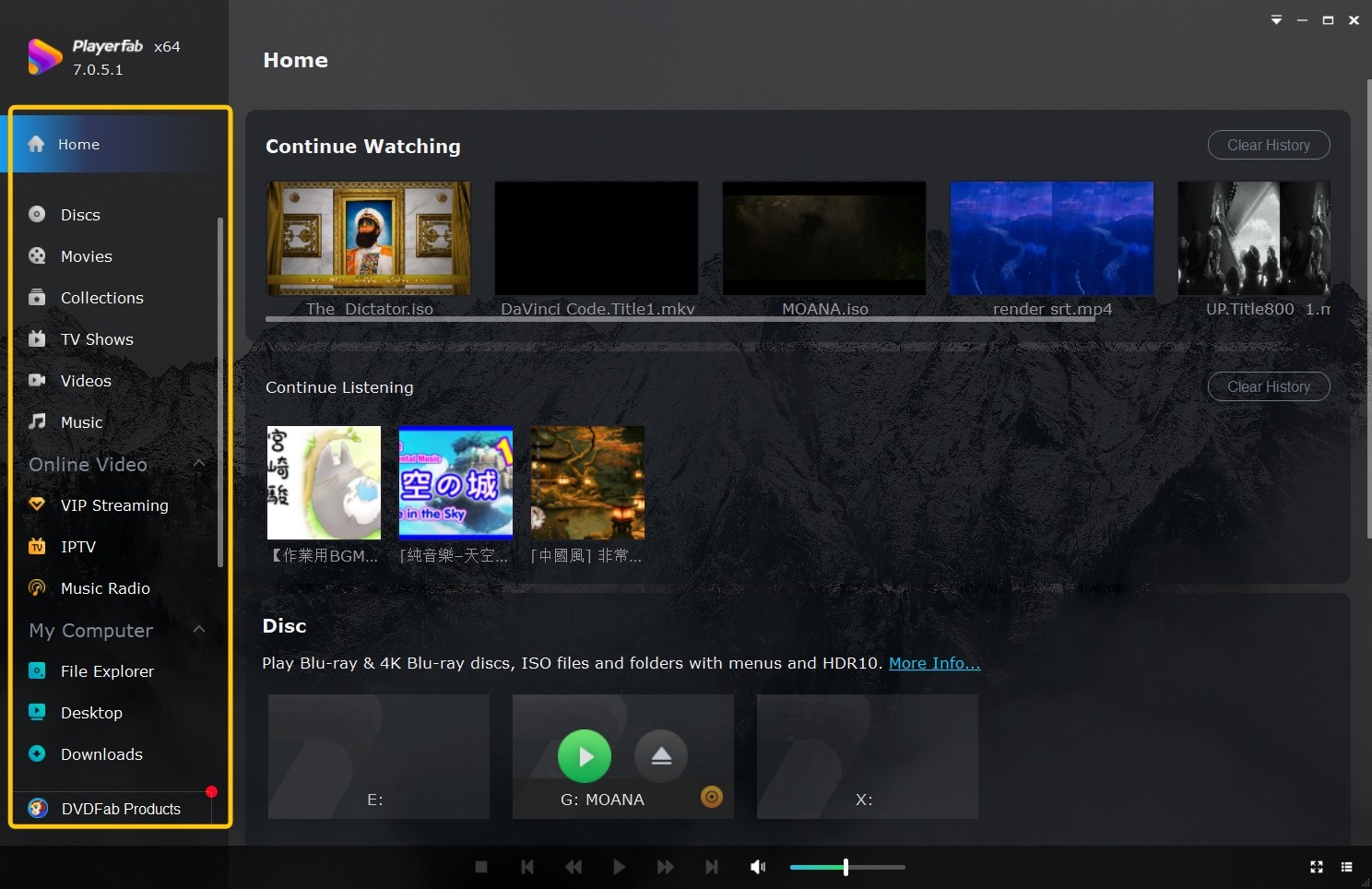
How to Play MOV Files on Windows with PlayerFab Free Video Player
Step 1: Download the program from the official website and complete the installation on your Windows PC.
Step 2: Launch PlayerFab and open the MOV video in the way that is most convenient for you. You can drag and drop the file directly into the interface, right-click the file and choose Play with PlayerFab, or browse to it through My Computer in the left panel.
Step 3: Once the file opens, playback starts immediately. If the MOV file includes multiple audio tracks or subtitles, use the playback controls to switch between them during playback.
Step 4: You can fine-tune the viewing experience with options such as full screen, aspect ratio, color adjustment, playback speed, and media information, depending on your needs.
Optional: If you watch local videos regularly, you can organize them in the Library for easier browsing and poster-wall style management instead of opening files one by one.
- Supports hardware decoding on AMD, Intel Quick Sync, and NVIDIA CUDA
- Handles lossless high-resolution audio formats
- Supports 4K UHD video playback with HDR10
- Lets users build and manage a local media library
- Playing Blu-ray and 4K UHD discs requires a fee.
VLC Media Player
- Best For: Users who want a free and familiar way to play MOV files on Windows 10
- Price: Free
VLC Media Player is a practical free alternative when a MOV file does not open in the built-in Windows app. It supports many common video and audio formats without requiring a separate codec pack, which makes it a good choice for quick everyday playback. I would not rely on it for every professional MOV export, though: ProRes files with alpha or transparency tracks, along with certain camera and editing-app exports, may play as audio-only or fail.
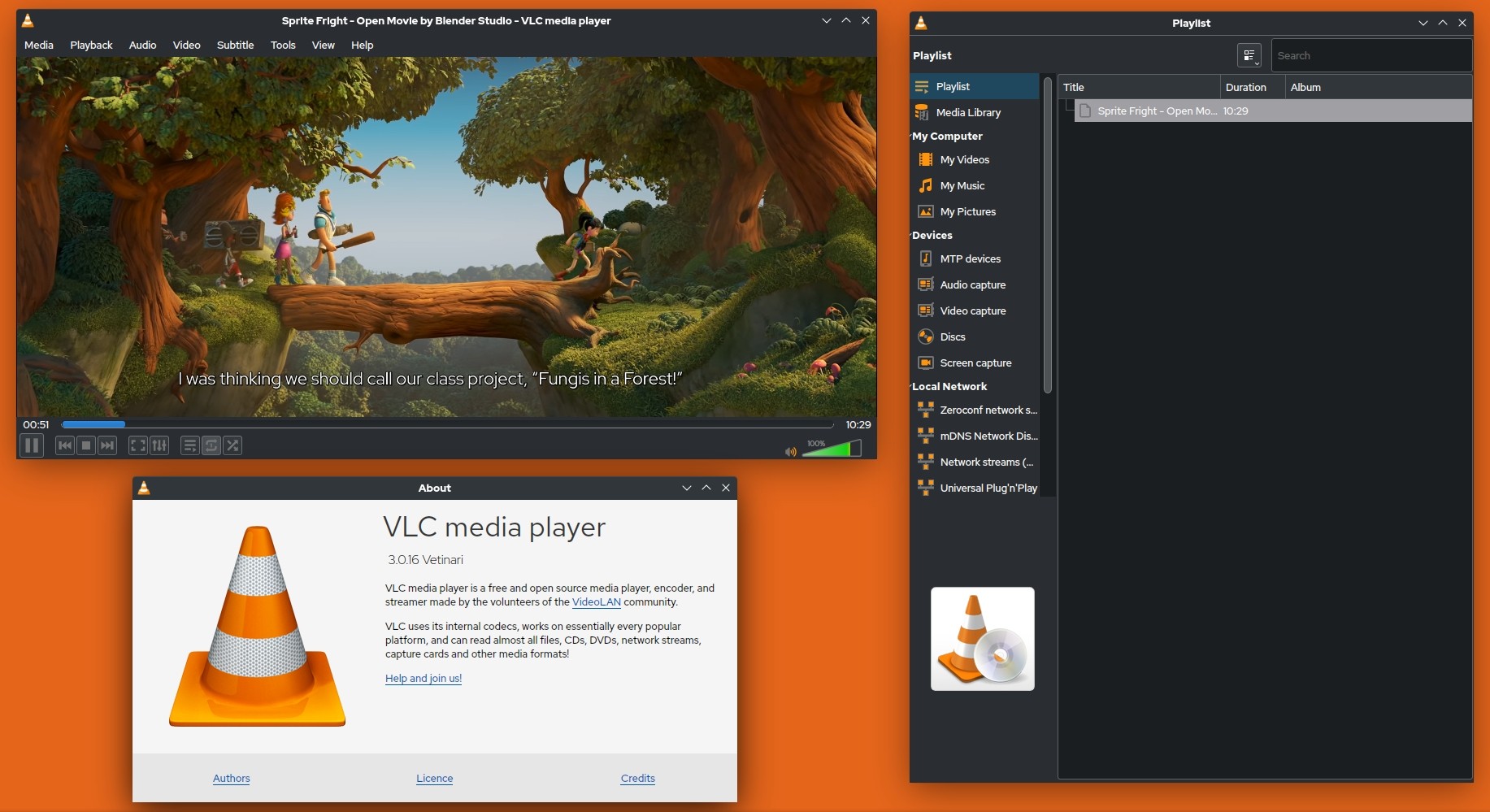
How to Open MOV Files with VLC on Windows
Step 1: Go to the official VLC website, download the Windows version, and complete the installation on your PC. VLC is available for Windows and remains one of the most accessible free players for general media playback.
Step 2: Launch VLC, then drag and drop your MOV file into the player window. You can also use Media > Open File to browse your computer and select the file manually. This is the simplest path for most users and does not require extra setup.
Step 3: If the video stutters or feels choppy, open VLC preferences and enable hardware-accelerated decoding. This can help reduce playback pressure on the CPU and improve performance with larger MOV files.
Step 4: If your MOV file includes multiple audio tracks or subtitles, use VLC's playback menus to switch between them during playback. This helps when the file opens correctly but does not start with the track or subtitle option you want by default.
- Cross-platform and familiar to many users
- Supports most common media files
- The interface feels less modern and less beginner-friendly
- It is a better fit for direct playback than for users who want a more organized local media library experience
Codec Packs for Legacy Windows Apps
- Best For: Users who want to improve MOV playback support in Windows Media Player and other system-based apps
- Price: Free
If you need MOV playback in legacy Windows apps, a codec pack can expand the codecs available across that older playback environment. This is more technical than using a self-contained player, and results still depend on the streams inside the MOV file. Choose a well-known codec pack from its official site, decline bundled extras, and avoid installing multiple packs that can conflict with one another.
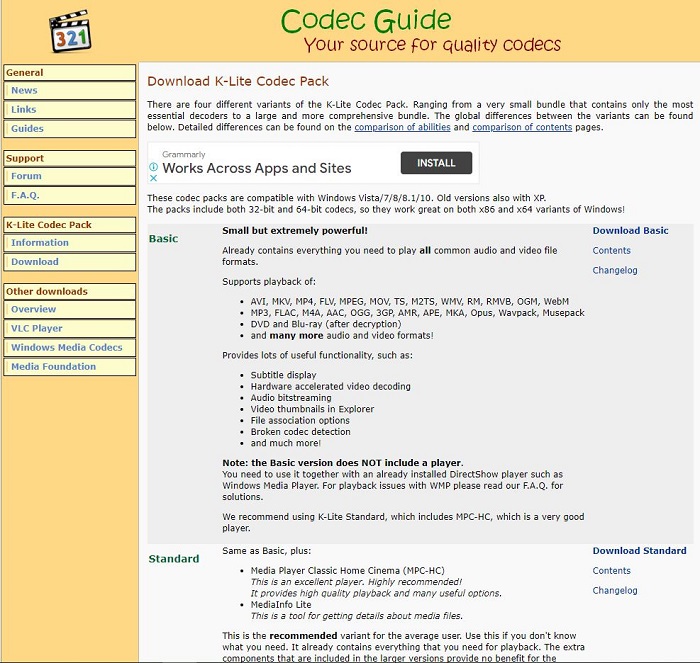
How to Install a Codec Pack for MOV Playback on Windows
Step 1: Choose a well-known codec pack from its official website and download the version that matches your Windows system.
Step 2: Run the installer and complete the setup using the recommended installation options. For most users, the standard setup is enough to improve playback support without dealing with advanced manual configuration.
Step 3: After installation, close and reopen Windows Media Player. If the MOV file still does not open properly, restart your computer so the new codec support can load correctly across the system.
Step 4: Open the MOV file in Windows Media Player or another Windows-based app and check whether playback works more smoothly. If the file still does not play, the issue may be related to a codec combination that your current setup still cannot handle well.
- Helps improve MOV playback support inside the Windows playback environment
- Can expand support for other video formats at the same time, not just MOV.
- Playback results can still vary depending on the codec used inside the MOV file.
- Installation is slightly more technical for beginners.
Convert MOV to MP4 for Reliable Windows Playback
Convert MOV to MP4 when no available player opens the file or when you need the video to work in a wider range of Windows apps. Re-encoding to MP4 with H.264 video, or to WMV when required by an older workflow, is broadly compatible with Windows Media Player and similar apps. The trade-off is that conversion can reduce quality and may remove HDR metadata.
Choose a converter, select MP4 with H.264, keep the original resolution and an appropriate bitrate, then save a new copy. You can then play the converted MP4 on Windows with far fewer compatibility issues.
Fix a MOV File That Won’t Play at All
If a MOV file opens in no player, first test it in a player with broad codec support to separate a codec problem from a genuinely damaged file. For a file that plays audio only, the video codec may be unsupported. For an MOV exported from an editing application that fails everywhere, re-export or re-render it from the source project using standard H.264 video and AAC audio settings. If the source copy is damaged and cannot be re-exported, a video-repair workflow may be necessary.
Play 4K and HDR MOV Files Without Losing Quality
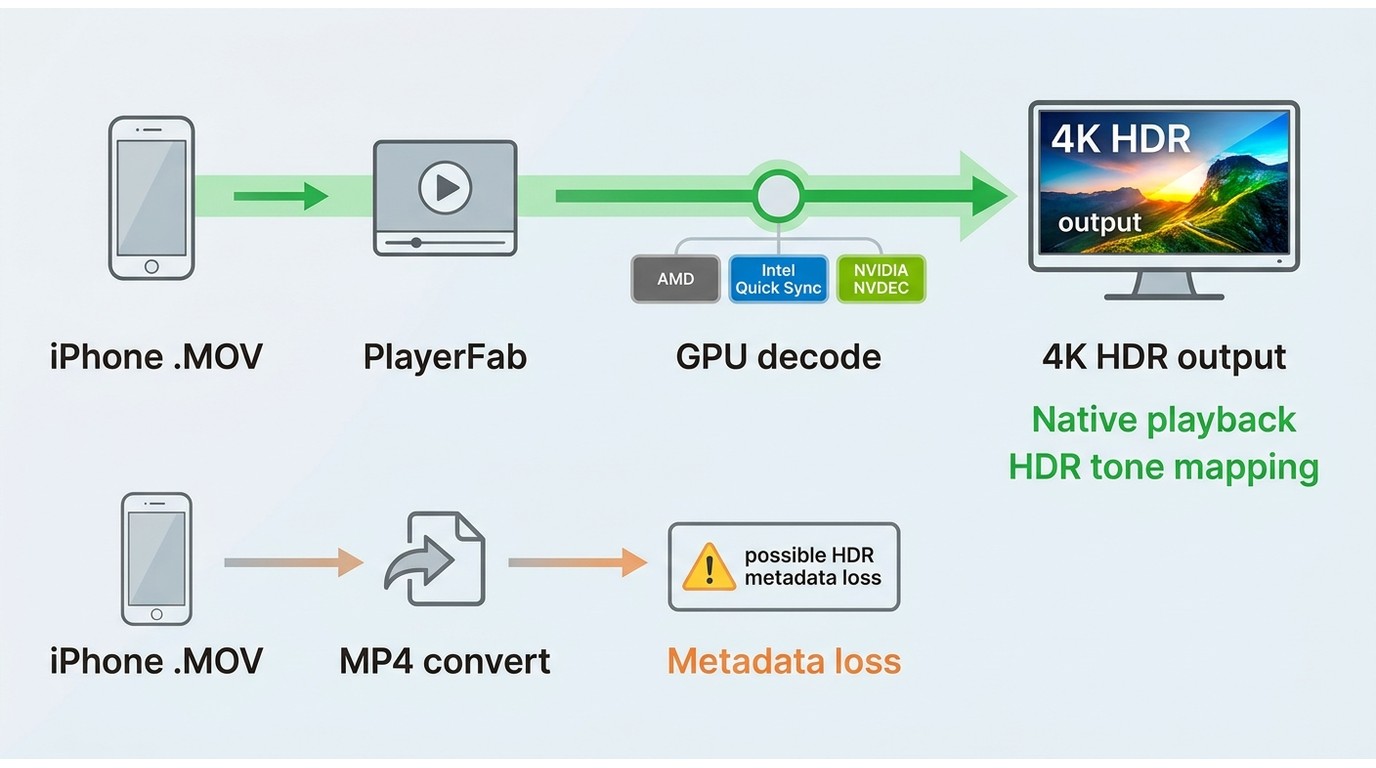
High-bitrate 4K and HDR MOV files can stutter when decoding falls back to the CPU. Hardware decoding shifts that workload to compatible AMD, Intel Quick Sync, or NVIDIA CUDA graphics hardware, which can make playback smoother. HDR10 tone mapping is also important for iPhone HDR and ProRes clips because it helps preserve usable highlight and color detail on a compatible display.
Converting is sensible when compatibility is the priority. For a 4K HDR file that already has a compatible player and hardware decoding available, I would play the original MOV natively to avoid flattening its HDR presentation.
MOV Playback FAQs
Why won't my MOV file play on Windows?
A MOV file usually fails because the player cannot decode the video or audio stream inside it, not because the file is automatically damaged. HEVC, ProRes, H.264, and AAC are common variables. Try a player with broader codec support first, then consider conversion or re-exporting if the file still fails everywhere.
Why does my 4K MOV file stutter on Windows?
High-bitrate 4K MOV files need substantial decoding power, particularly when they use HEVC or HDR. Enable hardware decoding in the player so compatible AMD, Intel, or NVIDIA graphics hardware can handle more of the workload, and close background apps that compete for CPU, GPU, or memory resources.
Does converting a MOV to MP4 reduce video quality?
It can. Re-encoding creates a new video stream, so aggressive bitrate settings can introduce visible compression artifacts. Conversion can also remove HDR metadata. Keep the original resolution and use a suitable bitrate, or play the MOV natively when preserving 4K HDR quality matters.
Is it safe to install a codec pack for MOV playback?
A codec pack can be appropriate for an older Windows workflow, but it changes system-wide playback components. Download it from the publisher’s official site, decline optional bundled software, and avoid mixing multiple codec packs. A self-contained media player is simpler if you only need to open one or two MOV files.
Can I play iPhone ProRes or HDR MOV files on Windows?
Yes, provided that the player supports the codec and your hardware can decode the file efficiently. A player with hardware decoding and HDR10 tone mapping is the more suitable route for iPhone HDR or ProRes MOV files when you want to retain the original image characteristics rather than convert them.
Conclusion: Choosing the Right MOV Playback Method
To play MOV files on Windows, start with Windows 11 Media Player or Photos for a standard transferred clip, use a player with HDR10 tone mapping and hardware decoding for iPhone HDR, ProRes, or 4K files, and convert to MP4 or re-export when the file opens nowhere. A codec pack remains useful for a legacy Windows-app workflow, but I would choose a maintained player first when compatibility is the main concern.

 How to Open MP4 Files on Windows 11: 4 Reliable FixesBy Alice Harper - Aug 10, 2026
 9 Best Free FLV Players for Windows, Mac, and Mobile (2026)By Alice Harper - Aug 4, 2026
 13 Best Free MP4 Players for Windows & macOS: Hands-on Review in 2026By Alice Harper - Aug 3, 2026
 4 Ways to Open and Play FLV Files on Windows and MacBy Alice Harper - Jul 29, 2026