4 Ways to Open and Play FLV Files on Windows and Mac

Summary: Since Adobe Flash's demise, figuring out how to play FLV files has become a headache. In my experience, forcing default apps to open FLV video files usually leads to frustrating black screens or security risks. You shouldn't have to struggle to access your classic media archives. In this guide, I will show you the safest, most reliable methods to seamlessly play FLV files on both Windows and Mac using clean, modern media players.
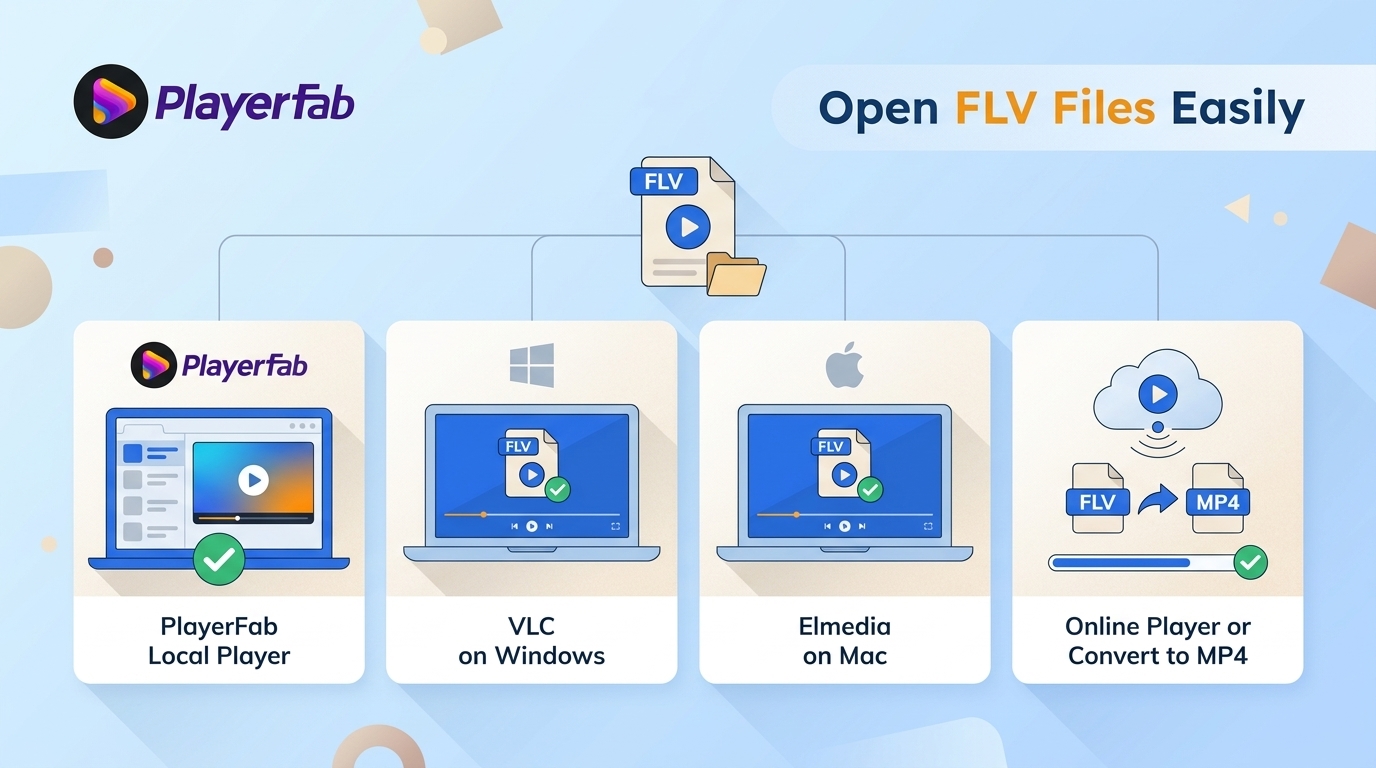
To get straight to the point, you can open FLV files with a current desktop player, an online player when an upload is appropriate, or an MP4 conversion. An FLV file not opening usually reflects legacy container or codec support, not necessarily a problem with the video itself. For personal archives, local playback is the least disruptive first test because it preserves the original file.
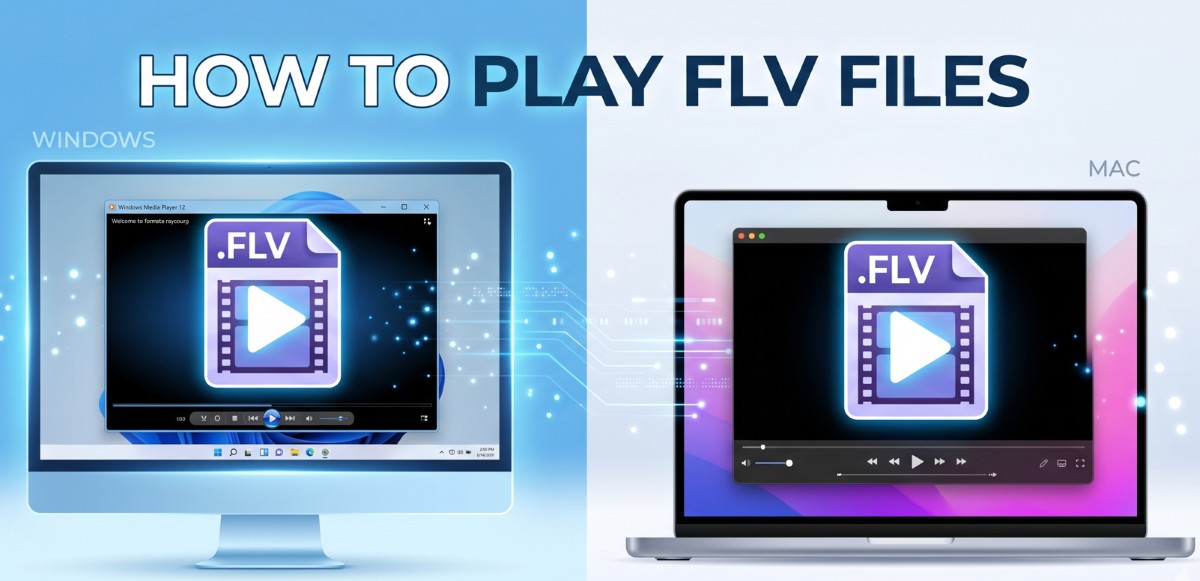
This guide explains how to play FLV files on Windows and Mac, when an online option makes sense, and when it is better to convert a copy to MP4 for editing or broader device compatibility.
What an FLV File Is
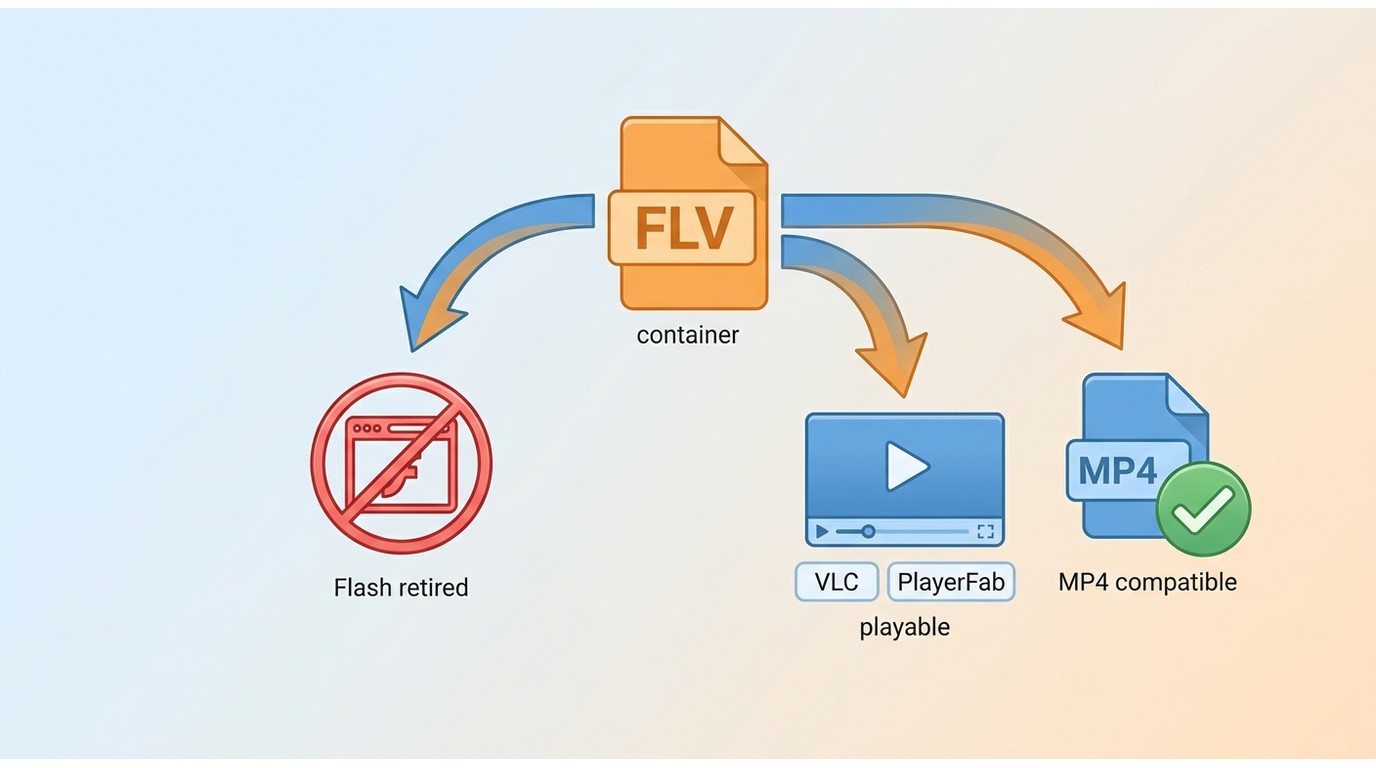
An FLV file is a legacy video container, meaning it packages video, audio, and related playback data into one file. It is not the same thing as the retired Adobe Flash Player browser plug-in. Modern browsers and default media apps may reject FLV because they no longer include support for some older container and codec combinations. MP4 is now the more common compatibility target, but direct local playback is usually the best first test when you want to preserve an original archive.
| Method | Best for | Operating systems | Privacy | Installation required | Conversion required | Main limitation |
|---|---|---|---|---|---|---|
| Local desktop player | Private archives, large files, and repeat playback | Windows and Mac, depending on the player | The file stays on your device | Yes | No | Support varies by player and the FLV's codecs |
| Online video player | A small, non-sensitive file you want to check quickly | Any modern browser | The file must be uploaded | No | No | Upload limits, privacy considerations, and browser performance |
| Convert FLV to MP4 | Editing, sharing, phones, and wider device compatibility | Windows and Mac | Depends on the converter you choose | Usually | Yes | Conversion takes time and can expose issues in a damaged source |
My practical recommendation is to start locally for private or irreplaceable files, then choose the other routes only when their trade-offs fit the job.
Play FLV Files on Windows
A current desktop player with built-in FLV support is the simplest first route on Windows. For a quick start: (1) install a current player from its official site, (2) use Open File or drag the FLV into the player, and (3) test seeking as well as audio and video sync before deciding whether conversion is necessary. If you are comparing best FLV players more broadly, keep the decision focused on whether your specific archive opens reliably.
PlayerFab Free Video Player
The first tool I always recommend is the PlayerFab Free Video Player. This updated version is entirely free for local video playback and acts as a complete media hub.
PlayerFab Free Video Player is a local media player for Windows that supports FLV alongside common video formats, GPU decoding with NVIDIA, AMD, and Intel hardware, and local 4K UHD video files with HDR10 rendering. It is best for Windows users who also want a poster-based media library; it is not the right fit for streaming-platform playback or disc playback, which require separate product modules.
How to Play FLV Files using PlayerFab
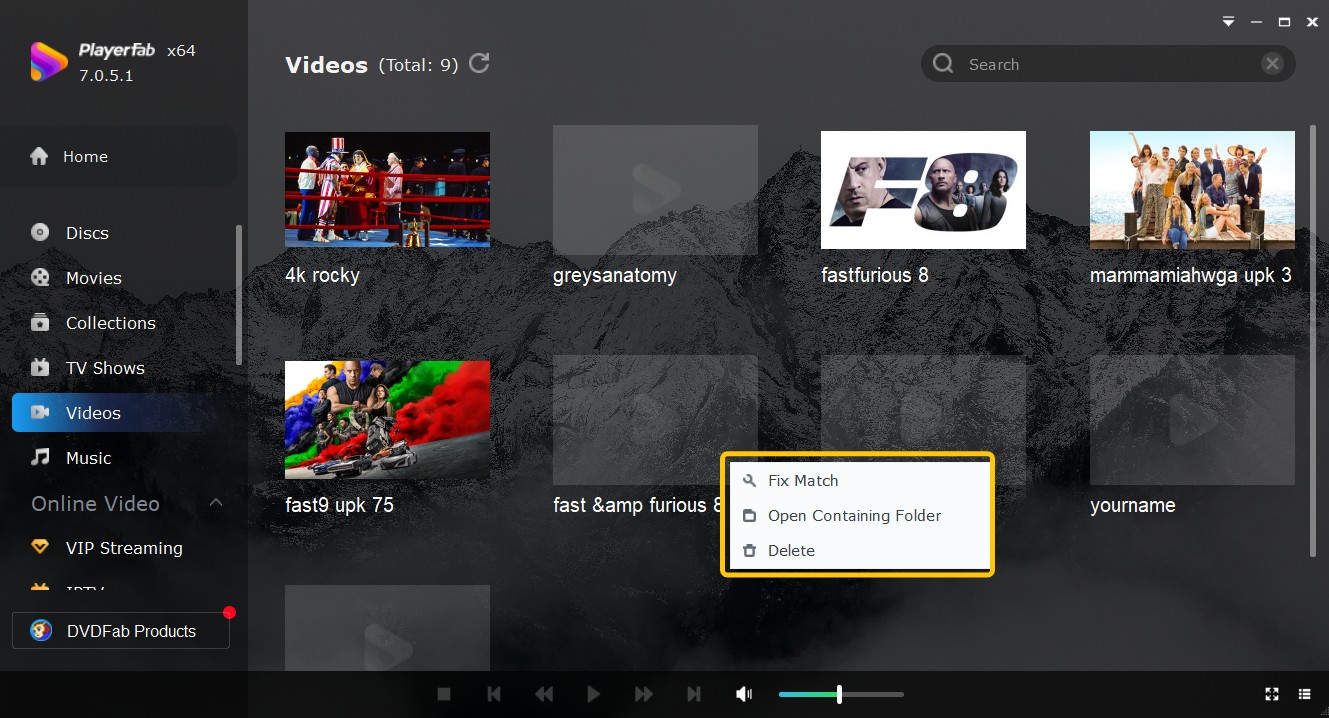
If you want to play a video directly without building a library in PlayerFab, you can play the video using one of the following methods:
- Method 1 (Drag and Drop): On any of the PlayerFab sections, drag and drop the video into the PlayerFab interface.
- Method 2 (Right-Click Menu): Go to the path where you saved the video, right-click on the source, and select "Play with PlayerFab" or "Open with > PlayerFab" to play it.
- Method 3 (Top Menu): Or, simply select Open from the top menu bar.
Once your FLV video is running, the playback controls are intuitive. You can temporarily stop playback by clicking Pause. Once paused, the buttons on the control bar will change automatically, and you can play the video frame by frame. If you need to skip through the video, you can use continuous backward scan (Rewind) or continuous forward scan (Fast Forward), and simply press the Space key to return to standard 1x playback.
VLC Media Player
VLC Media Player is a practical Windows option when you want a familiar standalone player with broad built-in format support. It is a good fit for checking an FLV file without installing separate codec packs, although its interface may feel less streamlined for beginners.
In my testing, VLC uses an incredibly small memory footprint, which is why it has survived for over two decades. However, because it is open-source, the interface can feel a bit cluttered for beginners.
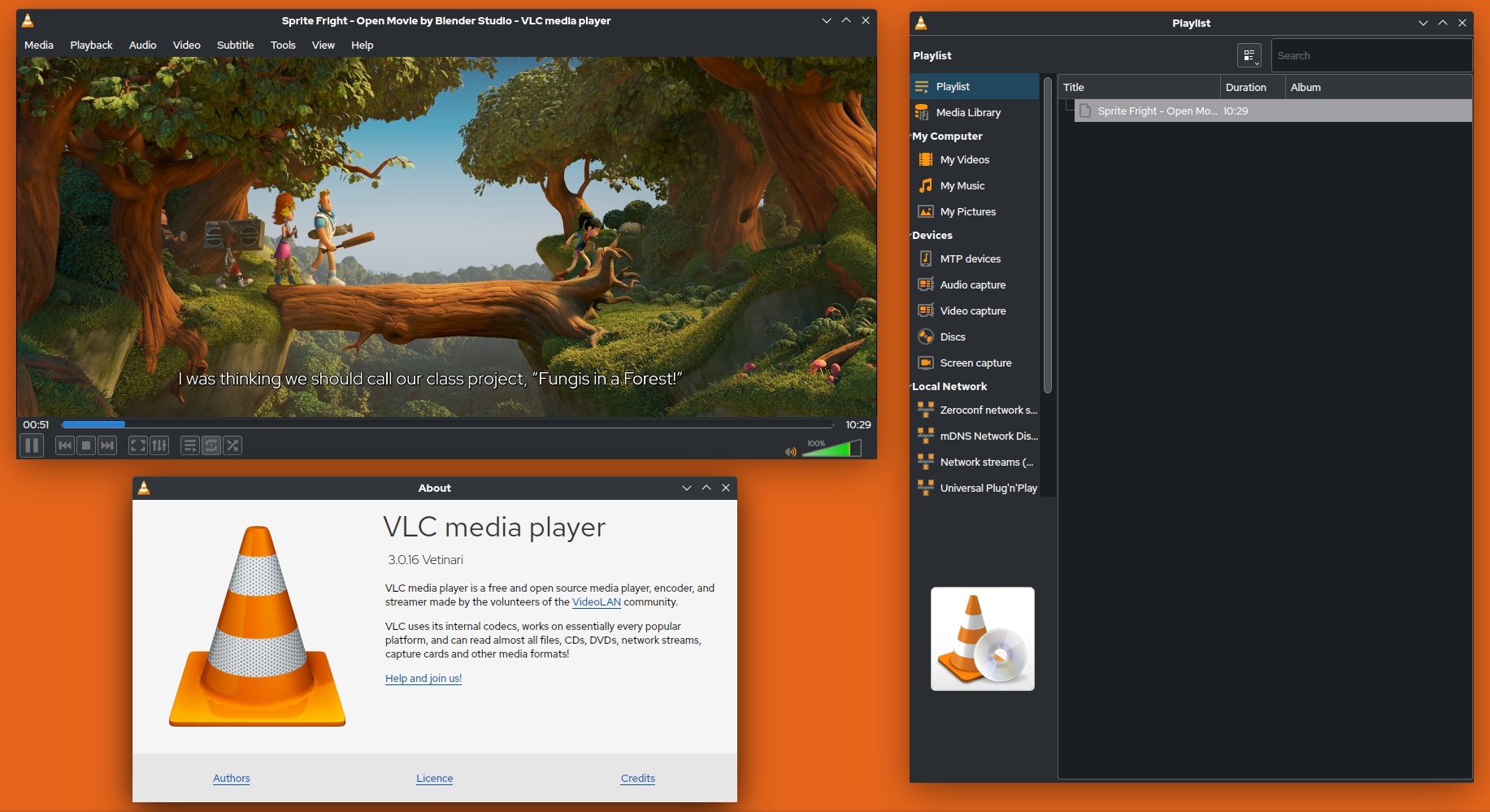
How to Play FLV Files using VLC
- The Standard Way: Open VLC, click on Media in the top-left menu bar, and select Open File (Ctrl + O).
- The Shortcut: I usually just drag the FLV file directly onto the traffic-cone icon on my desktop to launch it instantly.
- Advanced Control: If the video aspect ratio looks stretched (a common issue with old web rips), right-click during playback, go to Video > Aspect Ratio, and force it to 4:3 or 16:9.
💡 Troubleshooting note: If an FLV freezes, stops early, or will not open, preserve the original file and test it in another current player. A remux or specialist repair workflow may help with a truncated or corrupt file, but VLC's “Build index then play” prompt should not be treated as a reliable FLV repair method.
MPC-HC
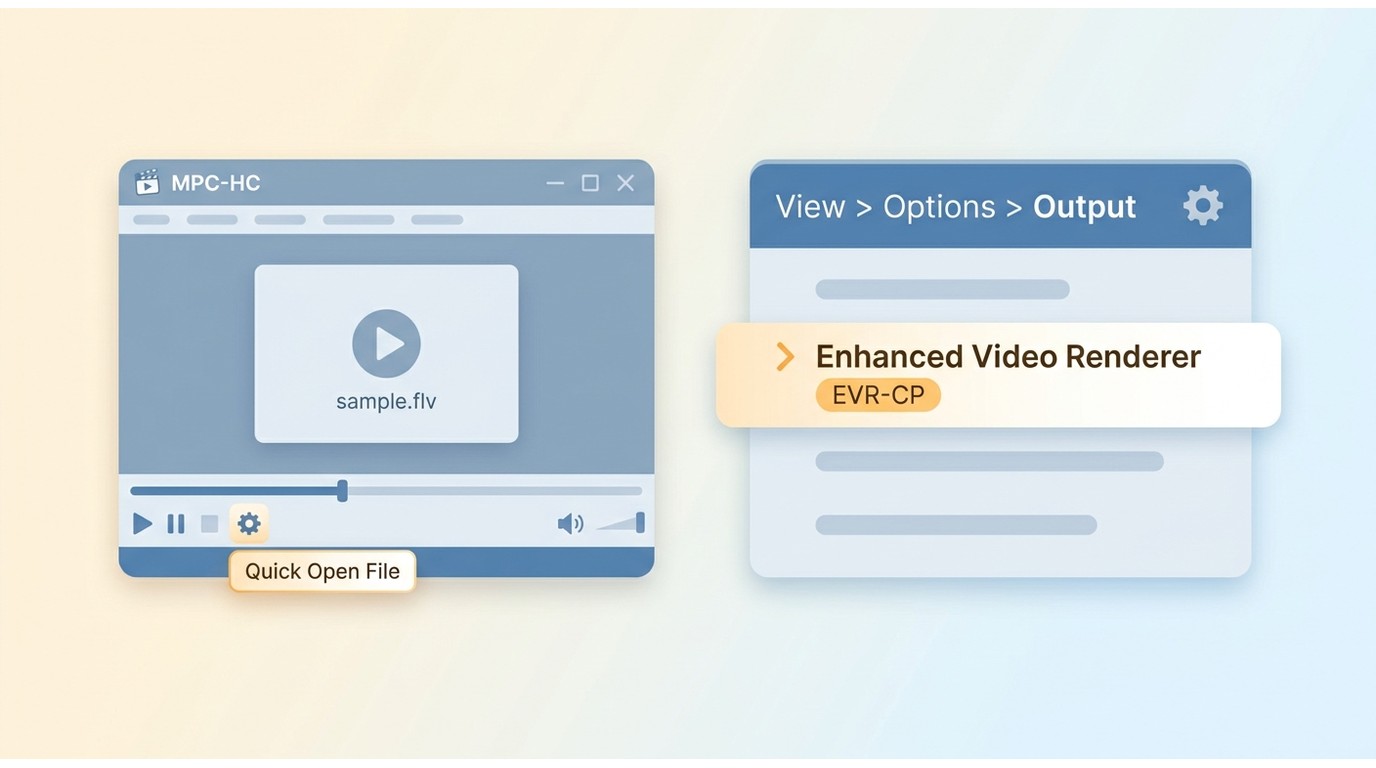
Media Player Classic Home Cinema (MPC-HC) remains a lightweight option for older Windows hardware. The original MPC-HC project was discontinued, but the community-maintained clsid2 fork remains active and released version 2.7.4 in July 2026.
MPC-HC has a minimalist interface and focuses on file playback rather than media-library management. It is best for readers who prioritize a lightweight Windows player, not those who want a polished library view or extensive organization features.
How to Play FLV Files using MPC-HC
- Direct Loading: Launch MPC-HC, go to File > Quick Open File (Ctrl + Q), and select your video.
- Playlist Mode: If you have a series of FLV clips, I recommend dragging the entire folder into the player. You can toggle the playlist view by pressing Ctrl + 7.
💡 Expert Tip for Smooth Playback: If you experience visual glitches like screen tearing or frame drops in high-action FLV clips, I suggest going to View > Options > Playback > Output and ensuring the "Enhanced Video Renderer (Custom Presenter)" is selected. This allows your Windows system to handle the frame rendering more efficiently, even on very weak integrated graphics cards.
Play FLV Files on Mac
QuickTime may not open an FLV file because its built-in format support is limited. On a MacBook or iMac, the direct route is to use a current player with independent format support before converting the file.
Elmedia Player
Elmedia Player is an active Mac option for opening FLV files when QuickTime cannot read the format. It is a sensible choice for readers who want a Mac-focused player; the dedicated review covers its broader feature set.
How to Play FLV Files using Elmedia
- The Dock Shortcut: The fastest method is to drag your FLV file directly onto the Elmedia Player icon in your Dock.
- In-App Navigation: Open the application, go to File > Open, and select your video archive.
- Context Menu: Right-click the file in Finder, choose Open With, and select Elmedia Player.
💡 Expert Tip for Wireless Streaming: If you want to watch your old FLV archives on a larger screen, Elmedia supports wireless streaming to AirPlay and DLNA devices. I have found this incredibly useful for playing classic web clips on an Apple TV without worrying about whether the TV hardware can natively read the legacy Flash format.
5KPlayer
5KPlayer is another Mac option for opening FLV files, and downloads remain available for both Mac and Windows. Evaluate it with your own files, especially if an archive uses an unusual codec or has playback issues in another player.
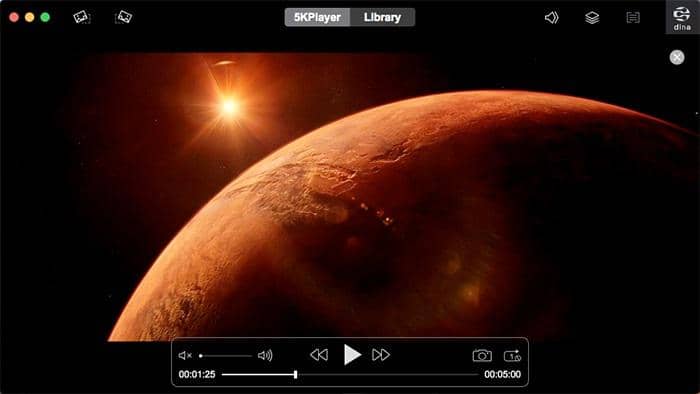
How to Play FLV Files using 5KPlayer
- Direct Opening: Right-click your FLV file, select Open With, and choose 5KPlayer from the list.
- Library Loading: Click the Video icon on the main interface to browse and load your local files.
- Playlist Creation: If you have multiple clips, I suggest dragging the entire folder into 5KPlayer to create a temporary playback queue.
💡 Expert Tip for Retina Displays: Classic FLV videos are often lower resolution and can look blurry on a high-resolution Retina display. During playback, you can access the video settings in 5KPlayer to adjust the rendering mode. Experiment with the “Deinterlace” and “Sharpen” filters to see whether they improve a particular clip.
Convert FLV to MP4 When Needed
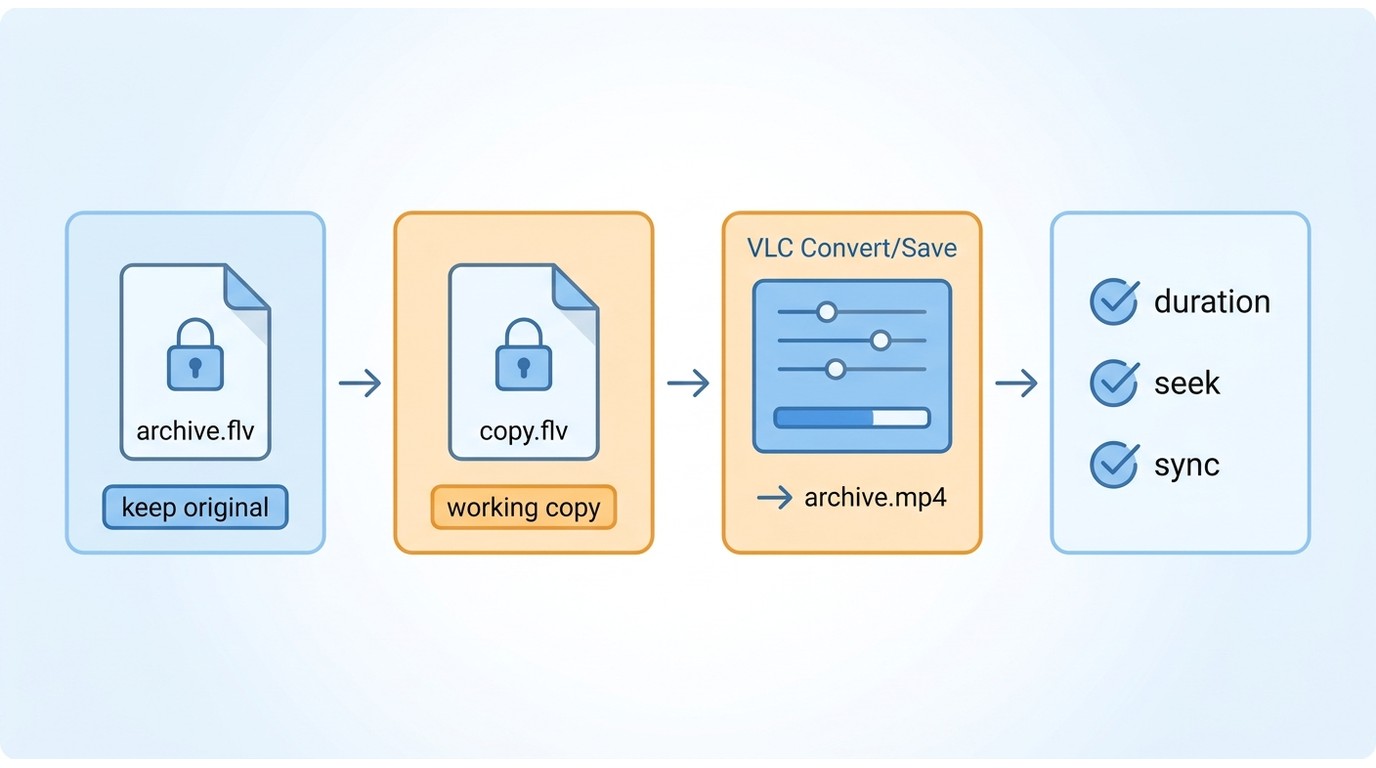
Convert a copy of an FLV file to MP4 when you need to edit it, share it, or play it on devices that do not support FLV. Conversion improves compatibility, but it does not repair damaged video data, so keep the original FLV until you have checked the result.
Windows Conversion Steps
- Copy the original FLV file to a working folder.
- Open the copy in a reputable desktop converter, or use VLC's Convert/Save workflow.
- Select MP4 as the output container, choose a destination folder, and start the conversion.
Mac Conversion Steps
- Duplicate the original FLV before making changes.
- Use a reputable Mac converter or VLC to load the copied file and select MP4 output.
- Save the converted file separately so the source remains available for comparison.
Check the MP4 Before Cleanup
Compare the duration with the original, seek through the beginning, middle, and end, and check that audio remains in sync with the video. Confirm that the image is not distorted before deleting, moving, or replacing any source file.
FLV Troubleshooting and FAQs
Can Windows Media Player Play FLV Files?
Windows Media Player support for FLV depends on the version and installed codecs, so it may not open an FLV file by default. Rather than relying on unverified codec packs, use a current desktop player with built-in FLV support first.
Are FLV Video Files Safe to Open?
An online FLV player can be reasonable for a small, non-sensitive file. For personal archives, confidential footage, large files, or batches, local playback is preferable because the files stay on your device. Download desktop players from their official websites rather than responding to unexpected “Flash Update” prompts.
Why Does My FLV File Have Sound but No Picture?
Audio without usable video can result from unsupported video data, corruption, an incomplete recording, or an invalid container, not just a missing codec. Preserve the original and test it in another current player before attempting conversion or repair.
What should I do if an FLV file stops early or will not open?
Keep the original untouched, then test it in another current player. If it still stops early or fails to open, check whether it is a valid FLV container and consider a remux or specialist repair workflow before transcoding. A conversion cannot restore video data that was never recorded or has been lost.
Final Recommendation
To play FLV files, first test the original in a current local player, use online playback only when an upload fits the file, and convert a copy to MP4 when editing or wider compatibility requires it. For archives, I favor direct playback as the first step because it avoids an unnecessary transcode and leaves the source unchanged. The ability to play video files from any era helps keep older media accessible.

 How to Open MP4 Files on Windows 11: 4 Reliable FixesBy Alice Harper - Aug 10, 2026
 9 Best Free FLV Players for Windows, Mac, and Mobile (2026)By Alice Harper - Aug 4, 2026
 13 Best Free MP4 Players for Windows & macOS: Hands-on Review in 2026By Alice Harper - Aug 3, 2026
 How to Play MOV Files on Windows 10/11, Including iPhone HEVC, ProRes & 4K HDRBy Alice Harper - Jul 30, 2026