9 Best Free FLV Players for Windows, Mac, and Mobile (2026)

Summary: Compare nine current FLV player options for Windows, Mac, Android, and iPhone. The guide explains why FLV still needs a compatible player, provides a quick decision table, and matches each desktop or mobile option to the readers it serves best.
Finding the best FLV player becomes urgent when a current computer refuses to open an older .flv archive. A maintained FLV media player with built-in codec support is the practical answer, and the right choice depends on your operating system, interface preferences, and whether you need a library or a simple file opener.
I ran into this while sorting old web tutorials from an external drive.
This guide compares nine accessible options for Windows, Mac, Android, and iPhone, then gives a safe three-step path for opening a file without installing an outdated codec pack.
Why Modern Systems Need an FLV Player
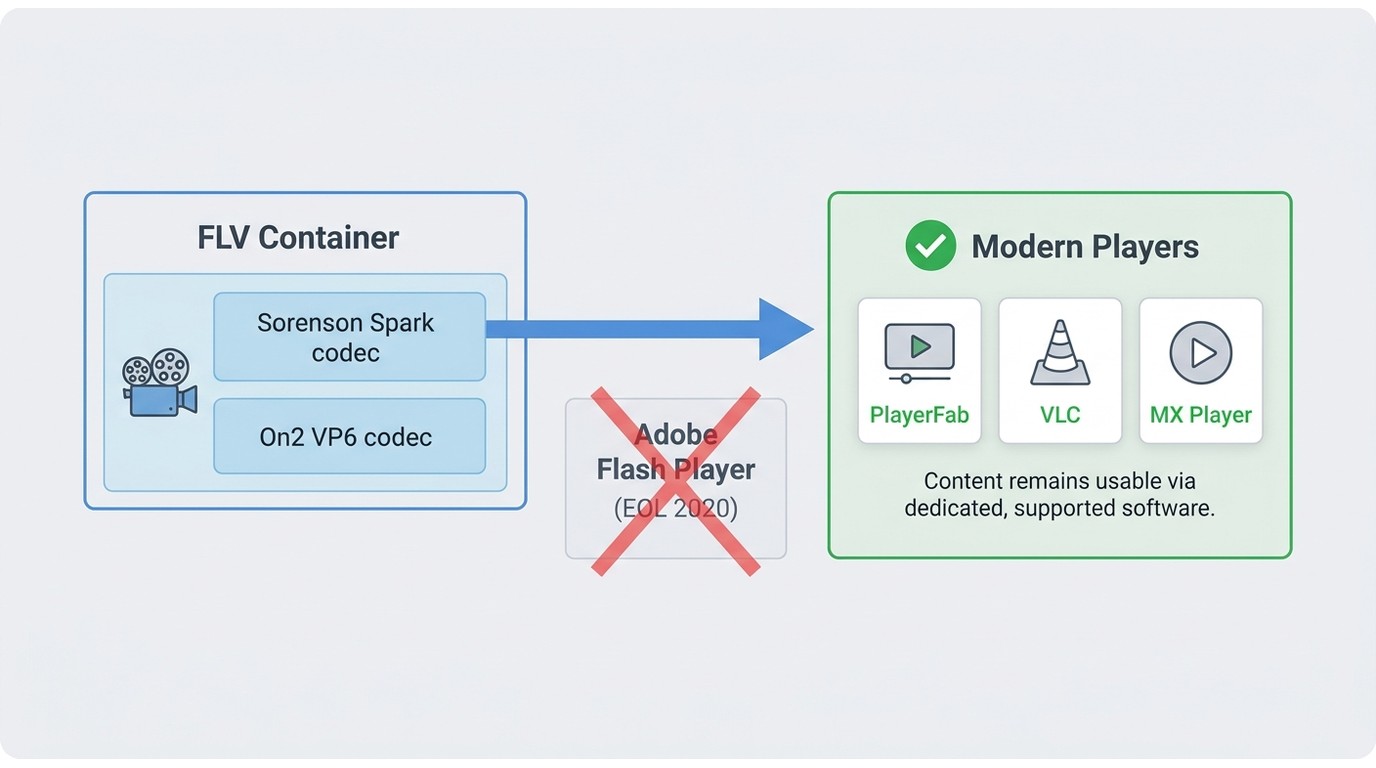
An FLV file player supplies the FLV codec support that many current default apps lack. FLV is a video container, while Adobe Flash Player was the browser runtime that reached end of support in 2020; retiring the runtime did not make every FLV file unusable or unsafe.
The codecs stored inside an FLV file vary. A maintained player may decode common Sorenson Spark, VP6, or H.264 streams, while damaged files or unusual legacy codecs can still fail. Start with these prerequisites: keep a local copy of the file and choose a currently maintained player from its official source.
- Download and install a maintained player from the vendor's official site or an official app store.
- Open the player, then use its Open File command or drag the file into the window to play FLV files.
- If playback fails, check the file for damage or an unusual codec, then consider remuxing or conversion for broader compatibility.
My practical rule is to troubleshoot the file before adding codec packs. A current standalone player is easier to maintain and creates fewer system-wide conflicts.
Free FLV Players for Windows
A free FLV player for Windows should open common legacy streams reliably, come from a maintained source, and match the reader's preferred level of complexity. If FLV is only one part of a broader library, a general video player for Windows may deserve a wider comparison.
I ranked these options by operating-system fit, relevant FLV handling, startup and resume behavior, interface complexity, cost, maintenance, and safe download availability. For legacy files, current maintenance and dependable startup matter more than a long list of unrelated formats.
Quick FLV Player Comparison
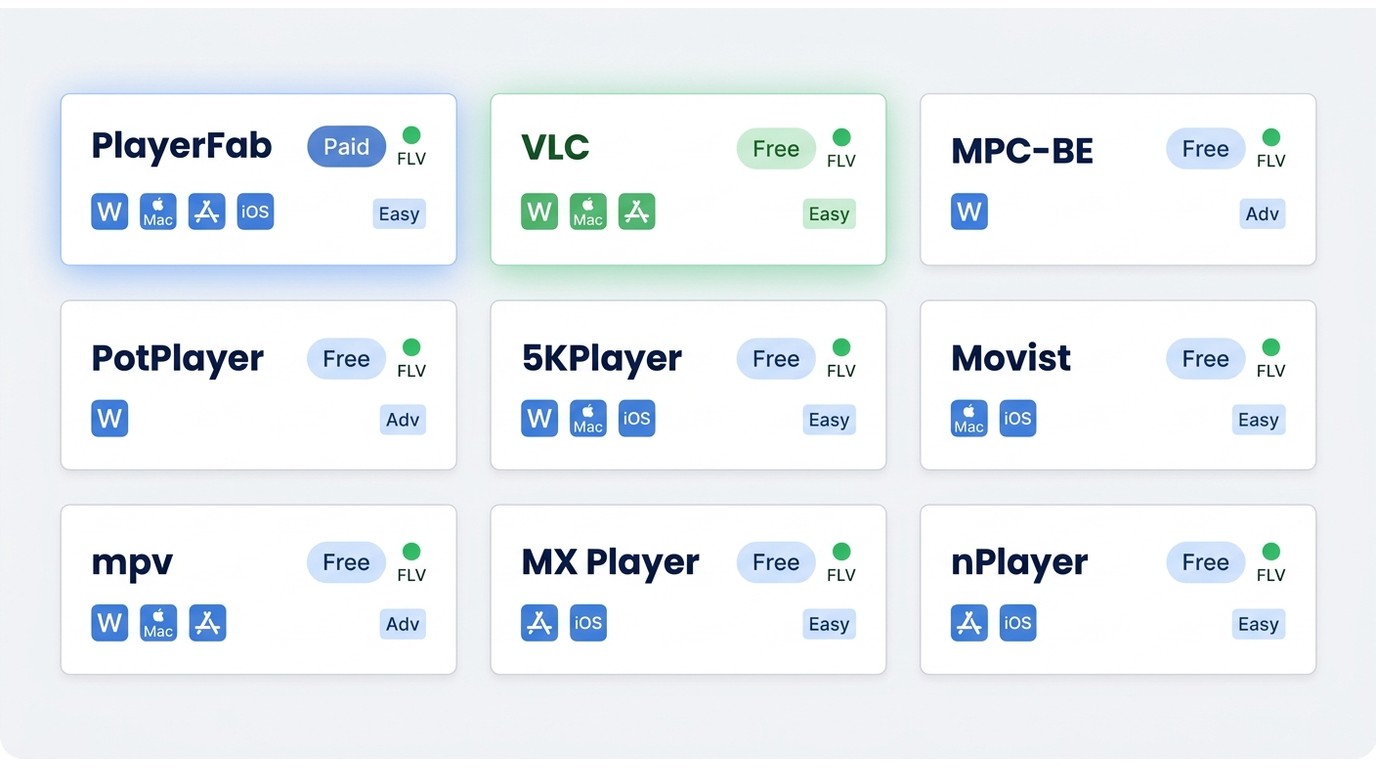
This FLV player comparison separates library-focused software, cross-platform utilities, configurable tools, and mobile apps. Product availability and pricing boundaries are shown as of August 2026.
| Player | Best fit | Platforms | Free or paid boundary | FLV and legacy-codec support | Hardware acceleration | Library features | Ease of use | Maintenance status |
|---|---|---|---|---|---|---|---|---|
| PlayerFab Free Video Player | Organized local archives | Windows 11/10 | Free local-file playback; disc features require an upgrade | Built-in playback support for FLV and other local formats | AMD, Intel Quick Sync, and NVIDIA CUDA decoding | Poster wall and metadata organization | Easy for library browsing | Current official Windows download |
| VLC Media Player | Cross-platform file opening | Windows, macOS, Linux | Free and open source | Broad built-in codec support; damaged files may vary | Available, results depend on system and file | Basic playlists rather than a poster library | Simple opening, deeper settings are dense | Actively maintained |
| MPC-BE | Older or low-spec Windows PCs | Windows | Free and open source | Internal filters for FLV and other legacy containers | Supported through Windows playback options | No automatic poster library | Traditional interface | Active project in 2026 |
| PotPlayer | Experienced users who want renderer controls | Windows | Free | FLV playback with extensive decoder settings | Configurable hardware decoding | Playlist-oriented | High setup complexity | Current maintenance status is unclear |
| 5KPlayer | FLV playback with casting | Windows, macOS | Free | Plays FLV and other common media formats | Available | Basic media list | Feature-heavy interface | Current official downloads |
| Movist | Native-feeling Mac playback | macOS | Core player available; some network features are paid | Handles FLV through its supported decoders | Uses macOS media capabilities | No full poster-wall library | Polished Mac interface | Current releases available |
| mpv | Keyboard-driven and configurable playback | Windows, macOS, Linux | Free and open source | Broad codec and container handling | Configurable video output | No built-in library manager | Steep learning curve | Actively developed |
| MX Player | Android playback | Android | Free app with paid options | Codec behavior varies by device and file | Device-dependent | Mobile file browsing | Touch-friendly | Current US app listing |
| nPlayer | iPhone and iPad playback | iOS, iPadOS | Paid app | Supports local and network media; file behavior varies | Device-dependent | Local and network browsing | Touch-friendly | Current US app listing |
The practical split is clear: choose PlayerFab for a Windows archive that benefits from organization, VLC for broad desktop availability, or mpv when control matters more than interface simplicity.
PlayerFab Free Video Player
PlayerFab is an FLV media player for Windows 11 and Windows 10, not macOS or mobile. It fits readers with larger local archives who value poster-wall organization, metadata, GPU decoding, and home-theater output.
PlayerFab Free Video Player combines local playback with a visual library that groups saved videos and presents metadata. Its stated hardware support includes AMD, Intel Quick Sync, and NVIDIA CUDA decoding.
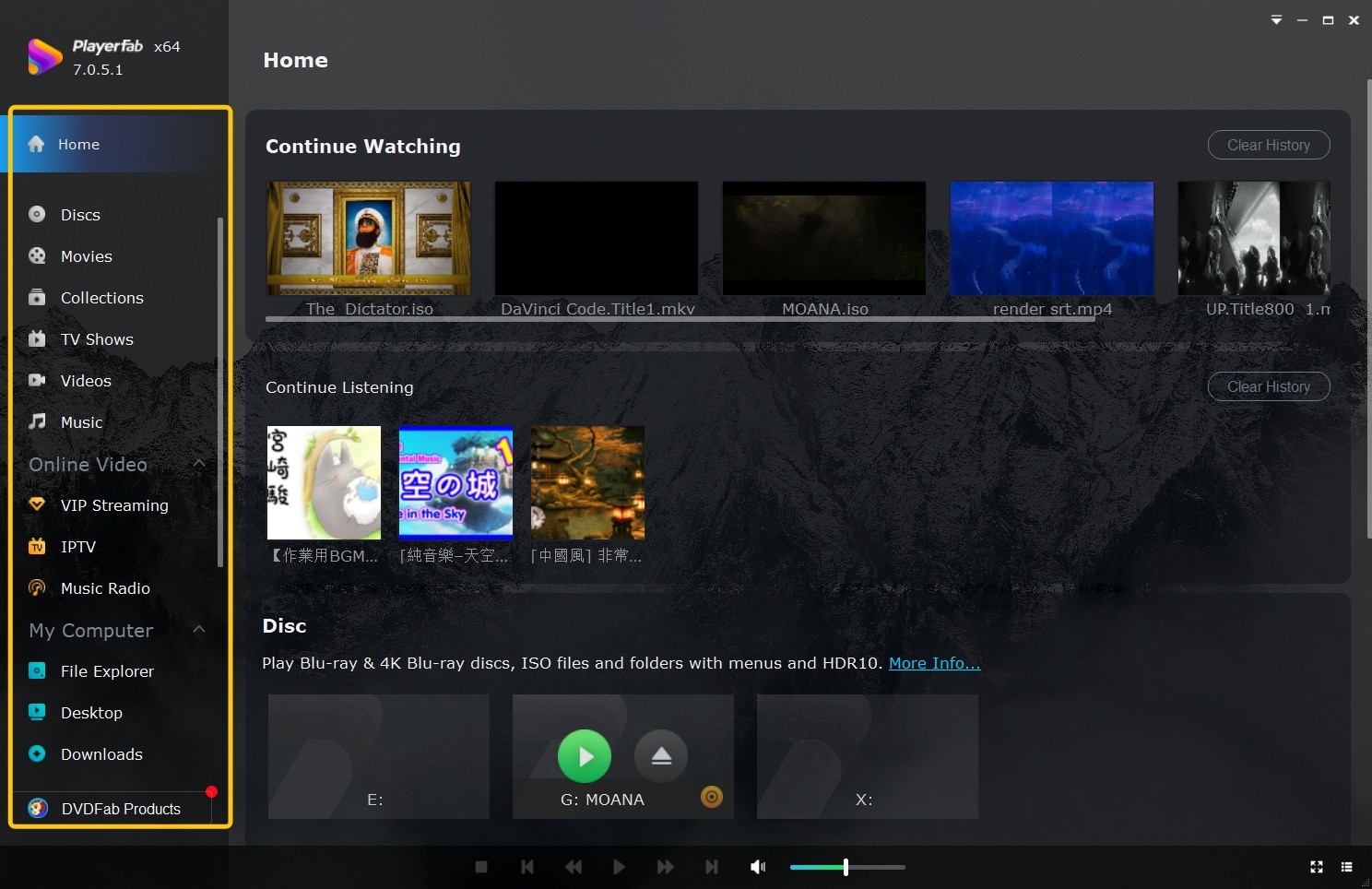
- Good fit: Windows users who want archived clips organized as a browsable media collection.
- Less suitable: Readers who need a native Mac or mobile app, or who prefer the smallest open-source utility.
The library is the meaningful difference here. A folder of scattered tutorials is easier to revisit when titles and artwork are organized, while a one-off file does not justify the larger application footprint.
VLC Media Player
VLC FLV playback is the broad cross-platform baseline. It is actively maintained, open source, and available for major desktop systems, although unusual codecs and damaged FLV files can behave differently.
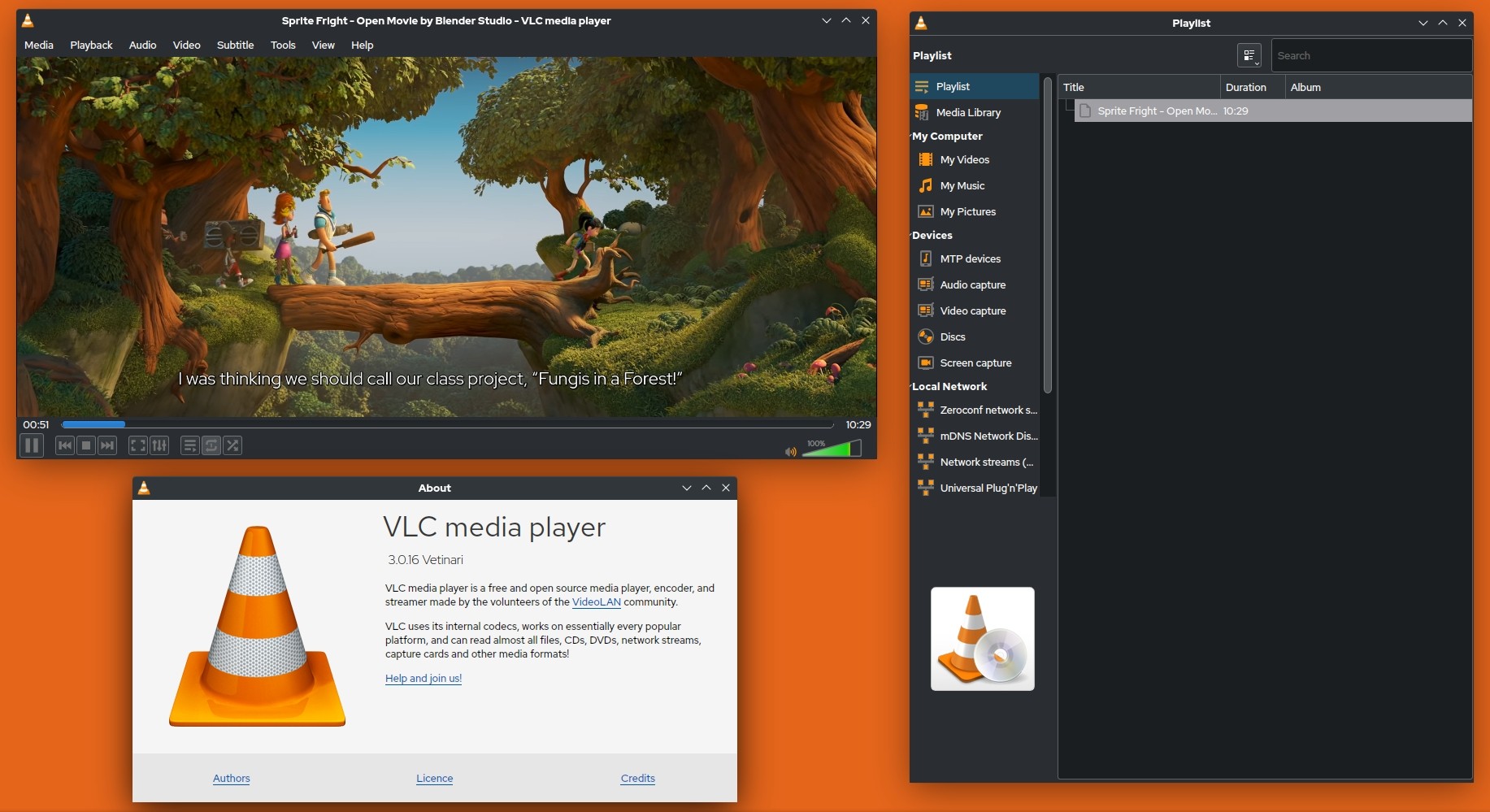
- Good fit: Users who want one free FLV player across Windows, macOS, and Linux.
- Less suitable: Readers prioritizing a modern poster library or encountering startup and resume issues on a particular system.
I treat VLC as the sensible first diagnostic player because its broad built-in decoding can quickly show whether the issue is the default app or the file itself. Its deeper preferences, however, are less approachable than the basic Open File workflow.
MPC-BE
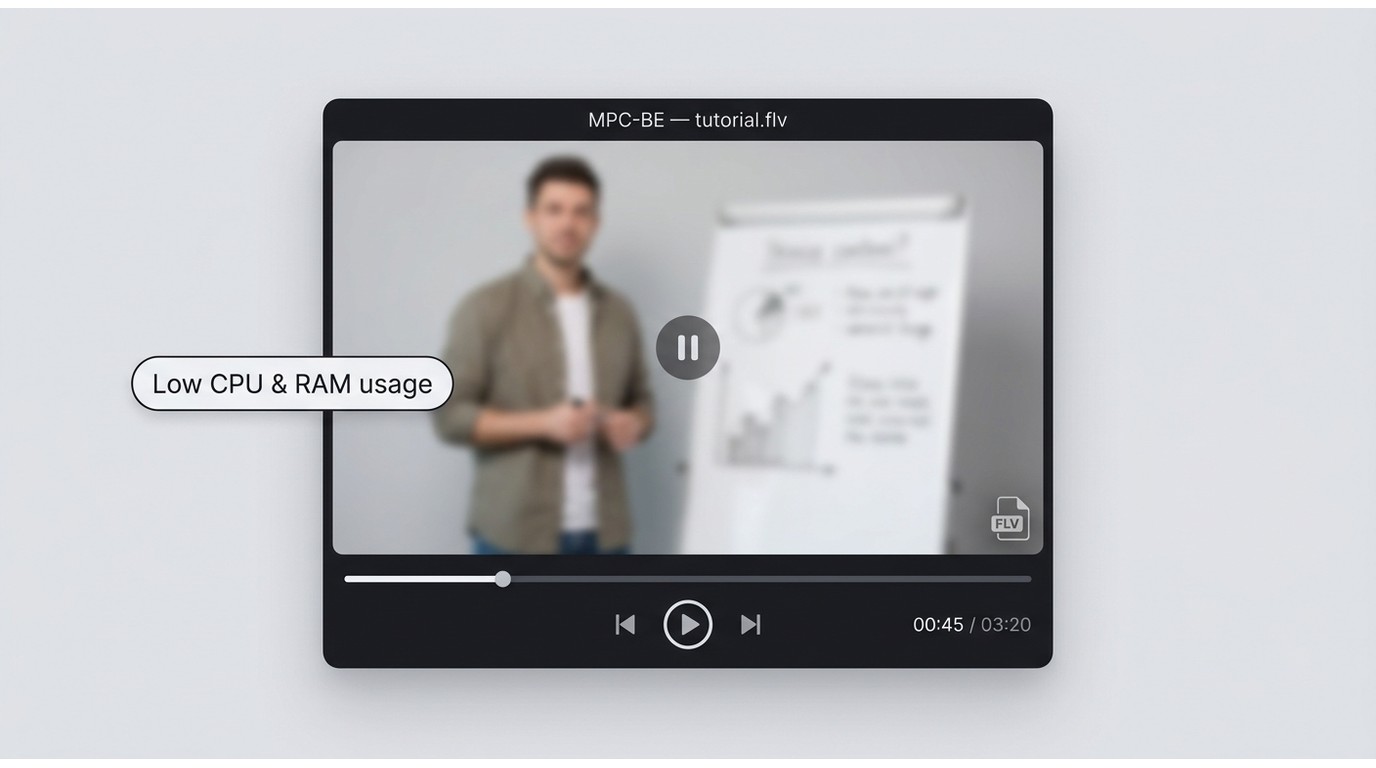
MPC-BE is a lightweight FLV file player for Windows with a traditional desktop interface and active project development. It is a focused choice for older or modest PCs, without unsupported promises about exact CPU or memory use.
- Good fit: Windows users comfortable with classic menus, internal filters, and manual playlists.
- Less suitable: Mac, Linux, or mobile users, and anyone who wants automatic library organization.
The advantage is restraint: MPC-BE concentrates on opening and controlling local files. The tradeoff is that collection management and cross-platform continuity are outside its scope.
PotPlayer
PotPlayer is a Windows FLV video player for experienced users who want detailed renderer, color-space, audio-passthrough, and FLV codec support controls. Its current maintenance status is unclear, so it ranks behind options with visible ongoing development.
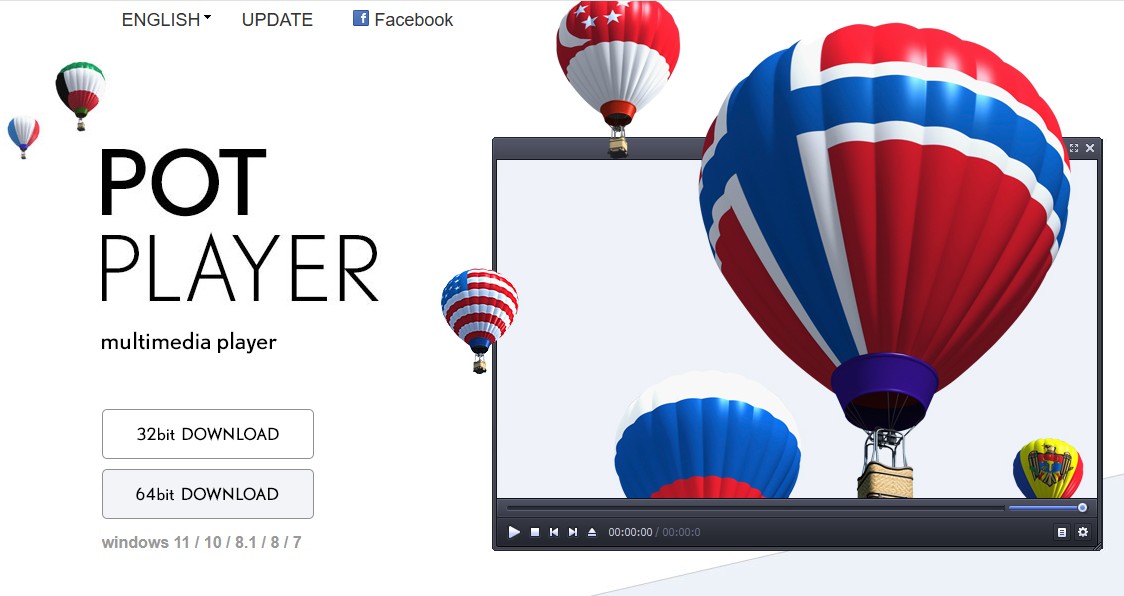
- Good fit: Users willing to tune decoding, output, and interface behavior.
- Less suitable: Beginners who want simple defaults and minimal setup.
Granular controls can solve a specific rendering or audio issue, but they also create more ways to misconfigure playback. During installation, review each optional item rather than assuming the default choices match your needs.
Best FLV Players for Mac
The best FLV player for Mac should open the codecs in the file, remain compatible with current macOS releases, and avoid turning a simple playback task into a configuration project. Readers comparing broader library and streaming needs can weigh those separately in a best video player for Mac guide.
5KPlayer
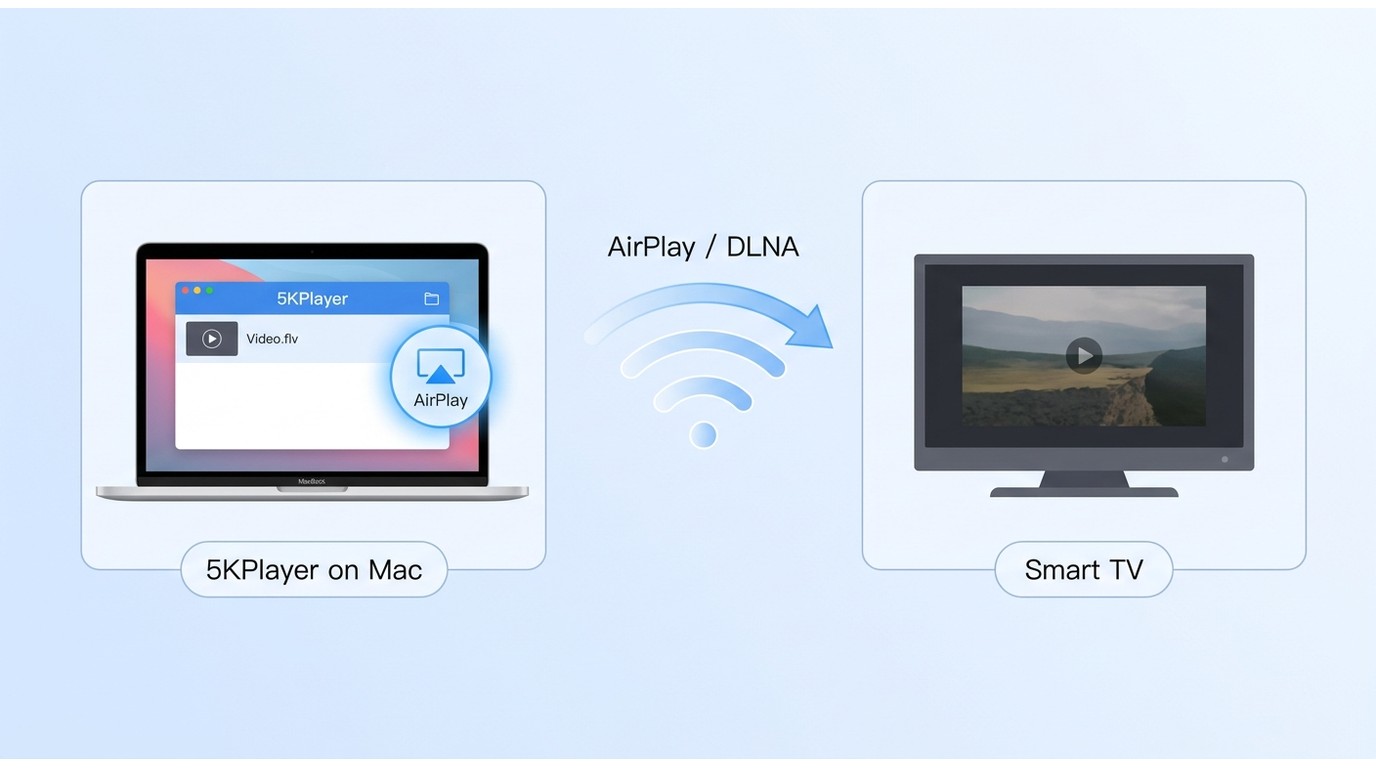
5KPlayer suits Mac users who want local FLV playback plus AirPlay or DLNA casting. Its official site continues to provide Windows and macOS downloads, but the interface carries more features than a minimal player.
- Good fit: Readers who want to move a local video from a computer to a compatible display.
- Less suitable: Users who want a quiet, stripped-down FLV file opener.
Casting is the reason to choose it. If that feature is irrelevant, VLC or Movist offers a clearer fit without making peripheral download functions part of the decision.
Movist
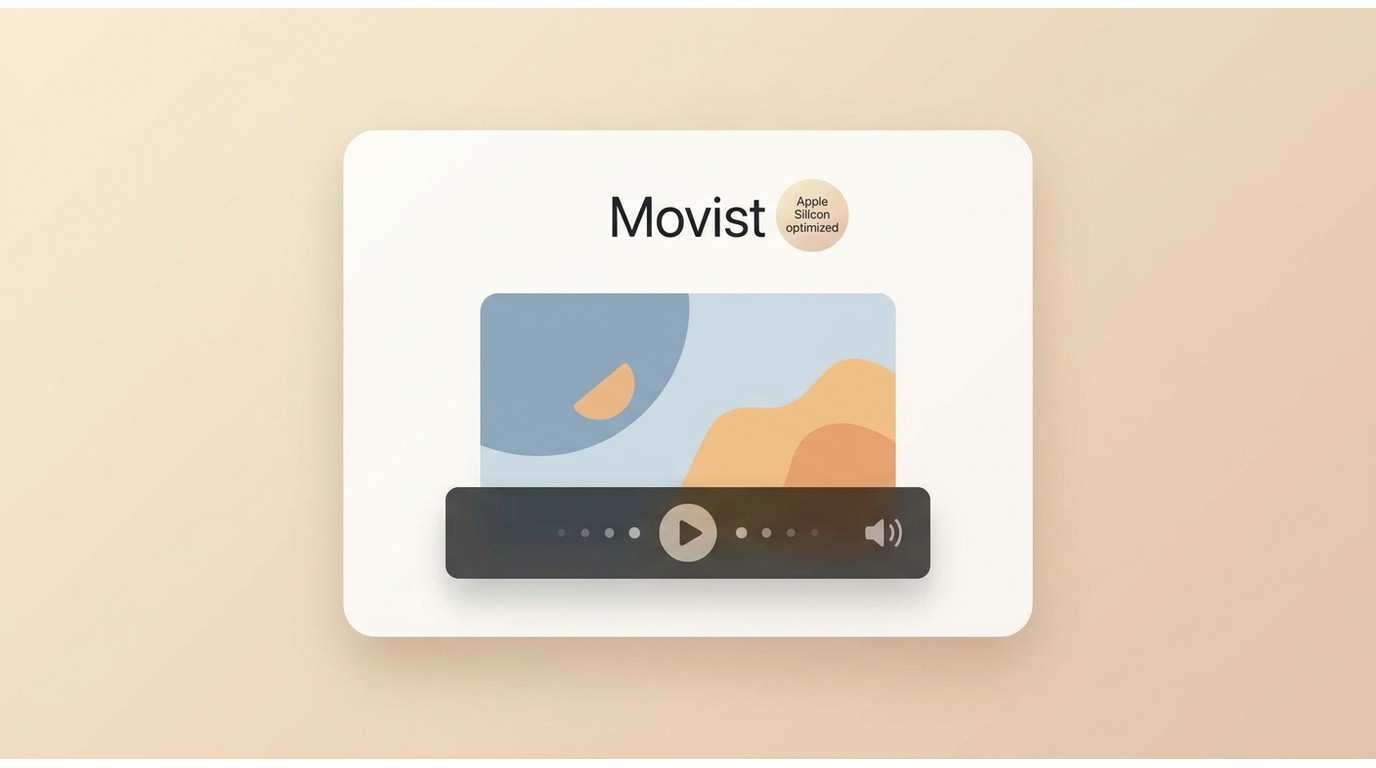
Movist is the native-feeling Mac option, with current releases and an interface designed around macOS conventions. It is a good fit for readers who value a polished window and Apple-platform integration.
- Good fit: Mac users who want straightforward local playback in a familiar interface.
- Less suitable: Windows users or readers who need all network features at no cost.
Movist's appeal is usability rather than a claim of superior image quality. Some network capabilities require a paid version, so occasional local playback and network-heavy use lead to different buying decisions.
mpv
mpv is configurable FLV player software for advanced users who value keyboard operation, scripting, and active cross-platform development. It provides detailed video-output controls, but setup cost is the central tradeoff.
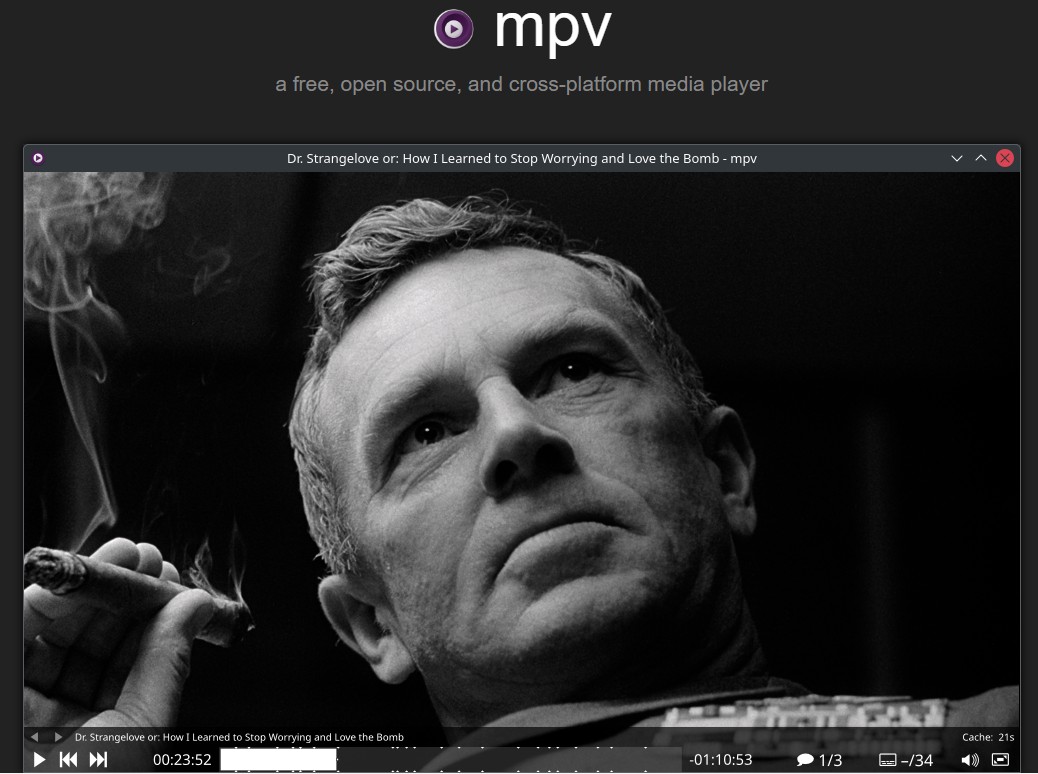
- Good fit: Users who understand configuration files and want control over scaling, color, and output behavior.
- Less suitable: Beginners who expect a conventional settings panel or a built-in library manager.
For a compressed archive, configurable rendering can improve how scaling is handled on a modern display. That flexibility does not recreate detail missing from the source, and it requires more work than double-click playback.
FAQs
Which FLV player is best for quick desktop playback?
PlayerFab fits Windows users who want archive organization and GPU-assisted playback, but it has no native Mac app. VLC is the simpler cross-platform fallback, although its library interface is basic and unusual or damaged files may still fail.
Which FLV player works best on Android or iPhone?
MX Player is a current mobile FLV player option for Android, while nPlayer is listed for iPhone and iPad in the US. Use the official app store because availability and codec behavior can vary by device and file.
Does an FLV player change video quality?
An HD FLV player normally decodes the existing file without recompressing it. Visible quality depends on the source codec, bitrate, renderer, scaling, and hardware-decoding behavior; the player cannot restore detail that the original file never contained.
Can VLC play FLV files on Windows and Mac?
Yes, VLC can play many supported FLV streams on Windows and Mac with its built-in codecs. A damaged file or an uncommon legacy codec may produce a different result, so failure with one file does not define VLC's overall FLV support.
Should I play an FLV file or convert it to MP4?
Use an FLV file player for occasional access because it preserves the original file. For sharing, archiving, or wider device support, remux compatible streams into MP4 without re-encoding; incompatible codecs require conversion.
Is an FLV file safe to open today?
FLV is a container, not the retired Flash browser runtime. Download a maintained FLV player only from an official vendor or app store, and avoid old codec-pack sites or EOL software such as FLV-Media-Player.
Conclusion
The best FLV player is the one that matches the operating system, maintenance status, interface complexity, and library needs behind the file. PlayerFab is the fit for Windows 11/10 archive users who want visual organization; VLC is the broad cross-platform route, while MPC-BE and mpv serve readers who prefer lightweight or configurable playback.

 How to Open MP4 Files on Windows 11: 4 Reliable FixesBy Alice Harper - Aug 10, 2026
 13 Best Free MP4 Players for Windows & macOS: Hands-on Review in 2026By Alice Harper - Aug 3, 2026
 How to Play MOV Files on Windows 10/11, Including iPhone HEVC, ProRes & 4K HDRBy Alice Harper - Jul 30, 2026
 4 Ways to Open and Play FLV Files on Windows and MacBy Alice Harper - Jul 29, 2026