How to Open MP4 Files on Windows 11: 4 Reliable Fixes

Summary: Playing an MP4 on Windows shouldn't be a hassle, yet codec errors and HEVC paywalls constantly frustrate users in 2026. In my experience, struggling with Windows Media Player's outdated codec packs is a waste of time. The most efficient way to play any MP4 file smoothly is by upgrading to a modern, all-in-one solution like PlayerFab. This guide will show you how to bypass native Windows limitations and enjoy flawless 4K video playback.
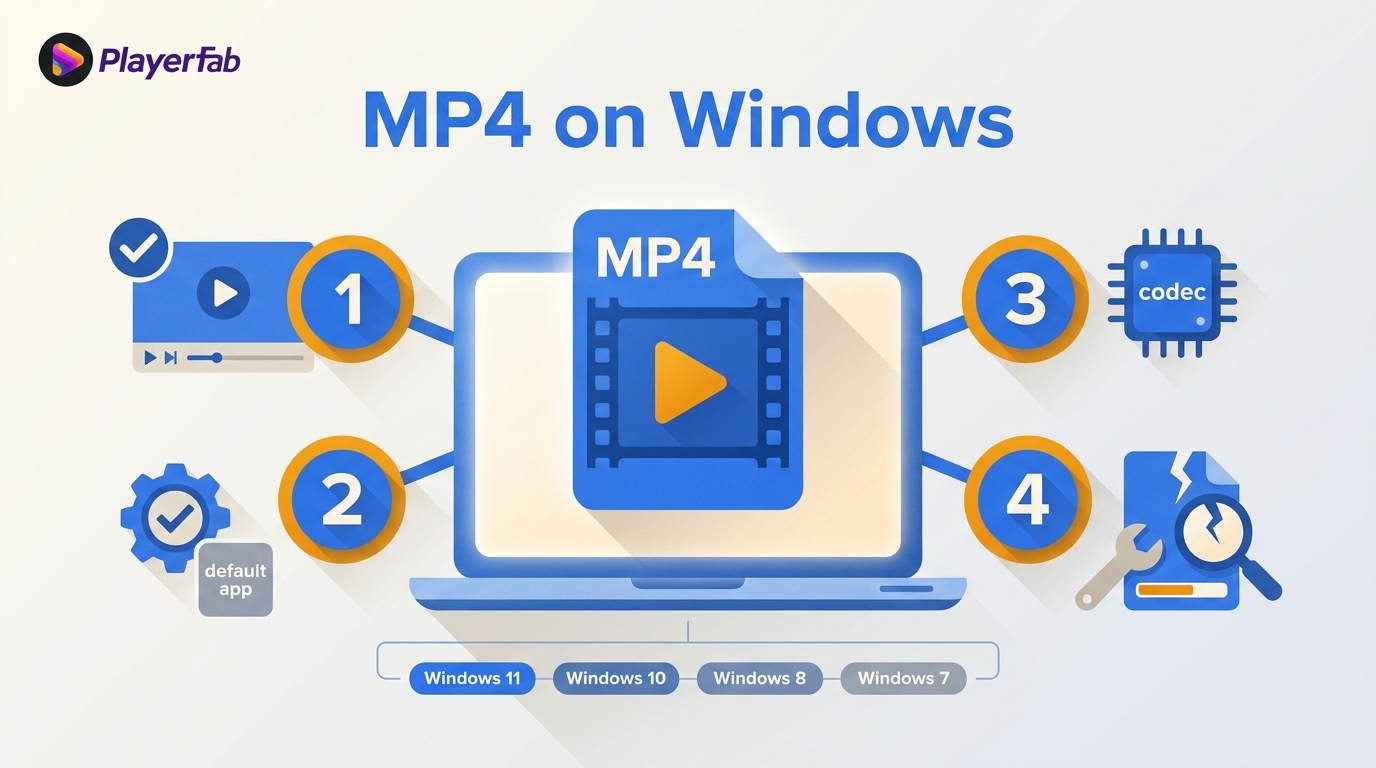
To get straight to the point, you can open MP4 files on Windows 11 with the built-in Media Player when the file uses supported codecs, or use PlayerFab or VLC when it does not. A file that suddenly fails, plays only audio, or stutters also needs an app and file-health check.
Why MP4 Files Fail on Windows
It is frustrating to double-click an MP4 file only to be greeted by a black screen, missing audio, or an error message like "Windows Media Player cannot play the file."
An MP4 can fail because of the player app state, the default file association, an unsupported video or audio codec, or a damaged file. Think of an MP4 file as a shipping box. Inside that box, the actual video and audio data are compressed using specific methods called codecs. While Windows 11/10 can easily open the MP4 box, they might not know how to read the specific codec inside it.
MP4 is a container, not a single video format. The video and audio tracks inside it can use different codecs, which is why two MP4 files may behave differently in the same Windows app. MediaInfo can identify those tracks before you install an extension or change players.
| Track type | Typical Windows route | Common symptom |
|---|---|---|
| H.264 video | Built-in support | Usually opens normally |
| HEVC video | May need an extension | Audio with a black screen |
| AV1 video | May need an extension | Playback error or no video |
| Audio tracks | Depends on codec support | Video without sound |
As of August 2026, Windows includes H.264 support, while HEVC and AV1 may require separate extensions. Audio compatibility also matters, including changes to AC-3 support in Windows 11 version 24H2.
Run a Four-Step Playback Check
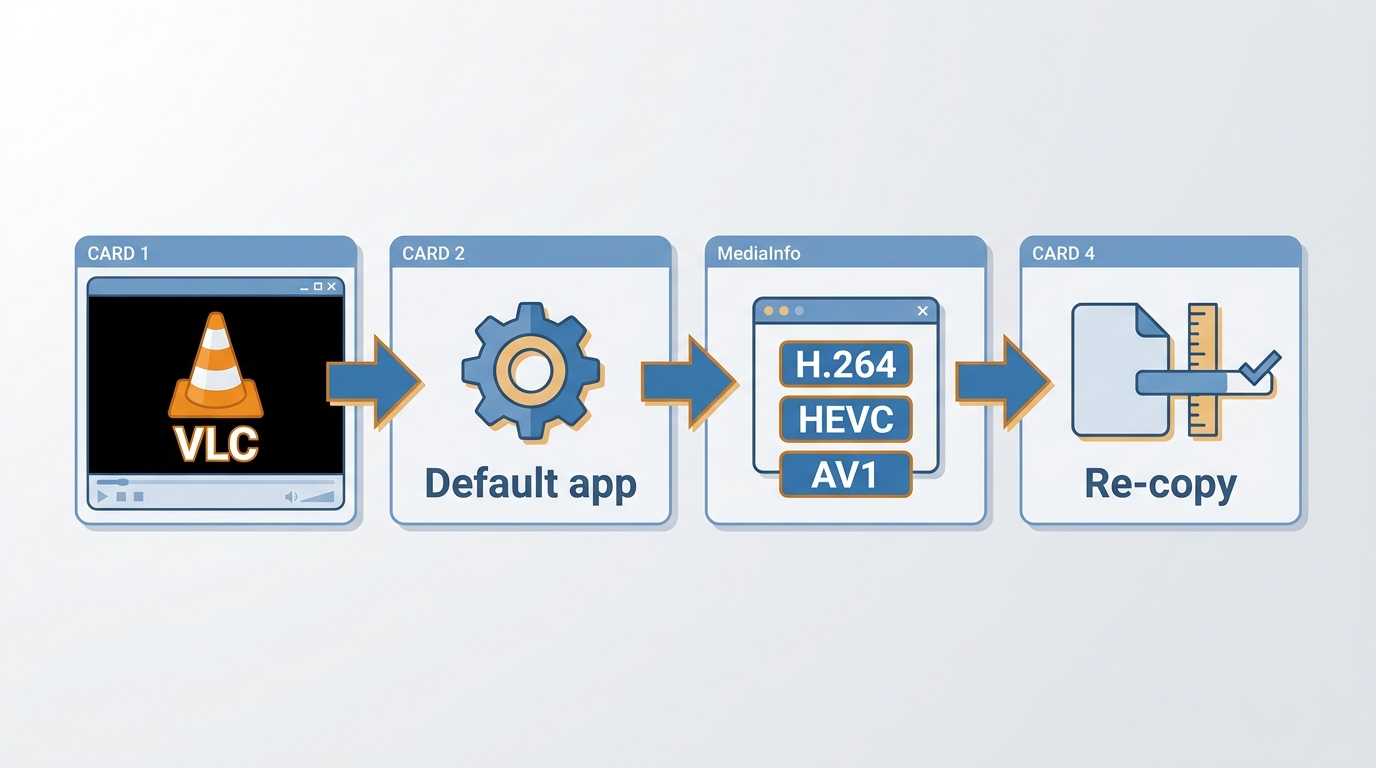
Start with the symptom, then narrow the cause. First, open the same file in a second player to see whether the issue is app-specific. Next, repair or reset the affected app and confirm the default file association; a deeper Windows Media Player not working diagnosis can help when the app itself is failing. Then inspect the video and audio codecs with MediaInfo. Finally, check that the file has a normal size and copy it again if it may be incomplete or damaged.
My practical rule is to check the app and the file before installing a codec pack. That sequence avoids treating a damaged file or a broken file association as a missing-codec problem.
Open MP4 with PlayerFab or VLC
After checking whether the built-in route fits the file, PlayerFab Free Video Player and VLC offer two different ways to play MP4 on Windows. PlayerFab suits a local library workflow, while VLC is a lightweight fallback when you want broad decoder coverage.
| Method | Windows availability | HEVC and AV1 route | 4K and HDR support | Best fit |
|---|---|---|---|---|
| Media Player | Built in | Extensions may be needed | Codec and device dependent | Supported everyday files |
| PlayerFab Free | Windows and Mac | Built-in local playback | Up to 1080p; no HDR | Local files and visual libraries |
| VLC | Windows desktop | Bundled decoders | Content and hardware dependent | Lightweight troubleshooting |
How to Open MP4 with PlayerFab Free Video Player
For local MP4 playback, PlayerFab Free Video Player is a desktop player for Windows and Mac that supports local standard- and high-definition video up to 1080p. Its basic poster-wall library can organize local files with artwork and metadata, which is useful when a folder of clips has become difficult to browse. This free version does not support 4K UHD or HDR, so it is not the right fit for viewers whose priority is high-end 4K playback.
Local MP4 playback does not require paid streaming-service features. I would choose this route when a visual local library matters more than a minimal portable app; readers weighing a wider range of MP4 file players or a broader video player for Windows comparison may need different priorities.
Steps to play MP4 on Windows with PlayerFab
- Download PlayerFab Free Video Player from the official site and complete the standard installation.
- Open the player and simply drag your MP4 file directly from your folder onto the main window.
- For a more organized experience, use the "Library" tab to scan your folders and build a poster wall.
- Alternatively, right-click any MP4 on your desktop and select "Play with PlayerFab" for instant viewing.
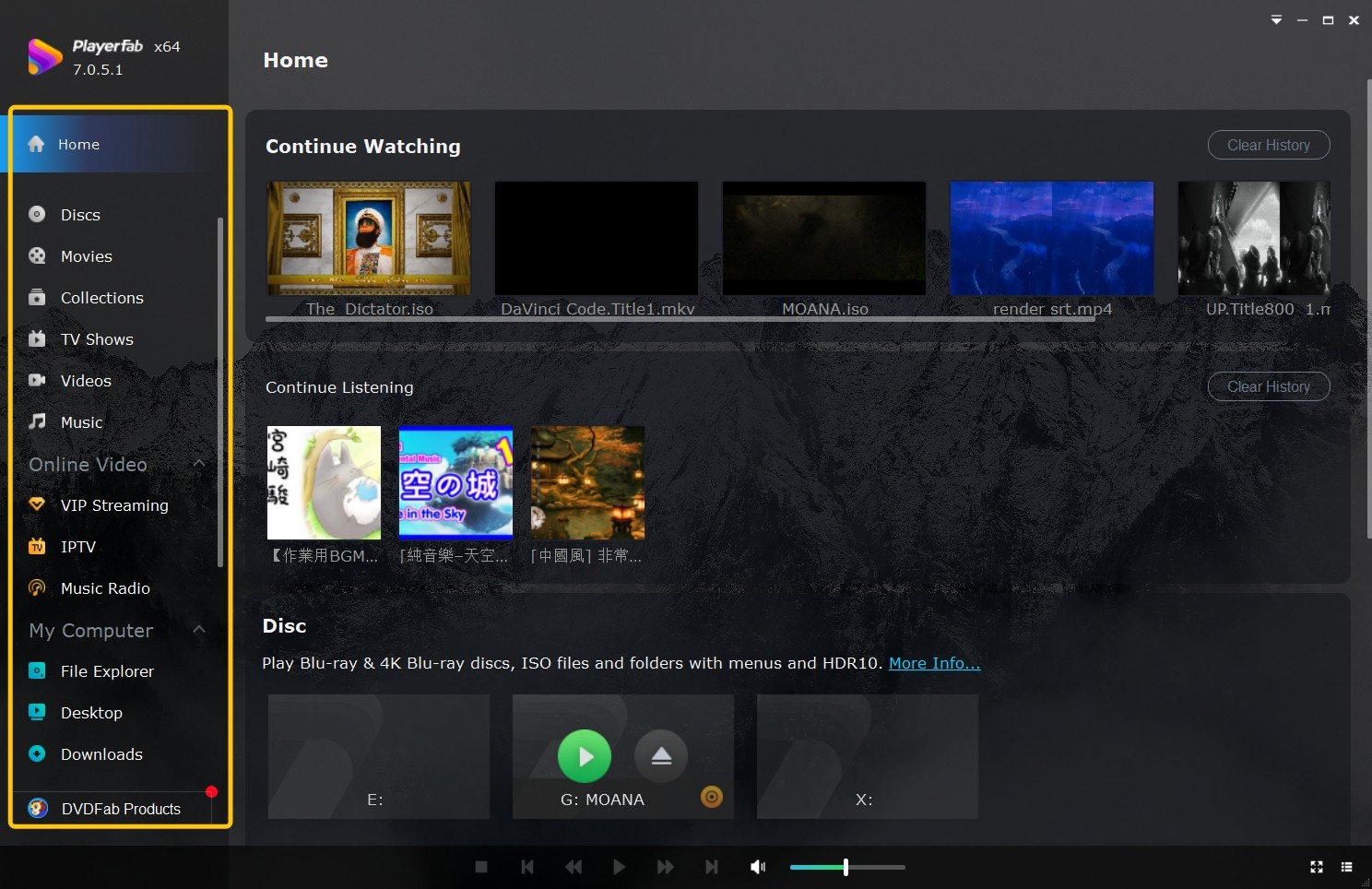
- Free basic player for local standard- and high-definition video
- Automatic poster wall generation for organizing your media library
- Basic poster-wall library for browsing local media
- Not intended for 4K UHD or HDR playback
How to Play MP4 Files Using VLC Media Player
VLC is a free, open-source option for playing MP4 on Windows. Its bundled decoders can help with files that a Windows app does not recognize, though they cannot repair a damaged or incomplete file. Its interface is more utilitarian than a library-focused player, but it remains a sensible secondary player when you need to isolate a codec-related playback error.
Steps to play MP4 on Windows with VLC:
- Install VLC Media Player and launch the application from your desktop or Start menu.
- Click the "Media" tab in the top-left corner and select "Open File" from the list.
- Browse your computer's storage, select the MP4 video you wish to watch, and click "Open."
- Use the "Playback" menu to adjust speed or the "Subtitle" menu to load external SRT files.
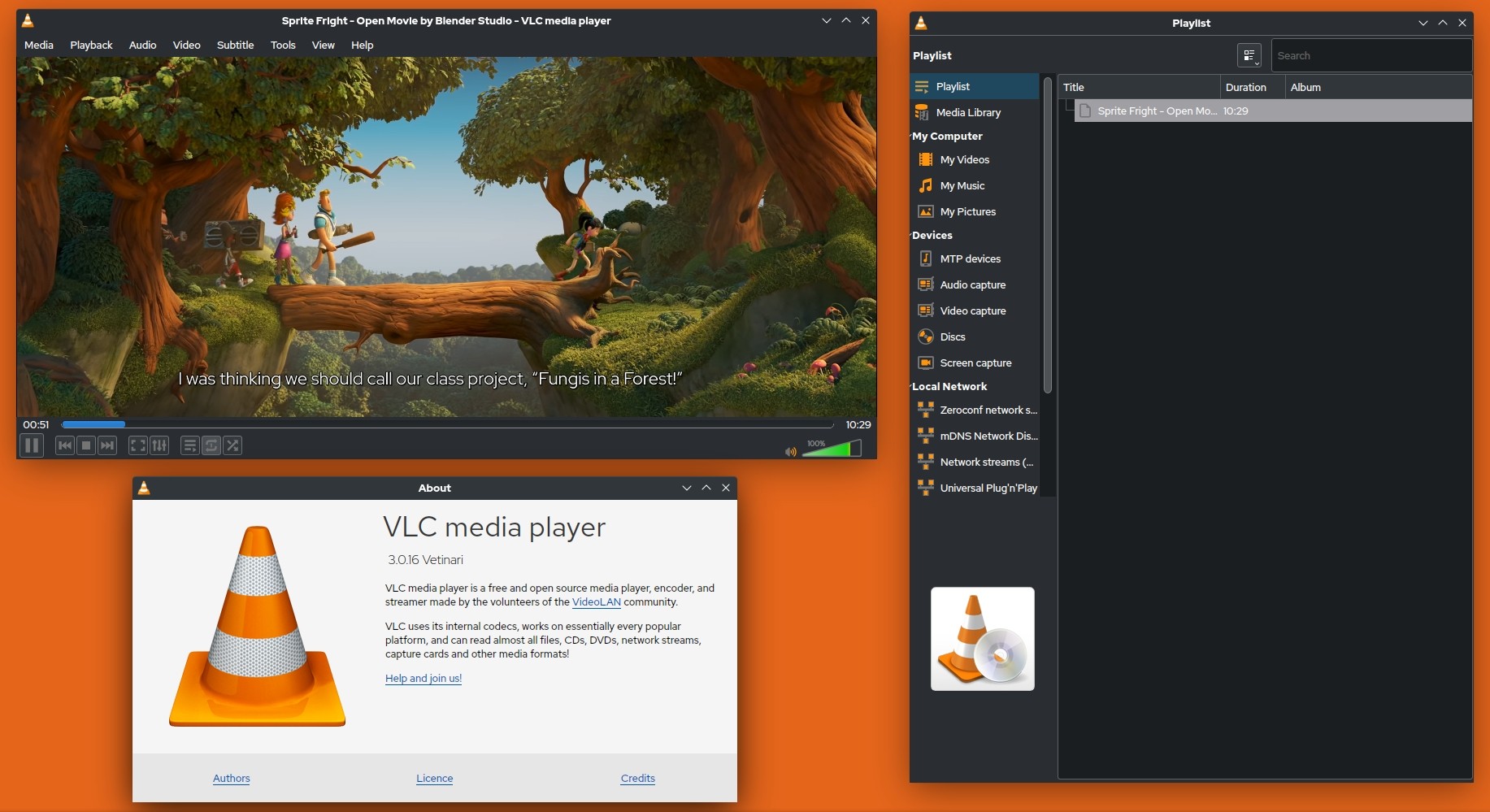
- Free and open-source software, without annoying advertisements, or user tracking
- Versatile decoding engine capable of playing corrupted, or partially downloaded MP4 file
- Offers customization options including audio filters, video effects, and subtitle synchronization tools
- The default user interface appears significantly outdated
- Lacks automated smart media management or visually poster walls
Use Windows Media Player for MP4
Windows offers more than one playback path. The modern Media Player app is the current built-in route, while Windows Media Player Legacy remains a separate older application. Both can play MP4 files when their video and audio codecs are supported, but neither should be treated as a universal answer for every MP4.
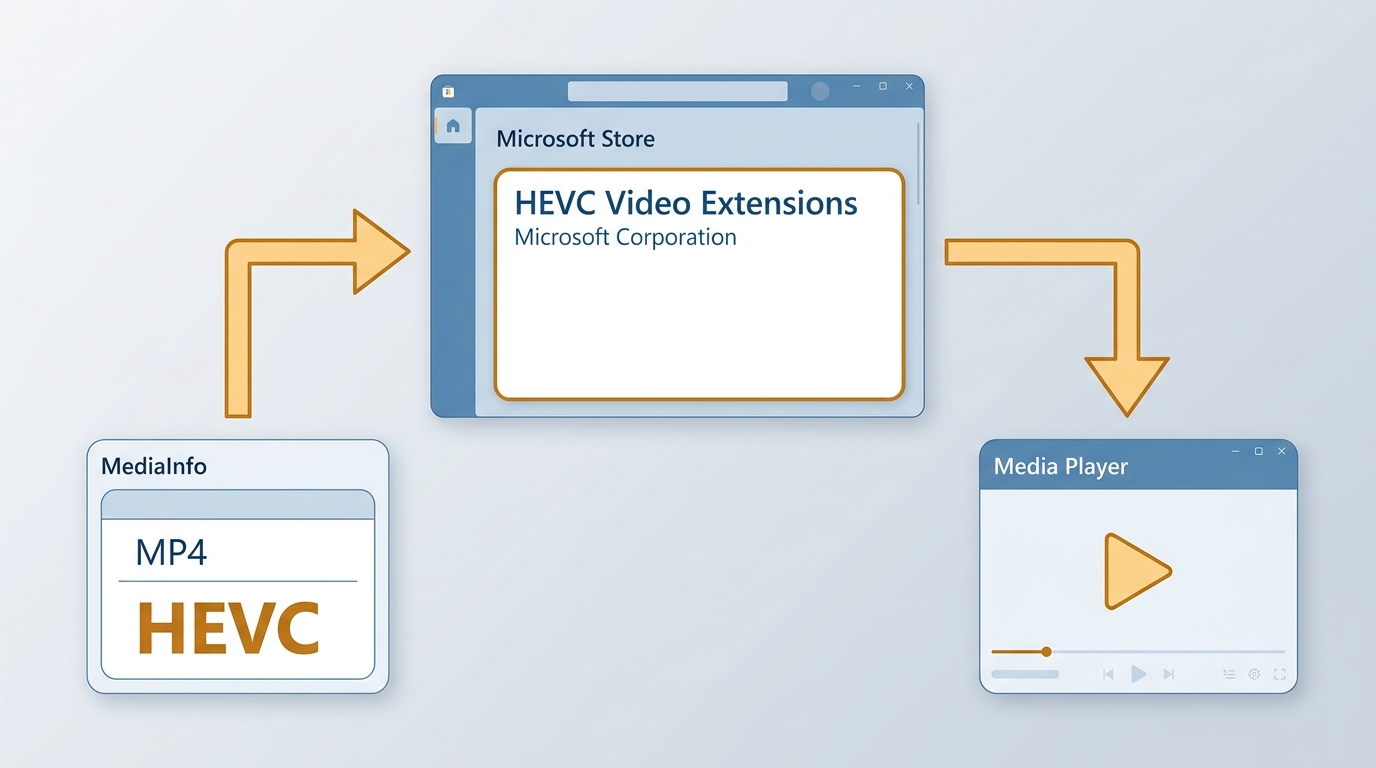
For a file that needs HEVC or AV1 support, a Microsoft Store extension may be appropriate. K-Lite uses DirectShow codecs for Windows Media Player Legacy and other DirectShow-based players; it does not extend the modern Media Player app, which uses Media Foundation. Identifying the exact codec and repairing the app should come before installing additional codecs.
Modern and Legacy Windows Player Paths
Use the modern Media Player app first for an MP4 with supported tracks. If playback fails, reset or repair the app, confirm the default app association, and inspect the file before selecting an HEVC or AV1 extension. Windows Media Player Legacy can still be relevant for older DirectShow workflows, but installing K-Lite there does not change what the modern Media Player app can decode.
- Familiar interface that long-time Windows users already know
- Consumes very little system RAM
- May need extensions for HEVC or AV1 files
- Less flexible than players with bundled decoders
Movies & TV App Playback Limits
Movies & TV remains available through the Microsoft Store, but it should not be treated as the default Windows 11 playback path. If it does not open an MP4, first check the file association and the file’s video and audio codecs. HEVC or AV1 content may need the relevant Microsoft extension, while a different player can be more practical when the file uses unsupported tracks.
Step 1: Open the Microsoft Store app directly from your Windows taskbar or the Start menu.
Step 2: Search for the official "HEVC Video Extensions" application published by Microsoft Corporation.
Step 3: Install the extension if it matches the codec identified in your file.
Step 4: Close and reopen the Movies & TV app, then double-click your MP4 file to begin watching.
- Provides a minimalist, and touch-optimized viewing interface
- Integrates with the Windows OS without requiring third-party software
- Lacks advanced playback controls, such as precise color adjustment
- Struggles with advanced surround sound audio formats
FAQs
Why does my MP4 have sound but no video?
Sound without video usually means the player can decode the audio track but not the video track. The unsupported video codec is not necessarily HEVC, so inspect the file first with MediaInfo. Then choose the matching Windows extension or try a player with bundled decoders.
Why does 4K MP4 playback stutter?
Choppy 4K MP4 playback can come from decoding load, disabled hardware acceleration, outdated graphics drivers, competing background tasks, or a damaged file. Enable hardware decoding if your player supports it, update the graphics driver, close demanding background apps, then test a known-good lower-resolution file. Changing settings is useful only after confirming that the original file is healthy.
Can Windows 11 play MP4 natively?
Yes. Windows 11 can play MP4 files when their video and audio codecs are supported, and H.264 support is built in. HEVC or AV1 video may require separate extensions, and an unsupported audio track can also prevent normal playback. The modern Media Player app and Windows Media Player Legacy are separate playback paths.
The Best Route Depends on the File
To play MP4 on Windows, start with the built-in route when the file uses supported codecs, then repair the app or inspect the file if playback suddenly breaks. PlayerFab Free Video Player is a practical choice for supported local MP4 playback when a visual library matters, while VLC is often the better fit for a lightweight decoder-focused fallback. Neither replaces the need to check a damaged file, and PlayerFab Free is not intended for 4K UHD or HDR playback.

 9 Best Free FLV Players for Windows, Mac, and Mobile (2026)By Alice Harper - Aug 4, 2026
 13 Best Free MP4 Players for Windows & macOS: Hands-on Review in 2026By Alice Harper - Aug 3, 2026
 How to Play MOV Files on Windows 10/11, Including iPhone HEVC, ProRes & 4K HDRBy Alice Harper - Jul 30, 2026
 4 Ways to Open and Play FLV Files on Windows and MacBy Alice Harper - Jul 29, 2026