Windows Media Player 11 Download: What Works on Windows 11

Summary: I've noticed many Windows users feeling nostalgic for the classic Windows Media Player 11. You might miss its iconic CD ripping tools and retro visualizers that modern apps abandoned. In this review, I'll show you how to enable the legacy player on your current system without risky downloads. However, I'll also objectively test its limits with today's 4K HEVC files, helping you decide if nostalgia is worth the performance trade-off.
Table of Contents
If you searched for a Windows Media Player 11 download expecting the 2007 app you used on XP or Vista, the short answer is that three separate products share this name space: the original Windows Media Player 11 (XP/Vista era, no longer distributed by Microsoft), Windows Media Player Legacy (an optional feature in supported Windows 10/11 editions), and the modern Media Player app (a rewritten Microsoft Store app that replaced Groove Music). Picking the right one is the difference between a safe install and a sketchy third-party .exe, so I will walk through what each one is, how to enable Legacy on Windows 11 today, where classic playback still falls short on modern files, and when a dedicated player fits better.
Windows Media Player 11 Is Not Windows 11 Media Player
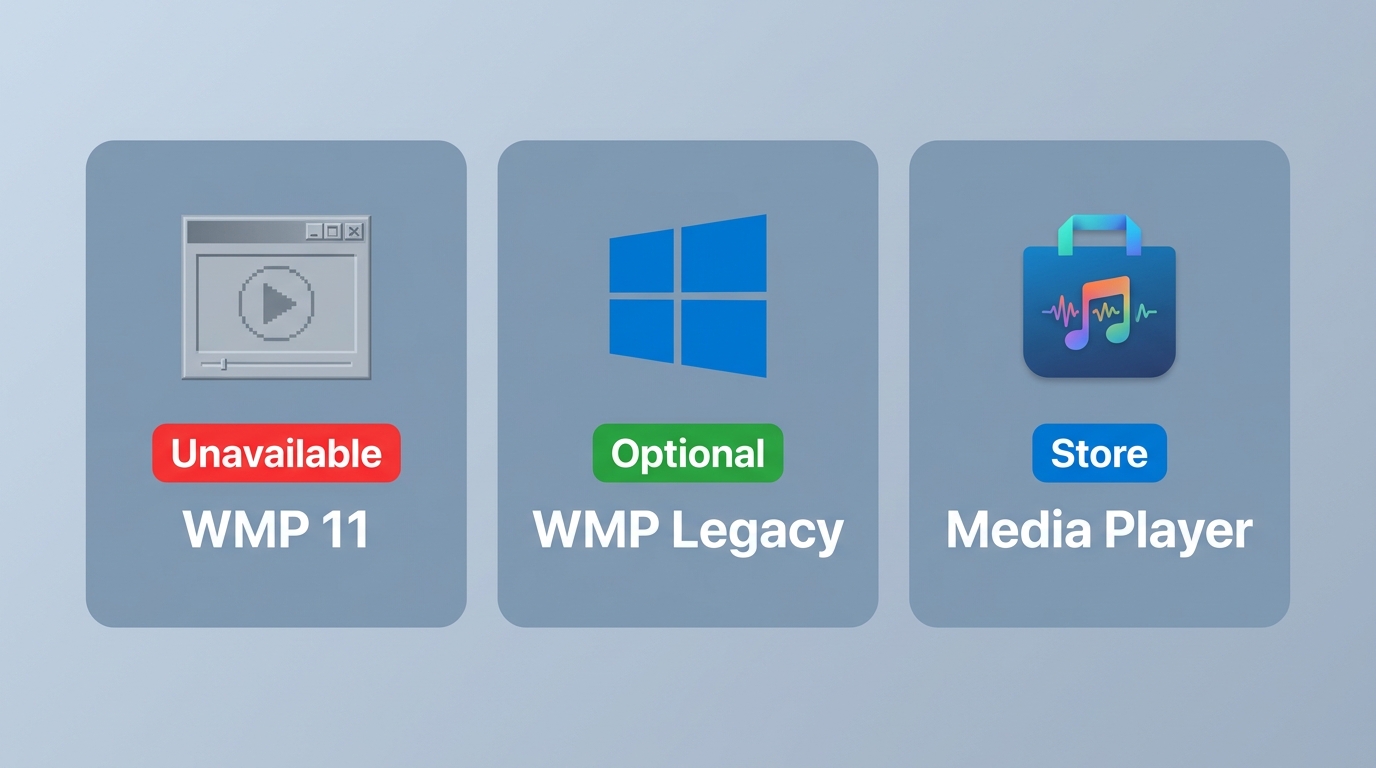
Three products live under similar names, and choosing a safe install path starts with telling them apart. The original Windows Media Player 11 shipped in 2006-2007 for Windows XP and Vista and is no longer offered by Microsoft as a Windows 11 installer. Windows Media Player Legacy is a separate Microsoft component available as an Optional Feature in supported Windows 10 and Windows 11 editions; it inherits the classic UI and much of the audio-library behavior, but it is not the same binary as the 2007 release. The modern Media Player app, distributed through Microsoft Store, is a rewritten Fluent Design app that replaced Groove Music. In my view this naming distinction is the whole story: get it right and the official path is obvious; get it wrong and you end up downloading a 15-year-old installer from a random mirror.
| Product | Release era | Current official availability | Install path on Windows 11 | Best-fit uses | Key limitations |
|---|---|---|---|---|---|
| Windows Media Player 11 (2007) | Windows XP / Vista era | Not distributed by Microsoft for Windows 11 | None official; third-party archives are unsupported | Historical reference only | No current security updates; installer authenticity cannot be verified from unofficial mirrors |
| Windows Media Player Legacy | Rebuilt component on Windows 10/11 | Optional Feature in supported editions | Settings > System > Optional Features | CD ripping, ID3 tagging, DLNA "Play To," classic visualizers | Availability varies by edition; library indexing and visualizations may misbehave on some systems |
| Media Player (Microsoft Store) | Introduced 2022, ongoing updates | Preinstalled or via Microsoft Store | Microsoft Store > Media Player | Basic MP4 / MP3 playback with modern Fluent UI | Slimmer feature set than Legacy for library, tagging, and streaming tasks |
Original Windows Media Player 11
The original Windows Media Player 11 launched in 2006 for Windows XP and shipped with Windows Vista. It was tied to that OS generation for driver, DRM, and codec support. Microsoft does not offer it as a current Windows 11 download, and third-party archived installers cannot be verified as authentic. If you see a page promising "Windows Media Player 11 free download for Windows 11," that is not an official product; treat it as a red flag.
Windows Media Player Legacy
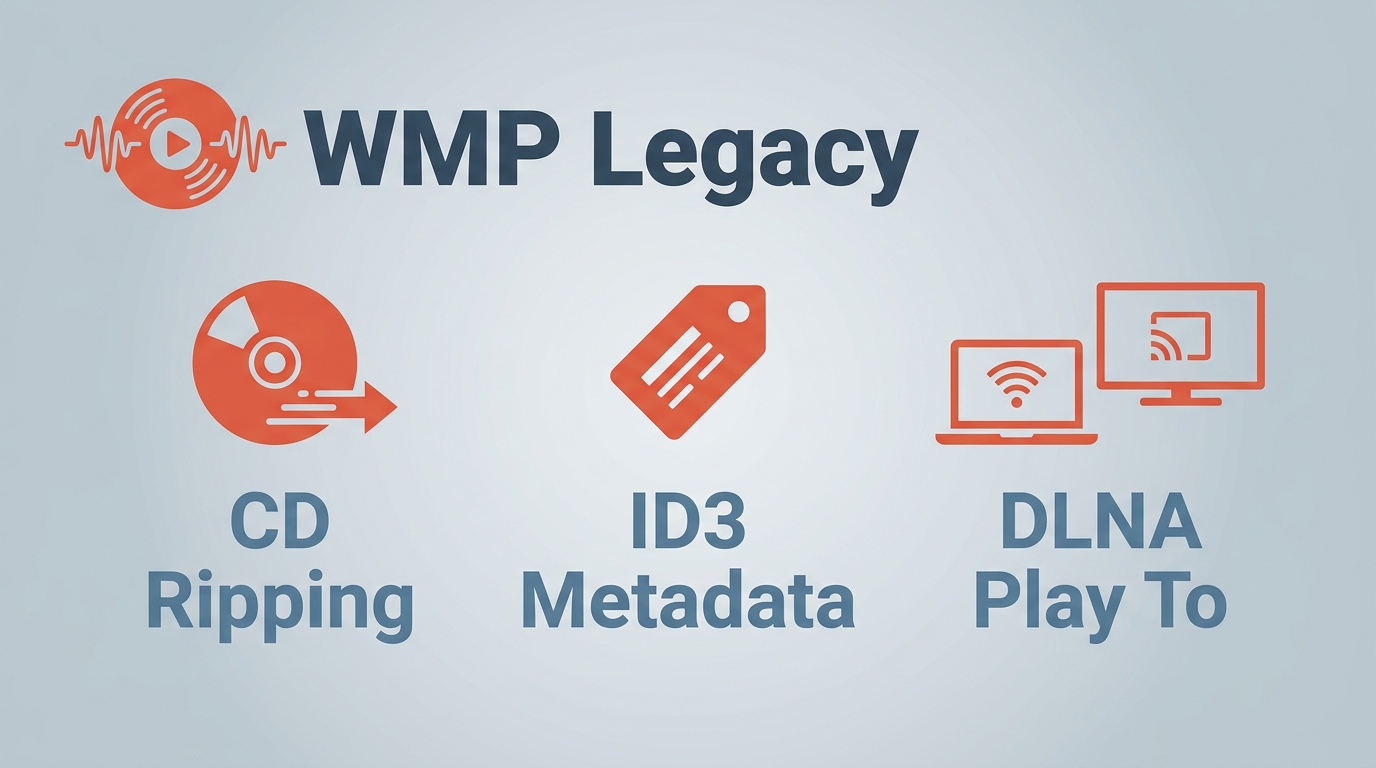
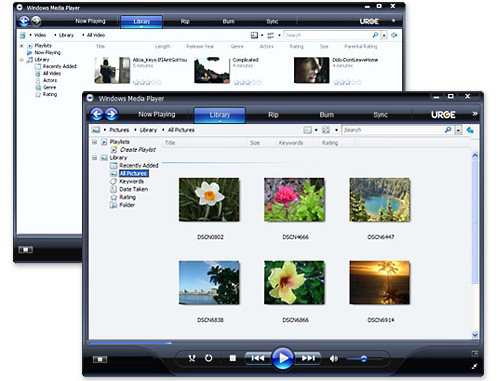
Windows Media Player Legacy is a separate Microsoft component distributed as an Optional Feature on supported Windows 10 and Windows 11 editions. It preserves the classic library interface, the 10-band graphic equalizer, the "Alchemy" visualizers, and bit-perfect CD ripping that the new default app dropped. Browsing recent threads on r/Windows11 and r/DataHoarder, the practical reasons people keep it around are the same audio-library and DLNA tasks the modern app no longer covers. Just remember it inherits the look, not the exact 2007 binary.
Modern Media Player
The default video and audio app on Windows 11 is simply called "Media Player." Microsoft introduced it in 2022 to replace Groove Music, and it is available through Microsoft Store on current Windows 11 systems. It uses a Fluent Design interface that matches the OS dark mode. For basic tasks like playing a standard MP4 clip or shuffling local MP3s, it works fine, but it is intentionally slimmer than Legacy for library management, tagging, and network streaming.
Version and OS Availability
Because "Windows Media Player" has meant different things across OS generations, here is a compact availability view.
| OS / Architecture | Original WMP11 (2007) | Windows Media Player Legacy | Modern Media Player |
|---|---|---|---|
| Windows XP (32-bit / 64-bit) | Original home; historical only, no current support | Not applicable | Not applicable |
| Windows Vista (32-bit / 64-bit) | Preinstalled on many editions; historical only | Not applicable | Not applicable |
| Windows 10 (64-bit) | Not offered | Available as an Optional Feature on supported editions | Not the default here |
| Windows 11 (64-bit) | Not offered | Available as an Optional Feature on supported editions | Preinstalled or via Microsoft Store |
| macOS | Never offered by Microsoft | Not applicable | Not applicable |
For 64-bit Windows 11 users, the practical answer to "Windows Media Player 11 64-bit download" is that the safe path is enabling Legacy, not chasing a 2007 installer.
Why People Still Use Windows Media Player Legacy
The real reason Legacy still has an audience is how it handles massive local audio libraries. Before Spotify or Apple Music existed, Microsoft had to build a heavy-duty local file manager, and much of that behavior carried into Legacy on Windows 10/11.
CD, Metadata, and Network Tools
If you maintain a large offline music collection, fixing track names and album art is a daily chore. Legacy lets you edit ID3 metadata directly in the library grid: click a track name and type to change it. It also includes native DLNA server capabilities, so the built-in "Play To" feature can stream local files to a smart TV, an Xbox, or a network-connected AV receiver on your home Wi-Fi without spinning up a full Plex server.
There are real limits worth flagging. Community threads note that after upgrading or migrating to Windows 11, Legacy sometimes misses tracks or groups them under "Unknown" until the library is rebuilt, and mixed-source CD burning (for example, converting FLAC to Red Book audio) can fail inconsistently. Legacy remains useful for hands-on audio-library work, but it is less dependable when a workflow depends on flawless indexing or reliable burning of non-native sources. When Legacy no longer fits the task, a broader look at a Windows Media Player alternative can help match the workflow to a current player.
Classic Interface and Visualizers
There is also a functional reason behind the visual nostalgia. Windows Media Player uses the "Frutiger Aero" design language, defined by glossy textures, aero glass effects, and skeuomorphic buttons. Against today's flat interfaces, the classic UI makes it obvious where to click, and the buttons still look like buttons. One caveat: users on Windows 10/11 have reported that visualizations can stop rendering after a track change or on repeat; the fix threads suggest specific compatibility settings rather than a guaranteed resolution. Nostalgia is a reasonable reason to keep Legacy, provided these quirks are acceptable.
Official Media Player Options on Windows 11
You might be tempted to search "Windows Media Player 11 free download" and grab an .exe file from a random software site. That path is not recommended: 15-year-old installers from unofficial mirrors may be altered, unstable, incompatible with current Windows 11, or bundled with unwanted software, and Microsoft cannot verify their authenticity.
On Windows 11 there are two supported paths, and they lead to different products. For the classic library, tagging, CD, and DLNA tools, enable Windows Media Player Legacy through Optional Features. For a simple modern player, install the Media Player app from Microsoft Store. Neither is the exact 2007 WMP11 binary.
Enable Windows Media Player Legacy
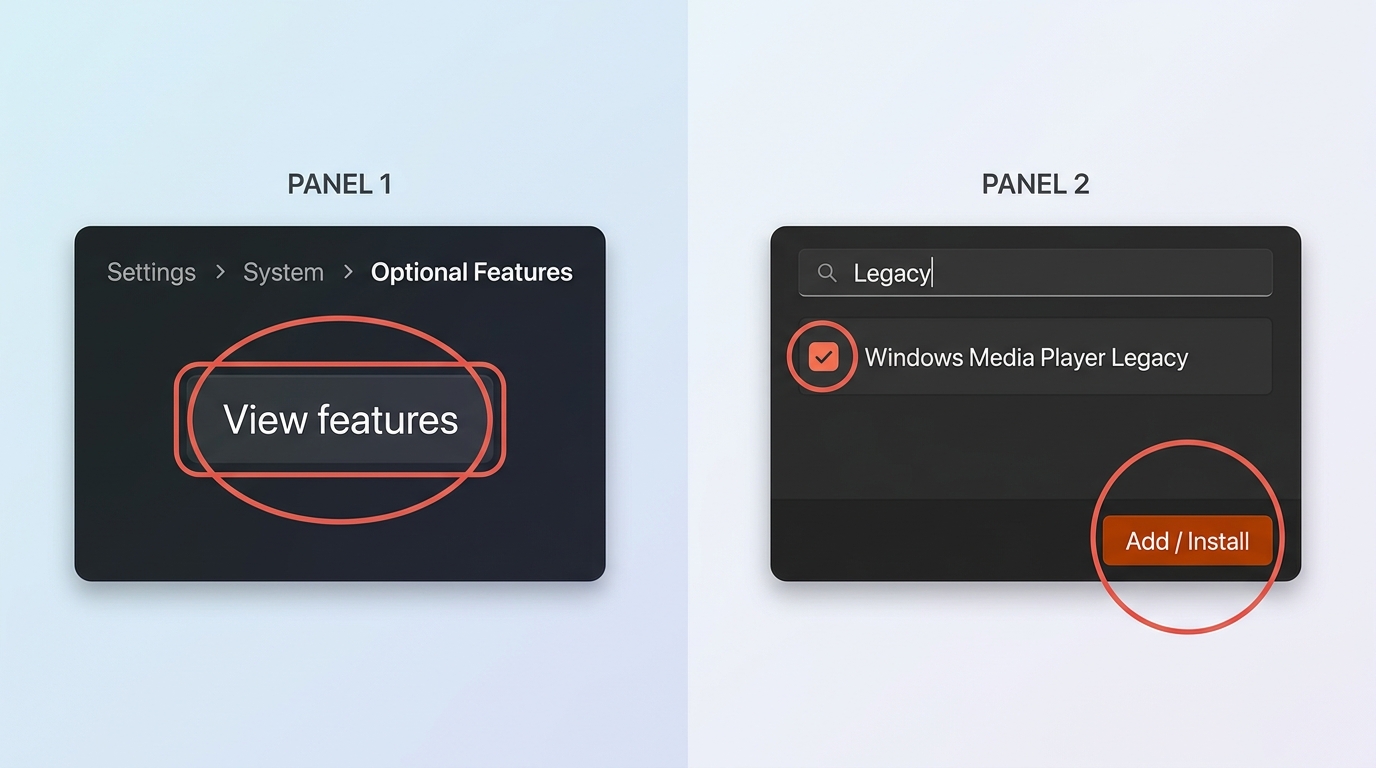
Before you start, confirm you are on a supported Windows 11 edition and signed in with an account that has administrator rights, since Optional Features requires elevation. The current official path is:
- Open Windows Settings and select System from the left sidebar.
- Click on Optional features.
- Next to "Add an optional feature," click the View features button.
- Type "Legacy" into the search bar.
- Check the box for Windows Media Player Legacy and hit Next to install it.
If the entry does not appear or the install fails, edition or servicing state may be the cause; a targeted Windows Media Player not working checklist covers the common install-side blockers before you reach for a different player.
Find and Pin the Legacy App
Once the installation finishes, Legacy will not automatically pin itself to your desktop. Open the Start menu and search for "Windows Tools": the classic icon sits in that folder, and a right-click lets you pin it to the taskbar for easy access. If you also want the modern app for basic MP4/MP3 playback, install Media Player separately from Microsoft Store; the two can coexist.
Where Windows Media Player Legacy Falls Short
Legacy still works well for classic audio-library and CD tasks, but modern video files are where readers most often hit walls. Rather than blaming resolution alone, it helps to diagnose the actual container, codec, file state, and hardware-decoding path, because those are what determine whether playback succeeds.
Formats, Codecs, and Playback Diagnosis
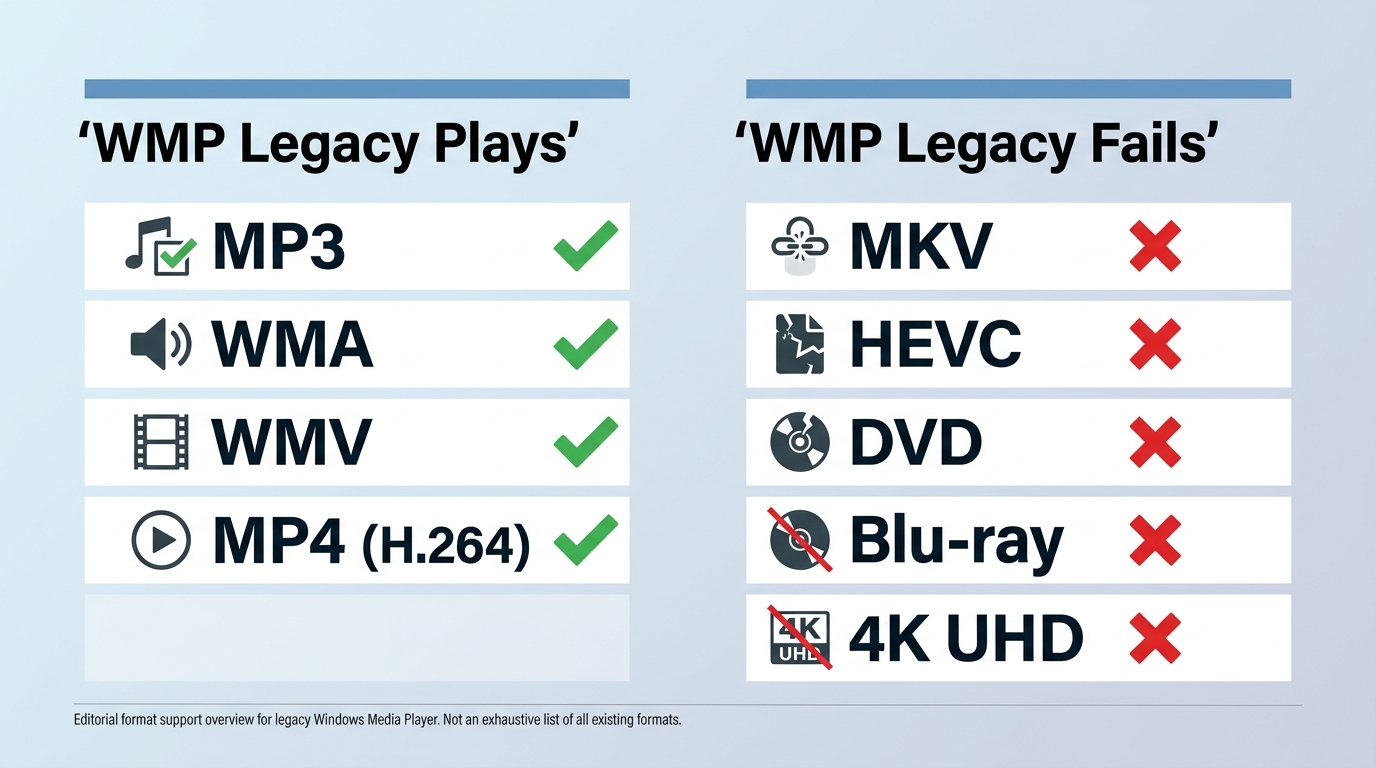
Windows Media Player Legacy was designed before HEVC and 4K became defaults, and it ships without decoders for several current formats. When a file will not play, the more reliable move is to identify the container, the audio and video codecs, the file state, and whether hardware decoding is engaged, rather than to conclude the whole engine is broken. Checking the source encoding with a tool like MediaInfo often resolves the diagnosis in one step, and if the file turns out to be HEVC, a dedicated HEVC player is a more direct path than adding codec packs to the system.
| Format / Container | Typical Legacy behavior | Likely cause when it fails |
|---|---|---|
| MP3 | Plays reliably | File corruption or bad tags |
| WMA | Plays reliably | DRM restrictions on protected tracks |
| WMV | Plays reliably | Codec variant mismatch on rare profiles |
| MP4 (H.264) | Usually plays | Container variant or AAC audio profile not recognized |
| MKV | Container support may be missing | MKV demuxer not included; audio/video codecs inside may still be unsupported |
| HEVC / H.265 | Often fails without a paid HEVC extension | No built-in HEVC decoder; hardware decoding depends on GPU |
| DVD-Video | May play if DVD decoder is present | Missing DVD navigation/decoding component on some editions |
| Blu-ray | Not supported | No Blu-ray navigation stack |
| 4K Ultra HD Blu-ray | Not supported | Requires dedicated UHD-capable software and AACS 2 handling |
Adding unknown third-party codec packs on Windows 11 can cause registry conflicts and system instability, so a purpose-built player is generally safer than force-feeding decoders into Legacy.
When PlayerFab Fits the Use Case
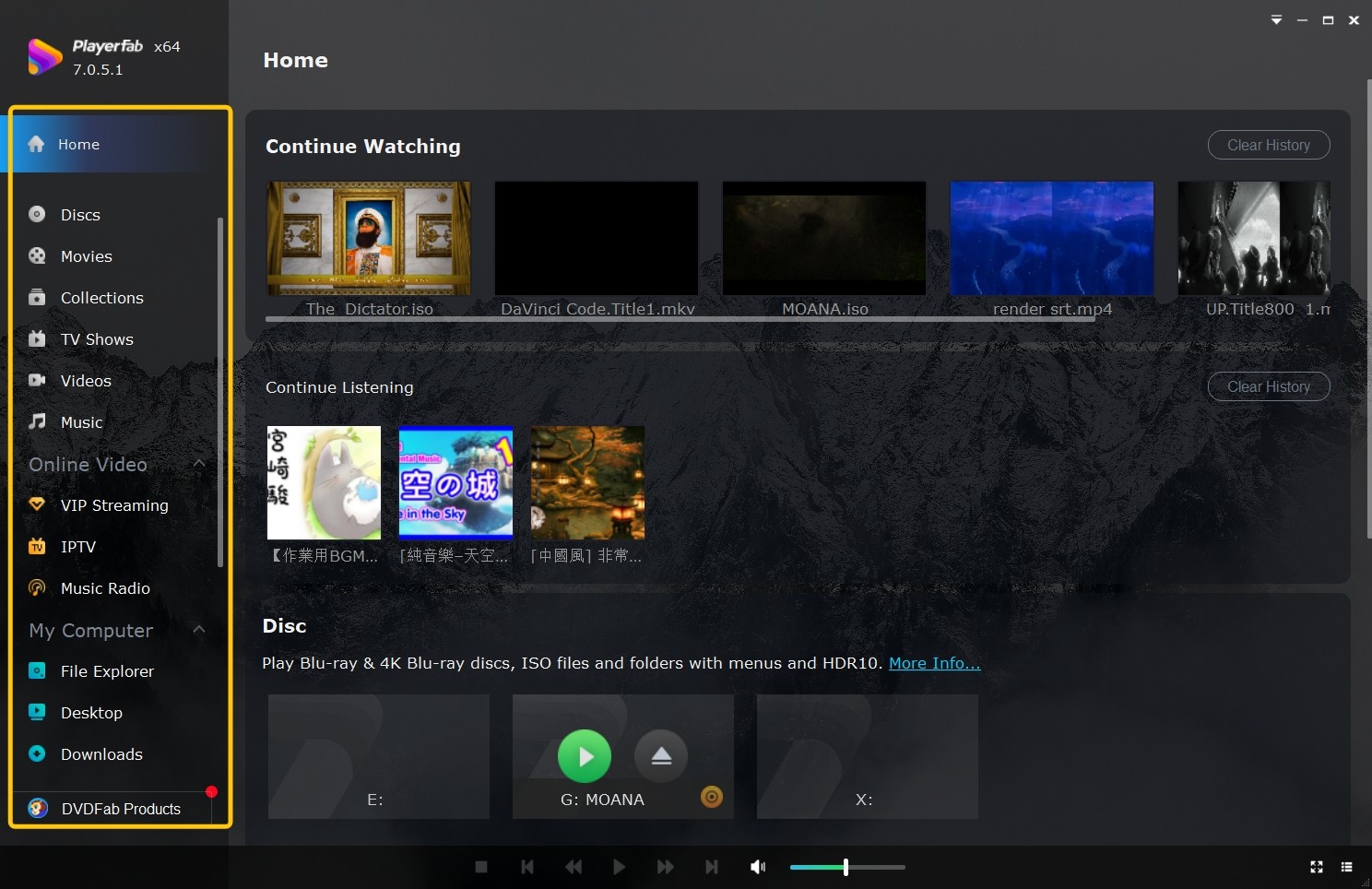
In my daily workflow, when a source file's codec and container are the actual bottleneck, I switch to PlayerFab because a purpose-built engine avoids the registry mess of third-party codec packs. Its official specifications list local video playback up to FHD 1080p, with separate support for DVD, Blu-ray, and 4K Ultra HD Blu-ray discs on Windows and Mac, plus HDR10 and premium audio formats such as Dolby Atmos and DTS:X. That split matters: if your workflow centers on 4K Ultra HD Blu-ray disc navigation or reliable high-bitrate MKV playback (I keep Blade Runner 2049 and Dune 4K test files on hand for exactly this), PlayerFab fills a gap Windows 11 no longer covers natively. If you only need CD ripping, ID3 tagging, or classic visualizers, Legacy remains the better fit.
FAQs
Can you still install the original Windows Media Player 11?
Not from Microsoft. The original Windows Media Player 11 was an XP/Vista-era release and is not offered as a Windows 11 installer. What supported Windows 11 editions provide instead is Windows Media Player Legacy, a separate optional Windows feature that inherits the classic UI. Enable it under Settings > System > Optional Features. The modern Media Player app is a different product, available through Microsoft Store.
Are third-party Windows Media Player 11 downloads safe?
Archived .exe installers from 2006 on unofficial mirrors may be altered, unstable, incompatible with current Windows 11, or bundled with unwanted software, and their authenticity cannot be verified. The safer path is to enable Windows Media Player Legacy through Optional Features for classic tasks, or install the modern Media Player app from Microsoft Store for basic playback; neither is the exact 2007 binary, but both come from Microsoft.
What should you use for HEVC or Blu-ray playback?
Start by identifying the file: container, video and audio codecs, and whether hardware decoding is available on your GPU. If the file is HEVC without a suitable extension, or a physical Blu-ray or 4K Ultra HD Blu-ray disc, Legacy is not the right tool. A current player with verified format support, such as PlayerFab for FHD local video and DVD / Blu-ray / 4K Ultra HD Blu-ray discs, is a better fit for those specific tasks; for MP3, CD ripping, or ID3 tagging, Legacy is still a reasonable choice.
The Right Player Depends on the Task
Choosing a Windows Media Player 11 path in 2026 comes down to what the task actually needs. For classic audio-library work (CD ripping, ID3 tagging, DLNA "Play To," visualizers), Windows Media Player Legacy remains a reasonable choice when your Windows 11 edition offers it. For routine MP3 and MP4 playback with a modern UI, the Media Player app from Microsoft Store covers the basics. When the workflow involves HEVC files, high-bitrate MKV, DVD navigation, Blu-ray, or 4K Ultra HD Blu-ray discs, a current player with verified format support, such as PlayerFab, matches those needs more directly than Legacy or the store app. Diagnose the file and the disc first; let that decide the player, not the name on the icon.

 6 Best MPEG Players for Windows and Mac (2026)By Alice Harper - Aug 26, 2026
 How to Play Blu-ray Discs on Windows 10 (Free & Pro Solutions)By Alice Harper - Aug 7, 2026
 10 Best 4K Video Players for PC and Mac, Tested in 2026By Alice Harper - Aug 4, 2026
 The 5 Best Free MOV Players in 2026 (Windows, Mac and Android), plus How to FixBy Alice Harper - Aug 4, 2026