How to Play DVD on HP Laptop with External Drives and Player Software

Summary: Solving how to play DVD on HP laptop now requires bridging two gaps: the missing internal drive on modern hardware and the missing MPEG-2 codecs in Windows 10/11. In this guide, I'll walk you through the essential external drive setup and show why using dedicated software like PlayerFab is the only reliable way to restore a glitch-free viewing experience.
Table of Contents
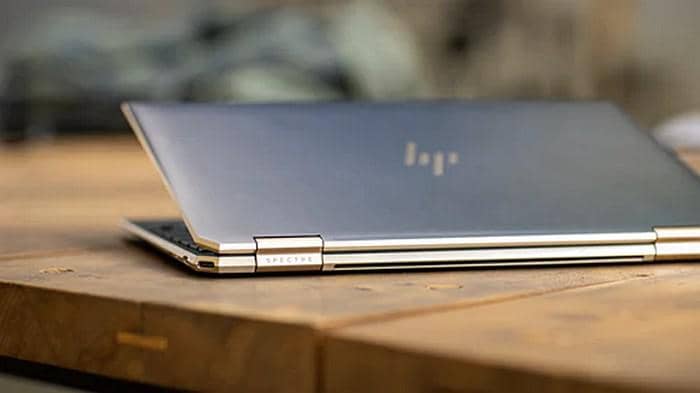
When I unboxed the latest HP Spectre x360 for a hardware test last week, the first thing I noted was the complete absence of an optical drive. This design choice is now standard across HP's Envy, Pavilion, and Spectre lines to prioritize chassis thinness, but it leaves physical media collectors with an immediate problem.
Users attempting to watch a movie face two distinct engineering hurdles. First, the hardware gap: there is no physical slot to insert the disc. Second, the software gap: Microsoft removed native DVD playback support starting with Windows 8, meaning the operating system no longer includes the licensed MPEG-2 decoder required to process the video stream.
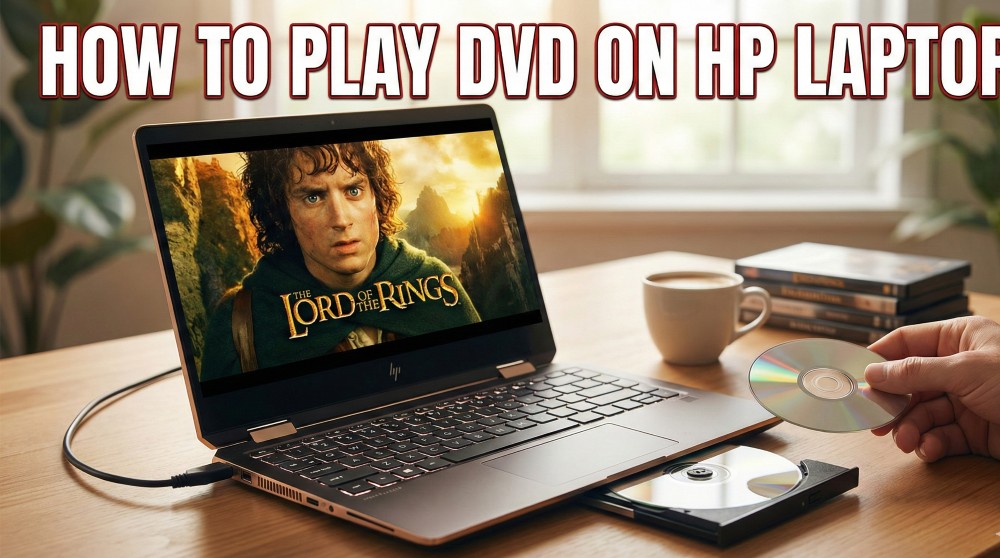
In this guide, I will walk you through the correct specification requirements for external optical drives and explain how to play ISO files or DVDs on HP laptop systems using dedicated playback software like PlayerFab.
How to Play DVD on HP Laptop without Built-in DVD Drive
To cut down on weight and internal component density, internal optical disc drives are absent from most of HP's current laptop lineup, including the Pavilion, Envy, and Spectre series. If your laptop lacks a physical slot, the only method to access physical media is through an external USB optical drive.
Choosing the Right External DVD Drive
When selecting an external drive for an HP laptop, the connection interface is the primary specification to consider.
- USB-C Drives: Newer HP ultrabooks often minimize USB-A ports in favor of USB-C / Thunderbolt 4 ports. Using a native USB-C external drive eliminates the need for dongles and ensures a more stable connection, as the USB-C standard supports higher power delivery.
- USB-A Drives: If you use a standard USB-A drive, ensure it supports at least USB 3.0. While the data transfer rate of a DVD (approx. 10 Mbps) does not saturate even USB 2.0 bandwidth, USB 3.0 interfaces provide superior power management, which is critical for the mechanical motor inside the drive.
Connection Best Practices for Stable Power
A common issue I encounter during hardware troubleshooting is a drive that is recognized by Windows but fails to spin up or disconnects randomly during playback. This is almost always a power delivery issue, not a software defect.
Optical drives require a significant spike in current (amperage) to spin the disc from a standstill to reading speed.
- Direct Connection: Always connect the external drive directly to a USB port on the laptop's chassis.
- Avoid Passive Hubs: Do not plug the drive into an unpowered (passive) USB hub. These hubs split the amperage across multiple devices, often leaving the optical drive with insufficient power to maintain rotation.
How to Watch DVD on HP Laptop with Professional Player Software
Once the external drive is connected and powered, you will encounter the software limitation inherent in modern Windows operating systems. Windows 10/11 do not include the MPEG-2 video decoder required for DVD playback. Consequently, inserting a disc typically results in the operating system recognizing the data files (.VOB and .IFO) but failing to launch a video player.
While Microsoft offers a paid extension in the Store, a more robust solution is to use third-party software that contains its own internal codec library.

- Why Windows Media Player Legacy Is Not the Answer?
- The "Movies & TV" app and the legacy Windows Media Player are designed primarily for digital files. They lack the decryption keys necessary to play commercial encrypted DVDs. Relying on these default apps often results in format error messages or playback that freezes at the copyright warning screen.
Playing DVDs Seamlessly with PlayerFab
For a reliable playback experience that mirrors a physical DVD player's functionality, I recommend PlayerFab All-In-One. In my testing on HP configurations, this software bypasses the Windows decoder limitations entirely.
Key Features:
📌Unlike many basic media players that strip away the disc structure and play the main movie file directly, PlayerFab supports the full DVD menu navigation.
📌It handles region coding on the software side. This enables you to play discs from different regions without consuming the limited changes on your external drive's firmware.
📌This DVD Player for Windows 10 uses hardware acceleration (Intel/NVIDIA) to deinterlace and scale this image smoothly.
📌It supports Blu-ray and 4K UHD Blu-ray playback, which is essential if you upgrade your external drive.
📌It integrates streaming playback modules, allowing you to access platforms like Netflix and Amazon Prime Video within the same interface.
i Free Download i Free Download
How to play a DVD on HP laptop with PlayerFab
Step 1: Launch and Select "PC Mode"
When you first open PlayerFab, you may be presented with a choice between PC Mode and TV Mode.
Select PC Mode: This interface is optimized for your HP laptop's screen size and trackpad control. TV Mode is designed for remote controls and HDMI output, which can be clunky for laptop use.
Step 2: Load the Disc (Physical or Virtual)
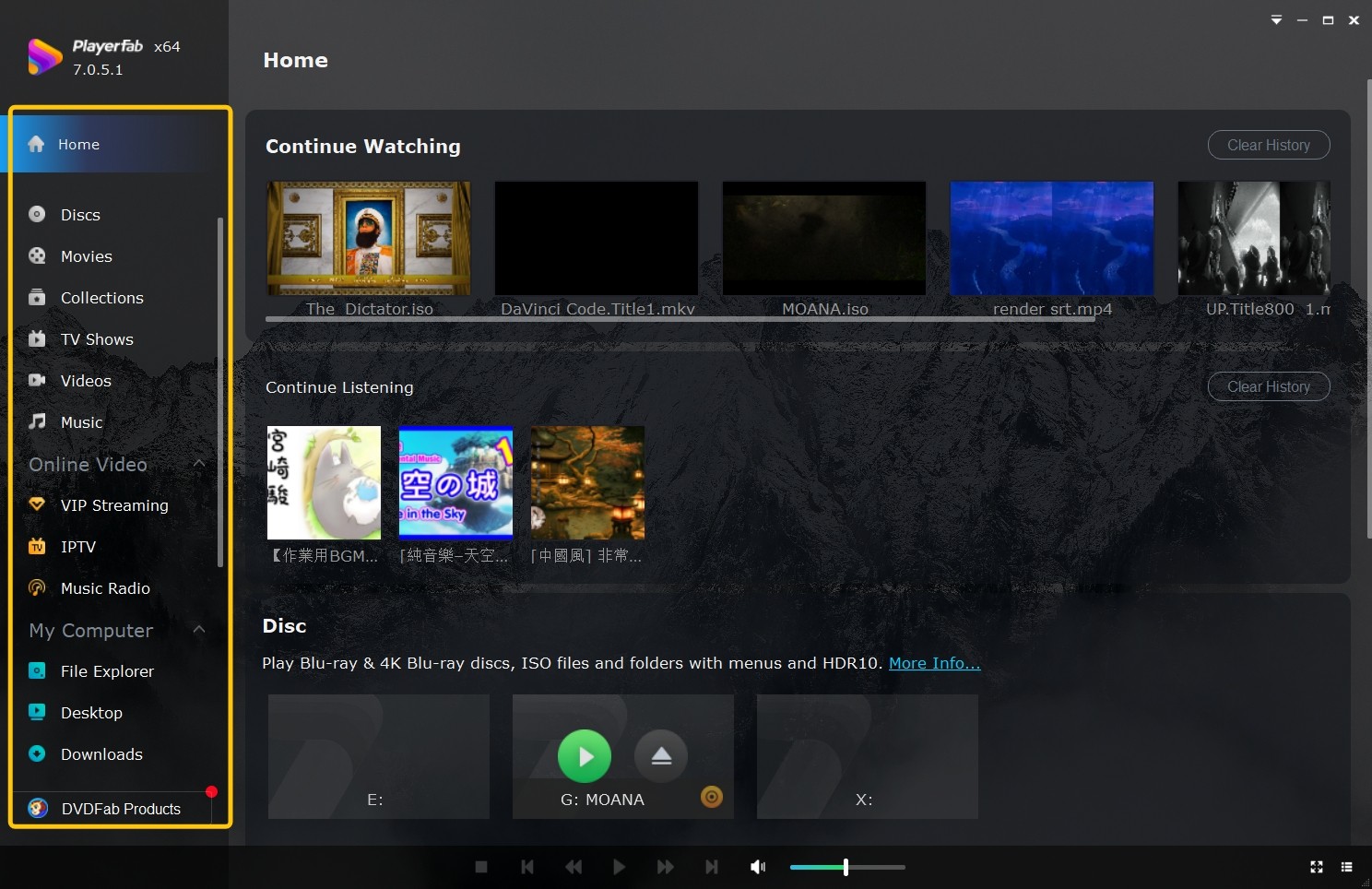
Insert your DVD into the external drive. PlayerFab creates a dedicated "Discs" tab in the left-hand sidebar.
Auto-Detection: In most cases, the software will detect the encrypted disc immediately. Click the DVD icon in the main window to start. PlayerFab will load the Native DVD Menu. Use your mouse to click "Play Movie," "Scene Selection," or "Setup" just as you would with a remote.
Step 3: Optimize Playback Settings
While the movie is playing, Right-Click anywhere on the video window to access the Menu:
- Fix Visuals: Hover over Video > Deinterlace and set it to "Auto" or "On". This forces the software to smooth out the jagged lines, making the 480i DVD look clean on your 1080p/4K HP display.
- Use the Audio and Subtitle sub-menus to switch language tracks instantly without returning to the main menu.
- Smart Resume: If you need to close your laptop, PlayerFab remembers the exact timestamp.
Frequently Asked Questions
Why does my HP laptop not recognize the external DVD drive?
In 90% of the cases I troubleshoot, this is a power delivery issue, not a broken drive. External optical drives contain mechanical motors that require a consistent 5V amperage to spin up.
- The Hub Problem: If you are plugging the drive into a passive USB hub along with a mouse and keyboard, the drive is likely starving for power. Fix: Plug it directly into the laptop's motherboard USB port.
- The Driver Glitch: Open Device Manager (press Win + X). Look for "DVD/CD-ROM drives." If you see a yellow exclamation mark, right-click and select "Uninstall device," then restart your HP laptop.
Can I play Blu-ray discs on an HP laptop with a standard DVD drive?
No. This is a hardware limitation that no software can bypass. DVD drives use a red laser to read the data pits on the disc. Blu-ray discs require a blue-violet laser to read much smaller, more densely packed data pits. To play Blu-rays, you must purchase an external drive specifically labeled "BD-ROM" or "Blu-ray Rewriter."
How can I save battery while watching movies on my HP laptop?
Spinning a physical disc at 1,000+ RPM is mechanically intensive and is one of the fastest ways to drain a laptop battery.
- The Travel Mode Fix: I strongly recommend converting your DVD to a digital file. You can use a tool like DVDFab DVD Ripper to extract the movie to your SSD.
- Power Settings: If you must watch from the disc, click the battery icon in your Windows taskbar and ensure your Power Mode is set to "Balanced" rather than "High Performance."
Conclusion
Getting a DVD to play on a modern HP laptop is ultimately a two-step fix: restoring the hardware interface via an external drive and restoring the decoding capability via software. The missing components in your HP Envy or Spectre are intentional industry shifts, but they don't have to stop you from accessing your physical collection.
By ensuring your external drive has sufficient power delivery and using PlayerFab to handle the region coding and menu navigation, you bypass the limitations of Windows 10/11 entirely.

 Play Video Files: 4 Paths Across Formats and DevicesBy James Morgan - Sep 22, 2026
 12 Best HEVC Players for Windows, Mac, and 4K (2026)By Alice Harper - Aug 4, 2026
 Best WMV Player for Mac and How to Play WMV on Mac NativelyBy James Morgan - Aug 4, 2026
 8 Best TS File Players and Playback Tools for 2026By Alice Harper - Jul 28, 2026