Best Media Player for Steam Machine: Setup Guide for Your Living Room Hub (2026)

Summary: SteamOS handles local media libraries well, but Widevine DRM caps streaming services like Netflix to 720p in any Linux browser, a limitation no native app can fix. For users with a Windows PC on the same network, running streaming apps on the host and outputting via Steam Remote Play solves the gap. The Steam Machine earns its keep as a media hub once the right setup is in place.
Table of Contents
One question I keep seeing from new Steam Machine owners runs along these lines: "I bought it for games, but can I use it as a full media hub too?" The hardware can absolutely handle both jobs. What catches people off guard is the gap between local media playback, which works excellently, and streaming services, which hit a Linux-specific ceiling that no single app can fully fix. This guide separates what works from what doesn't and maps out the setup that gets you the closest to a complete living-room experience.
What the Steam Machine Gives You as a Media Hub
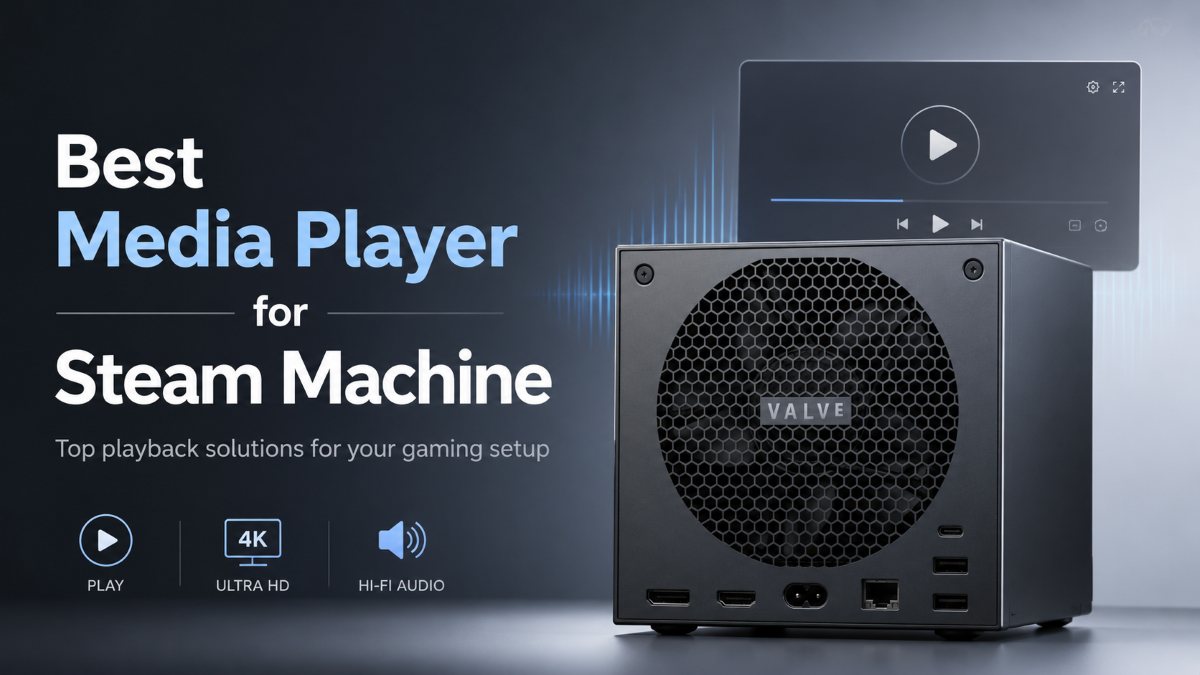
The hardware foundation is solid for media work. The AMD Zen 4 six-core CPU, RDNA 3 GPU with 8GB of dedicated DDR6 VRAM, and HDMI output connect cleanly to any TV. Valve's SteamOS ships with a TV Mode interface designed for couch navigation with a controller, which means the machine behaves more like a set-top box than a desktop Linux box when you want it to.
For local video files, the story is straightforward: SteamOS handles MKV, MP4, HEVC, and virtually every common format through third-party players installed from the Discover software center. Anyone with a NAS, a local media drive, or a collection of Blu-ray rips gets a competent playback experience without configuration beyond installing one app.
Streaming splits into two categories: what works natively, and what runs into a wall. YouTube plays at full resolution through a browser. Most major subscription services, however, are limited by Widevine, the DRM system that controls playback quality on streaming platforms. The sections below start with what the Steam Machine already does well (local media playback), then cover where the streaming wall sits and how to work around it.
Best Native Media Players for SteamOS
All three players below install through the Discover software center in SteamOS desktop mode. None require terminal work, and all three run reliably on the current SteamOS build.
VLC: Best for Local File Playback
VLC handles every common video format without additional codec installation. MKV, MP4, AVI, HEVC, H.264, and most container formats play without issues. For occasional local file playback, it's the fastest path from install to watching.
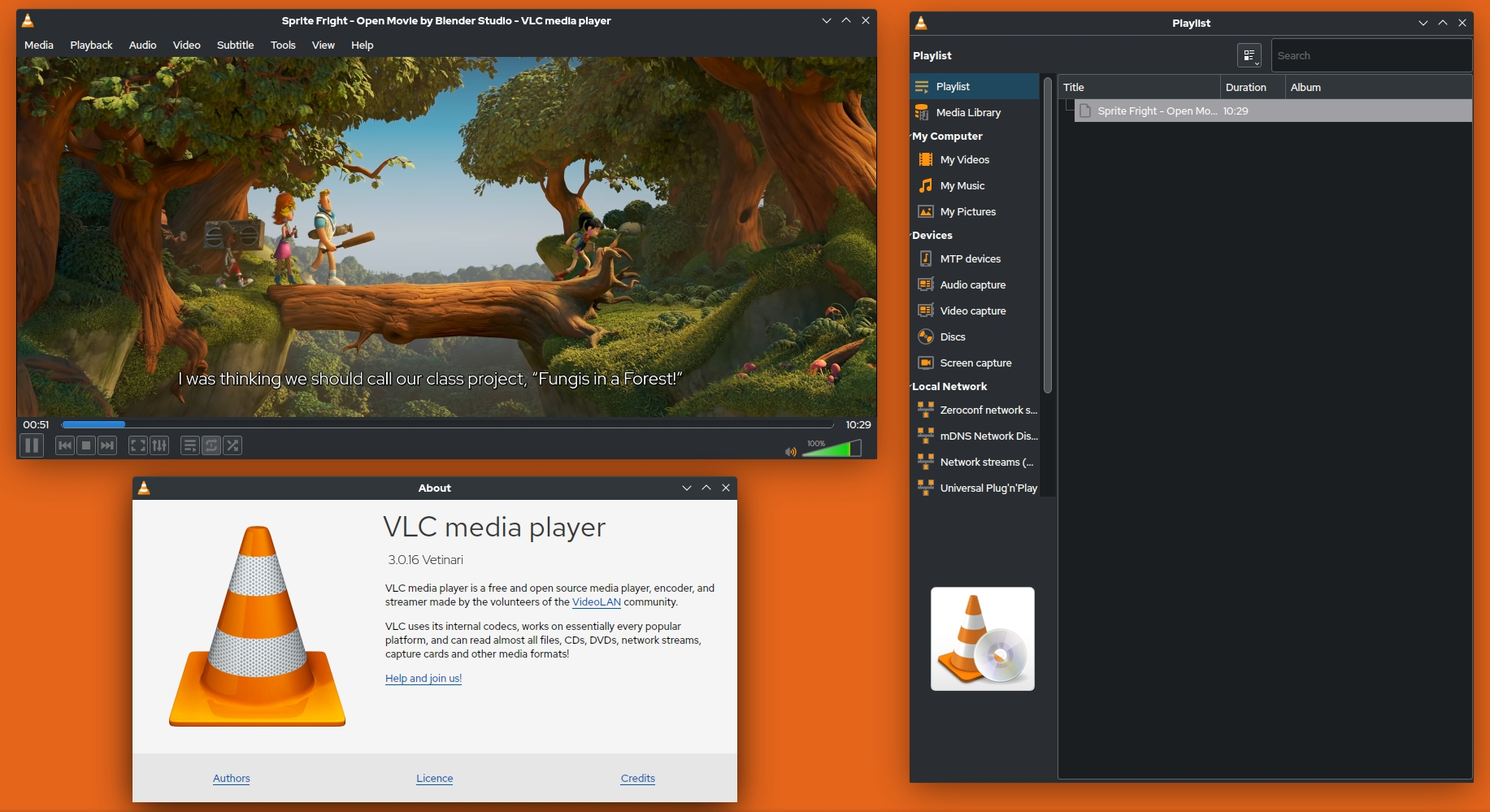
- Format support: Near-universal, including external subtitle files and multiple audio tracks
- Controller use: Works with a controller profile set up through Steam Input; not plug-and-play with a gamepad out of the box
- Library: None; you navigate to files manually each session
- Install method: Discover software center, free
VLC is a player, not a media center. If you have more than a few dozen files and want organized browsing with poster art, one of the options below will serve you better.
Plex and Jellyfin: Best for Organized Media Libraries
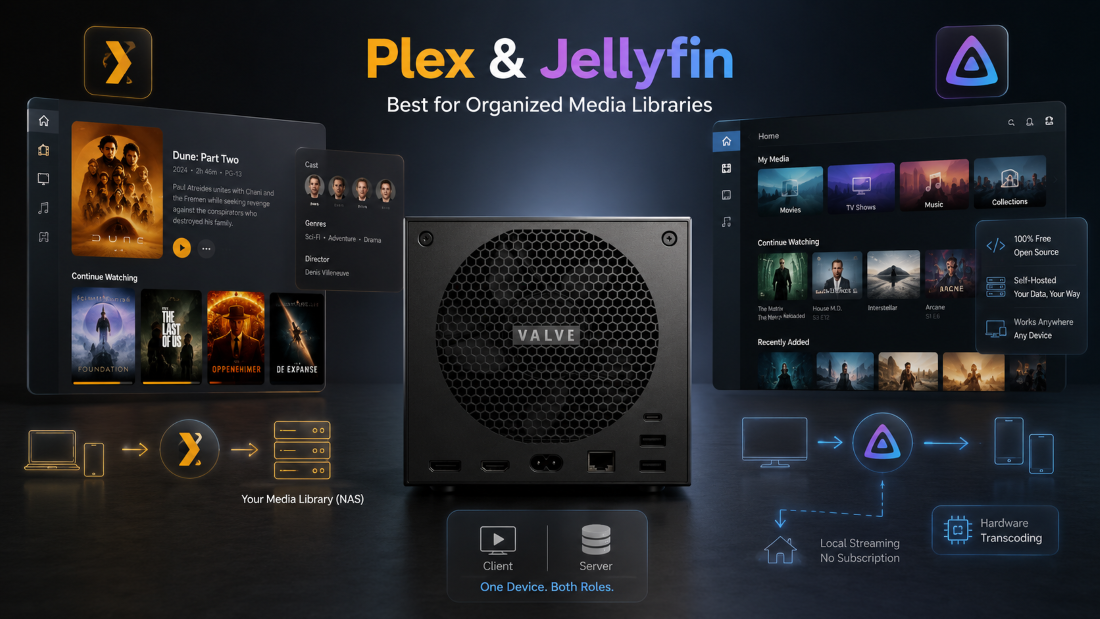
Both Plex and Jellyfin use a server-client model: the server runs on a machine that hosts your media files (which can be the Steam Machine itself, or a separate NAS), and the client app handles playback. SteamOS supports both as client and server on the same device.
Plex automatically downloads cover art, plot summaries, and cast information for your library. The free tier covers local playback fully. Plex Pass, a paid subscription, unlocks hardware transcoding and mobile sync — features that matter if you want to watch your library outside the house.
Jellyfin is fully open-source and free with no subscription tier, including hardware transcoding. The initial setup is more hands-on than Plex, but there are no ongoing costs and no data leaves your network unless you configure it to.
For a library of 30 or more films, either option is significantly better than VLC. Setup runs around 30 to 45 minutes the first time and doesn't need to be repeated.
Kodi: Best for Home Theater Power Users
If Plex and Jellyfin cover the library side well enough for most households, Kodi is the option for users who want to go further. The plug-in ecosystem covers live TV, sports streams, subtitle fetchers, and more, making it the most extensible home theater option on Linux. Library management is comparable to Plex once configured, and the interface renders well on a TV screen.
- Strengths: Deep plugin ecosystem, live TV and PVR support, fine-grained codec and audio settings
- Weaknesses: Initial configuration is time-consuming; the interface is less polished than Plex out of the box
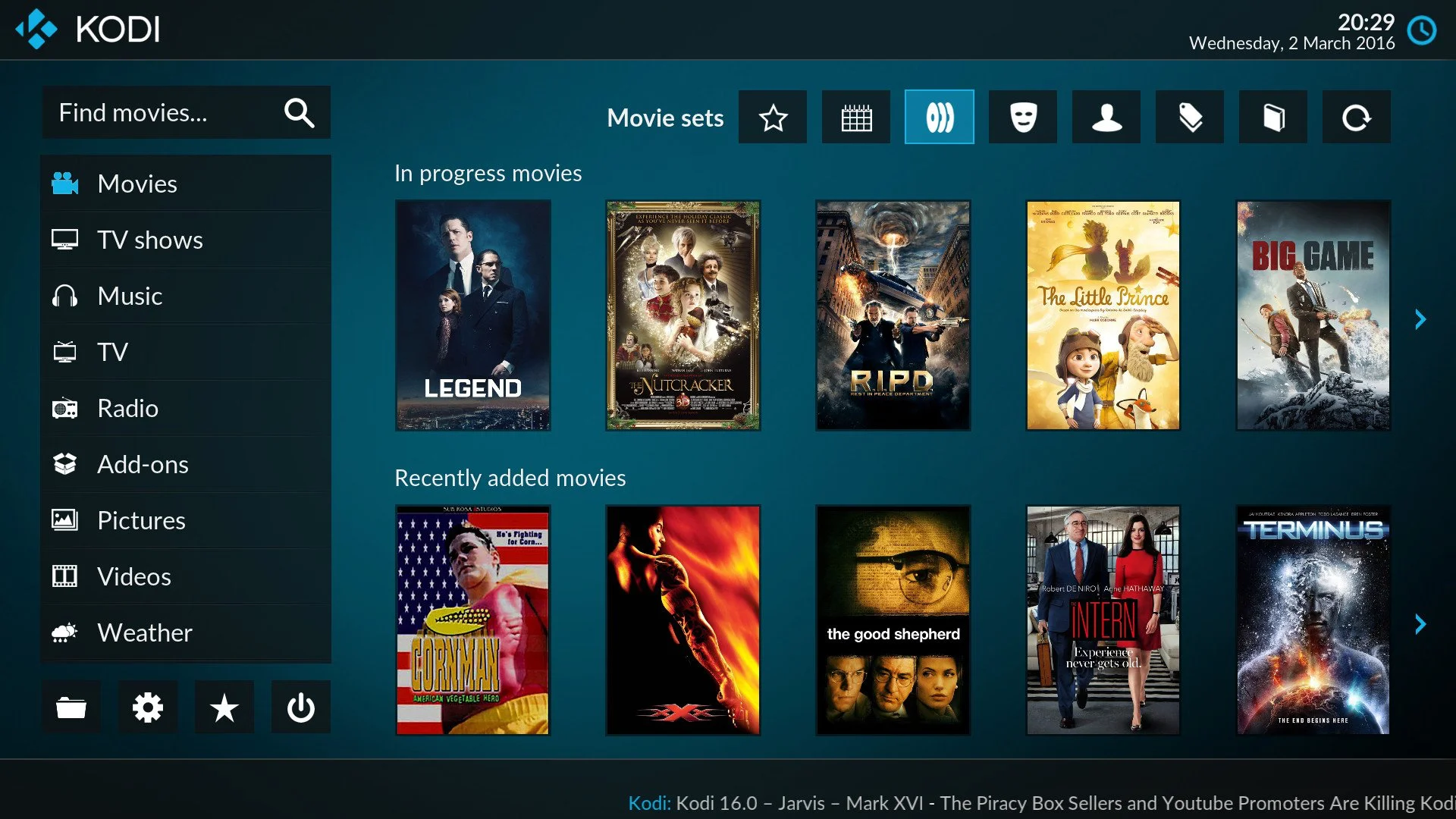
Kodi fits users who want to customize every layer of their media experience and are willing to spend an hour in settings to get there. For most casual users, Plex or Jellyfin reaches a usable state faster.
The Streaming Gap: Why DRM Limits Matter on SteamOS
Local media playback is where the Steam Machine earns its keep. Streaming is a different conversation, and the friction point is one no Linux media player can resolve. The root cause is Widevine, Google's DRM system used by Netflix, Disney+, Max, and most other major streaming platforms to control playback quality.
Widevine operates at three security levels. L1 is hardware-level protection, required for 1080p and 4K on most platforms. L3 is software-level protection, which is what desktop Linux browsers receive. SteamOS's Chromium browser ships with L3 Widevine, which puts a 720p ceiling on Netflix in a browser. Disney+, Max, and Prime Video follow the same logic.
You're not locked out of the content. The shows play. The resolution floor is simply lower than what those services actually offer, and lower than what a PS5 or Xbox delivers through their native certified apps.
A few things still work at full quality on SteamOS. YouTube has no Widevine restriction and plays 4K without issue. Any locally stored content is unaffected. Ad-supported services like Tubi and Roku Channel tend to work at their native resolution since their DRM requirements are less strict.
This is not a solvable problem by switching media players. No app on SteamOS can override the Widevine L1 requirement because that requires hardware-level DRM certification the platform doesn't hold. If high-quality streaming from major subscription platforms is a core part of your setup, the workaround below is the practical path forward.
The Windows PC and Steam Link Workaround for Streaming
If you have a Windows PC on the same home network, you can use it as the media playback host and stream the output to the Steam Machine's HDMI display via Steam Remote Play. The Steam Machine becomes the display endpoint; the Windows machine handles DRM, app compatibility, and quality.
Valve built Steam Remote Play for game streaming, but it works equally well for streaming any windowed application including a media player. On a local wired network, the latency is low enough that it's not noticeable for video content.
Why a Windows Host Resolves the Streaming Quality Problem
Windows supports Widevine L1, which means streaming apps and browsers on a Windows machine access 1080p content from Netflix, Disney+, and similar platforms without restriction. Running those apps on the Windows host and streaming the video to your TV solves the Linux resolution ceiling without touching SteamOS.
For users who want a single application that handles multiple platforms without switching between browser tabs, PlayerFab Stream Player consolidates Netflix, Amazon Prime Video, Disney+, Hulu, Peacock, and more than a dozen other services in one interface. It fits specifically the Windows host side of this setup.
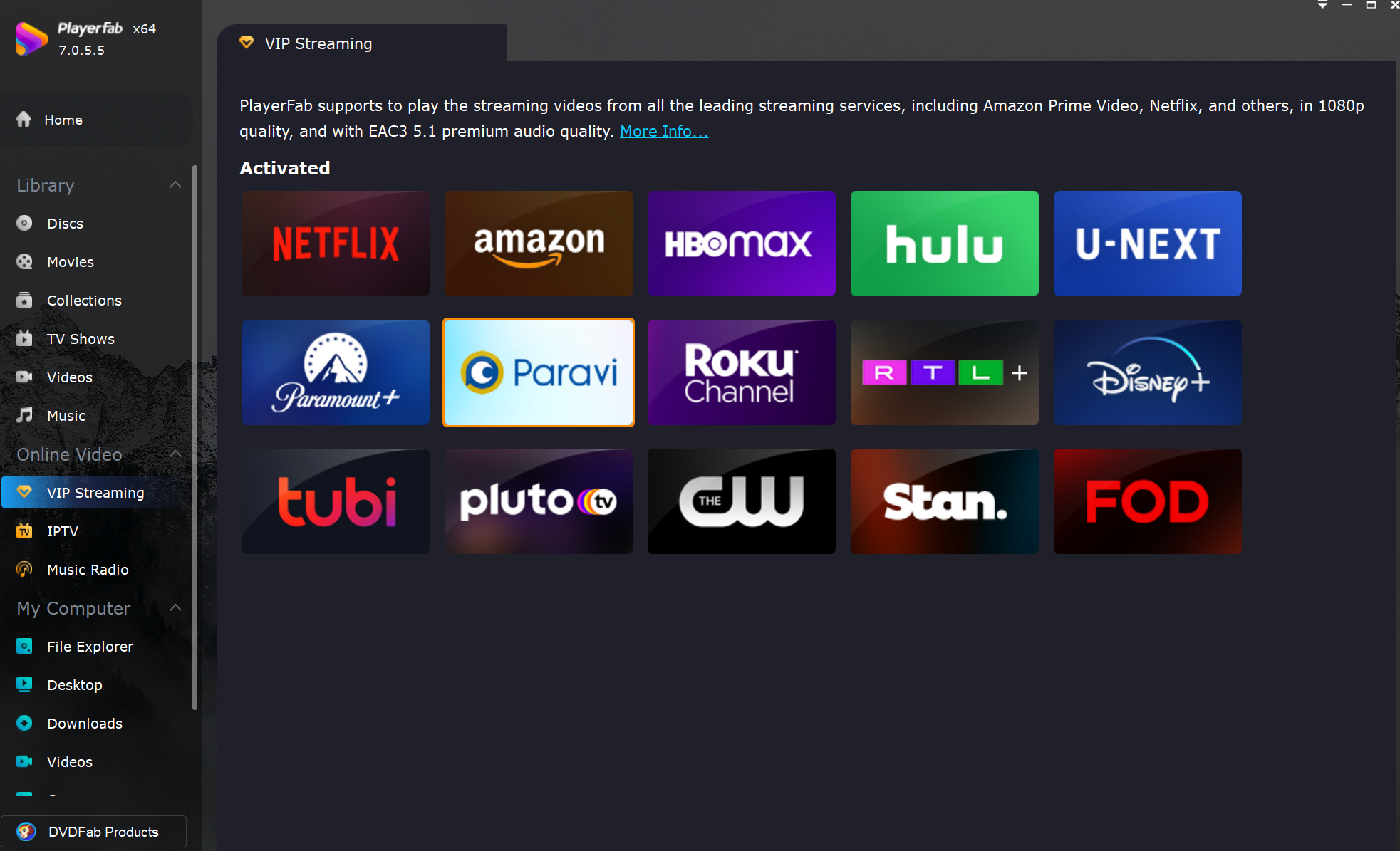
There are two limitations to state: PlayerFab Stream Player's maximum streaming resolution is 1080p FHD. It does not unlock 4K streams. It also requires users to hold their own active subscriptions to each platform. What it adds over a browser is automatic ad-skipping on free-tier platforms like Tubi and Roku Channel, automatic intro-skip, and variable speed playback — features the native browser experience doesn't offer.
How to Stream PlayerFab to Your Steam Machine Display
Step 1. On your Windows PC, open Steam, go to Settings > Remote Play, and enable Remote Play.
Step 2. Install PlayerFab on the host machine, log in to your streaming platform accounts, and confirm local playback works before attempting to stream.
Step 3. On the Steam Machine, open Steam. Your PC should appear as an available Remote Play host on the same network.
Step 4. Connect to the host from the Steam Machine. Back on the PC, switch PlayerFab to TV Mode for a controller-friendly interface sized for a television.
Step 5. Use the Steam Machine's controller to navigate PlayerFab running on the host. The video renders there and streams to the TV via the Steam Machine.
Network tip: A wired Ethernet connection on at least one device reduces compression artifacts at 1080p. For Wi-Fi, 5GHz is the practical minimum. A 2.4GHz connection introduces visible quality degradation on full-HD streams.
Steam Machine vs Console for Media: A Focused Comparison
With the local and streaming setup covered, a practical question follows: how does this compare to just buying a PS5 or Xbox for the living room? For media use specifically, the comparison looks different than the usual gaming benchmarks suggest.
| Feature | Steam Machine | PS5 / Xbox Series X |
| Local video playback | Excellent (VLC, Plex, Kodi) | Limited format support |
| Streaming service 4K | Not natively (browser L3 DRM) | Official 4K apps certified |
| Open software install | Yes | No |
| Plex / Jellyfin server | Full server + client on device | Client only |
| Retro emulation | Yes | No |
| Out-of-box simplicity | Requires initial setup | Plug and play |
| Streaming service count | Unlimited (with Windows workaround) | Platform-curated selection |
For a household that primarily wants Netflix, Disney+, and gaming with no configuration, the PS5 is the easier choice. It has native, certified streaming apps and requires nothing beyond logging into your accounts.
For users running a large local media library, a Plex or Jellyfin server, or a retro emulation setup, the Steam Machine's ceiling is higher. The Windows workaround addresses the streaming gap with a one-time 20-minute configuration rather than a permanent limitation. The meaningful difference between these devices is ceiling, not floor. Both play a Netflix show. Only one of them can also serve as a full local media server, an emulation box, and an open Linux PC.
Frequently Asked Questions
Can the Steam Machine play 4K local video files?
Yes, with the right file format. A 4K MKV or MP4 encoded in H.265/HEVC or H.264 stored locally plays at full resolution through VLC, Kodi, or Plex. The RDNA 3 GPU handles HEVC hardware decoding, which keeps the CPU load low during 4K playback. The 4K limitation on the Steam Machine applies only to streaming content protected by Widevine DRM. Local files, which carry no DRM restrictions, play at whatever resolution they were encoded at.
Does PlayerFab work on Steam Machine or SteamOS directly?
No. PlayerFab is a Windows-only application and does not run on SteamOS. The setup covered in this guide uses PlayerFab on a Windows PC as the host machine, which then streams video to the Steam Machine via Steam Remote Play. The Steam Machine acts as the display endpoint in this configuration. If you don't have a Windows PC on the same network, PlayerFab is not applicable to your Steam Machine setup, and a browser-based approach is your available option for streaming services on SteamOS.
Is there any way to get 1080p Netflix directly on SteamOS without a Windows PC?
Not through a supported method currently. The Widevine L1 certification required for 1080p is not available in SteamOS's Chromium browser, and no native Netflix app exists for SteamOS. Some unofficial methods have been documented in Linux communities, but they are not stable across SteamOS updates and are not something I'd recommend relying on for a permanent setup. The Windows PC plus Steam Remote Play route is the most reliable approach if 1080p matters to you.
Final Verdict
The Steam Machine's media capabilities divide cleanly into two zones. For local libraries, SteamOS is a full-featured platform: Plex, Jellyfin, Kodi, and VLC all run without issue, and the TV Mode interface works well with a controller at couch distance. For streaming, the Linux Widevine limitation creates a resolution ceiling that no native SteamOS app raises on its own. The Windows PC plus Steam Remote Play workaround converts that limitation into a one-time configuration step rather than a permanent constraint. Set it up once, and the Steam Machine behaves as a capable media hub alongside its gaming role. For users who want both functions in one box without buying a dedicated streamer, the effort is proportionate to the result.
