Netflix Not Loading? 9 Fixes for Any Device

Summary: Netflix loading failures usually come from the service, one device, the app or browser, or the local network. This guide uses a quick isolation test, then walks through nine fixes from a simple restart to reinstallation, with focused advice for TVs, streaming devices, phones, and browsers.
Table of Contents
Netflix not loading when you are ready to watch is frustrating, but the spinning screen is not a diagnosis. The quickest route is to identify whether Netflix, one device, or the network is failing, then move through the fixes from least disruptive to most disruptive.
My rule with playback faults is simple: isolate the failing layer before changing settings. That approach is faster than guessing, and it reduces the chance of erasing app data or resetting a TV unnecessarily.
Why Netflix Gets Stuck Loading
Netflix not loading, Netflix stuck loading, and a Netflix black screen can look similar while having different causes. The failure may sit with the service, authentication, stored app data, device software, browser state, or the connection used by that device.
- If nothing happens after selecting Netflix, the app may have stalled before launch.
- If the logo appears and freezes, stored data, sign-in state, or connectivity may be blocking startup.
- If audio plays behind a black or white screen, focus on the app, browser, display path, or device software rather than assuming the internet is down.
Loading happens before a title starts. Buffering happens during playback, so it calls for a different check of connection stability and the selected title.
Find the Failure in One Minute
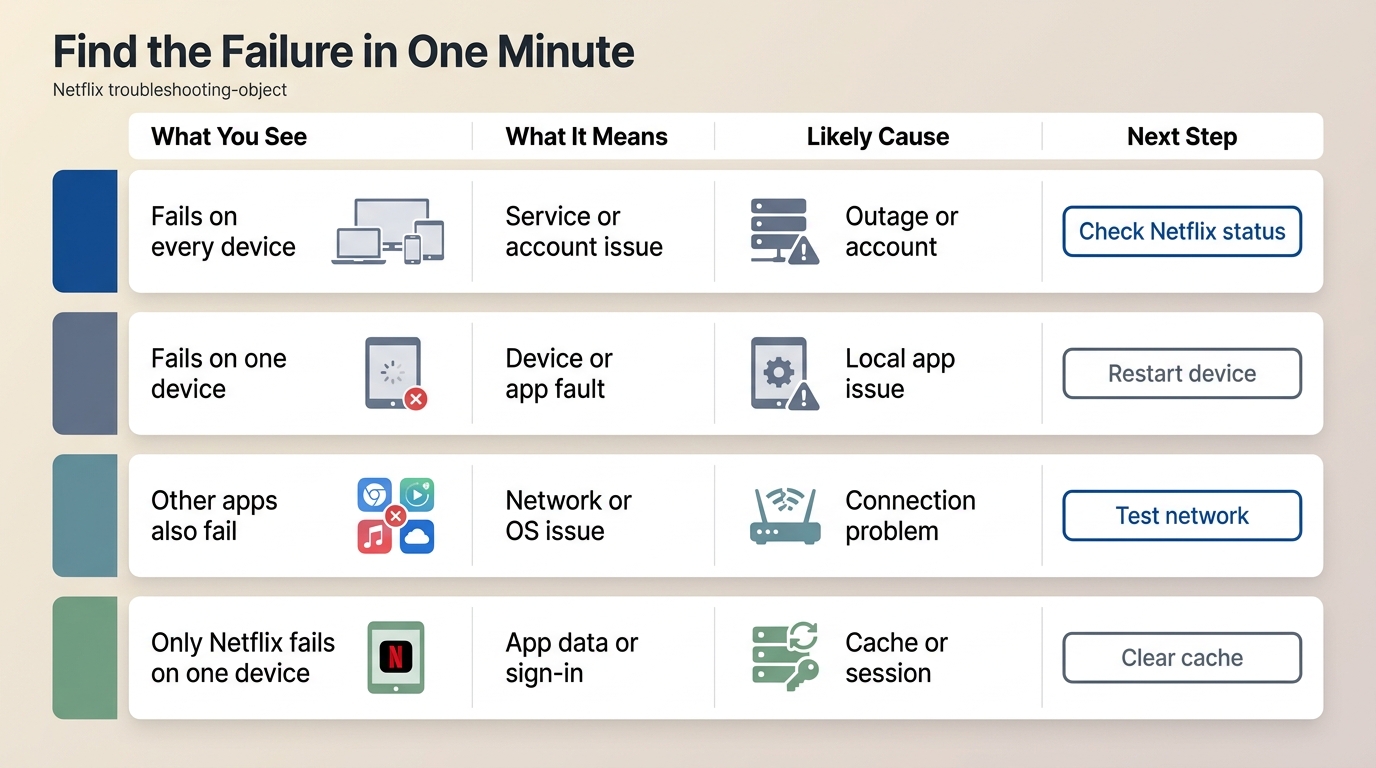
When Netflix is not working, test another device and another app before changing anything. If Netflix works on phone but not on the TV, the account and service are probably available, which narrows the problem to that TV, its app, or its local connection.
Check for a Netflix Outage
Open Netflix's service-status page or try Netflix on a second device using a different connection. If Netflix fails everywhere, wait for the service to recover instead of repeatedly reinstalling apps.
Test the Device and Network
Try another streaming app on the affected device, then try Netflix on another device. I trust this cross-device check more than a spinning icon because it produces an observable split between service, device, app, and network faults.
| Observed result | What the cross-device test shows | Most likely failure point | Best next action |
|---|---|---|---|
| Netflix fails on every device | The problem is not isolated to one screen | Netflix service, account, or shared network | Check service status, then restart the network |
| Netflix fails on one device only | The service is reachable elsewhere | That device, app, browser, or local connection | Restart and refresh the affected device |
| Other apps also fail on the device | The issue extends beyond Netflix | Device software or network connection | Test the network and update the device |
| Other apps work but Netflix fails | The connection can carry streaming traffic | Netflix app data, sign-in, browser state, or version | Sign in again, clear stored data, or update Netflix |
Try These 9 Fixes in Order
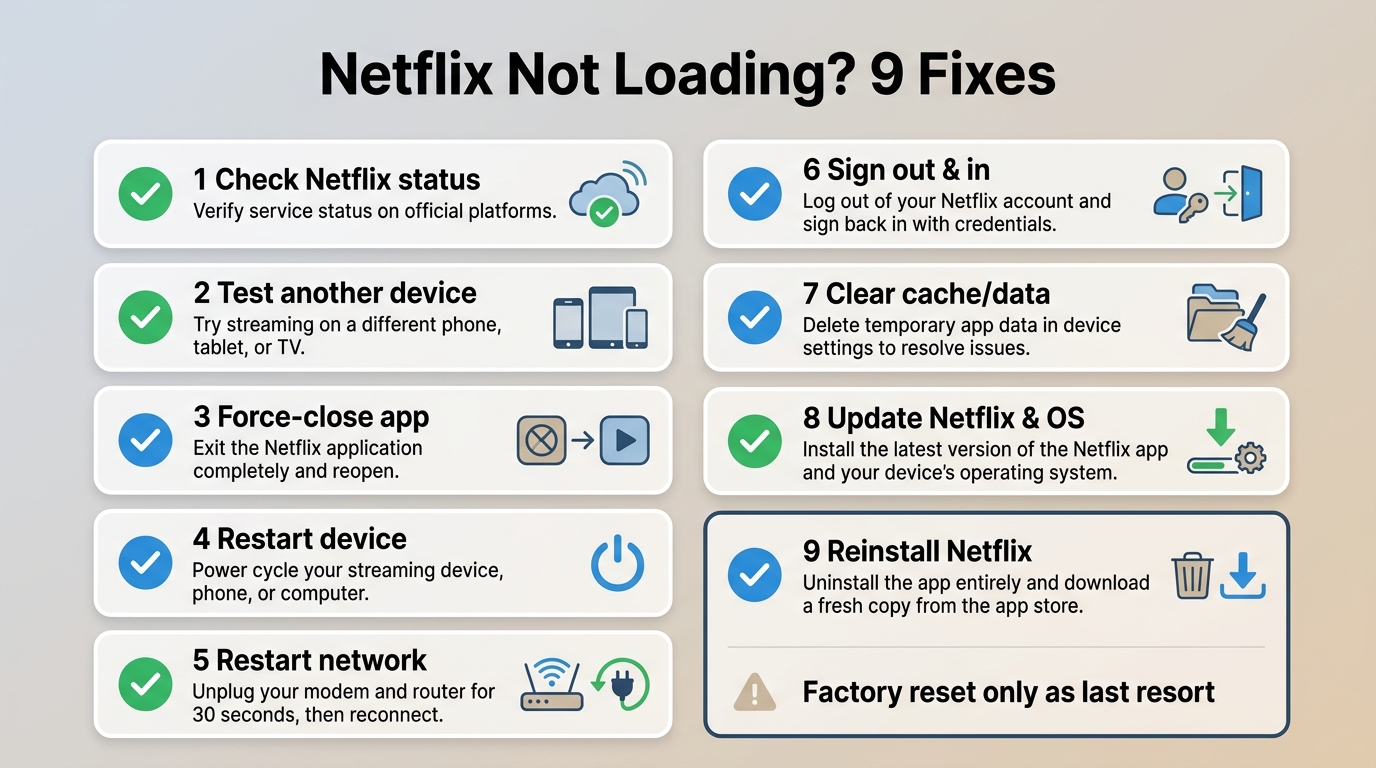
When Netflix won't load, use the following sequence and stop as soon as playback returns. It covers a Netflix app not loading without jumping straight to destructive resets.
- Check Netflix service status. An outage cannot be fixed from your device.
- Test another device and another app. This separates a service fault from a device or network fault.
- Force-close Netflix. Fully exit the app or browser tab, then reopen it.
- Restart the device. A full restart clears temporary processes that an app relaunch may leave behind.
- Restart the home network. Power down the modem and router, reconnect them, and wait for the connection to return before opening Netflix.
- Sign out and back in. Refreshing authentication can resolve a startup loop without deleting app data.
- Clear Netflix cache or app data where supported. Start with cache; clearing app data usually signs you out.
- Update Netflix and the device software. Install available app, browser, operating-system, TV, or streamer updates.
- Reinstall Netflix. Remove and reinstall the app after the earlier steps fail.
A factory reset is not an early troubleshooting step because it affects the whole device, not just Netflix. Once Netflix works, stop. Extra resets add risk without improving a restored connection.
Restart Before Resetting Anything
For a Netflix app not loading, a force-close and full device restart preserve credentials and settings. This is the best first fit for a one-time freeze; a factory reset is poorly matched to a fault that has not yet been isolated.
Refresh the App and Network
Sign in again before you reset Netflix app data. If repeat loading loops continue, clear Netflix cache where the platform offers that control, then update or reinstall the app after confirming you know the account credentials.
Fix Netflix on TVs and Streamers
Netflix not loading on TV usually calls for the same core sequence: isolate the app, restart the screen and network, update software, sign in again, and reinstall only if needed. Device-specific menus differ, but the diagnostic logic does not.
Smart TVs and Samsung TVs
Cold-restart the TV rather than merely turning the screen off, then test another app. Check for TV firmware and Netflix updates. If the TV offers app cache or data controls, use them before considering a full device reset.
On a Samsung TV, a repeat failure limited to Netflix points toward the Netflix app or TV software. A factory reset should remain an escalation step because it removes broader settings and installed apps.
Roku, Apple TV, and Consoles
Restart the streamer or console, confirm another app opens, install system and Netflix updates, sign in again, and reinstall Netflix if the problem remains. For broader local playback needs on Roku, the Roku Media Player guide explains the device's separate media tools without treating them as a Netflix repair.
Apple TV and consoles may expose different restart and storage menus, but the stopping rule is the same: do not erase the whole device when the failure is confined to one app.
Fix Netflix on Phones and Browsers
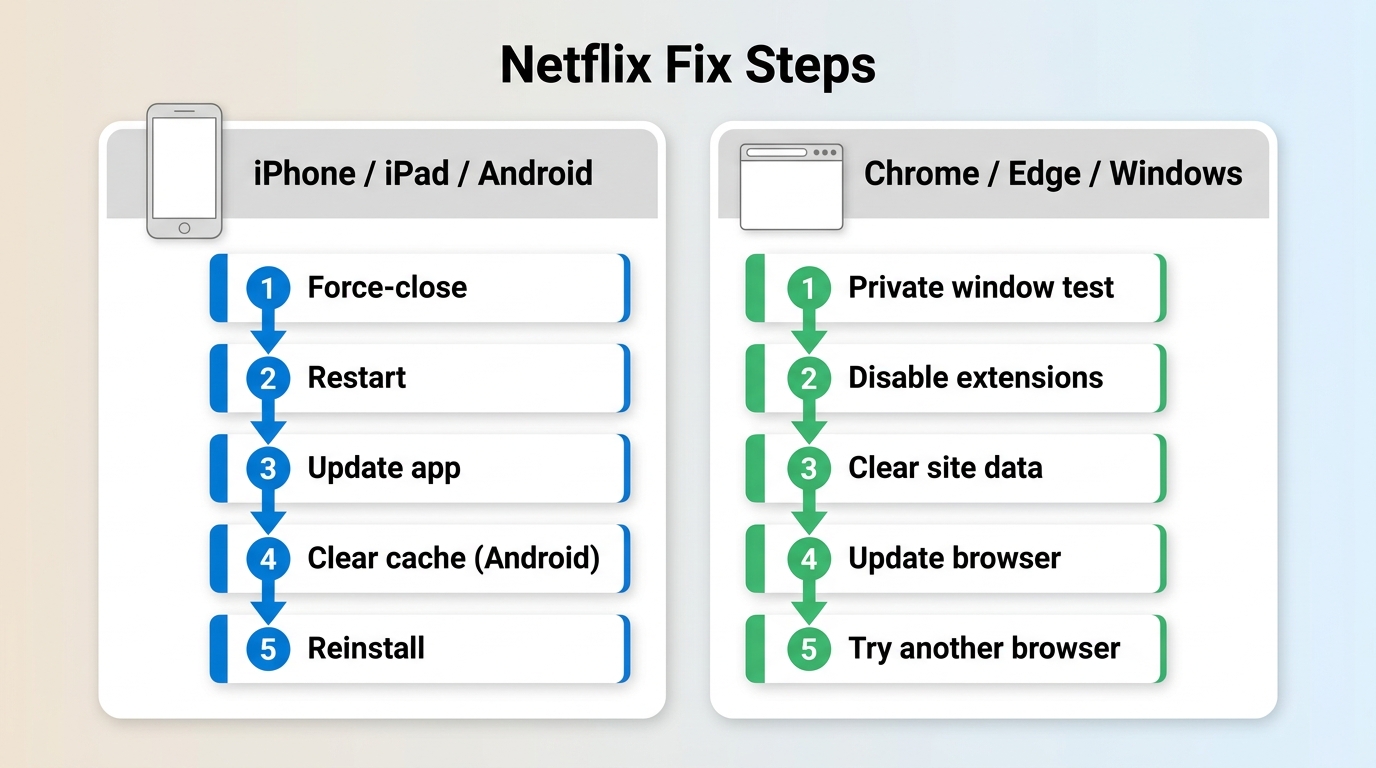
A Netflix app not loading on a phone and Netflix not working on Chrome need separate refresh methods. Mobile troubleshooting centers on app storage and updates; browser troubleshooting centers on extensions, site data, permissions, and browser versions.
iPhone, iPad, and Android
On iPhone and iPad, force-close Netflix, restart the device, update the app, then use offload or reinstall if necessary. On Android, clear Netflix cache first; clear app data only after a cache refresh fails because app data removal signs the account out.
Cache clearing fits a repeat startup loop. Reinstalling is less suitable as a first move when you need to preserve sign-in convenience or managed offline items in the official app.
Chrome, Edge, and Windows
If Netflix is not working on Chrome, open a private window to test without the usual extensions and stored site state. Disable extensions for the test, update the browser, clear Netflix site data, and try another supported browser.
If Firefox works while Chrome, Edge, or the Windows app does not, the network is less likely to be the shared cause. Focus on the failing browser's extensions, permissions, stored data, hardware-acceleration setting, or version. A Netflix black screen confined to one browser strengthens that diagnosis.
When Netflix Still Will Not Load
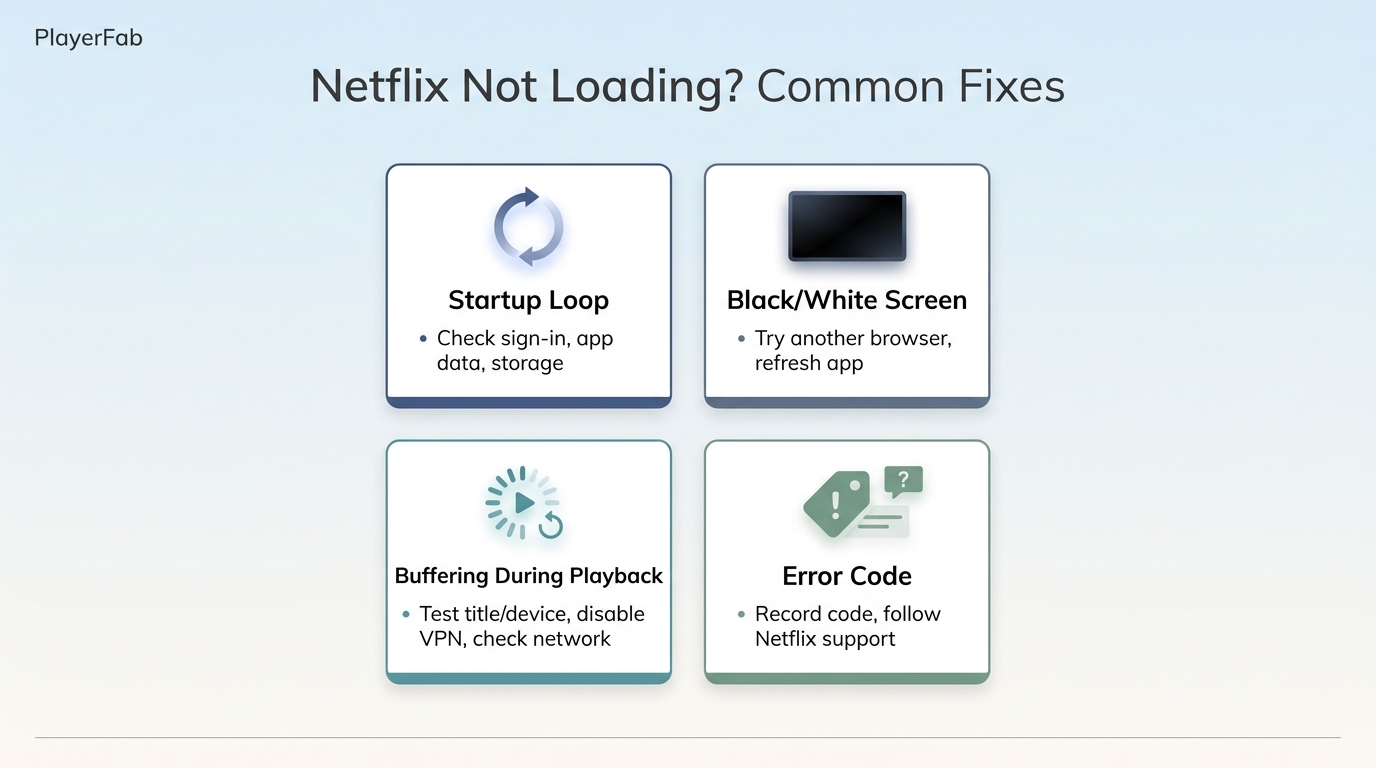
Netflix spinning before playback, a post-login white screen, and a title buffering after it starts are different symptoms. If the ordered fixes fail, note exactly where the failure appears and whether it follows the account, device, browser, or network.
- Startup loop: revisit sign-in state, app data, updates, and device storage.
- Black or white screen: test another browser or display path, then refresh the affected app or browser state.
- Buffering during playback: test another title and device, disable VPN or proxy connections, and check network stability.
- Error code: record the code and use Netflix's matching support instructions.
After those checks, contact Netflix support for account or service errors, or the device maker for a failure that affects several apps. Repeated factory resets are a poor substitute for identifying the failed layer.
A Desktop Playback Option After Troubleshooting
PlayerFab does not fix Netflix service, account, app, or network failures. It is a desktop playback option for Windows and Mac users who want authorized Netflix access alongside local and legally owned disc media in one environment, with availability shaped by the service, subscription, region, and current platform rules.
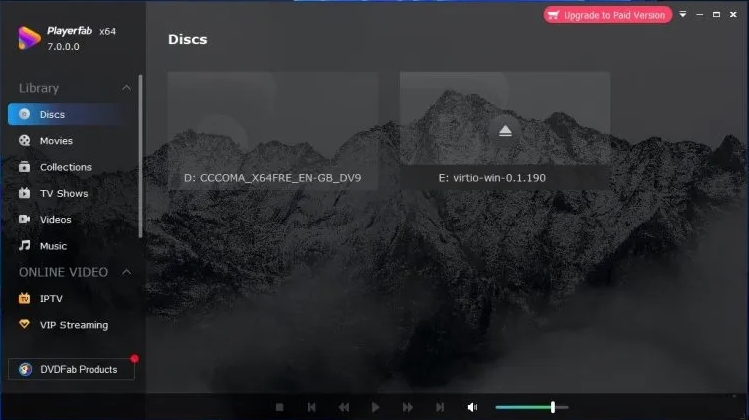
PlayerFab Stream Player
PlayerFab Stream Player suits desktop viewers who value an integrated playback environment. It is not ideal for someone who only needs the official mobile or TV app repaired. When comparing a best streaming player shortlist, judge each option by the media and devices you actually use rather than treating it as an outage fix.
The desktop app provides playback access for supported services and requires a valid platform subscription. Content availability and resolution depend on the platform, subscription, region, device, and applicable content rules.
The broader playback context includes Netflix viewing options, while workflows involving Netflix streaming videos must remain limited to content you are authorized to access and uses permitted by platform terms and applicable law.
Netflix Loading Questions
Why does Netflix keep buffering when my internet seems fine?
Buffering begins after playback starts, unlike a startup loading loop. Test another title and device, check Netflix status, disable VPN or proxy connections, and refresh the app before changing the router.
What should I reset when the Netflix app will not load?
Use the least disruptive order: force-close Netflix, sign out and back in, restart the device, clear cache or app data where supported, update software, and reinstall last. Avoid a factory reset until the fault is isolated.
Why does Netflix work on my phone but not my TV?
If Netflix works on phone, the account and service are probably available. Focus on the TV's Netflix app, firmware, stored data, settings, and local network connection.
Why does Netflix show a black or white screen after login?
Common areas to isolate include corrupted app or site data, an outdated browser or system component, an extension conflict, or a browser-specific display failure. Test a private window or another browser before changing the whole network.
The Fastest Route Back to Netflix
Netflix won't load fixes work fastest when you check service status, isolate the device or network, and follow the nine steps in order. My recommendation is to escalate only after the sequence fails, and to describe the exact screen, device, and cross-device result when asking support for help.
