How to Play DVDs on Mac: 3 Methods and Fixes (2026)

Summary: Modern Macs need a computer-readable external optical drive plus an app that supports the disc or file source. This guide compares Apple DVD Player, VLC, and PlayerFab, then walks through drive detection, region limits, repeated ejection, ISO and VIDEO_TS playback, and the separate workflow for an authorized local copy.
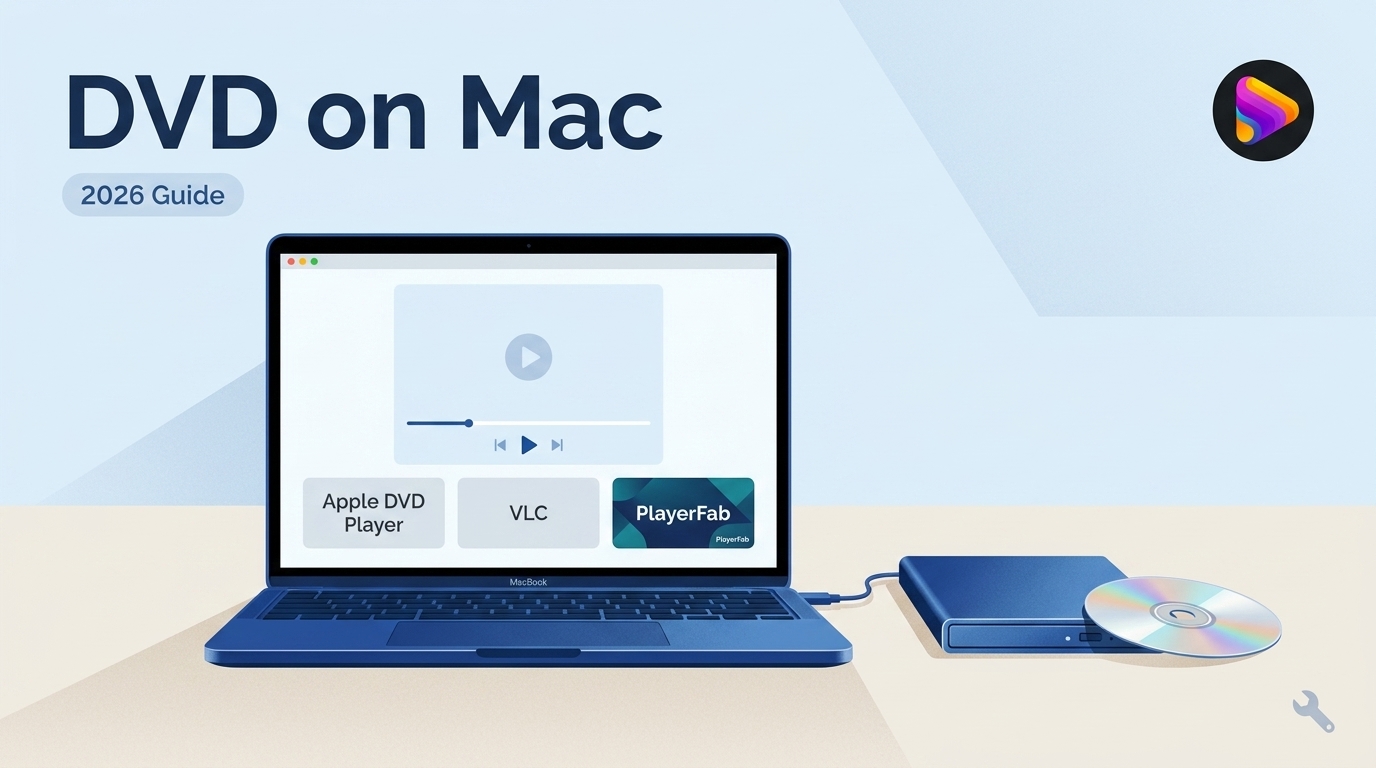
If you are trying to play DVD on Mac and the disc never appears, the problem is usually one of two things: a modern Mac has no built-in optical drive, or the connected drive, disc, and playback app are not compatible. The practical route is to confirm the hardware first, then choose Apple DVD Player, VLC, or PlayerFab for the source you have.
The general steps for how to play DVD on laptop still apply, but a Mac adds USB-C connection choices, Apple Silicon app builds, Finder visibility settings, and macOS region rules. This guide handles those Mac-specific decisions and the fixes for a DVD drive not recognized by macOS.
Table of Contents

What You Need to Play DVDs on Mac
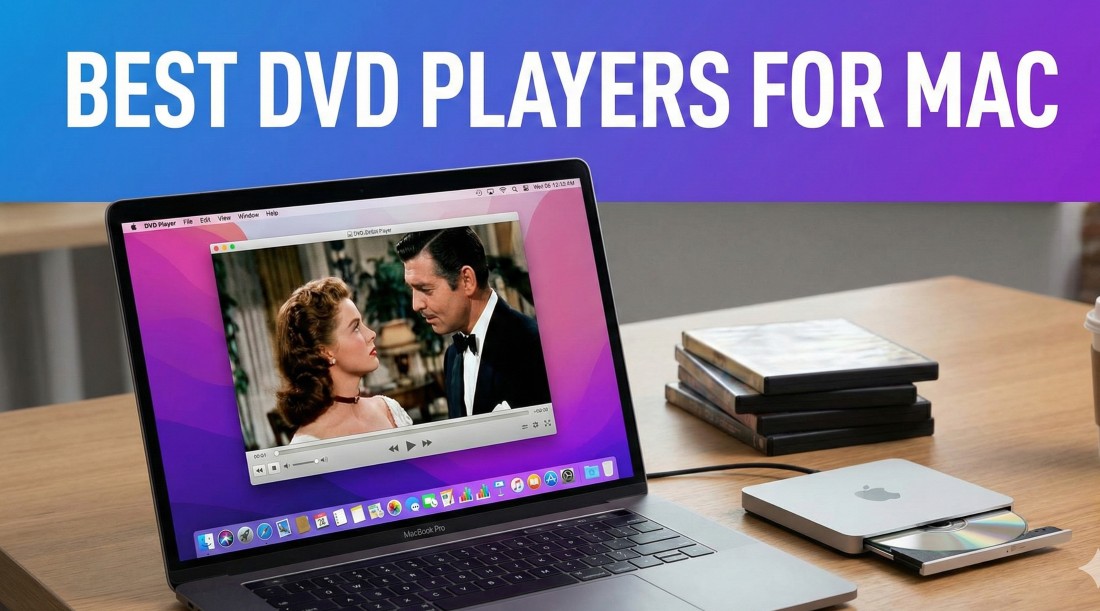
To watch DVD on MacBook Pro or another current Mac, you need a computer-readable USB optical drive, a matching cable or adapter, and software that supports the disc or DVD file source. A living-room DVD player with an HDMI output is not a substitute because it does not mount as a Mac storage device.
- For a physical DVD: Use an external DVD-capable USB drive that macOS can detect.
- For USB-C Macs: Use a drive with USB-C or a supported USB-A-to-USB-C adapter. If a hub or display connection fails, connect the drive directly to the Mac.
- For Blu-ray: Use a Blu-ray-capable optical drive and software that supports that disc type. A DVD drive cannot read Blu-ray media.
- For ISO or VIDEO_TS: The optical drive is unnecessary when the source is already stored on the Mac, but the playback app must support that file structure.
My practical judgment is simple: a basic DVD drive is enough when the task is standard DVD-Video playback. Paying for Blu-ray hardware makes sense only if Blu-ray discs are actually part of the collection.
USB-C Drives and Direct Connections
An external DVD drive Mac setup should start with the shortest reliable connection path. Connect the drive to the Mac with the correct cable or a supported adapter, insert a known-good DVD, and wait for macOS to mount it before opening a player.
Apple supports its USB SuperDrive on compatible Macs through specified adapters. A hub can work, but if the drive is absent, repeatedly disconnects, or ejects the disc, test a direct port before replacing software. Treat power as one diagnostic factor rather than assuming every adapter or hub is faulty.
DVD, Blu-ray, and Disc Type Compatibility
Apple Silicon DVD playback depends on both the drive and the media type. DVD-Video, a data DVD, a homemade disc, VCD, and Blu-ray can all look similar while requiring different hardware or software.
A DVD drive can read supported CDs and DVDs but cannot read Blu-ray media. A Blu-ray drive can often read DVDs as well, although Blu-ray movie playback still depends on compatible software. If a disc mounts but will not play, confirm that it is actually DVD-Video rather than a data disc containing unrelated files.
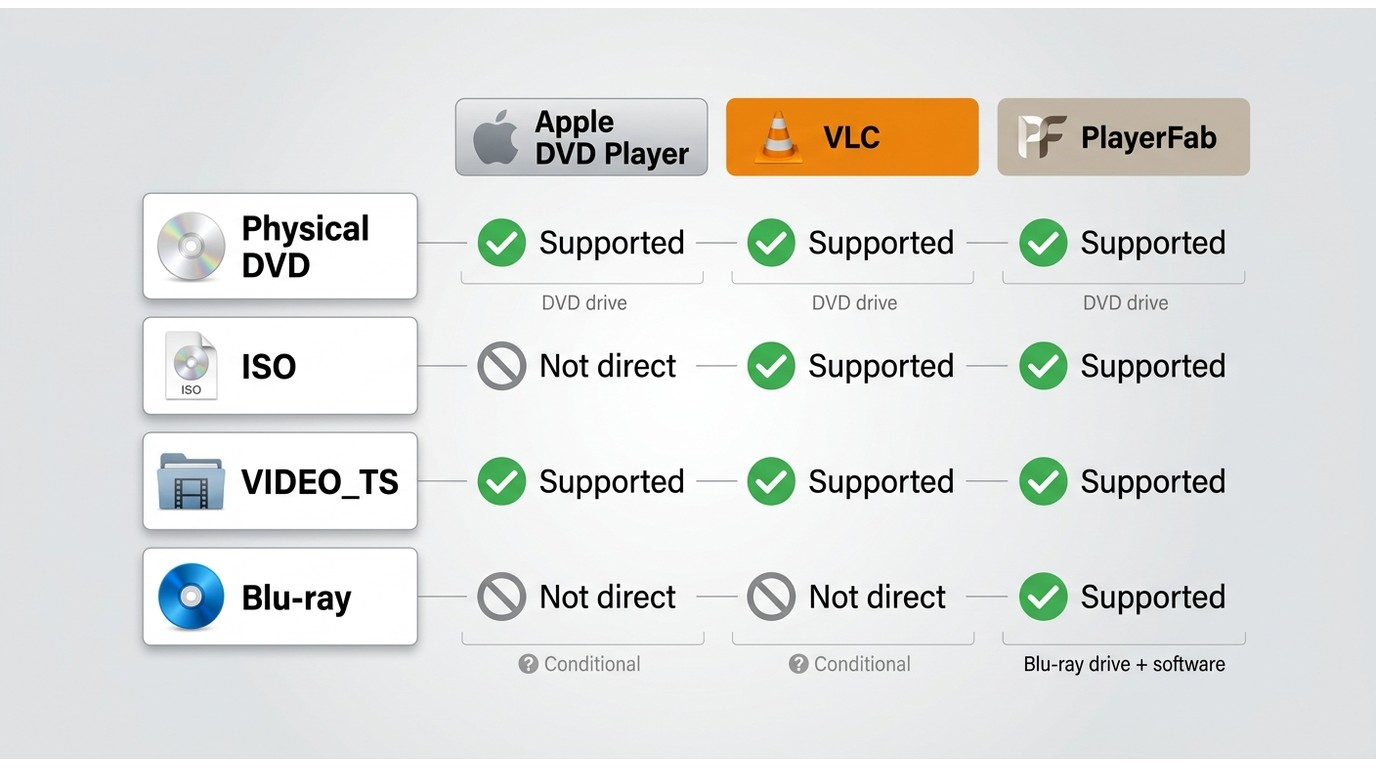
A broader Mac DVD player comparison can help with app shopping, but the table below stays focused on completing this playback task.
| Method | Best for | Physical DVD-Video | ISO image | VIDEO_TS folder | DVD menus | Region-mismatched discs | Apple Silicon compatibility | Blu-ray requirements | Key limitation |
|---|---|---|---|---|---|---|---|---|---|
| Apple DVD Player | The simplest native path for compatible discs | Yes, when the drive and disc are supported | Not a direct ISO workflow | Supports compatible DVD movie files stored on the Mac | Yes, on compatible DVD sources | Subject to the drive's region setting | Available as a documented macOS app | A Blu-ray drive and different software are required | Protected, damaged, unsupported, or region-mismatched discs may fail |
| VLC Media Player | A free DVD player Mac users can try when they accept troubleshooting | Conditional, depending on disc structure and compatibility | Yes, for compatible images | Yes, for compatible folders | Conditional; complex menus can fail | No guaranteed support | Intel, Apple Silicon ARM64, and Universal builds are available | A Blu-ray drive is required for Blu-ray media, and movie support remains conditional | Commercial discs and menus can behave inconsistently |
| PlayerFab DVD Player | One local workflow for authorized discs, ISO images, VIDEO_TS folders, menus, and library organization | Yes, for supported DVD sources | Yes | Yes | DVD menu support on macOS | Compatibility varies; no region guarantee | Windows and macOS versions are available | A Blu-ray-capable drive and the appropriate product support are required for Blu-ray | More software than needed for occasional playback of a compatible homemade disc |
Power and Drive Detection Checks
A DVD drive not recognized by a Mac should be diagnosed before changing player settings. The key distinction is whether macOS cannot see the drive at all or sees the drive but cannot play the inserted disc.
- Confirm that the device is a computer-readable USB optical drive, not a standalone DVD player intended for a television.
- Connect it directly to the Mac and verify that the cable and adapter support data, not charging alone.
- Check the drive's power arrangement and try another compatible port or cable.
- Insert a clean, known-good DVD-Video disc.
- In Finder settings, enable CDs, DVDs, and iOS Devices in the sidebar.
- Open System Information and Disk Utility to see whether macOS detects the hardware or mounted disc.
- If macOS sees the source, check whether the playback app can access removable volumes.
PlayerFab for Discs, ISO, and VIDEO_TS
PlayerFab DVD Player fits readers who want to play supported physical DVDs, play DVD ISO on Mac, open VIDEO_TS on Mac, and organize local video sources in one interface. It is less compelling for someone who occasionally plays a compatible homemade disc and does not need menus or a media library.
I would choose this route when the input source changes regularly between a disc, an ISO image, and a VIDEO_TS folder. The value is workflow consistency, not a promise that every damaged, protected, or region-mismatched disc will work.
- Play a physical DVD: Connect a supported optical drive, let macOS detect it, and open the disc in the player.
- Open an ISO or VIDEO_TS source: Load the local image or folder directly; this is playback from an existing file source.
- Create an MP4: A DVD to MP4 Mac task is a separate digitization workflow, not a playback feature. Consider it only for content you are authorized to copy, where permitted by applicable law.
Step 1: Connect the Drive and Confirm Detection
Connect the optical drive, insert the disc, and confirm that macOS sees the hardware before launching PlayerFab. In the app, open the Discs area and look for the mounted source. If nothing appears in System Information or Disk Utility, return to the cable, port, adapter, and power checks rather than changing playback settings.

Step 2: Open a Disc, ISO, or VIDEO_TS Folder
Choose the source that matches the task. Select the mounted disc for physical media, or open the local ISO image or VIDEO_TS folder from storage. Keeping these inputs separate prevents a common mistake: seeing DVD files in Finder does not mean macOS has mounted a playable DVD-Video disc.
- Open PlayerFab after macOS detects the drive or local source.
- Select the physical disc, ISO image, or VIDEO_TS folder.
- Choose Menu Mode when DVD navigation is needed, or Simple Mode when direct movie playback is preferred.
- Select the available audio and subtitle tracks, then begin playback.
Step 3: Manage Local Libraries and Settings
Library management is useful when ISO images, VIDEO_TS folders, and regular video files live across several local directories. Add the relevant folders to the library, let the app categorize supported media, and adjust default audio, subtitle, menu, and playback preferences for future sessions.
This organization step is valuable for a maintained local collection, but it is unnecessary overhead for a single compatible disc. That boundary matters more than another feature list.

VLC as a Free DVD Option
VLC is the free route for readers who can accept occasional troubleshooting. A concise VLC DVD playback guide covers deeper app-specific issues, while the Mac workflow here focuses on the correct build, supported sources, and honest commercial-disc limits.
My fit judgment is to try VLC when cost matters and the disc is known to work. It is not ideal for a mixed library where predictable menu behavior is more important than using a free app.
Choose the Correct macOS Build
VideoLAN provides Intel, Apple Silicon ARM64, and Universal macOS downloads. Choose the build that matches the Mac rather than assuming one package is fastest or uses less battery. For an M-series Mac, the Apple Silicon build is the direct architecture match; the Universal build is designed to cover both processor families.
Commercial Disc Support and Limitations
VLC can open many compatible discs and local DVD sources, but support varies with the disc type, menu structure, region, condition, and protection. Some commercial, region-mismatched, damaged, or non-DVD-Video discs may still fail, and no single add-on guarantees universal playback.
If VLC shows the files but the movie does not start, that does not automatically mean the drive is broken. Try a known-good DVD-Video disc, confirm the region status, and test playback without the disc menu when menu navigation is the failing layer.
Step-by-Step Playback Instructions
For a compatible disc, VLC's Open Disc workflow is straightforward and keeps the steps objective.

- Insert the DVD and wait for macOS to mount the disc.
- Open VLC and choose File, then Open Disc, or press Command+D.
- Select DVD and confirm that the listed disc device matches the external drive.
- Choose whether to use disc menus. If the menu crashes or stalls, retry with menus disabled.
- Select Open to start playback.
Apple DVD Player for Compatible Discs
The Mac DVD Player app remains a documented macOS option for compatible physical DVDs and DVD movie files stored on the Mac. It is the simplest first choice when the drive, disc, region, and file structure already match Apple's supported path.
Apple DVD Player does not play Blu-ray media, and a protected, damaged, unsupported, or region-mismatched disc can fail. I would start here for a standard compatible DVD because it avoids installing another app, then move to another method only when the source or required features fall outside that scope.

Find and Open DVD Player
DVD Player may open automatically after a compatible video DVD is inserted. If it does not, use Spotlight to search for DVD Player, or open the app from the system Applications location.
- Connect the optical drive and insert the DVD.
- Wait for the disc to appear in Finder or on the desktop.
- Open DVD Player with Spotlight if macOS does not launch it automatically.
- Use the on-screen controller for menus, chapters, audio, subtitles, and playback.
Region Limits and Supported Sources
Apple DVD Player follows the optical drive's region setting. Apple states that the drive permits a limited number of region changes and that the fifth selected region becomes fixed, so do not spend a region change as an experiment.
The app can handle compatible DVD movie sources, but Blu-ray, damaged media, unsupported formats, and region conflicts remain outside a dependable native workflow. Alternative software can be tested for an authorized disc, but it should be treated as a compatibility option rather than a guarantee around the drive's region rule.
Fix Mac DVD Playback Problems
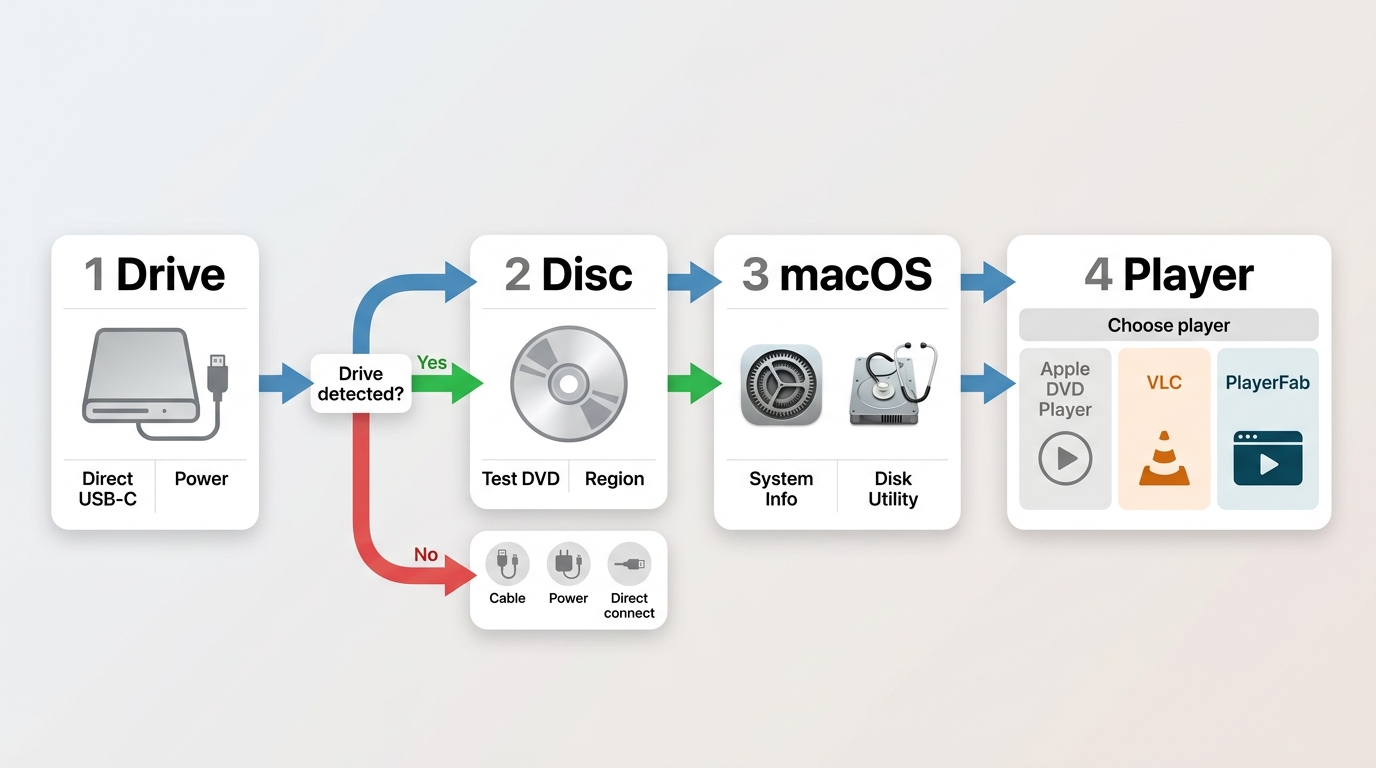
Mac DVD failures are easier to solve when you separate hardware detection from disc playback. First prove that macOS sees the optical drive; then diagnose the media type, disc condition, region, and app compatibility.
Resolve Region Code Conflicts
A Wrong Region or Prohibited message usually means the disc region and the drive setting do not match. Check the current region before approving a change, because the fifth selected region becomes fixed under Apple's rule.
- Use a disc that matches the drive's current region when possible.
- Change the drive region only when you understand the remaining-change limit.
- Do not use firmware modifications, protection-focused utilities, or terminal commands as a troubleshooting shortcut.
- Treat another playback app as a conditional compatibility test, not a universal region solution.
Fix Drive Detection and Mounted Disc Errors
When the Mac cannot see the drive, stay at the hardware and macOS level. When the drive appears but the movie fails, move to disc and app checks.
- Confirm that the device is a USB optical drive the Mac can mount.
- Connect it directly and check its power indicator or required power source.
- Try another data-capable cable, adapter, and Mac port.
- Test a clean, known-good DVD-Video disc.
- Enable CDs, DVDs, and iOS Devices in Finder sidebar settings.
- Check System Information for the drive and Disk Utility for the inserted disc.
- If the disc mounts, confirm that the chosen app has removable-volume access.
- If one app fails while macOS still sees the disc, test another compatible player.
The sequence avoids wasting time inside player menus when the external DVD drive Mac connection has not been established.
Address Ejection, Stuttering, and Read Noise
Repeated ejection, freezing, pixelation, and loud re-reading can come from an unsupported disc type, a dirty or damaged surface, unstable power, a region conflict, or a failing drive. A spinning disc is evidence of mechanical activity, not proof that the media is playable.
- Confirm whether the disc is DVD-Video, a data DVD, VCD, homemade disc, or Blu-ray.
- Try a clean, known-good DVD that has played successfully elsewhere.
- Connect the drive directly and verify the cable and power arrangement.
- Check the drive's region against the disc.
- Clean the disc from the center outward with a microfiber cloth.
- Test another drive if several known-good discs are rejected or produce the same noise.
My rule here is not to blame the app first. If multiple players fail on the same source, the disc format, condition, region, or drive deserves attention before more software changes.
Frequently Asked Questions
These answers cover the common follow-up questions that do not require another full method.
Can QuickTime Player play a video DVD?
QuickTime Player is not the standard app for DVD-Video discs. Use Apple DVD Player for a compatible disc, or choose VLC or PlayerFab when the source or features fall outside the native app's supported path.
Does a MacBook Pro have a built-in DVD drive?
Modern MacBook Pro models do not include an optical drive. To watch DVD on MacBook Pro, connect a computer-readable external USB DVD drive; a standalone DVD player's television output cannot mount the disc on macOS.
Can I save a DVD to my Mac instead of playing it?
Yes, but save DVD to Mac and DVD to MP4 Mac are digitization tasks, not ordinary playback. Use a separate local-copy workflow only for content you are authorized to copy, where permitted by applicable law, and do not assume every protected disc can be converted.
Why does my external DVD drive keep ejecting discs?
Check the disc type first, then try a clean known-good DVD, a direct connection, stable power, another cable or port, and the drive's region status. If the drive appears in System Information but rejects several supported discs, the drive itself may be failing.
Choosing the Right Mac DVD Method
The right way to play DVD on Mac depends on the input source and how much troubleshooting you accept. There is no useful winner without that context.
- Choose Apple DVD Player for a compatible physical DVD or supported DVD movie source when the simplest native path is enough. Its limit is narrow disc and region compatibility.
- Choose VLC when a free DVD player Mac solution matters and you can tolerate menu or commercial-disc troubleshooting. Its limit is inconsistent behavior across mixed discs.
- Choose PlayerFab DVD Player when supported physical discs, ISO images, VIDEO_TS folders, DVD menus, and a local library belong in one workflow. Its limit is that occasional playback of a compatible homemade disc may not justify an additional paid application.
For most readers, I would begin with the option that asks for the least extra setup: Apple DVD Player for a compatible disc, VLC for a free fallback, or PlayerFab when the local disc-and-file workflow clearly matches the job.

 5 Best DVD Players for Mac in 2026, Plus Drive SetupBy Alice Harper - Aug 3, 2026