Best Streaming Players for PC: 4 Types Compared for 2026

Summary: Most tools marketed as "all-in-one streaming" turn out to be search aggregators. They tell you which platform carries a title, then bounce you back to five separate apps to watch it. This guide covers a different category: dedicated desktop players that open Netflix, Amazon, HBO Max, Hulu, and more inside a single interface, with features native apps simply do not provide.
One of the questions I field most often from readers comes in different forms but always amounts to the same thing: I have Netflix, Amazon Prime, and HBO Max — is there a single Windows app that handles all of them? Between inconsistent subtitle settings, pre-roll ads on free-tier services, and the general friction of tab-switching mid-binge, the default PC streaming experience is more cumbersome than it needs to be.
After testing most of the tools that claim to solve this, I found that the majority redirect you back to the same five apps you started with. A smaller, less-marketed category actually does what it promises. This guide focuses on that second group.
What "Streaming Player" Means on PC
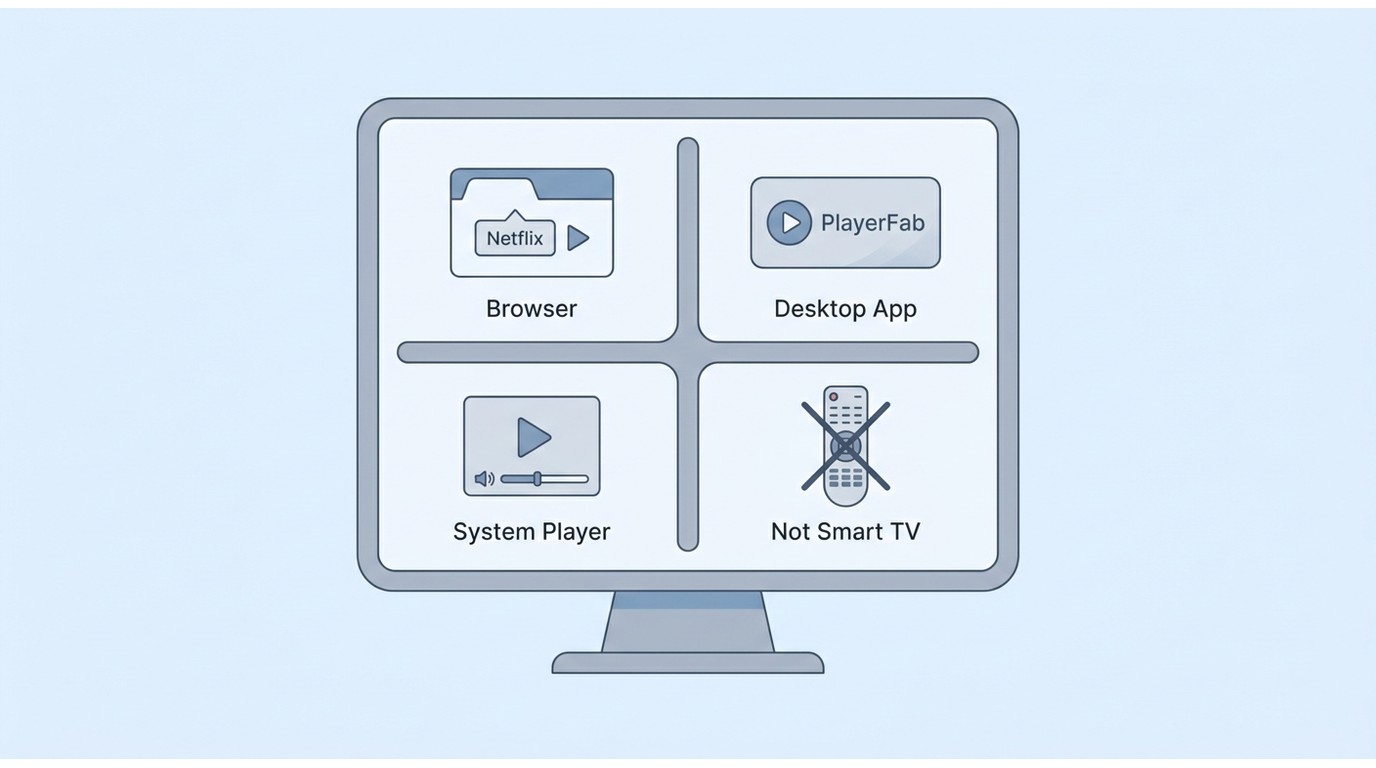
Here's the short answer: in US search results the phrase "streaming player" now covers four very different products, and picking the right one starts with knowing which category you actually need. A TV streaming device is HDMI hardware like Roku, Fire TV, or Apple TV that plugs into a television. A local media player is desktop software (VLC, Plex, MPC-HC) that opens files you already own. A discovery service like JustWatch tells you which platform carries a title but bounces you back to that platform's own app to watch. And a subscription-service desktop player is Windows software that opens Netflix, Prime Video, Max, Disney+ and other services you already pay for inside one interface.
The fragmentation is real. The average streaming household subscribes to three or more services, and on a PC that becomes a tangle of browser tabs and standalone apps with inconsistent playback settings. Configure your subtitle size in Netflix's app and it has no bearing on what you see when you open Hulu ten minutes later. Free-tier platforms like Tubi and Paramount+ insert pre-roll ads that native apps make no attempt to skip, and variable playback speed is either missing or buried in an accessibility menu. Which category solves that depends on your screen and your workflow, so the rest of this guide compares the four with a consistent set of criteria.
What We Tested and Compared
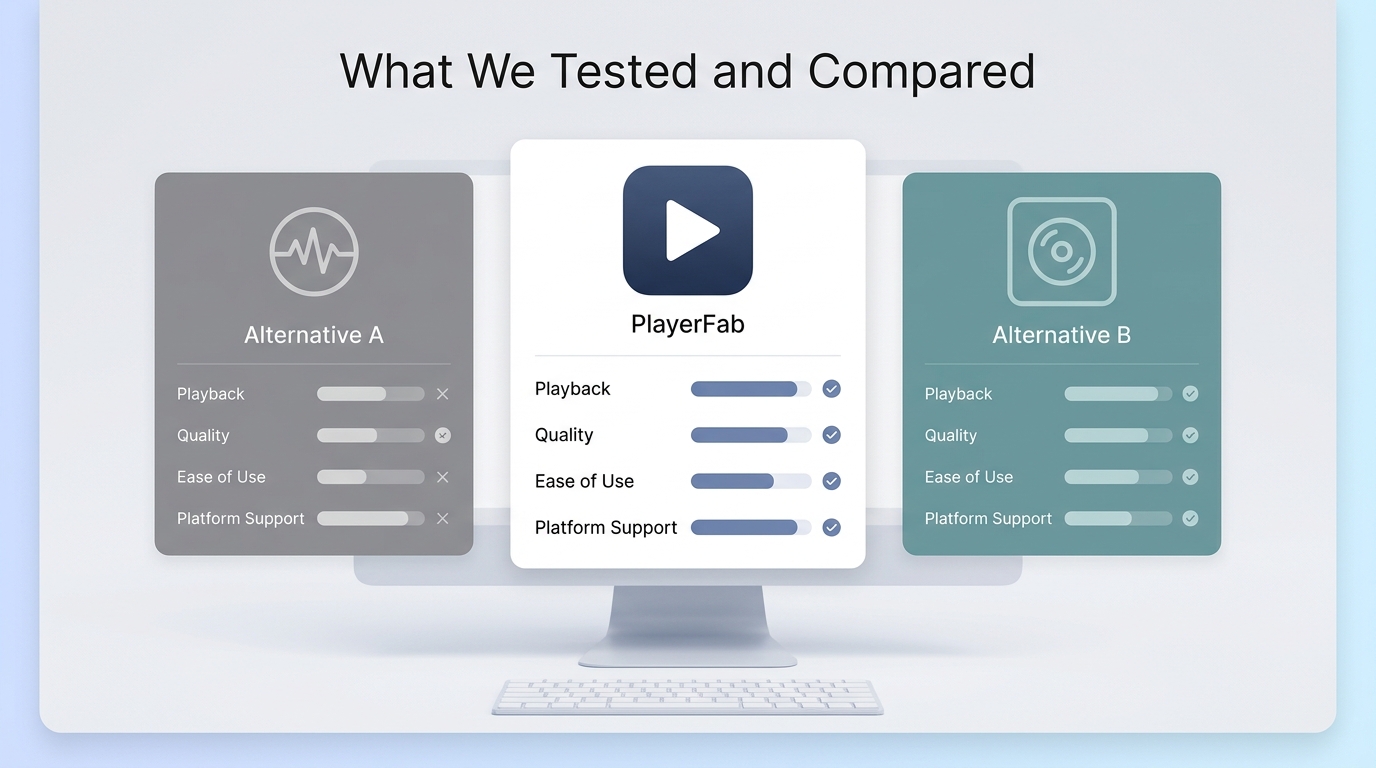
I evaluated each category against the same eight criteria rather than picking a single overall winner, because "best" only makes sense once you know what job you're hiring the player to do. After a decade of reviewing playback software, I've found that category fit matters more than a raw feature count, since a tool built for offline files will never feel right for live subscription playback and vice versa.
- Platform coverage: which subscription services or file types the tool actually opens.
- Verified playback quality: the resolution and audio format the tool is documented to output on Windows.
- Responsiveness and stability: how the interface behaves during navigation and long viewing sessions.
- Ad handling: whether pre-roll ads on compatible services are skipped, and where that behavior does not apply.
- Operating system support: Windows and macOS availability, since this is a PC-focused comparison.
- Privacy and login model: whether you sign in with your own platform accounts or hand credentials to a third party.
- Price model: free, one-time license, or subscription.
- Main limitation: the honest deal-breaker for each option.
Best PC Streaming Options by Use Case
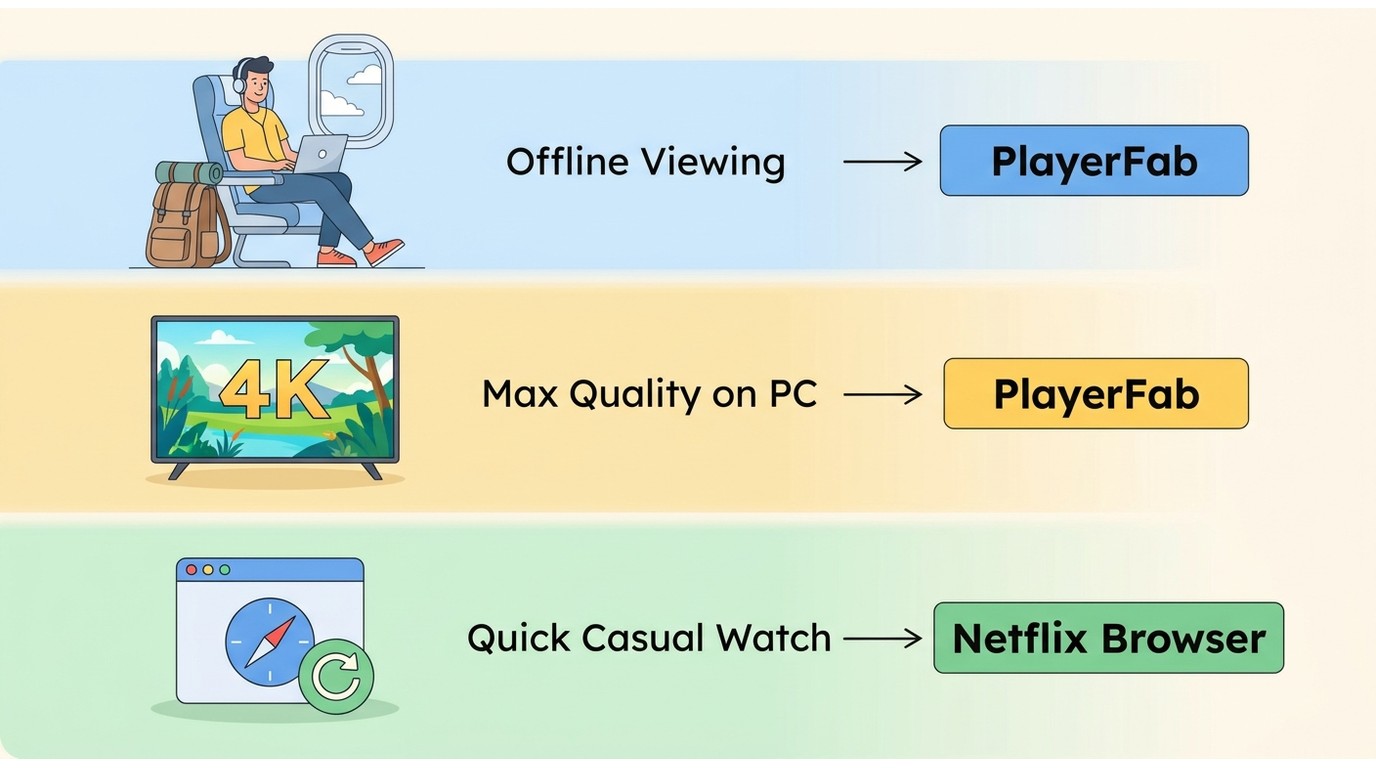
Not all PC streaming tools are built for the same job. The table below matches each category to the scenario it actually fits, so you can jump to the option that matches your screen and content sources.
Option |
Best for |
Direct subscription playback |
Operating systems |
Price model |
Main limitation |
|---|---|---|---|---|---|
PlayerFab Stream Player |
Supported subscription services in one Windows interface |
Yes, with your own accounts |
Windows only |
Paid license, free trial available |
No macOS build; 1080p output ceiling |
Native apps or browser |
Maximum verified resolution from each platform |
Yes, one service per app |
Windows and macOS |
Included with subscription |
Fragmented interfaces and settings |
JustWatch |
Finding which platform carries a title |
No, redirects to the platform |
Web and native apps |
Free |
No playback layer of its own |
Plex or VLC |
Local files and personal media libraries |
No |
Windows, macOS, Linux |
Free with optional paid tiers |
Does not play authenticated subscription video |
StreamFab or PlayOn |
Local-file workflow for authorized content |
No, focused on file capture |
Windows and macOS varies by product |
Paid |
Subject to each platform's terms and applicable law |
Best for Finding Where to Watch
JustWatch is an active discovery service that answers "where can I watch this movie right now" by mapping titles to the platforms that carry them, then linking out to that platform's own app or website. Reelgood is often compared in the same category, though its current operating status was not confirmed in this research, so treat it as an optional check rather than a guaranteed alternative. Neither service consolidates playback: once you click through, you are back in the platform's own interface with none of the settings unification a dedicated player provides. Use a discovery service for the search problem, not the viewing problem.
Best for Local Media Libraries
If most of what you watch is files you already own (ripped Blu-rays, home videos, downloaded purchases), a local media player is the right category. Plex and VLC handle a wide range of codecs and container formats on Windows and macOS, and Plex adds library organization, remote streaming from your own server, and metadata scraping. They do not authenticate against Netflix or Disney+, so they solve a different problem: playback and management of content you personally control.
Best for Offline Viewing
For content you're authorized to access, where permitted by platform terms and applicable law, an offline tool like StreamFab or PlayOn can support a local-file workflow for travel, flights, or unreliable connections. This is a genuinely different job from live subscription playback: you're preparing files in advance rather than opening a service. If your goal is watching your subscriptions live inside one interface, this isn't the category; if you specifically need offline files, evaluate these tools on their own terms and against your local copyright rules.
Best for One Subscription Interface: PlayerFab
For Windows users who want their existing subscriptions consolidated into one app with persistent settings across services, PlayerFab Stream Player is the option worth evaluating. It's covered in detail in the next section.
PlayerFab Features and Real Trade-Offs
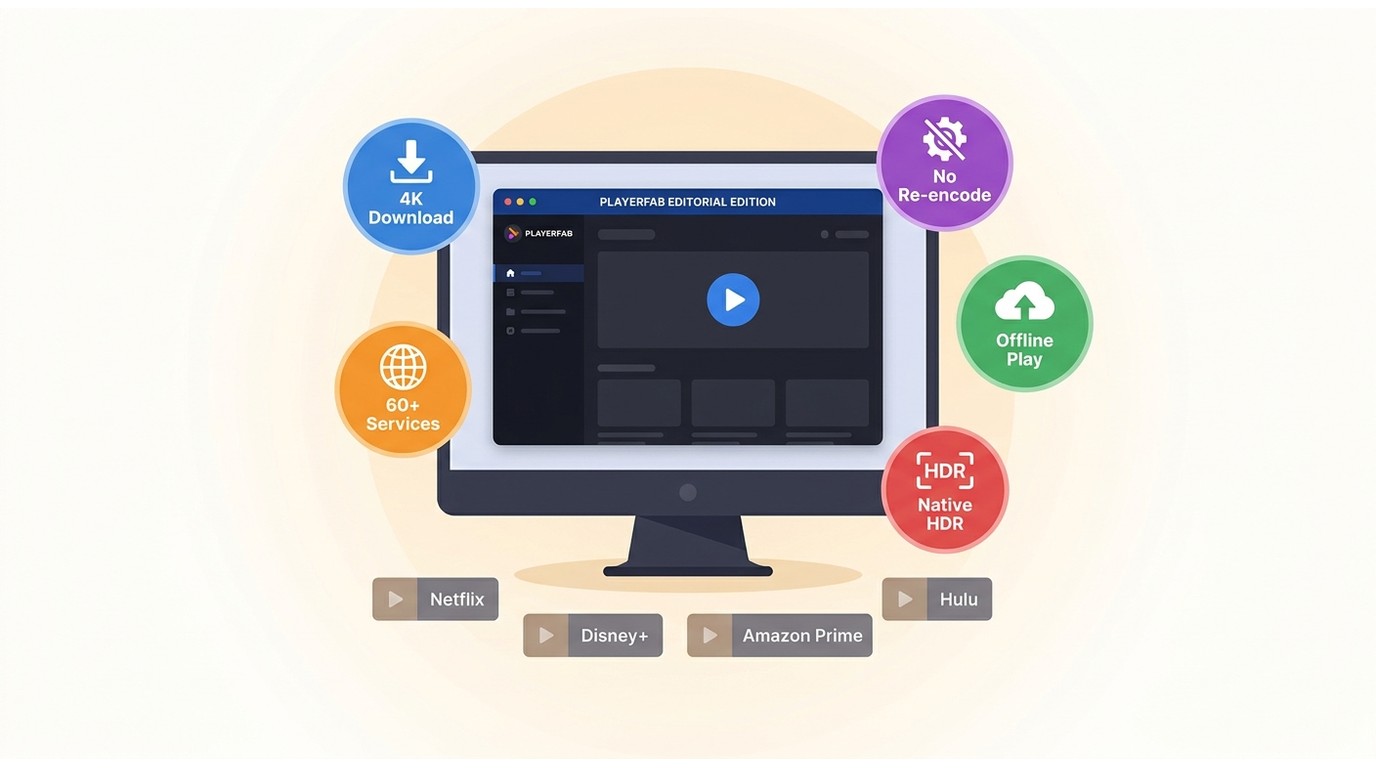
PlayerFab Stream Player is a Windows desktop application that opens supported subscription services (Netflix, Prime Video, Max, Disney+, Hulu, and roughly a dozen more) inside one interface, using your own account for each service. It's a standalone player with its own engine, not a browser wrapper or content aggregator, and it layers a consistent playback and settings layer on top of services you're already paying for.
Supported Services and Unified Settings
PlayerFab Stream Player currently supports the following services, with your existing account credentials required for each:
- Netflix
- Amazon Prime Video
- Max (formerly HBO Max)
- Disney+
- Hulu
- Tubi
- Paramount+
- Peacock
- Roku Channel
- Amazon IMDB TV
- 5+ additional platforms
Log in to each service once inside the app, and PlayerFab retains your session for future use. Switching between Netflix and Amazon Prime is a single click from the left navigation panel rather than a window swap.
Playback Quality, Ad Handling, and Controls
PlayerFab outputs 1080p Full HD with EAC3 5.1 or AAC 2.0 audio, and supports hardware-accelerated decoding on AMD, Intel Quick Sync, and NVIDIA GPUs. The 1080p ceiling matters if you've invested in a 4K monitor and a premium Netflix or Disney+ tier — for maximum verified resolution, the platform's native app remains the better route. On the ad-supported tiers of Tubi, Roku Channel, IMDB TV, and Paramount+, PlayerFab handles pre-roll advertisements automatically during playback; results depend on each service's current implementation and may not apply to every title. Subtitle size, color, and offset are exposed as standard controls rather than buried in an accessibility menu, and variable playback speed sits alongside pause and chapter navigation. If you find dialogue drifts against the subtitle track on a specific title, calibrate the Subtitle Offset once — PlayerFab applies it globally, so the correction carries across every platform and session.
Who Should and Shouldn't Buy It
PlayerFab Stream Player is a good fit for Windows users who subscribe to several streaming services and want a single interface with persistent subtitle, audio, and playback preferences across all of them. It's less suitable in three specific cases:
- Mac users. The app supports Windows 7, 8, 8.1, 10, and 11 in both 32-bit and 64-bit builds. There is no macOS version, so Mac readers should stay with native apps or a browser.
- Buyers who prioritize maximum verified resolution. PlayerFab caps output at 1080p Full HD. If your setup is a 4K display with a premium subscription tier, the platform's native app is the better route for that specific title.
- Readers looking for free local-file playback. PlayerFab plays authenticated subscription services, not files on your drive. VLC or Plex fits that job.
You'll still need a valid subscription for each platform — PlayerFab consolidates the interface, not the content. In my judgment, the trade-off is convenience against per-title maximum quality: I lean toward PlayerFab when I'm juggling three or more services on the same PC, and toward native apps when I'm sitting down for a specific 4K HDR title on a display that can actually show it.
PlayerFab Setup on Windows
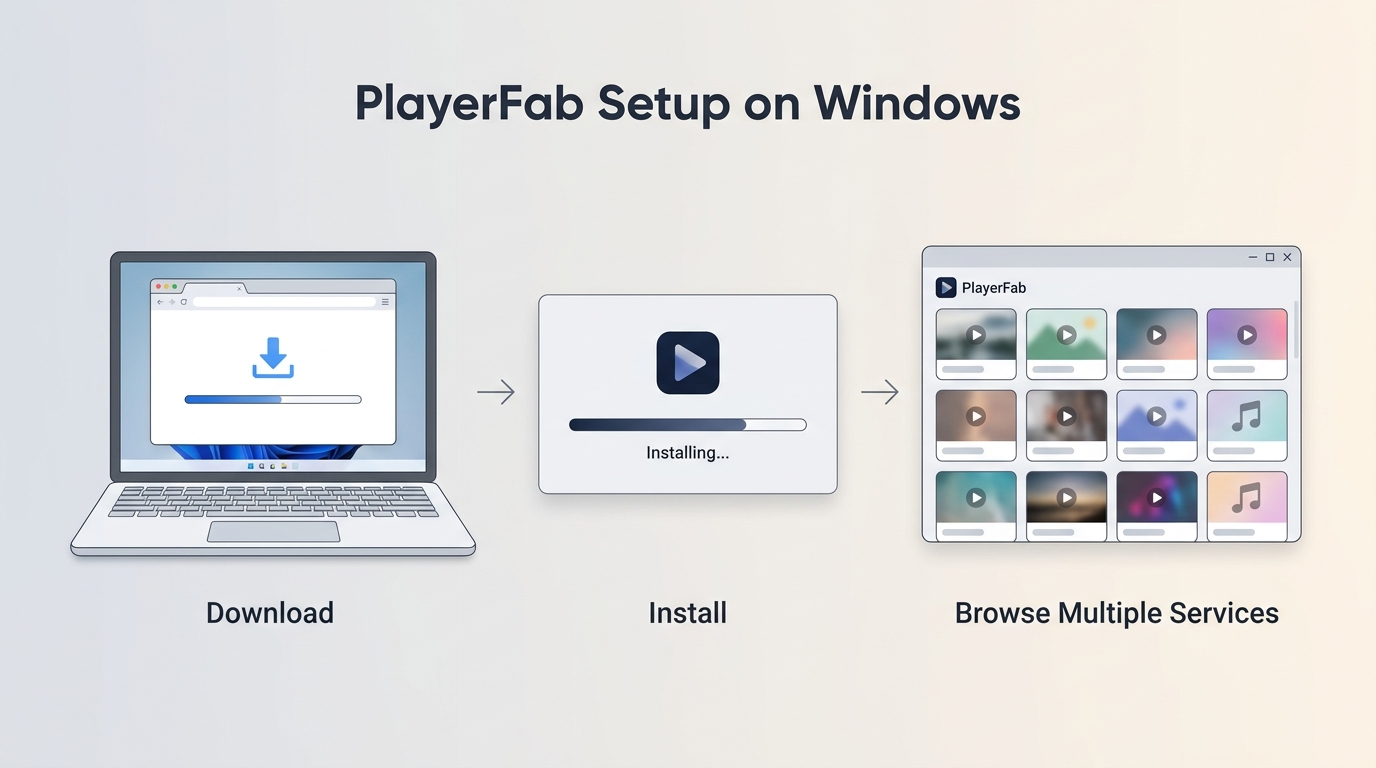
Setup detail matters most for readers who've already made the buying decision, so this section is deliberately compact. If you're still comparing categories, the sections above are the ones to focus on.
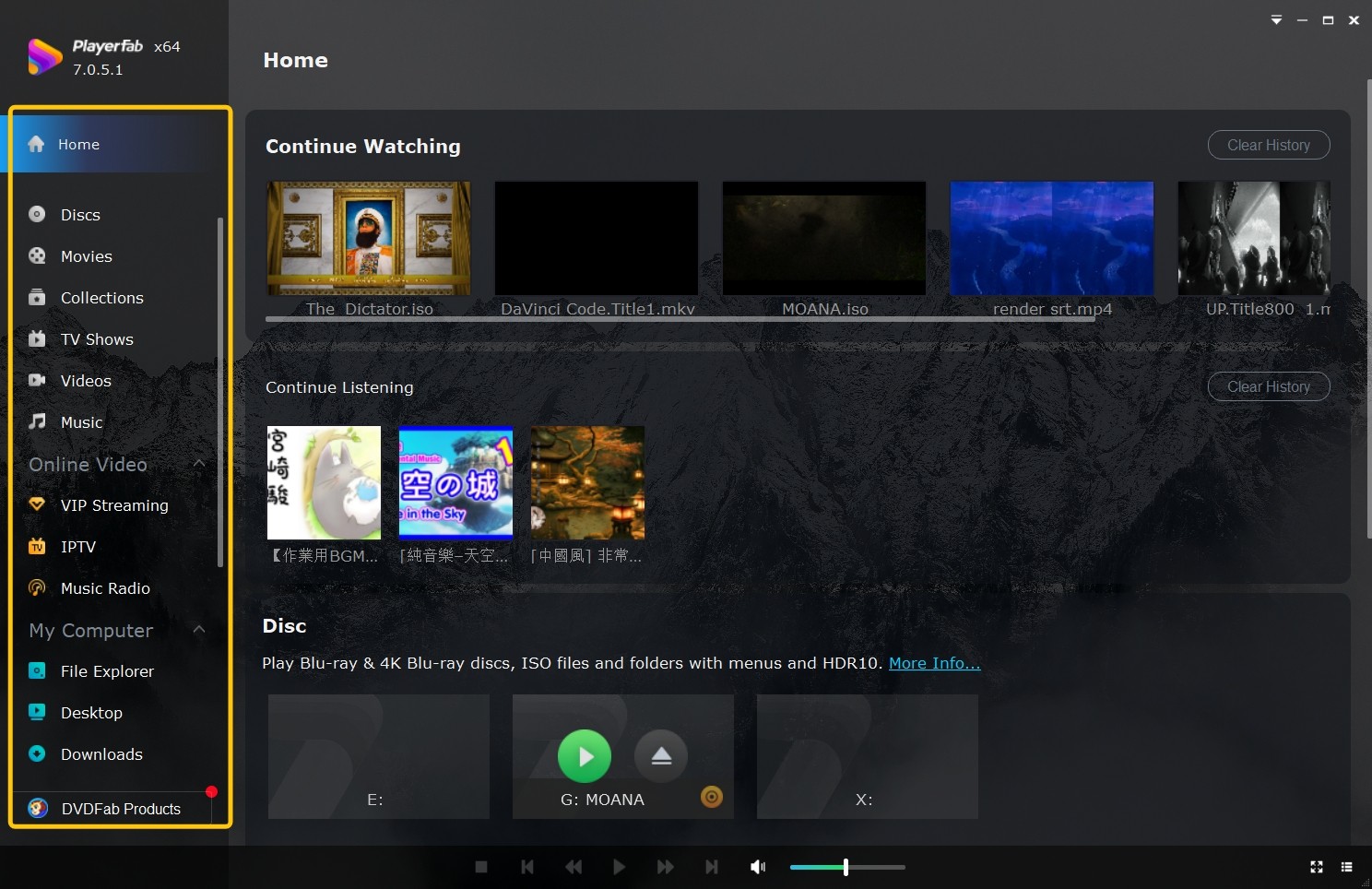
Install, Sign In, and Start Playback
- Download the installer from the official PlayerFab website and run it — no extra codec packs are required. Launch the app, open the Menu in the top-right corner, and choose "Authorize" to sign in with your PlayerFab account and activate the Stream Player license.
- In the left navigation panel, click "Online Video" to see tiles for each supported service. Pick a platform and enter your existing account credentials on its login page inside PlayerFab's built-in browser. On subsequent sessions the app loads straight into your library.
- Browse, pick a title, and press Play. If a supported service fails to load — a common friction point on Windows especially for Disney+, where authentication behavior can be finicky — the diagnostic steps in our Disney+ not working walkthrough cover the most common root causes.
If a platform fails to load correctly during setup, the troubleshooting steps are the same as any DRM-related streaming issue on PC: check your network connection, verify your subscription is active, and try clearing the app's internal browser cache from Settings. For Disney+ specifically, which has some of the more finicky DRM behavior across Windows apps, the full diagnostic walkthrough in our Disney+ Not Working fix guide covers the most common root causes in detail.
Set Subtitles, Audio, and Ad Handling
- Press F5 (or right-click during playback and select Settings) to open the Settings panel. In the VIP Streaming section, toggle automatic ad handling on for compatible free-tier services, and set your preferred default quality — "Auto" works well for most connections.
- Under Settings > Playback, configure your default Audio Language and Subtitle Language. These preferences apply globally across every platform in PlayerFab, so you set them once and they persist through every session.
- In Settings > Video, enable Hardware Acceleration Decoding if your GPU is supported (AMD, NVIDIA, or Intel Quick Sync). Click "Analyze Hardware" to confirm your system's capabilities. If you plan to watch on a living-room display, Settings > General > Launch Mode > TV Mode scales the interface for large screens and supports arrow-key or Windows Media Center remote navigation.
A few extras are worth knowing once the basics are in place. The Play Queue lets you line up episodes from different services in advance, which is especially useful when you're juggling two series across separate platforms. Speed control at 1.25x tends to be the practical sweet spot — 1.5x starts to feel rushed for dialogue-heavy drama, and pitch correction is applied automatically. If your primary need is YouTube in particular, our dedicated YouTube video watcher guide covers ad-free playback and background audio options that a general-purpose stream player doesn't specialize in.
FAQs
Can one PC app play Netflix, Disney+, Hulu, and Prime Video?
Yes, on Windows. A subscription-service desktop player like PlayerFab Stream Player opens Netflix, Disney+, Hulu, Prime Video and around a dozen more services inside a single interface, using your own account for each. You still need a valid, active subscription for every platform you want to watch — the app consolidates the interface and settings, not the content itself.
Is there a free streaming player for Windows?
For local files (ripped Blu-rays, home videos, downloaded purchases), VLC and Plex are free and cover Windows and macOS. For authenticated subscription playback in one interface, expect a paid license — the engineering work of handling DRM across a dozen platforms doesn't fit a free model, though most options offer a trial. Match the tool to whether your content lives on your drive or behind a subscription login.
Do I need a streaming device if I watch on a PC?
Not for PC viewing. An HDMI streaming device like Roku, Fire TV, or Apple TV is designed for a television-first setup, where the box drives the TV. If you already watch on a monitor connected to a Windows PC, native apps, a browser, or a subscription-service desktop player like PlayerFab all deliver playback without added hardware. A TV device becomes relevant when you want to move away from the PC and drive a living-room display directly.
Does PlayerFab work on macOS?
No. PlayerFab Stream Player is Windows-only, supporting Windows 7, 8, 8.1, 10, and 11 in both 32-bit and 64-bit builds. Mac users who want a unified subscription interface don't currently have a comparable dedicated app, so the practical fallback is the platform's native macOS app or a browser for each service.
The Right Choice Depends on Your Screen
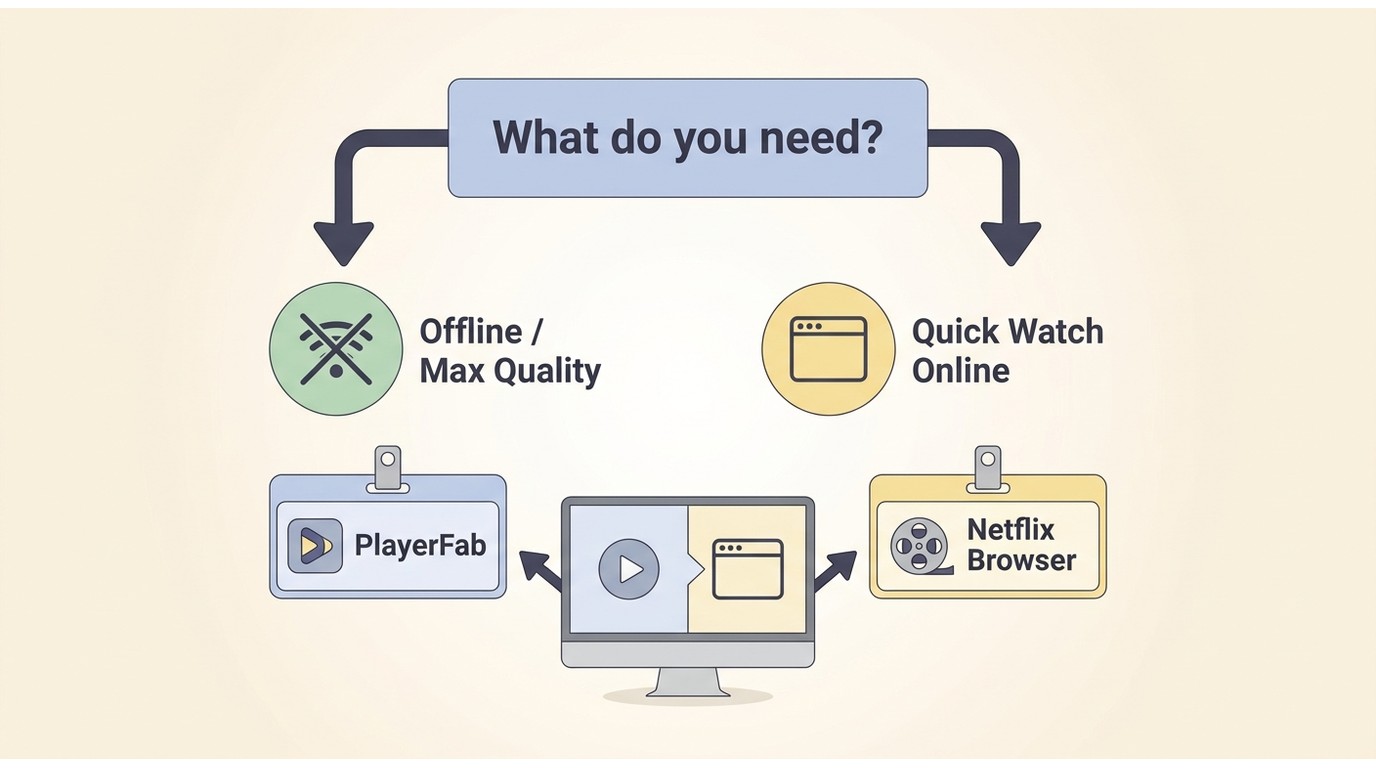
The best PC streaming player depends on where you watch and what content you actually want to open. For a television-first setup, an HDMI streaming device drives the TV directly. For files you already own, a local media player like VLC or Plex is the right tool. To answer "where can I watch this," a discovery service like JustWatch does that job and only that job. And for Windows users juggling several subscription services in one interface with persistent settings, PlayerFab Stream Player is worth evaluating — with the honest caveat that it's Windows-only and caps output at 1080p, so it isn't the right fit for Mac users or buyers who prioritize 4K HDR playback on a specific title. Match the tool to the task rather than looking for a single universal winner.
