How to Connect a DVD Player to a Laptop: 3 USB and HDMI Methods

Summary: The right connection depends on whether you own an external USB optical drive or a standalone DVD player. This guide routes each device to the correct USB or HDMI setup, adds symptom-based troubleshooting, and explains when playback software is useful after the laptop can read the disc.
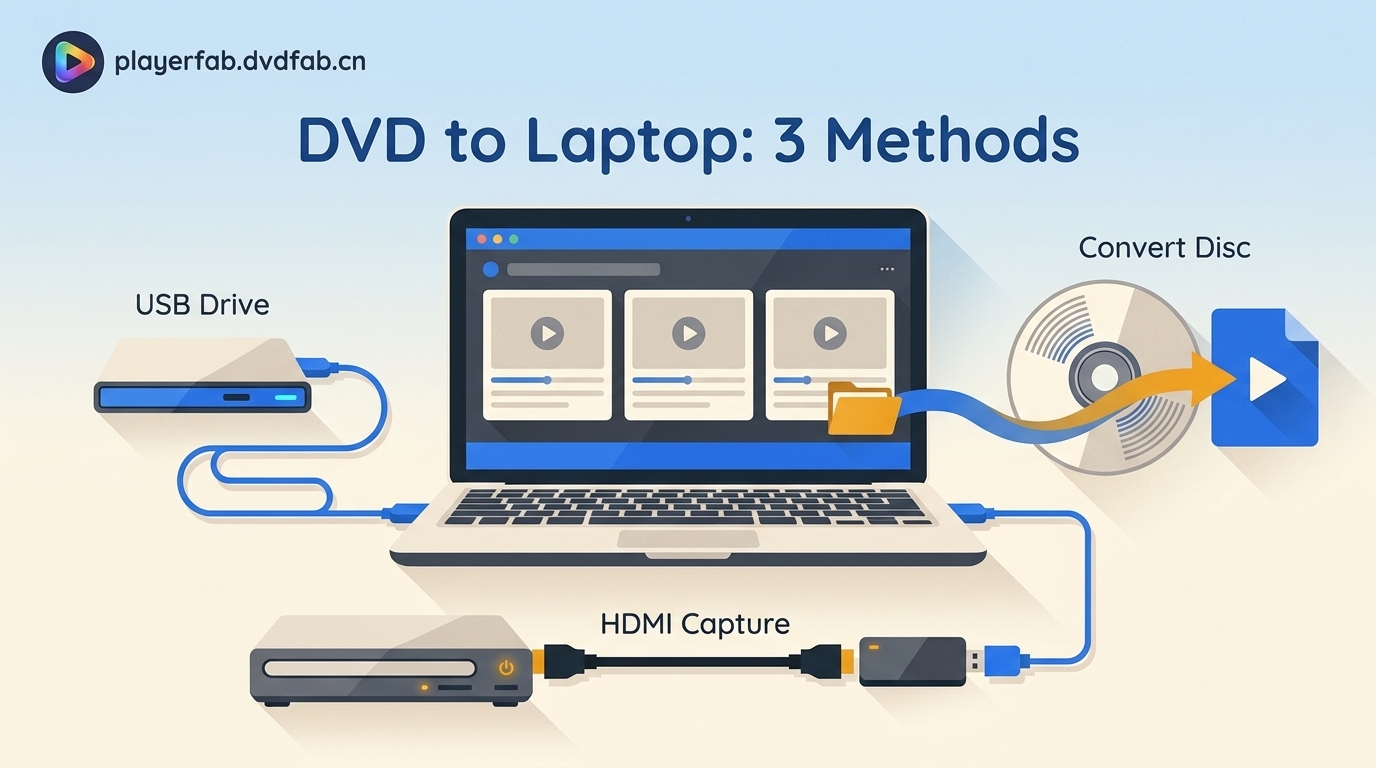
If you are searching for how to connect a DVD player to a laptop, identify the device before buying a cable. An external USB drive can connect directly, but if you try to connect a DVD player with HDMI, a laptop usually cannot receive its video without a capture card.
The recurring mistake I see is treating a player, drive, and burner as interchangeable. They may all handle DVDs, but they send different kinds of signals. The three paths below follow a simple diagnostic order: identify the device, establish the connection, then solve playback.
| Path | What hardware you have | What connects to the laptop | Best use | Main limitation | Extra hardware or software |
|---|---|---|---|---|---|
| External USB optical drive | A USB disc drive or burner | USB-A or USB-C cable | Reading a physical DVD directly on the laptop | The drive supplies disc access, not necessarily movie playback | DVD playback software may be needed |
| Standalone HDMI DVD player with capture card | A living-room or portable player with video output | Capture card over USB | Viewing the player's live output in a laptop app | Commercial-disc video may be blocked by HDCP | HDMI capture card, cable, and viewing app |
| USB optical drive with playback software | A readable disc plus a compatible optical drive | The optical drive connects by USB; software opens the disc | Menus, subtitles, audio tracks, and local disc navigation | Software cannot replace the drive that reads a physical disc | A compatible playback application |
Why Direct HDMI Usually Does Not Work
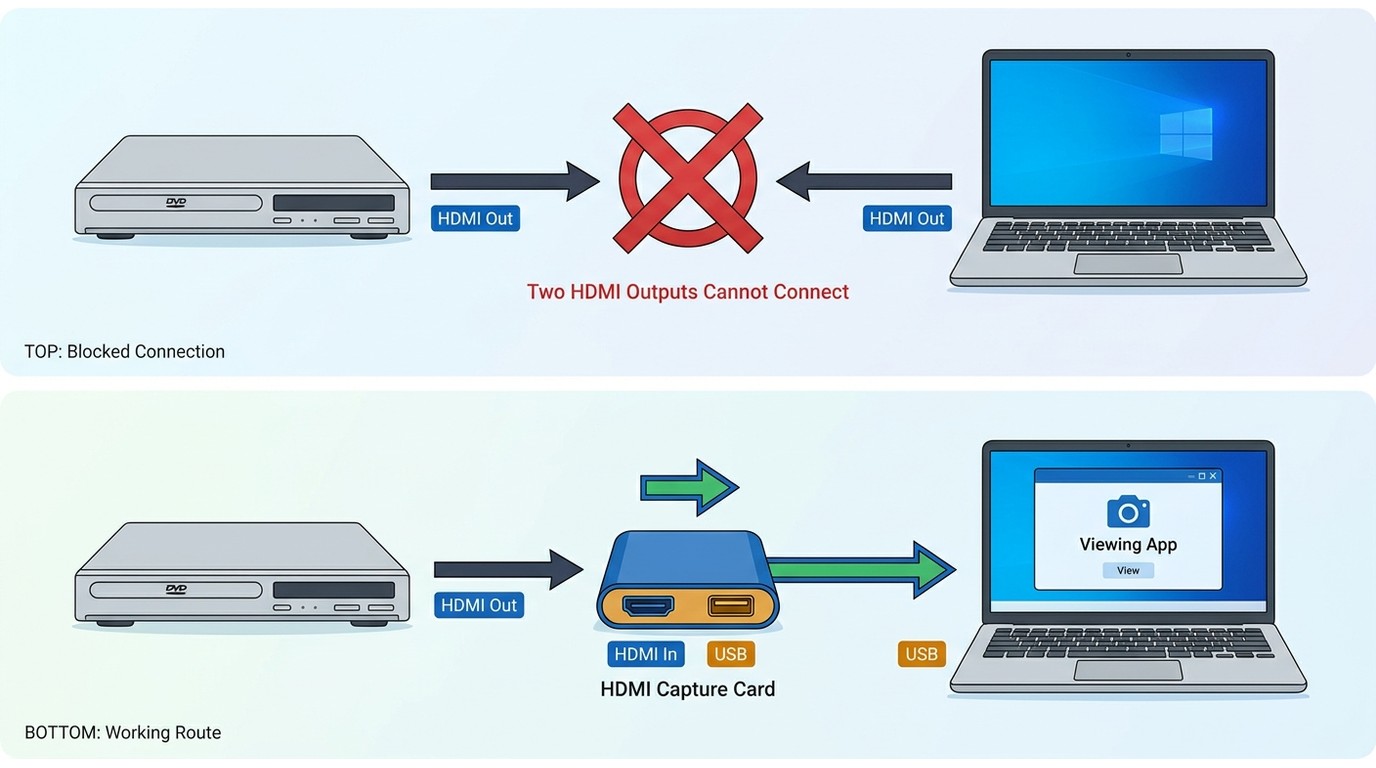
A standalone DVD player sends video out, while a typical laptop HDMI port also sends video out. Two outputs cannot create a picture because there is no laptop HDMI input receiving the player's signal.
A standalone player is the box normally connected to a TV. An external USB DVD drive is a computer peripheral that sends disc data to the laptop, much like an internal optical drive. The shared label “DVD player” is the most common source of connection mistakes and unnecessary purchases.
If your goal is to connect a DVD player to a computer for direct disc access, choose a USB optical drive. If you need a DVD player to PC live-view path from an existing standalone unit, use a compatible capture device and treat it as video input, not as a readable computer drive.
Method 1: Connect an External USB DVD Drive
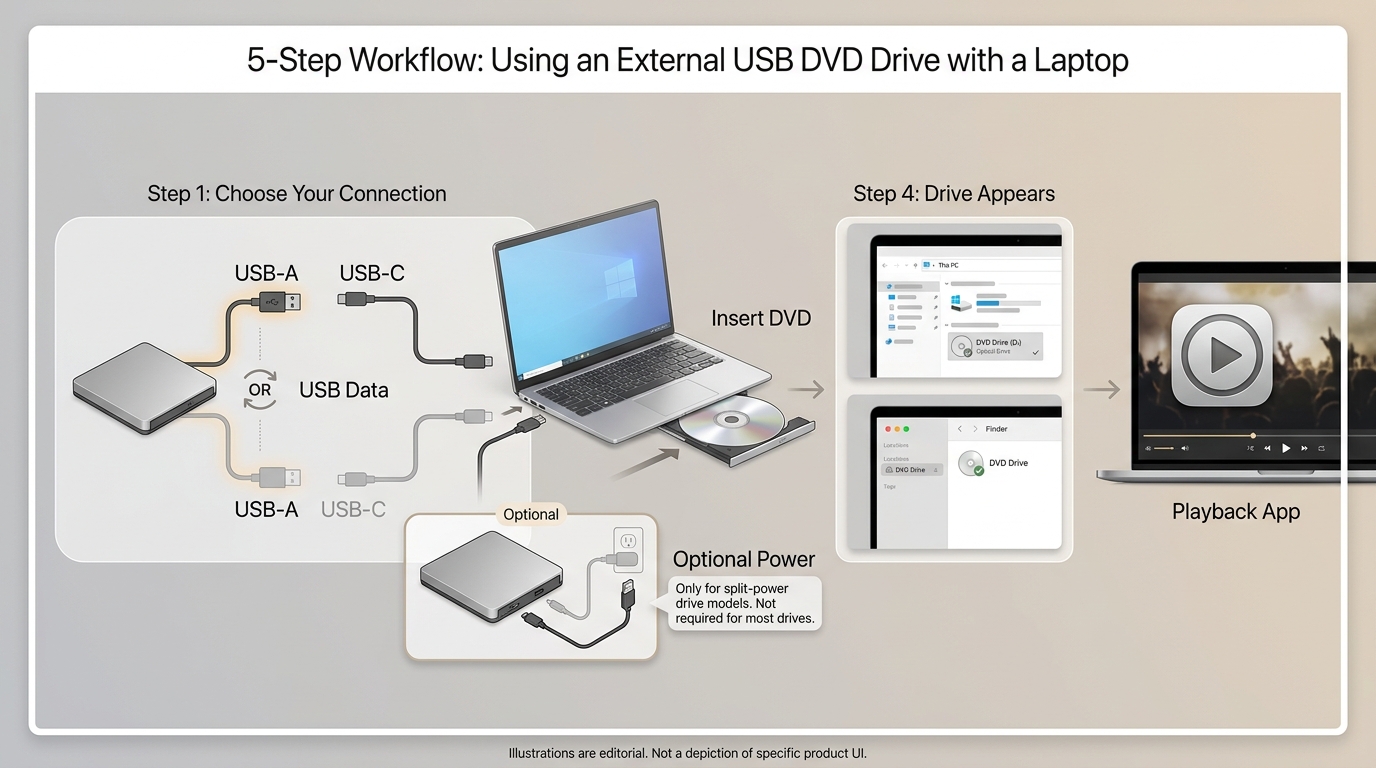
An external USB DVD drive is usually the simplest fit when the goal is to watch DVD on laptop hardware. It gives the computer direct access to the disc and avoids the input-versus-output problem.
To connect a DVD player with USB, the product must be a USB optical drive or burner, not a standalone player with a service-only USB port. Prices vary by connector, power design, and bundled features, so select a DVD player for laptop use by compatibility rather than a fixed price point.
- Connect the drive's USB-A or USB-C cable to the laptop. If the drive has a split power cable, connect both plugs as directed by its manufacturer.
- Wait for the operating system to recognize the drive, then open This PC on Windows or Finder on macOS.
- Insert the DVD and allow the drive a moment to read the disc.
- Open the disc with a compatible playback application if the operating system does not start it automatically.
- Eject the disc through the operating system or the drive's physical button before disconnecting the cable.
If you want to plug DVD player into laptop hardware with the fewest moving parts, this is the route I would choose. A powered USB hub can help when an older or low-power port cannot keep the drive connected.
Best for: straightforward access to physical DVDs, laptops without an internal optical drive, and readers who want a portable setup.
Not ideal for: showing the live output of an existing standalone player or using a laptop as an HDMI monitor.
Fix USB Drive Detection and Playback
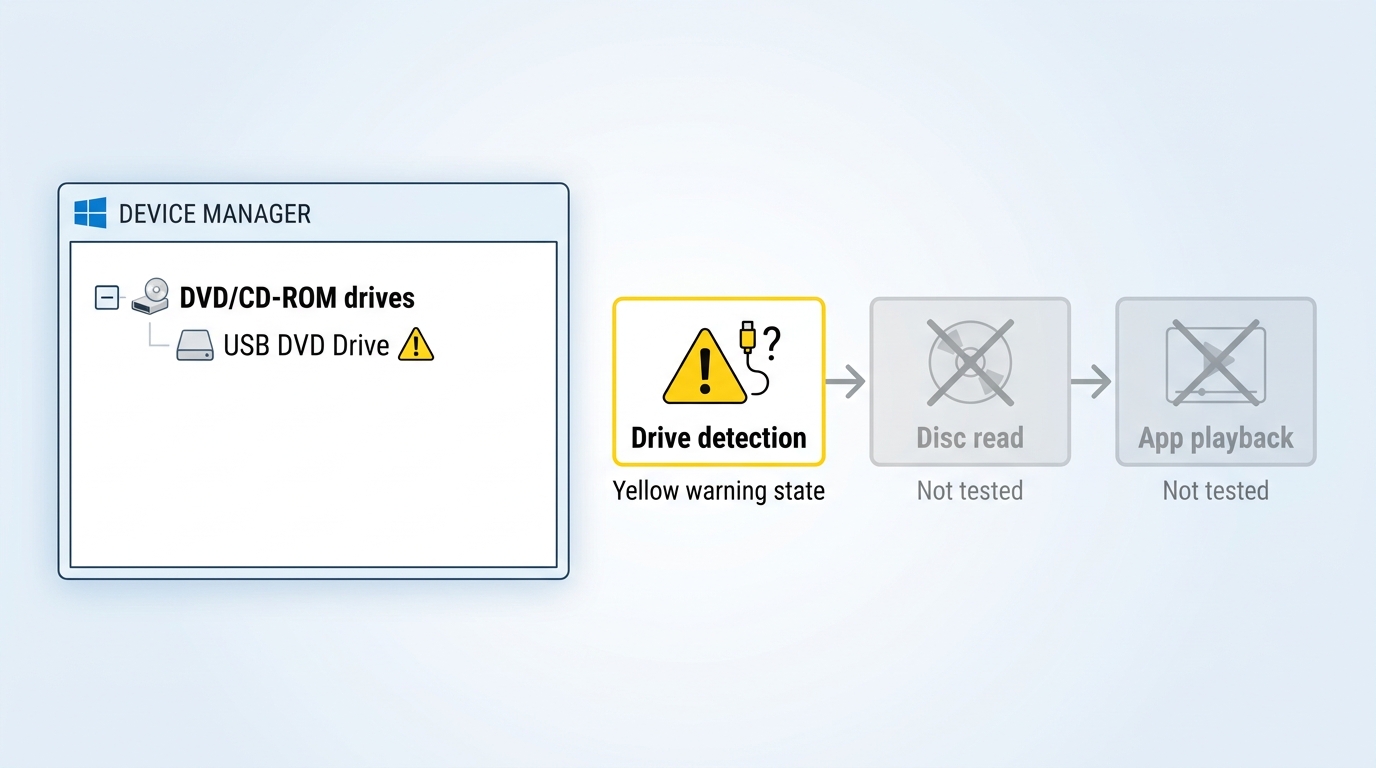
When a USB drive fails, separate connection from playback. First confirm that the laptop sees the hardware, then confirm that it reads the disc, and finally test the application used to play it.
Drive Missing in This PC
If a USB DVD drive is not detected, the likely cause is the cable, port, power supply, adapter, or device recognition rather than the movie disc.
- Reconnect the cable directly to another USB port and avoid an unpowered hub during the first check.
- If the drive uses a split cable, connect its power plug as well as its data plug.
- On Windows, open Device Manager and confirm whether the drive appears under DVD/CD-ROM drives or shows a basic device warning. Use the normal update or uninstall-and-rescan controls; registry edits are not necessary for this first diagnostic pass.
- Test another known-readable disc to separate a drive problem from a damaged or unsupported disc.
Disc Detected but Not Playing
A drive can appear in the operating system yet still need DVD playback software. The system may recognize the disc while lacking an application that can open DVD-Video menus and streams.
Try a compatible player, inspect the disc for damage, and confirm that the app has permission to access removable media. For a disc you lawfully own and are authorized to play, a region mismatch can also stop playback; this guide to how to play Region 2 DVDs explains the compatibility issue without changing the physical connection.
Playback Stutters or Crashes
Stuttering or crashes usually point to software, graphics decoding, disc condition, or unstable USB power after the connection has already succeeded.
- Close other media applications and restart the playback app.
- Install the current stable version of the app and the laptop's normal graphics updates.
- Try another disc and another USB port to identify whether the failure follows the media or the connection.
- If the app offers hardware decoding, compare playback with that setting enabled and disabled; keep the mode that is stable on the laptop.
My practical rule is simple: a visible drive icon proves the connection, not successful playback. Treat those as separate checkpoints and troubleshooting becomes much faster.
Method 2: Use an HDMI Capture Card
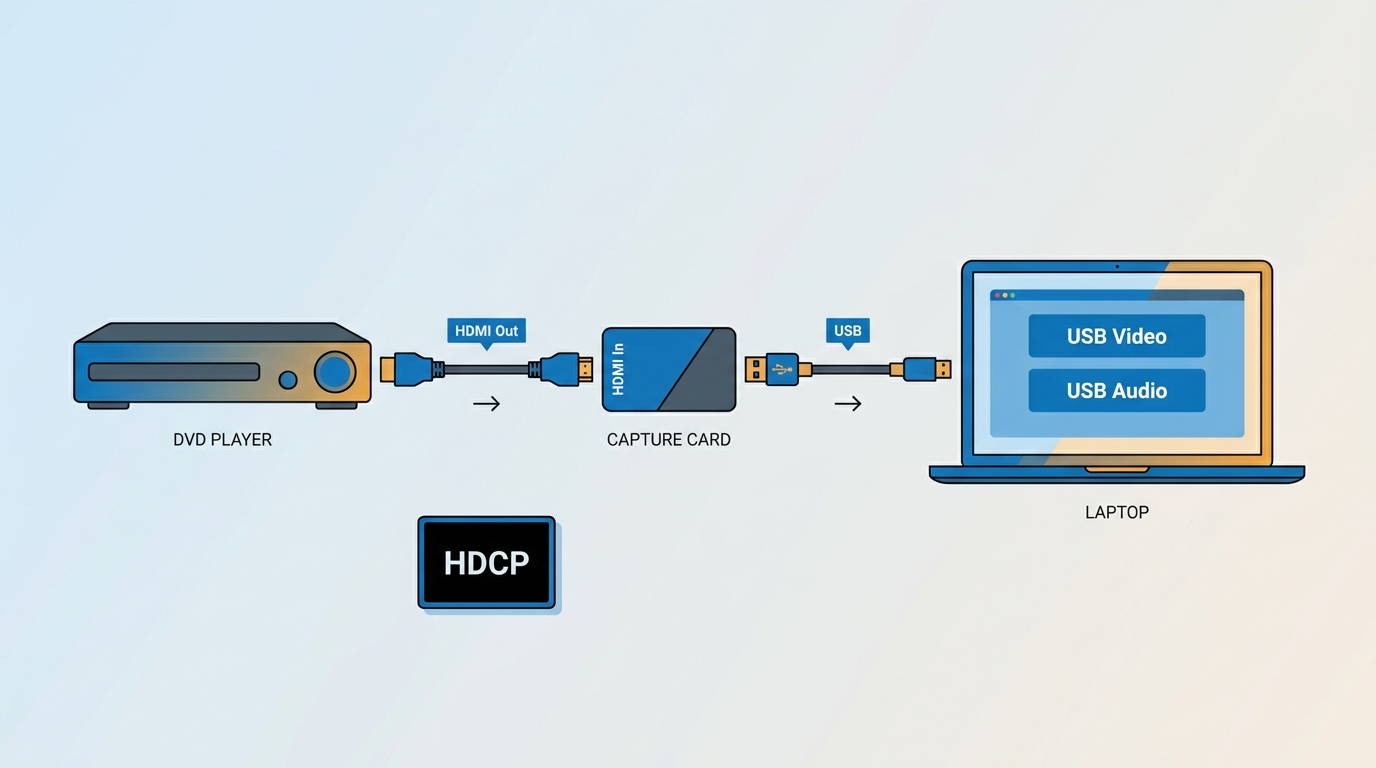
An HDMI capture card is the correct bridge when you must view the live output of a standalone DVD player on a laptop. It converts incoming video into a USB video source that compatible software can display.
- Connect the DVD player's HDMI Out port to the capture card's HDMI In port.
- Connect the capture card to the laptop through the USB connection specified by the card.
- Open the card's viewing software or another compatible video-input application.
- Select the capture card as the video and audio source, then start disc playback.
A capture card does not make the disc appear in This PC and does not turn the standalone player into an optical drive. It shows a video feed, which is why this route has different limits from a direct USB drive.
| Scenario | What to expect | Practical judgment |
|---|---|---|
| Protected commercial disc | HDCP may block the video and produce a black screen or input warning | Do not rely on a consumer capture card for this case |
| Home-authored or personal disc | The live feed can work when the source sends an accepted signal | A reasonable fit for viewing material you are authorized to use |
| Composite output | A composite-to-USB device can accept red, white, and yellow RCA output | Useful for older players, with lower image quality than HDMI |
| Latency | The preview may trail the player slightly | Usually acceptable for movies, less suitable for timing-sensitive control |
| Audio capture | Audio must be selected with the video source in the viewing app | Check the app's input meters before assuming the cable failed |
| Viewing versus recording | Viewing displays the incoming feed; recording creates a file in the capture app | Use recording only for content you are authorized to record |
Best for: live viewing from a standalone or portable DVD player to laptop software when the source signal is accepted.
Not ideal for: commercial discs that trigger HDCP, direct disc-file access, or readers who simply want to watch a DVD with minimal hardware.
Method 3: Play the Disc with Software
DVD playback software becomes relevant after the laptop can read the disc through an internal or external optical drive. Software controls playback; it does not replace the hardware required to access a physical DVD.
If you are deciding how to play DVD on laptop, start with the controls you actually need: disc menus, subtitle selection, audio tracks, and support for DVD discs, ISO files, or DVD folders. Basic playback and expanded disc navigation are different use cases.
PlayerFab DVD Player is available for Windows and Mac. It supports physical DVDs, DVD ISO files, and DVD folders; its playback controls include menu, audio-language, and subtitle-language choices. Windows provides full DVD menu navigation, while macOS supports DVD menus and DVD ISO menus.
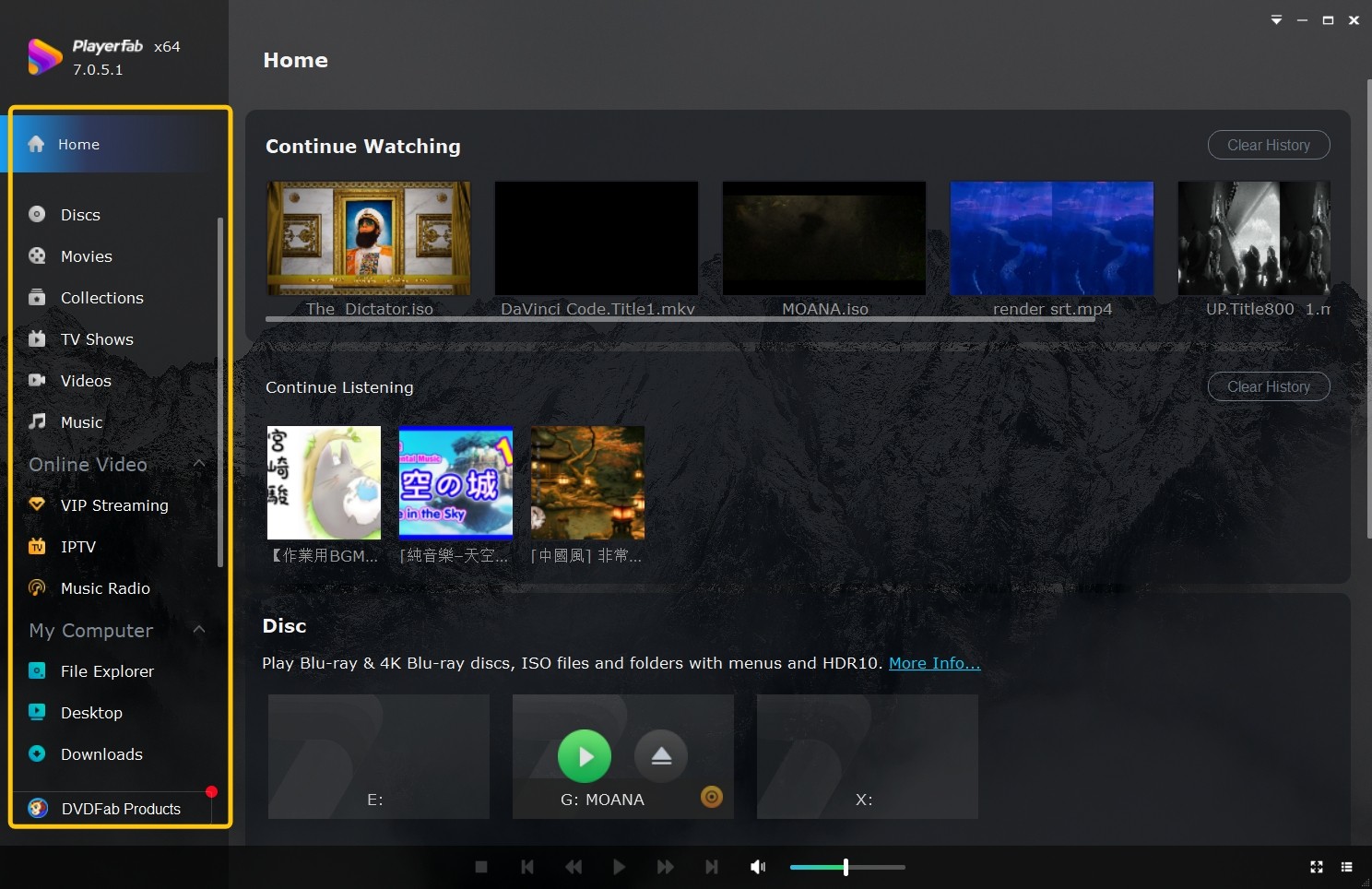
Best for: readers who value DVD menu navigation, subtitle and audio-track control, or playback from disc images and folders.
Not ideal for: readers who need only basic standard-DVD playback at no cost. A free player may be sufficient when full disc navigation is not important.
For content you're authorized to access, where permitted by platform terms and applicable law, saving personal or home-authored material as an MP4 is a separate local-file workflow from viewing a standalone player's live output. Use an appropriate authoring or conversion workflow to save a local copy for personal offline viewing; this is not a PlayerFab capability claimed here.
Frequently Asked Questions
Can a DVD Burner Also Play Movies?
Usually, yes. An external DVD burner generally reads supported DVDs as well as writing supported blank discs. Confirm its USB connector, operating-system compatibility, power requirements, and whether your laptop has an application that can play DVD-Video.
Do Portable and Sony Players Connect Differently?
The brand or portable label does not determine the method. A USB data drive can connect directly, while a standalone unit with HDMI output needs a compatible capture card for live viewing. For a portable DVD player to laptop connection, inspect the labeled ports rather than relying on the product name.
Why Do New Laptops Omit DVD Drives?
Thin laptop designs often use the space and power budget for batteries, cooling, and other components. A compatible external USB optical drive restores disc access without requiring an internal bay.
Can a Mac Use the Same Connection Methods?
Yes. The device-type rule is unchanged: use a macOS-compatible USB optical drive for direct disc access or a macOS-compatible capture card for live video. Newer Macs may also need the appropriate USB-C cable or adapter.
Conclusion
To connect DVD player to laptop hardware without confusion, choose the route by device type: use a USB optical drive for straightforward disc playback, use a capture card when live output from a standalone player is essential, and select playback software only after the laptop can read the disc. My recommendation is to avoid buying around the word “player” alone; identify whether you need disc data, incoming video, or better playback controls, then choose the matching method. PlayerFab is a proportionate option for readers who need DVD menus and broader local-disc controls, while a free player may be enough for basic playback.

 Play Video Files: 4 Paths Across Formats and DevicesBy James Morgan - Sep 22, 2026
 12 Best HEVC Players for Windows, Mac, and 4K (2026)By Alice Harper - Aug 4, 2026
 Best WMV Player for Mac and How to Play WMV on Mac NativelyBy James Morgan - Aug 4, 2026
 8 Best TS File Players and Playback Tools for 2026By Alice Harper - Jul 28, 2026