PlayerFab DVD Player Review: Setup, Features, and Limits

Summary: PlayerFab DVD Player is a paid Windows and macOS app for playing lawfully owned DVDs and authorized DVD ISO files with menu navigation. This review explains setup, the 1080p and disc-format limits, useful features, license tiers, and free alternatives.
If you bought a USB DVD drive and need software that preserves disc menus, PlayerFab DVD Player is a Windows and macOS playback app for legitimate DVDs and authorized DVD ISO files. It handles menu-based viewing, but not Blu-ray or 4K UHD playback.
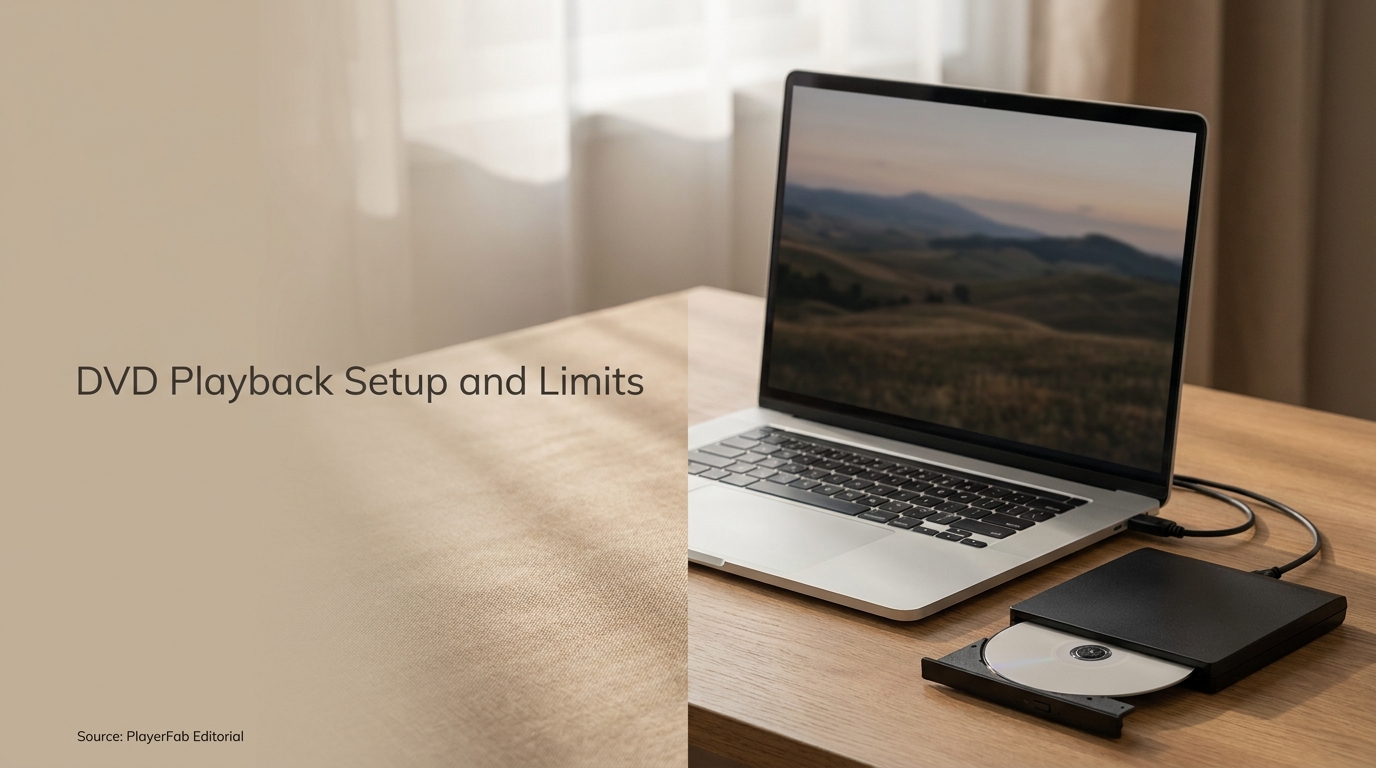
Buying the drive solves only the hardware half of the problem. The software still has to recognize the disc, open its original menu, and keep chapters, audio tracks, and subtitles accessible. My rule is simple: a paid DVD player earns its place only when that menu workflow is more useful to you than a free general-purpose player. I’ll apply that test to the setup, limits, everyday features, prices, and license choices below.
What Is PlayerFab DVD Player, and Who Is It For?
PlayerFab DVD Player is a desktop playback license for DVDs, DVD ISO files, and DVD menus on Windows and macOS. It is designed for watching discs and authorized disc images, not for editing, converting, exporting, or handling Blu-ray and 4K UHD discs.
A Desktop Player for DVDs, DVD ISO Files, and Menus
The key word is playback. You can load a physical DVD through a compatible internal or external drive, or open a DVD ISO file that you own or are authorized to use. Menu support preserves the familiar disc route into the main feature, bonus material, chapter selection, audio tracks, and subtitles.
Who Gets the Most Value From This License
The strongest fit is a Windows or Mac user with a DVD-only collection who wants a dedicated desktop interface and regular access to disc menus. It also suits someone pairing a laptop with a USB DVD drive and looking for a repeatable movie-night workflow.
It is not the right tier for Blu-ray or 4K UHD collectors, mobile users, or anyone who only needs occasional basic playback. My buying threshold is therefore narrow on purpose: pay for the DVD license when its disc-focused workflow matches the media already on your shelf.
Where It Sits in the Product Family
Separate tiers cover DVD, Blu-ray, 4K UHD, and broader playback needs. Features advertised for the wider product family do not automatically belong to this DVD license. That distinction is the most important fact in this review, so the next section draws the boundary precisely.
What PlayerFab DVD Player Can and Cannot Play
According to PlayerFab's current product specifications, PlayerFab DVD Player is a Windows and macOS desktop app that plays DVD discs and authorized DVD ISO files with menu navigation at up to 1080p; Blu-ray and 4K UHD Blu-ray require a different tier. That boundary makes this tier suitable for menu-based DVD viewing, not for Blu-ray or 4K UHD disc collections.
Supported: DVD Discs, DVD ISO Files, and DVD Menus
Picture the DVD collector's path: connect a compatible USB drive, insert a lawfully owned disc, and open its authored menu in the desktop app. An authorized DVD ISO follows the same viewing logic. In either path, menu navigation keeps chapters, bonus features, audio, and subtitles accessible instead of reducing the disc to one undifferentiated video.
The 1080p Ceiling on Windows and macOS
The DVD Player tier has a maximum video resolution of 1080p on its supported desktop systems. On a 4K monitor or television, the computer or display can scale the image to fill the screen, but scaling cannot add detail that is absent from the source.
This is where specification language can mislead. A picture that fills a 4K panel is not automatically native 4K. With visually dense films such as Dune and Blade Runner 2049, I would treat a larger screen as a reason to check the source format, not as proof of added detail. If high-resolution disc playback is the goal, the disc format and license tier matter more than the screen’s pixel count.
Not Included: Blu-ray and 4K UHD Blu-ray Playback
Blu-ray and 4K UHD Blu-ray are outside this license. That is not a hidden weakness; it is the product boundary. DVD-only buyers avoid paying for a higher disc tier. Blu-ray and UHD collectors should choose the license built for their media instead of expecting the DVD edition to stretch beyond its scope.
Region Codes and Legally Owned Discs
Use the software only with genuine discs you legally purchased or own, or with ISO files you are authorized to use. Region-code behavior remains subject to local law, copyright rules, the disc, the drive, and current product policy. This DVD tier is not a blanket promise that every region-coded disc will play in every jurisdiction or hardware setup.
How to Set Up PlayerFab DVD Player on Windows or Mac
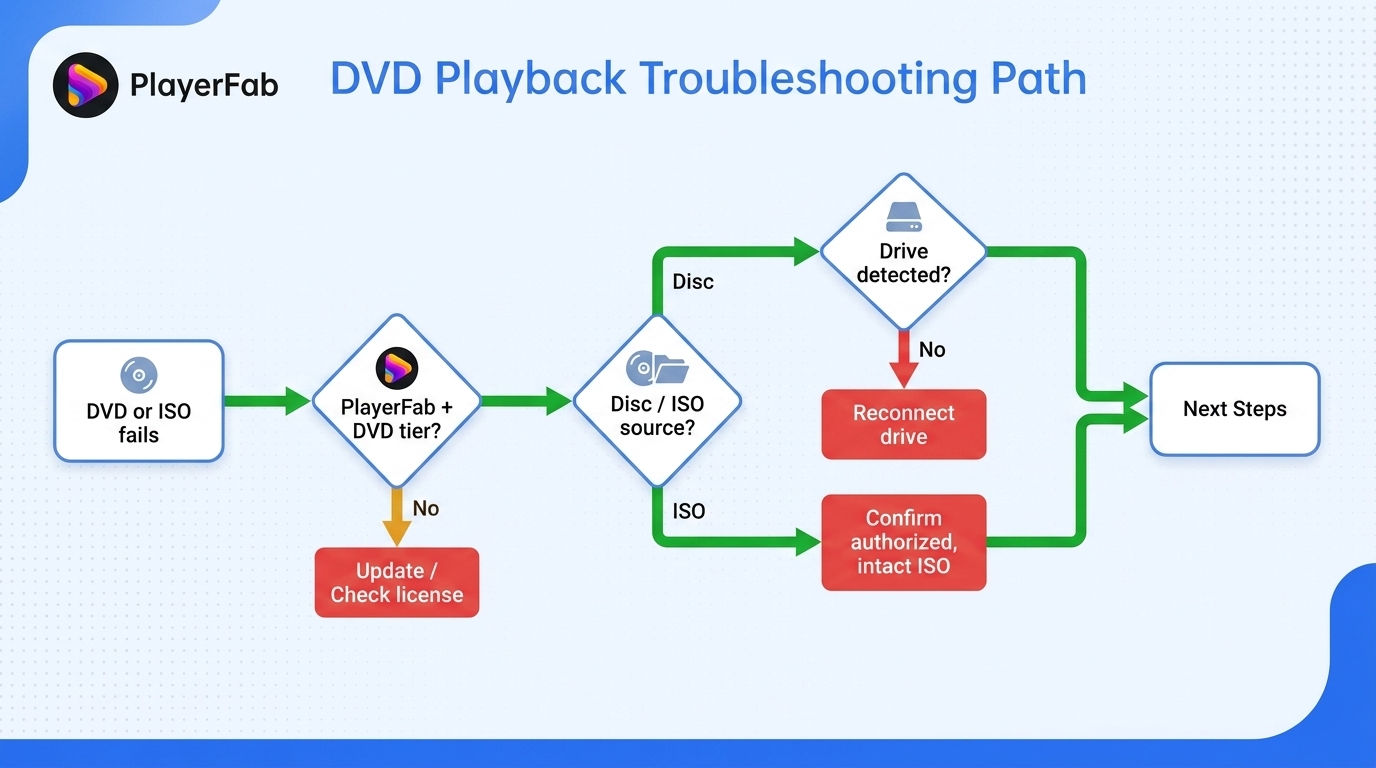
Before installing PlayerFab DVD Player, prepare a supported Windows or macOS computer and the current desktop installer. You also need an appropriate trial or license, plus either an authorized DVD ISO or a compatible DVD drive and a lawfully owned disc. The setup flow is: install the app, load the source, use the DVD menu, and troubleshoot the playback chain in order.
- Install and open the current desktop app.
- Connect the DVD drive or choose an authorized DVD ISO file.
- Open the DVD menu and select the desired title, audio, and subtitles.
- If playback fails, check the app, source, drive, hardware, and drivers in that order.
Prerequisites Before Installation
Have these items ready:
- A Windows or macOS computer.
- A compatible internal or external DVD drive for physical discs.
- A genuine DVD you own, or a DVD ISO you are authorized to use.
- The current installer from the official product site.
- A trial or license that includes the DVD Player tier.
A Quora reader captured the common starting point exactly: “I just bought a USB DVD drive for my PC, is there anything else I can install other than interactual player?” The answer is yes, but the drive and playback software must both support the job.
Step 1: Install the Current Desktop App
Download the desktop installer for your operating system, run it, and follow the on-screen installation prompts. Open the app and complete the available trial or license activation path. Do not assume that an old installer, guide, or trial duration still matches the current release.
Step 2: Connect the Drive and Load a DVD or ISO
For a physical DVD, connect the drive directly when possible, wait for the operating system to recognize it, insert the disc, and select the disc source in the app. For an ISO, choose the local file and open it as a disc image. Windows and macOS may label drives differently, but the viewing logic is the same.
Step 3: Use the DVD Menu and Playback Controls
Let the DVD menu load before jumping into the feature. Select the main title or bonus content, then choose the intended audio track and subtitle option. During playback, use chapter navigation and standard controls rather than reopening files one by one.
This is the step that shows whether dedicated DVD software earns its price. With a film such as Mad Max: Fury Road, the useful question is whether you can reach the intended audio and subtitle tracks without treating the disc as a folder of loose files. If you never use menus, chapters, alternate audio, or bonus features, a simpler free player may already cover your needs.
Step 4: Check Drive Detection, Menus, and Playback Stability
When something fails, isolate the chain instead of changing several settings at once:
- Confirm that the app is current and that you selected the DVD Player entitlement.
- Identify whether the source is a physical DVD or an authorized DVD ISO.
- Check whether the operating system detects the optical drive reliably.
- Note the computer hardware, drive connection, graphics driver, and audio output.
- Reproduce the symptom and record whether it affects loading, menus, video, sound, or subtitles.
Most playback problems are chain problems, not one-button problems. A clean symptom report makes the cause easier to separate without pretending that one fix works for every disc and drive.
Features That Matter During Everyday DVD Playback
The PlayerFab DVD Player features that matter most follow the viewing sequence: open the disc menu, choose the title, set audio and subtitles, then start the film. Menu navigation comes first because it preserves the DVD experience; library organization and optional live subtitles add value only when they serve that sequence.
DVD Menus, Audio Tracks, and Subtitle Selection
Start with the authored menu, choose the film or bonus feature, then set the audio and subtitles before settling in. I care more about that path than a long codec list because it preserves the choices built into the disc, including commentaries, alternate language tracks, and chapter access.
Basic Poster Wall and Local Library Organization
The basic poster wall gives local titles a more visual desktop library. It can reduce the friction of browsing a collection, but it is not positioned as a Plex-style cross-device server or cloud-synced household catalog. It suits one-computer organization better than a whole-home media system.
Hardware Acceleration and Local Playback Compatibility
Hardware acceleration is a general media-playback technique that shifts supported decoding work from the CPU to compatible graphics hardware. It is not listed as an entitlement for this DVD tier, so I would not count on it when deciding whether the license suits your computer.
AI Live Subtitle Is a Trial Feature on This Tier
AI Live Subtitle is a trial feature for this license. It can help when a disc lacks a suitable subtitle track, but machine recognition and translation depend on language support, dialogue clarity, background noise, network conditions, and overlapping voices. For a movie with carefully authored subtitles, the disc track remains the cleaner first choice.
Price and PlayerFab License Tiers Compared
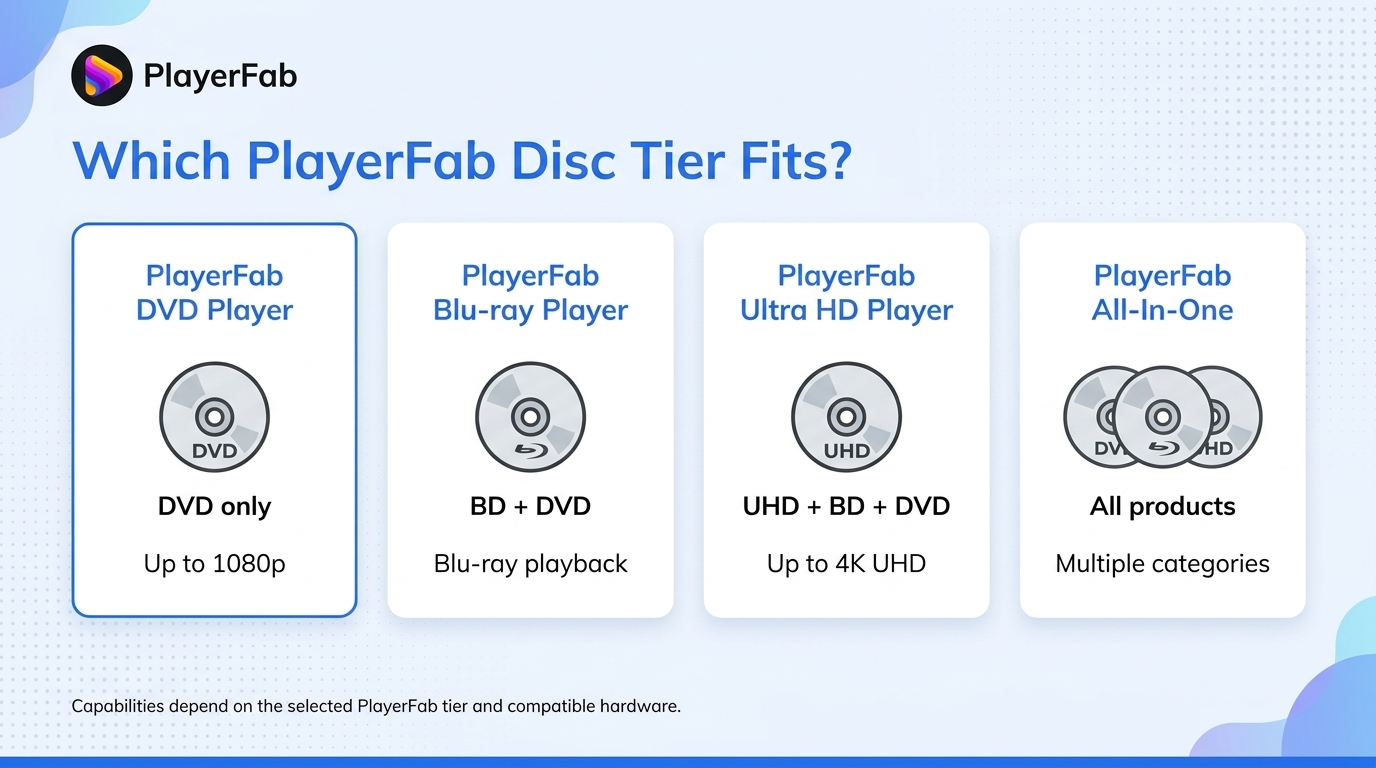
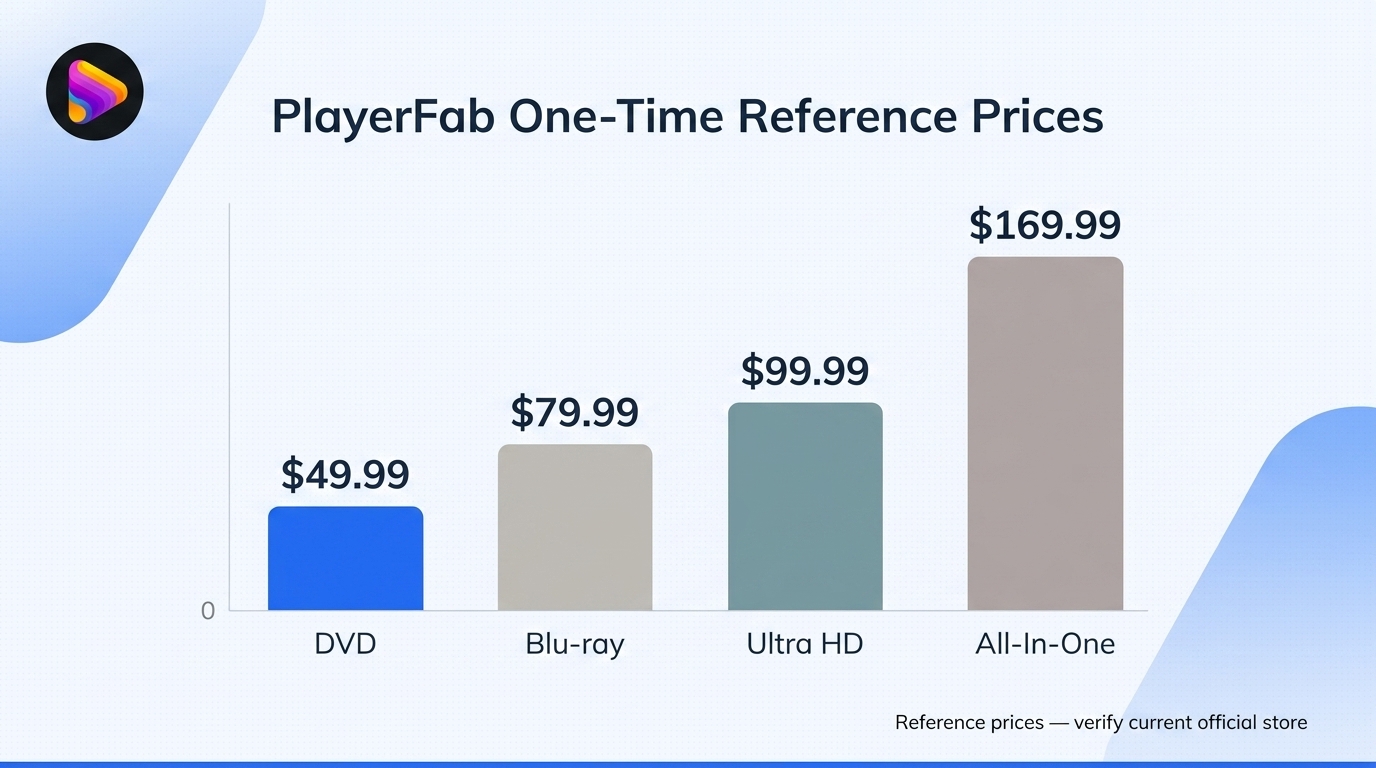
PlayerFab DVD Player belongs in the DVD-only lane. Choose a broader license by the highest disc format you own, while keeping in mind that a free general-purpose player may be enough for basic local viewing.
| Tier | Disc scope | Video ceiling | Reference price | Best fit |
|---|---|---|---|---|
| DVD Player | DVD, DVD ISO, menus | Up to 1080p | $49.99 one-time | DVD-only collections |
| Blu-ray Player | Blu-ray tier | Blu-ray playback | $79.99 one-time | Blu-ray collectors |
| Ultra HD Player | 4K UHD Blu-ray tier | Up to 4K UHD, hardware-dependent | $99.99 one-time | 4K UHD collectors |
| All-In-One | Broader playback bundle | Depends on included tier | $169.99 one-time | Multiple playback categories |
Reference prices as of August 2026 on the official product page.
DVD Tier: Best Fit for DVD-Only Collections
At a $49.99 one-time reference price, this tier covers DVD and DVD ISO playback, menus, and a 1080p ceiling. Its focus is also its limitation because Blu-ray and UHD are excluded. Best for: desktop users with DVD-only collections. Not ideal for: mixed high-definition disc libraries.
Blu-ray and Ultra HD Tiers: When to Step Up
The $79.99 Blu-ray tier suits Blu-ray collectors. The $99.99 Ultra HD tier is for 4K UHD owners with compatible computers, drives, graphics hardware, and displays. Choose by disc format, not feature count.
All-In-One: Who Needs the Broader Bundle
The $169.99 All-In-One tier covers mixed playback needs. Its breadth costs more than a DVD-only user may need. Best for: several playback categories. Not ideal for: a single-format collection.
Buying Verdict and the Free-Player Alternative
Tier labels can blur when several products share one interface. I would buy by disc scope and menu needs, not feature count.
VLC fits free general playback; the paid DVD tier fits a structured menu workflow. Neither choice is universally better.
PlayerFab DVD Player FAQ
The edge cases that most often change the decision are casting, unsupported devices, adjacent product functions, region-code claims, and free playback. Match the software to the device, disc format, and workflow you actually use.
Can the App Cast a DVD to Chromecast or a Smart TV?
Answer: Chromecast casting is not a verified capability of this DVD Player license. The app is desktop software, not a standalone living-room deck or native TV app. You can run it on a supported computer and use the computer’s compatible display connection, but the result depends on the computer, adapter, and television.
Can I Use It on Linux, iPhone, Android, or a TV?
Answer: The confirmed systems are Windows and macOS. This product is not confirmed as a Linux, iPhone, Android, or native television application. If your main screen is a TV, you still need a supported computer and an appropriate display path.
Is It a DVD Ripper, Converter, or Editor?
Answer: No. It is a playback product. The DVD Player license does not export, convert, edit, or create media copies. Buyers who need those jobs should use a separate product category instead of treating the player as a multipurpose production tool.
Is It Safe and Legal to Play Region-Coded DVDs?
Answer: Playing a lawfully purchased DVD is an ordinary viewing use, but region behavior and legal rules vary by location, disc, drive, and current policy. The app does not provide a universal legal guarantee or promise that every region-coded disc will work. Use genuine discs or authorized ISO files and follow the laws that apply where you live.
Is PlayerFab DVD Player Free?
Answer: PlayerFab DVD Player is a paid license. Trial availability follows the current official policy, so check the current product page before purchase.
What Is a Good Free Alternative for Basic DVD Playback?
Answer: VLC is a practical free, open-source option for general media playback. Choose it when cost and broad everyday playback matter more than a dedicated commercial DVD-menu workflow. Choose the paid DVD tier when Windows or Mac support, DVD menus, ISO playback, and a focused interface better match your collection.
PlayerFab DVD Player is a sensible paid fit for desktop users who own DVDs and care about preserving the disc-menu experience. It is not the right license for Blu-ray, 4K UHD, mobile, native TV use, or shoppers satisfied with a free general player. Confirm your disc format and drive first. Then use the available trial path with your own lawfully owned media and choose the narrowest license that covers your collection.

![Play DVDs on Windows 10/11: 4 Methods and Fixes [2026]](https://r4.dvdfab.cn/upload/player/en/how-to-play-dvds-on-windows-10-BykI.jpg) Play DVDs on Windows 10/11: 4 Methods and Fixes [2026]By Alice Harper - Jul 29, 2026
Play DVDs on Windows 10/11: 4 Methods and Fixes [2026]By Alice Harper - Jul 29, 2026 8 Best DVD Players for Windows 10/11 (Free and Paid, 2026)By Alice Harper - Jul 29, 2026
 How to Play a DVD on a Laptop: 3 Methods That WorkBy Alice Harper - Jul 29, 2026
 How to Play VOB Files: VLC, DVD Menus, and MP4 ConversionBy Alice Harper - Jul 23, 2026