
Snapchat Videos Not Playing? 10 Fixes by Symptom

Summary: Snapchat videos stop playing for several distinct reasons, and the right fix depends on which type of failure you're seeing. This guide covers 10 solutions across Android and iOS, from a cache clear and permissions check to DNS adjustments and a full reinstall. Most cases resolve with the first three fixes. For videos stuck on a specific friend's chat, Solution 9 is the most direct path.
Table of Contents
Introduction
Here's the short answer: when Snapchat videos won't play, load, send, or open on iPhone or Android, the fastest fix is to pin down the exact symptom before touching any account setting. In my experience triaging playback complaints, most readers waste time reinstalling the app when the real cause is a service outage, a shaky connection, a missing permission, or a single corrupted file. This guide walks you through the checks in the order I would run them myself: identify the symptom, rule out a Snapchat outage, test your connection, then work through app settings, chat and Memories quirks, upload stalls, and only last, a local-file test on your desktop.
Identify Which Snapchat Video Problem You Have
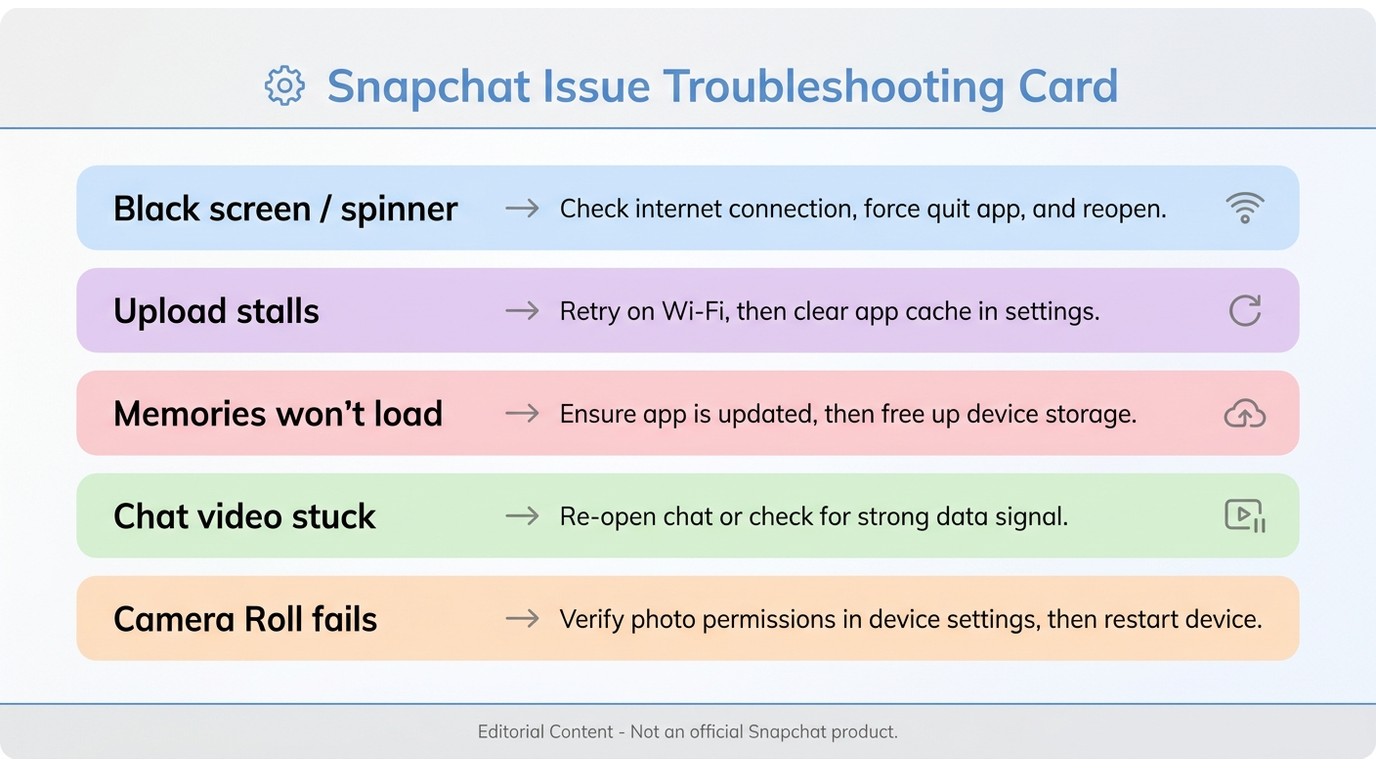
Picking the right symptom branch matters, because unnecessary account-level changes (removing friends, clearing conversations, factory-style resets) can cost you data without fixing anything. Match your issue to one of the five rows below and jump to the matching section.
| Symptom | Likely cause | First check | Next safe step |
|---|---|---|---|
| Playback or loading fails (black screen, still image, endless spinner) | Outage, connection, or app cache | Snapchat service status | Test Wi-Fi vs. mobile data, then clear the in-app cache |
| Sending or uploading stalls | Upload path, weak signal, or file size | Signal strength and file length | Retry on a different network; test without added music |
| Memories will not load, especially older ones | Server-side sync for older items | Whether newer Memories still load | Wait and retry; avoid destructive account actions |
| A saved chat video stays stuck | Chat media sync | Whether other chats work | Reopen the chat later; do not clear the conversation |
| Camera Roll or exported file will not play | File-level issue outside Snapchat | Whether the file plays in any other app | Test it in a desktop media player |
Check Snapchat and Your Connection First
Before you change a single setting on your phone, confirm whether the problem lives on Snapchat's side or yours. This is the step readers most often skip, and it is the one that saves the most time.
Check for a Snapchat Outage
If Snaps fail to load or send across multiple conversations, or friends are reporting the same problem, you are almost certainly looking at a service disruption. Open Snapchat's official Support page or its status account on a social platform. If an incident is acknowledged, stop troubleshooting and wait for recovery. Reinstalling the app or resetting your network during an outage will not help.
Test Wi-Fi, Mobile Data, and VPNs
Loading Snapchat videos requires a stable connection. Toggle between Wi-Fi and mobile data to see whether one network works and the other doesn't. If you use a VPN, disable it temporarily and retry: some VPN endpoints route Snapchat traffic through congested paths. If videos also fail in other social apps on the same connection, the fault is with the network itself, not Snapchat.
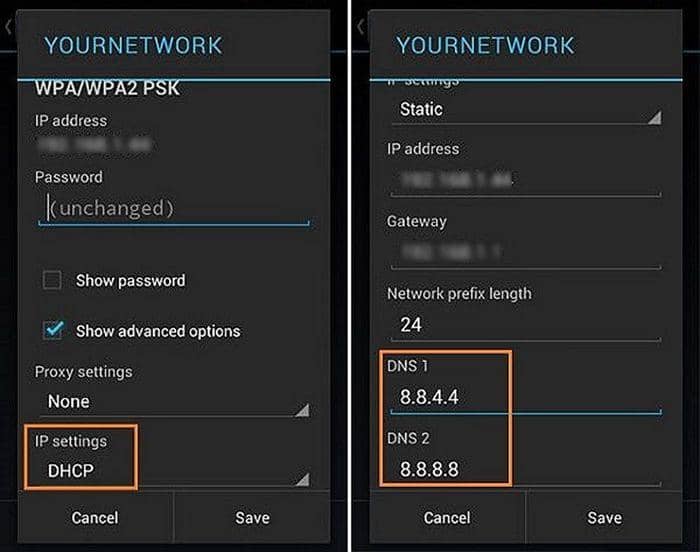
DNS changes are sometimes suggested online. Treat that as an optional advanced test, not a standard fix. Only try it after the checks above, and only if you're comfortable editing network settings. It is not guaranteed to help.
Restart Snapchat and Your Phone
Once you've ruled out an outage and your connection looks healthy, force-close Snapchat and reopen it. If the problem persists, restart the phone itself. This clears transient memory issues on both iPhone and Android and remains one of the highest-yield steps for a stubborn black screen or stuck spinner.
Fix App Settings on iPhone and Android
If Snapchat itself is up and your network is stable, the next layer to inspect is the app's own state on your device: cache, permissions, data throttling, and storage. I keep these checks together because they share the same principle — adjust the app before you touch the account.
Clear Snapchat's In-App Cache
A bloated cache can cause failed media loads and stuck previews. Clear it from inside Snapchat rather than from the system browser.
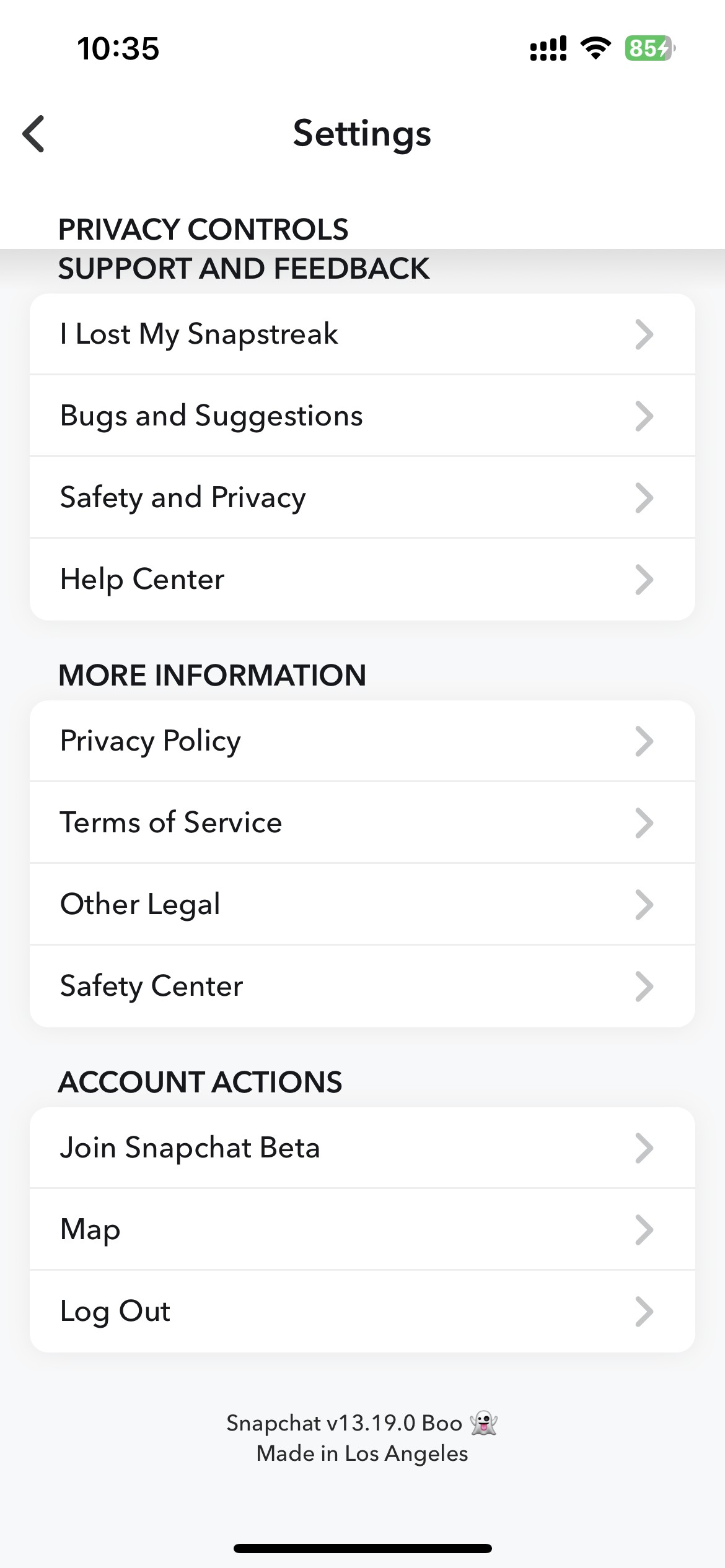
In the Snapchat app (iPhone and Android): tap your profile icon, open Settings (the gear icon), scroll to Account Actions, and tap Clear Cache. Confirm when prompted.
Android system-level (optional): Settings > Apps > Snapchat > Storage > Clear Cache.
Clearing the cache doesn't sign you out or delete your Memories, but it also isn't a cure-all. If the underlying problem is a server-side item or a corrupted file, the cache reset alone won't recover it.
Review Camera, Microphone, and Photo Access
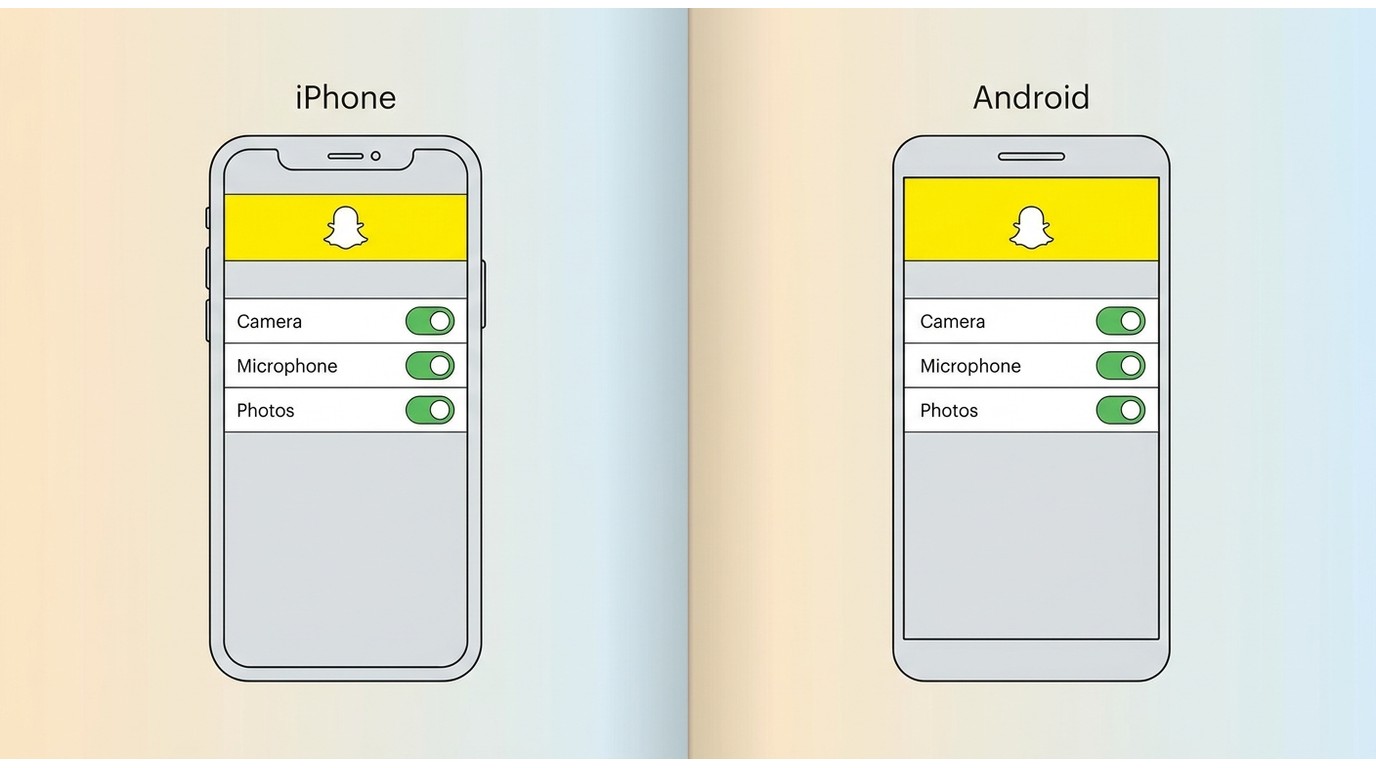
Missing permissions cause specific, predictable symptoms: no camera preview, silent recordings, or Camera Roll videos that refuse to attach. On iPhone, open Settings > Snapchat and confirm Camera, Microphone, and Photos are enabled (Photos should be set to All Photos if you need to attach existing videos). On Android, open Settings > Apps > Snapchat > Permissions and enable Camera, Microphone, and Files/Photos. If video calls load only one-way, that's almost always a camera-permission issue on the other party's device, not general playback.
Disable Data Saver and Free Storage
Snapchat's Travel Mode and your phone's Low Data Mode (iPhone) or Data Saver (Android) can silently prevent Snaps from preloading, which reads as "videos won't play." In Snapchat, open Settings > Data Saver and turn it off temporarily. On iPhone, check Settings > Cellular > Cellular Data Options > Data Mode; on Android, check Settings > Network & Internet > Data Saver.
Storage matters just as much. When your phone is nearly full, Snapchat can't cache new media, and playback or recording stalls. Delete rarely used apps, offload large downloads, and clear junk files to give Snapchat room to work.
Update or Reinstall Snapchat
If everything above checks out, make sure you're on the latest Snapchat build. Update from the App Store on iPhone or the Google Play Store on Android. Reinstalling is a heavier step — it can clear a corrupted install that a cache purge missed, but you'll need to log back in and any un-synced local drafts will be gone.
Android: long-press the Snapchat icon > App info > Uninstall, then reinstall from Google Play.
iPhone: long-press the Snapchat icon > Remove App > Delete App, then reinstall from the App Store.
Fix Chat, Memories, and Saved Videos
Some "videos won't play" reports aren't about Snapchat overall — they're about one item in one place. The fix depends on where the video lives.
When One Chat Video Will Not Load
If one saved chat video stays stuck as a grey preview while everything else in the app works, that is a chat-media sync problem, not a general playback failure. Close the chat, wait a few minutes, and reopen it. Force-closing and restarting Snapchat sometimes prompts a re-sync. What I'd avoid: clearing the conversation or removing the friend. Neither is a verified recovery path, and if the media has expired or been deleted server-side, no local action will bring it back.
When Older Memories Stop Loading
Older Snapchat Memories occasionally stop loading past a certain date while newer ones scroll normally. Community reports suggest this is a server-side sync quirk that a cache clear may not fix. Try pull-to-refresh, force-close the app, and retry over Wi-Fi. If the problem persists, contact Snapchat Support directly rather than deleting the Memories that do load, since destructive actions can compound the loss.
When Camera Roll Videos Fail
If a Camera Roll video won't attach or play inside Snapchat, first re-check Photos permission (Settings > Snapchat > Photos on iPhone; Files and media permission on Android). Very long clips, unusually high bitrates, or unsupported codecs can also cause the attachment to fail — try a shorter test clip to isolate the cause.
Fix Videos That Stop or Will Not Send
These symptoms show up during viewing or uploading, and they benefit from narrower, targeted checks.
Videos Do Not Play Consecutively
Snapchat is designed to auto-advance through a friend's Snaps and Stories. If it isn't, the culprit is usually the app version or a background restriction. Update Snapchat, make sure Background App Refresh is on (iPhone) or unrestricted background data is allowed (Android), and confirm you aren't tapping to pause between Snaps. This check suits repeatable in-app failures; if the same behavior happens in every video app on the phone, look at the OS or the connection instead.
Videos Stall During Upload
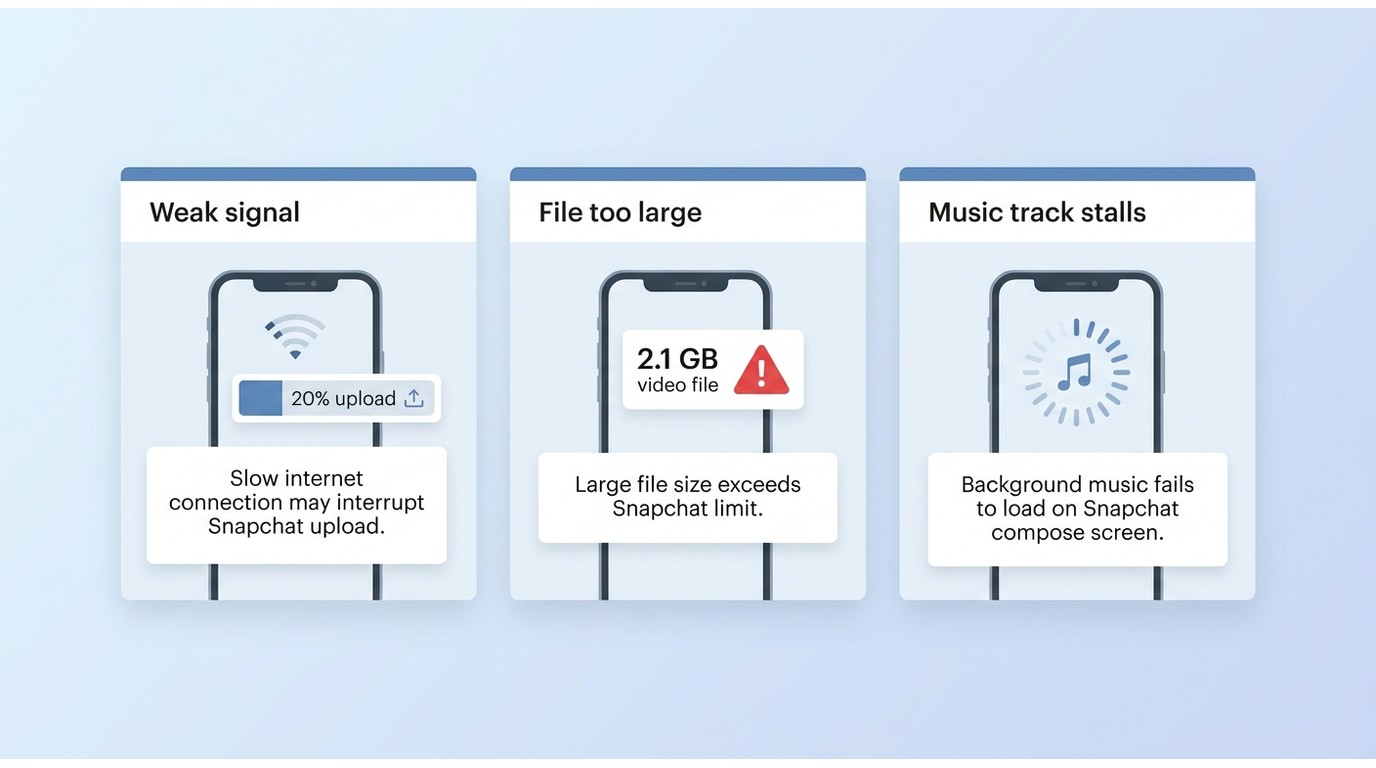
An upload that never completes usually points to a weak upstream connection or a file that's too large. Move closer to your router or switch to mobile data, keep the app in the foreground while it uploads, and test with a shorter clip. If uploads succeed on one network and fail on another, the network is the variable.
Only Music-Added Videos Get Stuck
A specific and repeatable community pattern: Snaps with added music hang forever, even when a plain video sends fine. Try sending the video without music first to confirm the isolation. If that succeeds, the licensed-audio pathway is what's stalling; retry later, on a different network, or update the app.
When the Problem Is Not Snapchat Alone

Once a video has been exported out of Snapchat, or the same file fails in more than one app, the problem has shifted away from Snapchat. That's when a desktop test tells you the most.
Test the Same Video Outside Snapchat
Send the file to yourself via email, cloud drive, or messaging app and try to play it in your phone's default gallery or another social app. If it fails everywhere, the file itself is the issue — you've narrowed the problem to a single video, not to Snapchat.
Use a Desktop Player for Local Files
When a saved or exported clip is on your computer and still won't play, a capable desktop media player can confirm whether the file is intact. As an editor at PlayerFab, I'll flag the honest fit here: PlayerFab Stream Player is a Windows and Mac desktop media player that opens common formats produced by mobile capture — MP4, MKV, MOV, AVI, M2TS — with hardware acceleration on NVIDIA, Intel, and AMD GPUs to keep 4K and high-bitrate files smooth on modest hardware. That's what makes it useful for isolating a bad file: if the same MP4 plays cleanly on the desktop, the fault is on the Snapchat side; if it also stumbles on the desktop, the file itself is the problem. What a desktop player cannot do is repair a Snapchat outage, resync chat media, fix stalled uploads, or grant missing app permissions. Use it as a diagnostic step, not a substitute for the checks above.
FAQ
Why do Snapchat videos stop instead of playing continuously?
Consecutive playback is a different beast from a loading failure. Before resetting anything, confirm you're on the current app version, that Background App Refresh or unrestricted background data is on, and that the problem affects Stories, chat, or every Snap — that scope tells you whether it's an app-level bug or a Snap-level content issue.
How can I tell whether Snapchat is down right now?
Check Snapchat's official Support page or its status account on a social platform. If multiple contacts can't send or load Snaps and you're seeing widespread reports, treat that as an outage and stop troubleshooting your own device until the service is confirmed back up.
Why does an old Snapchat video stay stuck in chat?
That is a chat-media sync issue, not a general playback failure. Clearing the cache or the chat feed will not necessarily recover an item that has already expired or been removed server-side. Reopen the chat later and, if it still won't load, contact Snapchat Support rather than clearing the conversation.
Why do videos fail in Snapchat and other apps too?
A cross-app failure points away from Snapchat. Look at the connection first, then device storage, OS media services, and finally the source file itself. Testing the same file on a desktop media player quickly reveals whether the file or the phone environment is at fault.
Conclusion
Fixing Snapchat videos not playing works best as a layered checklist, not a random reinstall spree. Start by identifying the exact symptom, then check Snapchat's service status and your connection, adjust in-app cache and permissions, and only then look at chat, Memories, upload, or local-file cases. My rule of thumb: account-changing steps — removing friends, clearing conversations, wiping saved media — belong at the very end, and often shouldn't happen at all. Work from lightest touch to heaviest, and you'll resolve most cases long before the risky ones come up.

 Play Video Files: 4 Paths Across Formats and DevicesBy James Morgan - Sep 22, 2026
 12 Best HEVC Players for Windows, Mac, and 4K (2026)By Alice Harper - Aug 4, 2026
 Best WMV Player for Mac and How to Play WMV on Mac NativelyBy James Morgan - Aug 4, 2026
 8 Best TS File Players and Playback Tools for 2026By Alice Harper - Jul 28, 2026