How to Change the Default Video Player on Mac by File Type

Summary: QuickTime works for MP4 and MOV but declines MKV, HEVC, and Blu-ray formats that many Mac users encounter regularly. This guide covers the exact steps to change the default video player on Mac by file type, open a single file without altering the default, and revert to QuickTime. It also reviews DVDFab Player 6, VLC, and IINA as replacements, based on what each actually handles differently.
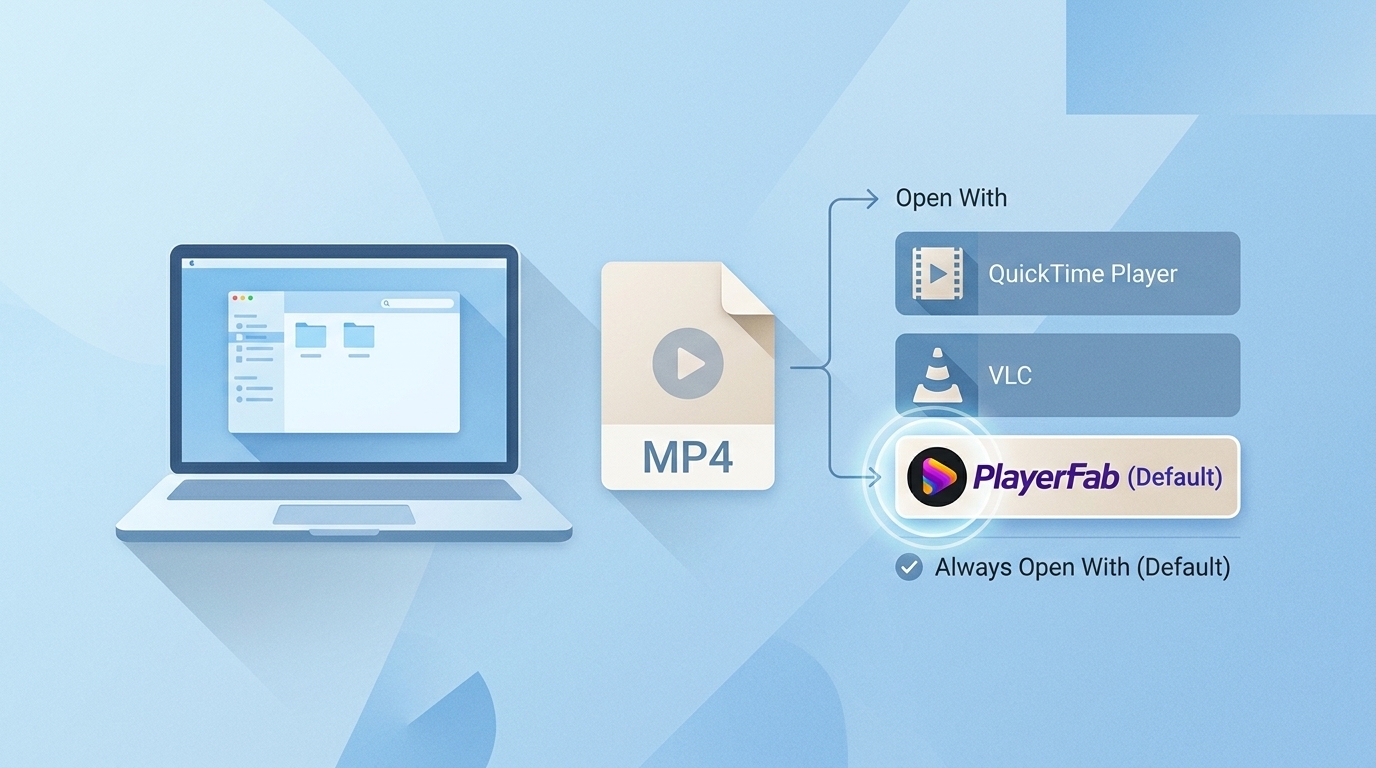
To change the default video player on Mac, use Finder’s Get Info panel to choose an installed app under Open with, then select Change All. The key detail is that macOS saves this choice by file extension, not for every video format.
Table of Contents
Set a Default Video Player in Finder
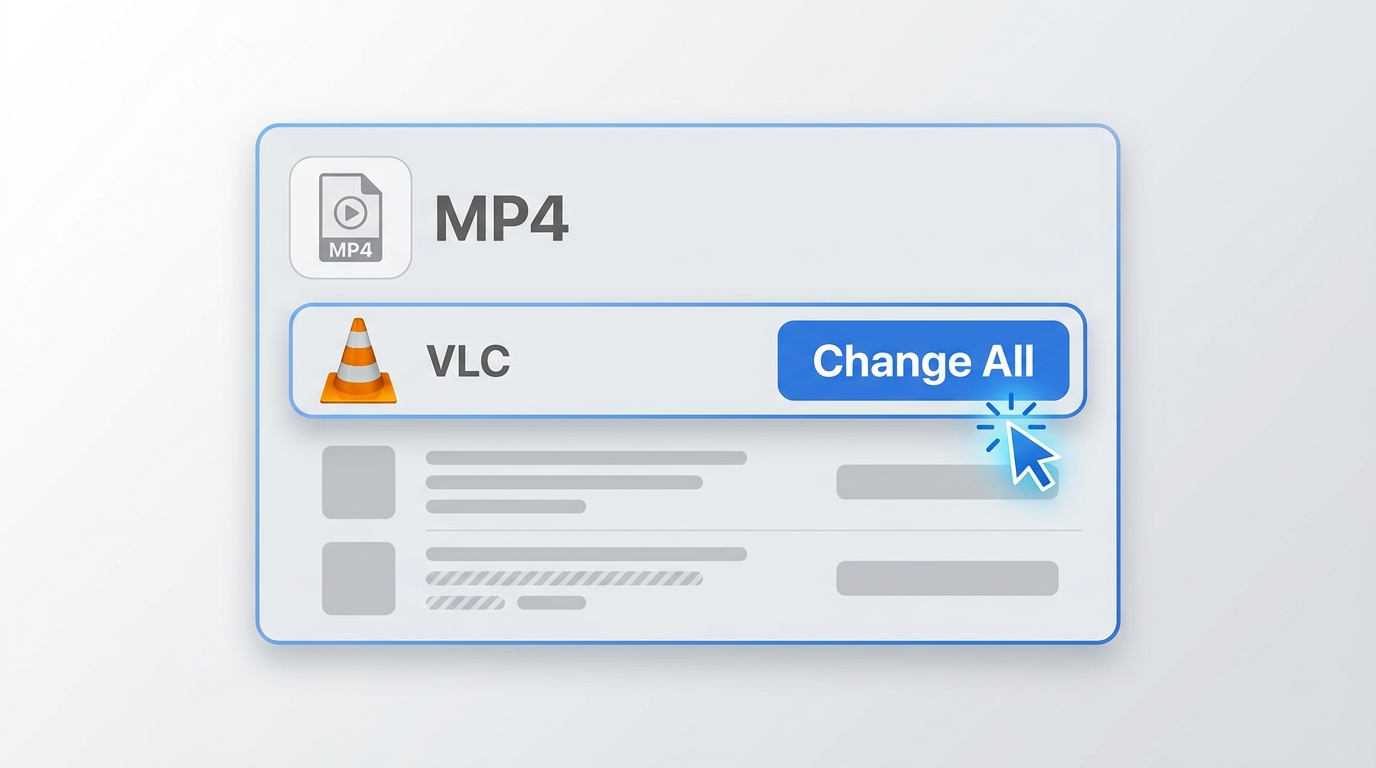
Finder stores the default video player on Mac in each file’s information panel. Follow these steps to set one app for a specific video type.
Set One Video to Open With Another App
- Navigate to a video file you want to open with the new player, then right-click it.
- Select “Get Info,” then expand the “Open With” section.
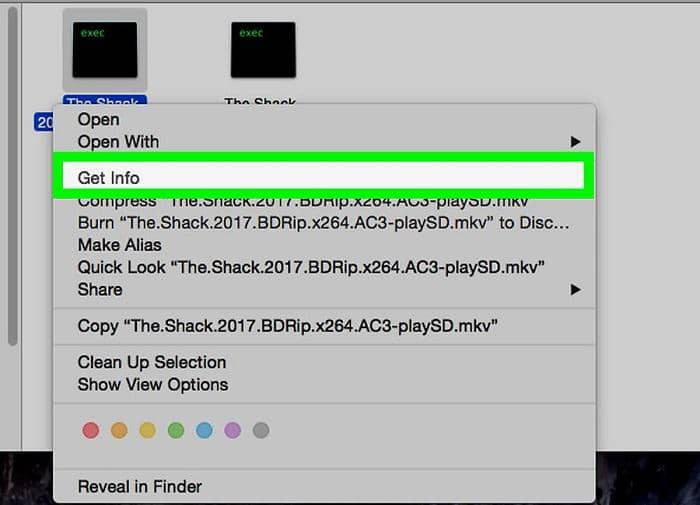
- Choose the installed player you want to use, such as VLC, IINA, QuickTime Player, or another compatible app.
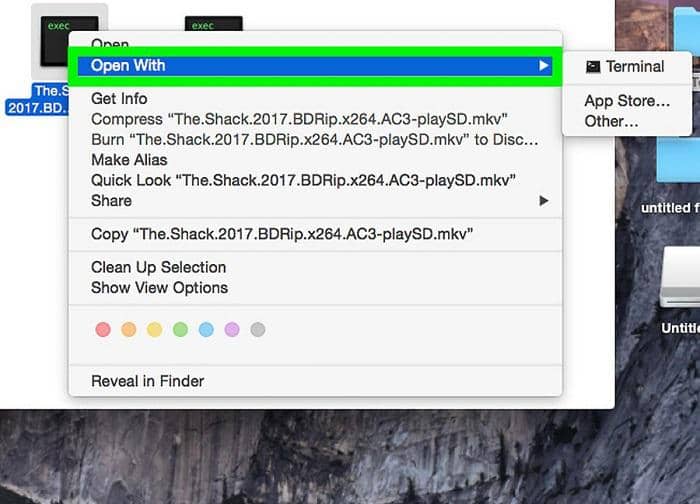
- Click “Change All” to apply the selected player to files with the same extension as the file you chose.
Apply the Choice to One File Extension
Change All does not set one player for every video format. If you want to change the default app for MP4 files, start with an MP4 file; repeat the same workflow separately for MOV, MKV, AVI, or any other extension you use. In my view, this extension rule is the detail most likely to make an otherwise correct setup look broken.
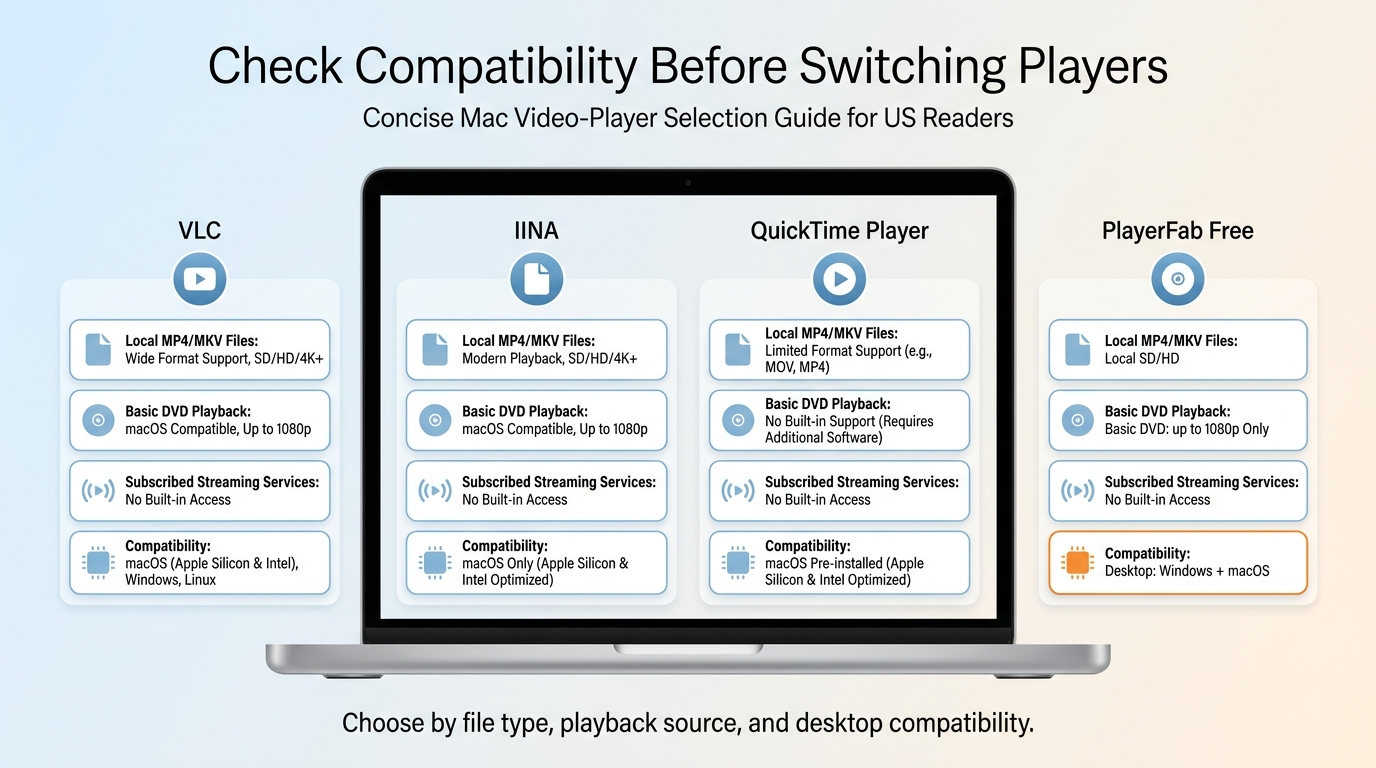
Check Compatibility Before Switching Players
Verify macOS and Apple Silicon Support
Before changing your default app, confirm that the player supports your current macOS version, your Mac hardware, and the file types you actually watch. PlayerFab Free is a desktop player for Windows and macOS that supports local SD and HD video plus basic DVD playback up to 1080p; it does not include DVD menu navigation, Blu-ray, 4K UHD, HDR, or ISO playback. Check the current build and exact feature entitlement before treating any desktop player as a long-term default.
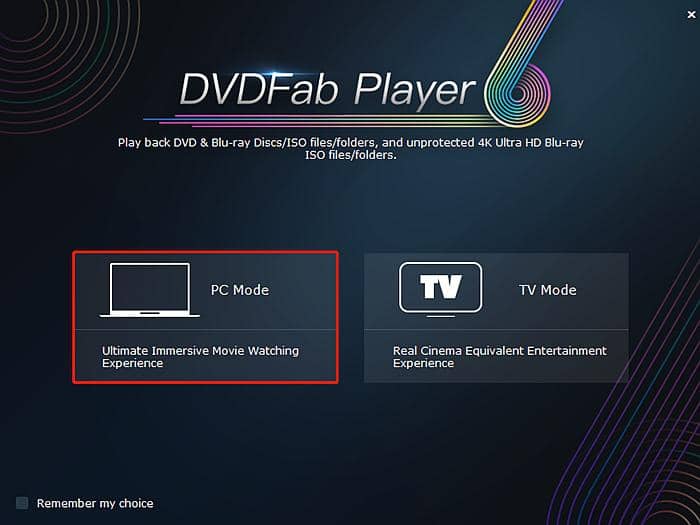
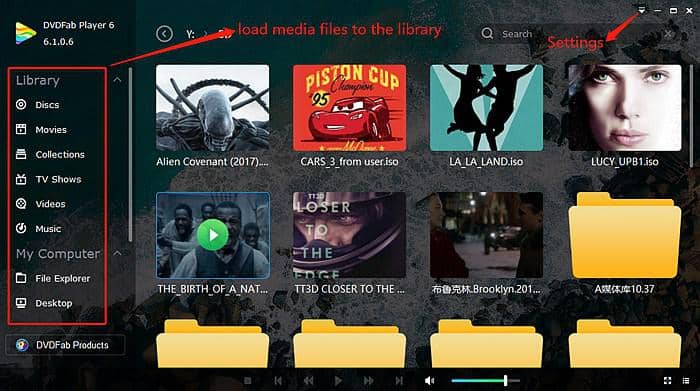
For legacy DVDFab Player 6 materials, use the i Windows download link or the i Mac download link.
Match Local, Disc, and Streaming Needs
Choose a default player based on what you need it to open most often, rather than on a broad feature list. For a comparison of installed options, review the best video players for Mac alongside their supported formats and current macOS requirements. If your viewing includes legally owned discs or supported streaming services, verify the relevant player edition and features first; streaming access requires a valid subscription, and availability depends on platform and regional rules.
Frequently Asked Questions
How do I make VLC open every MP4 file on my Mac?
Find an MP4 file in Finder, choose Get Info, select VLC under Open with, and click Change All. This applies VLC to MP4 files, not MOV or MKV files. The same association process works with other installed MP4 players for Mac.
Can I make QuickTime Player the default again?
Yes. Select a file with the extension you want to restore, open Get Info, choose QuickTime Player under Open with, and click Change All. Repeat the process for each extension that should return to QuickTime.
Why does my Mac forget the default video app?
Some users report that file associations revert after a restart or after an app update. Reapply the setting for the affected extension, and confirm that the intended app is still installed. Before blaming the player, check the file extension first, because MP4 and MKV associations are stored separately.
What if Open with or Change All is unavailable?
First confirm that the app is installed and compatible with the selected file type. If Open with does not respond, Change All is unavailable, or macOS repeatedly asks for permission, review the app’s permission context and try the workflow again with a local file. These symptoms can vary by macOS version and app configuration.
Conclusion
To change the default video player on Mac, use Finder’s Get Info panel, select an installed app under Open with, and click Change All for the file extension in front of you. Repeat the process for each video type you use, then choose a player only after confirming its current macOS compatibility, hardware support, and fit for your local, disc, or subscribed streaming needs.

 Top 10 Best MP4 Player for Mac in 2026: Tested & ReviewedBy Alice Harper - Aug 4, 2026
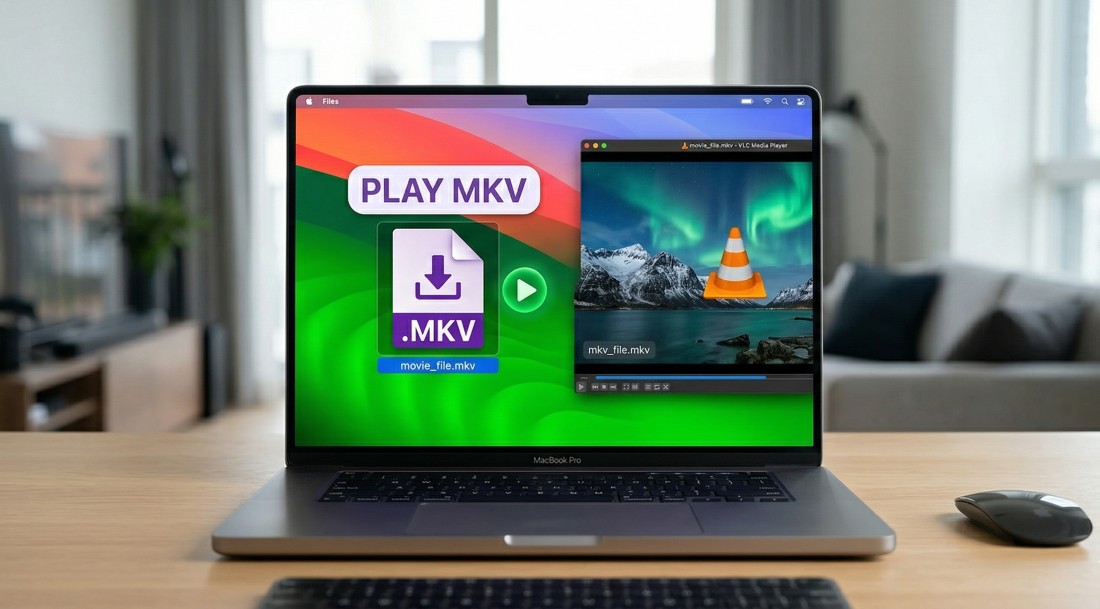 5 Ways to Play MKV Files on Mac in 2026By Alice Harper - Jul 29, 2026
 5 Blu-ray Players for Mac Compared in 2026: Disc, 4K, and CostBy James Morgan - Jul 24, 2026
 8 Best Video Players for Mac in 2026: A Hands-on ReviewBy Alice Harper - May 7, 2026