Google Drive MP4 Playback: Support, Limits, and Fixes

Summary: Google Drive plays MP4 files encoded with H.264 and AAC, but rejects HEVC and AV1 formats and cannot preview 4K video. This guide tests Drive's playback across desktop, Android, and iOS, covering four common failure modes: codec mismatch, resolution limits, multiple-account conflicts, and cookie settings. For HEVC or 4K files that Drive cannot handle, a local player plays both formats without conversion.
Table of Contents
Google Drive MP4 Support and Limits
Google Drive can preview many MP4 files, but an .MP4 extension does not guarantee playback. When Google Drive is not playing MP4, the cause is usually processing, the video or audio streams inside the file, preview resolution, browser state, or sharing access. The practical conclusion is simple: check those conditions before converting a file.
Google Drive MP4 playback is most dependable when the file uses H.264 video and AAC audio, has finished processing, and is available to the signed-in viewer. MP4 is a container, not a codec, so two files with the same extension can behave differently.
| File or access condition | Drive preview result | Likely symptom | Best next step |
|---|---|---|---|
| H.264/AAC MP4, 1080p or below | Generally compatible | Normal preview | Wait for processing, then play |
| Other video or audio codecs | Varies by stream | Preview or audio error | Inspect both streams first |
| Above 1920 × 1080 | Preview is limited | Unavailable or limited preview | Use an authorized local copy |
| Still processing | Not ready | Processing message | Wait, then refresh Drive |
| Restricted shared link | Access-dependent | Cannot open or download | Ask the owner to review access |
Drive can store files up to 5 TB when sufficient storage is available and previews video up to 1920 × 1080, as of August 2026. Google Drive Help.
Files using less common streams, including the AV1 codec, may need closer inspection rather than an assumption that the MP4 container alone determines whether Drive can preview them.
Play MP4 in Google Drive Mobile Apps
Android Upload and Playback
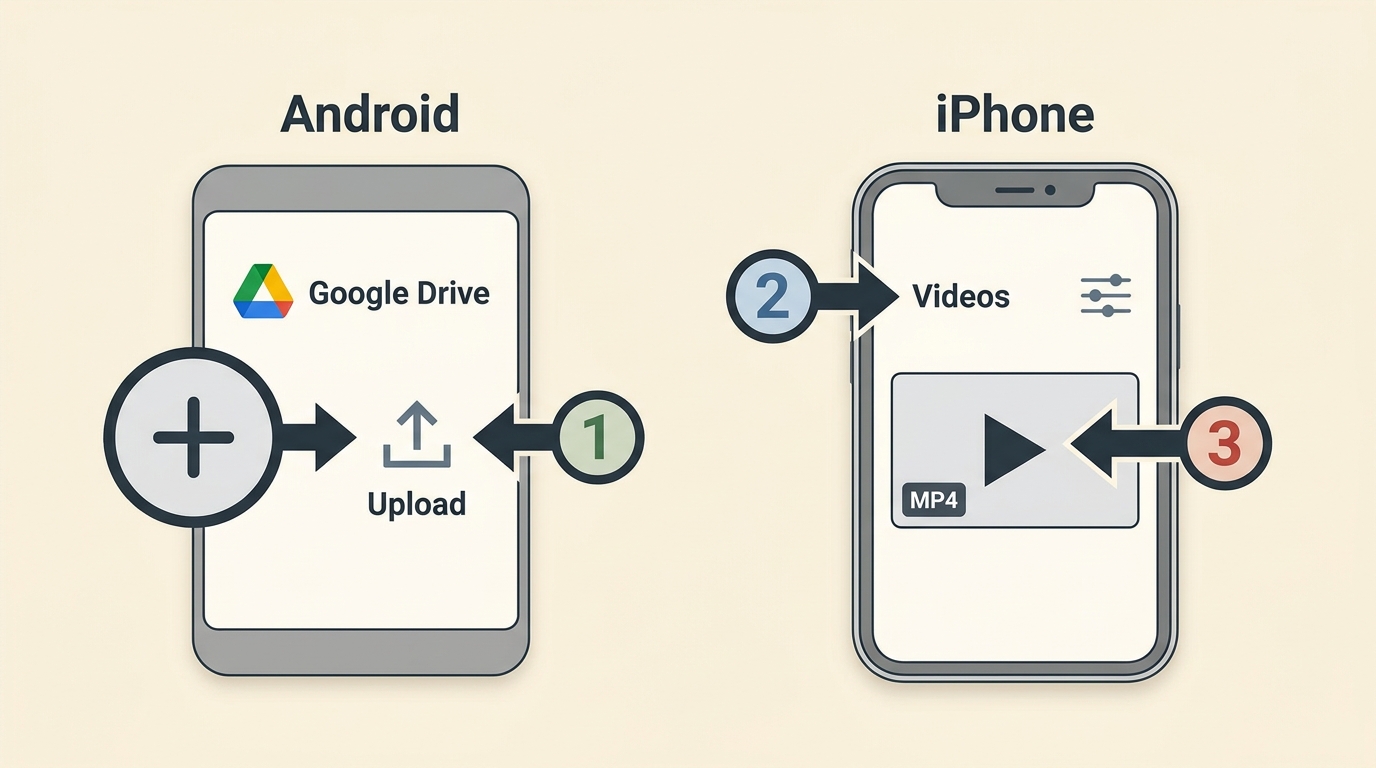
To upload MP4 to Google Drive on Android, install the Google Drive app and sign in to the account where you want the file stored. Uploading and playback are separate stages, so allow the video to finish processing before assuming there is a playback problem.
- Make sure Google Drive app is installed on your Android phone.
- First of all, upload an MP4 video to your Google Drive account so that you can play it.
- Simply locate the video using a file manager. Long tap on the MP4 video and tap Share.
- Select Google Drive from the list to upload the MP4 video. By default Wi-Fi will be preferred for uploading but tap Resume in notifications panel to use mobile data for uploading.
- The video will be uploaded to root directory named as My Drive.
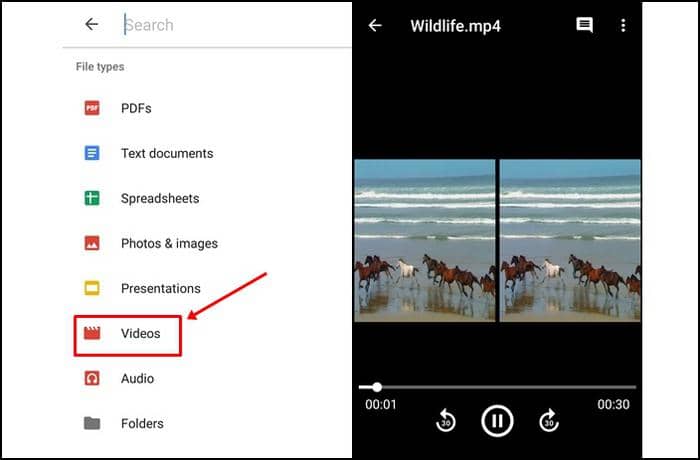
- Open the app and tap the Search button. Under File types select Videos. All uploaded videos will be listed in a single place and you don’t have to search for a particular MP4 video.
- Tap the MP4 video you want to play. The Google Drive MP4 player includes 10-second skip controls, and available controls may also include playback speed, captions, thumbnail previews, and timestamp comments.
This is how to play MP4 on Google Drive if you have MP4 files stored in it.
iPhone, iPad, and Photos
On iPhone or iPad, open the Google Drive app and use the same account that contains the video. The important distinction is whether you need temporary offline access or an authorized local file you can save outside Drive.
- Open the Google Drive app on your iPhone and iPad and tap Add +.
- Tap Upload and then select the MP4 videos that you want to upload.
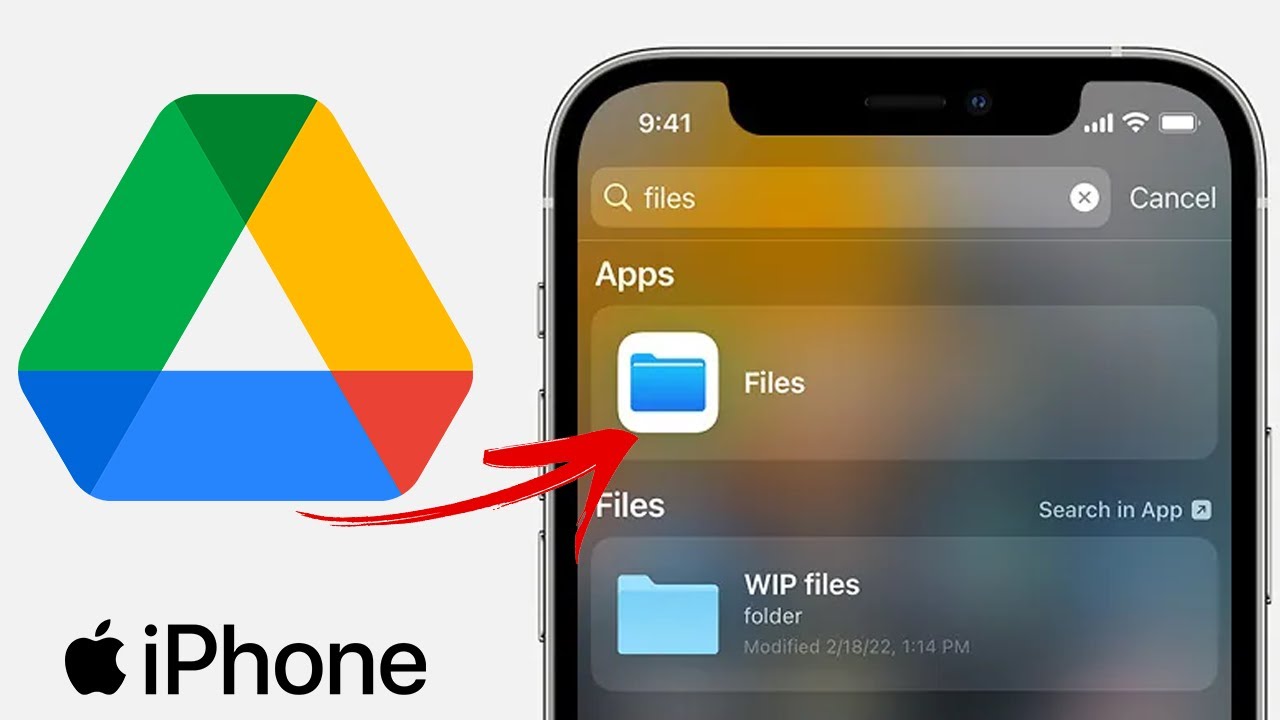
- Wait for some time till the videos get uploaded to your account.
- Now tap the search button in the app.
- From the list select Videos.
- All the uploaded videos will be listed in a single place.
- Tap on any MP4 video to play it in Google Drive.
For a file that the owner allows you to download, use Drive’s normal Download action. Make available offline keeps a Drive-managed copy for offline viewing, while iOS may offer Save to Files or Save Video depending on the selected action and app permissions. A shared Google Drive video can play from its link when the viewer has access; viewers and commenters can download by default unless the owner disables downloading, printing, and copying. In my view, offline access is enough for a short trip, but Save to Files or Save Video makes more sense when you need to use an authorized file in another local app.
Play MP4 in Google Drive on Desktop
Upload and Play in the Browser
Google Drive is also available as a standalone app for PC. It can also be accessed via the web interface on a computer. So both the ways are similar, it is up to you which way you prefer. We will discuss the web interface of Google Drive.
- Open the browser on your PC and go to drive.google.com. Here sign in with your Google account.
- Sign in with your Google account.
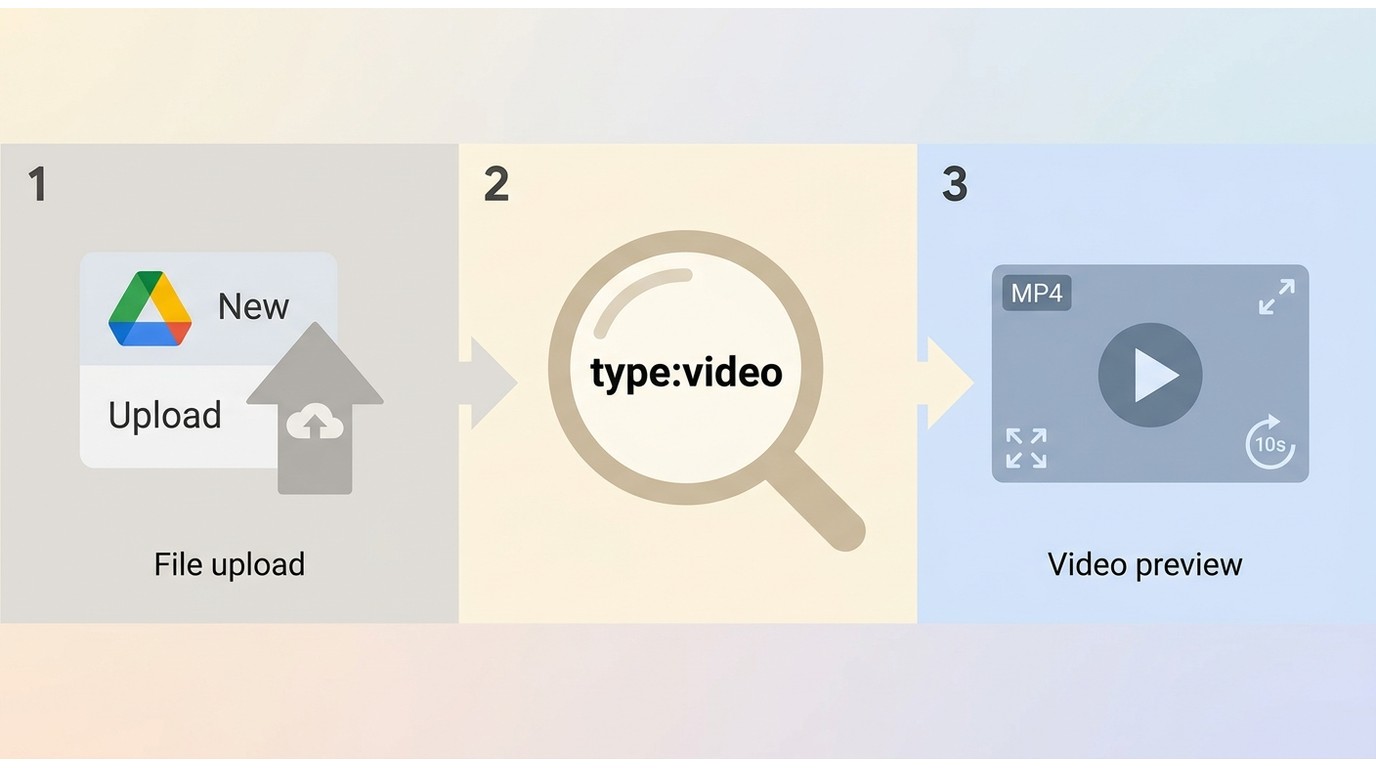
- Now click New and then click File upload. Select the MP4 video that you want to upload.
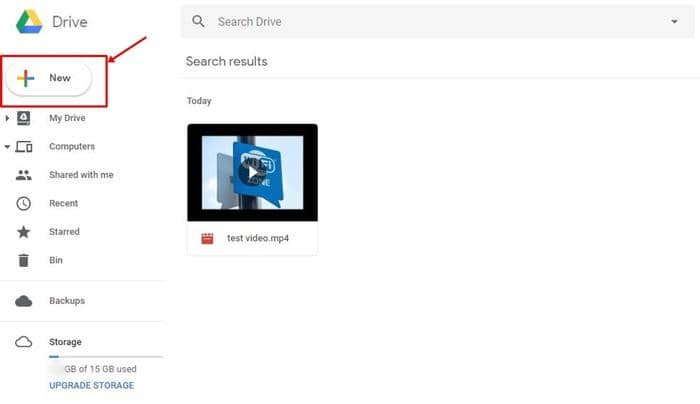
- Click the search field and select Video from the list. Alternatively, enter type:video and press Enter to list your videos.
- Double-click the MP4 video to play it in Google Drive’s web interface.
- Use the fullscreen button when needed. The player also provides 10-second skip controls, and playback speed, captions, thumbnail previews, or timestamp comments may be available for the file.
- For reviewing or sharing a long video, the skip controls and timestamp comments are more useful than repeatedly scrubbing through the timeline.
Google Drive can play MP4 on a computer, Android device, iPhone, or iPad when the file has processed successfully and the signed-in account has access. Uploading MP4 to Google Drive follows a similar pattern across devices, but sharing permissions and local download options can differ by viewer role and device.
Fix Google Drive MP4 Playback Errors
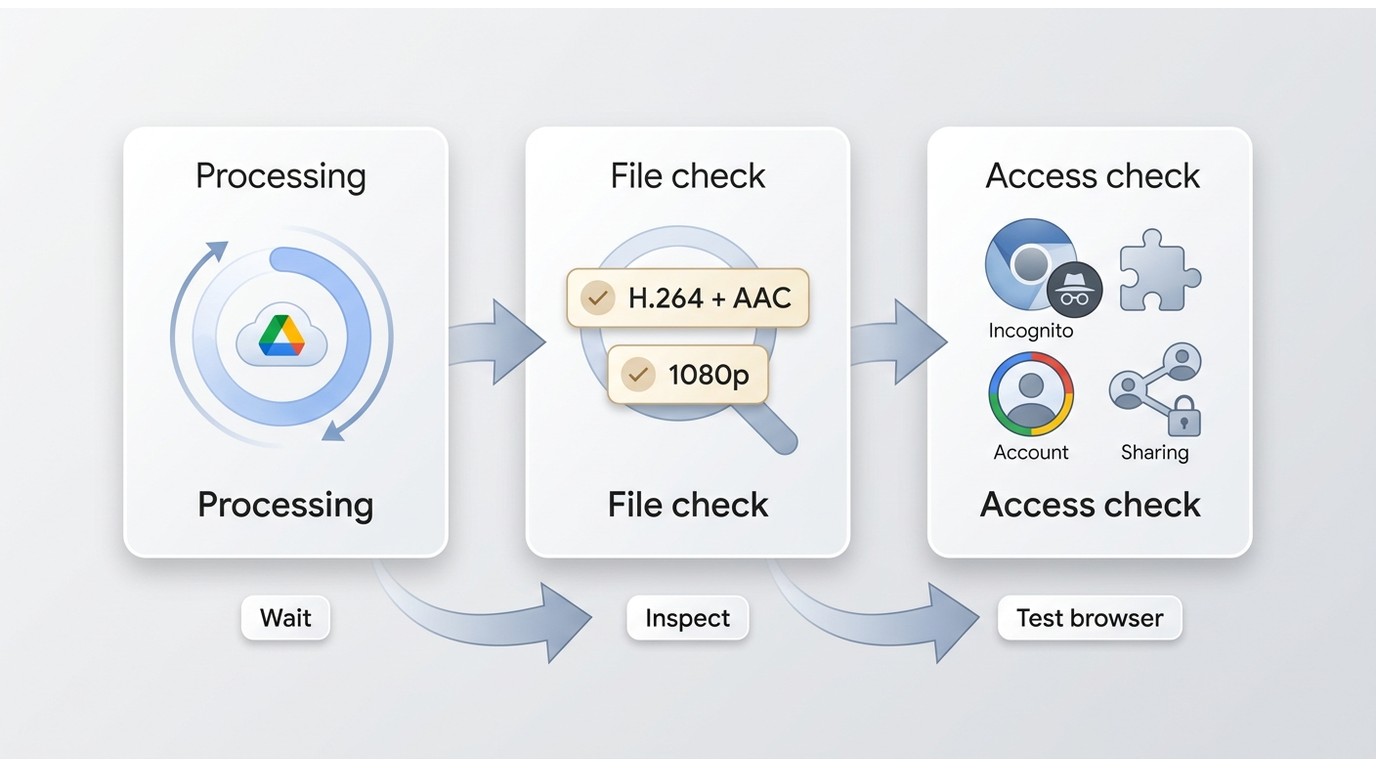
Use this decision path when Google Drive MP4 playback fails: first check whether the video is still processing; then inspect the video and audio codecs and the preview resolution; next test an incognito window or disable extensions temporarily; confirm the active Google account; and finally review viewer permission and owner download restrictions. Converting first is often a poor move when processing, browser state, or access is the real issue.
Use a Local Player When It Fits
PlayerFab Free Video Player is a desktop media player for Windows and Mac that plays authorized local SD and HD video up to 1080p. It is separate from Google Drive’s built-in preview and should be used only for files you are authorized to access, subject to the service’s terms and applicable law.
When an authorized file has already been downloaded and Drive preview is unavailable, a local MP4 file player can be a practical fallback. PlayerFab Free Video Player is not a Google Drive downloader, a codec-repair or conversion tool, or a substitute for the owner’s sharing permission.
If the file is on a Windows PC, the local playback workflow begins after the allowed download is complete; the steps to play MP4 on Windows depend on the player and the file’s streams, not on Google Drive access alone.
Frequently Asked Questions
Does Google Drive alter the original MP4 after upload?
Drive may create a separate preview rendition for streaming, but that is different from changing the source file you uploaded. If you download the original file through an allowed Drive download, compare its file size or media details locally if you need to confirm which copy you have.
Why does a downloaded MP4 have no sound?
A video can preview in Drive yet have no sound in a local player if the audio stream is unsupported or the player’s audio output is misconfigured. Check the audio codec before re-exporting the video, because replacing the entire file may not be necessary.
Why can the owner play a shared MP4 but viewers cannot?
The owner’s access does not prove that every viewer has the same permissions. Confirm the viewer role, signed-in account, browser extensions, and whether the file has finished processing before treating the MP4 itself as the cause.
What does ‘video is too small to process’ mean?
This is an uncommon processing or export issue, not a universal minimum-size rule. First confirm that the file plays locally; if it does not, re-exporting a clean H.264/AAC copy may be appropriate.
Final Thoughts
Google Drive MP4 playback is practical for previewing and sharing compatible files when processing and permissions are in order. If Drive preview is unavailable, use a local desktop player only for an authorized file that has already been downloaded; readers who need to repair or convert a codec should use a conversion workflow rather than expect a media player to solve it.

 Play Video Files: 4 Paths Across Formats and DevicesBy James Morgan - Sep 22, 2026
 12 Best HEVC Players for Windows, Mac, and 4K (2026)By Alice Harper - Aug 4, 2026
 Best WMV Player for Mac and How to Play WMV on Mac NativelyBy James Morgan - Aug 4, 2026
 8 Best TS File Players and Playback Tools for 2026By Alice Harper - Jul 28, 2026