11 Online Video Players for Files, URLs, and Desktop Playback (2026)

Summary: Most video playback situations don't require installing software. This guide covers five browser-based online video players, from private local-file tools to team-sharing platforms, then introduces a desktop option for cases where DRM protection, physical discs, or 4K UHD playback push beyond what any browser can handle. For most users, the decision comes down to whether the file can be uploaded or needs to stay on the device.
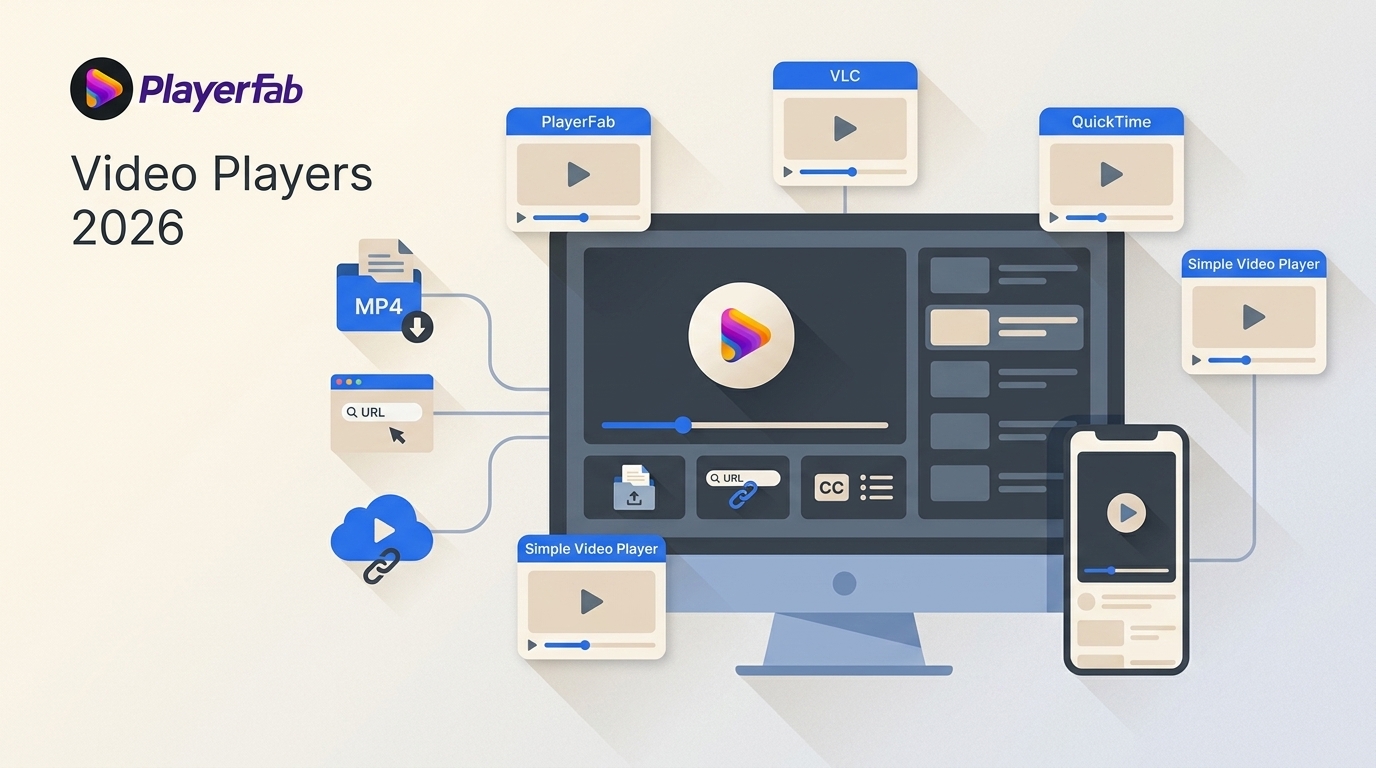
Table of Contents
Online Playback Starts With the Source
Here’s the short answer: an online video player is useful when you need to open a local file or a direct media URL without installing software, but browser codec support and file handling set clear limits. In 2026, start with the source, then choose a browser video player or desktop media player that fits it.
Browser Playback and Compatibility at a Glance
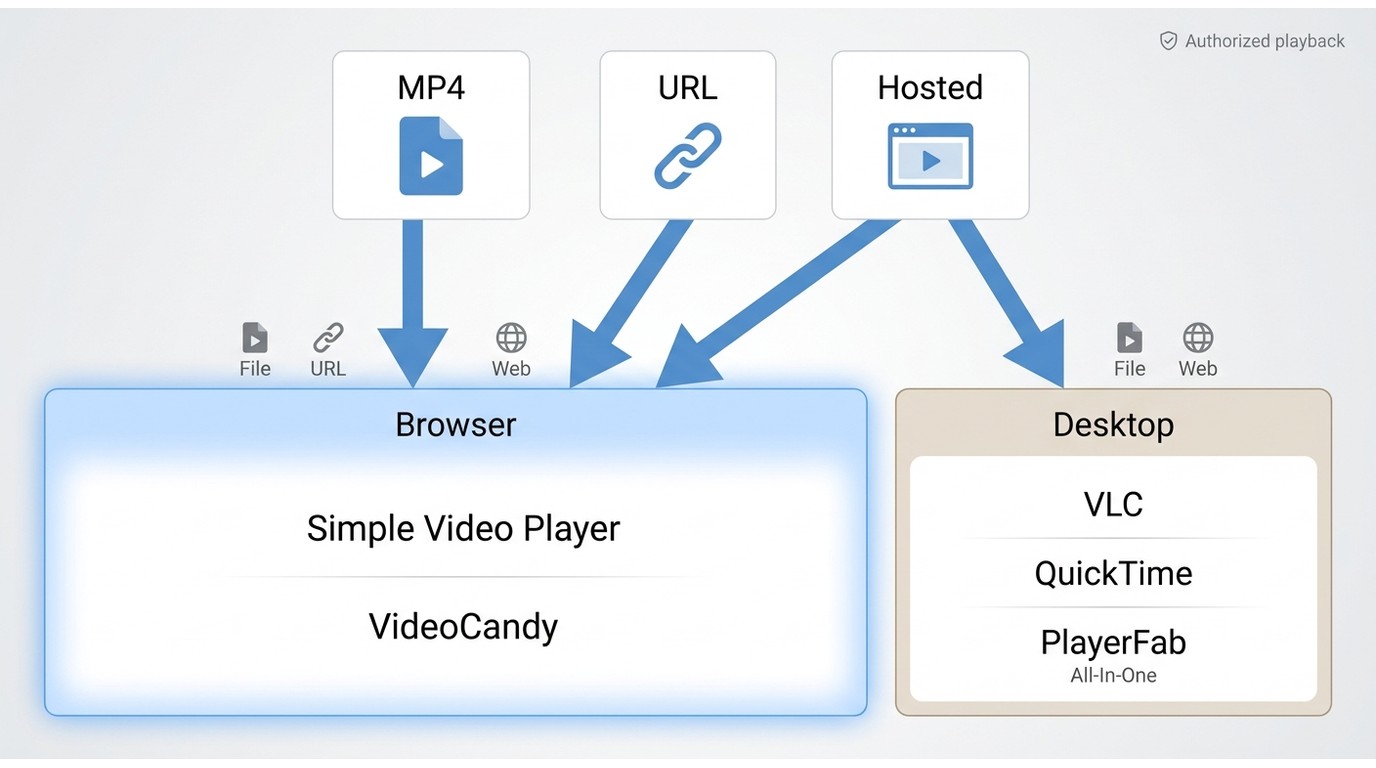
An online video player can mean three different things: a browser utility for a local file, a video player from URL for a direct media link, or a hosted player that publishers embed on a site. Browser utilities such as Simple Video Player, VideoCandy Online Video Player, Innate Blogger Online Video Player, Free-Codecs Web Player, and MoviPlayer may serve different versions of those jobs. Source type is the first filter because an ordinary webpage or protected stream is not the same as a playable media-file URL.
Local Files, URLs, and Upload Behavior
Before you begin, make sure you have either a local video file or a direct media-file URL. An ordinary webpage, a protected stream, a link with access restrictions, or a URL blocked by cross-origin rules is not the same as a playable video URL.
- For a local file: Open the browser tool and choose the file from your device.
- Check file handling: Confirm whether the tool processes the file in the browser or uploads it before selecting personal media.
- For a direct URL: Paste the media-file link, then allow the browser to load it.
- If playback fails: Try a compatible browser or a desktop player with broader codec controls.
Unsupported codecs can still prevent a valid file or link from playing. In my view, local processing is the sensible first choice for private clips because it keeps the workflow focused on playback rather than hosting or sharing.
Format, Subtitle, and Quality Limits
Browsers commonly handle MP4 and WebM more predictably than specialized containers or codecs. A file can have a recognizable container but still fail when its video codec or hardware-decoding path is unavailable. Subtitle support also varies: browser tools may accept SRT or WebVTT, while installed players generally offer more control over external tracks, timing, and styling. An online 4K video player may open a high-resolution file, but HDR output and smooth playback still depend on the browser, device, GPU, and display.
These details reflect publicly listed capabilities as of August 2026.
| Player and platform | Input source | File handling | Subtitles | Quality, cost, and fit |
|---|---|---|---|---|
| Simple Video Player Web browser | Local video file | Browser-selected file | Not listed | Browser-dependent; free |
| VideoCandy Online Video Player Web browser | Local video file | Upload-based workflow | Not listed | Browser-dependent; free options |
| Innate Blogger Online Video Player Web browser | Local file or direct URL | Browser-selected file | Not listed | Browser-dependent; free |
| Free-Codecs Web Player Web browser | Local file or direct URL | Web-player workflow | Not listed | Browser-dependent; free |
| MoviPlayer Web browser | Local video file | Browser-selected file | Not listed | Browser-dependent; free |
| PlayerFab Free Video Player Windows and Mac | Local SD/HD files, basic DVD | Installed desktop app | AI Live Subtitle trial | Up to 1080p; free |
6 Desktop Players for Different Playback Needs
These six options are installed desktop players, not equivalent browser tools. Consider them when you need broader codec controls, external subtitles, disc playback, or a more deliberate home-theater setup. Capabilities vary by player and edition.
PlayerFab Free Video Player
PlayerFab Free Video Player
- Plays local SD and HD video files on Windows and Mac.
- Provides basic DVD playback, without DVD menu navigation.
- Includes a basic media library and an AI Live Subtitle trial.
VLC Media Player
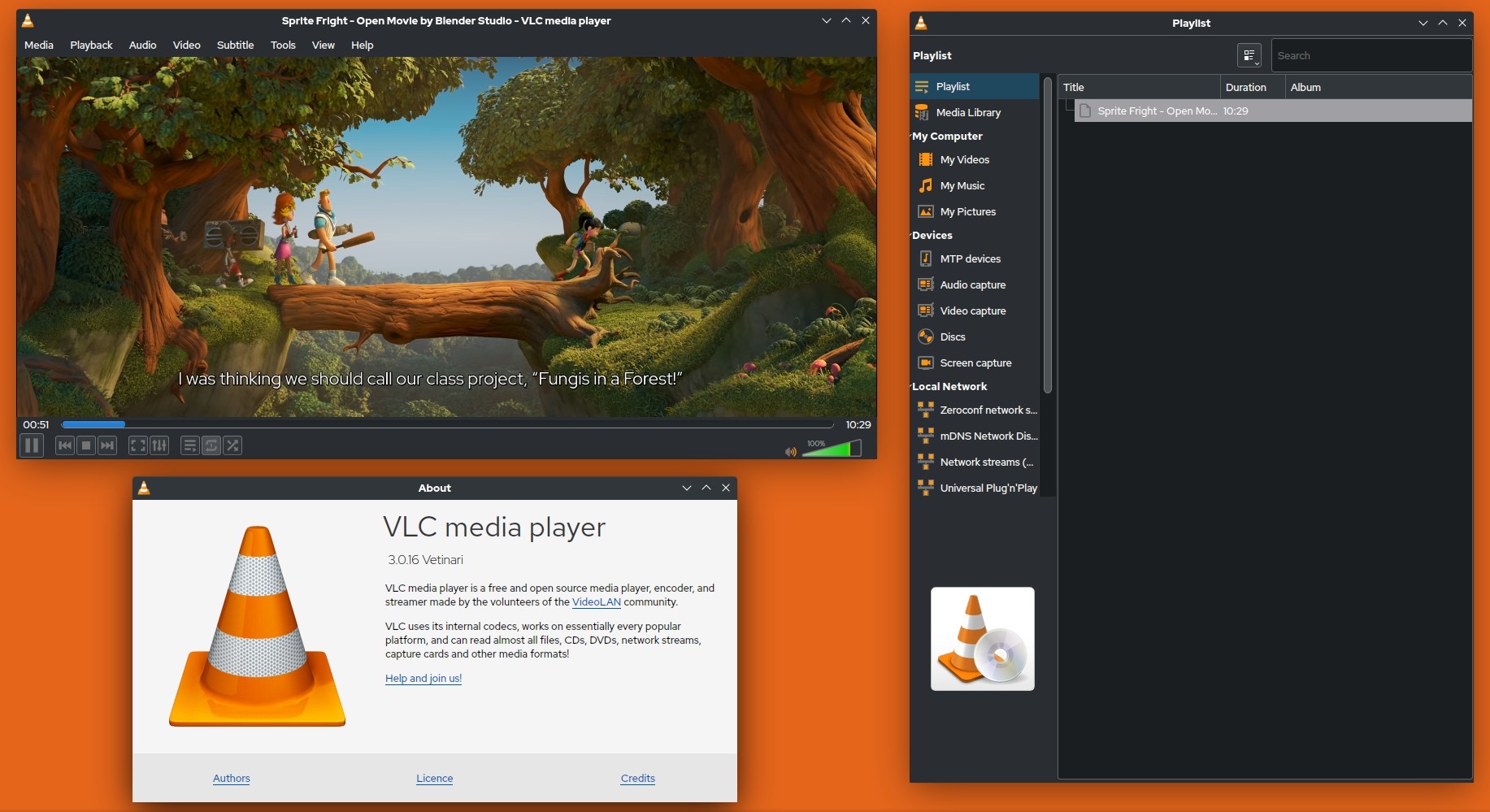
VLC Media Player is a free, open-source desktop media player with broad local-playback support and manual controls. It is a practical choice for files, network media, subtitles, and playback adjustments, not an instant browser utility. Readers comparing a VLC alternative should weigh format handling and controls against the time they are willing to spend troubleshooting settings.
- Good fit for local files and users who want detailed playback controls.
- External subtitle and audio-sync adjustments are available.
- Some files may still require codec or settings troubleshooting.
QuickTime Player
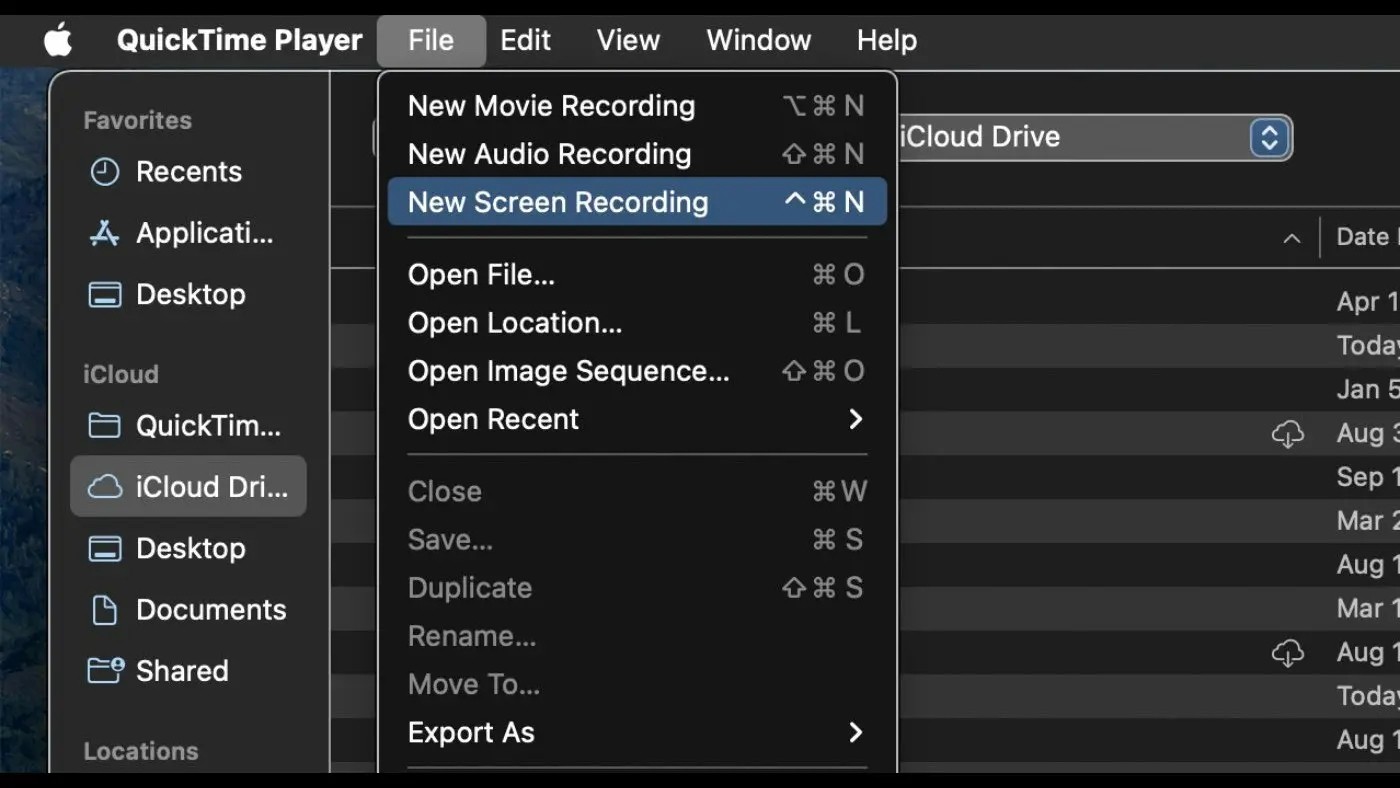
QuickTime Player is Apple’s built-in macOS app for routine playback, screen recording, and basic edits. It is a comfortable choice for common Mac media, but older or specialized formats may not work as expected. For broader codec coverage, compare the best video players for Mac before treating QuickTime as a catch-all solution.
- Built into macOS for straightforward playback and recording.
- Includes basic trim and rotation tools.
- Not ideal for older or specialized media formats.
GOM Player
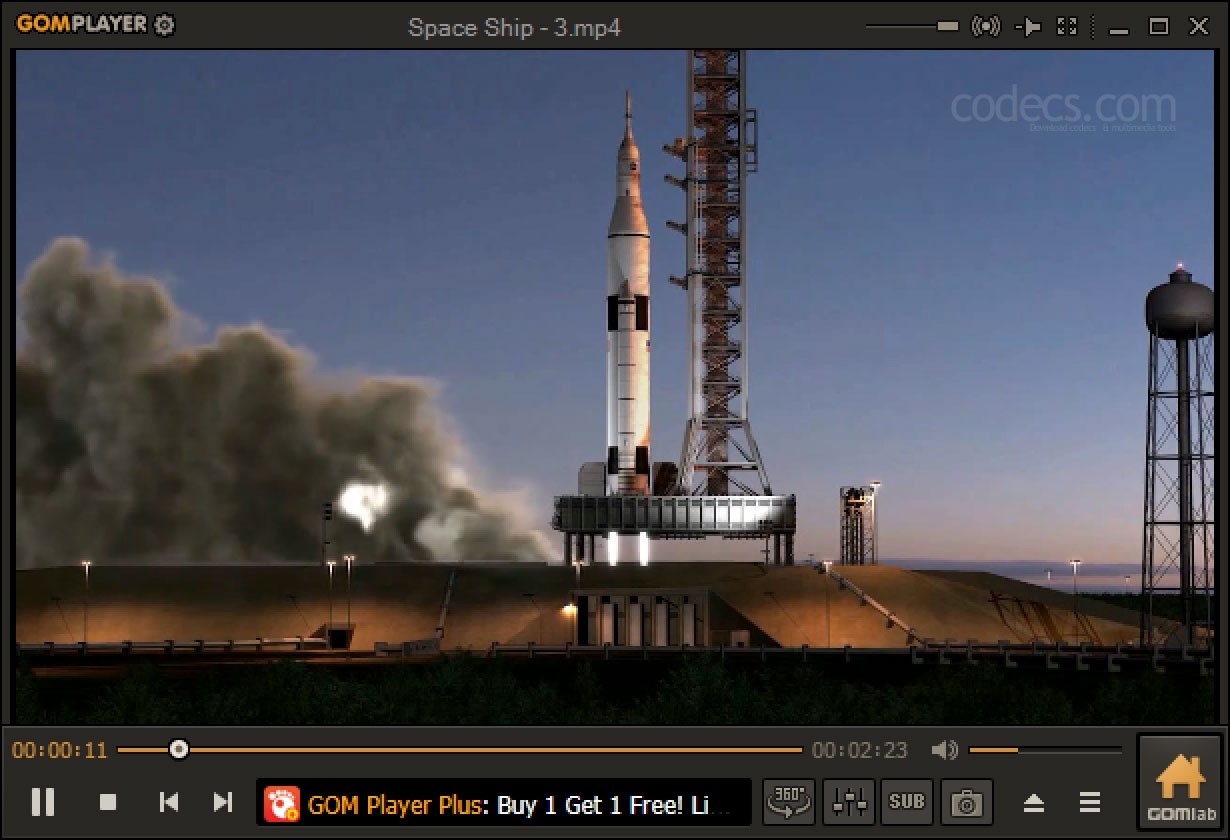
GOM Player is an installed desktop option for viewers who prioritize external subtitles, codec assistance, and adjustable playback controls. It can be a better fit than a browser tool when subtitle timing or repeated viewing controls matter, but it is not the right choice for no-install playback.
- Designed around subtitle handling and playback controls.
- Offers adjustable playback speed and A-B repeat.
- Requires installation rather than running in a browser.
DivX Player
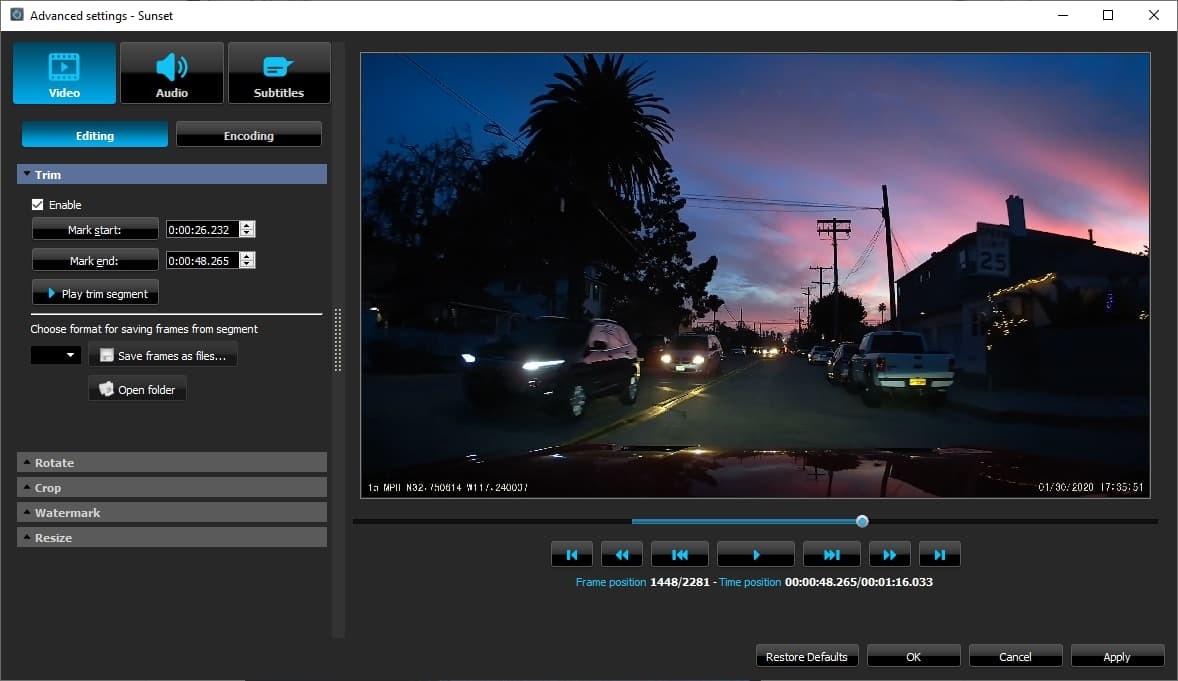
DivX Player is part of the installed DivX desktop software offering. It makes the most sense for viewers whose library or workflow already centers on DivX-compatible media, rather than for someone seeking a browser-based player for a quick file or URL.
- Best suited to DivX-oriented desktop playback needs.
- Offers playback settings for installed-media workflows.
- Not a browser player for direct online playback.
KMPlayer
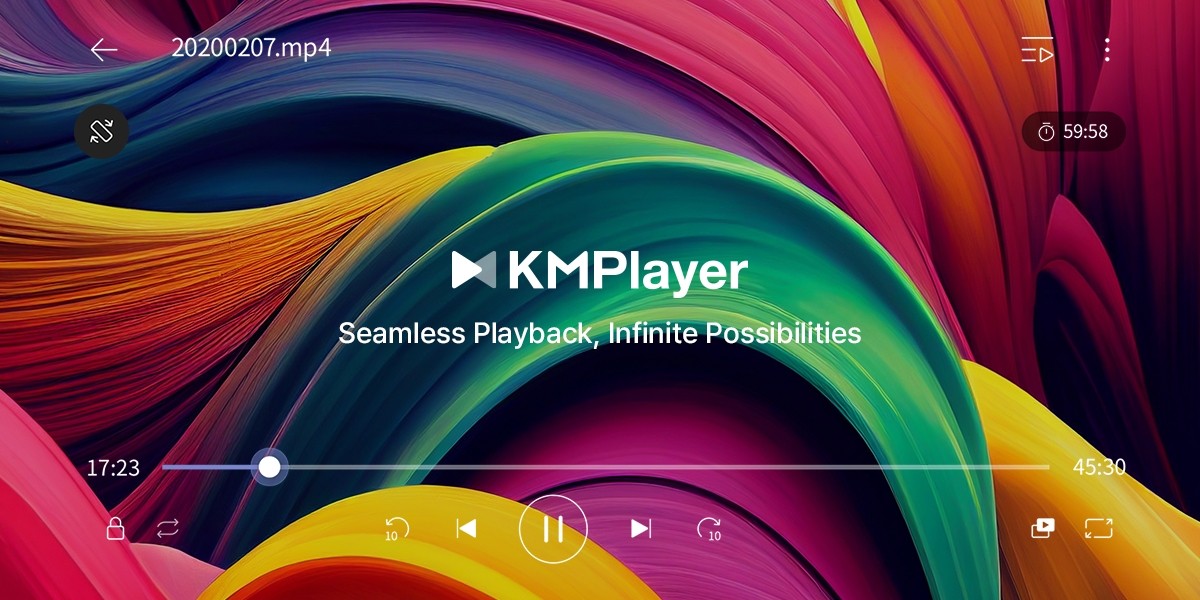
KMPlayer is an installed player for users who want deeper playback controls and a configurable interface. Its available features vary by edition, so it is worth considering when browser playback lacks the controls you need, not when a simple browser workflow is the priority.
- Offers configurable playback settings and an equalizer.
- Edition-specific capabilities should be checked before choosing it.
- Not ideal for instant, no-install browser playback.
Which Player Fits Your Playback Setup?
An online video player is the right fit for quick local files or direct media links, especially when private browser playback is available. Choose a hosted player for publishing, and choose an installed desktop player when you need broader codec controls, discs, external subtitles, or home-theater output. My practical rule is to start with the least complicated option that accepts your source, then move to a video player for Windows or another desktop option when browser limits get in the way. PlayerFab Free Video Player is a sensible fit for local SD or HD files and basic DVD playback, not for someone who simply wants to press play in a browser or needs 4K or HDR support.
FAQs
Will an online video player upload my local file?
It depends on the tool. Some browser players process a selected file locally, while others upload it for hosting, editing, or sharing. Read the tool’s file-handling information before opening personal media.
AWhy do I hear audio but see no video?
The file container may open even when the browser or device cannot decode its video stream. Try another compatible browser or use an installed desktop player with broader codec controls.
ACan I load external subtitles in a browser player?
Support varies by player and subtitle format. SRT and WebVTT are common, but external tracks, styling, timing controls, and translation options are usually more flexible in desktop software.
ACan a player open any video URL directly?
No. A direct media-file URL is different from an ordinary webpage or a protected stream. Access controls, cross-origin restrictions, platform rules, and unsupported codecs can block playback.
A
 12 Best HEVC Players for Windows, Mac, and 4K (2026)By Alice Harper - Aug 4, 2026
 Best WMV Player for Mac and How to Play WMV on Mac NativelyBy James Morgan - Aug 4, 2026
 8 Best TS File Players and Playback Tools for 2026By Alice Harper - Jul 28, 2026
 6 Best DVD Players for Laptops in 2026: Drives and AppsBy Alice Harper - Jul 22, 2026