Samsung Video Player: Where to Find It and 4 Alternatives

Summary: Samsung's standalone Video Library icon is no longer the main entry point, yet supported Galaxy phones may still expose the integrated player through Gallery. This guide explains that route, compares four current Android alternatives, covers APK and compatibility concerns, and briefly maps desktop options for Samsung PCs.
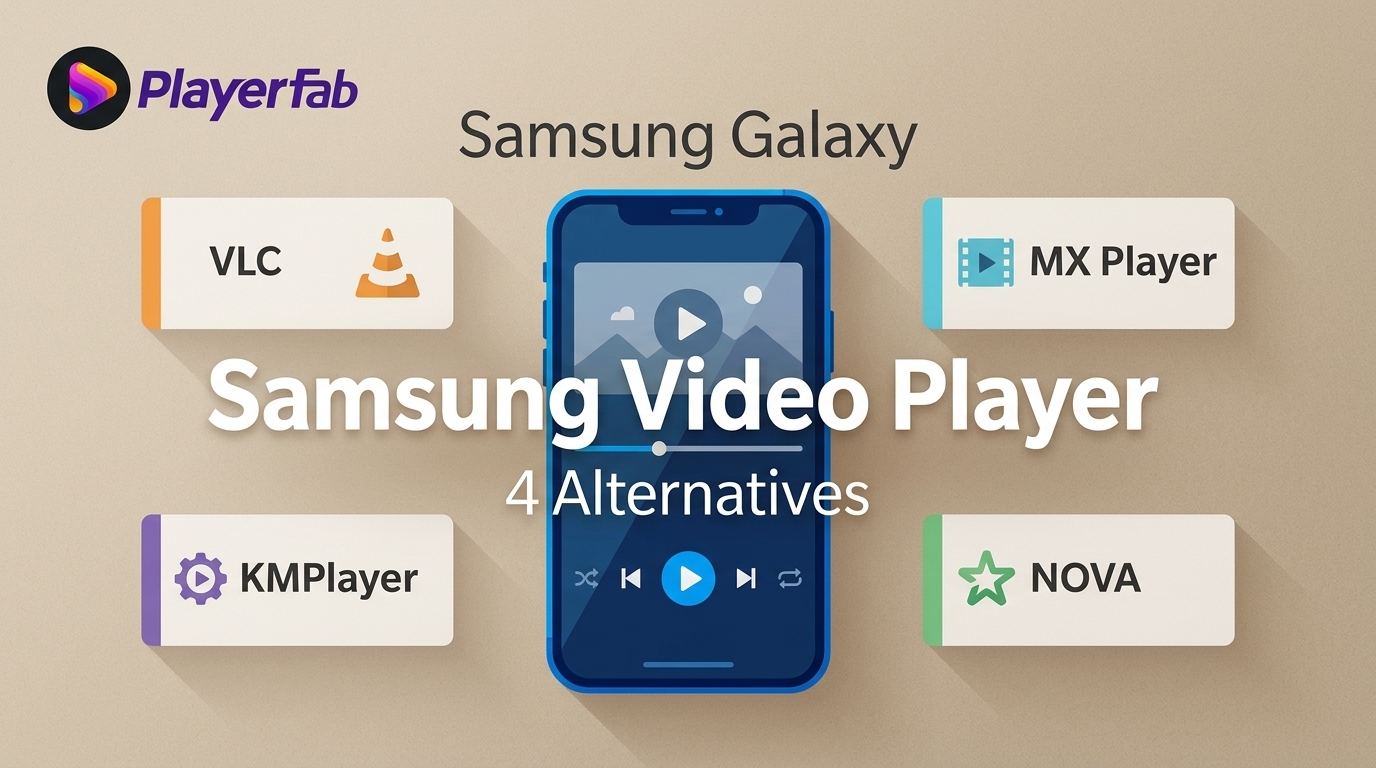
Table of Contents
If you searched for Samsung Video Player because the icon vanished from a Galaxy phone, the app is not necessarily gone in the way that suggests. On supported devices, Gallery may still open Samsung's integrated playback interface, while four current Android alternatives cover files, subtitles, cloud storage, and network libraries.
The practical route is to check Gallery first, confirm whether your One UI build exposes Open in Video Player, and then choose the best video player for a Samsung phone by fit. This guide also covers Samsung video player app compatibility, APK risks, 4K playback, and a shorter Samsung PC section.
What Happened to Samsung's Built-in Video Player?
Samsung retired the standalone Video Library app and launcher icon, but that does not mean every supported Galaxy device lost the playback interface. Gallery may still hand a local video to the integrated Samsung Video Player, depending on the phone and software build.
The discontinued part is the separate app or icon that once provided a direct entry point. On supported devices, Samsung Gallery can still expose familiar playback controls after you open a video, even though there is no Video Library icon in the app drawer.
My practical judgment is simple: checking Gallery is more useful for most readers than hunting for an old APK. My Files is also worth trying when a downloaded clip is stored outside Gallery's indexed folders, but the exact handoff can vary by device and One UI version.
Open Samsung Video Player from Gallery
The Samsung video player download many users are looking for may already be integrated with Gallery. Start with the built-in route, then assess compatibility before installing another app or considering a Samsung video player APK.
Current Gallery Access Path
Where is Samsung Video Player now? On supported Galaxy devices, it can appear as an action inside Gallery rather than as a standalone launcher.
- Open Samsung Gallery and select a locally stored video.
- Start playback, then open the three-dot menu.
- Choose Open in Video Player if that option appears.
- If it does not appear, open the same file from My Files or choose a current player from Google Play.
I would treat a missing menu item as a device or software-build difference, not proof that the phone cannot play the file.
One UI and Android Compatibility
Samsung Video Player compatibility is version-dependent. Android 14, Android 15, and Android 16 can all appear on Galaxy devices where the standalone icon is absent, while Gallery access varies by model, region, and One UI build.
| Software context | Standalone icon | Gallery route | Practical guidance |
|---|---|---|---|
| Android 14 / One UI 6 | Often absent | May be available | Check the three-dot menu |
| Android 15 | Usually absent | Build-dependent | Try Gallery, then My Files |
| Android 16 | Usually absent | Build-dependent | Use built-in or store apps |
| Older Galaxy software | May remain | Varies | Avoid assuming APK compatibility |
As of August 2026, the safest interpretation is that the launcher experience and the integrated playback interface are separate questions. A phone can lack the icon while still offering a Gallery-based route.
APK Safety and Sideloading Risks
An unofficial archive listing does not prove that a Samsung video player APK is compatible, authentic, or safe for a particular Galaxy phone. Old packages may fail on a newer Android build or request permissions that do not match a simple playback task.
- Check Gallery and My Files before installing anything.
- Prefer current apps distributed through Google Play or another official device store.
- Review the developer name, requested permissions, and update history.
- Do not assume a package labeled for Samsung will restore the old launcher experience.
For a routine local video, a current store app is usually a cleaner choice than sideloading an archived Samsung package.
Best Video Player Apps for Samsung Galaxy Phones
The Best Samsung Video Player alternative depends on the job. VLC, MX Player, KMPlayer, and NOVA Video Player have current listings and cover four distinct Galaxy use cases; Kodi belongs in a separate media-center discussion because its Android store release cadence is less current.
This Samsung-focused shortlist prioritizes Gallery handoff and Galaxy usability, while a broader Android media player comparison covers platform-wide choices beyond Samsung-specific needs.
1. VLC for Android
VLC is a sensible starting point for local files, subtitle tracks, and network sources without an advertising layer. Its broad container support makes it useful when Gallery rejects a file, although network setup and complex subtitle styling can require extra attention.
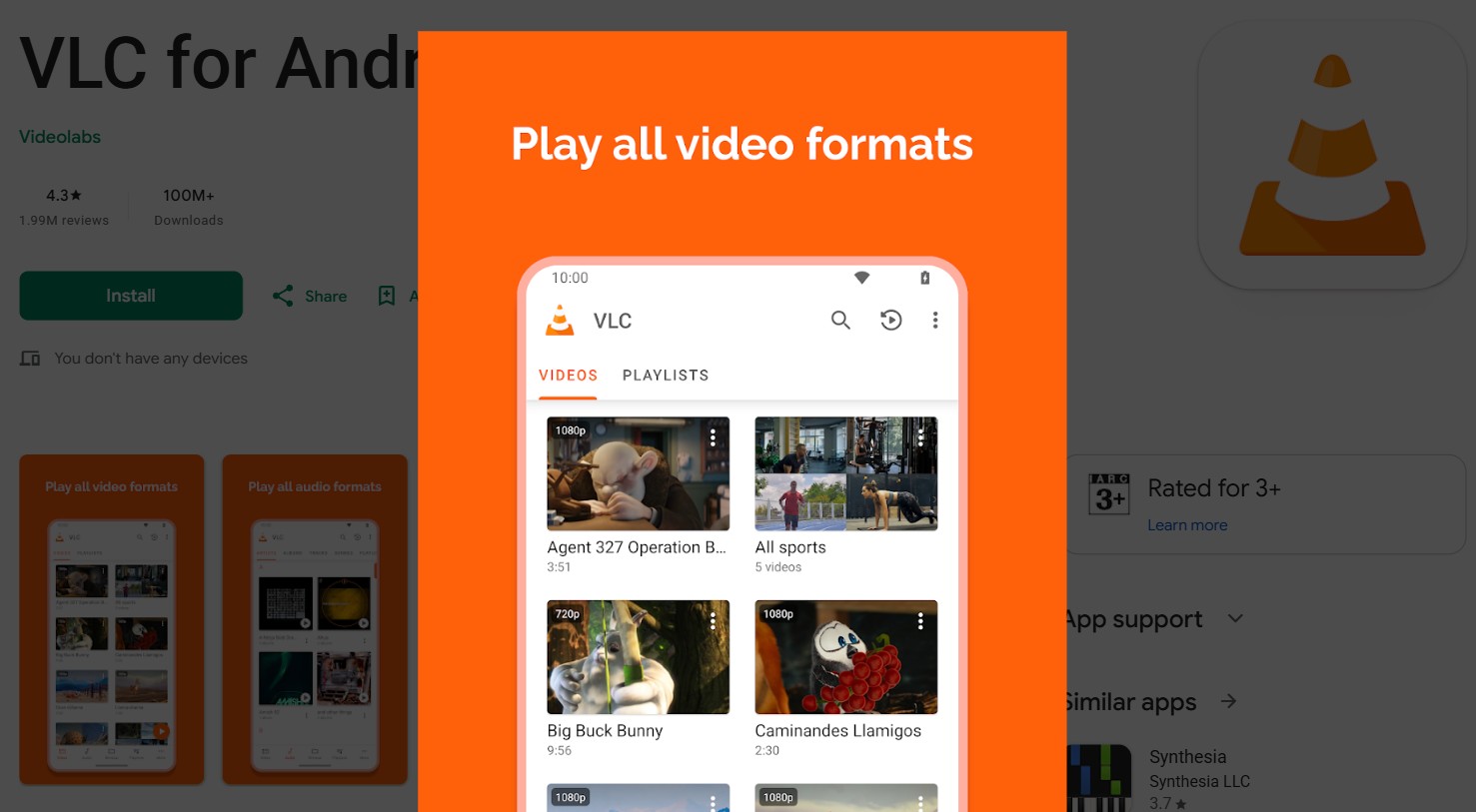
It fits readers who want an ad-free general-purpose player, but it is less appealing when a polished interface is the priority. The tradeoff is broad compatibility with a more utilitarian setup.
2. MX Player
MX Player emphasizes playback controls, gestures, and the option to change decoder behavior when a file stutters. The free experience can include advertising and extra content surfaces, so its control depth comes with a busier interface.
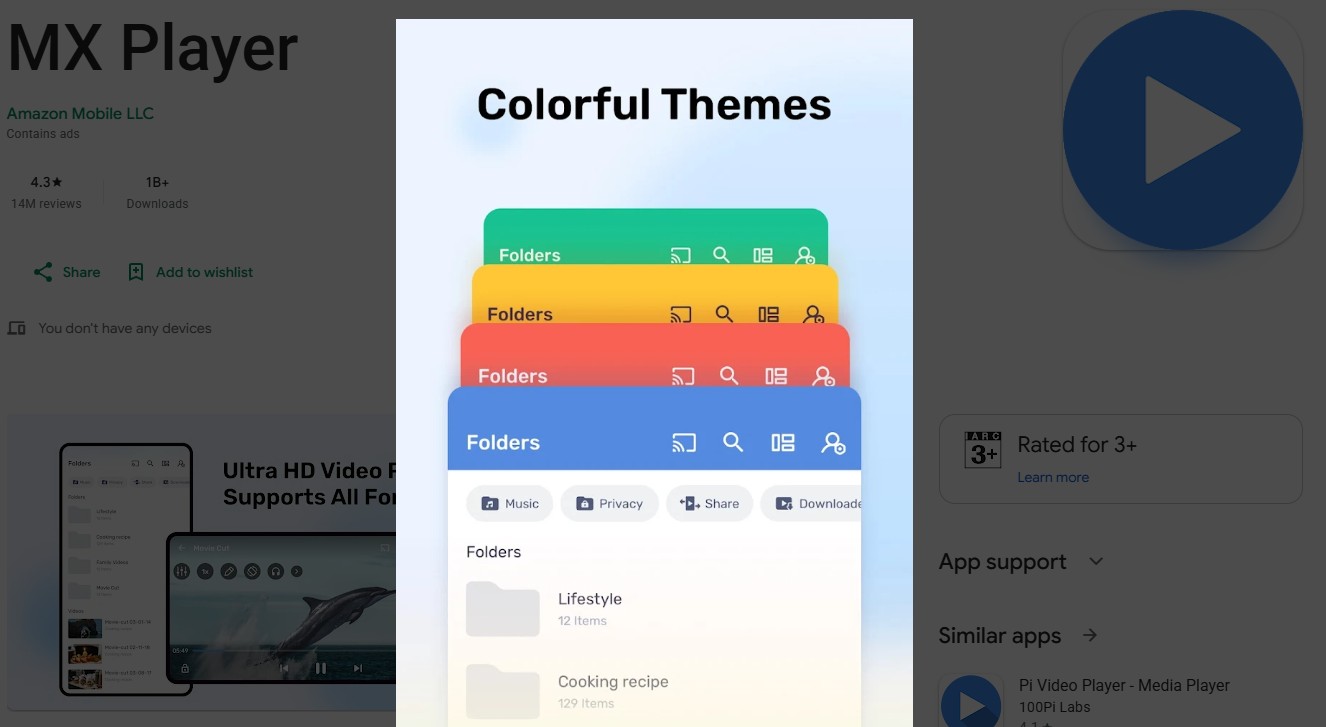
Choose it when configurable gestures and playback behavior matter. It is a weak fit for anyone who dislikes ads or visual clutter, and the deciding tradeoff is more control in a heavier interface.
3. KMPlayer
KMPlayer is most relevant when videos live in supported cloud storage rather than only on the phone. It combines local playback with cloud-oriented access, but navigation and advertising can make quick file opening feel less direct.
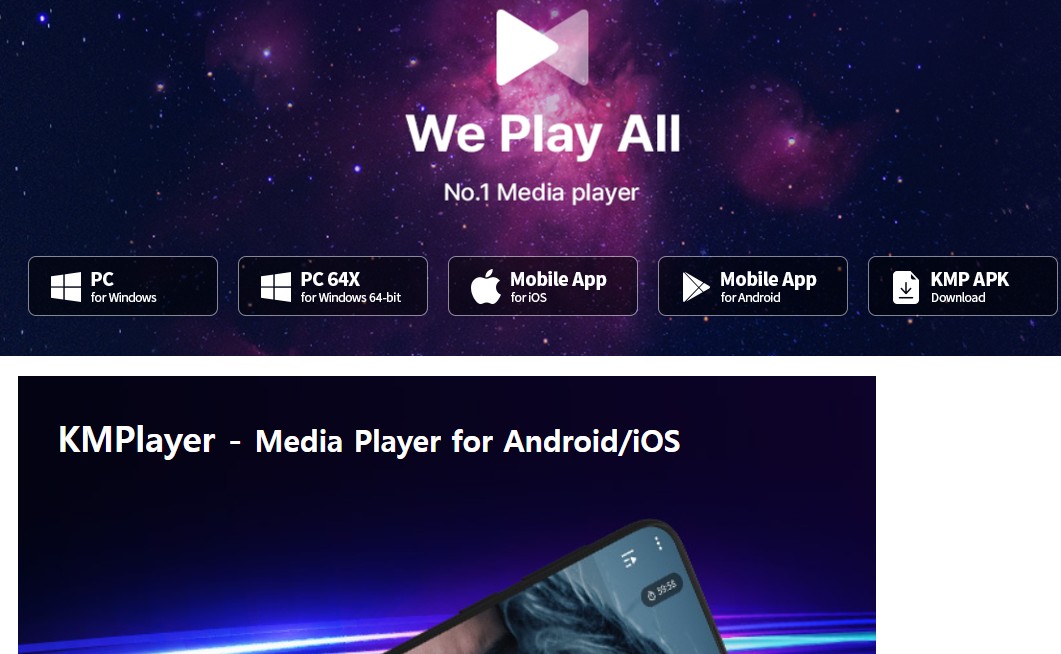
Its strongest fit is a cloud-based media collection. Readers who mainly open one local clip at a time may find it needlessly dense; broader source access is the benefit, while extra navigation is the cost.
4. nova Video Player
nova Video Player focuses on local and network libraries with a relatively clean interface. Network share detection is reliable; in testing on a Galaxy S23, nova found and loaded an SMB share consistently faster than VLC. That makes its setup especially relevant to a Samsung network video player workflow.
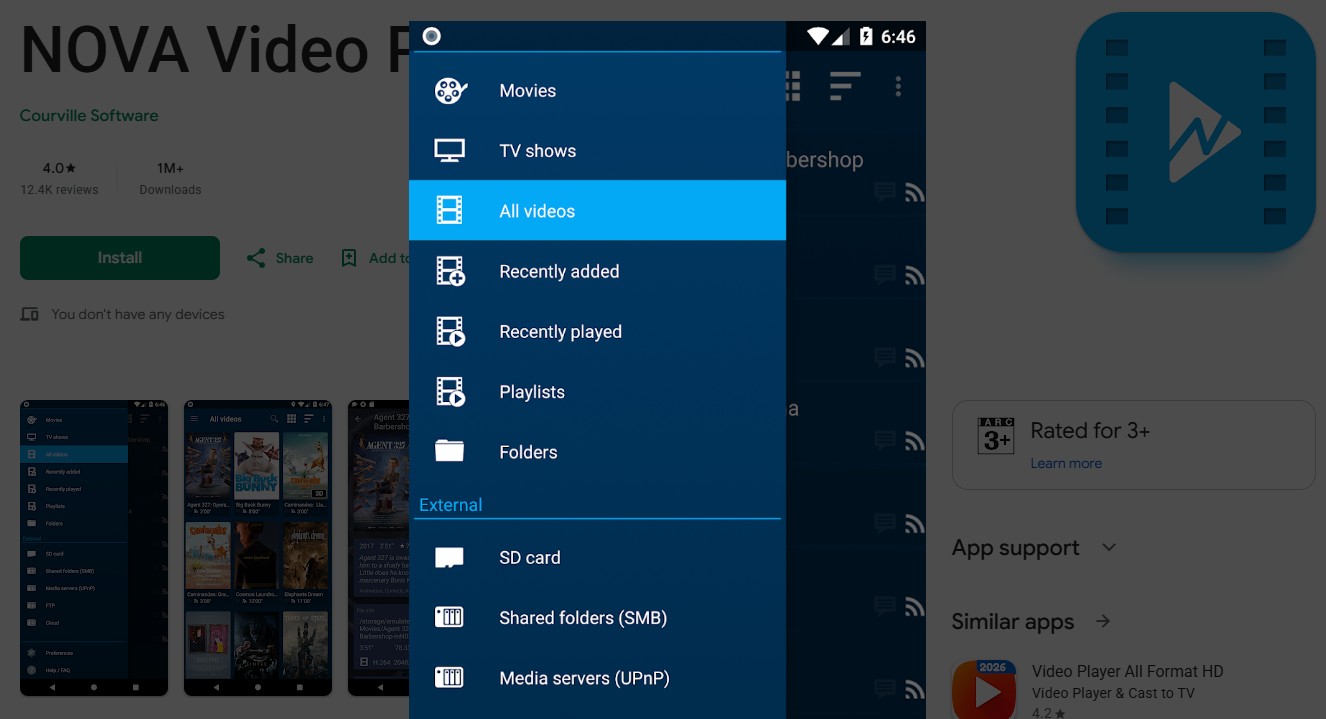
This app is best suited to a home network library. It is less suitable for readers who depend on a large troubleshooting community, so the choice is focused network access versus fewer support resources.
5. Kodi's Current Android Status
Kodi is a media center rather than a quick phone player, and its US Google Play listing was last updated on February 5, 2025. It should not be treated as a current peer recommendation beside the four apps above.
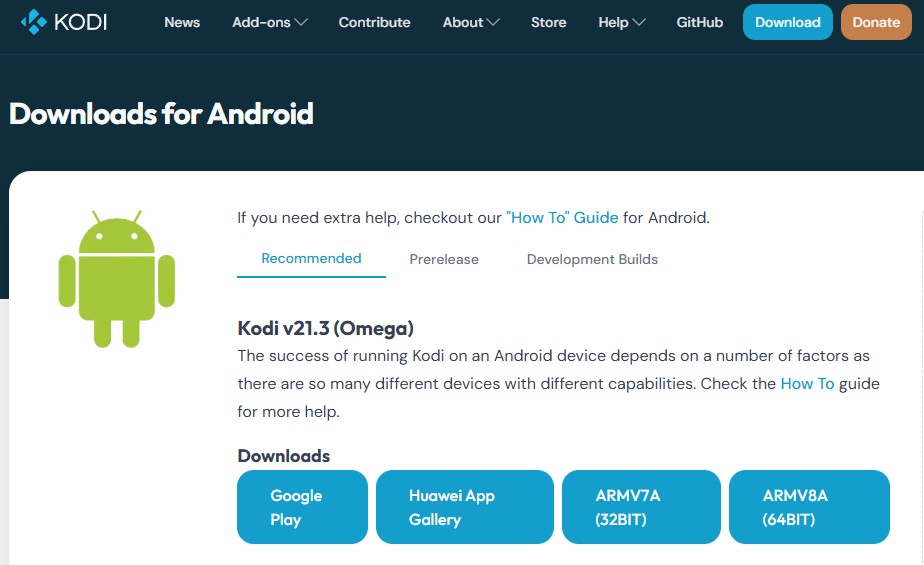
Kodi can run on supported Android, desktop, or external media devices. Samsung's Tizen OS does not offer Kodi as a native app, although a supported external device may connect to or cast to a television where the setup allows it.
Kodi suits readers who already maintain an organized media library on supported hardware. It is not a good fit for quick phone playback or anyone prioritizing a current Android-store release cadence.
Samsung Galaxy Video Player Comparison
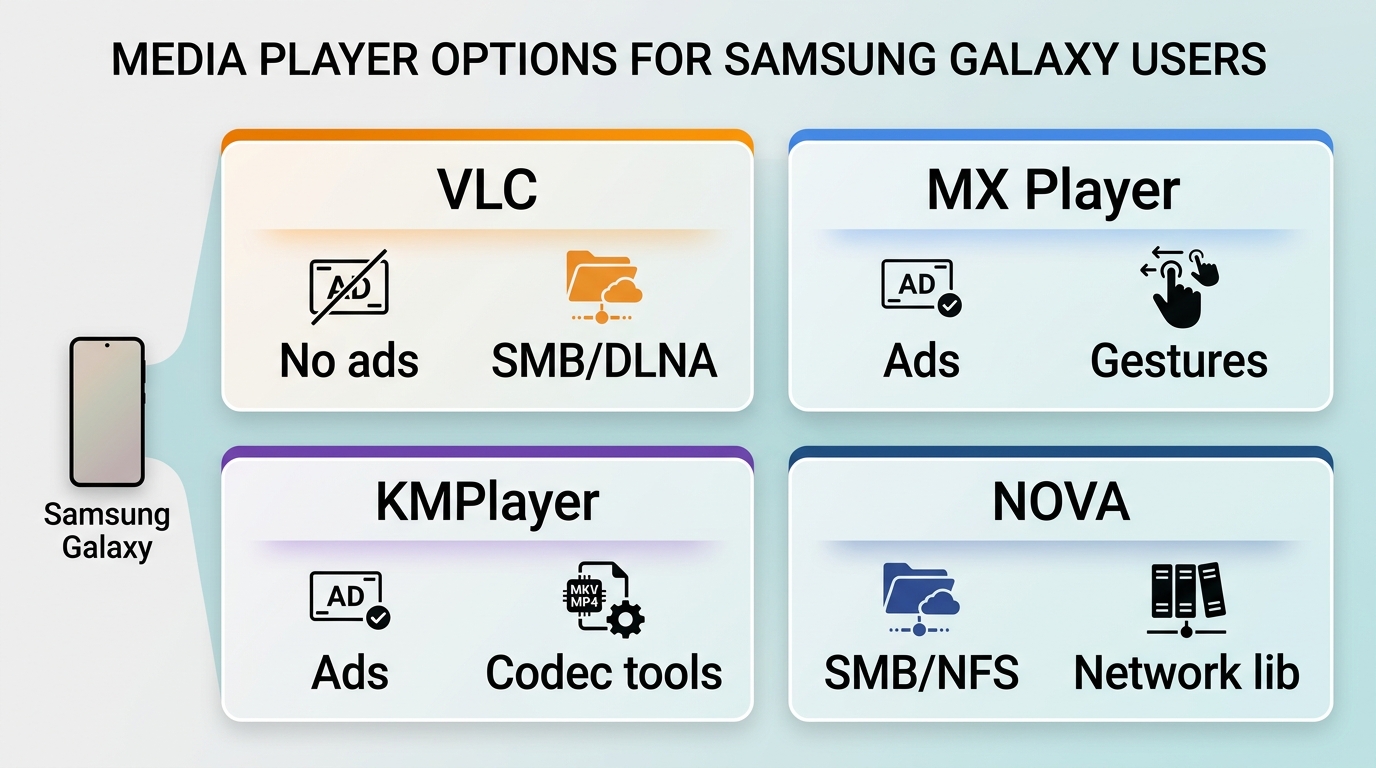
These four current peer choices differ most clearly in interface, media sources, and the amount of control they expose.
| App | Ads and cost | Format strengths | Media sources | Best fit |
|---|---|---|---|---|
| VLC for Android | Free, no ads | Broad local formats | Device, SMB, FTP, DLNA | General playback |
| MX Player | Free/paid, ads | Decoder controls | Device storage | Gesture tuning |
| KMPlayer | Free, ads | Cloud-oriented playback | Device, cloud storage | Cloud files |
| NOVA Video Player | Free/paid | Local and network files | Device, SMB, NFS, FTP | Network libraries |
VLC is the simplest default for many readers, but anyone weighing interface or network-library tradeoffs can compare a VLC alternative without treating one app as the answer for every Galaxy phone. Kodi remains a separate option for an established media-center setup.
Desktop Playback and Media Libraries on Samsung PCs
Samsung PC video playback is a secondary use case here. My view is to choose by workflow: quick local files favor a lightweight player, while a large collection benefits from library organization.
This concise Samsung-PC shortlist focuses on fit, while a broader video player for Windows comparison covers more desktop-only options.
1. PlayerFab Free Video Player for Media Libraries
PlayerFab Free Video Player is a Windows and Mac desktop option for local standard- and high-definition files, basic DVD playback, and a basic poster-wall library. It combines broad local-format compatibility with hardware-assisted playback in the desktop player, while the Free edition is capped at 1080p.
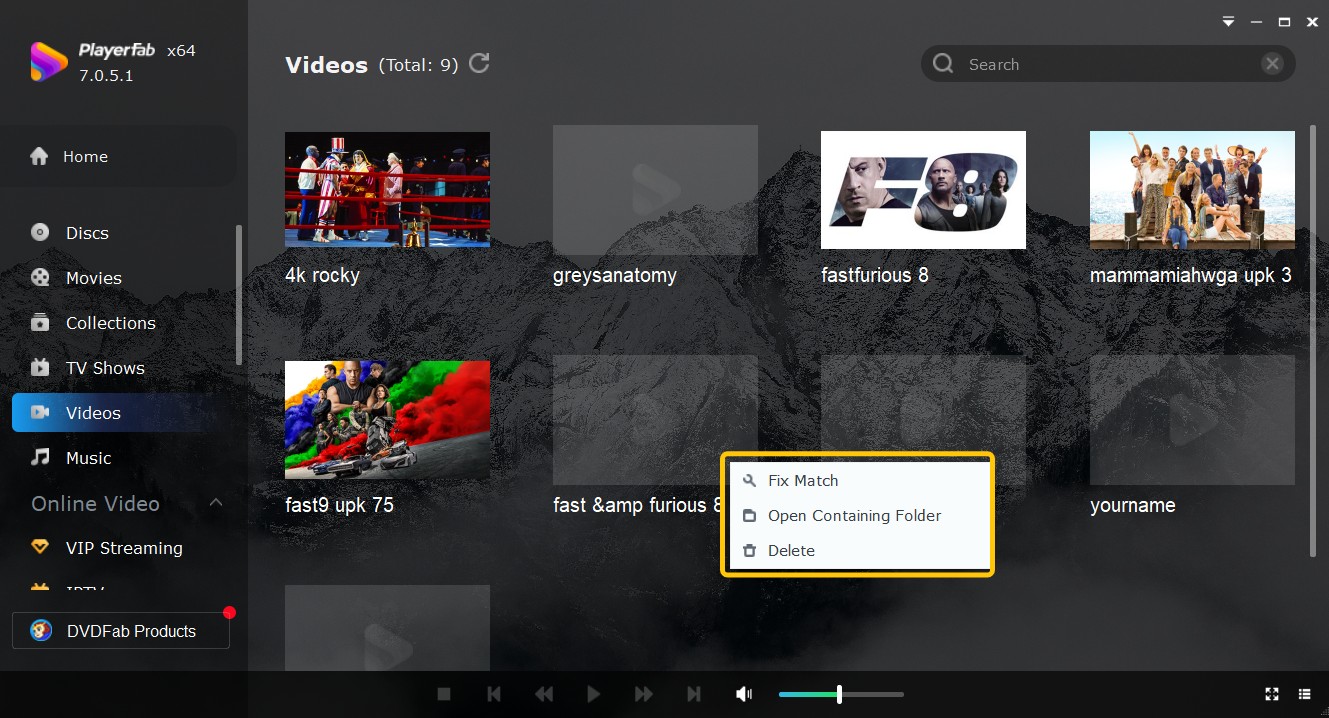
The Free edition does not include DVD menu navigation, Blu-ray, ISO, 4K UHD, or HDR playback. It also provides trial access to AI Live Subtitle, which adds a third library-viewing feature without changing those edition limits.
This option is best for Samsung PC users who want an organized local media library, not someone who only needs quick playback on a Galaxy phone. The tradeoff is library organization versus the Free edition's resolution and disc-feature limits.
2. VLC Media Player
VLC suits readers who want free, open-source local playback on more than one desktop platform. It handles many common container and codec combinations, but disc behavior and hardware acceleration can depend on the file, operating system, and settings.
Its strongest desktop use is quick local playback with a familiar cross-platform interface. A managed poster-wall library calls for a different tool.
3. PotPlayer
PotPlayer suits Windows users who value detailed playback controls and are comfortable configuring them. It is less suitable for anyone who wants the same app on macOS or Android, and its depth can slow down a simple open-and-play task.
Pick it for granular Windows controls rather than a minimal setup. That customization depth is both its appeal and its main drawback.
4. KMPlayer for Windows
KMPlayer for Windows is oriented toward readers who mix local files with supported cloud sources. Its broader source access can help on a storage-limited Samsung PC, while the interface and advertising may be a poor fit for distraction-free playback.
Cloud-oriented desktop libraries are the clearest use case. Readers who want a quiet, stripped-down interface should look elsewhere.
Playing 4K Video on Samsung Devices
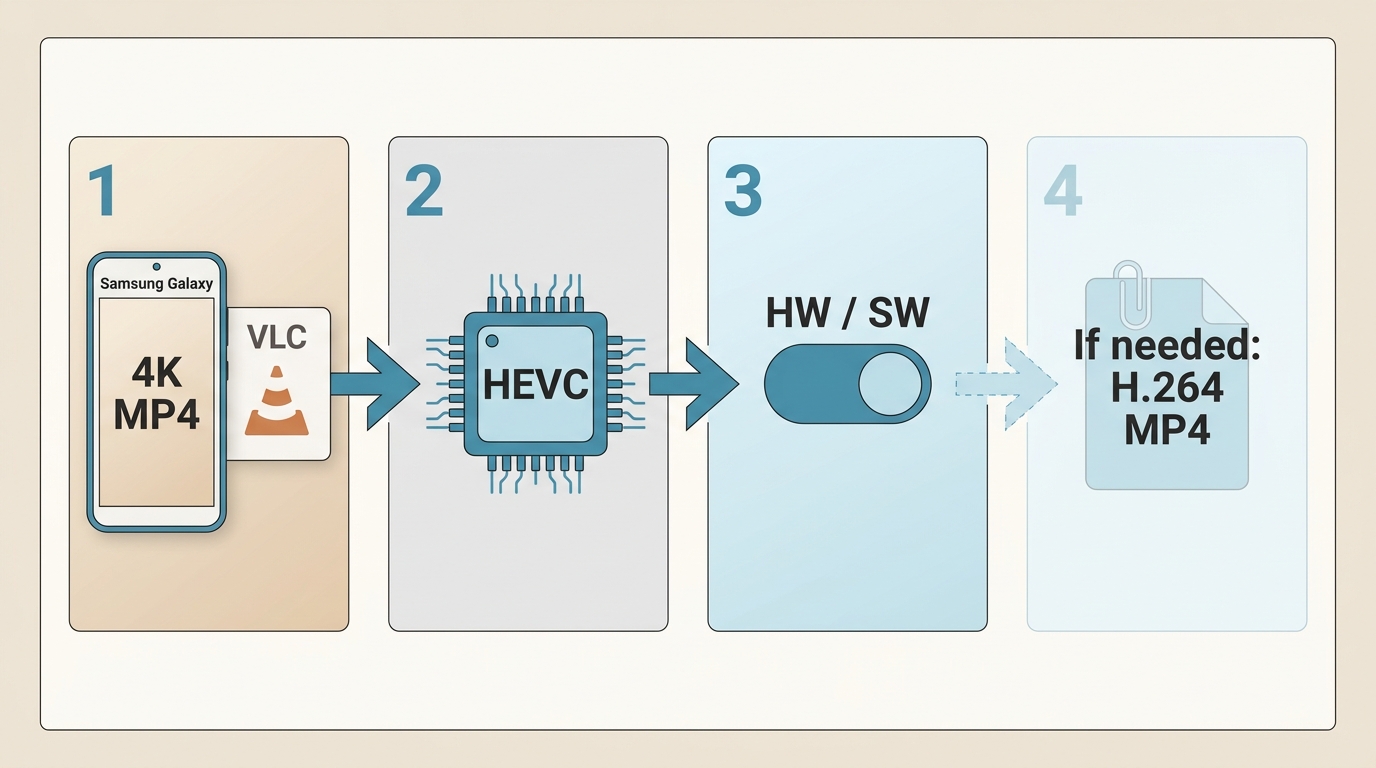
Samsung 4K video playback depends on the display, codec, player, and hardware decoder. My practical rule is to test the original file with a current player before changing the file or assuming the resolution is the problem.
4K Playback on Samsung Galaxy Phones
Galaxy 4K playback can work even when the phone's screen displays the video at a lower native resolution. Smooth playback depends more on the model's decoder support, the file's codec, and the selected app than on the 4K label alone.
- Install a current player from an official app store.
- Open the file from the player's library or from My Files.
- If playback stutters, compare hardware and software decoder modes where the app offers them.
- If subtitles are cropped in full screen, reset zoom or aspect ratio and choose a fit-to-screen view.
I would troubleshoot caption cropping before converting the video; an aggressive zoom setting can cut off subtitles even when decoding is otherwise normal.
Converting 4K Video for Samsung Phones
Conversion is useful when a file remains unstable after decoder changes. Before converting, test it in a current HEVC player; a different decoding path may solve the problem without creating another copy.
- Keep the original file and create a separate compatibility copy.
- Choose MP4 with H.264 for broad compatibility, or HEVC when the phone supports it reliably.
- Select a resolution that matches the device's practical viewing needs.
- Transfer the result and check video, audio, and subtitles before deleting any temporary files.
A desktop converter such as UniFab Video Converter can handle this workflow, but the useful decision is the output profile, not the number of settings exposed by the software.
4K Playback on Samsung Windows PCs
Samsung PC 4K playback needs compatible content, graphics hardware, display output, and player settings. For content and discs you are authorized to access, use an edition whose published capabilities match the local-file or disc workflow.
- For a local 4K file, open it in a current desktop player and enable hardware acceleration if the default mode stutters.
- For a legally owned 4K UHD disc, note that PlayerFab Free does not support Blu-ray, ISO, 4K UHD, or HDR; applicable PlayerFab editions include Ultra HD Player and All-In-One.
- Enable Windows HDR only when the content, PlayerFab edition, GPU, cable, and display all support that output path.
- If playback or a disc menu fails, record the player version, media type, GPU, driver, audio output, display, and reproduction steps before troubleshooting further.
PlayerFab's available 4K, HDR, menu, and hardware-accelerated playback features depend on the edition and setup. That boundary is more useful than assuming one desktop player will cover every Samsung PC configuration.
Frequently Asked Questions
Can I Make VLC My Default Player on Galaxy?
Gallery and My Files can hand videos to players differently. If My Files shows an app chooser, select VLC and use the default option; Gallery may still open Samsung's integrated interface on some One UI builds. Clear the existing app default in Android settings if you need the chooser again.
Why Don't Downloaded Videos Appear in Samsung Gallery?
Check the file's folder, Gallery permissions, and whether Android has indexed the download. Open the clip from My Files first; moving it to a standard Videos or Movies folder can trigger media scanning. A missing Gallery thumbnail does not necessarily mean the player cannot decode the file.
Which Player Works Best on an Older Galaxy Phone?
Choose a lightweight app with a current listing and a minimum Android requirement your phone meets. I would start with VLC when it is compatible, then compare another actively listed option if performance or the interface is a poor fit. Avoid assuming one app supports every older Galaxy model.
Conclusion
Samsung Video Player is easiest to approach in a mobile-first order: try Gallery, then choose VLC, MX Player, KMPlayer, or NOVA by fit. Use PlayerFab Free only when an organized Samsung PC library is the goal. My judgment is that the shortest working path beats chasing an old APK.

 8 Free MKV Player Apps for Windows, Mac, and Mobile in 2026By Alice Harper - Oct 16, 2026
 How to Open MP4 Files on Windows 11: 4 Reliable FixesBy Alice Harper - Aug 10, 2026
 9 Best Free FLV Players for Windows, Mac, and Mobile (2026)By Alice Harper - Aug 4, 2026
 13 Best Free MP4 Players for Windows & macOS: Hands-on Review in 2026By Alice Harper - Aug 3, 2026