How to Play H.264 Files on PC: Best H.264 Video Player Options

Summary: Getting an H.264 file to play correctly on Windows is not always as simple as the format's ubiquity suggests. Three root causes explain most playback failures: the container-codec distinction, H.264 profile level, and hardware decode capability. For most users, a capable free player handles it without any configuration; the edge cases almost always come down to one of those three.
Table of Contents
Getting an H.264 file to play correctly on Windows is not always as simple as the format's ubiquity suggests. Three root causes explain most playback failures: the container-codec distinction, H.264 profile level, and hardware decode capability. For most users, a capable free player handles it without any configuration; the edge cases almost always come down to one of those three.
If you've ever double-clicked an H.264 file on Windows and been greeted with an error, a black screen, or audio playing over a frozen frame, you already know the experience. H.264 is everywhere: action cam footage, CCTV recordings, screen captures, video files from any number of sources. Yet the default Windows experience with these files is inconsistent at best. The problem is rarely the file itself. More often it comes down to which player you're using, how that player handles H.264 decoding, and whether your hardware is being put to work. Understanding those three layers is the fastest way to stop chasing symptoms and start fixing the right thing.

What Is H.264 and Why Some H.264 Files Refuse to Play
Before choosing a player, it helps to understand why H.264 files cause trouble in the first place.
H.264 Is a Codec, Not a Container
H.264 (also called AVC or MPEG-4 Part 10) is a video compression standard, not a file format. The actual file format (the container) is typically MP4, MKV, MOV, or AVI. The H.264 codec lives inside that container and defines how the video data was compressed.
This distinction matters in practice. When a player advertises MP4 support, that does not automatically mean it handles every H.264 stream packaged inside an MP4. Some players recognize the container but fail on the codec settings within it. Others support the codec in one container but not another. Files with the raw .h264 extension are particularly problematic: they are bare H.264 bitstreams with no container at all. Only players that explicitly handle raw streams open these without issues.
High-Profile H.264 and the Players That Can't Keep Up
H.264 comes in several profiles: Baseline, Main, and High, each targeting different device capabilities. Baseline Profile is built for low-power devices and is broadly compatible. High Profile, used in Blu-ray rips, high-resolution screen recordings, and broadcast captures, applies more advanced compression tools that not all players decode correctly.
Older versions of Windows Media Player and many built-in system players were tuned for Baseline and Main. Feed them a High Profile H.264 file and the result is often a black screen, corrupted output, or an immediate error. Modern dedicated players use comprehensive codec libraries that cover all profiles, which is why switching to a standalone player almost always solves what built-in apps cannot.
When Your CPU Becomes the Real Bottleneck
High-bitrate H.264 content (anything above roughly 20 Mbps at 1080p, or most 4K H.264 recordings) can exceed a player's software decoding capacity. Software decoding processes the H.264 stream through the CPU. On mid-range or older machines, this produces dropped frames and choppy playback even when the file is completely intact.
Hardware acceleration offloads decode to the GPU via DXVA2, NVDEC (NVIDIA), Quick Sync (Intel), or VCE (AMD), dropping CPU usage significantly and delivering smooth output. Not every H.264 player enables hardware decoding by default, and some do not support it at all.
How to Play H.264 Files with PlayerFab Free Video Player
PlayerFab Free Video Player is a free local media player for Windows that handles H.264 natively across common containers (MP4, MKV, MOV, AVI) without installing separate codec packs. It is the only player in this guide that pairs H.264 playback with a full media library, making it suited to users who manage collections of video files rather than opening one clip at a time.
Key features relevant to H.264 users:
- Native H.264 playback across MP4, MKV, MOV, and AVI with no codec packs required
- Media library with poster-wall browsing covering Movies, TV Shows, and Videos categories, with auto-downloaded metadata and cover art
- Smart Preview with hover thumbnails for quick content scanning inside the library
- TV Mode and PC Mode for use at a desk or connected to a living room display
- GIF Maker to export short clips from any video segment
Pros:
- Free with no feature gates on H.264 playback or library management
- Media library included from the start, unlike VLC, PotPlayer, or MPC-BE
- Hardware acceleration exposed clearly through Settings, with a hardware analysis check before enabling
- Drag-and-drop and right-click open work without launching PlayerFab first
Cons:
- No streaming support in the free version; that requires the Stream Player add-on
- Initial library setup requires pointing PlayerFab to your video directories before the poster wall populates
Opening an H.264 File: Three Methods
Once PlayerFab is installed, there are three ways to load any H.264 file:
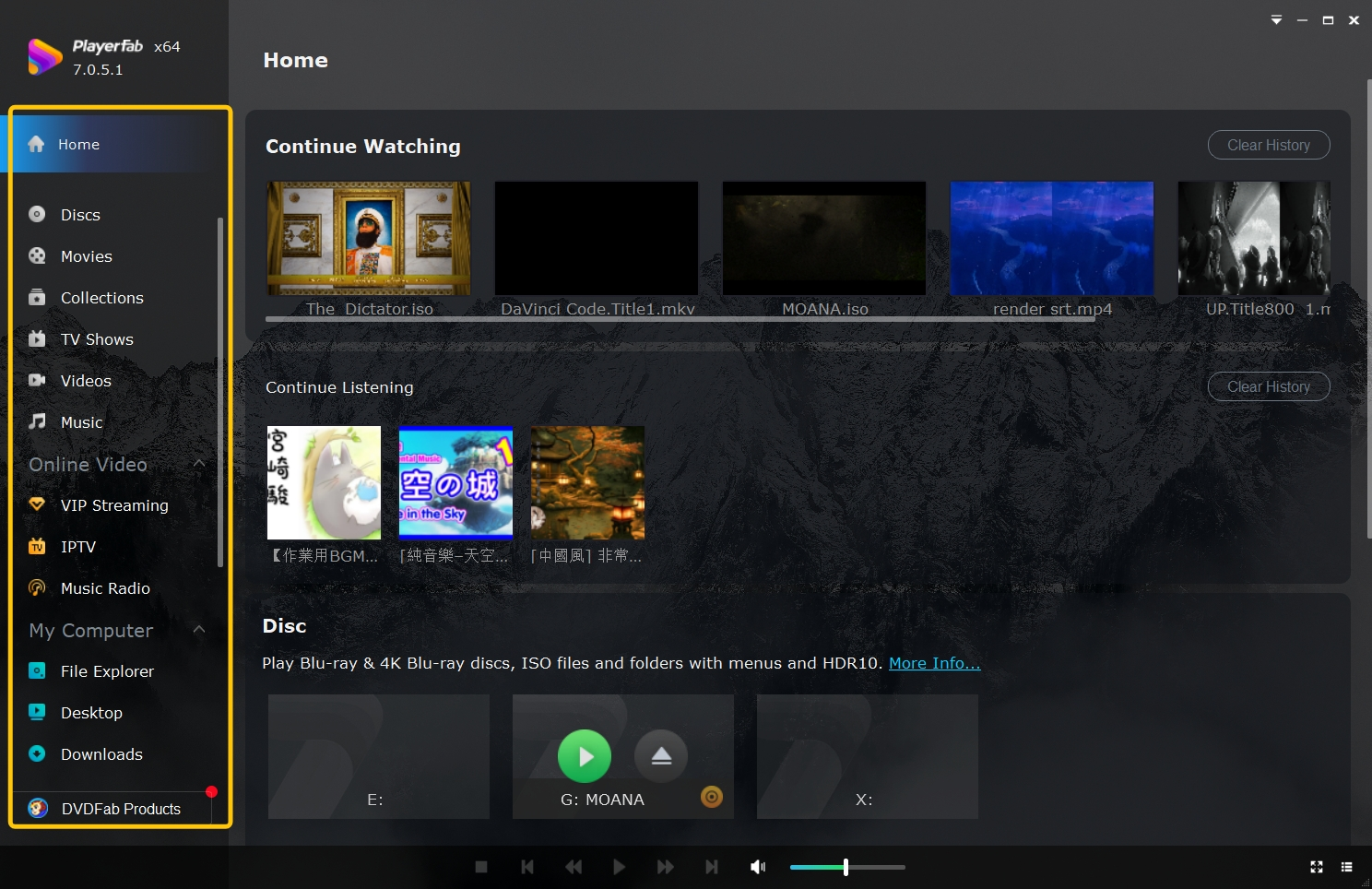
Method 1: Drag and Drop. Drag the file directly onto the PlayerFab window. Playback starts immediately. This works with individual files, folders, and ISO files.
Method 2: Right-Click Menu. In Windows Explorer, right-click the H.264 file and select Play with PlayerFab (or Open with > PlayerFab if it appears in the list). PlayerFab does not need to be open in advance.
Method 3: In-Player File Browser. Press Ctrl+O inside PlayerFab, or right-click the playback area and choose Open Media…, then navigate to your file. For raw .h264 bitstream files without a container, this method handles them most reliably.
Key Playback Settings for H.264 Files
For most H.264 files, playback works without adjustment. A few settings are worth knowing for edge cases:
- Aspect ratio correction. If the video appears stretched or pillarboxed, right-click the playback area and select Aspect Ratio to choose the correct setting. Older cameras often encode non-standard pixel aspect ratios inside their H.264 streams.
- Audio sync correction. Converted or re-encoded H.264 files sometimes have audio that drifts from the video. Right-click during playback and use the Audio Offset control (in seconds) to realign it. Positive values delay audio; negative values advance it.
- External subtitle loading. For H.264 files with a companion .srt or .ass subtitle file, right-click during playback and go to Subtitle > Load Subtitle File to attach it.
- Codec and bitrate inspection. Press F2 at any point during playback to see the full codec profile, resolution, bitrate, and audio stream details.
Press F5 to access full settings at any time during or before playback. For high-bitrate recordings (4K H.264 from drones or cameras capturing above 30 Mbps), go to Settings (F5) > Video > Enable Hardware Acceleration Decoding and use the Analyze Hardware button to confirm GPU support before switching it on. PlayerFab Ultra HD Player extends this hardware pipeline further for 4K UHD content with HDR and lossless audio passthrough.
Other Free H.264 Video Players Reviewed
PlayerFab is not the only capable option for H.264 playback on Windows. Three free players are worth knowing: VLC, PotPlayer, and MPC-BE. Each covers H.264 well, but they differ in hardware support, configurability, and what surrounds the core playback experience.
VLC Media Player
VLC is the most widely used free media player in the world and handles virtually every H.264 profile and container combination without additional codec installation. It runs on Windows, macOS, Linux, iOS, and Android, making it the go-to recommendation whenever cross-platform consistency matters. Error recovery is a genuine strength: VLC opens partially corrupted or incomplete H.264 files more reliably than most alternatives.
Key features for H.264 users:
- Full H.264 support across MP4, MKV, MOV, AVI, TS, and raw .h264 streams
- Hardware acceleration via DXVA2 (requires manual activation under Tools > Preferences > Input/Codecs)
- Network stream playback (RTSP, HLS, MMS) in addition to local files
- Basic subtitle styling and external subtitle file support
- Available on all major platforms with a consistent interface
Pros:
- Strong error recovery for damaged or partially downloaded H.264 files
- Open-source and ad-free with no account or registration required
- Handles raw .h264 streams and unusual container combinations reliably
Cons:
- No media library management; files are opened individually, not organized as a collection
- Hardware acceleration is off by default and requires navigating a non-obvious settings path
- Subtitle customization is limited relative to players with dedicated styling panels
PotPlayer
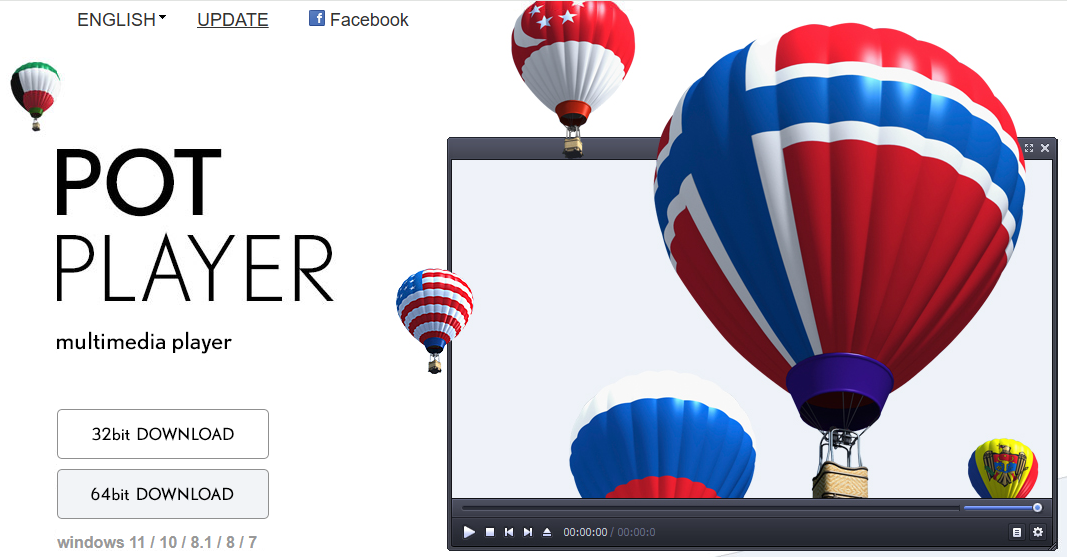
PotPlayer is a Windows-only free media player with one of the most comprehensive hardware acceleration implementations available. It covers DXVA2, NVDEC (NVIDIA), CUDA, and Intel Quick Sync for H.264 decode, and it detects the GPU automatically, reducing the manual configuration burden compared to VLC. The player is actively maintained and handles High Profile H.264, 10-bit streams, and 4K content without issues.
Key features for H.264 users:
- Full H.264 support across all profiles and containers, including High 10-bit
- Frame-rate adjustment and smooth motion controls for high-bitrate playback
- Built-in audio equalizer and subtitle renderer
- Bookmark and chapter navigation tools
Pros:
- Comprehensive hardware acceleration with automatic GPU detection
- Handles High Profile and 10-bit H.264 that trips up some other free players
- Highly configurable rendering and decoding settings for power users
- Lightweight footprint despite the feature depth
Cons:
- Windows only, with no macOS or Linux version
- No media library; files are opened individually
- Closed-source, unlike VLC or MPC-BE
MPC-BE
MPC-BE is the actively maintained community fork of MPC-HC, which received its last official update in 2017. It takes a deliberately minimal approach: fast launch, clean interface, and capable H.264 decode through its internal codec filters without requiring external codec pack installation. For users who need a small, fast player and are comfortable managing their own file system, MPC-BE is a solid choice.
Key features for H.264 users:
- H.264 decode via LAV Video Decoder (bundled internal filter)
- Hardware acceleration via DXVA2 and CUVID
- Minimal resource footprint with fast startup time
- madVR and other external renderer support for advanced video output
Pros:
- Lightweight and fast to launch, with low memory usage at idle
- Open-source with active development and regular releases
- Capable H.264 decode via bundled LAV filters, no separate codec pack needed
- Supports external renderers like madVR for users who want advanced output processing
Cons:
- No media library; single-file playback only
- Interface is functional but sparse, with less hand-holding than PlayerFab or VLC
- MPC-HC is discontinued and should not be downloaded from unofficial sources
With each player covered individually, the differences come into clearer focus:
| Player | Hardware Decoding | Media Library | Platform |
| PlayerFab | NVIDIA / AMD / Intel | Poster wall | Windows/Mac |
| VLC Media Player | DXVA2 (manual) | No | Windows/Mac/Linux |
| PotPlayer | DXVA2 / NVDEC / CUDA | No | Windows |
| MPC-BE | DXVA2 / CUVID | No | Windows |
| Windows Media Player | Limited | No | Windows |
For most users playing standard H.264 files from cameras, screen recordings, or downloaded content, PlayerFab Free Video Player and VLC both cover the job without configuration. PlayerFab adds library management that the others do not offer. VLC adds cross-platform reach. PotPlayer and MPC-BE are worth considering if you frequently deal with High 10-bit or unusual H.264 streams and want more control over the decode pipeline.
Troubleshooting H.264 Playback Problems on Windows
Most H.264 playback problems fall into two categories: files that display incorrectly, and files that play with frame-rate issues.
File Opens but Shows No Video or Garbled Image
If audio plays normally but the video is black, green-blocked, or visually corrupted, the most common cause is a hardware decoding conflict. Disable hardware acceleration first: Settings (F5) > Video > uncheck Enable Hardware Acceleration Decoding, then reload the file. Some GPU driver versions mishandle specific H.264 profiles in hardware mode while decoding them correctly in software.
If that does not resolve it, press F2 in PlayerFab to check the codec profile. Files encoded with H.264 High 10 (10-bit color) or H.264 Hi444PP (4:4:4 chroma) require a player with explicit support for those variants. Most players handle standard 8-bit High Profile without issue; High 10 and Hi444PP are less common and worth confirming before assuming a player problem.
A third case: a raw .h264 file with no container wrapper. Remuxing it into MKV using MKVToolNix (a free, open-source tool) wraps the bitstream without re-encoding and resolves compatibility with virtually every modern player.
Stuttering and Frame Drops with H.264 Content
Choppy playback with H.264 almost always points to a decode performance issue. Check CPU usage while the file plays. If it is consistently above 80-90%, the player is performing full software decode on content that exceeds its throughput.
Step 1. Enable hardware acceleration in PlayerFab: Settings > Video > Enable Hardware Acceleration Decoding, then use Analyze Hardware to verify GPU support.
Step 2. If stuttering continues after enabling hardware acceleration, close background applications to reduce CPU and memory pressure.
Step 3. Press F2 to check the file's bitrate. Recordings above 50 Mbps, common with high-end mirrorless cameras and some drone models, require a player with a robust hardware pipeline. PlayerFab Ultra HD Player handles this range.
Step 4. Update GPU drivers. Outdated drivers occasionally introduce hardware decode regressions that specifically affect H.264 streams.
Frequently Asked Questions
Why won't my H.264 file play on Windows Media Player?
Older versions of Windows Media Player lack built-in support for H.264 in MKV containers and for High Profile H.264 streams. Windows 10 and 11 extended built-in codec coverage to handle standard H.264 in MP4, but edge cases still fail. Installing a dedicated player like PlayerFab or VLC is a more reliable fix than troubleshooting codec pack installations through Windows Media Player.
Can I play 4K H.264 files without a powerful CPU?
Yes, provided hardware acceleration is active in your player. NVIDIA, AMD, and Intel GPUs all include dedicated H.264 decode hardware that handles 4K streams with minimal CPU involvement, even on mid-range machines.
In PlayerFab, go to Settings > Video > Enable Hardware Acceleration Decoding and run the Analyze Hardware check to confirm compatibility. Software decoding of 4K H.264 will stutter on most systems; hardware decoding is the correct path for this resolution and bitrate range.
What's the difference between H.264 and MP4?
H.264 is the compression algorithm that encodes and decodes video data. MP4 is a container format that packages video, audio, subtitles, and metadata into a single file. An MP4 can contain H.264 video, but it might also carry H.265, AV1, or another codec.
Conversely, H.264-encoded video can be wrapped in MKV, MOV, AVI, TS, or other containers. When a player claims MP4 support, it means it handles that container format. H.264 player support means it decodes the specific codec stream, regardless of which container holds it.
Conclusion
For the large majority of H.264 files, including camera footage, screen recordings, and downloaded video, a capable free player removes the friction entirely. PlayerFab handles H.264 across containers without configuration, adds media library organization for users managing collections, and makes hardware acceleration accessible through a clear settings toggle. VLC is the dependable cross-platform fallback. PotPlayer and MPC-BE serve users who prioritize hardware pipeline control and a minimal footprint. Where demands increase, with high-bitrate 4K recordings or complex codec profiles, enabling hardware decode in your player of choice is the correct first step before looking at anything else.

 How to Open MP4 Files on Windows 11: 4 Reliable FixesBy Alice Harper - Aug 10, 2026
 9 Best Free FLV Players for Windows, Mac, and Mobile (2026)By Alice Harper - Aug 4, 2026
 13 Best Free MP4 Players for Windows & macOS: Hands-on Review in 2026By Alice Harper - Aug 3, 2026
 How to Play MOV Files on Windows 10/11, Including iPhone HEVC, ProRes & 4K HDRBy Alice Harper - Jul 30, 2026