Windows Media Player Not Working? 7 Fixes for Windows 11 and 10

Summary: Windows Media Player not working is one of the most common multimedia headaches on Windows 10 and 11 — and in most cases, it's caused by corrupted DLL files, a missing codec, or a botched update. This guide walks through five targeted fixes I've tested, ordered from quickest to most drastic. If none of them stick, I'll also show you why PlayerFab handles the same media files.
Table of Contents
Identify Which Media Player Is Failing
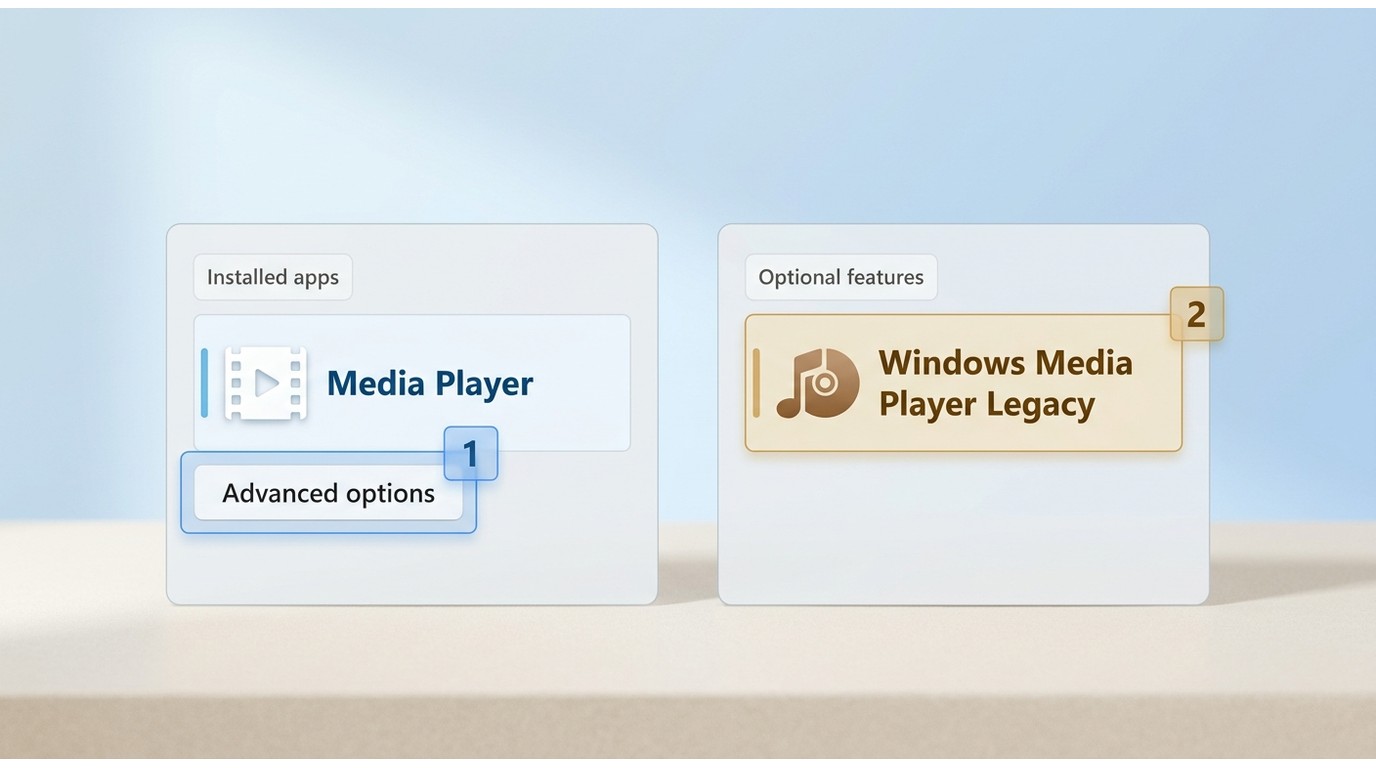
Windows Media Player not working on Windows 11 or Windows 10 usually comes down to one question: is the problem in the modern Microsoft Media Player app or Windows Media Player Legacy? The right fix depends on that identity and on the exact symptom, so start with the table below and work from the least invasive check upward.
The practical takeaway: Repair or Reset applies to the modern Media Player app, while optional-feature and component repairs apply to Windows Media Player Legacy. Applying a valid fix to the wrong app is often why otherwise sensible instructions appear to fail.
Modern Microsoft Media Player
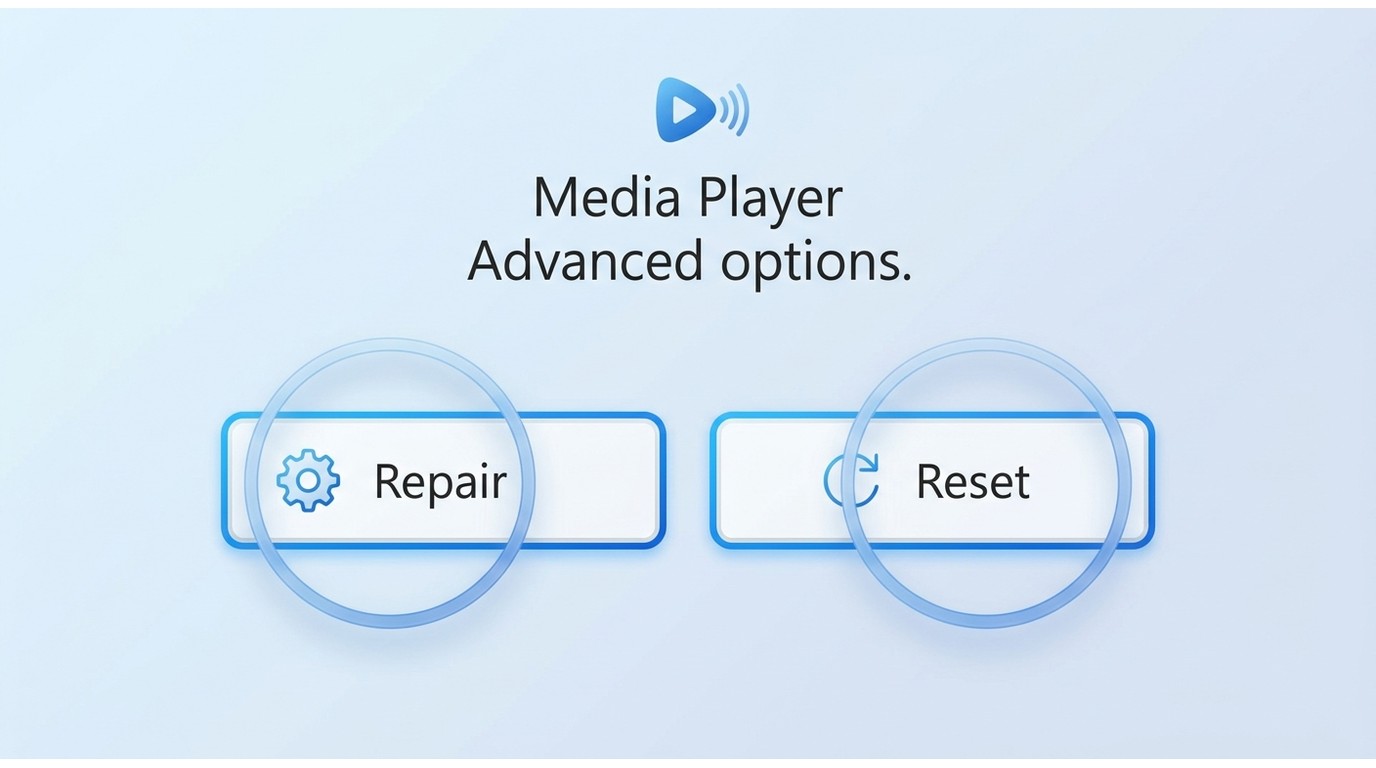
The modern Media Player app is the newer Windows app. To identify it, open Settings → Apps → Installed apps, search for Media Player, and select the three-dot menu to open Advanced options. That page contains its Repair and Reset controls.
Windows Media Player Legacy
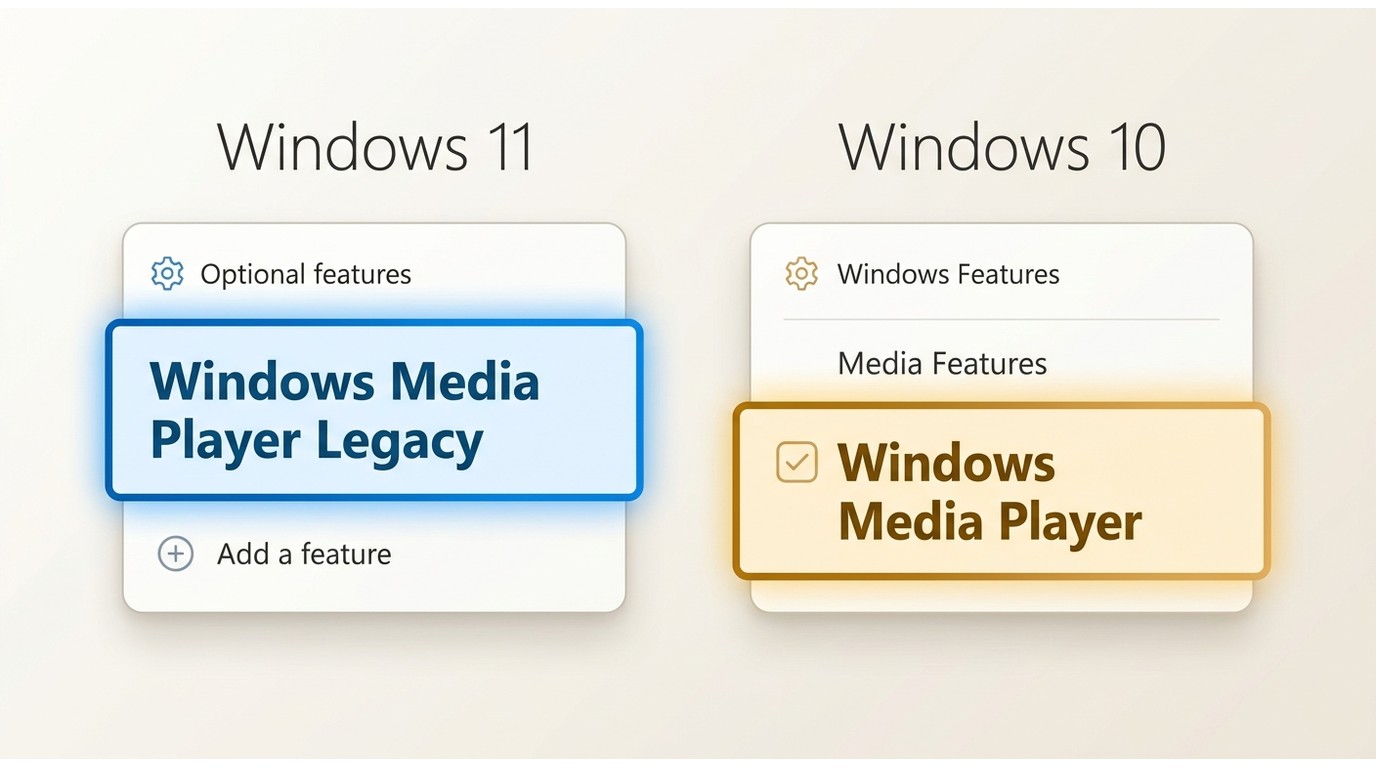
Windows Media Player Legacy is a separate, older application that may be available through Settings → Apps → Optional features. Its installation and troubleshooting path differs from the modern app. If you need version-specific background, the Windows Media Player 11 guide covers the older player's context without changing this article's troubleshooting path.
Match the Symptom to the First Fix
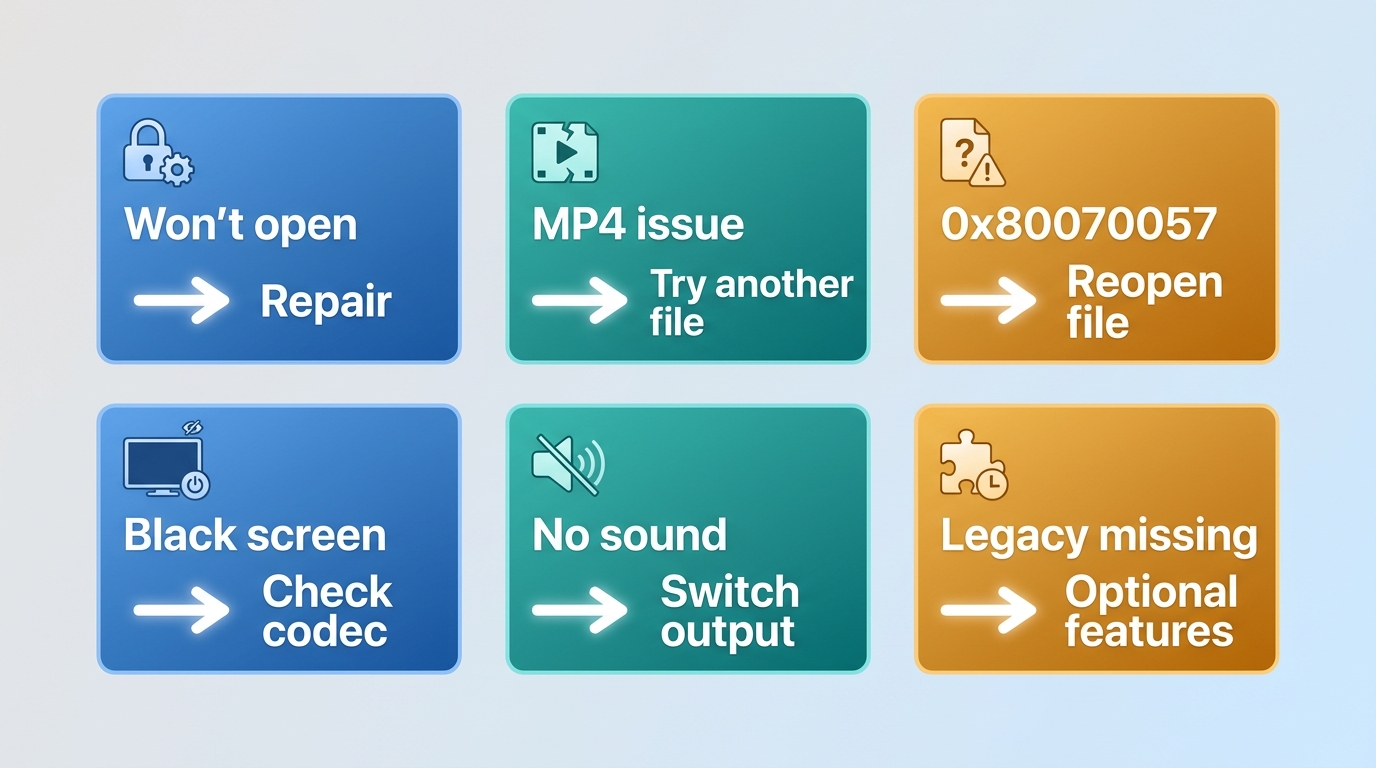
A playback symptom is a starting point, not a diagnosis. Test with one known-good local file before making system-wide changes, especially if the failure affects only one MP4 or began after an update.
| Symptom | Likely Category | First Low-Risk Check |
|---|---|---|
| App will not open, freezes, or crashes | App settings or installation | Identify the app, then use Repair for the modern Media Player app. |
| MP4 shows unsupported encoding | Codec, app regression, or damaged file | Test another file and identify the video and audio codecs. |
0x80070057 | Playback symptom with several possible causes | Check whether it began after an app or Windows update, then test another player. |
| Audio plays but the screen is black | Video codec, rendering, or graphics output | Check the codec and graphics driver before reinstalling the app. |
| No sound | Audio output or driver | Test another app and confirm the selected Windows output device. |
| Windows Media Player Legacy is missing | Optional feature or Windows component | Check Optional features and use official Windows component repair if needed. |
| CD album information is missing but playback works | Metadata lookup service | Treat it separately from codec or local playback failures; some users have reported service-side metadata issues. |
In my view, this short triage step saves more time than trying a long list of repairs: a file-specific failure rarely needs the same response as an app that cannot launch.
Fix 1: Restart, Update, and Test Another File
Start with the reversible checks. Restart Windows, install pending Windows updates, and update the modern Media Player app through Microsoft Store if that is the app you use. Then test a known-good local video and, if possible, the same file in another installed player.
If the issue began immediately after an update, note that timing before changing codecs or reinstalling anything. A single affected file points toward the file or its encoding; a failure across apps points toward Windows, a driver, or the selected output device.
Fix 2: Repair or Reset Media Player
Repair the Modern App
For the modern Microsoft Media Player app, open Settings → Apps → Installed apps → Media Player → Advanced options, then select Repair. Repair is the appropriate first choice for app-level crashes, broken settings, or a player that will not open. It is not the first choice when just one media file fails.
Reset Only If Repair Fails
If Repair does not resolve the app problem, return to the same page and select Reset. Reset restores the app's settings and library data, not your original video files. Review the Windows prompt before confirming.
Fix 3: Rebuild the Media Library Cache
Use this route when the app opens but its library is slow, blank, duplicated, or repeatedly crashes while loading media. Close Media Player first, remove the affected media folder from the app's library settings, then add the folder again and allow the library to refresh. Your original media files stay in their existing folders.
I would try this before any system recovery because it addresses library-level problems without rolling back drivers, applications, or Windows settings.
Fix 4: Resolve MP4, HEVC, and Audio-Only Playback
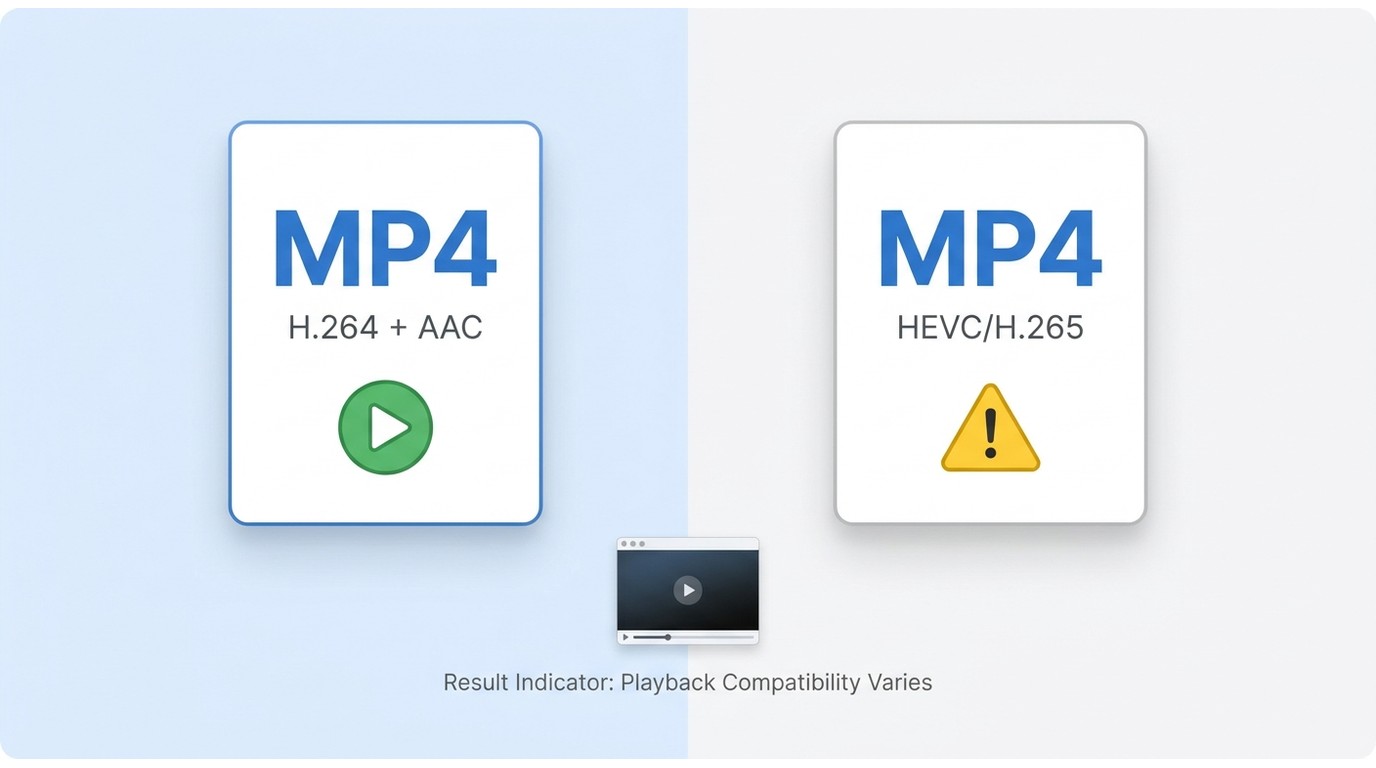
Separate Container and Codec Problems
MP4 is a container, not a guarantee that two files use the same video or audio codec. One MP4 may use a codec your app supports while another uses HEVC or an audio stream it cannot decode. Test another file, identify the codec, and use official or reputable codec support when needed. For broader file-opening steps, see how to play MP4 on Windows.
Third-party codec packs are an advanced fallback, not a default repair. They can introduce filter conflicts, so create a restore point first and be prepared to remove the pack if playback problems spread to other apps.
Diagnose Error 0x80070057
An unsupported-encoding message or 0x80070057 does not prove one cause. It can reflect an unavailable codec, a damaged file, an app regression after an update, or a wider playback problem. Check whether the same file works in another player and whether another known-good file fails before choosing a codec, conversion, or app repair path.
Check Audio and Video Output
When audio plays but video is black, check the graphics driver and display connection before assuming the file is corrupt. When there is no sound, confirm the selected Windows output device and test audio in another app. A cross-app failure is a system-level clue, not a Media Player-only issue.
Fix 5: Repair Windows Media Player Legacy
These steps apply to Windows Media Player Legacy, not the modern Media Player app. Start with the Legacy troubleshooting options available in Windows, then reinstall the optional feature if the player itself is damaged or missing.
Run the Legacy Troubleshooter
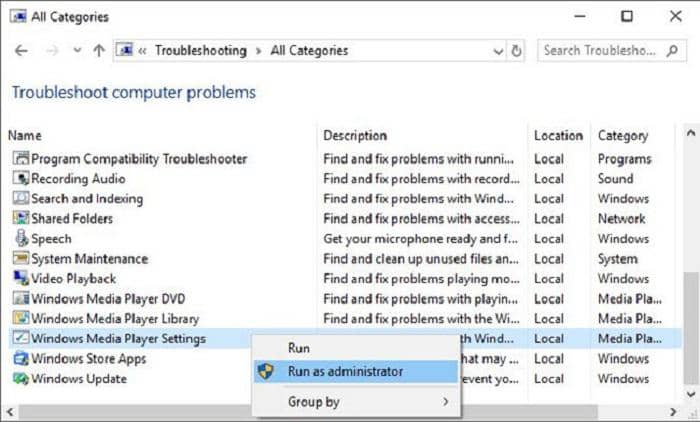
On Windows 10, open Control Panel, search for Troubleshooting, select View all, and run the available Windows Media Player troubleshooting option. This is useful for Legacy library and settings problems, but it does not repair the modern Media Player app.
Re-Register Legacy Components
Component registration is an advanced Legacy-only step. Use it only when Windows identifies a Legacy component problem and avoid applying generic command-line fixes to the modern Media Player app.
Reinstall the Optional Feature
On Windows 11, open Settings → Apps → Optional features, search for Windows Media Player Legacy, uninstall it if present, restart, then use Add a feature to install it again. On Windows 10, the corresponding setting is under Turn Windows features on or off → Media Features.
If Legacy is absent from Optional features on a customized or stripped-down Windows installation, use official Windows component repair or official installation media rather than an unverified installer.
Fix 6: Address Drivers and Post-Update Failures
If Media Player fails across multiple files or apps, move beyond the player itself. Install pending Windows updates, update the graphics and audio drivers from the hardware manufacturer, and confirm that Windows is sending sound and video to the intended device. If the problem began immediately after a driver update, rolling back that recent driver can be more sensible than reinstalling the player again.
For audio-only playback or a black screen, test with another app after updating the graphics driver. If the issue persists across apps, check the display connection, selected audio output, and device settings before considering a system restore.
Fix 7: Use System Repair or Restore
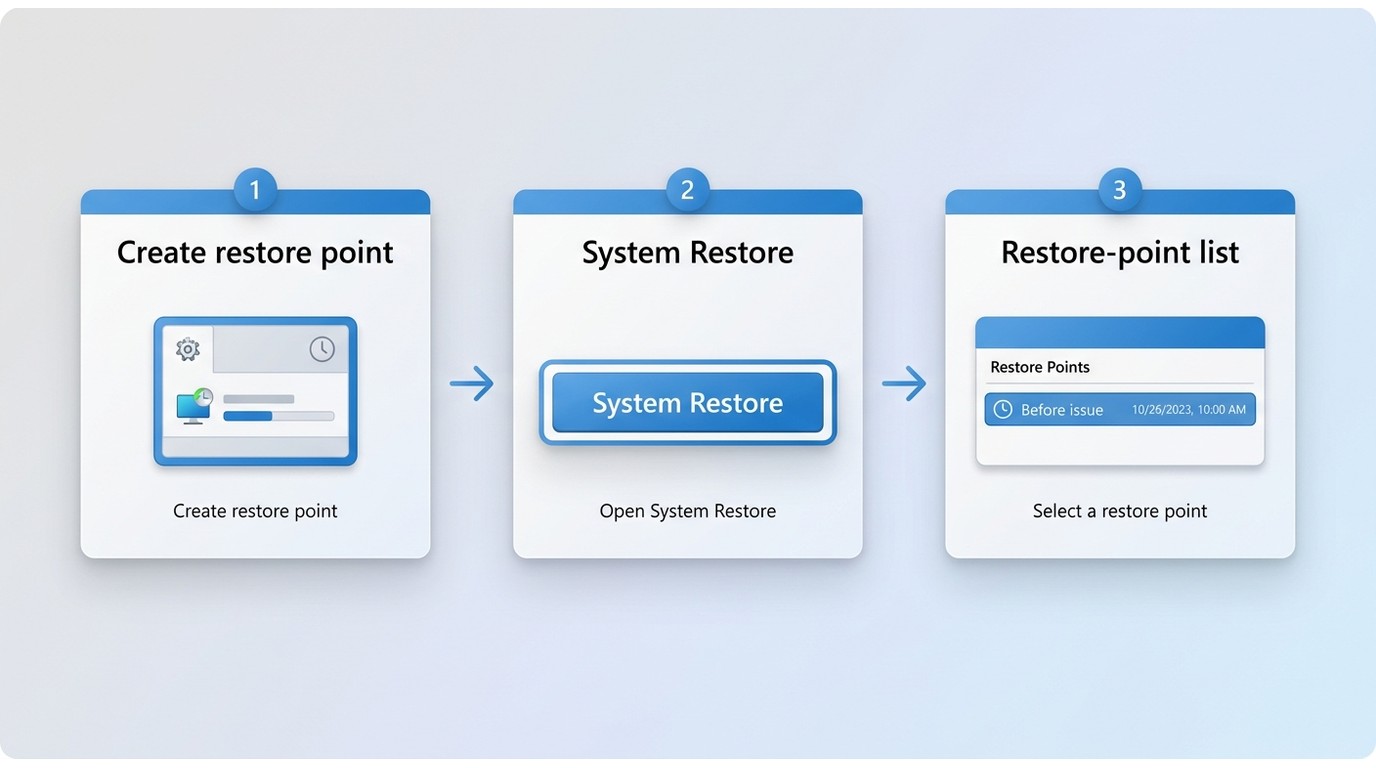
Use System Restore only after app repair, library rebuilding, codec diagnosis, driver checks, and Windows Media Player Legacy reinstallation have not resolved the issue. If playback worked before a recent Windows update, driver installation, or software change, it can return system settings to an earlier state while preserving personal files.
Steps:
- Click Start and type System Restore
- Select Create a restore point from results, then click System Restore in the dialog
- Click Next, then choose a restore point dated before WMP started failing
- Click Scan for affected programs to review what will change
- Click Next → Finish to begin the restore process
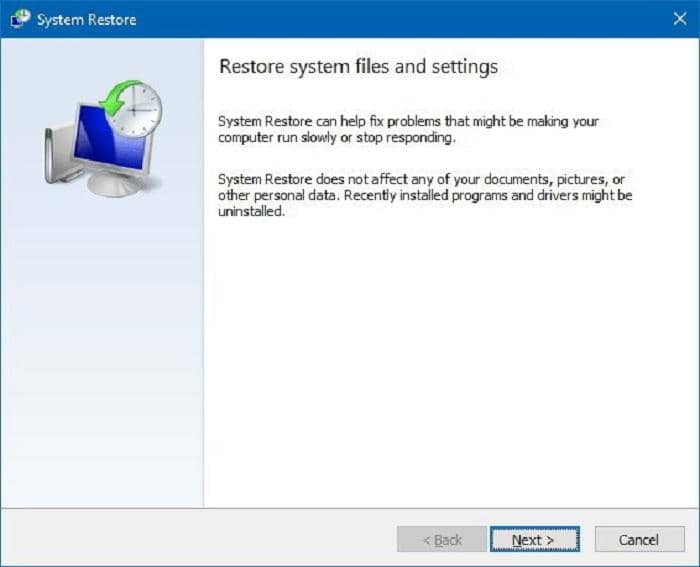
The system will restart automatically. System Restore does not affect documents, photos, or other personal files, but only system files and installed applications from after the restore point date are rolled back.
Important: If you don't see any restore points, System Restore may have been disabled on your machine. In that case, proceed to the alternative below.
When Repairing WMP Stops Making Sense
If the Microsoft app works after the appropriate repair, there is little reason to switch. Consider a different local player when the issue is not a repairable app fault but a persistent mismatch between your media collection and the Microsoft player's capabilities. Readers comparing broader replacement choices can review Windows Media Player alternatives.
Compare the Three Playback Paths
| Playback Path | Best Fit | Not Ideal For |
|---|---|---|
| Microsoft Media Player | Everyday local video and music playback in the modern Windows app | Users troubleshooting Windows Media Player Legacy or seeking disc-oriented playback |
| Windows Media Player Legacy | Older Windows Media Player workflows and legacy library use | Users who need the modern app's Repair and Reset path |
| PlayerFab | Authorized local media playback, including common video files, DVD sources, ISO files, and supported Blu-ray or 4K UHD Blu-ray sources | Streaming-platform playback or readers who simply need to repair the Microsoft app |
Where PlayerFab Fits
PlayerFab is a Windows and macOS media player for local files such as MP4, MKV, and ISO, with DVD, Blu-ray, and 4K UHD Blu-ray playback capabilities. For media you're authorized to access, where permitted by applicable terms and law, it fits users who want a dedicated local-media library and disc-oriented playback rather than further Legacy repair. It does not support streaming platforms.
My cutoff is straightforward: once you have confirmed that the issue is not a single file, output device, app setting, driver, or Legacy installation problem, repeated repair attempts are less useful than choosing a player that fits the media you actually use.
FAQs
Will resetting Media Player delete my video files?
No. Reset affects the app's settings and library data, not the original video files stored in your folders. Review the Windows Reset prompt before confirming so you understand which app data will be removed.
Why does one MP4 file play while another fails?
MP4 is a container that can hold different video and audio codecs. Two files with the same extension may therefore require different decoding support. Test another file and identify the codecs before installing additional software.
Can Windows Media Player Legacy play DVDs on Windows 11?
Windows Media Player Legacy does not provide DVD playback in Windows 11. If disc playback is part of your regular local-media setup, use a player designed for supported DVD sources and confirm that it fits your device and media type.
What if Windows Media Player Legacy is missing from Optional Features?
Customized or stripped-down Windows installations can be missing the dependencies Legacy needs. Use official Windows component repair or official installation media instead of downloading an unverified installer.
Final Recommendation
Windows Media Player not working is best resolved by identifying the app first, testing another file, using Repair or Reset and library rebuilding for modern-app failures, and using codec and output checks for file-specific failures. Reserve driver rollback, Legacy reinstallation, and System Restore for later stages. In my view, it is time to stop repairing when those targeted checks have ruled out the app, the file, the output device, and Windows components, and your regular local-media needs no longer match the Microsoft player you are using.

 12 Best HEVC Players for Windows, Mac, and 4K (2026)By Alice Harper - Aug 4, 2026
 Best WMV Player for Mac and How to Play WMV on Mac NativelyBy James Morgan - Aug 4, 2026
 8 Best TS File Players and Playback Tools for 2026By Alice Harper - Jul 28, 2026
 6 Best DVD Players for Laptops in 2026: Drives and AppsBy Alice Harper - Jul 22, 2026