Best Media Players for Xbox One: Built-In Apps, Streaming, and PC Alternatives

Summary: The subtitle gap in Xbox One's built-in Media Player is what drives most users to look for alternatives. This guide maps out five options covering USB playback, embedded subtitle handling, home server streaming, and disc-based playback on PC, with a comparison table to show where each fits. For most USB libraries, the built-in app and VLC handle the majority of cases.
Xbox One stopped shipping in 2020, but it remains in active use as a home media hub, and it handles file-based playback better than many users expect. Unlike PlayStation 4 and PlayStation 5, Xbox One reads MKV containers natively, which means most video libraries play directly from a USB drive without re-encoding. The friction point that trips up users is subtitles: the built-in Media Player app does not read subtitle tracks embedded inside MKV files. External SRT files work correctly, but image-based formats like PGS and VOBSUB need extra handling depending on which app you use.
I reviewed five options to map out what each one covers: two built-in Xbox apps, one third-party player from the Microsoft Store, one home server streaming app, and one PC-based alternative for files and discs that Xbox One's platform does not support natively.
Best Xbox One Media Player Apps and Alternatives
Xbox One Built-In Media Player
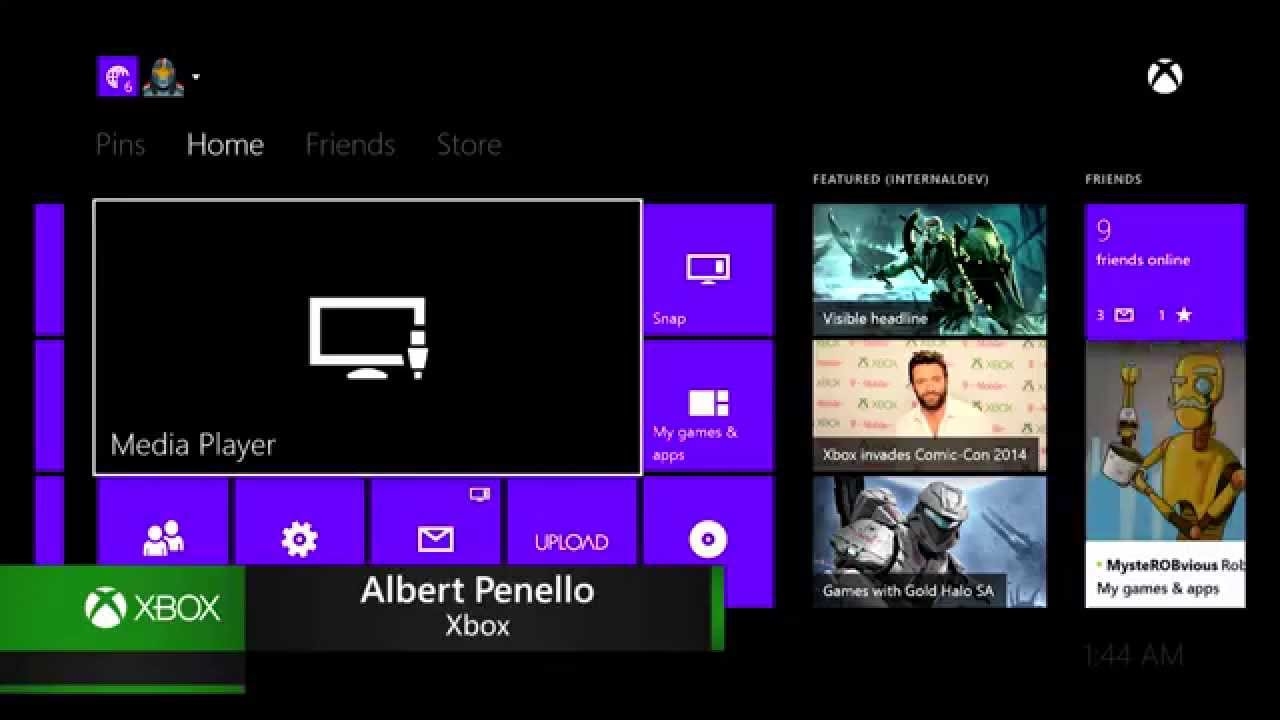
The Xbox One Media Player, a free download from the Microsoft Store, is the starting point for most local playback on the console. For a standard video library of movies and TV episodes in common containers, it covers the practical use case without any extra apps, codec installs, or configuration. The critical limitation to know upfront: the app does not load subtitle tracks embedded inside MKV files. External subtitle files in the right format do work, but users who rely on embedded tracks will need a different app.
Highlights
- Plays MKV, MP4, AVI, and common video formats from USB drives and DLNA network shares
- Reads external SRT subtitle files stored in the same folder as the video
- Free from the Microsoft Store; no Xbox Live subscription required
- Passes Dolby and DTS audio to compatible AV receivers
Worth noting
- Embedded subtitle tracks inside MKV files (PGS, VOBSUB, ASS) are not displayed; only external SRT files load
- Does not play Blu-ray discs or ISO images; a separate app handles disc-based playback
Blu-ray Player App
The Blu-ray Player app handles disc-based playback on Xbox One models equipped with an optical drive, which includes the original Xbox One, the Xbox One S, and the Xbox One X. For households that still watch physical media, it integrates disc playback into the same console used for streaming and gaming, without requiring a dedicated disc player under the TV. The primary practical constraint is regional encoding: the app plays discs from the console's region only, which matters for anyone purchasing physical media from international retailers.
Highlights
- Plays Blu-ray and DVD discs on optical-drive Xbox One models at no additional cost
- Supports 3D Blu-ray playback on 3D-capable televisions without extra software
- Downloads automatically when a Blu-ray disc is first inserted into the console
Worth noting
- Region-locked to the console's disc region; Blu-ray discs from other regions will not load
- Does not support 4K Ultra HD Blu-ray; UHD disc playback requires an Xbox One X or Xbox Series X/S
VLC for Xbox One
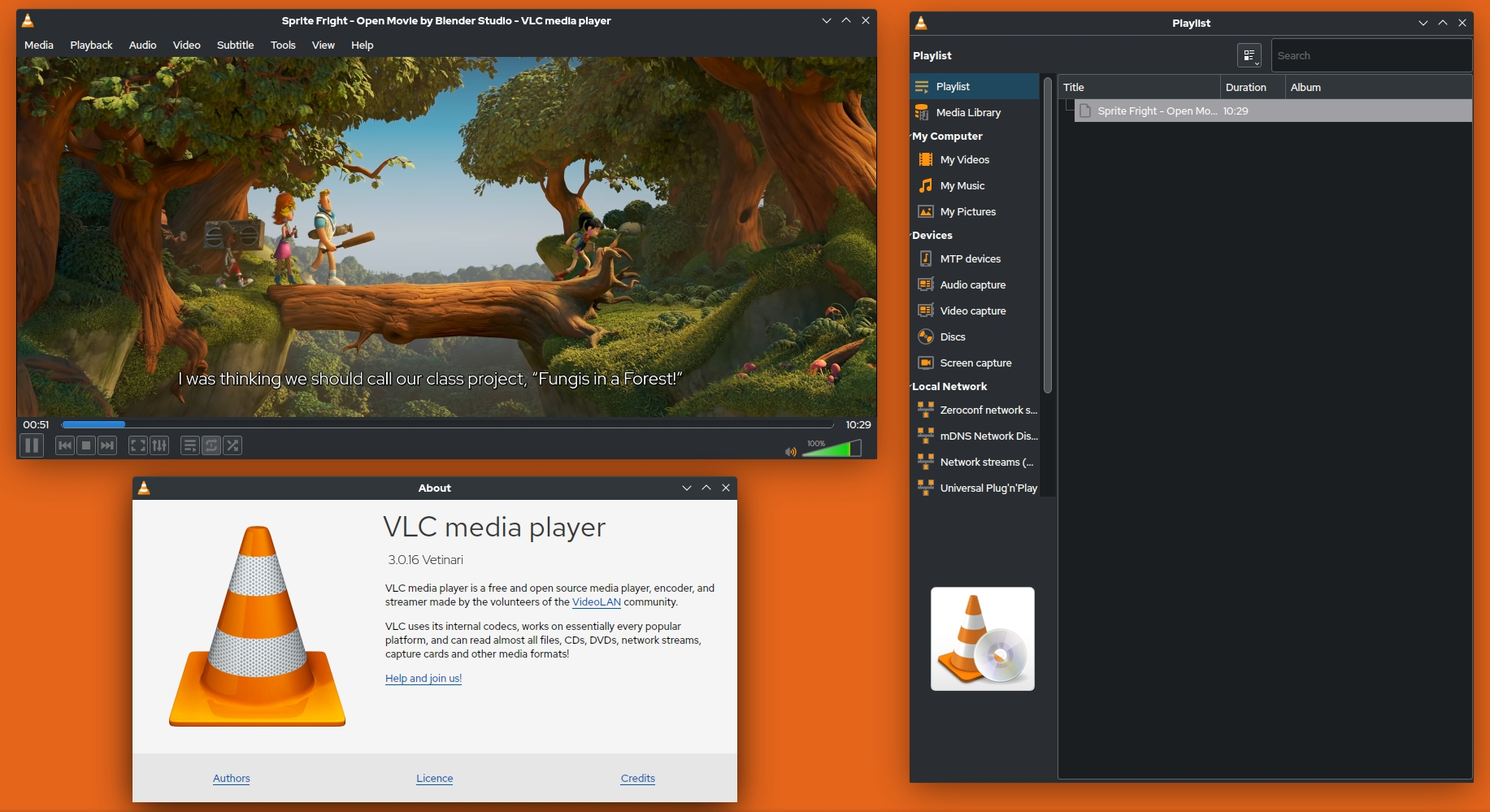
VLC is available for Xbox One as a Universal Windows Platform app through the Microsoft Store. Its key advantage over the built-in Media Player is subtitle handling: it reads subtitle tracks embedded directly inside video files, including formats the built-in app cannot process. For users whose libraries include videos with embedded subtitles, VLC eliminates the need to extract or convert subtitle files before playback. The Xbox UWP version has not received a major update since 2022, but community threads on Xbox-related forums consistently cite it as the practical next step when the built-in player's subtitle support runs out.
Highlights
- Displays embedded subtitles (SRT, ASS, VobSub) from MKV and MP4 files on the Xbox One
- Covers a wide range of video formats without requiring additional codec installations
- Free and open-source; available directly from the Xbox Microsoft Store
- Detects and plays media from USB storage devices connected to the console
Worth noting
- The Xbox UWP version has not been updated since 2022; edge-case format or codec issues may remain unaddressed
- Hardware-accelerated decoding on Xbox One hardware is more limited in this version than in VLC for Windows desktop
Plex for Xbox One
Plex requires a Plex Media Server running on a separate device — such as a Windows PC, macOS machine, or NAS — which streams content to the Xbox One app. The main appeal for Xbox One owners is removing the USB management step: instead of copying video files to a drive before each viewing session, the server makes the full library available wirelessly from the living room. Format compatibility is determined by the server's transcoding capacity, which also means the Xbox One can access content it would not handle through its built-in apps directly.
Highlights
- Streams from a Plex Media Server, eliminating USB drive transfers for large video libraries
- Server-side transcoding lets Xbox One access formats it cannot play natively through built-in apps
- SRT subtitle files stream without triggering server transcoding, preserving direct-play performance
- The Xbox app is free; an optional Plex Pass subscription adds offline sync and hardware transcoding
Worth noting
- Requires a separate device running Plex Media Server; the Xbox app alone does not function without it
- PGS and VOBSUB image-based subtitle tracks trigger server-side transcoding, demanding a capable server CPU
PlayerFab (Windows and macOS)
PlayerFab is a Windows and macOS desktop application, not a native Xbox One console app. It is included here for a specific use case: disc-based and format-edge playback scenarios that fall outside what the Xbox One platform supports natively. For households with a PC or Mac connected to the main TV, PlayerFab serves as an alternative setup that covers the cases the Xbox ecosystem does not reach.
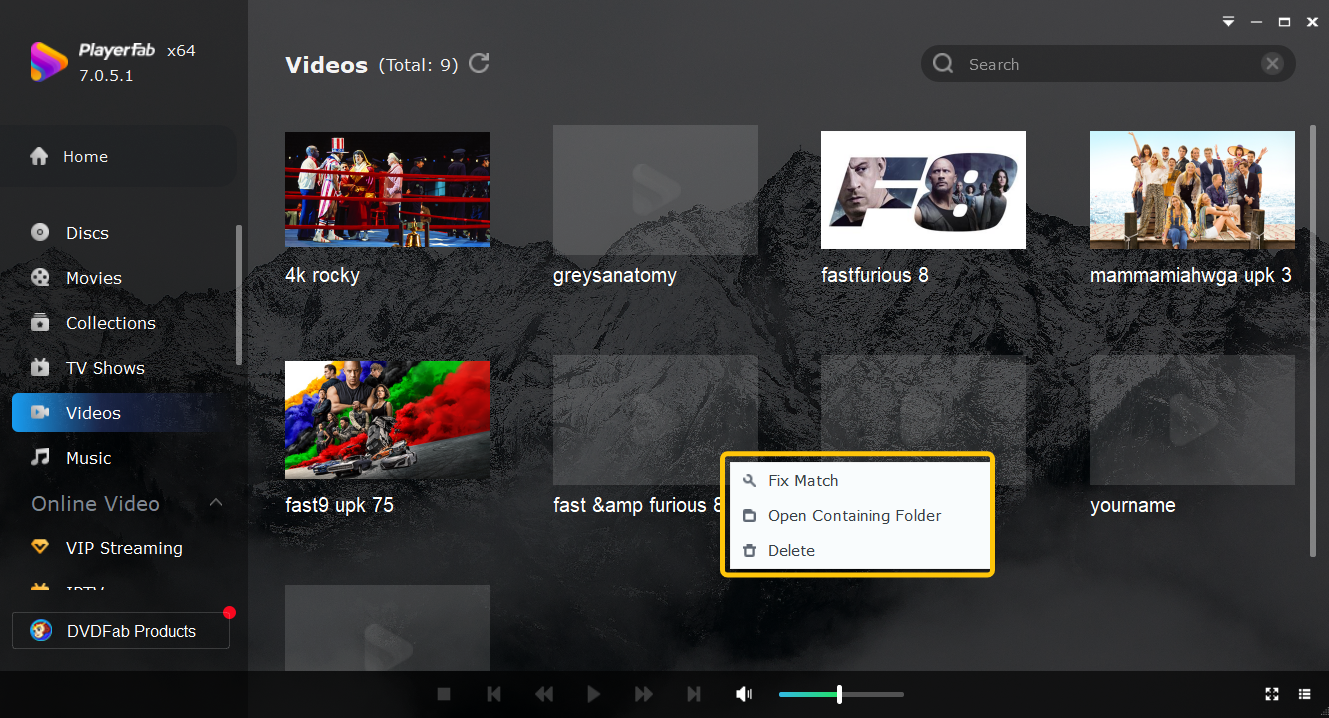
Highlights
- Region-free Blu-ray and Ultra HD Blu-ray disc playback on Windows and macOS
- Plays ISO image files and folder-based disc rips stored on a local drive
- Supports HEVC (H.265) and HDR10 video with Hi-Res audio output on capable hardware
Worth noting
- Runs on Windows and macOS only; cannot be installed directly on the Xbox One console
- Disc-based playback requires a Blu-ray optical drive connected to the PC or Mac
Xbox One Media Player Options Compared
The five options in this article split into two groups: four apps that run on the Xbox One console, and one PC-based alternative. The table below covers where each runs, cost, MKV playback, subtitle handling, and the scenario each fits best.
| App | Runs On | Cost | MKV Playback | Subtitle Support | Best For |
|---|---|---|---|---|---|
| Xbox One Media Player | Xbox One | Free | Yes | External SRT only | USB drive playback, no subtitle needs |
| Blu-ray Player App | Xbox One | Free | No (discs only) | Disc-embedded tracks | Blu-ray and DVD disc playback |
| VLC for Xbox One | Xbox One | Free | Yes | Embedded + external | MKV libraries with embedded subtitles |
| Plex for Xbox One | Xbox One (server required) | Free (Plex Pass optional) | Via server | SRT direct; PGS/VOBSUB transcoded | Home media server streaming |
| PlayerFab | Windows, macOS | Free trial / Paid | Yes | Full subtitle support | Region-free discs, HDR content on PC |
The Xbox-native apps are free, so the choice is driven by features rather than cost. Among them, VLC is the only console app that handles embedded subtitle tracks without requiring a server, which makes it the practical upgrade path from the built-in Media Player for subtitle-heavy libraries. Plex and PlayerFab solve different problems: Plex removes the USB management step for users with a home server, while PlayerFab addresses format and disc cases that sit outside what the Xbox One platform supports natively.
Which Xbox One Media Player Should You Use
The right choice depends on where your content comes from and what your subtitle requirements are.
If your video library sits on a USB drive and your files use external SRT subtitles or no subtitles at all, the built-in Xbox One Media Player covers everything without any additional setup.
If your MKV files have embedded subtitle tracks — common in files ripped or downloaded with subtitles baked in — VLC for Xbox handles those directly from the same USB drive, with no file conversion needed.
If you manage a home media server and want to stream to the TV without copying files to a USB drive each time, Plex is the practical path. Keep in mind that PGS and VOBSUB subtitle tracks will require your server to transcode the stream.
If you have region-locked Blu-ray discs or need 4K Ultra HD disc playback on a PC connected to your TV, PlayerFab covers those cases outside the Xbox One ecosystem.
Frequently Asked Questions
Does the Xbox One built-in media player support embedded subtitles inside MKV files?
No. The Xbox One Media Player app reads external SRT files when placed in the same folder as the video, but it does not display subtitle tracks embedded inside MKV containers, including PGS, VOBSUB, and ASS formats. VLC for Xbox handles most common embedded subtitle types and is available free from the Microsoft Store. If you use Plex, SRT subtitles stream without transcoding, but image-based embedded tracks require the Plex server to transcode the video, which adds load to the server CPU.
Can I install Kodi on Xbox One?
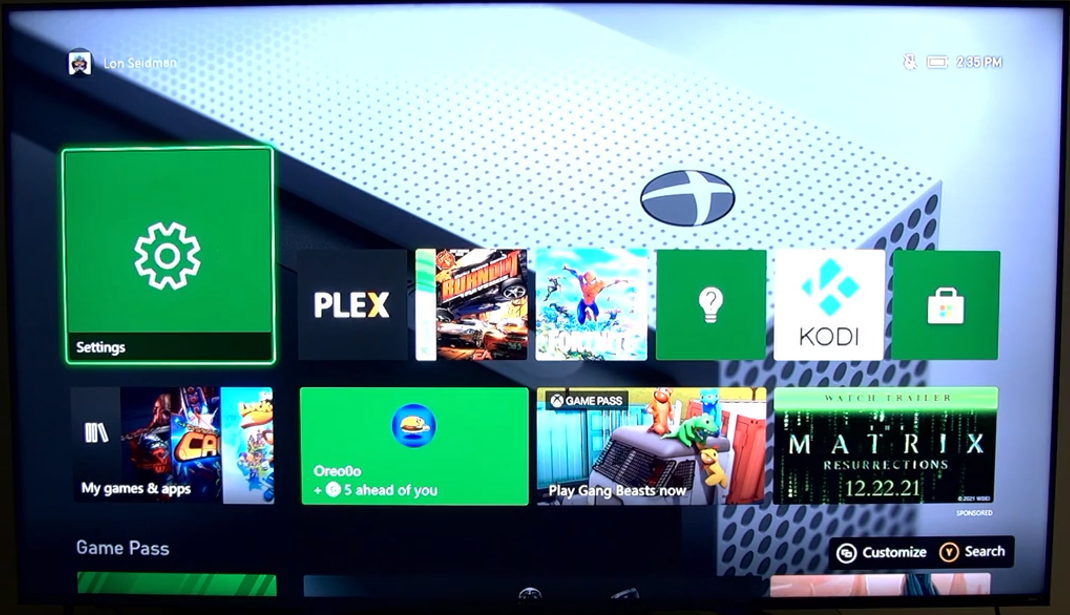
Kodi is no longer available through the standard Microsoft Store on Xbox. Installing it requires enabling Developer Mode on the console, which changes the Xbox into a restricted development environment where regular games and apps are not accessible until you switch back to Retail Mode. For most users looking for a capable third-party media player on Xbox One, VLC provides similar format coverage without requiring Developer Mode, and Plex handles home server streaming with a more stable support track record on the Xbox platform.
What file system should I format a USB drive for Xbox One?
Xbox One reads USB drives formatted as NTFS, exFAT, or FAT32. FAT32 has a 4 GB per-file limit, which becomes a problem for modern video files that frequently exceed that size. exFAT is the most practical choice for a media drive: it removes the 4 GB ceiling and is readable on both Windows and macOS without additional software, making it straightforward to copy files between a computer and the drive.
The Bottom Line
For most Xbox One owners playing files from a USB drive, the decision comes down to subtitle requirements. The built-in Media Player handles standard playback well if your files use external SRT subtitles or no subtitles; use VLC for Xbox if your library includes MKV files with embedded tracks. Both are free and available from the Microsoft Store.
Plex adds home server streaming for users who want to skip the USB management step, though it requires a separate server device. PlayerFab applies to a different scenario: PC-connected TV setups where region-free disc playback or HEVC HDR files are the priority, outside what the Xbox One platform covers natively.

 Play Video Files: 4 Paths Across Formats and DevicesBy James Morgan - Sep 22, 2026
 12 Best HEVC Players for Windows, Mac, and 4K (2026)By Alice Harper - Aug 4, 2026
 Best WMV Player for Mac and How to Play WMV on Mac NativelyBy James Morgan - Aug 4, 2026
 8 Best TS File Players and Playback Tools for 2026By Alice Harper - Jul 28, 2026