Best Video Player for Chromebook in 2026: Tested and Ranked

Summary: For most Chromebook users, the video playback gap comes down to one format: MKV. Three installation paths (Play Store, Linux, and browser extension) address it differently, each with distinct setup costs and feature trade-offs. VLC via the Play Store handles the majority of everyday cases in under two minutes. Subtitle-heavy content and large local media libraries each call for a different tool.
Table of Contents
For most Chromebook users, the video playback gap comes down to one format: MKV. Three installation paths (Play Store, Linux, and browser extension) address it differently, each with distinct setup costs and feature trade-offs. VLC via the Play Store handles the majority of everyday cases in under two minutes. Subtitle-heavy content and large local media libraries each call for a different tool.
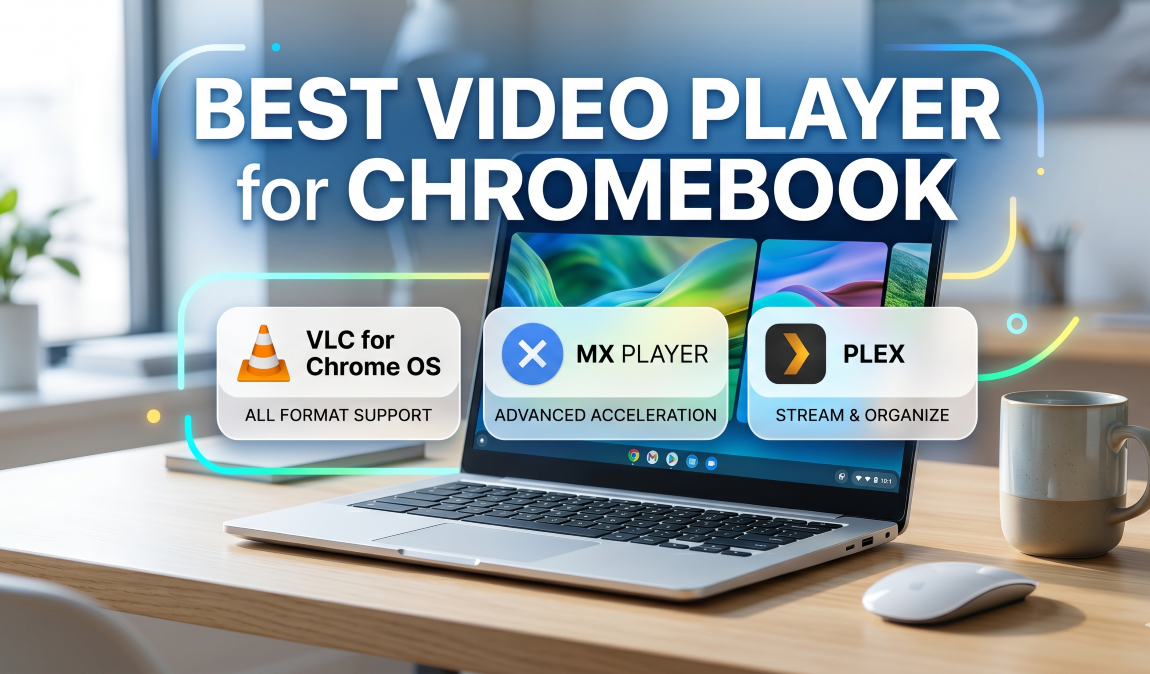
Chromebook's built-in Gallery app handles everyday formats without issue. The moment you throw MKV files, HEVC-encoded content, or external subtitle tracks at it, things fall apart. In this guide, I've tested four third-party video players across the three installation paths available on modern ChromeOS. Each has trade-offs in setup time, format support, and day-to-day usability; this guide tells you which one matches your situation.
One of the recurring questions I get from Chromebook users: the built-in player looks fine until it doesn't. MP4 files off a USB drive play without complaint, but the same drive with an MKV rip or a file that has an external subtitle track produces either a silent video or nothing at all. Modern Chromebooks support three ways to expand what you can play, and knowing which path to take saves a lot of trial and error.
Why Chromebook's Built-In Media Player Falls Short
ChromeOS ships with Gallery, a basic media viewer that handles MP4 (H.264), WebM, and standard AVI. For streaming from YouTube or playing downloaded MP4s, it does the job. For anything outside those formats, its limitations become the problem.
MKV containers, HEVC-encoded files, VOB files from old DVD rips, and any content requiring external subtitle files will either fail or play without audio. There's no codec extension mechanism, no subtitle loading, and no media library beyond a file browser.
Three installation paths address this on a modern Chromebook:
- Android apps via Google Play Store: The fastest route. Works on any Chromebook with Play Store access (most models from 2017 onward). Touch-optimized and quick to install.
- Linux apps via Crostini: The most capable route. Enable Linux (Beta) in ChromeOS settings, then install full desktop applications through the terminal. More setup, but apps behave exactly as they would on a Linux desktop: stable keyboard and mouse support, access to full preference menus.
- Chrome browser extensions: The lightest route. Install from the Chrome Web Store, runs entirely in the browser. Limited format support, but zero setup friction.
VLC: Best Overall Video Player for Chromebook
VLC is the open source video player I recommend first to any Chromebook user. It covers the widest format range of any free option, handles external subtitles reliably, and carries no ads or paywalls. The question is which installation method fits your setup.
Pros:
- Format support: MKV, MP4, AVI, MOV, FLV, HEVC, VP9, and dozens more without additional codec downloads
- Subtitle handling: Loads SRT, SSA, and ASS files; offset adjustment available during playback
- No ads, no cost: Fully free and open source
- Audio controls: Track switching, volume boost above 100%, basic equalizer
Cons:
- Android version is simplified: Advanced video and audio settings menus are stripped down compared to the desktop app
- Linux version requires Crostini setup: A few extra steps that less technical users may find unfamiliar
Install VLC from the Google Play Store
This is the method I'd point most users toward. It takes about two minutes and handles everyday local file playback without issues.
- Step 1. Open the Launcher and search for Play Store, then open it.
- Step 2. Search for VLC for Android (developer: VideoLAN).
- Step 3. Tap Install and wait for the download to complete.
- Step 4. Open VLC. On first launch, it scans your device storage and builds a local media list automatically.
- Step 5. To play a specific file, use the Browse tab to navigate to it. For network streams, tap the three-dot menu and select Open MRL.
The Android version supports gesture controls: swipe vertically on the left side of the screen to adjust brightness, right side for volume. These work well on Chromebook touchscreens and with mouse scroll.
Install VLC via Linux for a Desktop-Grade Experience
If you want the full VLC desktop experience (precise audio settings, detailed codec information via Ctrl+J during playback, and stable keyboard-and-mouse control), the Linux route delivers it.
- Step 1. Open Settings → Advanced → Developers → Linux development environment and click Turn on. Follow the setup wizard; it takes 3–5 minutes.
- Step 2. Once the Linux terminal opens, run:
sudo apt update && sudo apt install vlc- Step 3. VLC will appear in your app launcher under "Linux apps" and opens like any other Chromebook application.
The Linux version gives you access to the full Preferences panel, hardware acceleration settings, and audio output device selection. None of those are available in the Android version.
MX Player for Chromebook: Local Files and Subtitles
MX Player has earned its reputation through one specific strength: subtitle handling. It supports more subtitle formats than VLC's Android version, and its synchronization controls are more granular. If you watch content with ASS/SSA animated subtitles common in fansubs, or need to adjust subtitle timing mid-playback with precision, MX Player handles this better than the alternatives.
Install it from the Google Play Store the same way as VLC.
Pros:
- Subtitle support: Handles SRT, SSA, ASS, and SUB; per-track timing offset adjustable during playback
- Multi-core decoding: Useful on older or lower-powered Chromebook hardware
- Can be set as the default player: ChromeOS prompts MX Player when opening a video file after setup
- Fast file loading: Opens large files faster than Kodi on modest hardware
Cons:
- Ads in the free version: The free tier shows ads between actions; MX Player Pro removes them
- Interface feels dated: The design has not changed meaningfully in several years
- Built-in streaming is region-locked: The streaming content library built into the app only works in India; irrelevant for most users elsewhere
For local file playback with heavy subtitle use, MX Player earns its place. I wouldn't call it a better overall player than VLC, but for the subtitle-focused use case, it edges ahead.
Kodi as a Chromebook Media Player
Kodi is a different category of tool from the others on this list. VLC and MX Player are file players. Kodi is a media center. It scans your storage or a network share, pulls metadata from sources like TheMovieDB and TheTVDB, and builds a poster-wall library with artwork, descriptions, and episode tracking. For anyone managing a significant local collection, it's the only free option that does this properly.
The trade-off is setup time. Configuring Kodi from scratch takes 20–30 minutes for an experienced user, longer if you're doing it for the first time.
Pros:
- Media library management: Automatic metadata, artwork, and episode tracking with no manual tagging
- Network share support: Browses and plays from a NAS or home server over your local network
- Add-on ecosystem: Subtitle providers, interface skins, and streaming source add-ons available through the community
- Free and open source
Cons:
- Steep learning curve: First-time setup requires configuring sources, scraper settings, and library scan schedules
- Add-on quality is inconsistent: Community add-ons range from excellent to unmaintained
- Overkill for casual use: If you only play individual files occasionally, this is too much infrastructure
Play Store vs Linux: Which Kodi Install Makes Sense
The Play Store version (available under "Kodi" from the XBMC Foundation) handles library setup, add-on installation, and network shares without issue. Start here unless you have a specific reason not to.
The Linux version via Crostini is worth considering if you want Kodi to run as a persistent background service alongside a media server, or if add-ons you need rely on system-level Python packages. For typical household use, the Play Store version is the right starting point.
Choosing the Best Chromebook Video Player for Your Needs
Here's how the options compare across the criteria that matter for most users:
| Player | Install Path | Format Support | Subtitle Support | Price | Best For |
| VLC | Play Store or Linux | Excellent | Good | Free | General use, wide format range |
| MX Player | Play Store | Very good | Excellent | Free (ads) / Paid | Subtitle-heavy local files |
| Kodi | Play Store or Linux | Good | Good (with add-ons) | Free | Organized media libraries |
| MediaPlayer Extension | Chrome Web Store | Basic | Limited | Free | Occasional quick playback |
Decision guide by use case
- You want something working in under two minutes: Install VLC from the Play Store.
- You watch fansub content with styled subtitle files: MX Player handles ASS/SSA better.
- You have a large local collection and want proper library organization: Kodi.
- You just need to play one file occasionally and don't want to install anything: Use the MediaPlayer Chrome extension.
Lightweight Option: MediaPlayer Extension for Chrome
For occasional file playback where installing an app feels like overkill, the MediaPlayer extension (Video and Audio Player) in the Chrome Web Store covers the basics entirely within the browser. It plays MP4, WebM, and a handful of other common formats with no app installation required. Format support is narrower than VLC, external subtitle files aren't supported, and it won't replace a proper media player for regular use. For one-off playback, the zero-setup approach is genuinely useful.
For Windows Users: PlayerFab Handles What Chromebook Can't
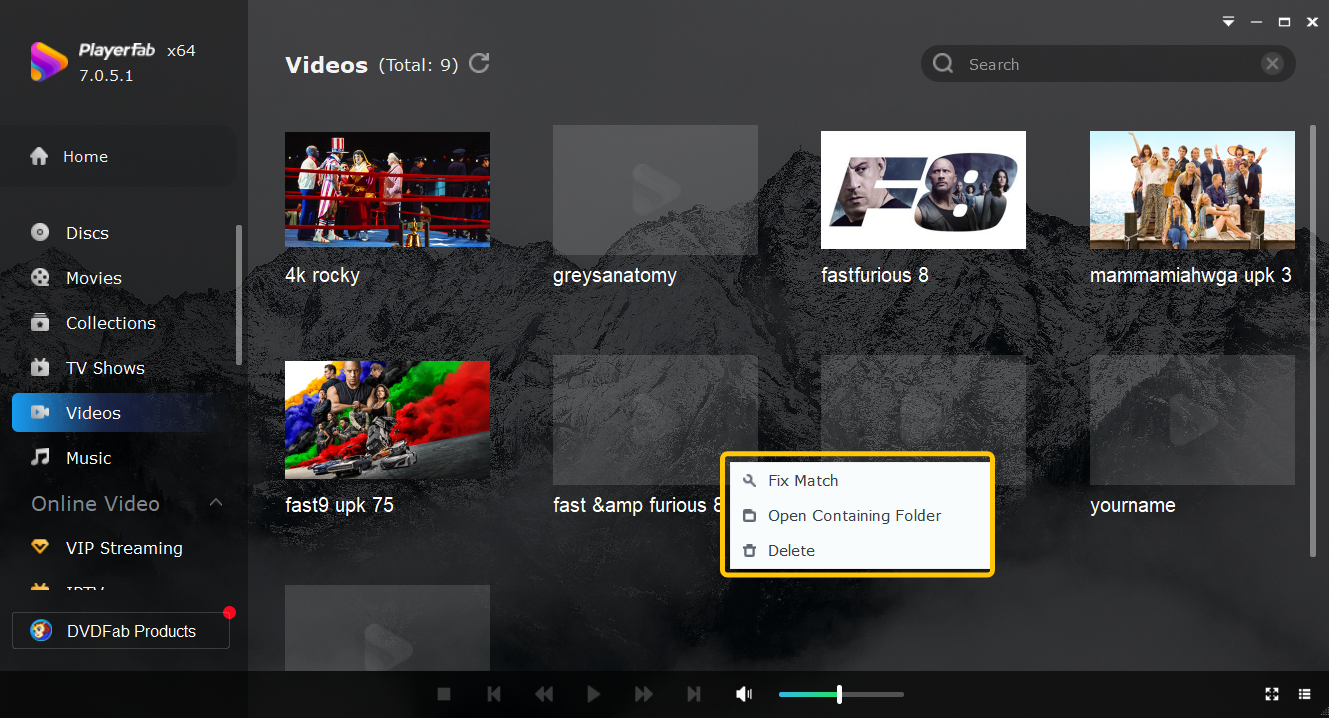
If you use a Windows PC alongside your Chromebook, this is worth knowing: PlayerFab Free Video Player (Windows and macOS only) takes local media playback further than any Android or Linux app on this list.
It plays MKV, MP4, and a wide codec range, with an automatic poster-wall media library that pulls artwork and metadata without the configuration overhead of Kodi. If your heavier media consumption happens on the Windows side of a mixed-device setup, it functions as a capable daily driver for local files.
FAQs
Does Chromebook have a built-in media player?
Yes. ChromeOS includes Gallery, which plays video files stored locally or on external drives. It supports MP4 (H.264), WebM, and basic AVI files. The built-in player is usable for straightforward playback but lacks format breadth, external subtitle loading, codec flexibility, and any media library functionality. For anything beyond standard web-compatible formats, a third-party player is necessary.
Can VLC run on a Chromebook?
Yes, through two routes. The Android version is available from the Google Play Store on any Chromebook that supports Android apps, which covers most models from 2017 onward. The full desktop version of VLC can also be installed via the Linux development environment (Crostini) for access to its complete settings panel. The Play Store version is faster to set up; the Linux version gives you more control.
What video formats does Chromebook support natively?
Gallery officially handles MP4 (H.264/H.265), WebM (VP8/VP9), AVI, and MOV. MKV support exists but is inconsistent, and HEVC playback depends on hardware capability. For reliable coverage across MKV, HEVC, FLV, VOB, and other containers, installing VLC through the Play Store is the most straightforward solution.
Conclusion
For most Chromebook users, the answer is straightforward: install VLC from the Play Store and you'll cover nearly every format you encounter. If subtitle synchronization on styled subtitle files is your primary need, add MX Player. If you're managing a large local library and want it properly organized, Kodi justifies the setup time. The MediaPlayer Chrome extension handles low-friction, occasional playback without any installation. None of these require Linux, though the Crostini route unlocks fuller configurations for those who want them. Start with the simplest option that solves your actual problem, and add complexity only when a real gap surfaces.

 Play Video Files: 4 Paths Across Formats and DevicesBy James Morgan - Sep 22, 2026
 12 Best HEVC Players for Windows, Mac, and 4K (2026)By Alice Harper - Aug 4, 2026
 Best WMV Player for Mac and How to Play WMV on Mac NativelyBy James Morgan - Aug 4, 2026
 8 Best TS File Players and Playback Tools for 2026By Alice Harper - Jul 28, 2026