Roku Media Player: Formats, Setup, Fixes, and Alternatives

Summary: Roku Media Player handles USB and DLNA playback on Roku devices, but it has received no documented feature updates in recent years, and a 2025 firmware change introduced audio issues on some models. This guide covers what the app genuinely supports, corrects common format misconceptions, and compares four alternatives. For streaming a personal library to your Roku TV, Plex or Jellyfin are the more practical replacements.
Table of Contents
Here's the short answer: Roku Media Player is a free channel that plays personal video, audio, and photo files from a USB drive or a compatible DLNA server on your Roku device — but a familiar extension like MP4 or MKV does not guarantee playback, because the internal codecs, your Roku model, and the audio output chain all decide whether a file actually opens. If you landed here because a file gave you a black screen, a codec error, or a missing USB, this guide walks through Roku's real container and codec limits, the USB and DLNA setup paths, symptom-first fixes, and where a desktop alternative fits when Roku's format boundary is the actual problem. As someone who has spent afternoons on the sofa debugging why a perfectly good MKV won't decode on one Roku model but plays on another, I'll flag the checks that actually move the needle.
What Roku Media Player Does
The Free App Versus Roku Hardware
Roku Media Player is a free channel/app you install from the Roku Channel Store, while a Roku Streaming Stick, Roku player box, or Roku TV is the hardware that runs it. The app itself does not provide Netflix, Disney+, or other subscription services — those live in their own channels. What Roku Media Player does is play your own video, audio, and photo files from a USB drive plugged into the device or from a DLNA server on the same local network. This distinction matters before you troubleshoot anything: the app's behavior and your specific Roku model's decoding capability are not interchangeable, and blaming the wrong layer wastes an evening.
Supported Containers, Codecs, and USB Formats
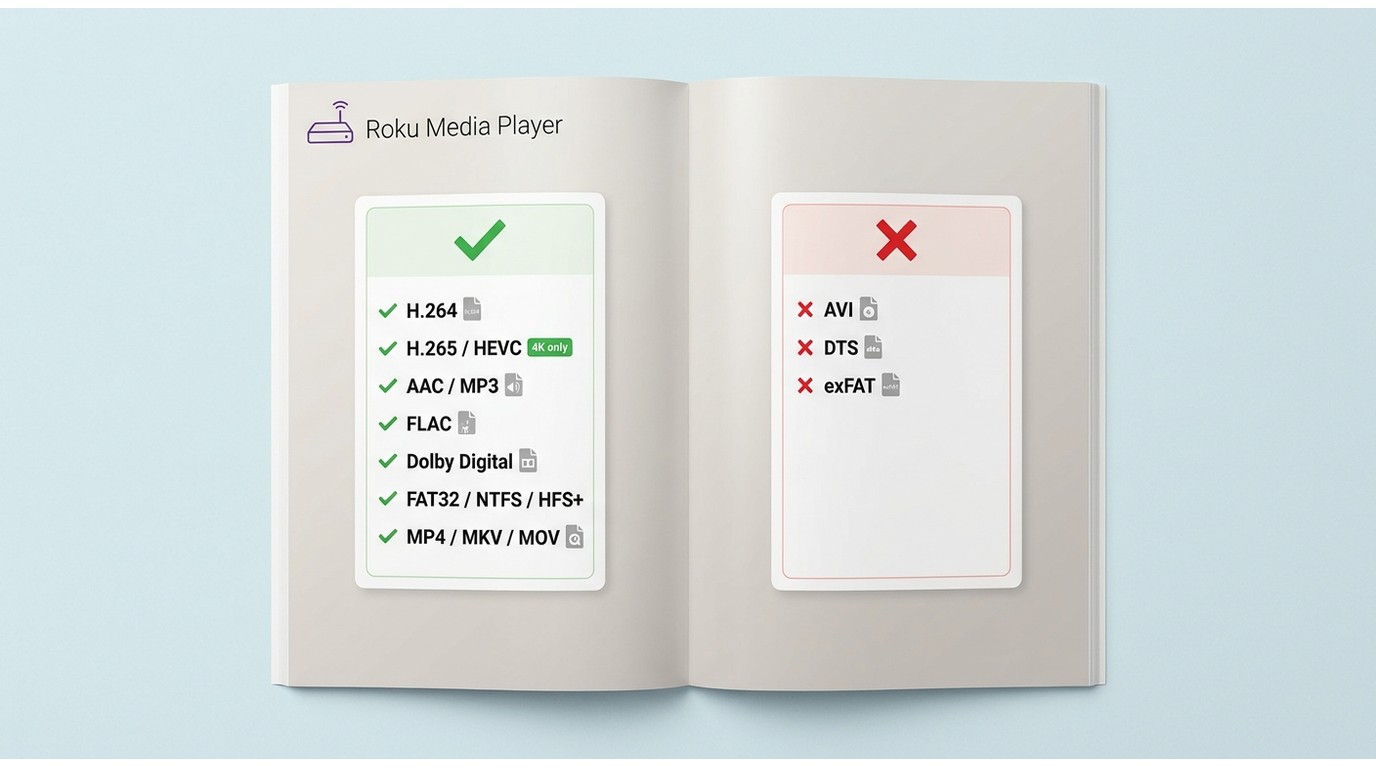
The most useful way to read Roku's compatibility is to separate the container (the file wrapper) from the codecs inside it, and to remember that the Roku model, the USB file system, and the connected audio equipment all get a vote. AVI is not listed as a native container in Roku's current guidance, and DTS audio is not decoded by the app itself — those are the two claims that most often send readers here after a failed playback.
| Category | What Roku Media Player supports | Practical note |
|---|---|---|
| Video containers | MP4, MKV, MOV, TS, M2TS | AVI is not on the native list; remux or transcode first. |
| Video codecs | H.264/AVC; H.265/HEVC and VP9 on capable models | Older Roku models cap out at H.264; 4K HEVC needs a 4K-class device. |
| Audio codecs | AAC, MP3, WMA, FLAC, WAV; Dolby Digital and Dolby Digital Plus via passthrough | DTS is not decoded by the app; passthrough depends on your receiver. |
| Image formats | JPEG, PNG | Straightforward on any Roku that runs the app. |
| Subtitles | External SRT sidecar matched by filename | Same folder, same base name as the video; toggle in the playback menu. |
| USB file system | FAT16, FAT32, NTFS, HFS+, EXT2/3 | exFAT is not officially supported — reformat if a drive won't mount. |
| Network path | DLNA/UPnP servers on the same LAN | A DLNA server (Plex, Emby, Universal Media Server) can transcode on the fly. |
Compatibility reflects Roku's official support guide as of August 2026.
Roku Media Player Setup
Step 1: Install the Roku Media Player App
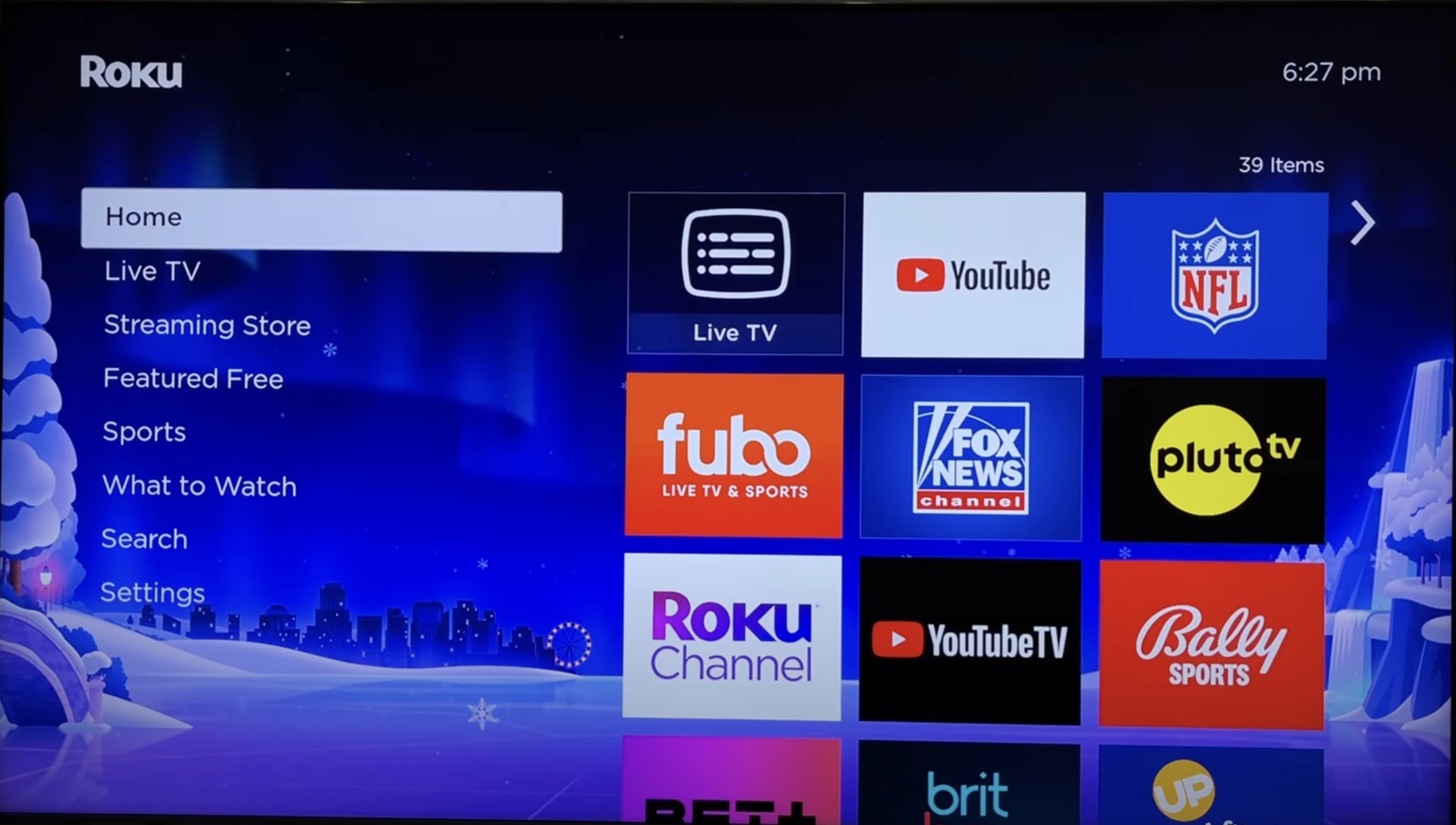
Press the Home button on your Roku remote, open Streaming Channels, choose Search Channels, type "Roku Media Player," and select Add Channel to install it.
Play Files From a USB Drive
Format the drive as FAT32, NTFS, or HFS+ (exFAT is not officially supported), copy your compatible files onto it, then insert it into the Roku device's USB port. Launch the Roku Media Player app and the drive should appear in the source list; pick Video, Audio, or Photo and browse to the file.
Play Files Through a DLNA Server
Confirm your DLNA/UPnP server (Plex, Emby, Universal Media Server, or a NAS with a built-in media server) is running and on the same LAN as the Roku. Open the app and it will list available servers; select yours and browse the shared library. A server can also transcode video during playback, which is how you get an unsupported codec to play without converting the file first.
A USB drive is the simpler path for a small collection of already-compatible files. A DLNA server is usually the better fit once your library is large, mixed-codec, or spread across devices — the same reason I stopped shuttling drives around and let a server sort it out.
If a file still refuses to play after both paths, the format boundary is doing the talking. The next section is symptom-first.
Common Playback Problems and Fixes
Black Screen or Unsupported Codec on MP4/MKV
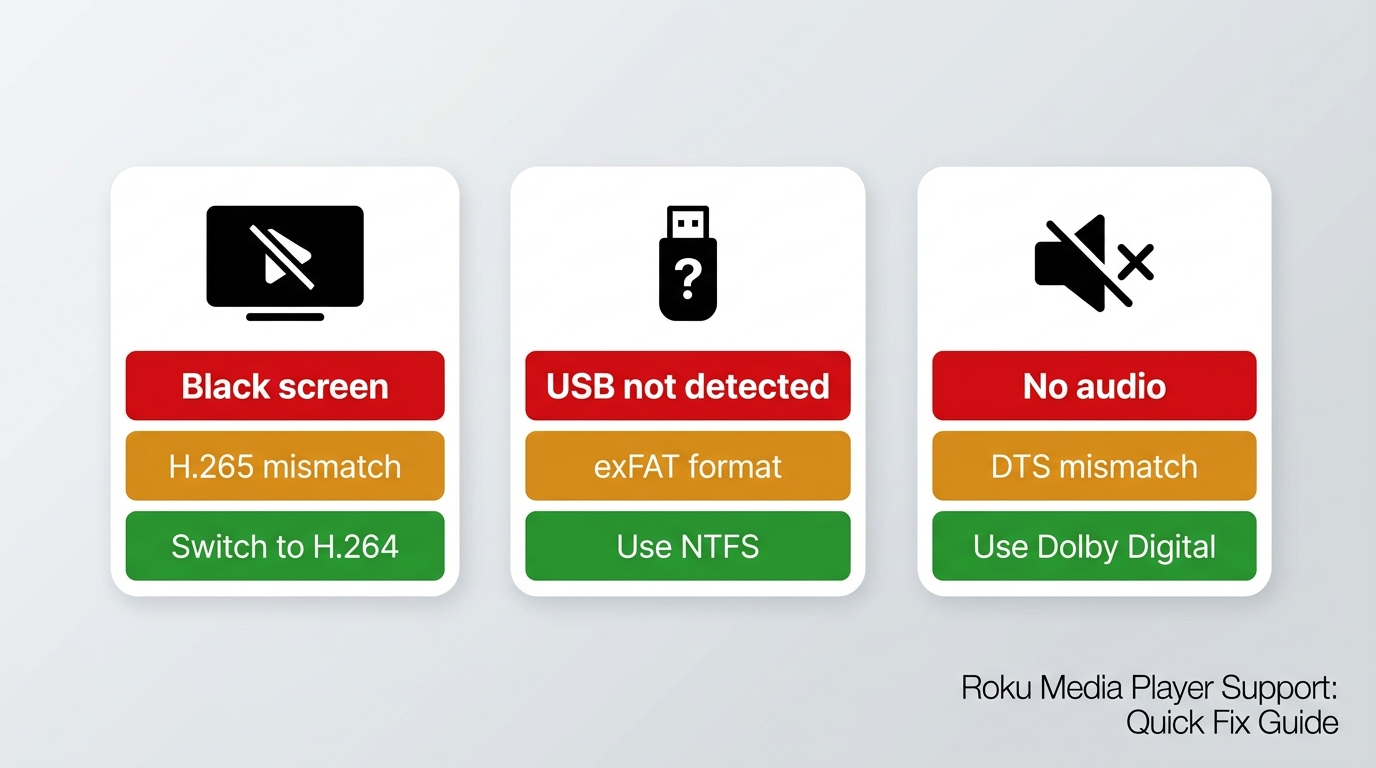
A black screen or "unsupported" message on an MP4 usually means the container is fine but the codec inside is not. Check the video codec (H.264 plays on every Roku that runs the app; H.265/HEVC and VP9 need a 4K-class model) and the audio codec (DTS won't decode inside the app; convert the audio to AAC or AC3, or let a DLNA server transcode). On my own testbed a 4K HEVC MKV that black-screened on an older Roku Express played cleanly through Plex on the same TV, which points at the decoder, not the file.
USB Drive Not Detected
If the drive doesn't appear in the source list, the file system is the first suspect. Reformat to FAT32 (best broad compatibility), NTFS, or HFS+ — exFAT is not officially supported and is the single most common cause of "invisible" drives. Also check that the drive is bus-powered within the USB port's limits; a bare 2.5-inch SSD is usually fine, a spinning external HDD often is not without its own power.
Missing Audio or Subtitles
Multichannel silence typically traces to the output chain: set your Roku audio to "Auto (Dolby Digital+)" if your receiver supports it, or drop to stereo PCM if it doesn't — mismatched passthrough is a frequent cause. For external subtitles, save the SRT file in the same folder as the video with an identical base name (Movie.MKV + Movie.SRT), then toggle subtitles from the playback control bar during playback.
When every one of these checks passes and the file still refuses, the honest conclusion is that you've hit the format boundary of the Roku decoder itself, not a setup mistake. That's the point where the sensible move is to change the playback route, not keep poking at settings.
Roku Media Player Alternatives by Use Case
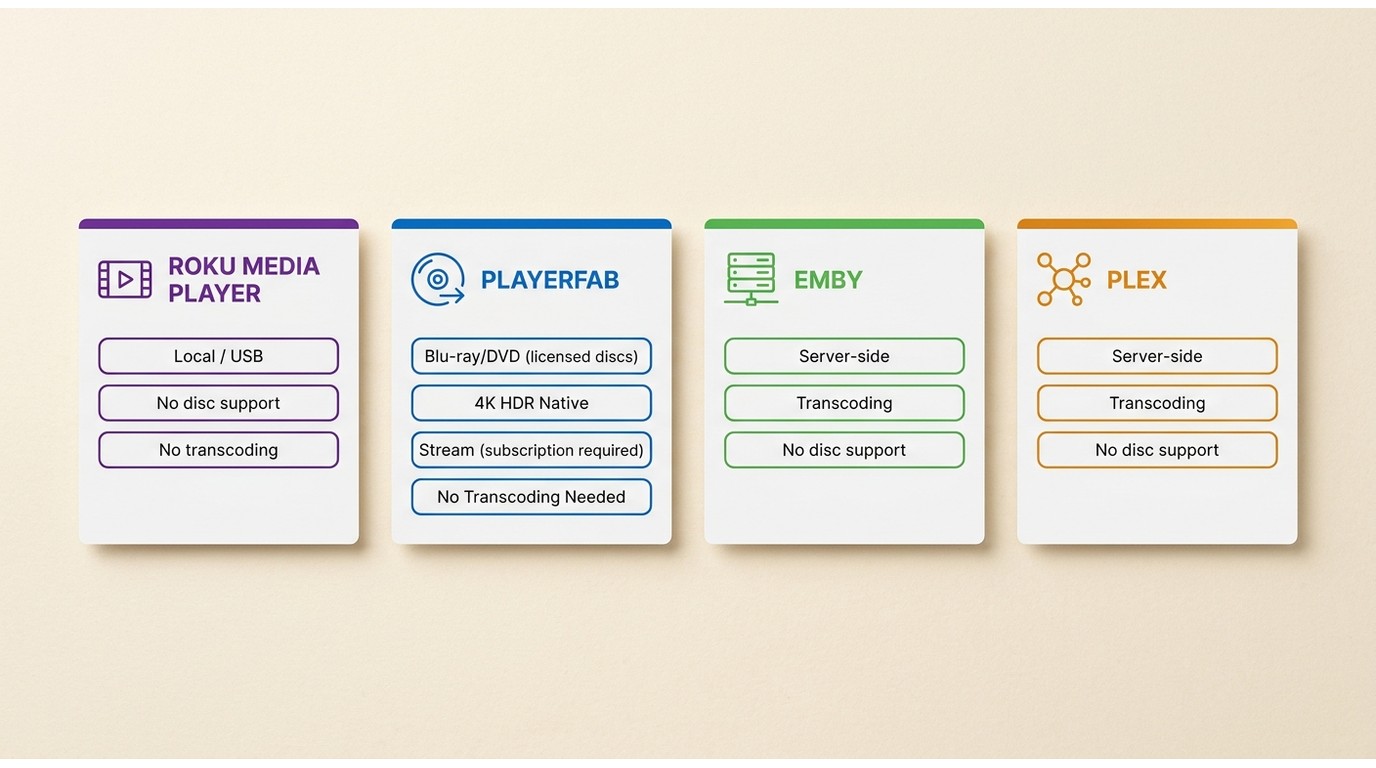
The right alternative depends on why Roku Media Player didn't work for you. Below is a compact comparison, followed by short fit statements.
| Option | Runs on Roku | Workflow | Transcoding | Disc support | Library management | Desktop platform | Best for |
|---|---|---|---|---|---|---|---|
| Roku Media Player | Yes (native channel) | USB or DLNA client | No (relies on server) | None | Basic folder browsing | N/A (runs on Roku) | Small compatible collections on Roku |
| PlayerFab Stream Player | No | Desktop playback app | N/A (plays natively) | DVD, Blu-ray, 4K UHD Blu-ray | Local poster wall | Windows, macOS | Desktop viewers who mix local files, discs, and supported streaming |
| Emby | Yes (Emby channel) | Server + client | Yes (server-side) | Via ripped files | Metadata, users, remote access | Server on Windows/macOS/Linux/NAS | Managed home libraries with multiple users |
| Plex | Yes (Plex channel) | Server + client | Yes (server-side) | Via ripped files | Metadata, users, remote access | Server on Windows/macOS/Linux/NAS | Broad cross-device access from one library |
PlayerFab Stream Player for Desktop and Disc Playback
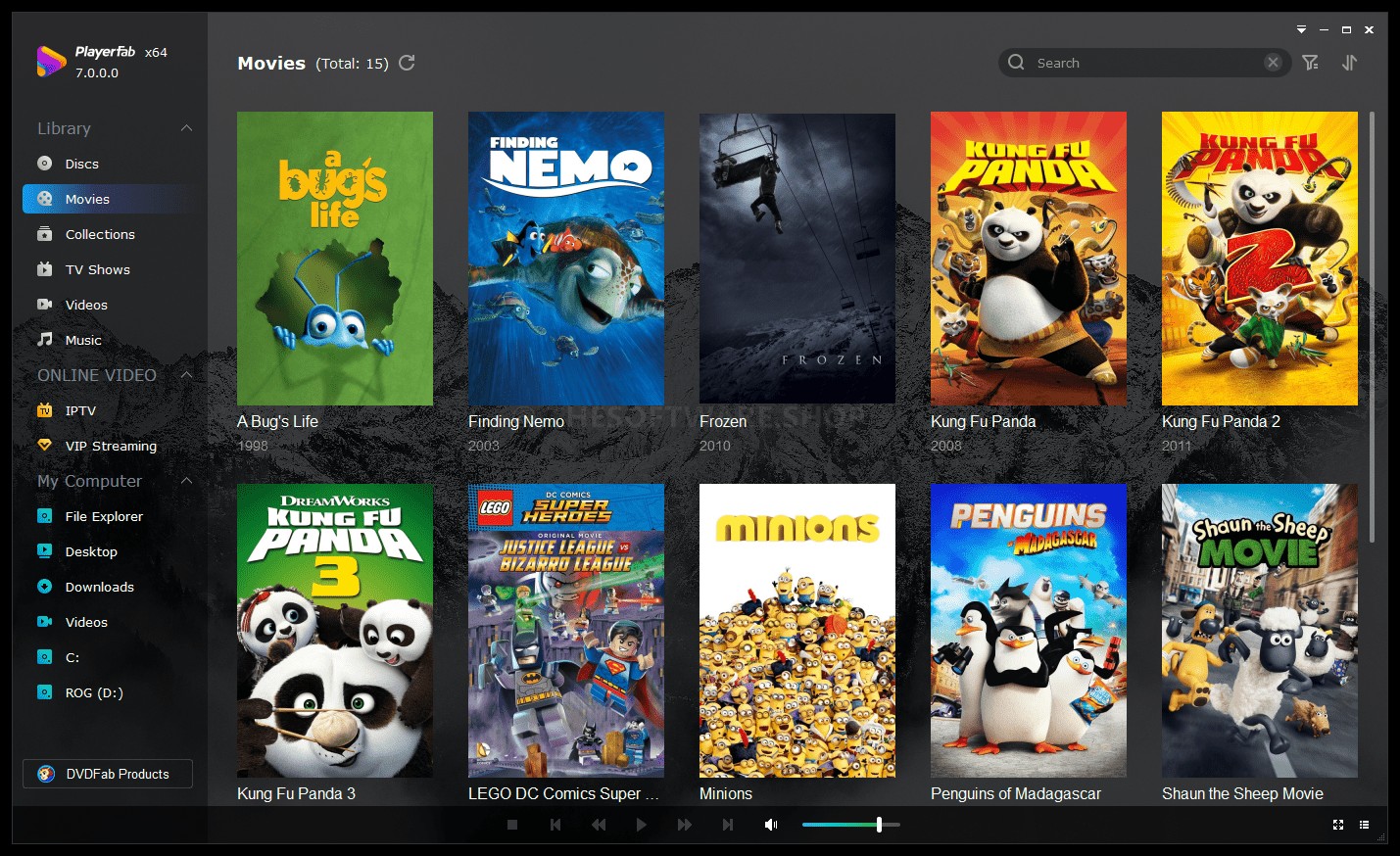
PlayerFab Stream Player is a Windows and macOS desktop app that plays local video files, DVDs, Blu-rays, and 4K UHD Blu-rays alongside supported streaming services in one interface, provided you have valid subscriptions for the streaming content you're authorized to access. It's best for viewers whose main frustration with Roku Media Player is that files hit the codec boundary or that they want disc playback in the same app. It's not ideal if you only want a native Roku channel, or if you need a multi-user server that streams to phones, tablets, and other TVs — Emby or Plex fit that scenario better.
Free Download Windows 11/10/8.1/8/7
Free Download macOS 10.10 - 14.x
Emby for Managed Home Libraries
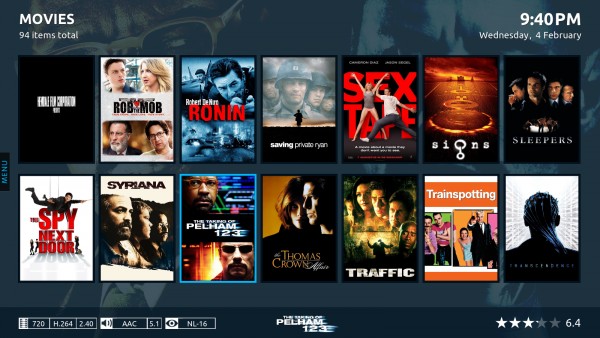
Emby runs as a server on your PC or NAS and streams to a Roku channel, phones, and other clients. It fits households that want organized metadata, per-user profiles, and server-side transcoding so an unsupported codec becomes the server's problem instead of the Roku's. It's not ideal if you don't want to run and maintain a server, or if a single-user USB workflow already covers your library.
Plex for Broad Device Access
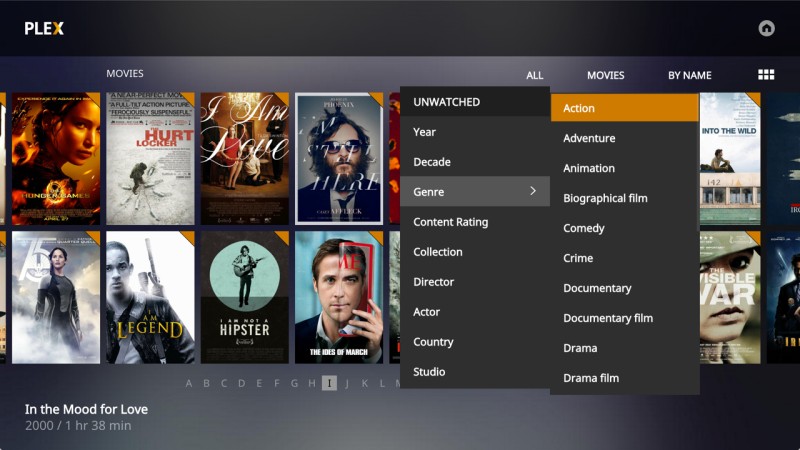
Plex takes the same server-plus-client shape as Emby, with a Roku channel plus clients on most desktops, phones, tablets, and TVs. It fits readers who want one library reachable from many devices without thinking about codecs on each end. It's not ideal if you'd rather avoid running a server, and it doesn't replace a desktop app when disc playback is the priority.
Which Playback Route Fits Best
Roku Media Player is the right route when your library is small, already in compatible containers and codecs, and you just want it on the TV over USB. Step up to a DLNA server like Emby or Plex once the library is large, mixed-codec, or shared across devices — server-side transcoding is what turns "unsupported" into a non-issue. Reach for a desktop player like PlayerFab Stream Player when your viewing centers on the computer itself and mixes local files with DVDs, Blu-rays, or 4K UHD discs; it's not the pick if you only want a native Roku channel or a multi-device server. Match the route to the library, not the other way around, and the format headaches mostly stop.
Roku Media Player FAQs
Is Roku Media Player free to install?
Yes. Roku Media Player is a free channel/app in the Roku Channel Store. The Roku hardware — a Streaming Stick, Roku player box, or Roku TV — is a separate purchase, and it's the hardware model that determines which codecs and resolutions actually play.
Why can an MP4 file show a black screen on Roku?
MP4 is only the container. Whether the file actually plays depends on the video codec inside (H.264 works on every Roku that runs the app; H.265/HEVC needs a 4K-class model), the audio codec (DTS won't decode inside the app), and the audio output chain. See the symptom-based section above for the diagnostic path.
Can Roku Media Player display external subtitles?
It reads external SRT files placed in the same folder as the video with the same base name (Movie.MKV + Movie.SRT). Turn subtitles on from the playback control bar during playback; if they don't appear, the filename or folder placement is almost always the reason.
When is a media server better than a USB drive?
Choose a DLNA server (Plex, Emby, or a NAS media server) once your library is large, mixed-codec, or shared across devices — the server handles metadata and can transcode unsupported video on the fly. A USB drive is simpler when the collection is small and already compatible with your Roku model.

 Play Video Files: 4 Paths Across Formats and DevicesBy James Morgan - Sep 22, 2026
 12 Best HEVC Players for Windows, Mac, and 4K (2026)By Alice Harper - Aug 4, 2026
 Best WMV Player for Mac and How to Play WMV on Mac NativelyBy James Morgan - Aug 4, 2026
 8 Best TS File Players and Playback Tools for 2026By Alice Harper - Jul 28, 2026