5 Best WMV Players for Android in 2026

Summary: Android can reject WMV even when MP4 plays normally. This guide compares five current Android WMV players, explains the tradeoffs in ads, subtitles, decoder controls, and library design, then shows when to play directly, convert to MP4, or troubleshoot an embedded-codec problem.
Table of Contents
Android may play an MP4 normally and reject the WMV beside it. If you need to play WMV on Android or open WMV on Android without guessing, start with a current Android WMV player, compare its tradeoffs, then use codec fixes or conversion when direct playback fails.
The practical route is simple: try direct playback first, switch decoders or apps if the file misbehaves, and convert a copy only when broader compatibility matters. Here, “best” means a current official listing plus a clear advantage in ads, decoding flexibility, subtitles, or library design.
Current WMV Players for Android in 2026
Five current apps cover the main WMV on Android use cases. VLC and NOVA favor ad-free general playback, while BSPlayer, KMPlayer, and MX Player trade a busier experience for specialized controls.
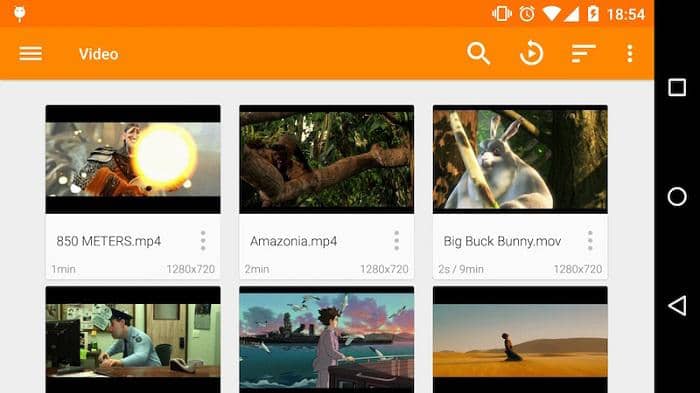
VLC for Android
VLC for Android is the straightforward starting point for people who want to play WMV on Android without ads or a separate codec pack. Its built-in decoding covers common WMV variants, local files, subtitles, and network playback.
- Good fit: Occasional WMV files, ad-free viewing, and simple local or network playback.
- Less suitable for: Readers who prioritize a polished poster-style library over a utilitarian interface.
My editorial preference is to begin with VLC because it tests the file itself before adding conversion time or another layer of setup.
MX Player
MX Player WMV playback is most useful when a decoder switch solves an audio-only or black-screen result. The current free app includes ads, so it is a better fit for existing users than for someone seeking a quiet, ad-free player.
- Good fit: Users comfortable changing hardware and software decoder settings.
- Less suitable for: People who want minimal ads or a setup-free first choice.
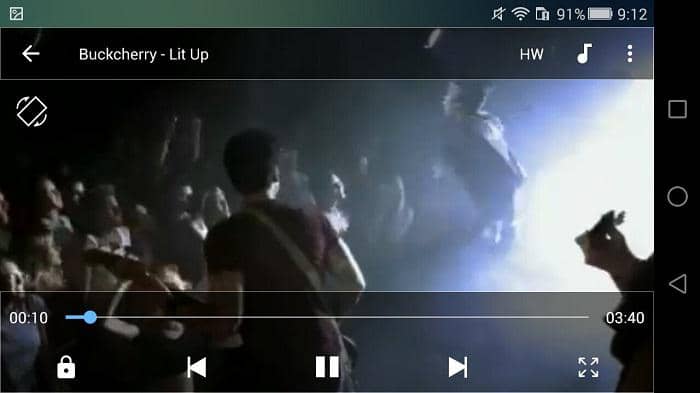
BSPlayer
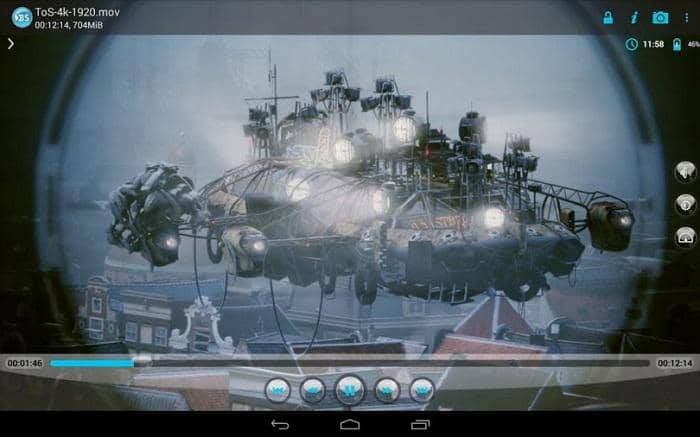
BSPlayer is a practical player for WMV files when subtitle handling matters more than interface polish. Its subtitle search and decoder options suit movie files with separate caption tracks, while the free version includes ads.
- Good fit: Subtitle-heavy viewing and users who frequently load external caption files.
- Less suitable for: Ad-free viewing or a modern media-library layout.
For film files, subtitle workflow can matter more than a long feature list; that is the clearest reason to choose BSPlayer over a simpler option.
KMPlayer
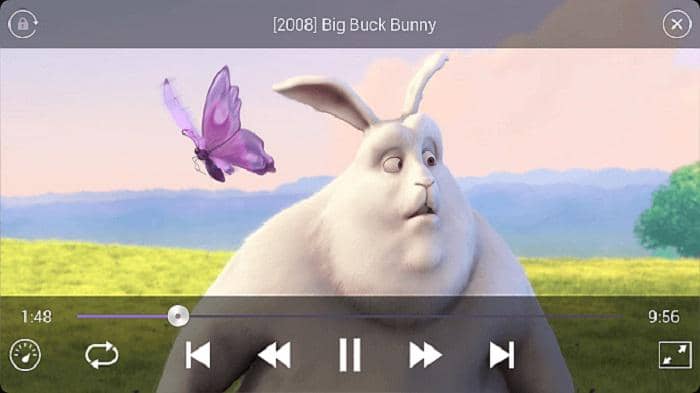
KMPlayer is a WMV app for Android users who also watch high-resolution video and want picture-in-picture or cloud access. Some files may need software decoding, and ads or in-app features make it less appealing as a minimal player.
- Good fit: Mixed video libraries that include WMV and high-resolution content.
- Less suitable for: Readers who want an ad-free app focused only on local playback.
NOVA Video Player
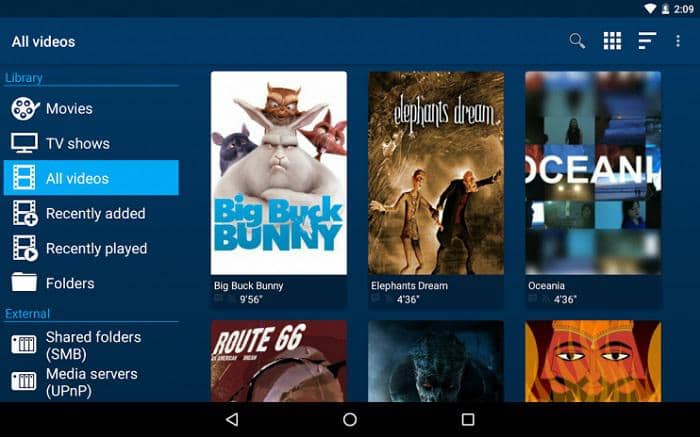
NOVA Video Player combines VLC-family codec coverage with a more modern library interface. It is free and ad-free, but its smaller user base means fewer troubleshooting guides when an unusual WMV file fails.
- Good fit: Ad-free general playback with poster-style library browsing.
- Less suitable for: Users who depend on a large support community for uncommon decoder problems.
Archos Video Player is not part of the five current recommendations because its known official Google Play package pages are unavailable.
GPlayer: A Legacy Option
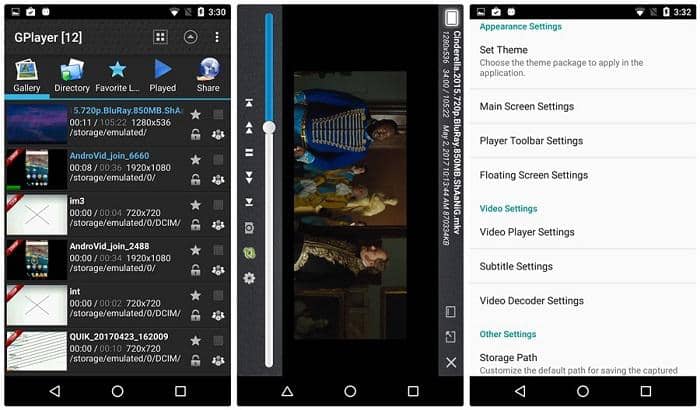
GPlayer is a legacy Android WMV player, not one of the five current picks. Its multi-window niche may still interest tablet users, but its matching Google Play listing was last updated on December 14, 2022, making it less suitable for current Android compatibility.
WMV Players for Android: Quick Comparison
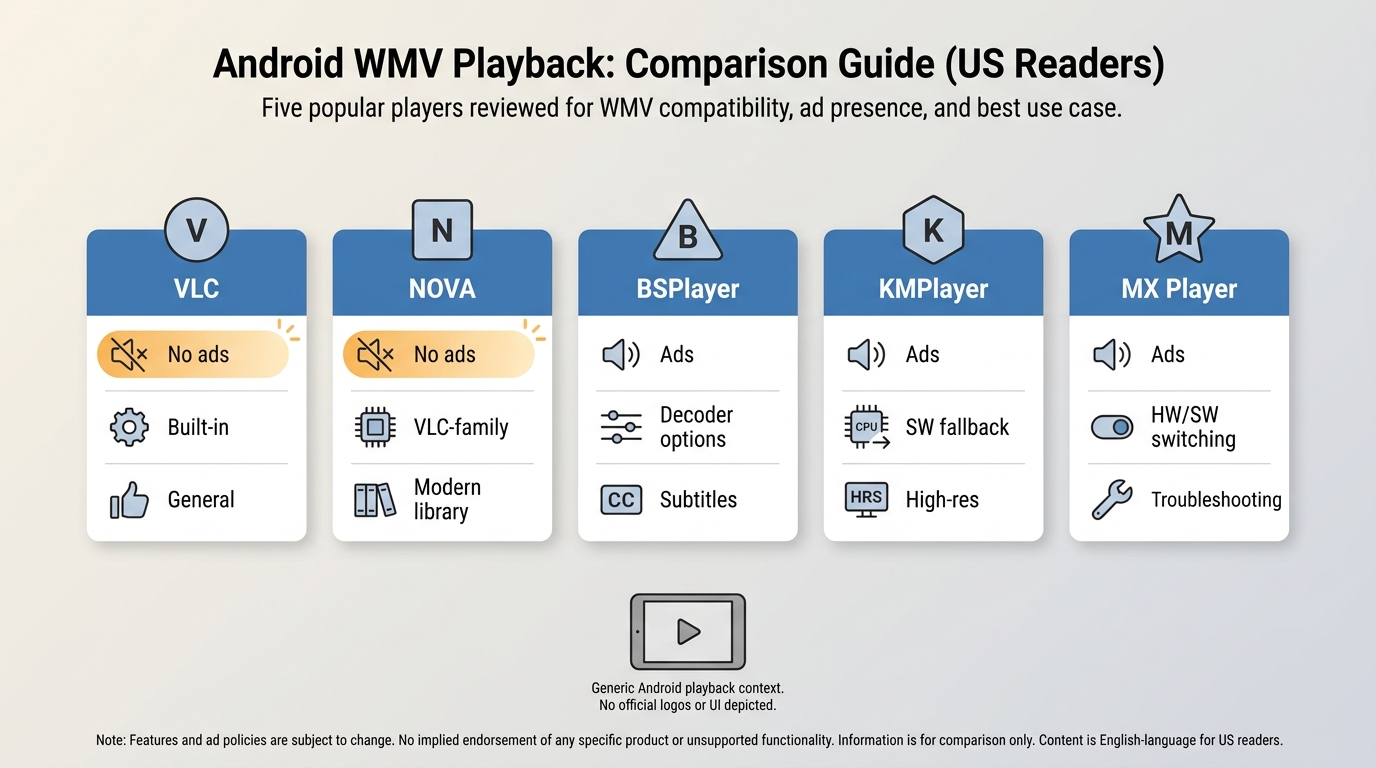
This table compares five current free WMV players and freemium options by the factors that change the experience most: ads, WMV behavior, practical fit, and official availability.
| Player | Cost and ads | WMV behavior | Best fit | Official availability |
|---|---|---|---|---|
| VLC for Android | Free; no ads | Built-in decoding | General playback | Current listing |
| NOVA Video Player | Free; no ads | VLC-family decoding | Modern library | Current listing |
| BSPlayer | Free/paid; ads | Decoder options | Subtitle-heavy files | Current listing |
| KMPlayer | Free; ads/IAP | SW fallback | High-resolution libraries | Current listing |
| MX Player | Free; ads | HW/SW switching | Decoder troubleshooting | Current listing |
Official availability reflects Google Play listings as of August 2026.
What the Comparison Shows
VLC or NOVA makes the most sense for ad-free general use. VLC is less suitable if library presentation matters; NOVA is less suitable if you want the largest troubleshooting community.
- BSPlayer: Choose it for subtitle-heavy viewing; skip it if ads are a deal-breaker.
- KMPlayer: Choose it for a mixed high-resolution library; skip it for a lean local-only setup.
- MX Player: Choose it if you already understand decoder switching; skip it if ads or extra setup will frustrate you.
The practical upshot is that no single app wins every criterion. Match the player to the file problem you actually have rather than counting feature claims.
Playing WMV Files on Android
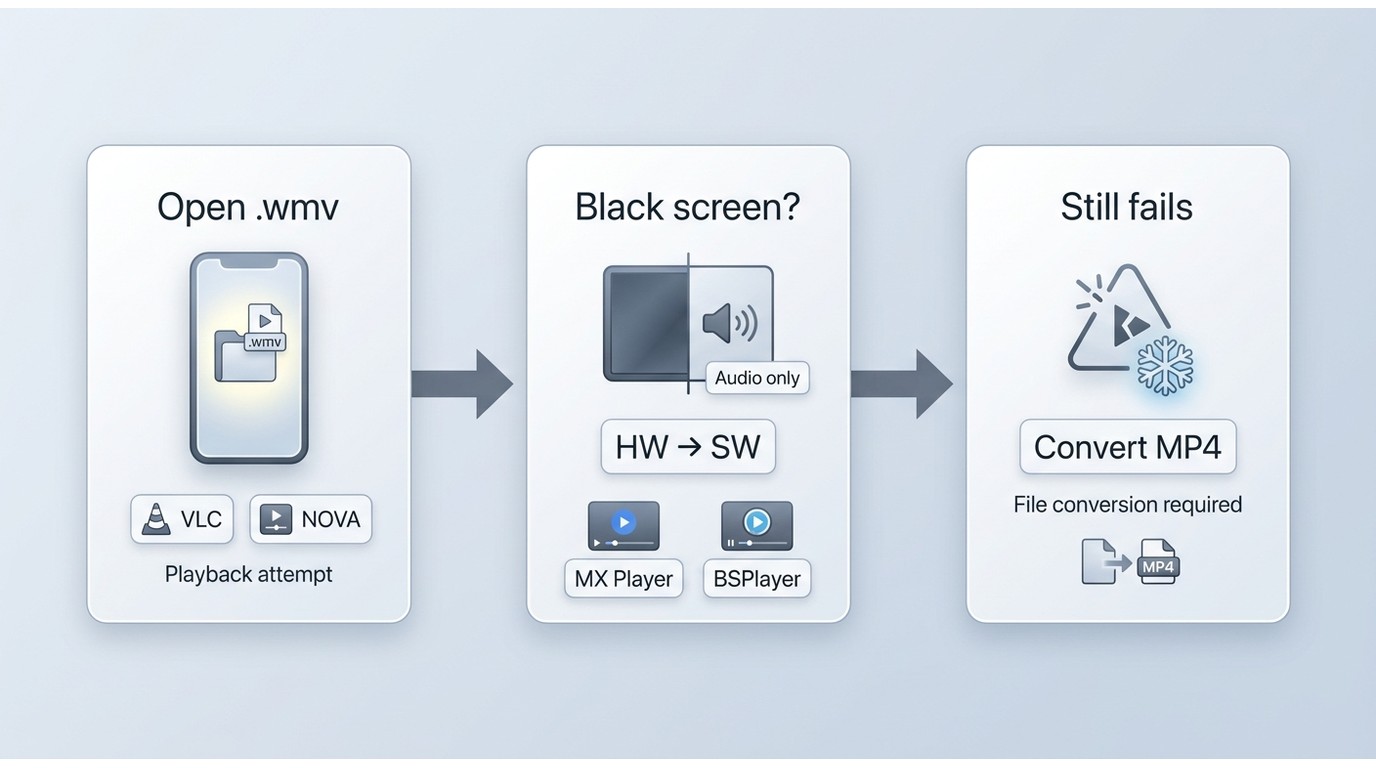
How to play WMV on Android comes down to two paths: open the file in a maintained player for occasional use, or convert WMV to MP4 when many apps need the same file.
Use a Third-Party Player
A capable player can play WMV files on Android without changing the original file. This is usually the faster path for one-off viewing and preserves the source quality and file size.
- Install one of the five current players from its official Google Play listing.
- Open the app, browse to the WMV file, and start playback.
- If video or audio fails, switch the decoder mode or try the same file in a second maintained player.
I would not convert a single file before trying two maintained decoders; that quick comparison tells you whether the issue belongs to the file, the app, or the device decoder.
Convert WMV to MP4 When Needed
Conversion makes sense when the file must open across the gallery, messaging, editing, or casting apps. It takes more time, and re-encoding can trade some quality for a smaller file or preserve more detail with file-size growth.
- Keep the original WMV and create a working copy for conversion.
- Select MP4 as the output in a reputable local or cloud converter.
- Check picture, audio, and subtitle timing on the Android device before archiving the result.
My decision rule is frequency first: direct-play occasional files, but convert recurring files when cross-app compatibility saves more time than the conversion costs.
Fix Black Screens, Audio, and Freezing
The .wmv extension describes a container family, not one fixed Android WMV codec. Embedded audio and video codecs can behave differently across decoders, so the same file may work in one app and fail in another.
From a codec perspective, testing the same file in a second maintained player is more informative than assuming the file is corrupt.
| Symptom | Likely cause | Next action |
|---|---|---|
| Audio only | Video decoder mismatch | Try software decoding |
| Black screen | Hardware decode conflict | Switch HW to SW |
| Freezing while seeking | Embedded codec instability | Try another current player |
| App crashes | Unsupported older codec | Convert a copy to MP4 |
Frequently Asked Questions
These answers cover codec packs, safe installation, and older-file behavior without repeating the direct-play and conversion steps above.
Do I need a separate WMV codec pack on Android?
Usually not. A capable Android WMV player bundles its own decoding libraries. An older file can still fail when its embedded audio or video codec is not handled well by that app.
Are free WMV players for Android safe to install?
Use the current official Google Play listing, review requested permissions, and understand the app's ad model. Avoid unofficial APK mirrors, especially when an app's official listing has disappeared.
Why do some older WMV files fail in one player?
Older WMV files can contain different embedded codecs. If one player shows audio only, a black screen, freezing, or a crash, try one other maintained player before converting a copy.
Conclusion
To play WMV on Android, start with VLC or NOVA for ad-free general use, then choose BSPlayer for subtitles, KMPlayer for high-resolution libraries, or MX Player for decoder control. Convert recurring files only when broader app compatibility justifies the time, quality, and file-size tradeoffs. Cross-platform codec gaps can follow the file to macOS, where a dedicated WMV player for Mac provides the corresponding platform-specific route.

 6 Best MPEG Players for Windows and Mac (2026)By Alice Harper - Aug 26, 2026
 How to Play Blu-ray Discs on Windows 10 (Free & Pro Solutions)By Alice Harper - Aug 7, 2026
 10 Best 4K Video Players for PC and Mac, Tested in 2026By Alice Harper - Aug 4, 2026
 The 5 Best Free MOV Players in 2026 (Windows, Mac and Android), plus How to FixBy Alice Harper - Aug 4, 2026