5 Home Media Server Software Options Compared (2026)

Summary: Setting up a home media server in 2026 involves more trade-offs than it used to, particularly after Plex raised its Lifetime Pass to $750. This guide reviews Jellyfin, Plex, Emby, Kodi, and Universal Media Server, with a comparison table covering price, 4K HDR support, and remote access. For most users starting today, the choice comes down to Jellyfin's free, account-free model versus Plex's broader device compatibility and managed setup.
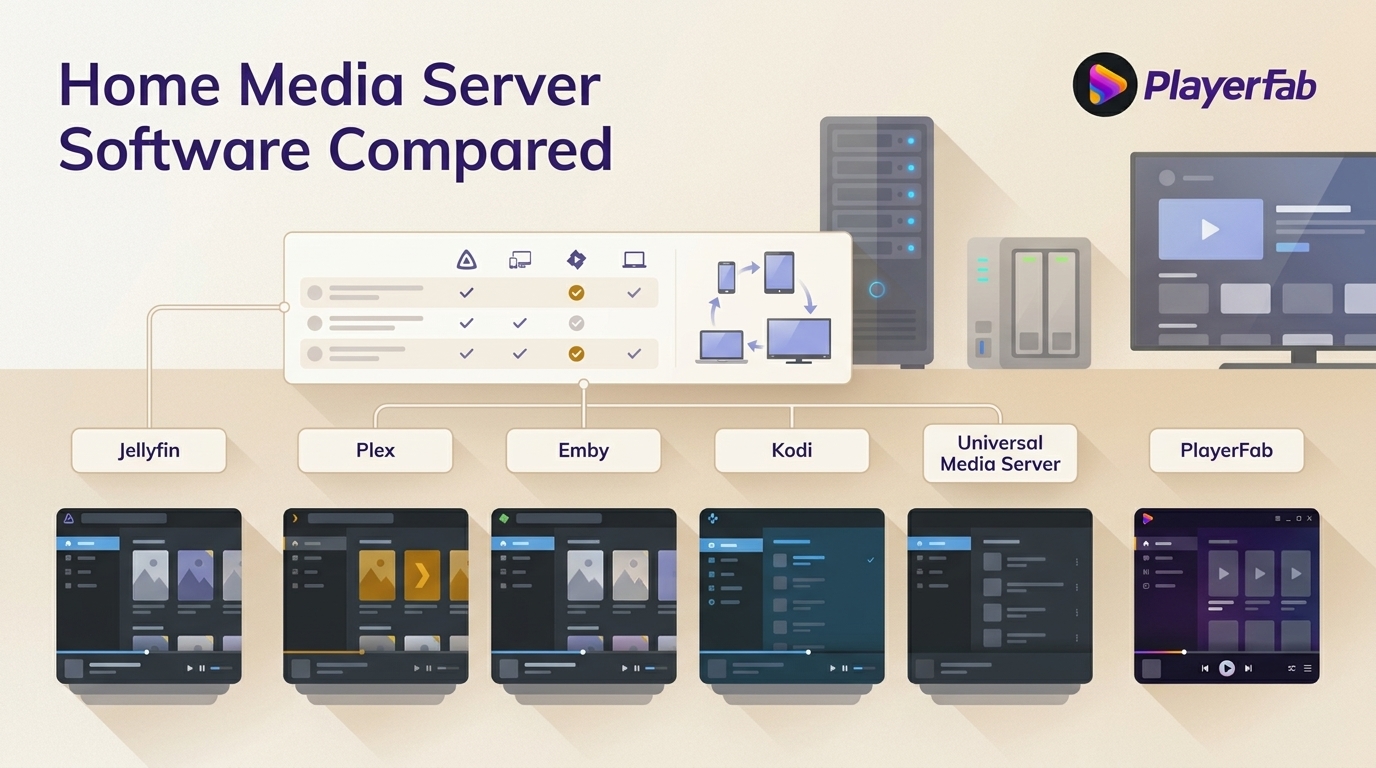
Choosing media server software for a home media server means balancing easy client apps, privacy, cost, and hardware transcoding. This guide compares five options and outlines a practical setup path, so you can choose whether direct play or conversion matters for your library.
What to Know Before You Choose
Personal Library Servers
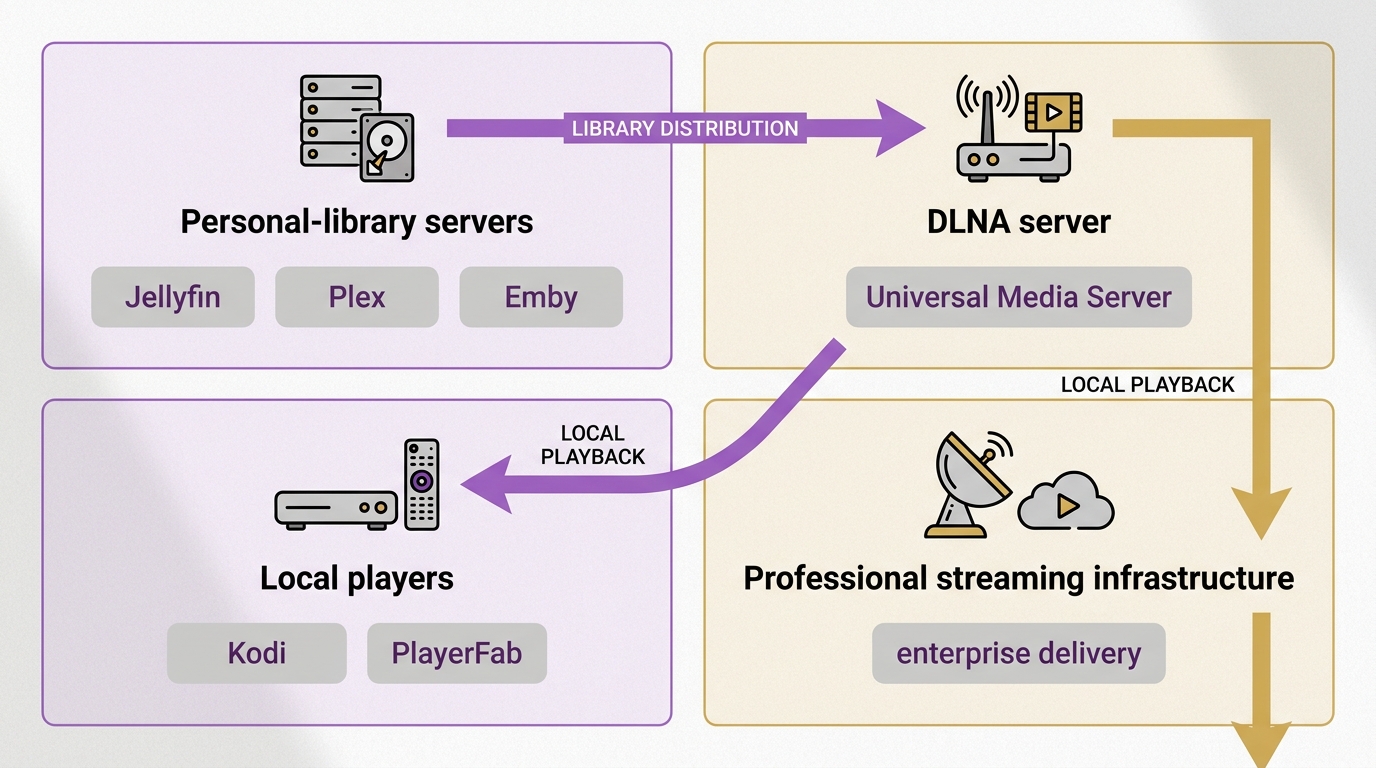
Personal-library servers organize your movies, shows, and other files, then stream them to compatible devices around the home. Plex, Jellyfin, and Emby fit this role, but they make different trade-offs around accounts, privacy, client availability, and paid features. What Kind of Media Server Do You Need? For a personal media library, defining that job first prevents the most common bad shortlist: comparing a server with a player that was never designed to distribute a library.
DLNA Servers and Local Players
DLNA servers such as Universal Media Server focus on sending files across a local network to TVs and consoles, often without a dedicated client app. Kodi and PlayerFab are local-player complements, not conventional multi-user servers: they prioritize playback on the device in front of you. Direct play means that device can decode the original file; transcoding converts it in real time when it cannot.
Professional Streaming Infrastructure
Professional media streaming servers and video server software are built for live delivery, audience scale, and production workflows. This article compares home and personal-library options instead, where the practical questions are how your files reach household devices, whether they direct play, and how much maintenance remote access requires.
Best Media Server Software for 2026
Jellyfin
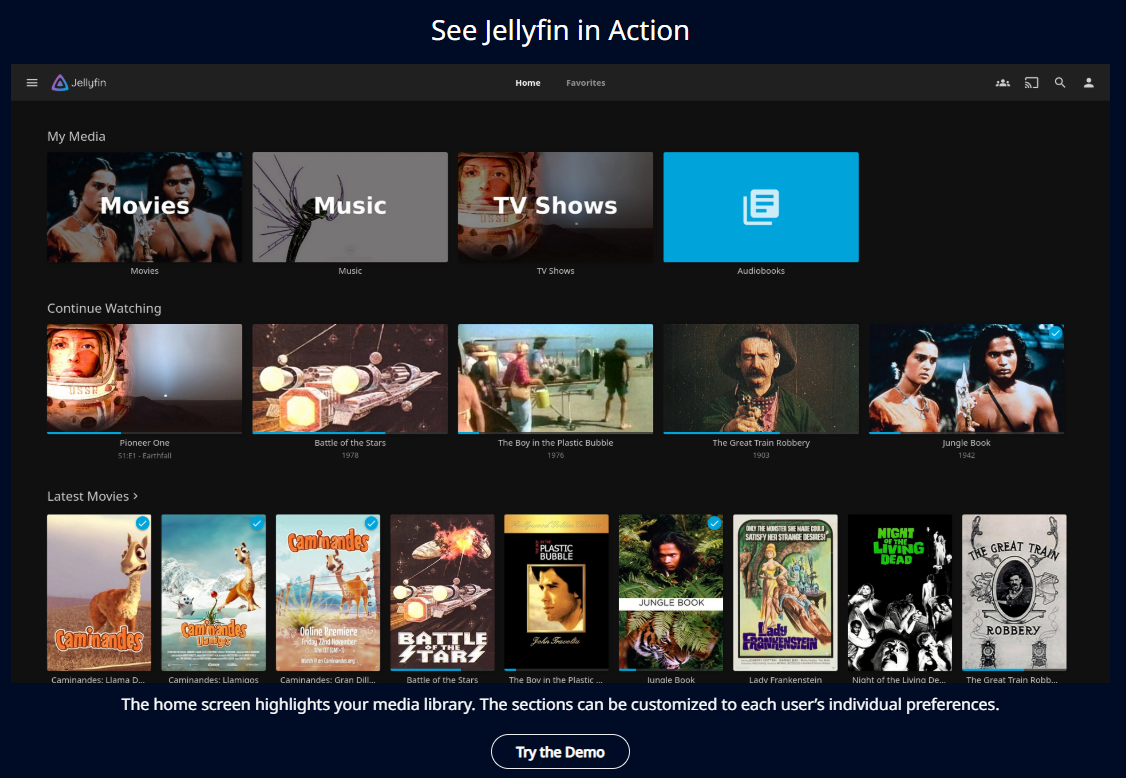
Jellyfin is an open-source media server that runs without any dependency on external servers. It started as a community fork of Emby in 2018, when Emby moved several features behind a paid tier. Since then, Jellyfin has developed its own ecosystem of client apps for Android, iOS, Apple TV, Roku, and the web. Library access works entirely on the local network, which means your media remains accessible even when your internet connection is down. For users who want a Plex-like experience without a subscription or reliance on a third-party cloud service, Jellyfin is a direct Plex alternative worth considering.
What it does well
- Completely free, including hardware transcoding with a compatible GPU or Intel Quick Sync
- No external account required; works offline on the local network
- User-level controls for bandwidth limits, transcoding caps, and content restrictions
- Native clients for Android, iOS, Roku, and Apple TV at no additional cost
- Active open-source development with a large community and frequent releases
Where it falls short
- Native Smart TV apps are limited on Samsung and LG; a Fire Stick or Chromecast typically bridges the gap
- Remote access over the internet requires manual setup, such as a VPN or reverse proxy, which adds configuration overhead
- Mobile and TV client UI is less polished than Plex, with occasional inconsistencies across platforms
Plex
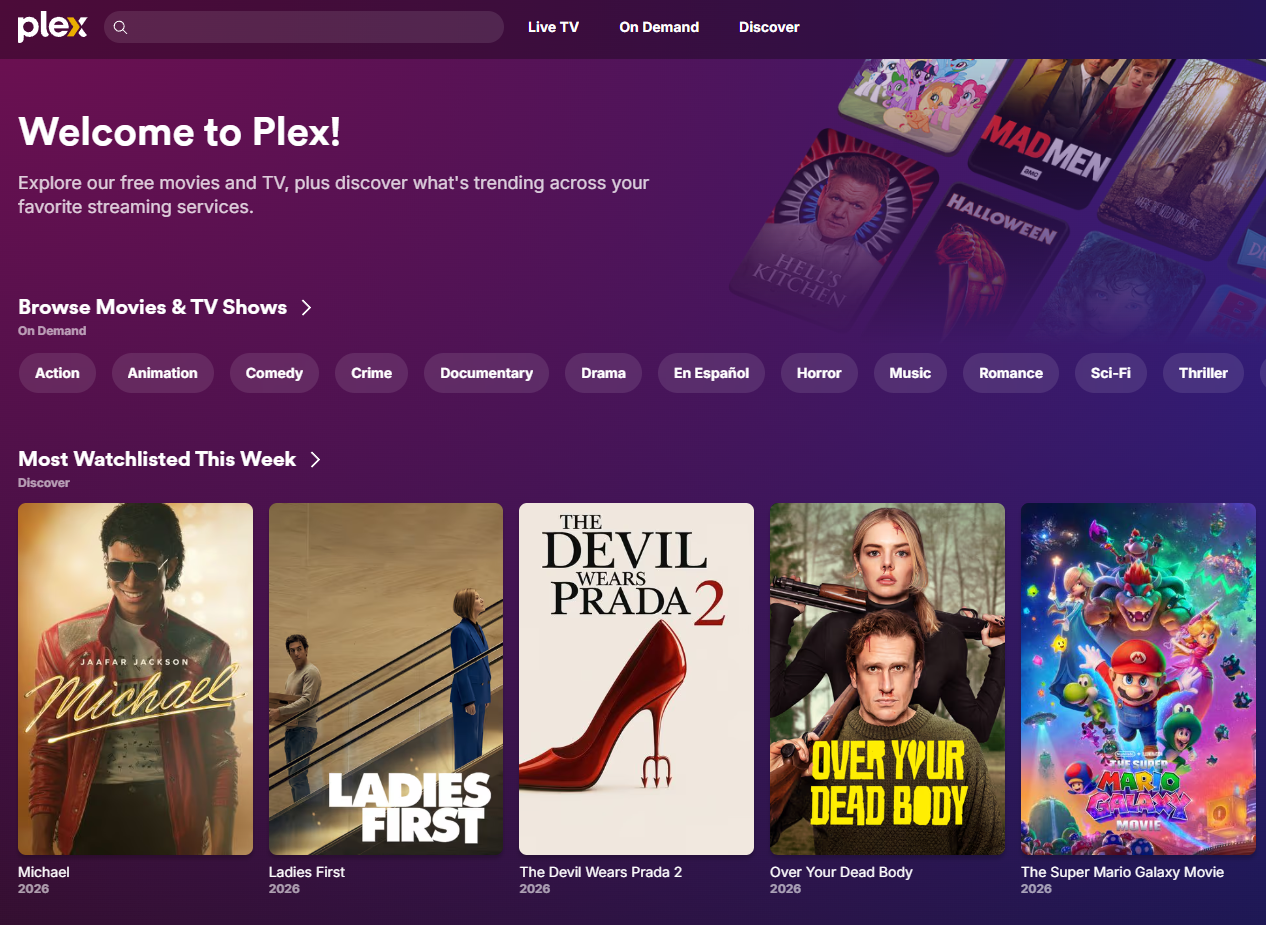
Plex is a widely used home media server with a polished interface and broad support for Smart TVs, streaming sticks, gaming consoles, and mobile apps. No sideloading is required for most mainstream devices. Plex Pass unlocks hardware transcoding, offline sync, live TV with DVR, and lyrics support. As of August 2026, Plex Pass costs $6.99 per month, $69.99 per year, or $749.99 for a lifetime license. Local-network personal-media streaming remains free, while remote personal-media streaming requires a qualifying Plex Pass or Remote Watch Pass entitlement. A qualifying Plex Pass can be held by the server administrator or viewer. For families with nontechnical viewers, its managed app ecosystem can reduce setup help, but that convenience does not remove the entitlement requirement.
What it does well
- Works natively on most Smart TVs and streaming devices without sideloading
- Clean, consistently maintained interface across all major platforms
- Free tier functional for basic local streaming without a subscription
- Strong metadata fetching and automatic library organization
Where it falls short
- Closed-source; authentication routes through Plex servers, so local playback can be affected by external service disruptions
- Hardware transcoding, offline sync, and live TV DVR require a Plex Pass subscription
- Data collection and advertising features are present in the free tier and require manual opt-out
Emby
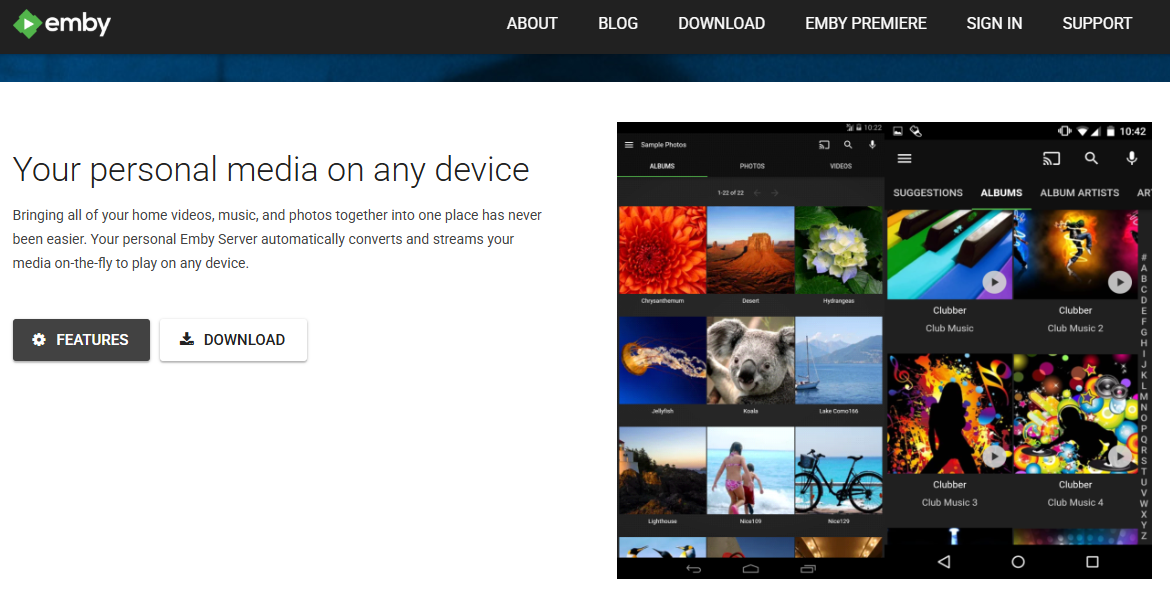
Emby began as an open-source project before transitioning to a hybrid model in 2018, when it closed parts of its codebase and introduced Emby Premiere as a paid tier. That transition is what led directly to the Jellyfin fork. Today, Emby operates as a freemium server: the core library management and local streaming features are free, while hardware transcoding, mobile sync, cloud backup integration, and server statistics require an Emby Premiere subscription. It occupies a middle position between Plex's polish and Jellyfin's full open-source model; readers weighing Emby's paid tier with Plex can use this Emby vs Plex comparison for a closer look.
What it does well
- Free core tier includes library management, local streaming, and metadata fetching
- Plugin support for IPTV, Vimeo, and other sources extends content options
- Good device coverage including Android TV, Fire TV, Roku, iOS, and Android
- Emby Premiere adds hardware transcoding and mobile sync for users who need those features
Where it falls short
- Several features that were once free are now Premiere-only following the 2018 model change
- Adds cost without a clear advantage over Jellyfin for most home setups where Premiere features are needed
- Smaller community than Jellyfin; development roadmap is commercially driven rather than community-driven
Kodi
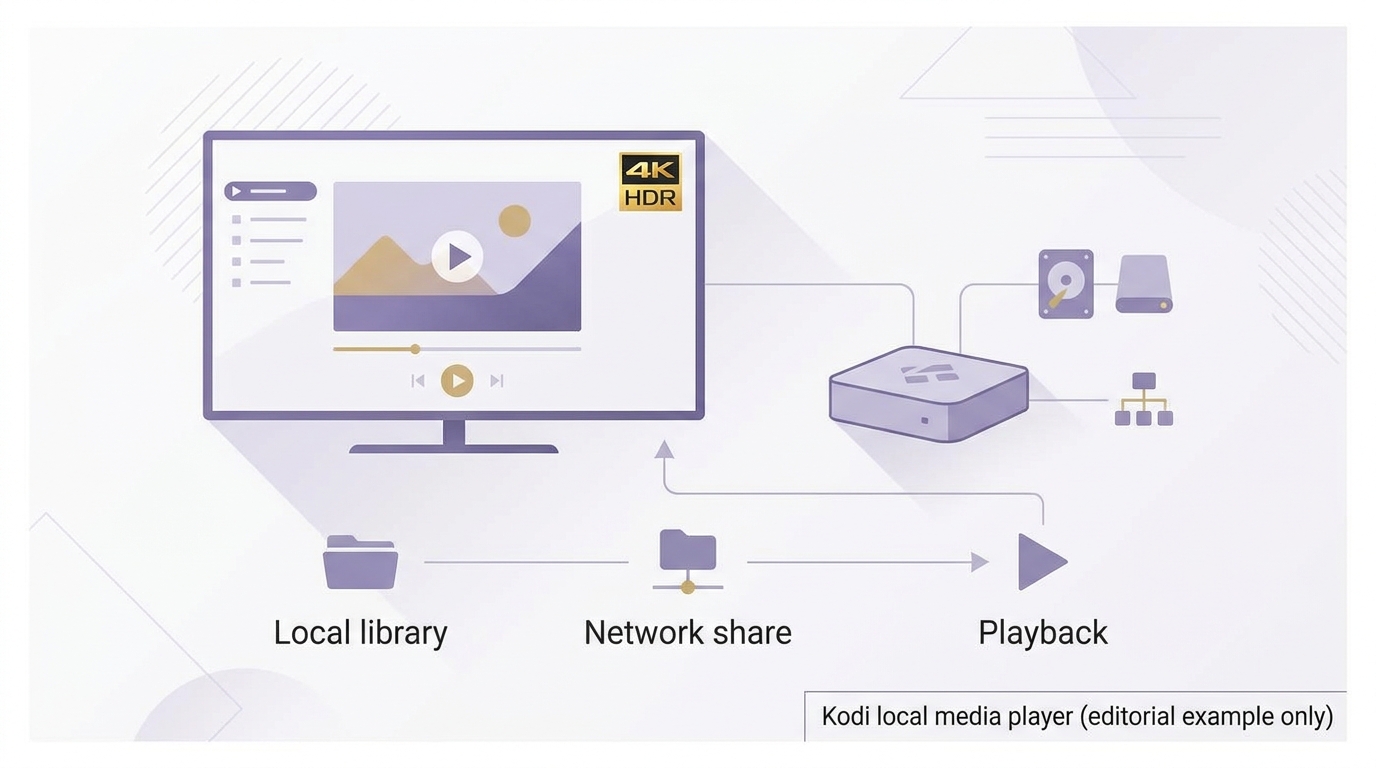
Kodi, originally called Xbox Media Center, is a local media player and library manager rather than a traditional streaming server. It runs directly on the playback device and manages media from local drives or network shares. Version 21 "Omega" is the current release, with support for 4K HDR, HDR10+, and Dolby Vision passthrough on compatible hardware. Kodi is free, open-source, and available on Windows, macOS, Android, iOS, Linux, and Raspberry Pi. The add-on ecosystem is extensive, covering metadata scrapers, live TV plugins, and streaming service integrations. It works best as a dedicated media center for a single room rather than as a server for multiple simultaneous streams.
What it does well
- Handles Blu-ray and DVD navigation menus when paired with a compatible drive
- Free and open-source with broad platform support including Raspberry Pi
- Large add-on library covering metadata sources, live TV, and network streaming
Where it falls short
- Not designed for remote streaming to multiple devices
- No built-in transcoding server; devices connecting over the network stream files directly without format conversion
- Add-on quality is inconsistent; several previously popular add-ons are no longer maintained
Universal Media Server
Universal Media Server is a DLNA-compatible media server that streams to TVs, consoles, and other devices on the local network without requiring a dedicated client app. It uses FFmpeg and MEncoder for transcoding, which gives it broad format compatibility and the ability to convert files in real time for devices that do not natively support certain containers or codecs. Setup involves pointing the application at media folders and selecting renderer profiles for connected devices. The interface is functional rather than polished, and it lacks the library management features of Plex or Jellyfin, but it is a reliable choice for straightforward local-network streaming.
What it does well
- DLNA-compatible streaming to Smart TVs and consoles without installing a dedicated app
- Automatically transcodes unsupported formats for connected devices using FFmpeg and MEncoder
- Free and open-source with Windows, macOS, and Linux support
- Lightweight enough to run on a NAS or low-power hardware
Where it falls short
- No built-in remote access outside the local network without additional configuration
- Library management is basic; no automatic metadata fetching or poster organization comparable to Plex or Jellyfin
- Mobile client support is limited compared to the other options in this guide
Media Server Software Compared at a Glance
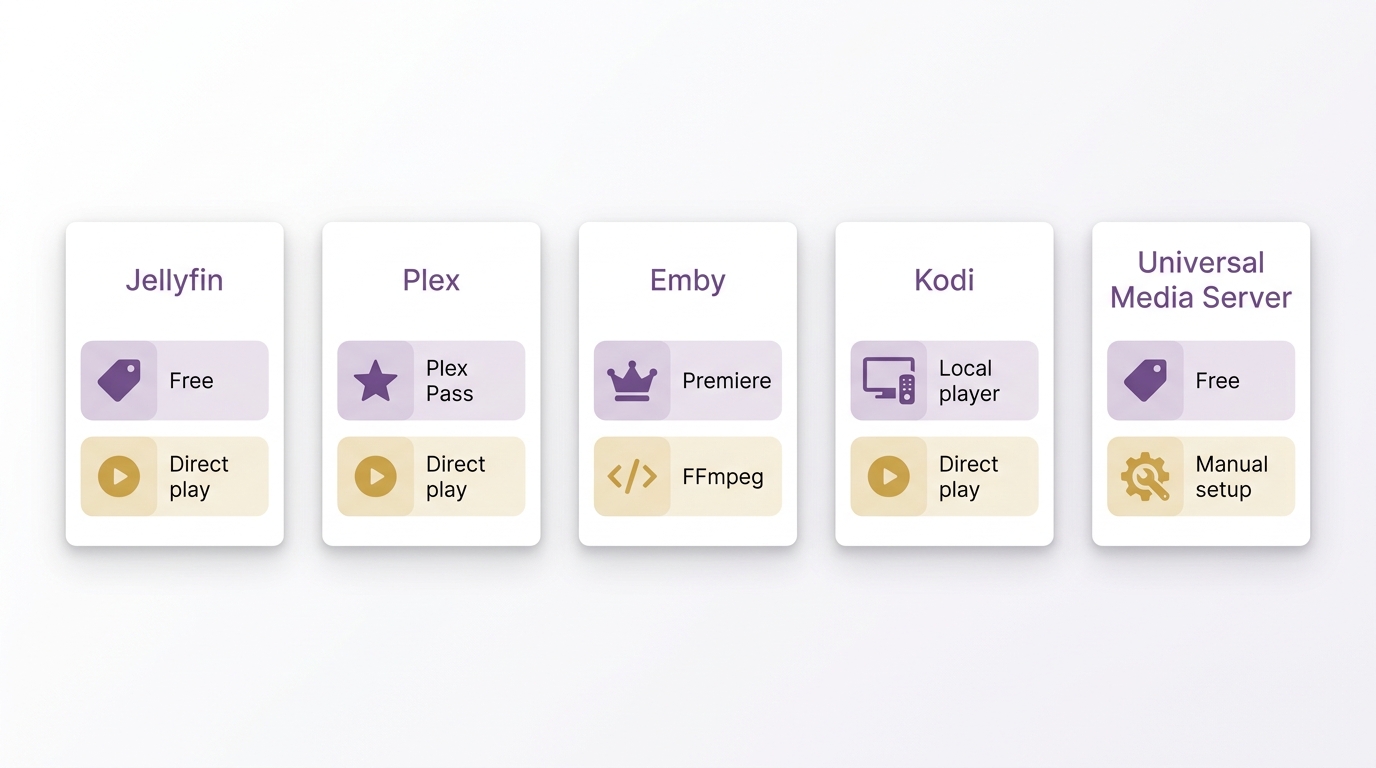
This comparison separates server roles from local playback and shows where device compatibility, paid transcoding, and remote access change the decision.
| Software and role | Cost model | Server OS | Direct play and transcoding | Remote access |
|---|---|---|---|---|
| Jellyfin, personal-library server | Free | Windows, macOS, Linux | Direct play; compatible hardware can transcode | Manual setup required |
| Plex, personal-library server | Free local streaming; paid tiers | Windows, macOS, Linux | Hardware transcoding requires Plex Pass | Paid entitlement required |
| Emby, personal-library server | Free core; Premiere subscription | Windows, macOS, Linux | Hardware transcoding requires Premiere | Built-in options available |
| Kodi, local player and library manager | Free | Windows, macOS, Linux | Direct playback; no server transcoding | Not designed for remote sharing |
| Universal Media Server, DLNA server | Free | Windows, macOS, Linux | Direct play or FFmpeg transcoding | Local network by default |
Client codec support often determines whether a stream can direct play or requires transcoding, so a 4K library does not automatically require powerful server hardware.
Set Up a Home Media Server
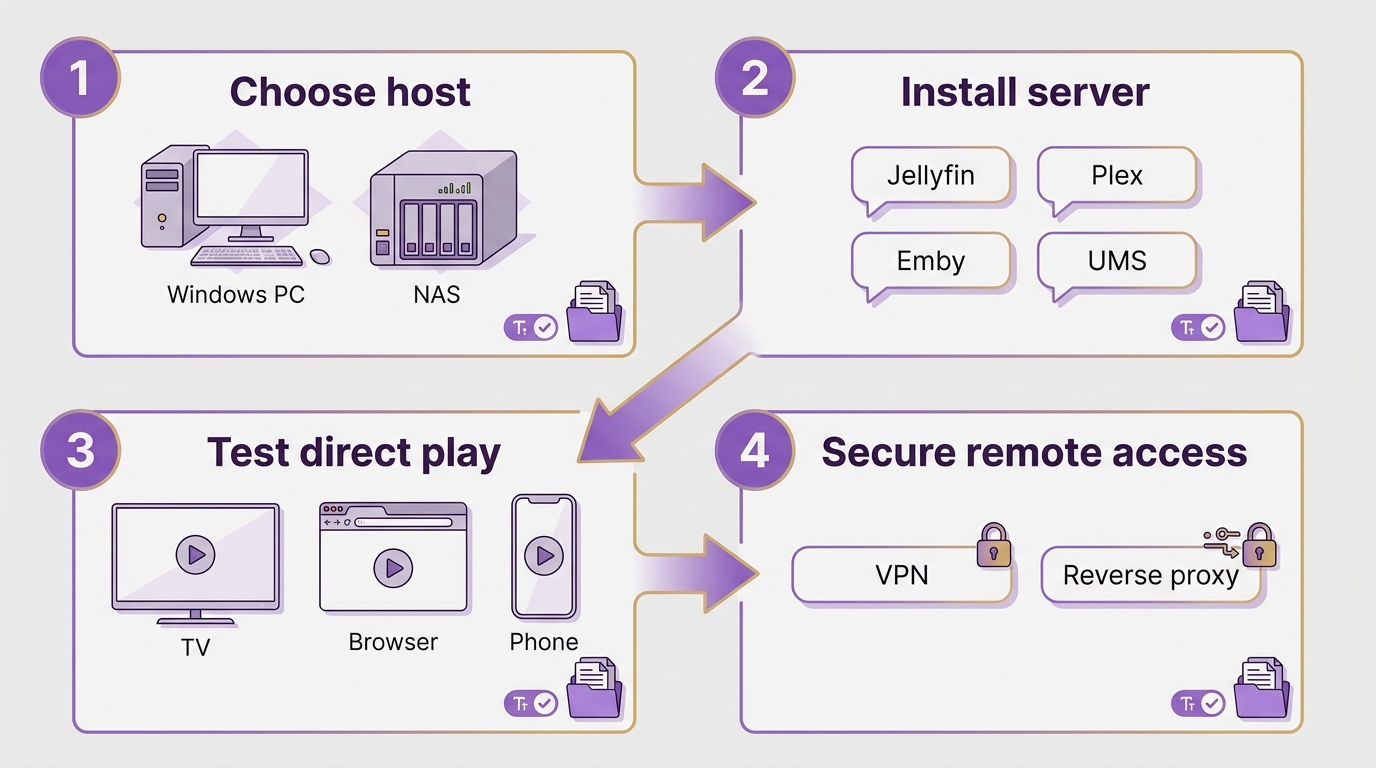
Choose Hardware and an OS
Start with the storage you need, the reliability of your home network, and the devices that will watch your library. A regular Windows PC can be a viable starter host when storage, network capacity, and client compatibility are adequate. Choose an operating system you can maintain comfortably rather than chasing a universal hardware specification.
Install Software and Add Your Library
Install one server first, point it to clearly named media folders, and let it scan the library. Check that posters, titles, and episode matches are correct before importing a larger collection. Separate folders for movies, shows, and personal videos make later maintenance easier.
Test Direct Play Before Transcoding
Try representative files on the actual TV, streaming stick, phone, or browser your household uses. Enable hardware transcoding only for devices that cannot direct play a file. In my view, client testing should come before buying more server hardware because playback compatibility often solves the apparent performance problem.
Plan Secure Remote Access
For viewing away from home, compare managed access, a VPN, and a reverse proxy by entitlement cost, network setup, and the help each viewer will need. Keep authentication enabled and install updates before exposing any service beyond your home network. Convenience and control pull in different directions, so the right choice is the one your household can maintain safely.
Local Media Player Option: PlayerFab
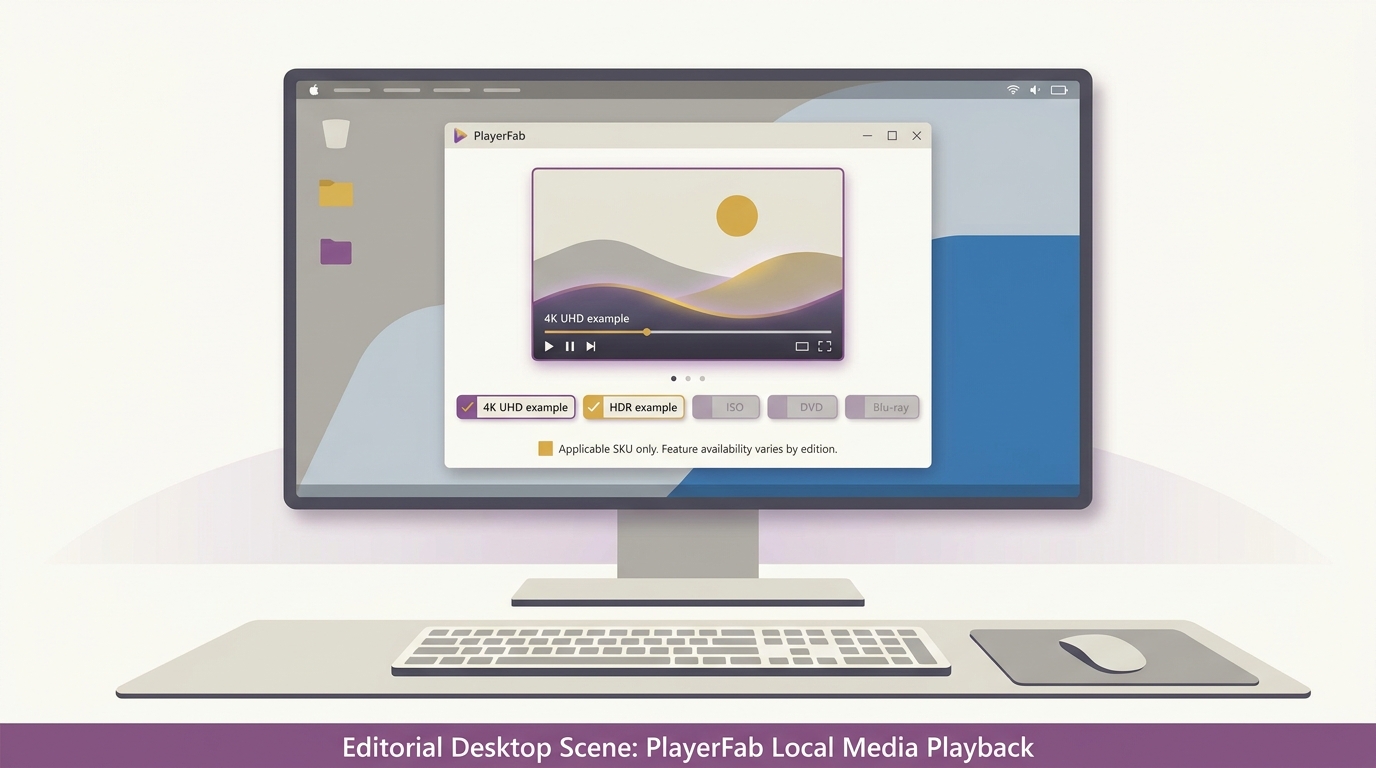
Once you have chosen a server for organizing and distributing your library, you may still want a dedicated local player for a Windows or Mac viewing station. That is a separate decision for legally owned or authorized files, ISO images, and discs when desktop playback quality and menu navigation matter more than multi-device distribution.
PlayerFab All-In-One
PlayerFab All-In-One is a Windows and macOS desktop player for legally owned or authorized files, ISO images, and DVD, Blu-ray, and 4K UHD Blu-ray discs. It supports up to 4K UHD 3840×2160 and HDR formats on compatible hardware and displays, while its role remains local playback rather than serving content to devices across a network.
Which Media Server Software Fits Your Needs
Use the client device as your first filter: the TV, streaming stick, browser, or phone that will actually play the file determines whether you need direct play or transcoding. If you are choosing a media player for TV, check its codec and subtitle support before assuming the server needs a stronger CPU or GPU.
If you want the easiest path to a working setup: Plex suits households that value polished client apps and less viewer-side troubleshooting. It is not ideal if you want remote viewing without a paid entitlement. Local streaming remains free, while hardware transcoding and qualifying remote personal-media access sit behind paid options.
If you want an account-free personal-library server: Jellyfin is a strong fit when local control and no subscription matter more than a polished setup experience. It is less ideal for users who need simple remote onboarding or native support on every TV platform. Hardware transcoding can be available with compatible hardware, but direct play is still the lower-maintenance outcome.
If you need a local living-room player or straightforward DLNA streaming: Kodi fits a single-room setup where the playback device handles files directly. Universal Media Server is more suitable when TVs or consoles need local-network DLNA access. Neither is the most natural choice for a household expecting a managed, multi-user remote library.
If you need desktop disc or ISO playback after choosing a server: PlayerFab Ultra HD Player is a complement for legally owned or authorized media on Windows or macOS, not a replacement for Jellyfin, Plex, or another server. For remote viewing, compare who pays, what network setup is required, and how much help nontechnical family members will need. My rule of thumb is that managed access favors convenience, while VPN and reverse-proxy approaches offer more control but require more maintenance.
Frequently Asked Questions
Can media server software work without an internet connection?
Which media server software supports 4K HDR content?
Can I run media server software on a Raspberry Pi or NAS device?
What happened to DVDFab Movie Server?
DVDFab Movie Server hardware is no longer sold, and no further SDK updates are planned. For a current home media server, choose actively maintained software such as Plex, Jellyfin, Emby, or Universal Media Server. PlayerFab remains a local playback complement for legally owned or authorized discs and ISO images, rather than a server replacement.
Can media server software organize home videos and custom clips?
Yes, but many popular servers are optimized for movie and TV metadata. For a personal media library of home videos or custom clips, compare folder views, custom collections, tags, thumbnails, and manual metadata controls before committing to a platform.
Does remote viewing require opening a router port?
Not always. The requirement depends on the platform and network design: managed access, a VPN, and a reverse proxy each have different setup and maintenance demands. Whichever approach you choose, use authentication and keep the server updated before allowing access outside your home network.
Final Thoughts
Media server software works best when you choose it around the devices that will play your library, then decide whether direct play, transcoding, and remote access justify the added cost and maintenance. Jellyfin suits privacy-focused local control, Plex suits households that value managed client apps, Emby serves users comfortable with its paid tier, and Universal Media Server fits basic DLNA needs. Kodi and PlayerFab serve a different final step: local playback, with PlayerFab focused on legally owned or authorized disc and ISO viewing on a desktop system.

 6 Best MPEG Players for Windows and Mac (2026)By Alice Harper - Aug 26, 2026
 How to Play Blu-ray Discs on Windows 10 (Free & Pro Solutions)By Alice Harper - Aug 7, 2026
 10 Best 4K Video Players for PC and Mac, Tested in 2026By Alice Harper - Aug 4, 2026
 The 5 Best Free MOV Players in 2026 (Windows, Mac and Android), plus How to FixBy Alice Harper - Aug 4, 2026